> For the complete documentation index, see [llms.txt](https://support.senterasensors.com/home/llms.txt). Markdown versions of documentation pages are available by appending `.md` to page URLs; this page is available as [Markdown](https://support.senterasensors.com/home/6x-series-sensors-user-guide/6x-series-sensors/firmware-update/how-to-update.md).
# How To Update
6X Series Sensors Firmware Update Instructions
## Download Firmware Update File
{% content-ref url="/pages/dtBFgdttQW8MEn3XAXtp" %}
[Latest Version](/home/6x-series-sensors-user-guide/6x-series-sensors/firmware-update/latest-version.md)
{% endcontent-ref %}
## Before You Start
{% hint style="warning" %}
Data will be deleted during the firmware upgrade process. Make sure to copy the data off your sensor before performing the update.
{% endhint %}
{% hint style="info" %}
This Process works on Windows or Mac.
{% endhint %}
## Power On Sensor
Power the 6X using the AC adapter or keep it attached to the aircraft and turn the aircraft on.
{% hint style="info" %}
When using the AC power supply, connect the cable to the 6X first, then connect the adapter to the outlet.
{% endhint %}
Then wait for the LEDS on the sensor to do the following:
| Power Method | LED Behavior |
| ---------------- | ------------------------------------------------------------------------------- |
| AC Power Adapter | Flashing Red |
| Drone Power |
Solid Green (Requires GPS Fix)
Solid Red (After 2 minutes w/o GPS)
|
This verifies that the sensor is fully booted.
## Connect Sensor to Computer
Connect the sensor to the computer using a USB cable.
{% hint style="info" %}
Use the USB-C port on the sensor not the USB-C port on the top of the gimbal.
{% endhint %}
{% hint style="warning" %}
Use the [USB-C Cable provided with the 6X](https://sentera.gitbook.io/6x-multispectral-sensor-user-guide/6x-series-sensors/whats-in-the-box/replacement-cables). This cable gives the best and most reliable performance.
{% endhint %}
## Verify Connection
Open your wifi/network panel from the task bar. Verify that you see "unidentified network - No internet". This is the 6X appearing as a network device.
## Open Sensor Webpage
In a web browser (no internet required) type 192.168.42.1 into the address bar and press enter.
{% content-ref url="/pages/0bbZSnceWc7yVqvuz8Hz" %}
[How To Access Web Page User Interface](/home/6x-series-sensors-user-guide/6x-series-sensors/configuration-and-settings/how-to-access-web-page-user-interface.md)
{% endcontent-ref %}
{% hint style="info" %}
If the sensor is being powered by the AC adapter the screen will appear red with a warning message.
{% endhint %}
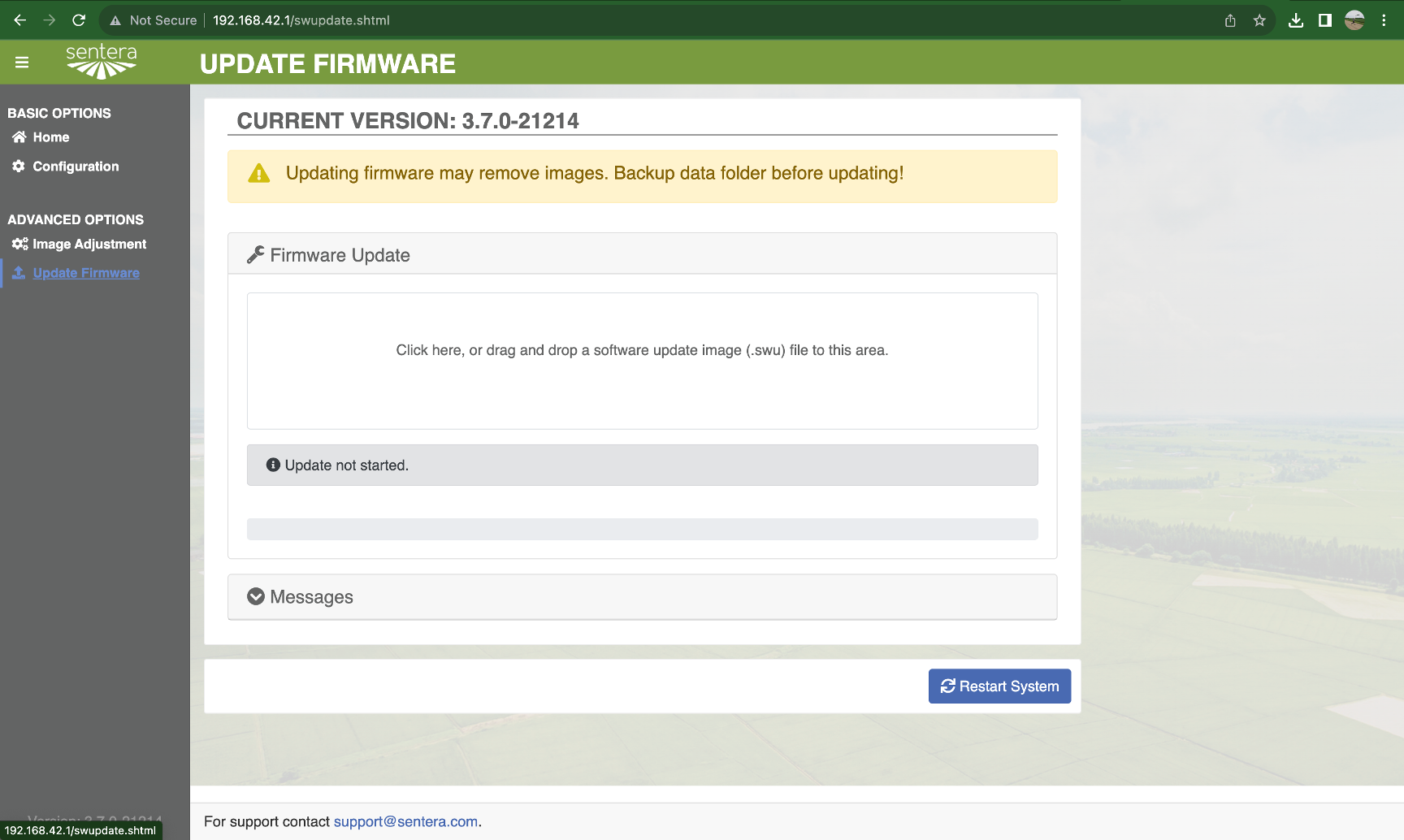
## Select Update Firmware
## Apply Firmware File
## Allow Update to Execute
The software update process begins and may take several minutes. Do not turn off the power or disconnect the cable during this process. It may reboot several times during the process.
## Allow Sensor to Self-Reboot
## Complete
Once complete, the web page will refresh. You can check the firmware version after the web page refreshes by checking the 'Current Version' at the top of the update page, or the version in the lower left of the web page menu bar.
---
# Agent Instructions
This documentation is published with GitBook. GitBook is the documentation platform designed so that both humans and AI agents can read, navigate, and reason over technical content effectively. Learn more at gitbook.com.
## Querying This Documentation
If you need additional information that is not directly available in this page, you can query the documentation by asking a question.
Perform an HTTP GET request on the following URL with the `ask` and `goal` query parameters:
```
GET https://support.senterasensors.com/home/6x-series-sensors-user-guide/6x-series-sensors/firmware-update/how-to-update.md?ask=&goal=
```
`ask` is the immediate question: it should be specific, self-contained, and written in natural language.
`goal` is what the user is ultimately trying to achieve, the reason they need the answer. Sharing it helps GitBook give you a better, more relevant answer. A goal is most helpful when it describes the outcome the user wants rather than restating the question. For example, with `ask=how do I create an API token`, a goal like `automate deployments from our CI pipeline` lets GitBook tailor the answer to that use case.
The response will contain a direct answer to the question and relevant excerpts and sources from the documentation.
Use this mechanism when the answer is not explicitly present in the current page, you need clarification or additional context, or you want to retrieve related documentation sections.