> For the complete documentation index, see [llms.txt](https://support.senterasensors.com/home/llms.txt). Markdown versions of documentation pages are available by appending `.md` to page URLs; this page is available as [Markdown](https://support.senterasensors.com/home/6x-series-sensors-user-guide/6x-series-sensors/installation/freefly/freefly-aircraft-settings.md).
# Freefly Aircraft Settings
## Information
For proper functionality of 6X Series sensors with Freefly aircraft a single parameter needs to be set on the aircraft via the hand controller.
## Before You Begin
{% stepper %}
{% step %}
### Verify Sentera Camera Firmware Is Up to Date
{% content-ref url="/pages/G17lW7qJHWdbfDzVonnv" %}
[Firmware Update](/home/6x-series-sensors-user-guide/6x-series-sensors/firmware-update.md)
{% endcontent-ref %}
{% endstep %}
{% step %}
### Verify Aircraft Firmware Is Up to Date
{% endstep %}
{% endstepper %}
## Parameter Setup Instructions
One parameter change from the default Freefly settings is required for proper functionality of the 6X Series Sensors.
{% hint style="warning" %}
Firmware Updates for the Freefly Aircraft will reset this parameter change. After each update from Freefly, the parameter change must be peformed again.
{% endhint %}
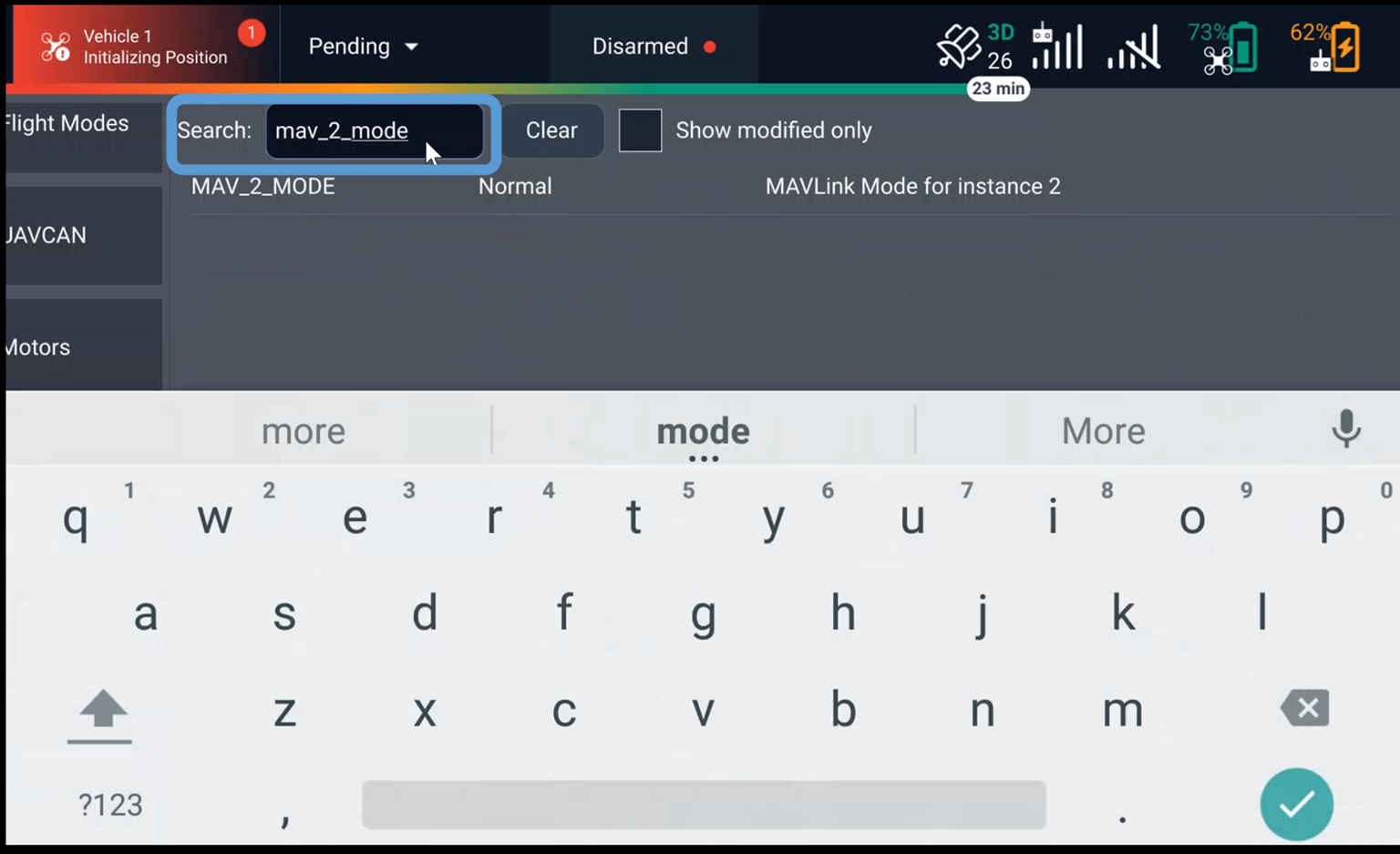
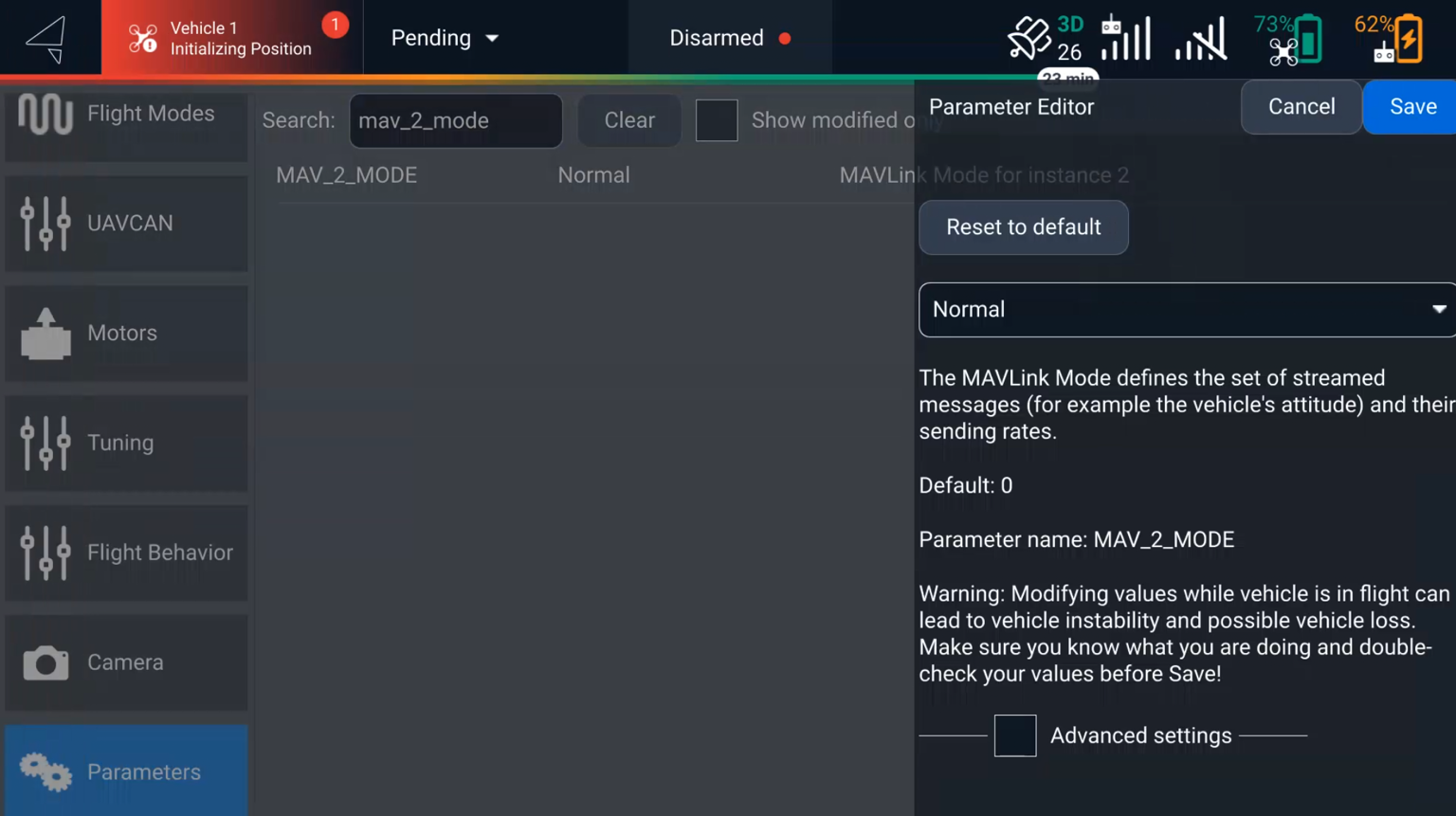
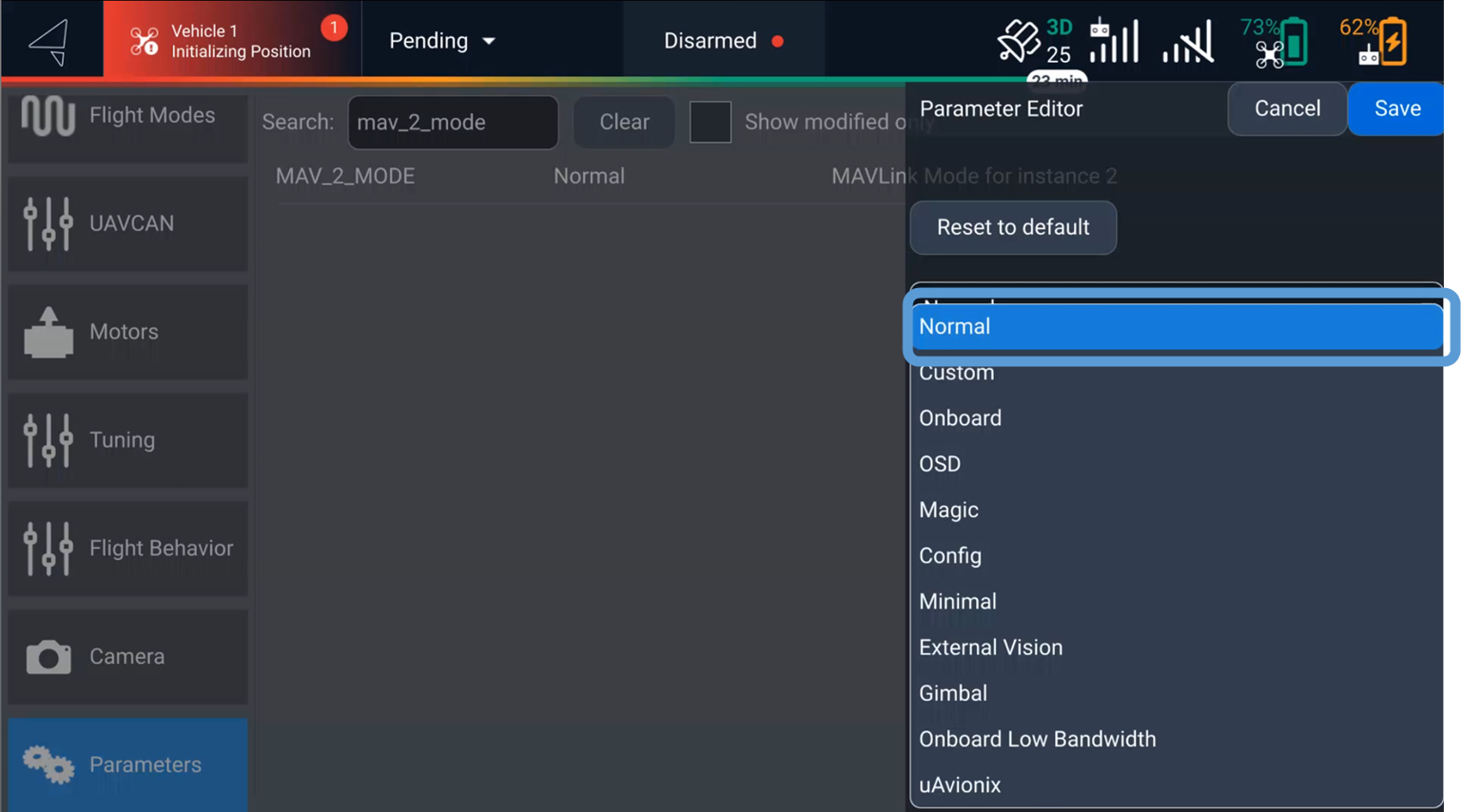
This Parameter is called MAV\_2\_MODE. The default value is GIMBAL and needs to be changed to NORMAL. This allows the aircraft to send information to the Sentera required for imagery metadata.
| Parameter | Default Value | Sentera Value |
| ------------ | ------------------------------------------ | ------------------------------------------- |
| MAV\_2\_MODE | GIMBAL | NORMAL |
{% hint style="info" %}
If your aircraft is in a BLUE configuration you will need the password for your aircraft provided by Freefly to complete these steps.
{% endhint %}
{% stepper %}
{% step %}
### Power On the Aircraft and Hand Controller
Power the aircraft and hand controller on.
{% endstep %}
{% step %}
### Open AMC
Open AMC and verify the aircraft and hand controller are connected to each other.
{% endstep %}
{% step %}
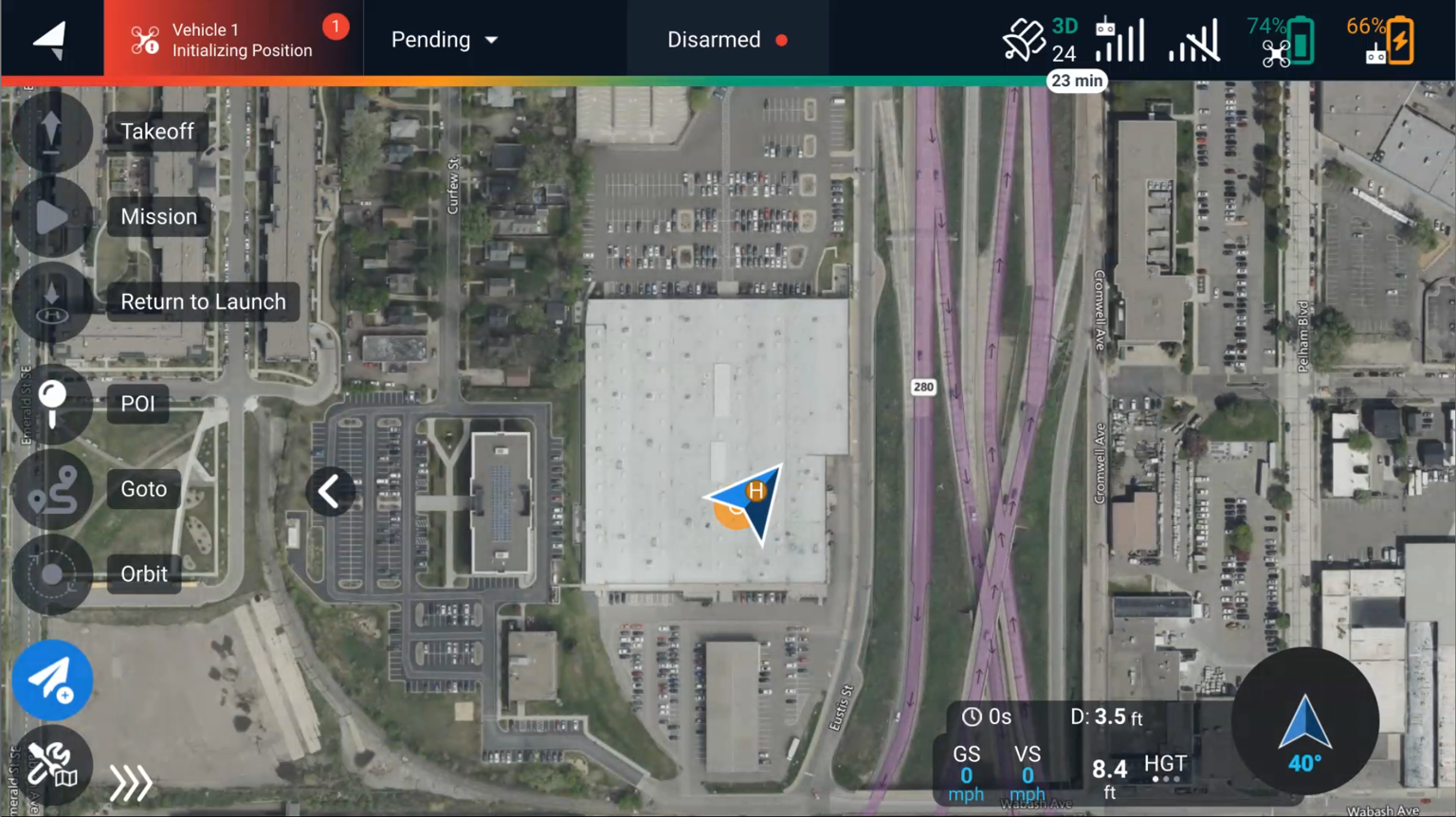
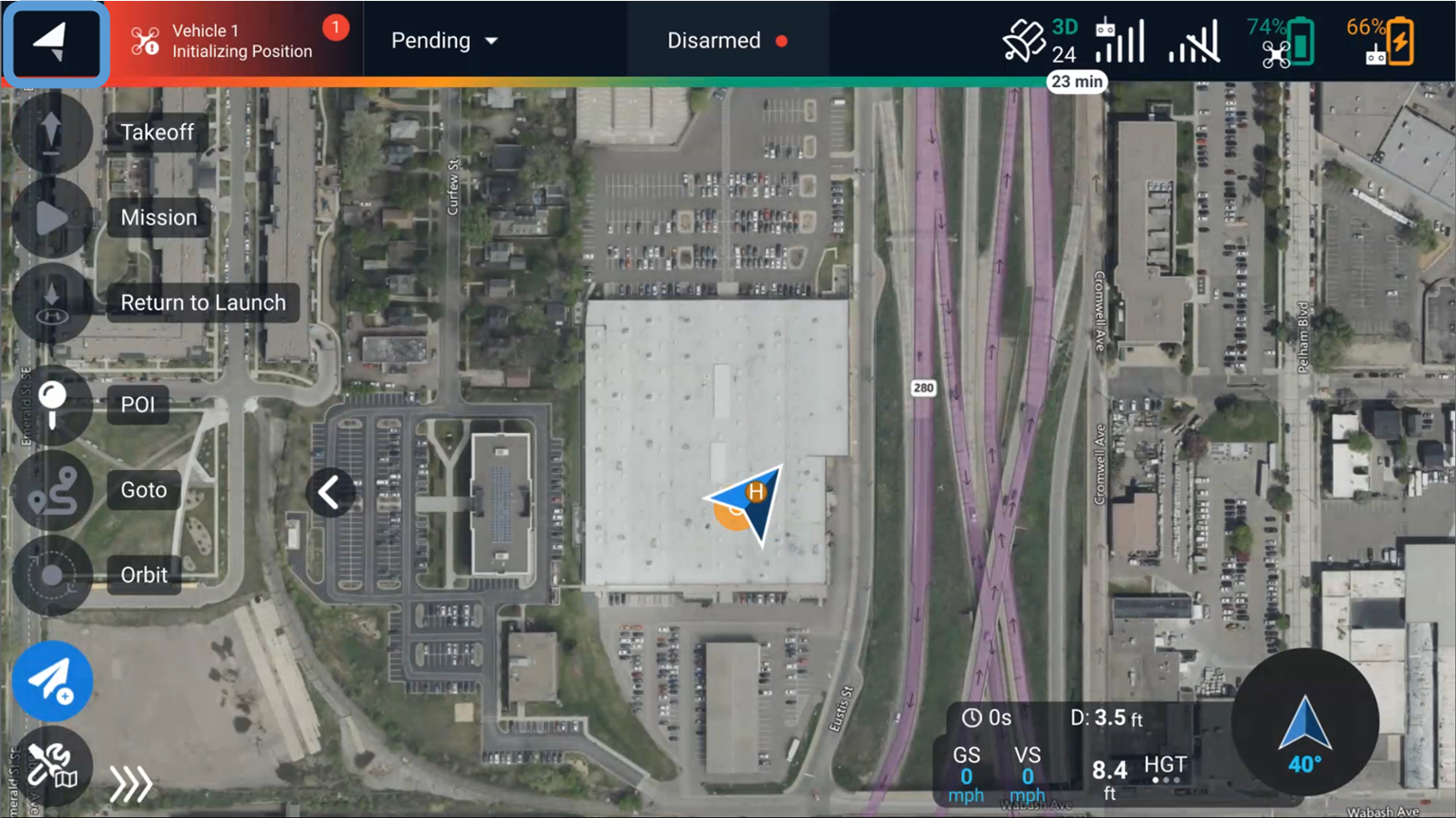
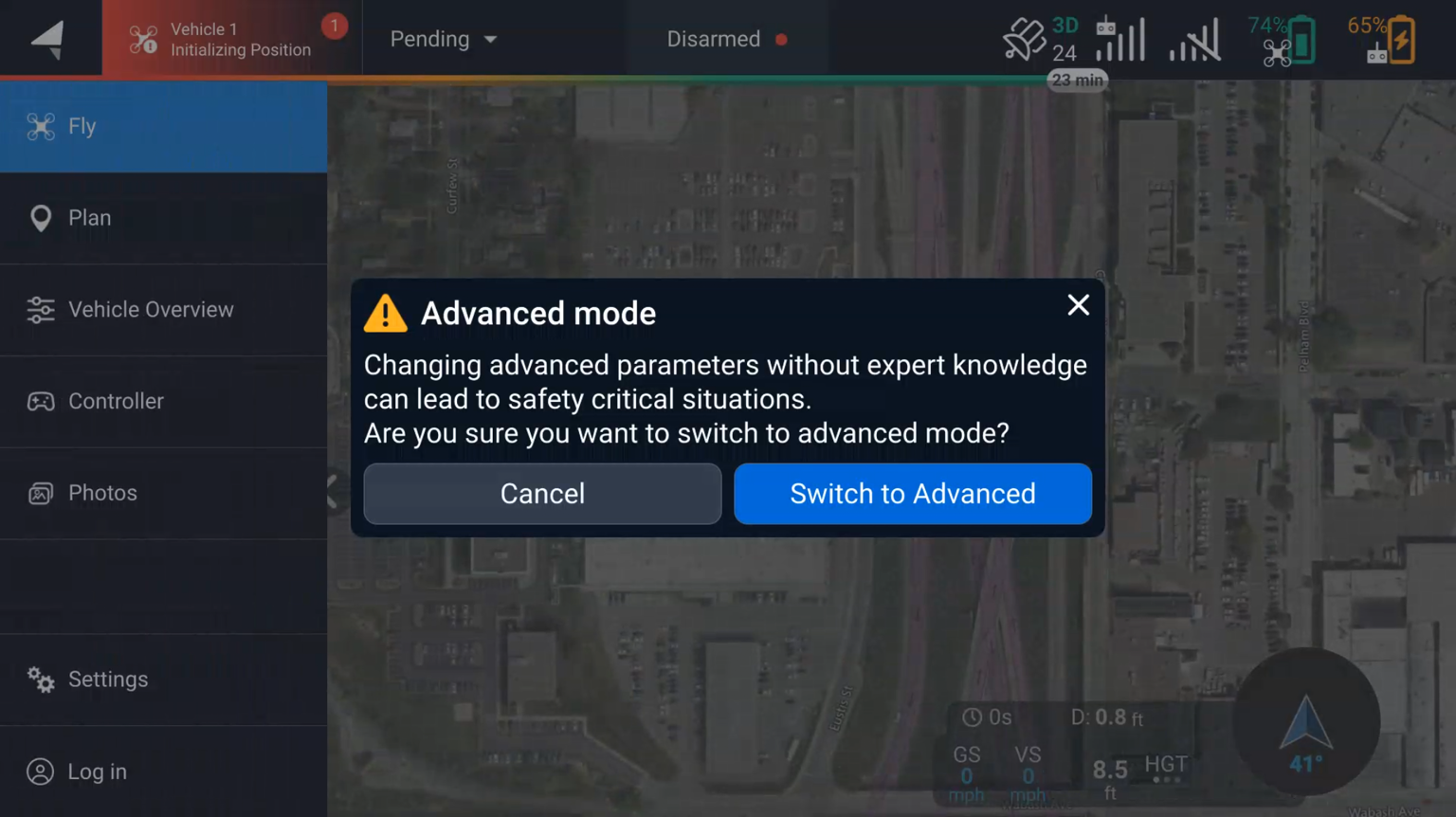
### Enter Advanced Mode
Repeatedly tap the Auterion logo in the upper left hand corner until the advanced mode pop up appears. Select Switch to Advanced.
{% endstep %}
{% step %}
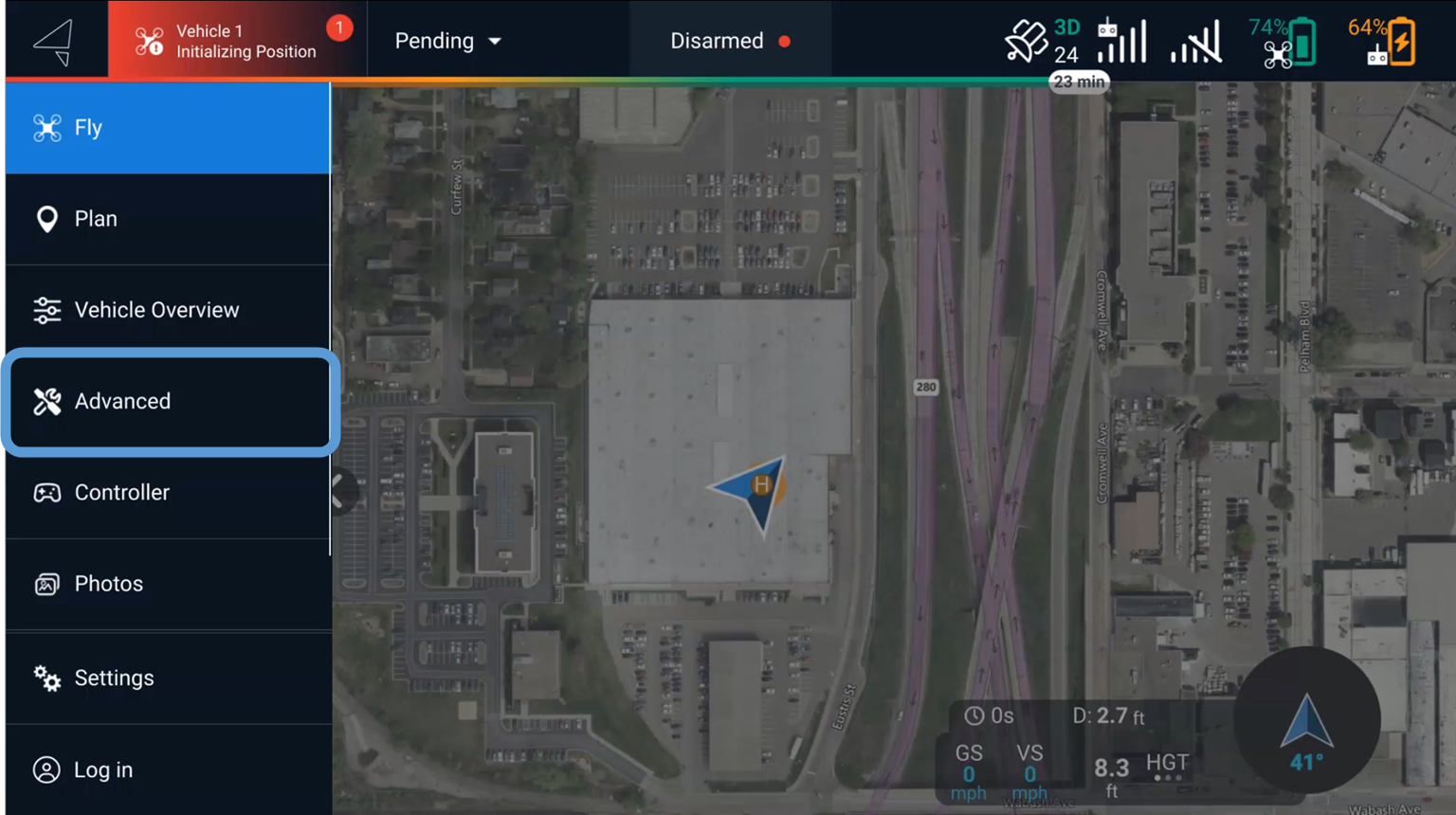
### Open the Advanced Menu
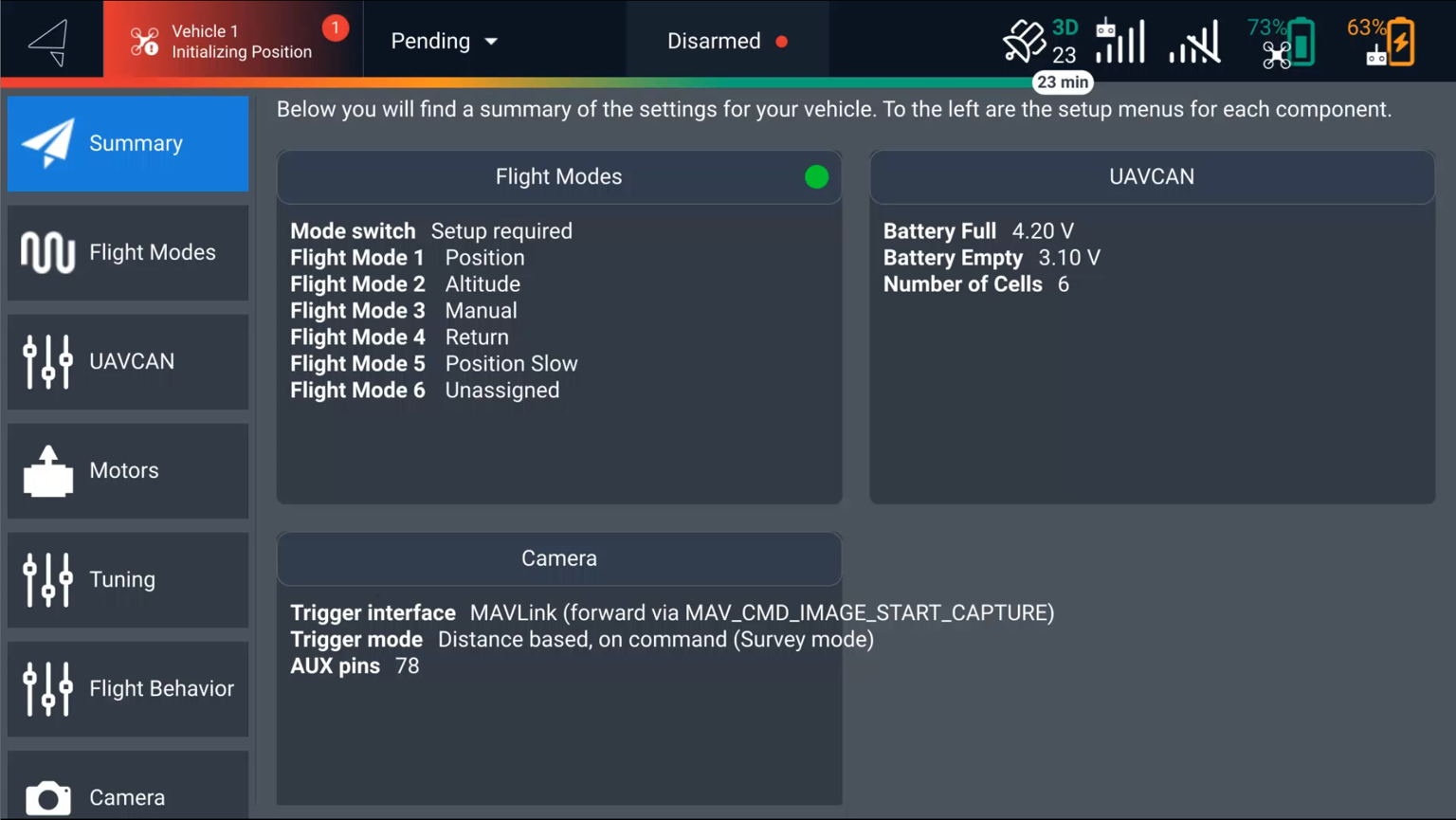
Press the Auterion Logo in the upper left hand corner to open the menu, then select the Advanced tab.
{% endstep %}
{% step %}
### Open Parameter Menu
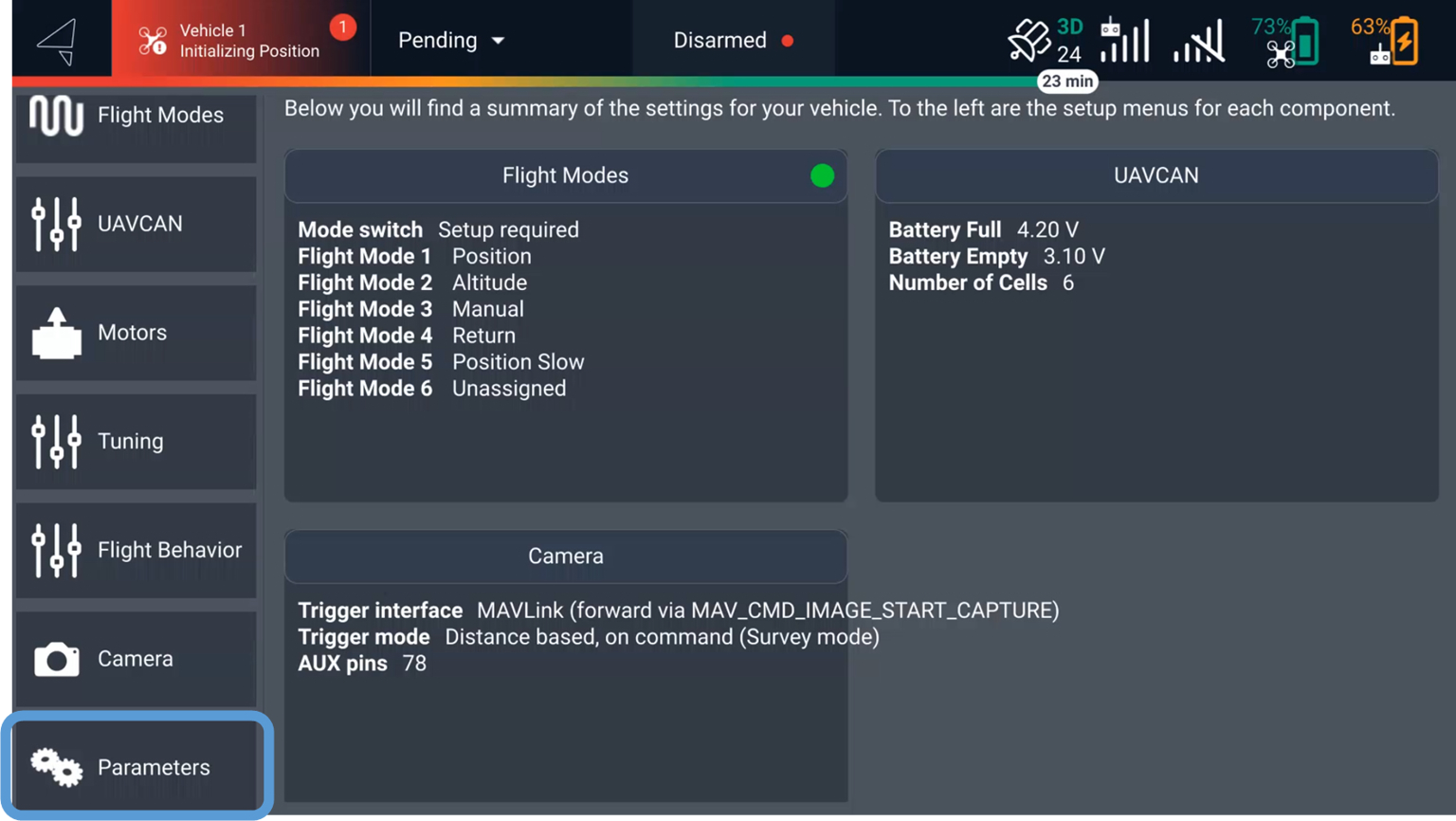
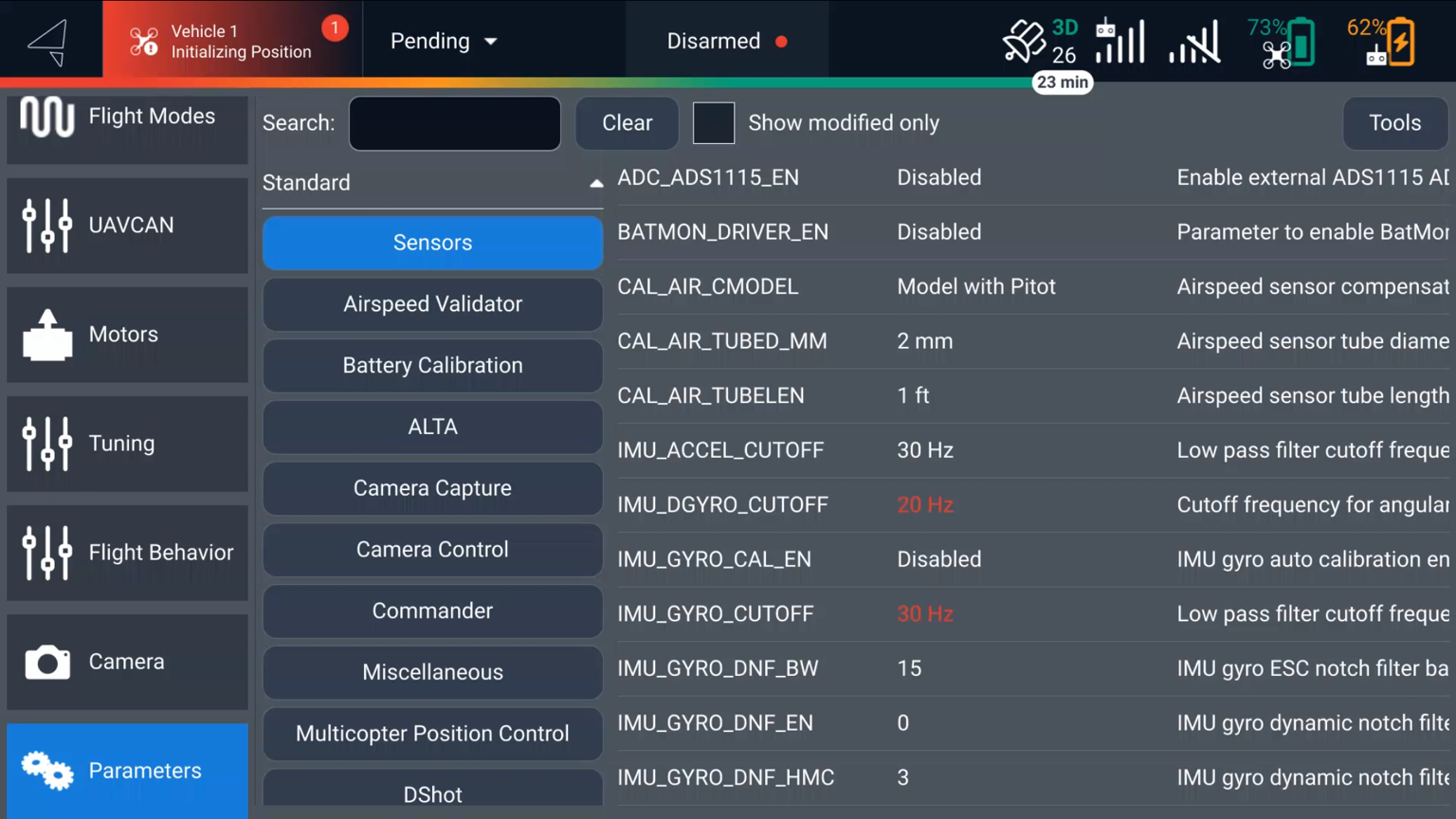
Scroll down in the left hand menu and select Parameters.
{% endstep %}
{% step %}
### Serach for MAV\_2\_MODE
In the search bar at the top of the menu search for "MAV\_2\_MODE".
{% endstep %}
{% step %}
### Change from GIMBAL to NORMAL
Tap on the parameter and a menu will appear on the right hand side of the screen. In the drop down menu select Normal and press Save.
{% endstep %}
{% step %}
### Power Off Aircraft
To apply the changes the aircraft needs to be rebooted. Power the aircraft off.
{% endstep %}
{% step %}
### Install Sensor and Power On Aircraft
Install the 6X Sensor and power the aircraft & hand controller on.
{% content-ref url="/pages/hdbMrXLQxb3GklHYEUcb" %}
[Alta X Gen2](/home/6x-series-sensors-user-guide/6x-series-sensors/installation/freefly/alta-x-gen2.md)
{% endcontent-ref %}
{% content-ref url="/pages/DjC3SeUtdQqUCp4TQOcb" %}
[Astro](/home/6x-series-sensors-user-guide/6x-series-sensors/installation/freefly/astro.md)
{% endcontent-ref %}
{% endstep %}
{% step %}
### Disable Advanced Mode
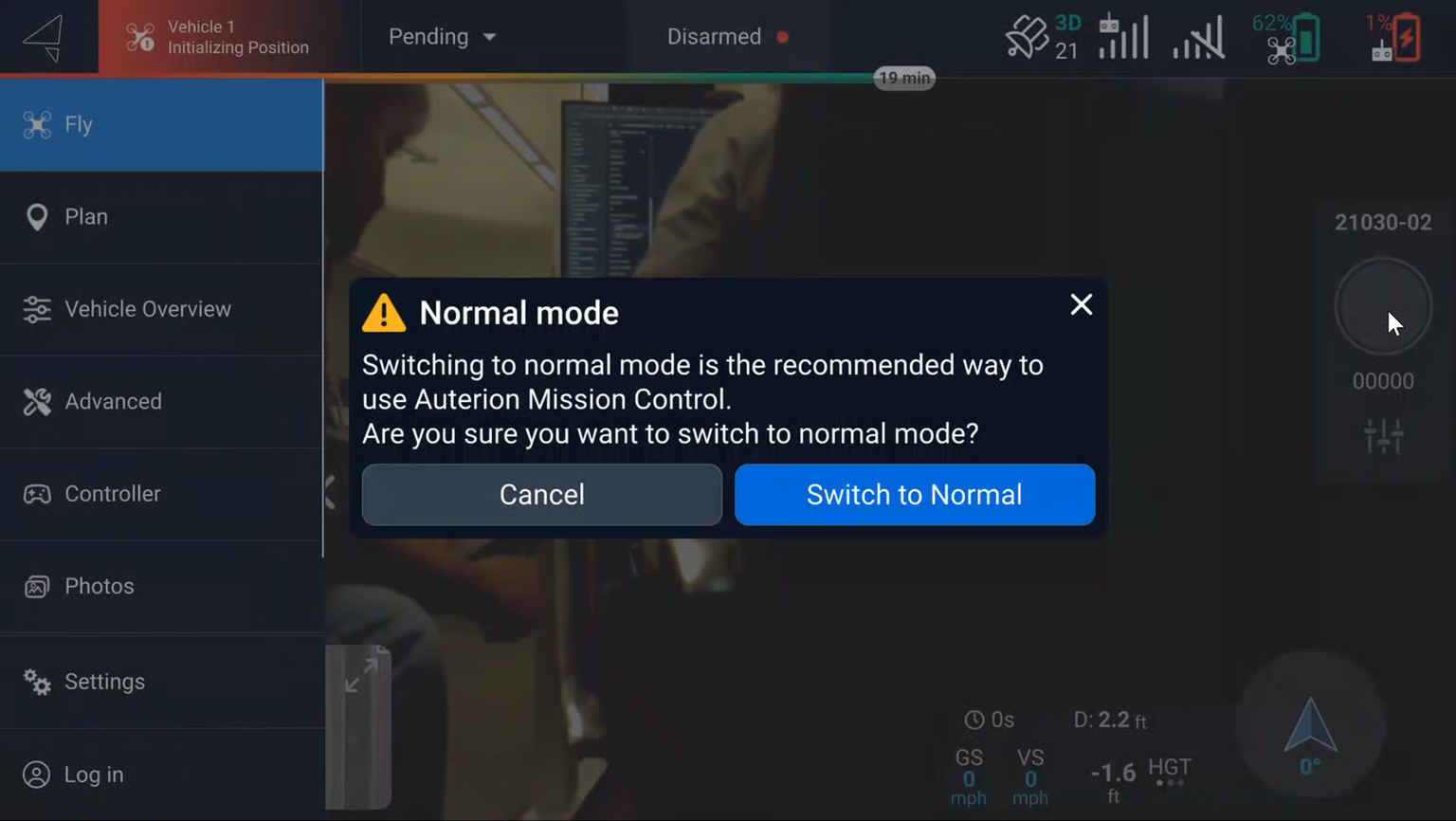
Repeatedly tap the Auterion logo in the upper left hand corner until the Normal mode pop up appears. Select Switch to Normal.
Or restart app/hand controller to switch back to normal mode.
{% endstep %}
{% step %}
### Verify Functionality
Allow the aircraft and sensor to fully boot. Once the aircraft has achieved a 3D satellite fix the sensor will start a session and the light on the sensor will turn green.
{% hint style="warning" %}
The aircraft may need to be taken outside to obtain a GPS fix depending on your environment.
{% endhint %}
Other functionalities that can be checked:
* **Gimbal Steering:** Use the rocker wheel on the left side of the controller to change the pitch angle of the gimbal
* **Camera Triggering:** Use the physical image capture button to test the image capture. The lights on the camera will flash white. This can also be done with the on screen button in the video window.
{% hint style="danger" %}
The 6X does not support live video. The video window still hosts the camera interface menus.
{% endhint %}
{% endstep %}
{% endstepper %}
---
# Agent Instructions
This documentation is published with GitBook. GitBook is the documentation platform designed so that both humans and AI agents can read, navigate, and reason over technical content effectively. Learn more at gitbook.com.
## Querying This Documentation
If you need additional information that is not directly available in this page, you can query the documentation dynamically by asking a question.
Perform an HTTP GET request on the current page URL with the `ask` query parameter, and the optional `goal` query parameter:
```
GET https://support.senterasensors.com/home/6x-series-sensors-user-guide/6x-series-sensors/installation/freefly/freefly-aircraft-settings.md?ask=&goal=
```
`ask` is the immediate question: it should be specific, self-contained, and written in natural language.
`goal` is optional and describes the broader end goal you are ultimately trying to accomplish on behalf of the user. GitBook uses it to tailor the answer towards what is most useful for that goal.
The response will contain a direct answer to the question and relevant excerpts and sources from the documentation.
Use this mechanism when the answer is not explicitly present in the current page, you need clarification or additional context, or you want to retrieve related documentation sections.
.jpeg?alt=media&token=ddd63db3-c61b-4df4-8257-4e00fddc714e)