> For the complete documentation index, see [llms.txt](https://support.senterasensors.com/home/llms.txt). Markdown versions of documentation pages are available by appending `.md` to page URLs; this page is available as [Markdown](https://support.senterasensors.com/home/6x-series-sensors-user-guide/6x-series-sensors/operation/standard-operating-procedure/stand-alone-mode-external-gps.md).
# Stand Alone Mode (External GPS)
6X Series Sensors Standard Operating Procedure - Auto-Height Overlap
## General Instructions
1. Assemble aircraft.
2. Install 6X & Light Sensor/GPS.
3. Power aircraft
4. Verify a session has started.
5. Verify overlap settings on 6X via webpage user interface.
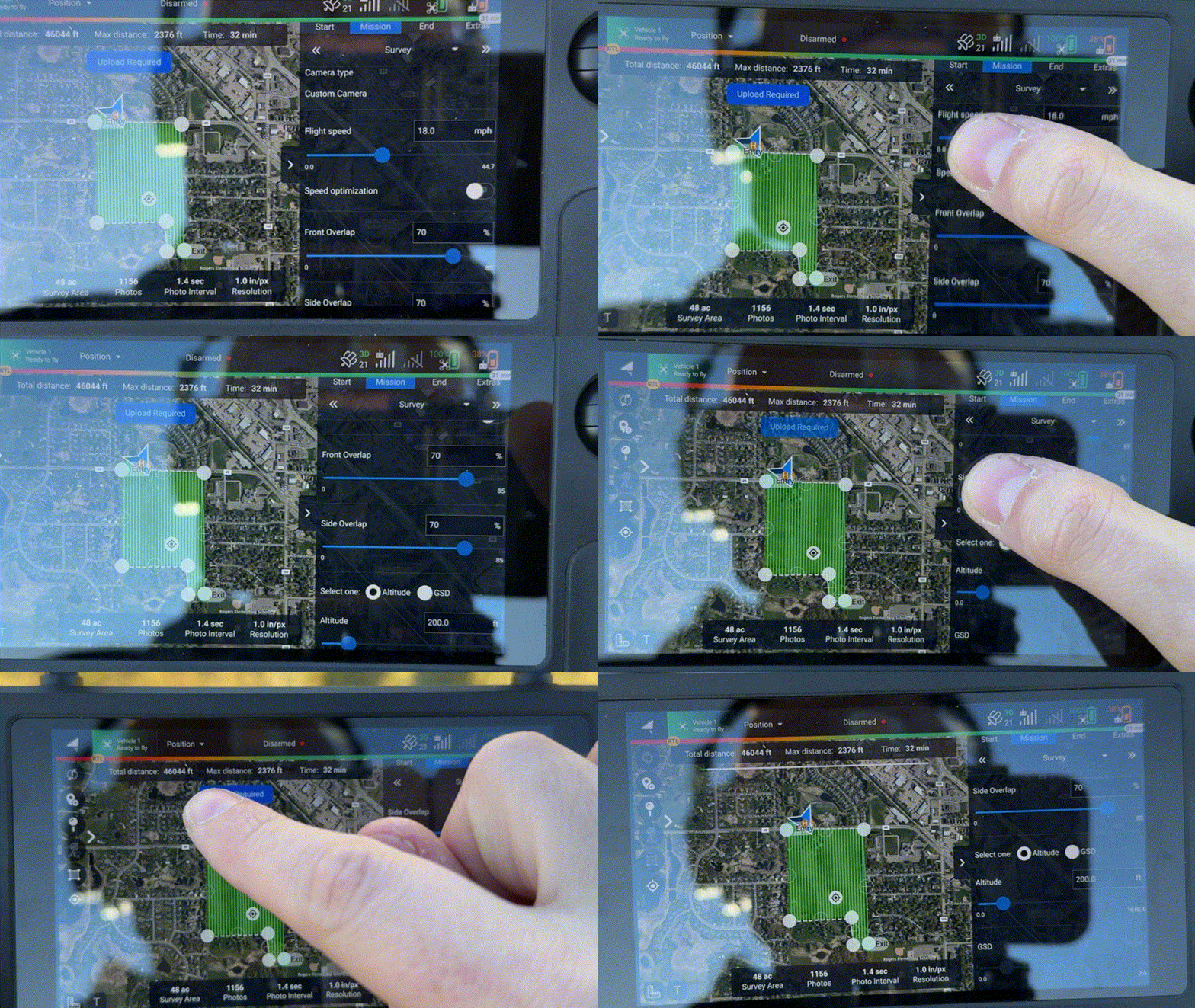
6. Verify camera model, altitude, overlap, and flight speed settings in flight app.
7. Capture calibration images (optional).
8. Fly.
9. Offload data (Optional).
***
## Detailed Instructions
### Assemble Aircraft
Assembly the aircraft per manufacturer instructions.
### Attach 6X & Light Sensor/GPS
1. Attach 6X to the aircraft.
2. Attach the light sensor/GPS to the aircraft.
3. Connect the light sensor/GPS to the 6X using the provided USB-C to USB-C cable.
4. Secure the USB-C to USB-C cable to the aircraft.
### Power Aircraft & Wait For Session Start
1. Power the aircraft on.
2. Let the 6X boot (solid status red LEDs).
3. Verify the 6X has started a session (solid green status LEDs). This take about 1 minute and requires a GPS fix.
### Verify Camera Settings
1. Connect USB-C cable to the USB-C port on the 6X.
2. Connect the other end of the cable to a laptop.
3. Open the webpage user interface.
4. Select Configuration.
5. Under Trigger verify the overlap is set to the desired percentage.
6. Unplug the USB-C cable from the 6X.
### Verify Flight Settings
Verify the camera model/parameters, flight speed, survey altitude, and overlap settings.
The side overlap setting in the flight planning app should match the overlap setting on the 6X. This ensures the aircraft will fly with the appropriate spacing between transects that the 6X is expecting.
### Capture Calibration Images (Optional)
1. Place the reflectance panel on a flat surface in direct sunlight.
2. Pick up the aircraft and hold it waist high with the 6X directly over the reflectance panel.
3. Press the button on the light sensor to start the calibration image capture.
4. Hold the aircraft over the panel until the image capture is complete.
5. Set down aircraft and pick up panel.
### Fly
Prepare the aircraft for launch, then fly.
### Offload Data (optional)
Offload the data after aircraft has landed or fly again.
{% content-ref url="/pages/TeySLnUKdgSjy5FE479q" %}
[Data Offload](/home/6x-series-sensors-user-guide/6x-series-sensors/data-offload.md)
{% endcontent-ref %}
---
# Agent Instructions
This documentation is published with GitBook. GitBook is the documentation platform designed so that both humans and AI agents can read, navigate, and reason over technical content effectively. Learn more at gitbook.com.
## Querying This Documentation
If you need additional information that is not directly available in this page, you can query the documentation dynamically by asking a question.
Perform an HTTP GET request on the current page URL with the `ask` query parameter, and the optional `goal` query parameter:
```
GET https://support.senterasensors.com/home/6x-series-sensors-user-guide/6x-series-sensors/operation/standard-operating-procedure/stand-alone-mode-external-gps.md?ask=&goal=
```
`ask` is the immediate question: it should be specific, self-contained, and written in natural language.
`goal` is optional and describes the broader end goal you are ultimately trying to accomplish on behalf of the user. GitBook uses it to tailor the answer towards what is most useful for that goal.
The response will contain a direct answer to the question and relevant excerpts and sources from the documentation.
Use this mechanism when the answer is not explicitly present in the current page, you need clarification or additional context, or you want to retrieve related documentation sections.