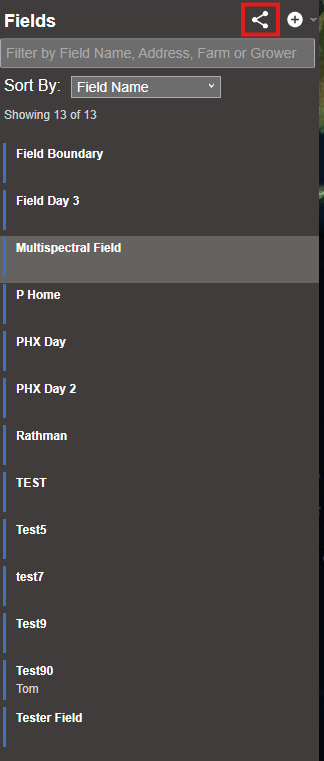
Sharing all Fields
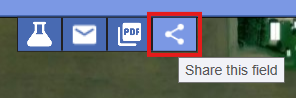
Sharing single field
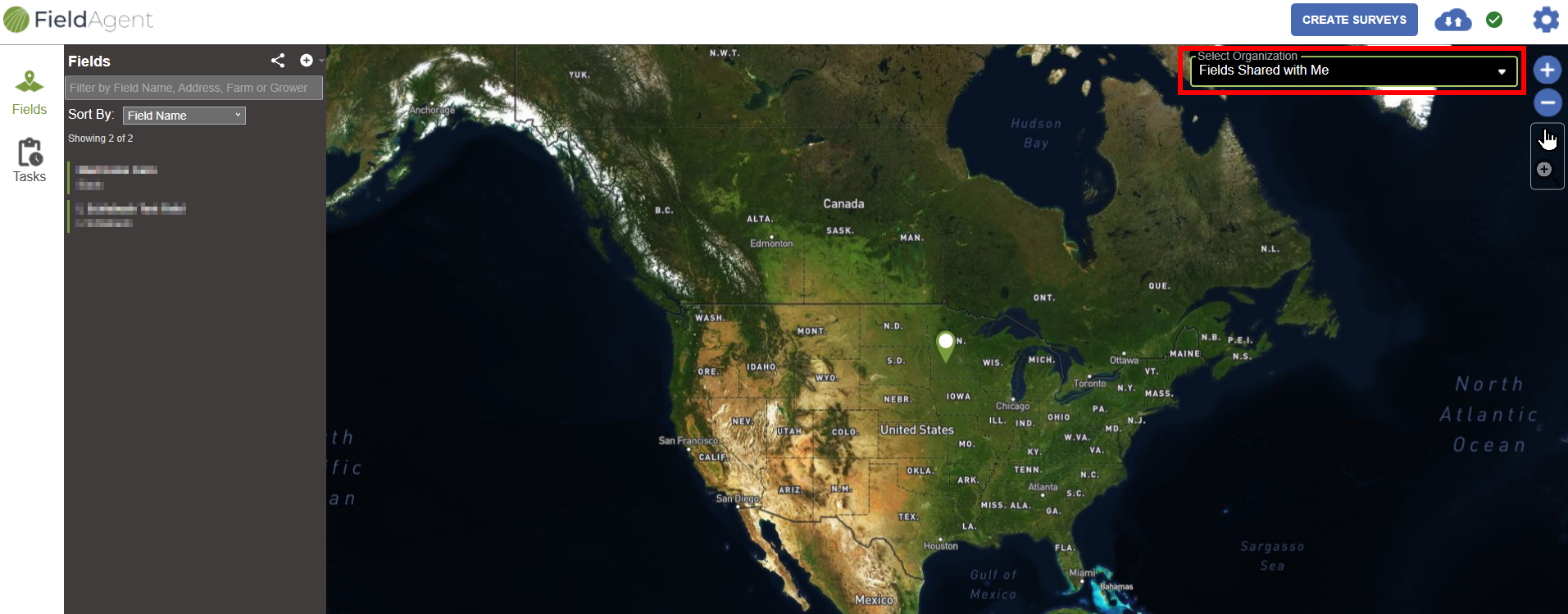
 Note: Once you import imagery into a field that is not in your home organization, but it is in a partner organization or another part of the hierarchy, you can share the field to yourself, which enables you to see mosaics and tassel counts ordered and produce PDF reports.
## FieldAgent Desktop
### Share a Field
1. Login to FieldAgent Desktop, to share all fields, click the share icon on the top left pane to the right of Fields name. To share just one field, search by field name and select it. Then click on the share icon on the top middle of the field view.\
\
Note: Once you import imagery into a field that is not in your home organization, but it is in a partner organization or another part of the hierarchy, you can share the field to yourself, which enables you to see mosaics and tassel counts ordered and produce PDF reports.
## FieldAgent Desktop
### Share a Field
1. Login to FieldAgent Desktop, to share all fields, click the share icon on the top left pane to the right of Fields name. To share just one field, search by field name and select it. Then click on the share icon on the top middle of the field view.\
\  Note: if you share all fields you will get a prompt telling you if you are okay with showing all of the fields as a precaution.
Sharing all Fields
Sharing single field
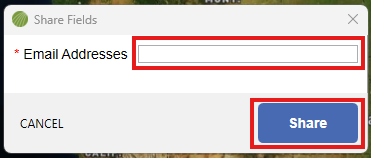
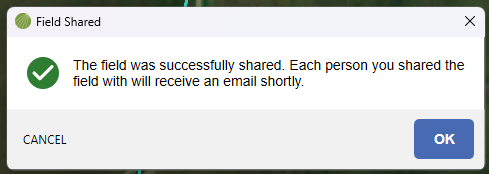
 Note: To receive the permanent shared field, the recipient must be a registered FieldAgent user.
### Stop Sharing a Shared Field
1. Click the gear icon from the upper right-hand corner of the window.
2. Select Settings.
3. Click the Sharing tab. A list of shared fields displays.
4. Select the shared field, from the Options area click Revoke, click the x next to the name to remove access.
5. Click Save.
6. A Success dialog box displays. Click Close.
---
# Agent Instructions
This documentation is published with GitBook. GitBook is the documentation platform designed so that both humans and AI agents can read, navigate, and reason over technical content effectively. Learn more at gitbook.com.
## Querying This Documentation
If you need additional information that is not directly available in this page, you can query the documentation by asking a question.
Perform an HTTP GET request on the following URL with the `ask` and `goal` query parameters:
```
GET https://support.senterasensors.com/home/fieldagent-desktop/field-management/share-a-field.md?ask=
Note: To receive the permanent shared field, the recipient must be a registered FieldAgent user.
### Stop Sharing a Shared Field
1. Click the gear icon from the upper right-hand corner of the window.
2. Select Settings.
3. Click the Sharing tab. A list of shared fields displays.
4. Select the shared field, from the Options area click Revoke, click the x next to the name to remove access.
5. Click Save.
6. A Success dialog box displays. Click Close.
---
# Agent Instructions
This documentation is published with GitBook. GitBook is the documentation platform designed so that both humans and AI agents can read, navigate, and reason over technical content effectively. Learn more at gitbook.com.
## Querying This Documentation
If you need additional information that is not directly available in this page, you can query the documentation by asking a question.
Perform an HTTP GET request on the following URL with the `ask` and `goal` query parameters:
```
GET https://support.senterasensors.com/home/fieldagent-desktop/field-management/share-a-field.md?ask=