> For the complete documentation index, see [llms.txt](https://support.senterasensors.com/home/llms.txt). Markdown versions of documentation pages are available by appending `.md` to page URLs; this page is available as [Markdown](https://support.senterasensors.com/home/fieldagent-desktop/processing/how-to-order-view-and-analyze-a-stand-count.md).
# How to Order, View and Analyze a Stand Count
This guide goes through how to order, view and Analyze stand count within FieldAgent Desktop.
## FieldAgent Desktop
### **Order Stand Count when importing**
1. Remove the SD card for your sensor and insert into your computer. This can be performed at the field edge without an internet connection.
2. Click on "Create Surveys" button up on the top right.
3. Click on Browse link up at the top of New Survey(s) popup or you can drag and drop the folders that contain the images. Then browse for the folder and select it if clicking on browse.
4. It will then show the field and how many images it contains, if it does not show the field name click on the  arrow icon by where it says how many images it contains and type in a field name and click on Save button.
5. Click on Create Import button
6. Once done you will see a analytics button, click on the button.
7. Select Field Scale on the left pane and choose the type of Stand Count and select Stand count or if out in the field with no internet, you can select Stand Count (Offline).
8. Click on Submit.
Note: Field Scale Stand Count orders take less than an hour to process. When ordering a FieldScale Stand Count on FA Desktop it does require a internet connection. In addition, if you are ordering field scale stand count (offline) it does not require internet.
### Order Stand Count for previous survey
1. Click on the field
2. Click on the checkbox by the survey date under surveys on the left hand pane.
3. Click on "order analytics"  button on the top center of the map.
4. Click on "Field Scale" on the left hand pane. Then click on the type dropdown and choose stand count. Then select Stand Count or if you are out in the field you can click on Stand Count (Offline) if you do not have internet.
5. Click on Submit
### View Results
1. Click on the Field Name
2. Click on the analytic name under image layers of either "Stand Count - Individual" or "Stand Count - Rowfill".
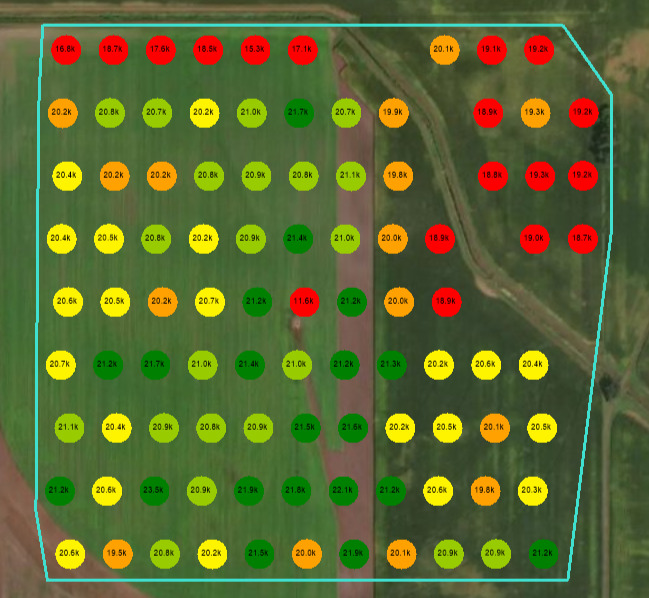
3. It should then show the population count per acre on every dot.
### Analyze Results
**Stand Count**
1. Navigate to the Field. Select "Stand Count - Individual" or "Stand Count - Rowfill".
2. Click on a population dot. If it is showing rowfill, it will show rows display a green line where is it counting the plant and red row where it is not counting the plant based on row spacing and seed rate and also other calculations.
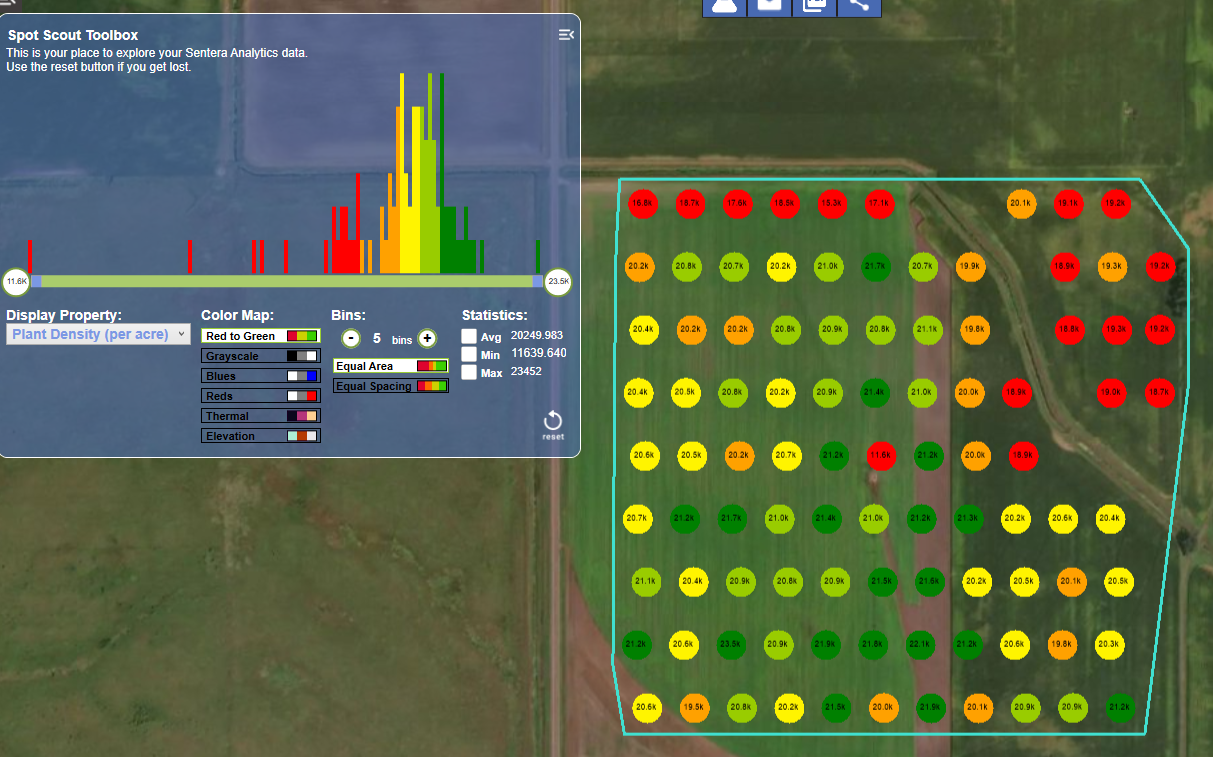
3. Click on the spot scout toolbox up on the top left.
4. Move the slider bar left or right to adjust and remove certain values to view only what you need to see. In addition, you can click on the + or - under bins to get more detailed or less detailed on the stand count.
5. You should also be able to see the statistics on the field, i.e., the average, minimum and maximum for the stand count.
**Stand Count Heat Map**
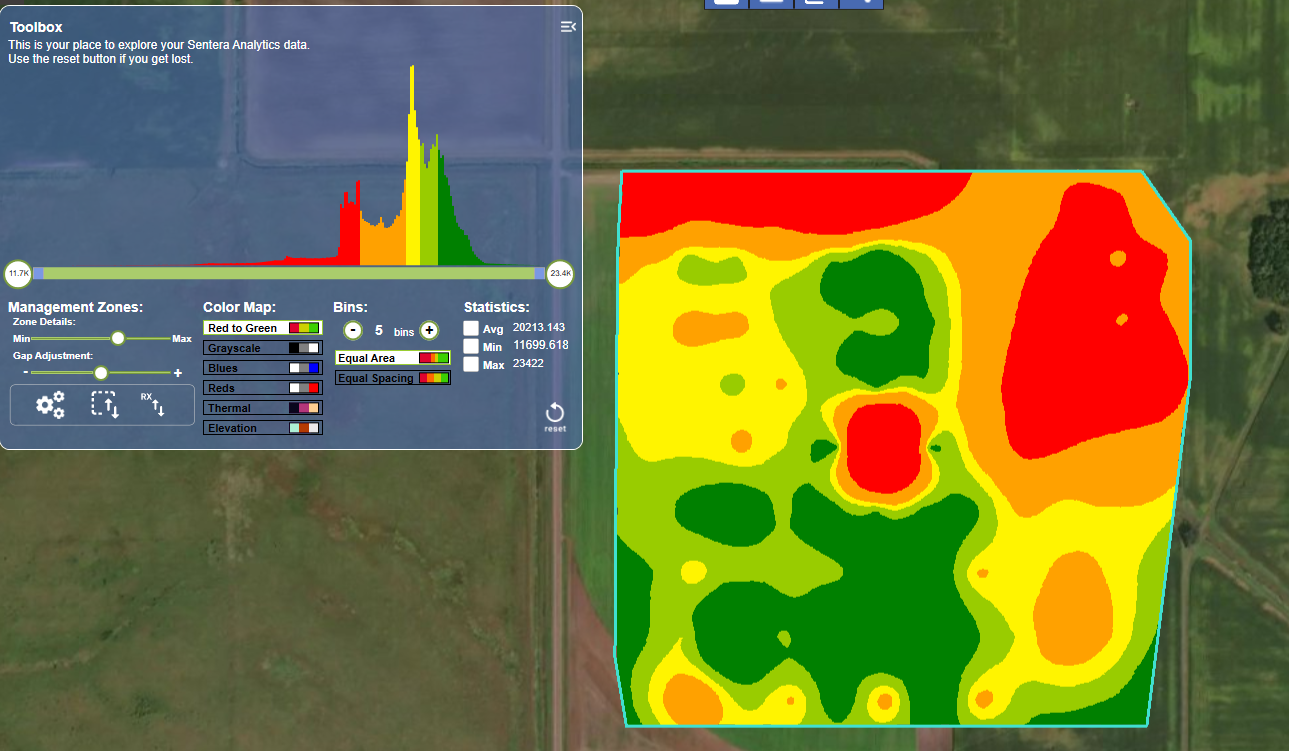
1. Select the Stand Count Heatmap from the Image Layers menu. The field image displays high and low emergence in distinctive colors.
2. Click the Toolbox up on the top left of the window.
3. Move the slider bar left or right to adjust and remove certain values to view only what you need to see. In addition, you can click on the + or - under bins to get more detailed or less detailed on the heat map.
4. You should also be able to see the statistics on the field, i.e., the average, minimum and maximum for the stand count heatmap.
---
# Agent Instructions
This documentation is published with GitBook. GitBook is the documentation platform designed so that both humans and AI agents can read, navigate, and reason over technical content effectively. Learn more at gitbook.com.
## Querying This Documentation
If you need additional information that is not directly available in this page, you can query the documentation by asking a question.
Perform an HTTP GET request on the following URL with the `ask` and `goal` query parameters:
```
GET https://support.senterasensors.com/home/fieldagent-desktop/processing/how-to-order-view-and-analyze-a-stand-count.md?ask=&goal=
```
`ask` is the immediate question: it should be specific, self-contained, and written in natural language.
`goal` is what the user is ultimately trying to achieve, the reason they need the answer. Sharing it helps GitBook give you a better, more relevant answer. A goal is most helpful when it describes the outcome the user wants rather than restating the question. For example, with `ask=how do I create an API token`, a goal like `automate deployments from our CI pipeline` lets GitBook tailor the answer to that use case.
The response will contain a direct answer to the question and relevant excerpts and sources from the documentation.
Use this mechanism when the answer is not explicitly present in the current page, you need clarification or additional context, or you want to retrieve related documentation sections.