> For the complete documentation index, see [llms.txt](https://support.senterasensors.com/home/llms.txt). Markdown versions of documentation pages are available by appending `.md` to page URLs; this page is available as [Markdown](https://support.senterasensors.com/home/fieldagent-desktop/processing/ordering-a-multispectral-mosaic.md).

# Ordering a Multispectral Mosaic

<img src="https://img.zohostatic.com/zde/static/images/file.png" alt="" data-size="line"> <mark style="background-color:yellow;">Note: Double 4K - Skyport is formerly known as AGX710.</mark>

&#x20;\
Ordering and manipulating Multispectral data set requires imagery from one of the selected sensors on link (<https://catalog.sentera.com/products/field_scale_crop_health_mosaic_multispectral_thermal>).

## Import and Sync your Data in FieldAgent Desktop

1. &#x20;To learn how to import your images,  click [HERE](/home/fieldagent-desktop/field-management/importing-images.md).
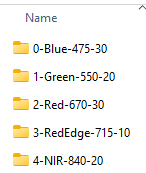
2. &#x20;When importing, ensure that all five bands are imported when clicking on create survey. (If this is a D4K Multispectral variant it will just be the NDRE and nRGB folders).

<div align="left"><figure><img src="https://content.gitbook.com/content/5PrPv7qAuOduWGT8xfTd/blobs/LeWrxaPYUTS1cDfPRGCg/image.png" alt=""><figcaption><p><mark style="color:blue;">6X Dataset</mark></p></figcaption></figure></div>

1. Upon a successful upload, select the field name on the left hand pane.

<div align="left"><figure><img src="https://content.gitbook.com/content/5PrPv7qAuOduWGT8xfTd/blobs/FUsiBDTojyiQQeFG8bLx/image.png" alt=""><figcaption><p><mark style="color:blue;">Selecting Field</mark></p></figcaption></figure></div>

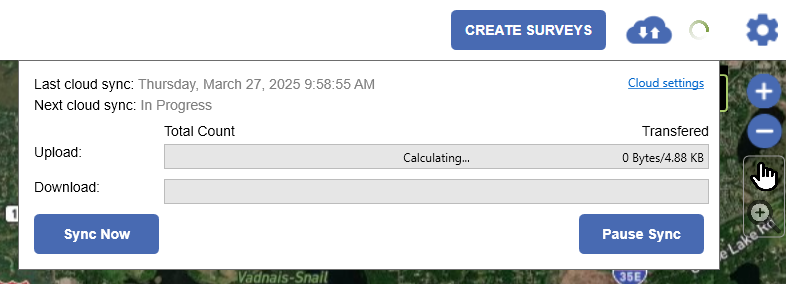
4. Click the cloud icon in the upper right corner of the window to sync your photos to the Cloud by clicking on the Sync Now button.

<div align="left"><figure><img src="https://content.gitbook.com/content/5PrPv7qAuOduWGT8xfTd/blobs/7VOS29l3EKFmp0JHV9i4/image.png" alt=""><figcaption><p><mark style="color:blue;">Uploading Survey to Cloud</mark></p></figcaption></figure></div>

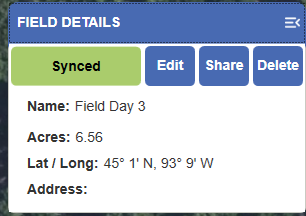
<img src="https://img.zohostatic.com/zde/static/images/file.png" alt="" data-size="line"> <mark style="background-color:yellow;">Note: If the FIELD DETAILS in the lower left does not read Synced, go back to the FieldAgent home screen and then back into the field. Click the cloud button on more time until Field Details reads Synced.</mark>

<div align="left"><figure><img src="https://content.gitbook.com/content/5PrPv7qAuOduWGT8xfTd/blobs/QUhOA3IhFwIxFLdRfj4h/image.png" alt=""><figcaption><p><mark style="color:blue;">Viewing Field Details</mark></p></figcaption></figure></div>

## Order a 5-Band (Multispectral) Map

1. Select the desired survey from the left side of the window.

<div align="left"><figure><img src="https://content.gitbook.com/content/5PrPv7qAuOduWGT8xfTd/blobs/ZP95ufAVJeWZQmE4osXt/image.png" alt=""><figcaption><p><mark style="color:blue;">Selecting Survey</mark></p></figcaption></figure></div>

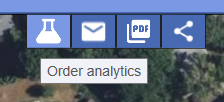
2. Click "Order analytics" button from the action bar at the top of the window.

<div align="left"><figure><img src="https://content.gitbook.com/content/5PrPv7qAuOduWGT8xfTd/blobs/rkySBceyCdwek13DvFZp/image.png" alt=""><figcaption><p><mark style="color:blue;">Clicking on Order Analytics</mark></p></figcaption></figure></div>

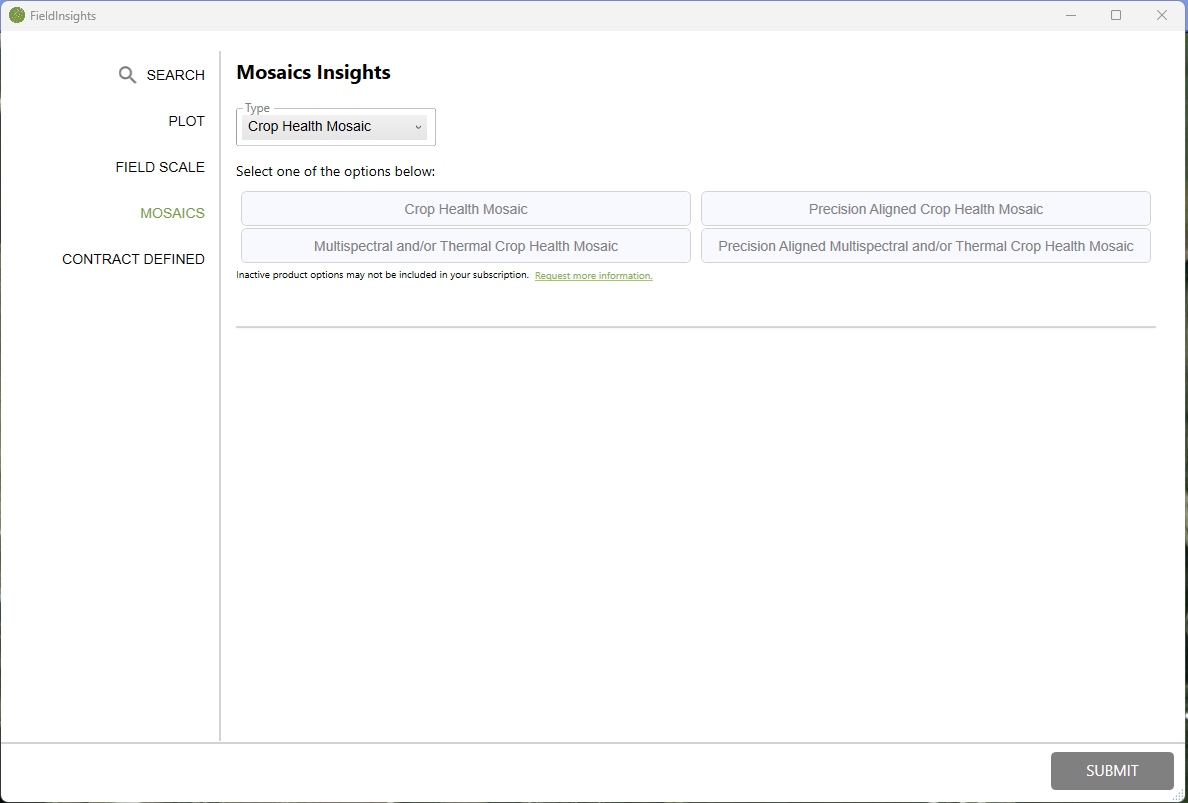
3. Select Mosaics and then click on the dropdown and select Crop Health Mosaic, then select "Multispectral and/or Thermal Crop Health Mosaic", and then click Submit.

<figure><img src="https://content.gitbook.com/content/5PrPv7qAuOduWGT8xfTd/blobs/RmKL8ZAP9d3fwx1U4xDa/image.png" alt=""><figcaption><p><mark style="color:blue;">Selecting Multispectral Mosaic</mark></p></figcaption></figure>

4. You will receive an email to let you know your map is being processed.
5. When your 5-band (Multispectral) map is complete and loaded into your account, you will receive another email.

## Manipulating your Map

With 5-Band (multispectral) map selected from the left side of the window, you can now use the Toolbox to manipulate your map.

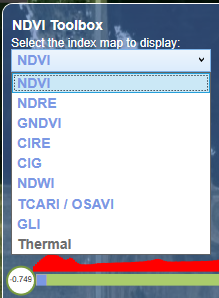
1. Select an index from the drop down menu.

<div align="left"><figure><img src="https://content.gitbook.com/content/5PrPv7qAuOduWGT8xfTd/blobs/ESPhZhzwsIF42nfffZcz/image.png" alt=""><figcaption><p><mark style="color:blue;">Selecting Index</mark></p></figcaption></figure></div>

You will have the ability to select from the following:

* NDVI - Normalized Difference Vegetation Index is a standardized way to measure healthy vegetation.
* NDRE - Normalized Difference Red Edge can give better insight into permanent or later stage crops because it's able to measure further down into the canopy.
* GNDVI - Green Normalized Difference Vegetation Index is used to identify different concentration rates of chlorophyll. Useful index for measuring rates of photosynthesis and monitoring plant stress.
* CIRE - Chlorophyll Index Red Edge is used for estimating the chlorophyll content in leaves.
* CIG - Chlorophyll Index Green is used for estimating the chlorophyll content in leaves.
* NDWI - Normalized Difference Water Index is used to estimate the leaf water content at canopy level.
* TCARI / OSAVI - vegetative index sensitive to chlorophyll and nitrogen content and resistant to variations in leaf area/soil background.
* GLI - Green Leaf Index measure's plant cover with positive values indicating green leaves, stems and negative values representing soil.
* Thermal - shows a heat map of the area.


---

# Agent Instructions
This documentation is published with GitBook. GitBook is the documentation platform designed so that both humans and AI agents can read, navigate, and reason over technical content effectively. Learn more at gitbook.com.

## Querying This Documentation
If you need additional information that is not directly available in this page, you can query the documentation by asking a question.

Perform an HTTP GET request on the following URL with the `ask` and `goal` query parameters:

```
GET https://support.senterasensors.com/home/fieldagent-desktop/processing/ordering-a-multispectral-mosaic.md?ask=<question>&goal=<user_goal>
```

`ask` is the immediate question: it should be specific, self-contained, and written in natural language.
`goal` is what the user is ultimately trying to achieve, the reason they need the answer. Sharing it helps GitBook give you a better, more relevant answer. A goal is most helpful when it describes the outcome the user wants rather than restating the question. For example, with `ask=how do I create an API token`, a goal like `automate deployments from our CI pipeline` lets GitBook tailor the answer to that use case.

The response will contain a direct answer to the question and relevant excerpts and sources from the documentation.

Use this mechanism when the answer is not explicitly present in the current page, you need clarification or additional context, or you want to retrieve related documentation sections.