> For the complete documentation index, see [llms.txt](https://support.senterasensors.com/home/llms.txt). Markdown versions of documentation pages are available by appending `.md` to page URLs; this page is available as [Markdown](https://support.senterasensors.com/home/fieldagent-mobile-ios/60-second-guides/ground-scouting.md).
# Ground Scouting
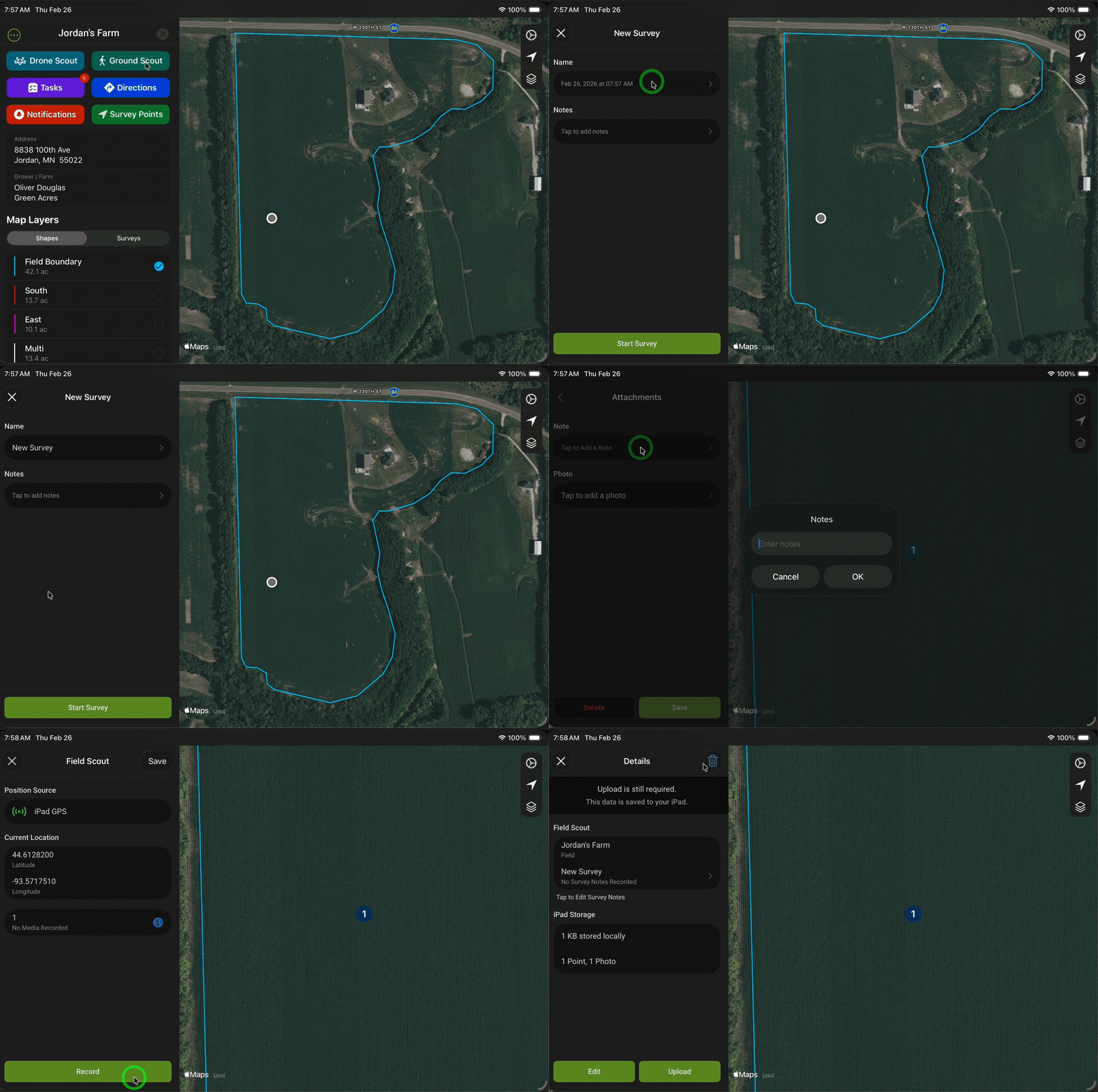
Learn how to capture GPS points and attach notes or photos.
***
## Motivation
I want to scout my field, find points of interest, and attach information to those points.
***
## Requirements
You must have an [Apple Device](/home/fieldagent-mobile-ios/requirements/apple-devices.md) with GPS capability.
***
## Steps
From the Home Screen:
1. Tap on your field.
2. Tap the "Ground Scout" button to begin a new survey.
3. Optionally enter a name and notes for the survey.
4. When a Point of Interest is found then tap the "Record" button.
5. Optionally enter notes and/or snap a photo.
6. Tap "Save".
7. Repeat until all the points have been surveyed.
8. Tap the Save button on the top right.
{% hint style="success" %}
The app has saved the data locally to your Apple Device.
You can either upload later or start the upload now.
{% endhint %}
From the Field Point Details screen:
1. Tap the Upload button.
2. Verify your network connectivity by reviewing the network indicators.
3. Tap the Upload button to start processing.
Once the upload has been completed, tap the Done button.
***
## Video Guide
{% embed url="" %}
***
## Related Topics
Learn more about accessing your [local surveys](/home/fieldagent-mobile-ios/60-second-guides/local-data.md) for upload.
Your previously uploaded surveys are accessible from your field's [details screen](/home/fieldagent-mobile-ios/app-guide/field-details.md#surveys) under Surveys.
---
# Agent Instructions
This documentation is published with GitBook. GitBook is the documentation platform designed so that both humans and AI agents can read, navigate, and reason over technical content effectively. Learn more at gitbook.com.
## Querying This Documentation
If you need additional information that is not directly available in this page, you can query the documentation dynamically by asking a question.
Perform an HTTP GET request on the current page URL with the `ask` query parameter, and the optional `goal` query parameter:
```
GET https://support.senterasensors.com/home/fieldagent-mobile-ios/60-second-guides/ground-scouting.md?ask=&goal=
```
`ask` is the immediate question: it should be specific, self-contained, and written in natural language.
`goal` is optional and describes the broader end goal you are ultimately trying to accomplish on behalf of the user. GitBook uses it to tailor the answer towards what is most useful for that goal.
The response will contain a direct answer to the question and relevant excerpts and sources from the documentation.
Use this mechanism when the answer is not explicitly present in the current page, you need clarification or additional context, or you want to retrieve related documentation sections.