> For the complete documentation index, see [llms.txt](https://support.senterasensors.com/home/llms.txt). Markdown versions of documentation pages are available by appending `.md` to page URLs; this page is available as [Markdown](https://support.senterasensors.com/home/fieldagent-web/account-and-organizations/account-administration.md).

# Account administration

Connect partner accounts, manage fields and your organization's details, and change your password on the FieldAgent administration site.

On the FieldAgent administration site, admin.sentera.com, you can connect partner accounts, manage fields and your organization's details, and change your password.

<figure><img src="https://2791052504-files.gitbook.io/~/files/v0/b/gitbook-x-prod.appspot.com/o/spaces%2FVt6flh3S4tohPAjrSP91%2Fuploads%2Fgit-blob-3772400841f11c78898e2cc6bde1a460236eca8a%2Ffa-web-admin-dashboard.jpg?alt=media" alt="The administration site Dashboard with the tiles 5 FIELDS, 17,596 USER UPLOADED IMAGES, 5 FIELDS WITH IMAGES and 9 SURVEYS, each with a NEW SINCE 1W AGO line, and an Upload Activity tab reading Your account has no uploads yet. The left navigation lists View Map, Dashboard, Connections, Fields, Company Profile and Usage under COMPANY ADMINISTRATION and My Profile and Change Password under PERSONAL ADMINISTRATION"><figcaption><p>The administration site opens on the Dashboard.</p></figcaption></figure>

***

## Open the administration site

FieldAgent Web links to three pages of the site.

| In FieldAgent Web                                                                                                                                                                                                                                                                                         | Opens                                     |
| --------------------------------------------------------------------------------------------------------------------------------------------------------------------------------------------------------------------------------------------------------------------------------------------------------- | ----------------------------------------- |
| The account icon <img src="https://2791052504-files.gitbook.io/~/files/v0/b/gitbook-x-prod.appspot.com/o/spaces%2FVt6flh3S4tohPAjrSP91%2Fuploads%2Fgit-blob-ccc2694e207668138b69256b0420d22bbe2c49e0%2Ffa-web-icon-rail-account.svg?alt=media" alt="account icon" data-size="line"> › **Manage Account**  | The Dashboard                             |
| The account icon <img src="https://2791052504-files.gitbook.io/~/files/v0/b/gitbook-x-prod.appspot.com/o/spaces%2FVt6flh3S4tohPAjrSP91%2Fuploads%2Fgit-blob-ccc2694e207668138b69256b0420d22bbe2c49e0%2Ffa-web-icon-rail-account.svg?alt=media" alt="account icon" data-size="line"> › **Change Password** | [Change Password](#change-your-password)  |
| The **Account** page › **MANAGE CONNECTIONS**                                                                                                                                                                                                                                                             | [Connections](#connect-a-partner-account) |

{% hint style="info" %}
Use your FieldAgent username and password to sign in on the admin site. If you've forgotten your password, use **Reset password** on the [FieldAgent Web sign-in page](/home/fieldagent-web/get-started/sign-in-and-account-menu.md) instead.
{% endhint %}

***

## Find your way around

The menu on the left splits into **COMPANY ADMINISTRATION**, for your organization, and **PERSONAL ADMINISTRATION**, for your own profile and password.

<figure><img src="https://2791052504-files.gitbook.io/~/files/v0/b/gitbook-x-prod.appspot.com/o/spaces%2FVt6flh3S4tohPAjrSP91%2Fuploads%2Fgit-blob-789d60950fdda1a8bbb88d62d1134ac4748d70a7%2Ffa-web-admin-ui-sidebar.png?alt=media" alt="The left navigation with the COMPANY ADMINISTRATION and PERSONAL ADMINISTRATION headings outlined: View Map, Dashboard, Connections, Fields, Company Profile, Usage and the My Storage meter under the first, My Profile and Change Password under the second" width="250"><figcaption><p>COMPANY ADMINISTRATION and PERSONAL ADMINISTRATION highlighted</p></figcaption></figure>

The **Dashboard** <img src="https://2791052504-files.gitbook.io/~/files/v0/b/gitbook-x-prod.appspot.com/o/spaces%2FVt6flh3S4tohPAjrSP91%2Fuploads%2Fgit-blob-7609fdcce7e0a286adcc08c762950a950b562261%2Ffa-web-icon-admin-dashboard.svg?alt=media" alt="dashboard icon" data-size="line"> shows how many fields, surveys and uploaded images the organization has, and how many are new in the last week. **Upload Activity** lists the uploads made under your account.

<figure><img src="https://2791052504-files.gitbook.io/~/files/v0/b/gitbook-x-prod.appspot.com/o/spaces%2FVt6flh3S4tohPAjrSP91%2Fuploads%2Fgit-blob-f59de0e686a7c74d5ca34ec3c28f686c05cd12b8%2Ffa-web-admin-dashboard-panel.jpg?alt=media" alt="The Dashboard: tiles for 5 FIELDS, 17,596 USER UPLOADED IMAGES, 5 FIELDS WITH IMAGES and 9 SURVEYS, each with a NEW SINCE 1W AGO line, and the Upload Activity tab reading Your account has no uploads yet" width="700"><figcaption></figcaption></figure>

To go back to FieldAgent Web, click **View Map** <img src="https://2791052504-files.gitbook.io/~/files/v0/b/gitbook-x-prod.appspot.com/o/spaces%2FVt6flh3S4tohPAjrSP91%2Fuploads%2Fgit-blob-f52f3afeb79f803ef178348f8edef9a935c63114%2Ffa-web-icon-admin-view-map.svg?alt=media" alt="view map icon" data-size="line"> in the menu or **Home** <img src="https://2791052504-files.gitbook.io/~/files/v0/b/gitbook-x-prod.appspot.com/o/spaces%2FVt6flh3S4tohPAjrSP91%2Fuploads%2Fgit-blob-f6a4bd49dee250e35f47f6790da98f10c80c8462%2Ffa-web-icon-admin-home.svg?alt=media" alt="home icon" data-size="line"> in the header.

<figure><img src="https://2791052504-files.gitbook.io/~/files/v0/b/gitbook-x-prod.appspot.com/o/spaces%2FVt6flh3S4tohPAjrSP91%2Fuploads%2Fgit-blob-160069cfdcecbd33509185da87fc439969c1ad81%2Ffa-web-admin-ui-header-buttons.png?alt=media" alt="The four header buttons: Sign Out, Help, Profile, Home" width="256"><figcaption></figcaption></figure>

In the header, **Profile** <img src="https://2791052504-files.gitbook.io/~/files/v0/b/gitbook-x-prod.appspot.com/o/spaces%2FVt6flh3S4tohPAjrSP91%2Fuploads%2Fgit-blob-5a1dfcd28be5cdd0a3685ed40a26ae83191555b4%2Ffa-web-icon-admin-profile.svg?alt=media" alt="profile icon" data-size="line"> opens [My Profile](#update-your-profile) and **Help** <img src="https://2791052504-files.gitbook.io/~/files/v0/b/gitbook-x-prod.appspot.com/o/spaces%2FVt6flh3S4tohPAjrSP91%2Fuploads%2Fgit-blob-71fe8cab4f14320987ea611c95110973ba174944%2Ffa-web-icon-admin-help.svg?alt=media" alt="help icon" data-size="line"> opens the Sentera support site.

{% hint style="success" icon="headset" %}
If you need more help, contact Sentera support at <Support@sentera.com> or 1-844-SENTERA. The same details are at the bottom of every page of the site.
{% endhint %}

***

## Connect a partner account

**Connections** <img src="https://2791052504-files.gitbook.io/~/files/v0/b/gitbook-x-prod.appspot.com/o/spaces%2FVt6flh3S4tohPAjrSP91%2Fuploads%2Fgit-blob-5e1103991fbb8f661f73ce7577825efb3ee5a314%2Ffa-web-icon-admin-connections.svg?alt=media" alt="connections icon" data-size="line"> lists the partner accounts you can connect to your organization, and whether each one is connected. **Expires On** tells you when a connection will end.
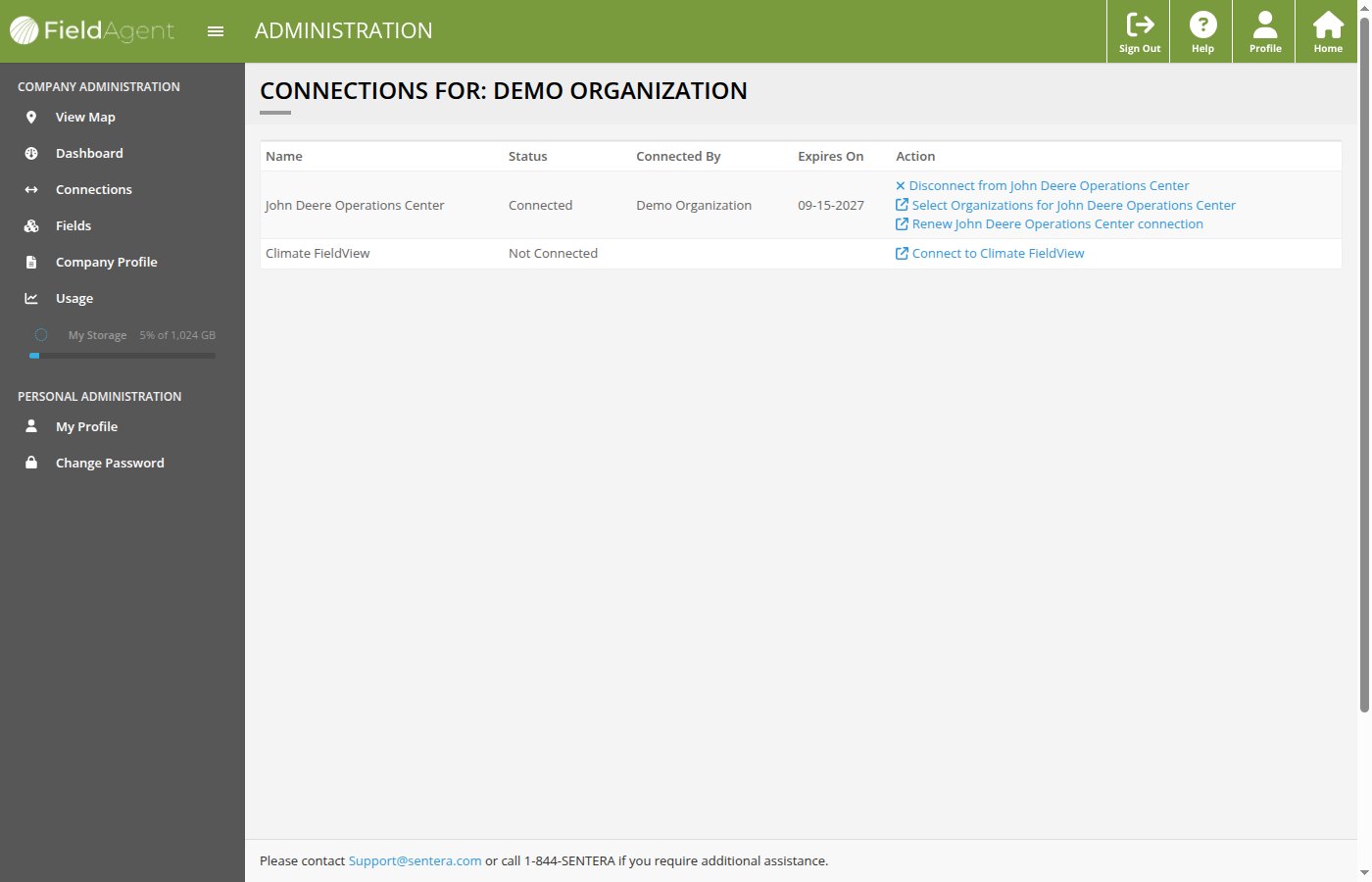
<figure><img src="https://2791052504-files.gitbook.io/~/files/v0/b/gitbook-x-prod.appspot.com/o/spaces%2FVt6flh3S4tohPAjrSP91%2Fuploads%2Fgit-blob-04a4d1b806eed1cb07e49986579ca9b5598218c5%2Ffa-web-admin-connections.jpg?alt=media" alt="The Connections page, headed CONNECTIONS FOR: DEMO ORGANIZATION, with a table of Name, Status, Connected By, Expires On and Action. John Deere Operations Center is Connected with Disconnect, Select Organizations and Renew actions; Climate FieldView is Not Connected with the action Connect to Climate FieldView"><figcaption><p>Operations Center connected, Climate FieldView not connected.</p></figcaption></figure>

Use the links in the **Action** column to connect, renew or remove a connection.

| Link                                                                                                                                                                                                                                                                                                                                      | Description                                                                          |
| ----------------------------------------------------------------------------------------------------------------------------------------------------------------------------------------------------------------------------------------------------------------------------------------------------------------------------------------- | ------------------------------------------------------------------------------------ |
| <img src="https://2791052504-files.gitbook.io/~/files/v0/b/gitbook-x-prod.appspot.com/o/spaces%2FVt6flh3S4tohPAjrSP91%2Fuploads%2Fgit-blob-690b87ad36913c6d09d08aede49f0f92c8de5c69%2Ffa-web-icon-admin-external-link.svg?alt=media" alt="external link icon" data-size="line"> **Renew John Deere Operations Center connection**         | Keeps the connection working. Use it before the **Expires On** date.                 |
| <img src="https://2791052504-files.gitbook.io/~/files/v0/b/gitbook-x-prod.appspot.com/o/spaces%2FVt6flh3S4tohPAjrSP91%2Fuploads%2Fgit-blob-690b87ad36913c6d09d08aede49f0f92c8de5c69%2Ffa-web-icon-admin-external-link.svg?alt=media" alt="external link icon" data-size="line"> **Select Organizations for John Deere Operations Center** | Opens Operations Center, where you choose which organizations FieldAgent can access. |
| <img src="https://2791052504-files.gitbook.io/~/files/v0/b/gitbook-x-prod.appspot.com/o/spaces%2FVt6flh3S4tohPAjrSP91%2Fuploads%2Fgit-blob-1e7aa9a03aae6f878ed8318b8d4b76323ce9393f%2Ffa-web-icon-admin-disconnect.svg?alt=media" alt="disconnect icon" data-size="line"> **Disconnect from John Deere Operations Center**                | Removes the connection.                                                              |
| <img src="https://2791052504-files.gitbook.io/~/files/v0/b/gitbook-x-prod.appspot.com/o/spaces%2FVt6flh3S4tohPAjrSP91%2Fuploads%2Fgit-blob-690b87ad36913c6d09d08aede49f0f92c8de5c69%2Ffa-web-icon-admin-external-link.svg?alt=media" alt="external link icon" data-size="line"> **Connect to Climate FieldView**                          | Starts the FieldView sign-in and permission steps.                                   |

[Connect to John Deere Operations Center](/home/fieldagent-web/integrations/john-deere-operations-center.md) and [Connect with Climate FieldView](/home/fieldagent-web/integrations/connect-with-climate-fieldview.md) walk through each connection. Once a partner is connected, the **Account** page in FieldAgent Web shows it, with integration settings described in [Account settings](/home/fieldagent-web/account-and-organizations/account-settings.md).

***

## Edit or delete a field

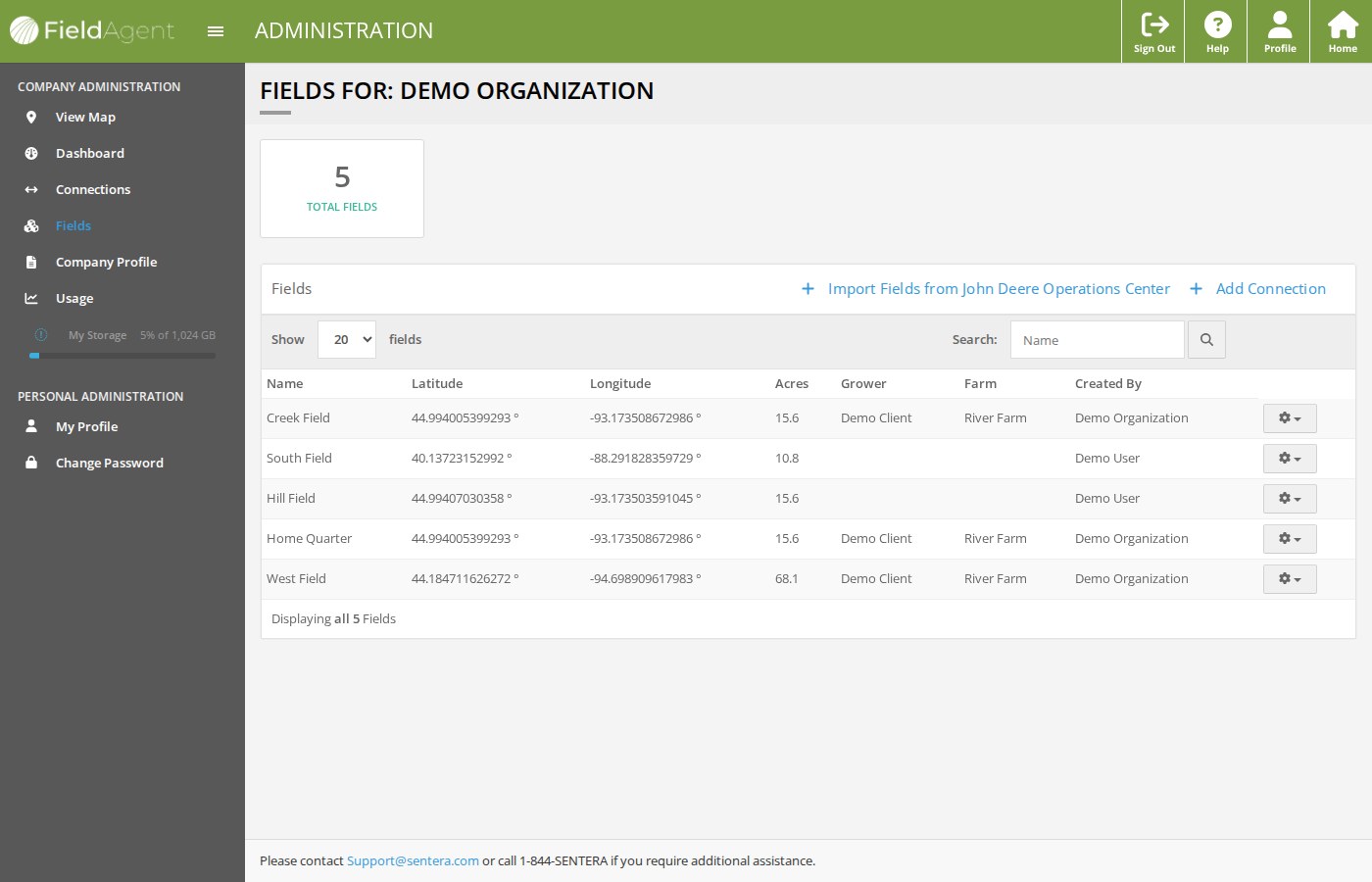
**Fields** <img src="https://2791052504-files.gitbook.io/~/files/v0/b/gitbook-x-prod.appspot.com/o/spaces%2FVt6flh3S4tohPAjrSP91%2Fuploads%2Fgit-blob-83c39e6d930d5355e3d148dee036dd32f83b14ce%2Ffa-web-icon-admin-fields.svg?alt=media" alt="fields icon" data-size="line"> lists every field in the organization, with the total at the top. Here you can change a field's name, grower, farm, location or address, or delete it. You [draw, import and share fields](/home/fieldagent-web/fields/create-a-field.md) in FieldAgent Web.
<figure><img src="https://2791052504-files.gitbook.io/~/files/v0/b/gitbook-x-prod.appspot.com/o/spaces%2FVt6flh3S4tohPAjrSP91%2Fuploads%2Fgit-blob-d589885f68dd1ef668142339e8f1a87b3ffc53a7%2Ffa-web-admin-fields.jpg?alt=media" alt="The Fields page, headed FIELDS FOR: DEMO ORGANIZATION, with a 5 TOTAL FIELDS tile and the Fields panel: the links Import Fields from John Deere Operations Center and Add Connection, Show 20 fields, Search: Name, and a table of five fields with Name, Latitude, Longitude, Acres, Grower, Farm and Created By columns and a gear button on every row"><figcaption></figcaption></figure>

{% stepper %}
{% step %}

#### Find the field

Type its name in **Search** <img src="https://2791052504-files.gitbook.io/~/files/v0/b/gitbook-x-prod.appspot.com/o/spaces%2FVt6flh3S4tohPAjrSP91%2Fuploads%2Fgit-blob-ac3c61f20fc410c935ec4e748a77cd727640881c%2Ffa-web-icon-admin-search.svg?alt=media" alt="search icon" data-size="line">, or page through the list.
{% endstep %}

{% step %}

#### Open the Actions menu

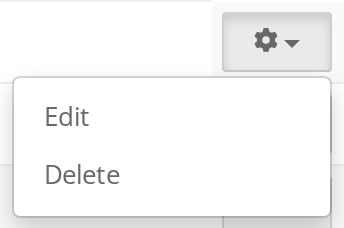
Click the gear <img src="https://2791052504-files.gitbook.io/~/files/v0/b/gitbook-x-prod.appspot.com/o/spaces%2FVt6flh3S4tohPAjrSP91%2Fuploads%2Fgit-blob-70d8f55a4980f03fa8c20f96d6cc90d038870c0e%2Ffa-web-icon-admin-actions.svg?alt=media" alt="actions icon" data-size="line"> at the end of the row.

<figure><img src="https://2791052504-files.gitbook.io/~/files/v0/b/gitbook-x-prod.appspot.com/o/spaces%2FVt6flh3S4tohPAjrSP91%2Fuploads%2Fgit-blob-c8e1255f44493e273ba92388c284513d79625f3b%2Ffa-web-admin-ui-fields-actions.png?alt=media" alt="The gear Actions button with its menu open: Edit, Delete" width="172"><figcaption></figcaption></figure>
{% endstep %}

{% step %}

#### Edit the field

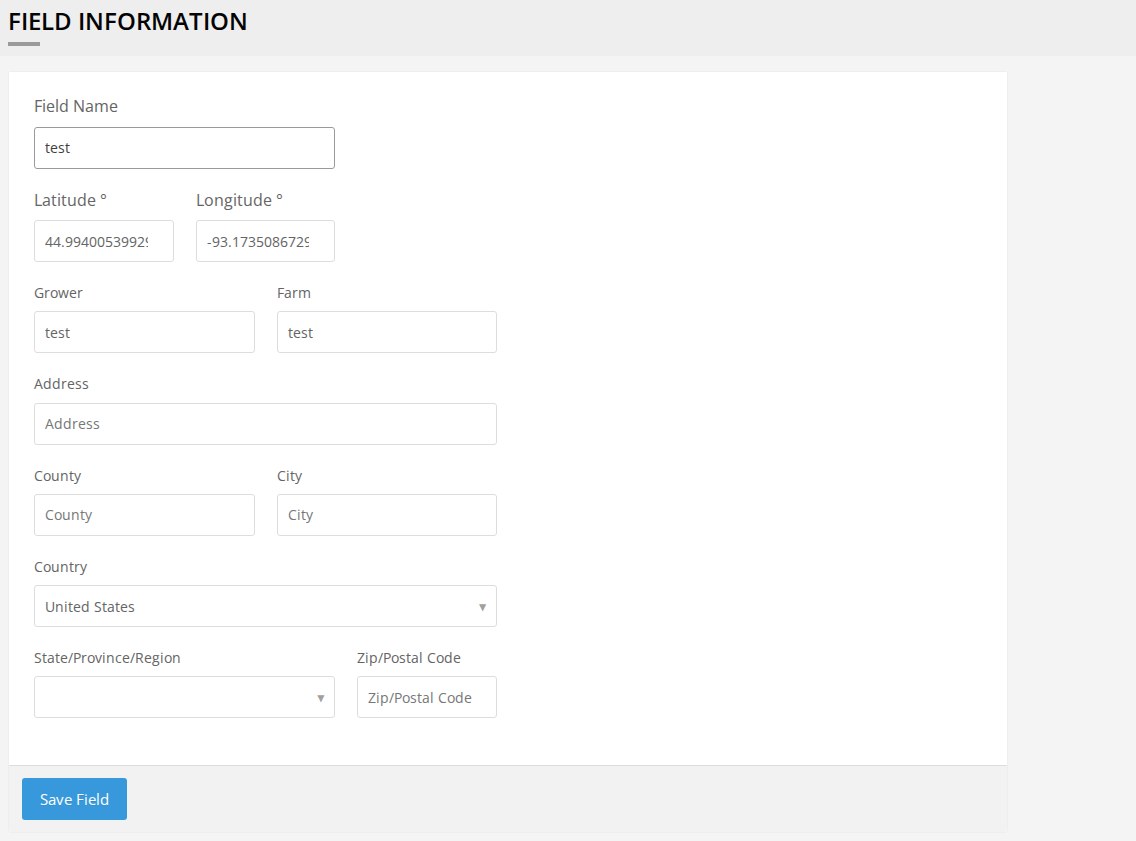
Click **Edit**, change what you need and click **Save Field**. Latitude and longitude are in decimal degrees.

<img src="https://2791052504-files.gitbook.io/~/files/v0/b/gitbook-x-prod.appspot.com/o/spaces%2FVt6flh3S4tohPAjrSP91%2Fuploads%2Fgit-blob-3f8312d2d7c8e73b5cb7a9d28adfb749407104be%2Ffa-web-admin-ui-btn-save-field.png?alt=media" alt="Save Field button" width="105">

<details>

<summary>Edit Field form</summary>

<figure><img src="https://2791052504-files.gitbook.io/~/files/v0/b/gitbook-x-prod.appspot.com/o/spaces%2FVt6flh3S4tohPAjrSP91%2Fuploads%2Fgit-blob-7d8485815793a1b07e03bf75e83e365cdda9cdab%2Ffa-web-admin-field-information.jpg?alt=media" alt="The FIELD INFORMATION form with Field Name, Latitude °, Longitude °, Grower, Farm, Address, County, City, Country, State/Province/Region and Zip/Postal Code fields and a Save Field button"><figcaption></figcaption></figure>

Field Name, Latitude ° and Longitude °, Grower, Farm, Address, County, City, Country, State/Province/Region and Zip/Postal Code.

</details>
{% endstep %}

{% step %}

#### Or delete it

Click **Delete**. The site asks you to confirm before it removes the field from the organization.
{% endstep %}
{% endstepper %}

{% hint style="info" %}
You can't change a field's boundary here. To redraw it, [edit the field](/home/fieldagent-web/fields/edit-or-delete-a-field.md) in FieldAgent Web.
{% endhint %}

To [bring in fields from Operations Center](/home/fieldagent-web/integrations/import-fields-from-operations-center.md), click **Import Fields from John Deere Operations Center** <img src="https://2791052504-files.gitbook.io/~/files/v0/b/gitbook-x-prod.appspot.com/o/spaces%2FVt6flh3S4tohPAjrSP91%2Fuploads%2Fgit-blob-c2ec485ee276fa8df9e26d154178b8c710d5a0d6%2Ffa-web-icon-admin-plus.svg?alt=media" alt="plus icon" data-size="line"> above the list. **Add Connection** next to it opens [Connections](#connect-a-partner-account).

<figure><img src="https://2791052504-files.gitbook.io/~/files/v0/b/gitbook-x-prod.appspot.com/o/spaces%2FVt6flh3S4tohPAjrSP91%2Fuploads%2Fgit-blob-9943f3b5c3a1dcd2d82a25229e4481a08e03c5bf%2Ffa-web-admin-ui-fields-links.png?alt=media" alt="+ Import Fields from John Deere Operations Center and + Add Connection" width="542"><figcaption></figcaption></figure>

***

## Update your company profile

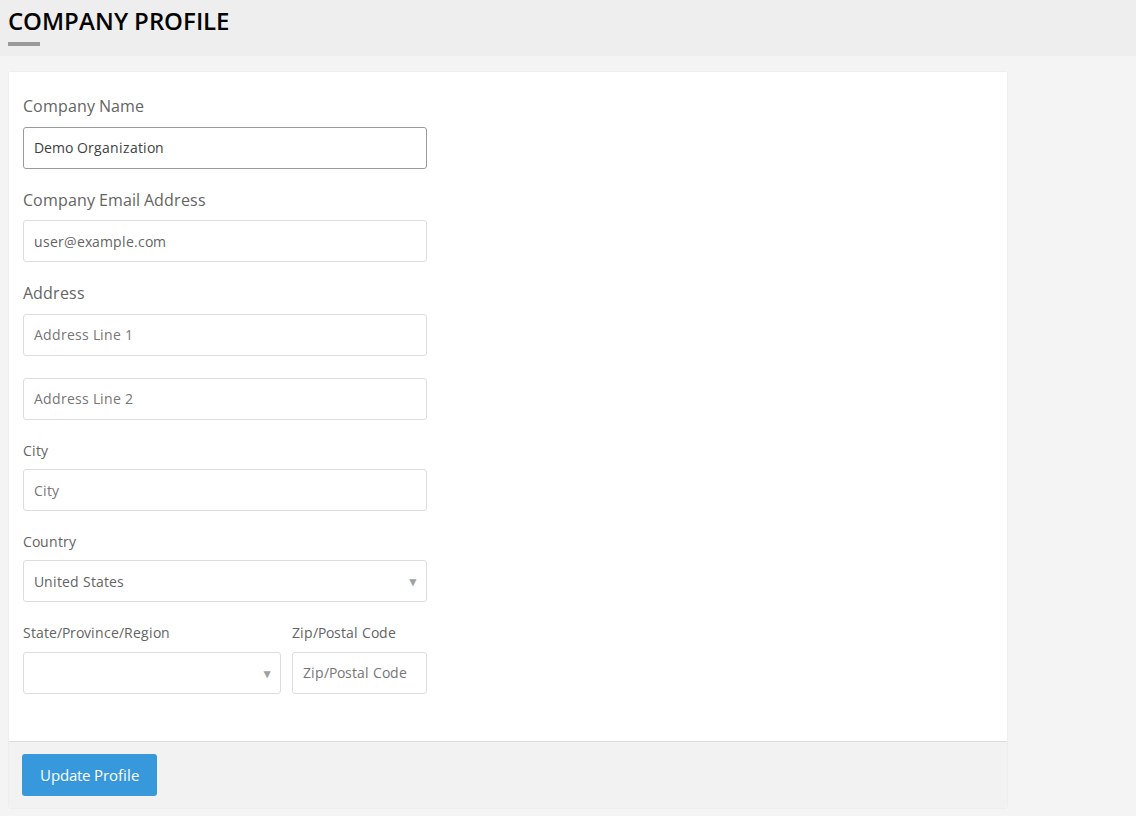
Open **Company Profile** <img src="https://2791052504-files.gitbook.io/~/files/v0/b/gitbook-x-prod.appspot.com/o/spaces%2FVt6flh3S4tohPAjrSP91%2Fuploads%2Fgit-blob-9aac1cd679991521af0c9dbb1e3d503284fef234%2Ffa-web-icon-admin-company-profile.svg?alt=media" alt="company profile icon" data-size="line"> to change your organization's name, email address or mailing address. Click **Update Profile** to save.

<img src="https://2791052504-files.gitbook.io/~/files/v0/b/gitbook-x-prod.appspot.com/o/spaces%2FVt6flh3S4tohPAjrSP91%2Fuploads%2Fgit-blob-46709e43209b53cb16f1d2f5bb7f4104b2cd3149%2Ffa-web-admin-ui-btn-update-profile.png?alt=media" alt="Update Profile button" width="135">

<details>

<summary>Edit Company Profile form</summary>

<figure><img src="https://2791052504-files.gitbook.io/~/files/v0/b/gitbook-x-prod.appspot.com/o/spaces%2FVt6flh3S4tohPAjrSP91%2Fuploads%2Fgit-blob-c15fe7898c7bff268c067d0689eb8666d9661cb3%2Ffa-web-admin-company-profile.jpg?alt=media" alt="The COMPANY PROFILE form with Company Name, Company Email Address, Address Line 1, Address Line 2, City, Country, State/Province/Region and Zip/Postal Code fields and an Update Profile button"><figcaption></figcaption></figure>

</details>

***

## Check your storage

Under **Usage** <img src="https://2791052504-files.gitbook.io/~/files/v0/b/gitbook-x-prod.appspot.com/o/spaces%2FVt6flh3S4tohPAjrSP91%2Fuploads%2Fgit-blob-68f3b497bb0235177cf06d7ca6b96ad7eeb874c6%2Ffa-web-icon-admin-usage.svg?alt=media" alt="usage icon" data-size="line"> in the menu, the **My Storage** meter shows how much of your storage you've used, for example "5% of 1,024 GB".

If you need more, you can add storage to your plan in 500 GB steps. [sentera.com/fieldagent](https://sentera.com/fieldagent/#FieldAgentPkgsTable) lists how much storage each plan includes.

***

## Update your profile

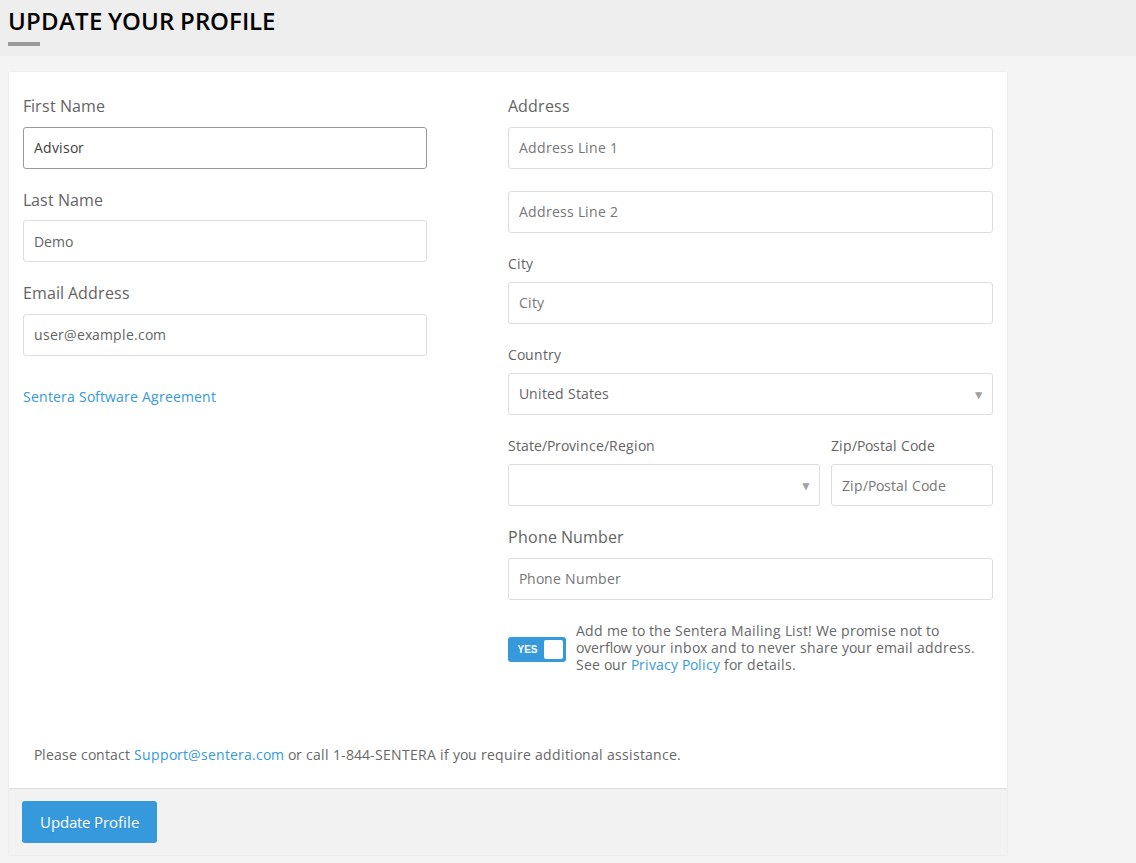
Open **My Profile** <img src="https://2791052504-files.gitbook.io/~/files/v0/b/gitbook-x-prod.appspot.com/o/spaces%2FVt6flh3S4tohPAjrSP91%2Fuploads%2Fgit-blob-5a1dfcd28be5cdd0a3685ed40a26ae83191555b4%2Ffa-web-icon-admin-profile.svg?alt=media" alt="profile icon" data-size="line"> to change your name, email address, address or phone number. Click **Update Profile** to save.
<details>

<summary>Edit Profile form</summary>

<figure><img src="https://2791052504-files.gitbook.io/~/files/v0/b/gitbook-x-prod.appspot.com/o/spaces%2FVt6flh3S4tohPAjrSP91%2Fuploads%2Fgit-blob-dada289bf193c00dc44570a07f96984e829855c7%2Ffa-web-admin-my-profile.jpg?alt=media" alt="The UPDATE YOUR PROFILE form: First Name, Last Name, Email Address and the Sentera Software Agreement link on the left; Address Line 1, Address Line 2, City, Country, State/Province/Region, Zip/Postal Code, Phone Number and the mailing-list switch on the right; an Update Profile button"><figcaption></figcaption></figure>

</details>

The **YES**/**NO** toggle button adds you to the Sentera mailing list or takes you off it.

<figure><img src="https://2791052504-files.gitbook.io/~/files/v0/b/gitbook-x-prod.appspot.com/o/spaces%2FVt6flh3S4tohPAjrSP91%2Fuploads%2Fgit-blob-341b06bf6e680ede519c263930ab5871ef62f133%2Ffa-web-admin-ui-mailing-list.png?alt=media" alt="The YES switch next to Add me to the Sentera Mailing List! We promise not to overflow your inbox and to never share your email address. See our Privacy Policy for details." width="493"><figcaption></figcaption></figure>

***

## Change your password

Open **Change Password** <img src="https://2791052504-files.gitbook.io/~/files/v0/b/gitbook-x-prod.appspot.com/o/spaces%2FVt6flh3S4tohPAjrSP91%2Fuploads%2Fgit-blob-d13ebdff7f4c53104f3fac96d74def10ecb7ddf0%2Ffa-web-icon-admin-change-password.svg?alt=media" alt="change password icon" data-size="line">. Changing your password signs you out on your other devices.

1. Type your **Current Password**.
2. Type the new password under **Password**, and again under **Password Confirmation**.
3. Click **Update Password**.

<img src="https://2791052504-files.gitbook.io/~/files/v0/b/gitbook-x-prod.appspot.com/o/spaces%2FVt6flh3S4tohPAjrSP91%2Fuploads%2Fgit-blob-d031b20b85f9f39cdf14f72cf3e5b4ce39f2dbbe%2Ffa-web-admin-ui-btn-update-password.png?alt=media" alt="Update Password button" width="157">

<details>

<summary>Change Password form</summary>

<figure><img src="https://2791052504-files.gitbook.io/~/files/v0/b/gitbook-x-prod.appspot.com/o/spaces%2FVt6flh3S4tohPAjrSP91%2Fuploads%2Fgit-blob-23694efd7c85dc292c97720a1adcd9734ec4a798%2Ffa-web-admin-change-password.jpg?alt=media" alt="The CHANGE YOUR PASSWORD form with the note about being logged out of other devices, Current Password, Password and Password Confirmation fields and an Update Password button"><figcaption></figcaption></figure>

</details>

***

## Related pages

{% content-ref url="/pages/9QAEYl2FGHBGUXwZJosg" %}
[Account settings](/home/fieldagent-web/account-and-organizations/account-settings.md)
{% endcontent-ref %}

{% content-ref url="/pages/hwyeoRvJ0KMu0ryId6Vx" %}
[Sign in and the account menu](/home/fieldagent-web/get-started/sign-in-and-account-menu.md)
{% endcontent-ref %}

{% content-ref url="/pages/ouJZuSAbyJ2zygINZwuw" %}
[Connect to John Deere Operations Center](/home/fieldagent-web/integrations/john-deere-operations-center.md)
{% endcontent-ref %}

{% content-ref url="/pages/0xTxymX1MTeEbAuLC6uB" %}
[Connect with Climate FieldView](/home/fieldagent-web/integrations/connect-with-climate-fieldview.md)
{% endcontent-ref %}

{% content-ref url="/pages/b8kuVYCdfuj6SUIPV7QV" %}
[Import fields from Operations Center](/home/fieldagent-web/integrations/import-fields-from-operations-center.md)
{% endcontent-ref %}

{% content-ref url="/pages/uXRyz5qMoN5XbGTlwttn" %}
[Grower organizations](/home/fieldagent-web/account-and-organizations/grower-organizations.md)
{% endcontent-ref %}


---

# Agent Instructions
This documentation is published with GitBook. GitBook is the documentation platform designed so that both humans and AI agents can read, navigate, and reason over technical content effectively. Learn more at gitbook.com.

## Querying This Documentation
If you need additional information that is not directly available in this page, you can query the documentation by asking a question.

Perform an HTTP GET request on the following URL with the `ask` and `goal` query parameters:

```
GET https://support.senterasensors.com/home/fieldagent-web/account-and-organizations/account-administration.md?ask=<question>&goal=<user_goal>
```

`ask` is the immediate question: it should be specific, self-contained, and written in natural language.
`goal` is what the user is ultimately trying to achieve, the reason they need the answer. Sharing it helps GitBook give you a better, more relevant answer. A goal is most helpful when it describes the outcome the user wants rather than restating the question. For example, with `ask=how do I create an API token`, a goal like `automate deployments from our CI pipeline` lets GitBook tailor the answer to that use case.

The response will contain a direct answer to the question and relevant excerpts and sources from the documentation.

Use this mechanism when the answer is not explicitly present in the current page, you need clarification or additional context, or you want to retrieve related documentation sections.