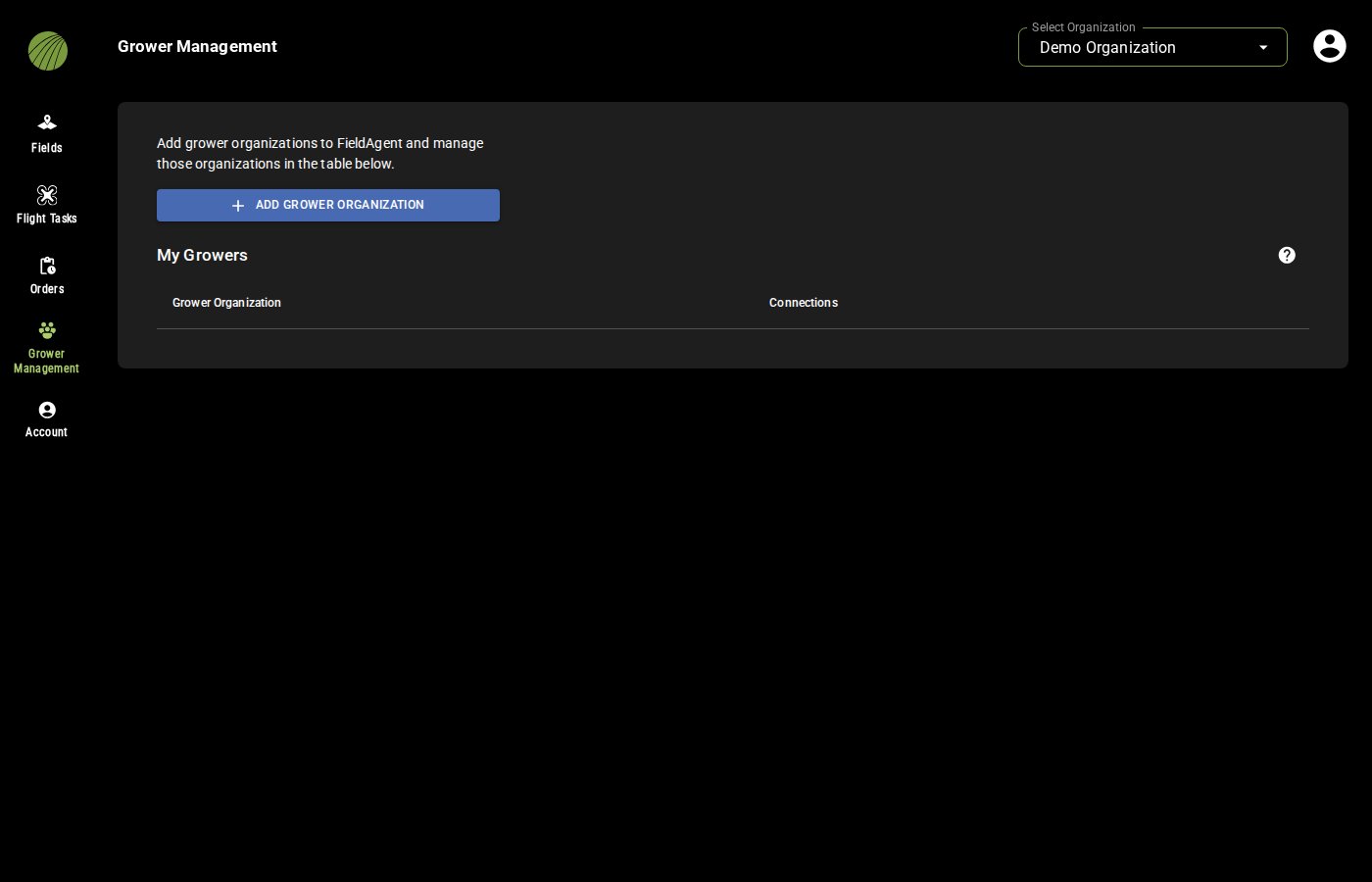
Before any grower organization is added.
 **Grower Management** in the navigation bar.
Before any grower organization is added.

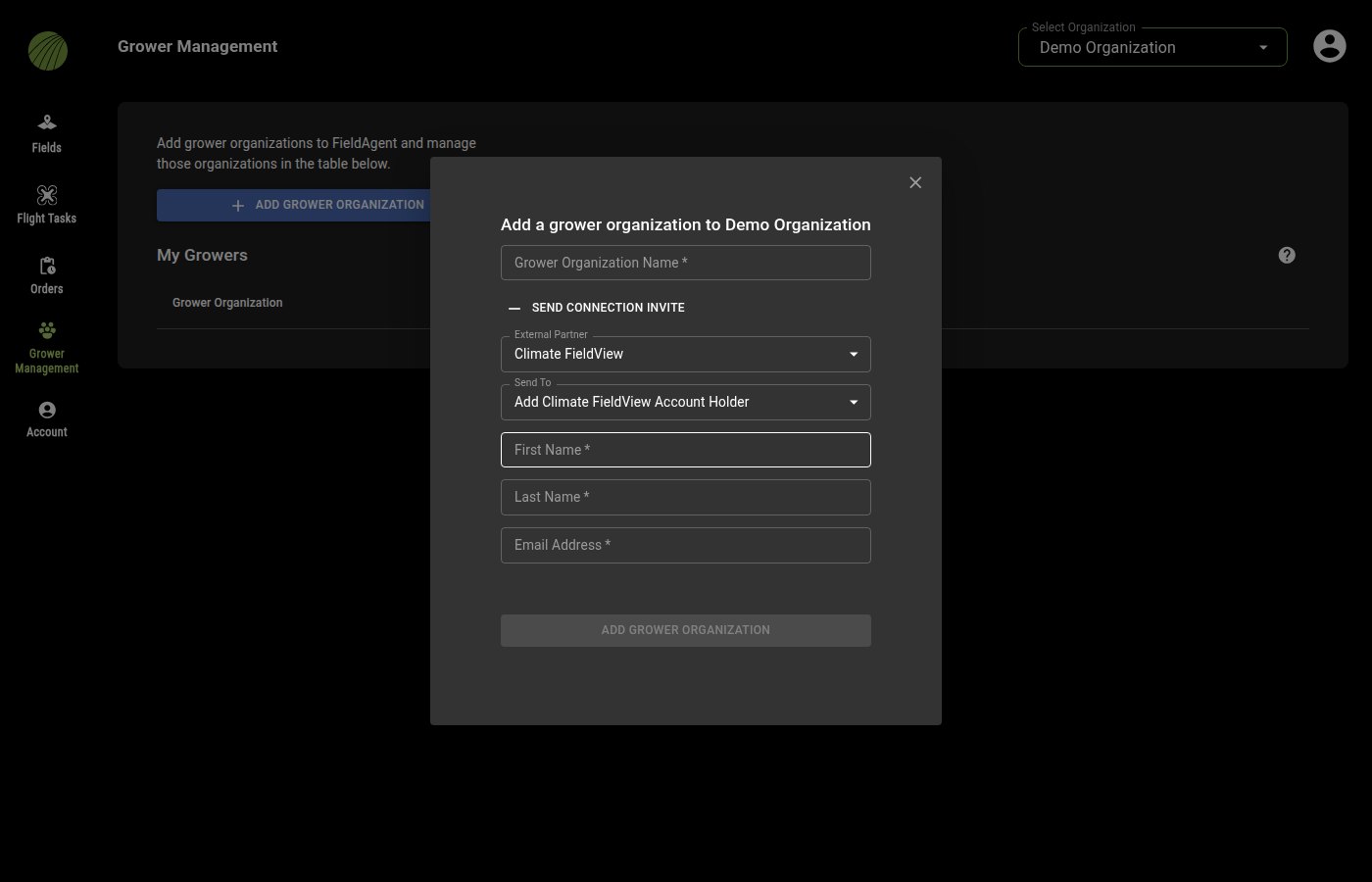
 In the **Send To** dropdown, choose who gets the email with the connection link.
| Send To | Description |
| ---------------------------------------- | ------------------------------------------------------------------------------------------------------------------------ |
| **Add Climate FieldView Account Holder** | The grower. Type their first name, last name and email address. |
| **Myself** | You, at the email address shown. Useful when the grower is with you and can sign in to Climate FieldView on your screen. |
| {% endstep %} | |
{% step %}
#### Add the organization
Click the **ADD GROWER ORGANIZATION** button.
{% endstep %}
{% endstepper %}
{% hint style="info" %}
The new grower organization appears in **My Growers**. If you sent an invite, the person in **Send To** gets an email with a link. Once the grower opens it, signs in to Climate FieldView and clicks **Allow**, the connection is made. Their fields can then be [imported into FieldAgent](/home/fieldagent-web/integrations/connect-with-climate-fieldview.md) under the grower organization.
{% endhint %}
***
## Check or change a grower's connection
**My Growers** lists the grower organizations in your selected organization. Its **Connections** column tells you which growers have connected their Climate FieldView account.
* For a grower who isn't connected, click **Send Invite** in their row. Then fill in their name and email address.
* To remove a connection, click the ⓧ next to **Climate FieldView** in the grower's row, then click **Disconnect**.
***
## View a grower's fields
1. Open **Select Organization**.
2. Expand your organization and select the grower organization.
The **Fields** panel then shows only that grower's fields. Select your own organization to see your fields and every grower's fields together.
***
## Related pages
{% content-ref url="/pages/tJhdYg1p7iVXeYvA3CW2" %}
[Organizations and Fields Shared With Me](/home/fieldagent-web/account-and-organizations/organizations-and-shared-fields.md)
{% endcontent-ref %}
{% content-ref url="/pages/0xTxymX1MTeEbAuLC6uB" %}
[Connect with Climate FieldView](/home/fieldagent-web/integrations/connect-with-climate-fieldview.md)
{% endcontent-ref %}
{% content-ref url="/pages/coc3JMK3CQEMMwBxAaDk" %}
[Create a field](/home/fieldagent-web/fields/create-a-field.md)
{% endcontent-ref %}
---
# Agent Instructions
This documentation is published with GitBook. GitBook is the documentation platform designed so that both humans and AI agents can read, navigate, and reason over technical content effectively. Learn more at gitbook.com.
## Querying This Documentation
If you need additional information that is not directly available in this page, you can query the documentation by asking a question.
Perform an HTTP GET request on the following URL with the `ask` and `goal` query parameters:
```
GET https://support.senterasensors.com/home/fieldagent-web/account-and-organizations/grower-organizations.md?ask=
In the **Send To** dropdown, choose who gets the email with the connection link.
| Send To | Description |
| ---------------------------------------- | ------------------------------------------------------------------------------------------------------------------------ |
| **Add Climate FieldView Account Holder** | The grower. Type their first name, last name and email address. |
| **Myself** | You, at the email address shown. Useful when the grower is with you and can sign in to Climate FieldView on your screen. |
| {% endstep %} | |
{% step %}
#### Add the organization
Click the **ADD GROWER ORGANIZATION** button.
{% endstep %}
{% endstepper %}
{% hint style="info" %}
The new grower organization appears in **My Growers**. If you sent an invite, the person in **Send To** gets an email with a link. Once the grower opens it, signs in to Climate FieldView and clicks **Allow**, the connection is made. Their fields can then be [imported into FieldAgent](/home/fieldagent-web/integrations/connect-with-climate-fieldview.md) under the grower organization.
{% endhint %}
***
## Check or change a grower's connection
**My Growers** lists the grower organizations in your selected organization. Its **Connections** column tells you which growers have connected their Climate FieldView account.
* For a grower who isn't connected, click **Send Invite** in their row. Then fill in their name and email address.
* To remove a connection, click the ⓧ next to **Climate FieldView** in the grower's row, then click **Disconnect**.
***
## View a grower's fields
1. Open **Select Organization**.
2. Expand your organization and select the grower organization.
The **Fields** panel then shows only that grower's fields. Select your own organization to see your fields and every grower's fields together.
***
## Related pages
{% content-ref url="/pages/tJhdYg1p7iVXeYvA3CW2" %}
[Organizations and Fields Shared With Me](/home/fieldagent-web/account-and-organizations/organizations-and-shared-fields.md)
{% endcontent-ref %}
{% content-ref url="/pages/0xTxymX1MTeEbAuLC6uB" %}
[Connect with Climate FieldView](/home/fieldagent-web/integrations/connect-with-climate-fieldview.md)
{% endcontent-ref %}
{% content-ref url="/pages/coc3JMK3CQEMMwBxAaDk" %}
[Create a field](/home/fieldagent-web/fields/create-a-field.md)
{% endcontent-ref %}
---
# Agent Instructions
This documentation is published with GitBook. GitBook is the documentation platform designed so that both humans and AI agents can read, navigate, and reason over technical content effectively. Learn more at gitbook.com.
## Querying This Documentation
If you need additional information that is not directly available in this page, you can query the documentation by asking a question.
Perform an HTTP GET request on the following URL with the `ask` and `goal` query parameters:
```
GET https://support.senterasensors.com/home/fieldagent-web/account-and-organizations/grower-organizations.md?ask=