
> For the complete documentation index, see [llms.txt](https://support.senterasensors.com/home/llms.txt). Markdown versions of documentation pages are available by appending `.md` to page URLs; this page is available as [Markdown](https://support.senterasensors.com/home/fieldagent-web/analytics/crop-health-mosaics.md).

# Crop Health and Multispectral mosaics

Choose the crop health or multispectral mosaic your sensor can make, read the index on the map and find where the crop is falling behind.

Choose the crop health or multispectral mosaic your sensor can make, read the index on the map and find where the crop is falling behind. Crop health mosaics are included in every plan.

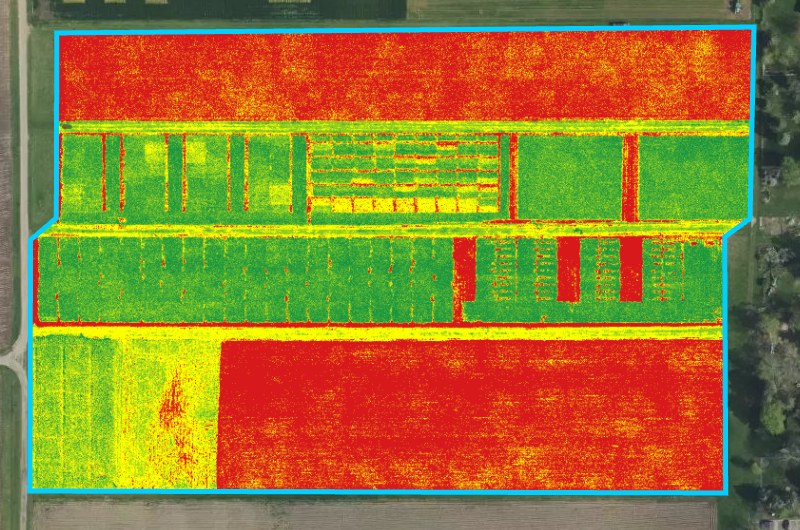
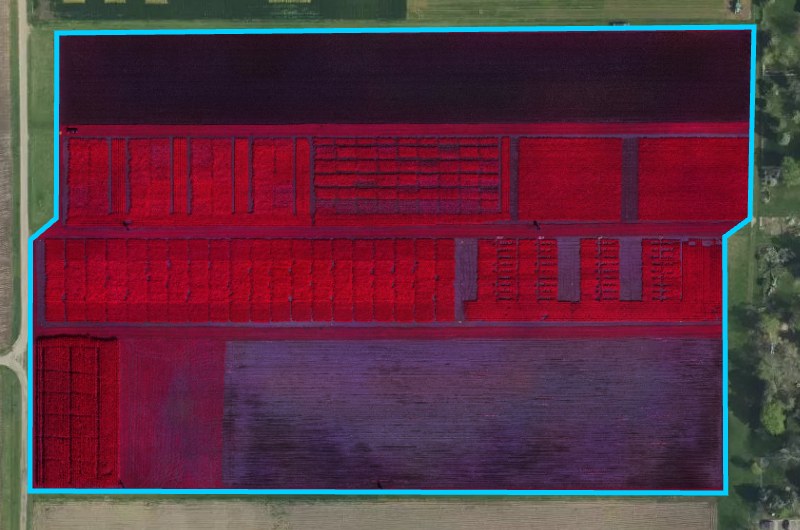
A crop health mosaic is a stitched image of the field colored by one vegetation index. Thin, stressed or weedy areas stand out from healthy canopy. A multispectral mosaic stores every band the sensor captured, so you can switch between indices without ordering again.

{% hint style="warning" %}
With an RGB-only camera, such as the Phantom 4 Pro, Mavic 2 Pro or Mavic 3 Enterprise, the only crop health mosaic you can order is **RGB and VARI Index Mosaics**. VARI is a less sensitive estimate from visible light, not NDVI. For NDVI or NDRE, use sensors with a near-infrared or red edge band.
{% endhint %}

***

## Fly and order

{% stepper %}
{% step %}

#### Fly the field

Fly at any growth stage, between 3 hours after sunrise and 3 hours before sunset, on a day with steady light.

Pick your sensor in **Flight settings for** to see how to fly it, or compare every sensor in the [flight specification](#flight-specification).

{% @sentera-analytics-finder/finder content="audience=support\&view=fly\&product=crop-health-mosaic,multispectral-mosaic" %}

To plan the flight in FieldAgent Mobile, see its [support site](https://support.senterasensors.com/home/fieldagent-mobile-ios/).
{% endstep %}

{% step %}

#### Import the photos

[Import the photos](/home/fieldagent-web/imagery/import-imagery-in-fieldagent-web.md) into the field.
{% endstep %}

{% step %}

#### Order the mosaic

Open the field and use the Order Mosaics button:

<div align="center"><img src="https://2791052504-files.gitbook.io/~/files/v0/b/gitbook-x-prod.appspot.com/o/spaces%2FVt6flh3S4tohPAjrSP91%2Fuploads%2Fgit-blob-c3d501a796e1ab4f1f6440dc4ee731afa45fe1f0%2Ffa-web-ui-btn-order-mosaics-1x.png?alt=media" alt="ORDER MOSAICS button"></div>

In the [order form](/home/fieldagent-web/ordering/order-a-mosaic.md), choose the survey, then the mosaic for your sensor. The photos in the survey decide which mosaics you can order.

{% tabs %}
{% tab title="RGB camera" %}
Order **RGB and VARI Index Mosaics**. You get two layers, an **RGB Mosaic** and a **VARI Mosaic**.

<figure><img src="https://2791052504-files.gitbook.io/~/files/v0/b/gitbook-x-prod.appspot.com/o/spaces%2FVt6flh3S4tohPAjrSP91%2Fuploads%2Fgit-blob-73d41b503a4627166e0e84e1d8a5bc4be93b7b07%2Ffa-web-layer-vari-mosaic.jpg?alt=media" alt="The demo field under a VARI Mosaic colorized from red through yellow to green"><figcaption></figcaption></figure>
{% endtab %}

{% tab title="Multispectral sensor" %}
Order the band set your sensor flew. You get one **Multispectral Mosaic**, which you can show by any index, band or composite its bands allow.

<figure><img src="https://2791052504-files.gitbook.io/~/files/v0/b/gitbook-x-prod.appspot.com/o/spaces%2FVt6flh3S4tohPAjrSP91%2Fuploads%2Fgit-blob-17fa379d2d9f734cb4a4b078b0bfefaea80277c8%2Ffa-web-layer-multispectral-mosaic.jpg?alt=media" alt="The demo field under a Multispectral Mosaic in its default visualization: the plots appear in reds and purples"><figcaption></figcaption></figure>

| Sensor                    | Order                          | Description                                                                                                                                                                  |
| ------------------------- | ------------------------------ | ---------------------------------------------------------------------------------------------------------------------------------------------------------------------------- |
| Sentera 6X Multispectral  | **B, G, R, RE, NIR Mosaic**    | Blue, green, red, red edge and near infrared. Every index, both composites and each band on its own.                                                                         |
| Sentera 6X Thermal Pro    | **G, R, RE, NIR, LWIR Mosaic** | Green, red, red edge, near infrared and thermal. Color Infrared, each band and every index except GLI. The thermal band shows [surface temperature](#read-a-thermal-mosaic). |
| DJI Mavic 3 Multispectral | **G, R, RE, NIR Mosaic**       | Green, red, red edge and near infrared. Color Infrared, each band and every index except GLI.                                                                                |
| {% endtab %}              |                                |                                                                                                                                                                              |
| {% endtabs %}             |                                |                                                                                                                                                                              |

Click **SUBMIT**.
{% endstep %}
{% endstepper %}

{% hint style="info" %}
FieldAgent emails you when the mosaic is ready and adds it to the survey in **Map Layers**.
{% endhint %}

***

## Show an index or band

In the layer details, a **Multispectral Mosaic** can show an index, a single band or a composite. A VARI, NDVI or NDRE mosaic is fixed to its index, but you can still change its colors.

{% stepper %}
{% step %}

#### Turn on the mosaic

In **Map Layers**, click the layers icon <img src="https://2791052504-files.gitbook.io/~/files/v0/b/gitbook-x-prod.appspot.com/o/spaces%2FVt6flh3S4tohPAjrSP91%2Fuploads%2Fgit-blob-63327f0a1a9668fc0304dc7f1979ade39d585d00%2Ffa-web-icon-layers.svg?alt=media" alt="layers icon" data-size="line">. Under the survey date, turn on the mosaic.
{% endstep %}

{% step %}

#### Open Mosaic Details

Click the layer name to open **Mosaic Details**.
{% endstep %}

{% step %}

#### Choose an index or band

For a **Multispectral Mosaic**, choose an index or band in **Visualization**. Anything the bands of the mosaic can't produce is grayed out.
{% endstep %}

{% step %}

#### Set the colors

Set the [bins and range](/home/fieldagent-web/view-and-analyze/colorization-and-visualization.md#set-a-layers-colors) in **Colorization**.

<figure><img src="https://2791052504-files.gitbook.io/~/files/v0/b/gitbook-x-prod.appspot.com/o/spaces%2FVt6flh3S4tohPAjrSP91%2Fuploads%2Fgit-blob-17fab5aacc6cd360d564ef41e2fbf25326d36cd7%2Ffa-web-field-view-ndvi-colorization.jpg?alt=media" alt="A Multispectral Mosaic displayed as NDVI in five bins from red to green, with the Mosaic Details and Colorization panels"><figcaption></figcaption></figure>
{% endstep %}
{% endstepper %}

<details>

<summary>Everything in the Visualization menu</summary>

| Group      | Description                                                                     |
| ---------- | ------------------------------------------------------------------------------- |
| COMPOSITES | Color Infrared (NIR, R, G) and Natural Color (R, G, B)                          |
| INDICES    | NDVI, NDRE, GNDVI, CIRE, CIG, NDWI and GLI                                      |
| BANDS      | One entry for each band, with its wavelength, for example **Red Edge (715 nm)** |

<figure><img src="https://2791052504-files.gitbook.io/~/files/v0/b/gitbook-x-prod.appspot.com/o/spaces%2FVt6flh3S4tohPAjrSP91%2Fuploads%2Fgit-blob-7afda169186c71e38442c2688ce59261779ec9c4%2Ffa-web-6x-visualization-menu.jpg?alt=media" alt="The Visualization menu of a Sentera 6X Multispectral mosaic open over the Color Infrared view of a research farm: COMPOSITES Color Infrared (NIR, R, G) and Natural Color (R, G, B); INDICES NDVI, NDRE, GNDVI, CIRE, CIG, NDWI, GLI; BANDS Blue (475 nm), Green (550 nm), Red (670 nm), Red Edge (715 nm), NIR (840 nm)"><figcaption><p>The Visualization menu of a Sentera 6X Multispectral mosaic. Because the sensor has a blue band, Natural Color and GLI are available.</p></figcaption></figure>

</details>

***

## Read the index values

NDVI and NDRE run from -1 to 1. Bare soil, water and residue fall near or below zero, and healthy crop is high.

Compare values within a field, or between dates of the same field, rather than against a fixed threshold. Sensor, growth stage and lighting all shift the numbers. Compare a layer only with layers of the same index, VARI with VARI and NDVI with NDVI.

NDVI flattens out once the canopy closes. Later in the season, switch to NDRE if your sensor has a red-edge band.

<details>

<summary>NDVI, NDRE and VARI compared</summary>

| Index                                              | Bands                      | Description                                                                                                                                                     | Sensor needed                                  |
| -------------------------------------------------- | -------------------------- | --------------------------------------------------------------------------------------------------------------------------------------------------------------- | ---------------------------------------------- |
| **NDVI** (Normalized Difference Vegetation Index)  | Red and near infrared      | Green biomass and canopy cover. The standard index for early and mid-season vigor. It saturates once the canopy closes, so late-season differences flatten out. | A sensor with a near-infrared band             |
| **NDRE** (Normalized Difference Red Edge)          | Red edge and near infrared | Chlorophyll and nitrogen status in a dense canopy. Keeps separating healthy from stressed plants after NDVI has saturated.                                      | A sensor with red-edge and near-infrared bands |
| **VARI** (Visible Atmospherically Resistant Index) | Red, green and blue        | Greenness computed from visible light only. Less sensitive than NDVI, but available from any RGB camera.                                                        | Any RGB camera                                 |

</details>

***

## Read a thermal mosaic

A Sentera 6X Thermal Pro adds a long-wave infrared band, **LWIR (11.00 μm)**, to the multispectral bands. Its values are surface temperatures in degrees Celsius, to one decimal.

The map shows which parts of the field were warmer or cooler when you flew. Dry or bare soil and stressed canopy usually run warm. Well-watered canopy and wet ground run cool.

1. Turn on the **Multispectral Mosaic** map layer from a thermal survey, and click its name to open **Mosaic Details**.
2. In **Visualization**, choose the thermal band, **LWIR (11.00 μm)**. The histogram shows how the temperatures are spread, and the range handles show the coolest and warmest temperatures displayed in the field.

<figure><img src="https://2791052504-files.gitbook.io/~/files/v0/b/gitbook-x-prod.appspot.com/o/spaces%2FVt6flh3S4tohPAjrSP91%2Fuploads%2Fgit-blob-e93fbaf2f07d31b7442a5665b3703850f406feea%2Ffa-web-thermal-mosaic-lwir.jpg?alt=media" alt="A Multispectral Mosaic from a 6X Thermal Pro survey shown as LWIR (11.00 μm): the research plots in dark purple, magenta and orange over the satellite basemap, and the Mosaic Details panel with Visualization LWIR (11.00 μm), a Colorization histogram in the same colors, the range 23.9 to 49.9, By Area, a dark purple to orange Color Scale, and the Display Mode selector"><figcaption><p>Surface temperatures in this flight ranged from 23.9 to 49.9 °C.</p></figcaption></figure>

{% hint style="info" %}
**Zone Statistics** gives the average temperature for the field boundary and each zone. **Show More** under **Colorization** lists the area in each temperature bin.
{% endhint %}

On a 6X Thermal survey, **Natural Color (R, G, B)** and **GLI** are grayed out because the sensor has no blue band. Color Infrared and the other indices work as usual.

From the same survey, you can also order an RGB mosaic and an [Elevation Mosaic](/home/fieldagent-web/analytics/elevation-mosaic.md) with **RGB and Elevation Mosaics**. Both are built from the RGB photos of the flight.

### Try it in the demo

The demo below opens a 14-acre research farm flown with a Sentera 6X Thermal Pro. Switch its Multispectral Mosaic to the thermal band and read the temperatures.

{% @fieldagent-demo/embed content="thermal-mosaic" %}

<a href="https://senterallc.github.io/FieldAgent-Demos/demo.html?s=thermal-mosaic&#x26;mode=page" class="button secondary">Open this demo full size</a>

***

## Compare dates and areas

Turn on the same index from two flights to see how the crop changed between them. Use **By Range** colorization with the same bins on both layers, so a color means the same value on both dates. Then open the upper layer and lower its **Opacity**, or hide and show it.

For parts of the field, [draw a zone](/home/fieldagent-web/view-and-analyze/zones-and-zone-statistics.md) over each one. **Zone Statistics** in the layer details then gives the average index in each zone.

### Try it in the demo

Here the NDVI of a 09-04-2024 flight is already on the map. Add the flight from two weeks earlier, give both layers the same colors, then lower the upper layer's **Opacity**.

{% @fieldagent-demo/embed content="compare-dates" %}

<a href="https://senterallc.github.io/FieldAgent-Demos/demo.html?s=compare-dates&#x26;mode=page" class="button secondary">Open this demo full size</a>

***

## Use the results

* Turn on the **Photo Dots** of the survey and click the dot nearest a problem area to see what's on the ground. Its photo opens in the [image viewer](/home/fieldagent-web/view-and-analyze/photo-dots-and-image-viewer.md).
* Turn the index bins into rate zones with [Zone Rx (Beta)](/home/fieldagent-web/export-and-share/zone-rx-prescriptions.md), under **Display Mode**.
* [Download the mosaic](/home/fieldagent-web/export-and-share/download-and-export-data.md) as a TIF file from **Download Files** in the layer details. A multispectral TIF holds every band at full resolution and can be several gigabytes.
* Between flights, NDVI and NDRE are also available from [satellite](/home/fieldagent-web/analytics/satellite-imagery.md).

***

## Flight specification

The Crop Health Mosaic covers the NDVI, NDRE and VARI products, and the Multispectral and/or Thermal Crop Health Mosaic covers the band sets. Pick your sensor in **Settings for** to see how to fly it.

{% @sentera-analytics-finder/finder content="audience=support\&view=spec\&product=crop-health-mosaic" %}

{% @sentera-analytics-finder/finder content="audience=support\&view=spec\&product=multispectral-mosaic" %}

**Visualized layers** in the multispectral specification lists the composites, bands and indices each band set can show.

***

## Related pages

{% content-ref url="/pages/3AZV1F3eNcUzaVTotJPN" %}
[Order a mosaic](/home/fieldagent-web/ordering/order-a-mosaic.md)
{% endcontent-ref %}

{% content-ref url="/pages/3vUSaeGrUKbAZtRHwYK6" %}
[Colorization and visualization](/home/fieldagent-web/view-and-analyze/colorization-and-visualization.md)
{% endcontent-ref %}

{% content-ref url="/pages/5fTTnfbxwUpnJveZVC03" %}
[Satellite imagery](/home/fieldagent-web/analytics/satellite-imagery.md)
{% endcontent-ref %}

{% content-ref url="/pages/SWLgKh4AXplziFjDD5I5" %}
[Mosaics](/home/fieldagent-web/imagery/mosaics.md)
{% endcontent-ref %}


---

# Agent Instructions
This documentation is published with GitBook. GitBook is the documentation platform designed so that both humans and AI agents can read, navigate, and reason over technical content effectively. Learn more at gitbook.com.

## Querying This Documentation
If you need additional information that is not directly available in this page, you can query the documentation by asking a question.

Perform an HTTP GET request on the following URL with the `ask` and `goal` query parameters:

```
GET https://support.senterasensors.com/home/fieldagent-web/analytics/crop-health-mosaics.md?ask=<question>&goal=<user_goal>
```

`ask` is the immediate question: it should be specific, self-contained, and written in natural language.
`goal` is what the user is ultimately trying to achieve, the reason they need the answer. Sharing it helps GitBook give you a better, more relevant answer. A goal is most helpful when it describes the outcome the user wants rather than restating the question. For example, with `ask=how do I create an API token`, a goal like `automate deployments from our CI pipeline` lets GitBook tailor the answer to that use case.

The response will contain a direct answer to the question and relevant excerpts and sources from the documentation.

Use this mechanism when the answer is not explicitly present in the current page, you need clarification or additional context, or you want to retrieve related documentation sections.
