> For the complete documentation index, see [llms.txt](https://support.senterasensors.com/home/llms.txt). Markdown versions of documentation pages are available by appending `.md` to page URLs; this page is available as [Markdown](https://support.senterasensors.com/home/fieldagent-web/analytics/elevation-mosaic.md).
# Elevation Mosaic
Order an elevation mosaic of a field and color it to pick out the lowest ground.
Order an elevation mosaic of a field and color it to pick out the lowest ground. The Elevation Mosaic is included in every plan.
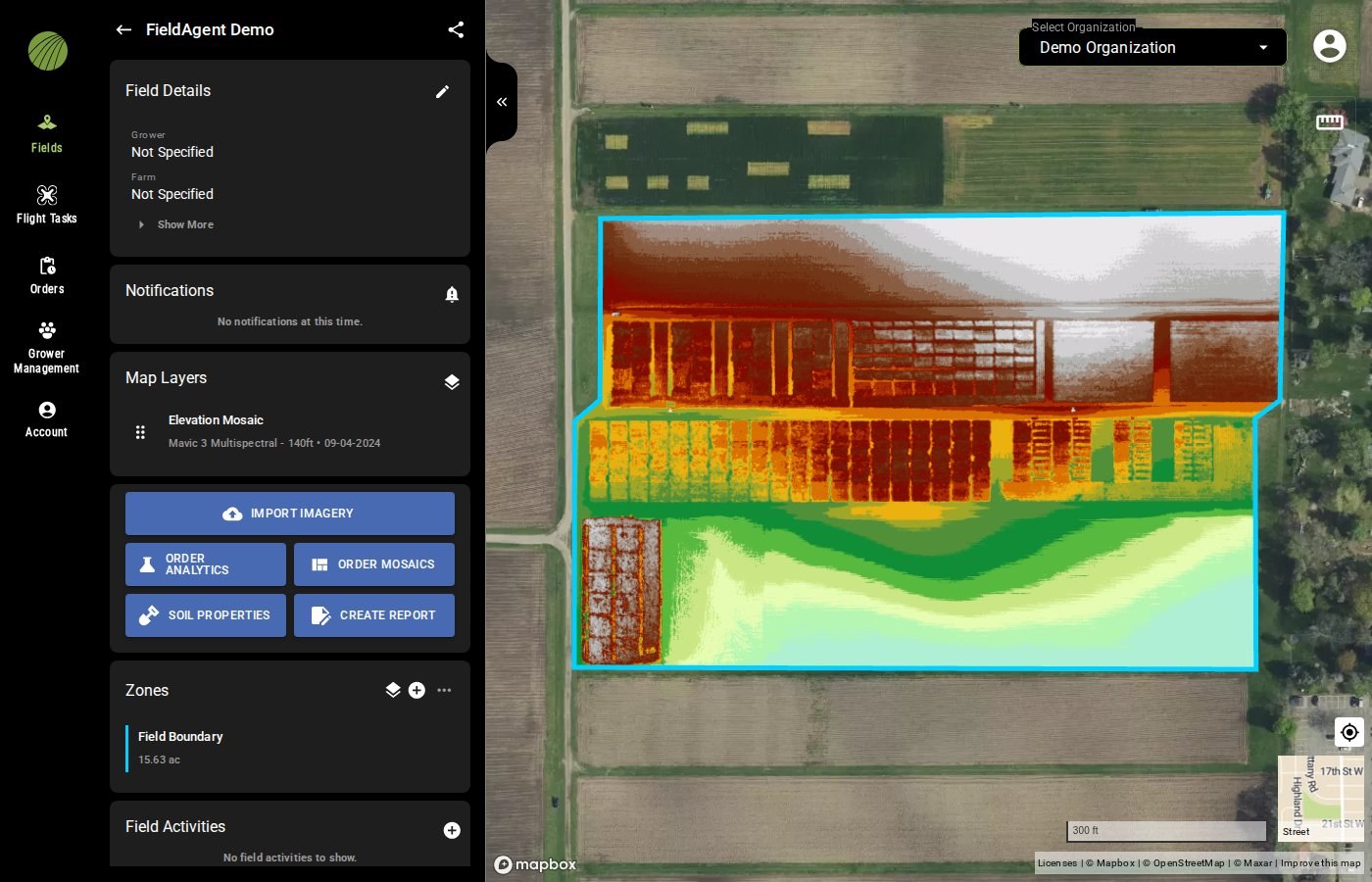
An Elevation Mosaic is a digital surface model of the field, built from the same photos as an RGB mosaic. Each pixel holds the elevation of the surface the camera saw. Use it to find low spots that pond, ridges, drainage paths and the lay of terraces. Then plan drainage or seeding around them.
***
## Fly and order
{% hint style="warning" %}
Elevation needs photos that overlap. Photos flown for a stand count or canopy cover analytic don't overlap, so an elevation mosaic ordered on them ends up as a [failed order](/home/fieldagent-web/ordering/why-cant-i-order.md#the-order-failed).
{% endhint %}
{% stepper %}
{% step %}
#### Fly the field
Fly off season, before planting or after harvest, when the soil is bare.
Pick your sensor in **Flight settings for** to see how to fly it, or compare every sensor in the [flight specification](#flight-specification).
{% @sentera-analytics-finder/finder content="audience=support\&view=fly\&product=elevation-mosaic" %}
Keep a consistent altitude and pick a day with steady light.
{% endstep %}
{% step %}
#### Import the photos
[Import the photos](/home/fieldagent-web/imagery/import-imagery-in-fieldagent-web.md) into the field.
{% endstep %}
{% step %}
#### Order the mosaics
Open the field and use the Order Mosaics button:
In the [order form](/home/fieldagent-web/ordering/order-a-mosaic.md), choose the survey, then **RGB and Elevation Mosaics**. The elevation mosaic always comes with an RGB mosaic. You can order it from any survey with RGB photos, including Sentera 6X Multispectral and Sentera 6X Thermal Pro flights.
Click **SUBMIT**.
{% endstep %}
{% endstepper %}
{% hint style="info" %}
FieldAgent emails you when the mosaics are ready. They're added to the survey as two layers, **RGB Mosaic** and **Elevation Mosaic**.
{% endhint %}
***
## Find the low spots
1. In **Map Layers**, click the layers icon .
2. Under the survey date, turn on **Elevation Mosaic**.
Change the colorization to pick out the lowest ground:
1. Click the layer name to open **Mosaic Details** and **Colorization**. The histogram shows how the elevations are spread, and the range handles start at the lowest and highest elevations in the field.
2. Drag the right handle toward the low end to isolate the lowest ground, and adjust the bins.
{% hint style="info" %}
Elevation is always listed in meters, and shown without a unit.
{% endhint %}
### Try it in the demo
In the demo below, a 16-acre field has an Elevation Mosaic from 09-04-2024. Turn it on, then narrow its colors down to the lowest ground.
{% @fieldagent-demo/embed content="elevation" %}
Open this demo full size
***
## Use the results
* Lower the **Opacity** of the Elevation Mosaic over an RGB mosaic or an [NDVI layer](/home/fieldagent-web/analytics/crop-health-mosaics.md) to relate wet or weak areas to the terrain.
* [Draw a zone](/home/fieldagent-web/view-and-analyze/zones-and-zone-statistics.md) over a low area you suspect and read it in **Zone Statistics**.
* Turn the elevation bins into zones with [Zone Rx (Beta)](/home/fieldagent-web/export-and-share/zone-rx-prescriptions.md), under **Display Mode**, for example to build a drainage or seeding prescription.
* [Download the mosaic](/home/fieldagent-web/export-and-share/download-and-export-data.md) from **Download Files** for GIS or drainage-design software.
***
## Flight specification
Pick your sensor in **Settings for** to see how to fly it.
{% @sentera-analytics-finder/finder content="audience=support\&view=spec\&product=elevation-mosaic" %}
***
## Related pages
{% content-ref url="/pages/3AZV1F3eNcUzaVTotJPN" %}
[Order a mosaic](/home/fieldagent-web/ordering/order-a-mosaic.md)
{% endcontent-ref %}
{% content-ref url="/pages/F4kkbkAVmnxgSw49MBqt" %}
[Crop Health and Multispectral mosaics](/home/fieldagent-web/analytics/crop-health-mosaics.md)
{% endcontent-ref %}
{% content-ref url="/pages/zd8QvEvP6Uxj2pt3LgL8" %}
[Zone Rx prescriptions](/home/fieldagent-web/export-and-share/zone-rx-prescriptions.md)
{% endcontent-ref %}
---
# Agent Instructions
This documentation is published with GitBook. GitBook is the documentation platform designed so that both humans and AI agents can read, navigate, and reason over technical content effectively. Learn more at gitbook.com.
## Querying This Documentation
If you need additional information that is not directly available in this page, you can query the documentation by asking a question.
Perform an HTTP GET request on the following URL with the `ask` and `goal` query parameters:
```
GET https://support.senterasensors.com/home/fieldagent-web/analytics/elevation-mosaic.md?ask=&goal=
```
`ask` is the immediate question: it should be specific, self-contained, and written in natural language.
`goal` is what the user is ultimately trying to achieve, the reason they need the answer. Sharing it helps GitBook give you a better, more relevant answer. A goal is most helpful when it describes the outcome the user wants rather than restating the question. For example, with `ask=how do I create an API token`, a goal like `automate deployments from our CI pipeline` lets GitBook tailor the answer to that use case.
The response will contain a direct answer to the question and relevant excerpts and sources from the documentation.
Use this mechanism when the answer is not explicitly present in the current page, you need clarification or additional context, or you want to retrieve related documentation sections.

 .
2. Under the survey date, turn on **Elevation Mosaic**.
.
2. Under the survey date, turn on **Elevation Mosaic**.