> For the complete documentation index, see [llms.txt](https://support.senterasensors.com/home/llms.txt). Markdown versions of documentation pages are available by appending `.md` to page URLs; this page is available as [Markdown](https://support.senterasensors.com/home/fieldagent-web/analytics/satellite-imagery.md).
# Satellite imagery
Add Sentinel-2 satellite layers to any field and use them to watch the crop between drone flights.
Add Sentinel-2 satellite layers to any field and use them to watch the crop between drone flights. Satellite imagery is included in every plan.
Every field in FieldAgent gets satellite scenes every few days, all season long, with no flight or order. They come from the Sentinel-2 constellation, operated by the European Space Agency. Use them to decide where to fly or walk next. At 10 meters per pixel, they're far coarser than drone imagery.
***
## Add a satellite layer
{% stepper %}
{% step %}
#### Open Add Map Layers
Open the field and click the layers icon in **Map Layers**.
{% endstep %}
{% step %}
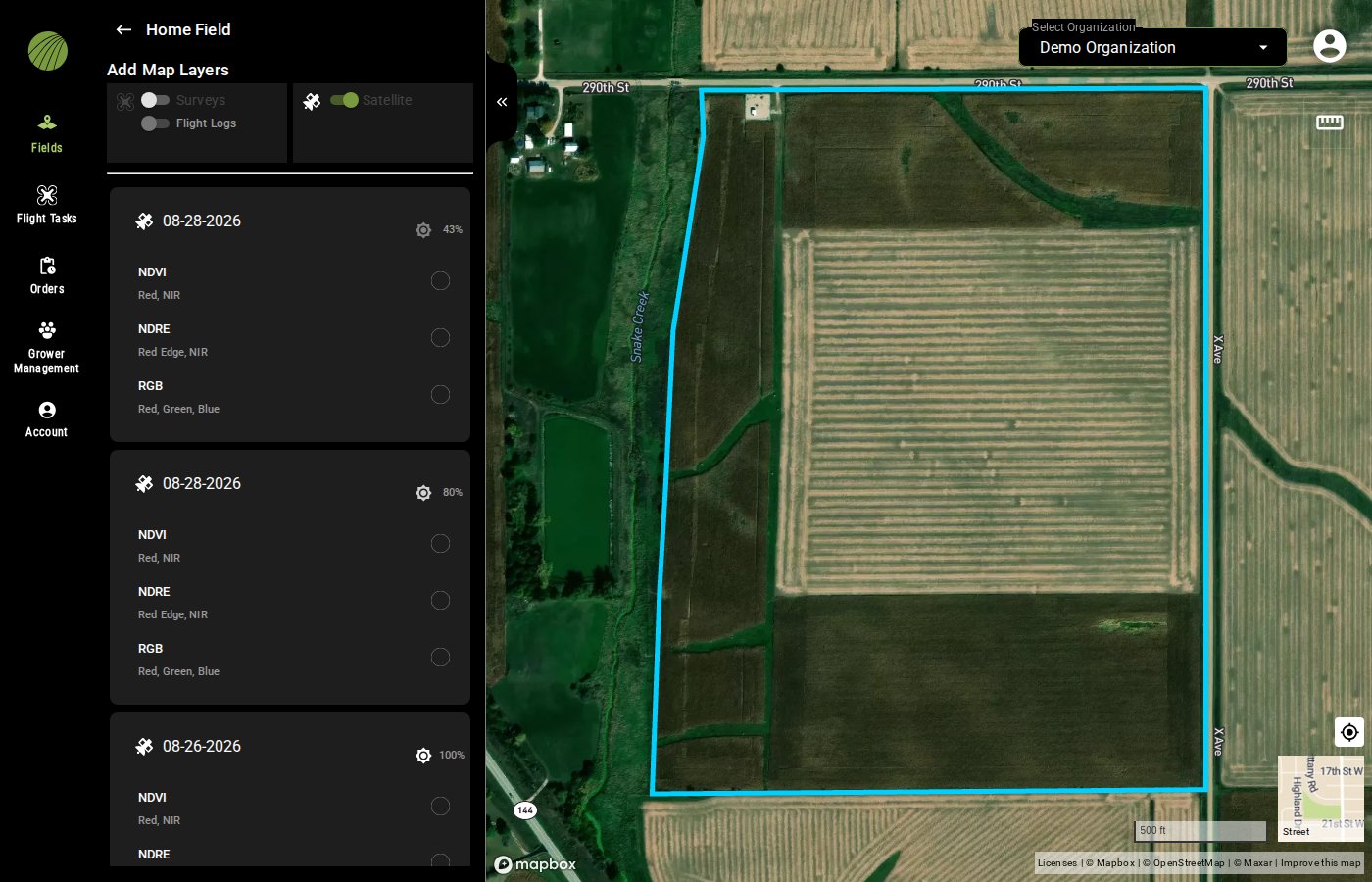
#### Turn on Satellite
In **Add Map Layers**, turn on the **Satellite** toggle button. Turn off **Surveys** to see only satellite dates.
{% endstep %}
{% step %}
#### Choose a date and layer
Pick a date with a high percentage beside the sun icon . The percentage shows how clear the sky was.
Each date lists an NDVI, an NDRE and an RGB layer. Click the circle next to a layer to show it.
{% hint style="warning" %}
A field on the edge of two satellite tiles lists a date twice, once for each tile. One of the two may cover only part of the field.
{% endhint %}
{% endstep %}
{% step %}
#### Return to the field
Click the back arrow to return to the field view.
{% endstep %}
{% endstepper %}
### Try it in the demo
Try it on a field with nine satellite dates from the 2026 season. List only the satellite dates and add the NDVI of the newest one.
{% @fieldagent-demo/embed content="satellite" %}
Open this demo full size
***
## Read a satellite layer
Click the layer name in **Map Layers** to open its details. They give the **Cloud Cover** of the scene and the same **Colorization** controls as a drone layer.
{% hint style="warning" %}
Clouds and cloud shadows read as low index values. Before you trust a low patch, open the **RGB** layer from the same date to see whether it's cloud or crop.
{% endhint %}
The layer is clipped to the field boundary, so the histogram and the zone statistics describe only the field.
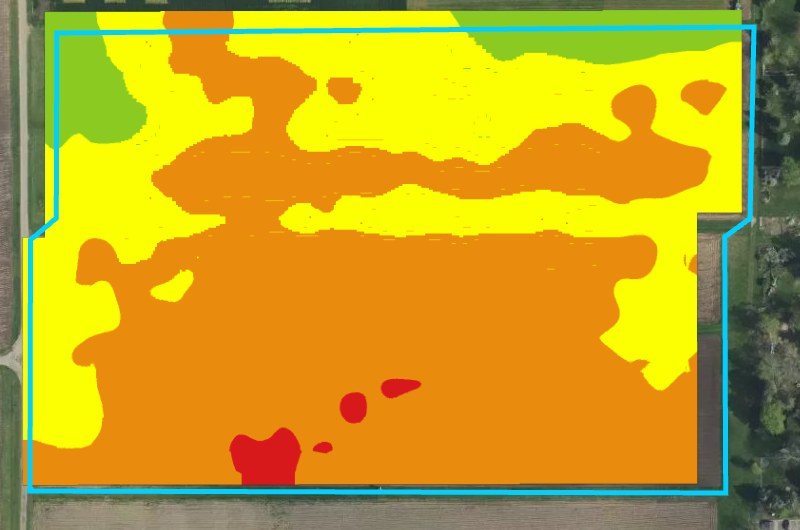
With 10 m pixels, the color classes come out as broad bands.
{% hint style="info" %}
Satellite layers work with the same [display tools](/home/fieldagent-web/view-and-analyze/map-layers.md) as drone layers. You can stack, reorder and hide them, and change their **Opacity**.
{% endhint %}
### Try it in the demo
In the demo below, a satellite NDVI with a low east half is on the map. Open its details, then check the low patch against the RGB from the same date.
{% @fieldagent-demo/embed content="satellite-read" %}
Open this demo full size
***
## Watch the field between flights
* Add the most recent clear NDVI scene each week. A field that's greening up evenly needs no visit. An area that falls behind is where to fly or walk.
* Track the season with **By Range** colorization and the field-boundary **Average** in [Zone Statistics](/home/fieldagent-web/view-and-analyze/zones-and-zone-statistics.md). The same layer type across dates shows the crop's development and, late in the season, its dry-down.
* Draw zones over hybrids or practices, and compare their averages on a clear scene.
* Turn an NDVI or NDRE scene into rate zones with [Zone Rx (Beta)](/home/fieldagent-web/export-and-share/zone-rx-prescriptions.md), under **Display Mode**.
***
## Related pages
{% content-ref url="/pages/hFBVUsKMPfZeBiEZKD2u" %}
[Map layers](/home/fieldagent-web/view-and-analyze/map-layers.md)
{% endcontent-ref %}
{% content-ref url="/pages/3vUSaeGrUKbAZtRHwYK6" %}
[Colorization and visualization](/home/fieldagent-web/view-and-analyze/colorization-and-visualization.md)
{% endcontent-ref %}
{% content-ref url="/pages/F4kkbkAVmnxgSw49MBqt" %}
[Crop Health and Multispectral mosaics](/home/fieldagent-web/analytics/crop-health-mosaics.md)
{% endcontent-ref %}
{% content-ref url="/pages/Jgi1Im9DL0dsUKMeiPFH" %}
[Zones and zone statistics](/home/fieldagent-web/view-and-analyze/zones-and-zone-statistics.md)
{% endcontent-ref %}
---
# Agent Instructions
This documentation is published with GitBook. GitBook is the documentation platform designed so that both humans and AI agents can read, navigate, and reason over technical content effectively. Learn more at gitbook.com.
## Querying This Documentation
If you need additional information that is not directly available in this page, you can query the documentation by asking a question.
Perform an HTTP GET request on the following URL with the `ask` and `goal` query parameters:
```
GET https://support.senterasensors.com/home/fieldagent-web/analytics/satellite-imagery.md?ask=&goal=
```
`ask` is the immediate question: it should be specific, self-contained, and written in natural language.
`goal` is what the user is ultimately trying to achieve, the reason they need the answer. Sharing it helps GitBook give you a better, more relevant answer. A goal is most helpful when it describes the outcome the user wants rather than restating the question. For example, with `ask=how do I create an API token`, a goal like `automate deployments from our CI pipeline` lets GitBook tailor the answer to that use case.
The response will contain a direct answer to the question and relevant excerpts and sources from the documentation.
Use this mechanism when the answer is not explicitly present in the current page, you need clarification or additional context, or you want to retrieve related documentation sections.
 in **Map Layers**.
{% endstep %}
{% step %}
#### Turn on Satellite
In **Add Map Layers**, turn on the **Satellite** toggle button. Turn off **Surveys** to see only satellite dates.
{% endstep %}
{% step %}
#### Choose a date and layer
Pick a date with a high percentage beside the sun icon
in **Map Layers**.
{% endstep %}
{% step %}
#### Turn on Satellite
In **Add Map Layers**, turn on the **Satellite** toggle button. Turn off **Surveys** to see only satellite dates.
{% endstep %}
{% step %}
#### Choose a date and layer
Pick a date with a high percentage beside the sun icon  . The percentage shows how clear the sky was.
Each date lists an NDVI, an NDRE and an RGB layer. Click the circle next to a layer to show it.
. The percentage shows how clear the sky was.
Each date lists an NDVI, an NDRE and an RGB layer. Click the circle next to a layer to show it.
 to return to the field view.
{% endstep %}
{% endstepper %}
### Try it in the demo
Try it on a field with nine satellite dates from the 2026 season. List only the satellite dates and add the NDVI of the newest one.
{% @fieldagent-demo/embed content="satellite" %}
Open this demo full size
***
## Read a satellite layer
Click the layer name in **Map Layers** to open its details. They give the **Cloud Cover** of the scene and the same **Colorization** controls as a drone layer.
to return to the field view.
{% endstep %}
{% endstepper %}
### Try it in the demo
Try it on a field with nine satellite dates from the 2026 season. List only the satellite dates and add the NDVI of the newest one.
{% @fieldagent-demo/embed content="satellite" %}
Open this demo full size
***
## Read a satellite layer
Click the layer name in **Map Layers** to open its details. They give the **Cloud Cover** of the scene and the same **Colorization** controls as a drone layer.