> For the complete documentation index, see [llms.txt](https://support.senterasensors.com/home/llms.txt). Markdown versions of documentation pages are available by appending `.md` to page URLs; this page is available as [Markdown](https://support.senterasensors.com/home/fieldagent-web/analytics/stand-count-with-uniformity.md).
# Stand Count with Uniformity
Order a stand count that also shows how evenly the plants stand, and compare hybrids, planter settings or seeding rates.
Stand Count with Uniformity is included in the Advanced plan. It adds seed spacing, singulation, skips, plant size and weed cover to a [Stand Count](/home/fieldagent-web/analytics/stand-count.md).
***
## Fly and order
{% hint style="warning" %}
Stand count photos are captured with negative overlap. This means the images do not share any area with each other, and they can't be stitched into a mosaic. Don't order a mosaic on a stand count survey, or it ends up as a [failed order](/home/fieldagent-web/ordering/why-cant-i-order.md#the-order-failed).
{% endhint %}
{% stepper %}
{% step %}
#### Fly the field
Fly after emergence and before the plants overlap in the row. That's V2–V5 for corn, V2–V3 for soybean and the 5–6 leaf stage for cotton and canola.
Pick your sensor in **Flight settings for** to see how to fly it, or compare every sensor in the [flight specification](#flight-specification).
{% @sentera-analytics-finder/finder content="audience=support\&view=fly\&product=stand-count-uniformity" %}
To plan the flight in FieldAgent Mobile, see its [support site](https://support.senterasensors.com/home/fieldagent-mobile-ios/).
{% endstep %}
{% step %}
#### Import the photos
[Import the photos](/home/fieldagent-web/imagery/import-imagery-in-fieldagent-web.md) into the field.
{% endstep %}
{% step %}
#### Order the count
Open the field and use the Order Analytics button:
Choose **Field Scale Stand Count with Uniformity**, then select the survey.
Enter the crop type, then the seeding rate and row spacing the planter used. FieldAgent works out the expected seed spacing from them and compares every spacing measure against it, so check both numbers before you submit. **SUBMIT** becomes clickable once all three are filled in.
{% endstep %}
{% endstepper %}
{% hint style="info" %}
FieldAgent emails you when the count is ready. The results are added to the survey as two layers, **Stand Count with Uniformity - Individual** and **Stand Count Heatmap**.
{% endhint %}
***
## Read the results
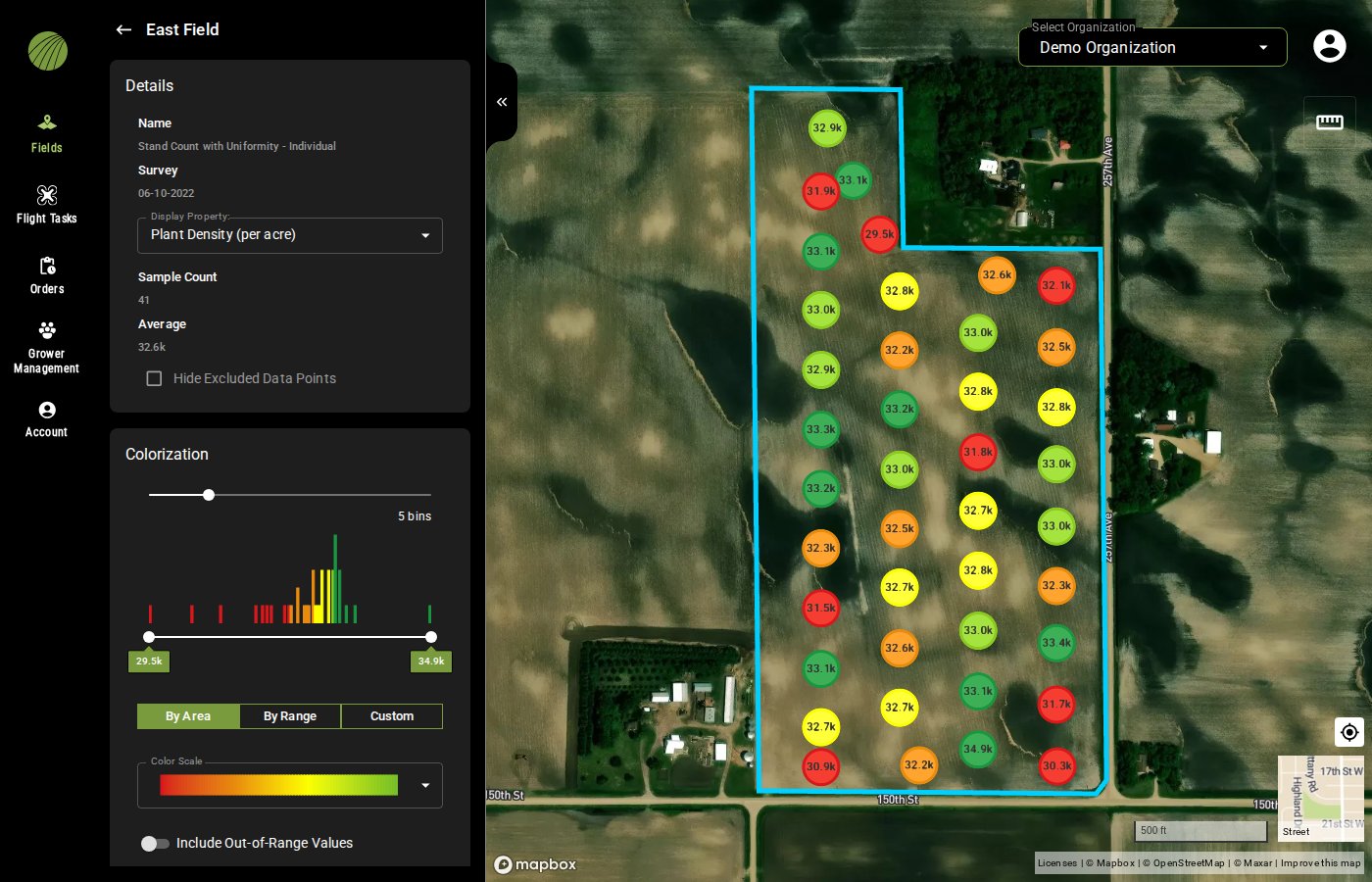
Start with **Stand Count with Uniformity - Individual**. It puts a dot on each sample photo, labeled with its plant density and colored from red (lowest) to green (highest).
1. In **Map Layers**, click the layers icon .
2. Under the survey date, turn on **Stand Count with Uniformity - Individual**.
3. Click the layer name to open its details.
To see plant density across the whole field, turn on **Stand Count Heatmap** from the same survey.
### The display properties
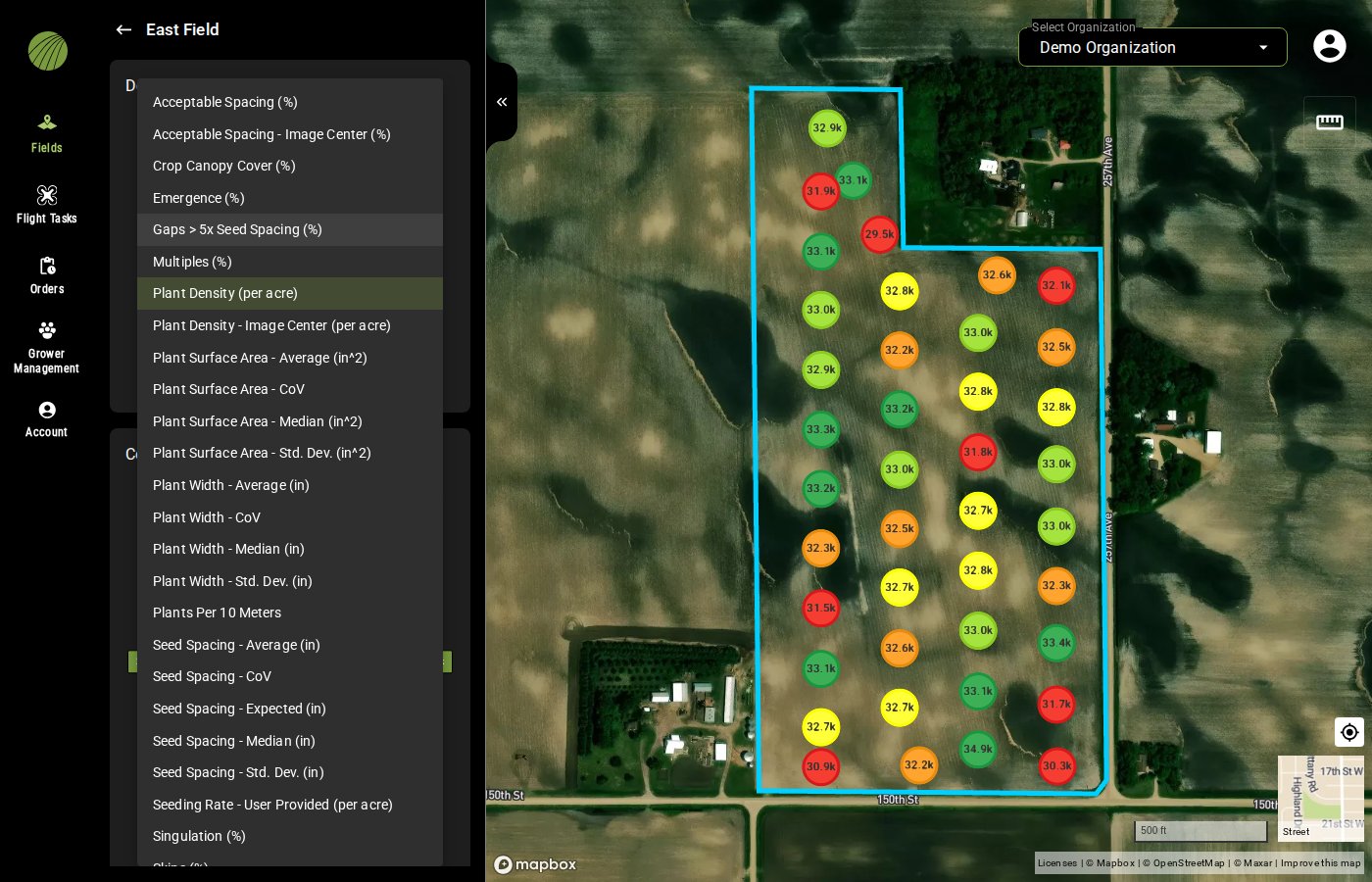
**Display Property** sets the value on the dots, and the colorization and **Zone Statistics** follow it.
There are 27 different properties in this analytic. [Compare areas of the field](#compare-areas-of-the-field) suggests which one to pick for different use cases. **Data attributes** in the [flight specification](#flight-specification) defines each property.
{% hint style="info" %}
**Image Center** properties come from the middle of the photo only.
**CoV** is the coefficient of variation, the standard deviation divided by the average. A lower CoV means a more even stand.
**Emergence (%)** is the plant density as a share of the seeding rate you entered.
{% endhint %}
All display properties, by what they describe
| Group | Properties |
| --------------- | -------------------------------------------------------------------------------------------------------------------------------------------------------------------------------------------------------------------------------------------------------------------------------- |
| Stand | **Plant Density (per acre)** (the default), **Plant Density - Image Center (per acre)**, **Emergence (%)**, **Seeding Rate - User Provided (per acre)**, **Plants Per 10 Meters** |
| Spacing quality | **Singulation (%)**, **Multiples (%)**, **Skips (%)**, **Gaps > 5x Seed Spacing (%)**, **Acceptable Spacing (%)**, **Acceptable Spacing - Image Center (%)** |
| Seed spacing | **Seed Spacing - Expected (in)**, **Seed Spacing - Median (in)**, **Seed Spacing - Average (in)**, **Seed Spacing - Std. Dev. (in)**, **Seed Spacing - CoV** |
| Plant size | **Plant Surface Area - Median (in^2)**, **Plant Surface Area - Average (in^2)**, **Plant Surface Area - Std. Dev. (in^2)**, **Plant Surface Area - CoV**, **Plant Width - Median (in)**, **Plant Width - Average (in)**, **Plant Width - Std. Dev. (in)**, **Plant Width - CoV** |
| Ground cover | **Total Vegetation Cover (%)**, **Crop Canopy Cover (%)**, **Weed Cover (%)** |
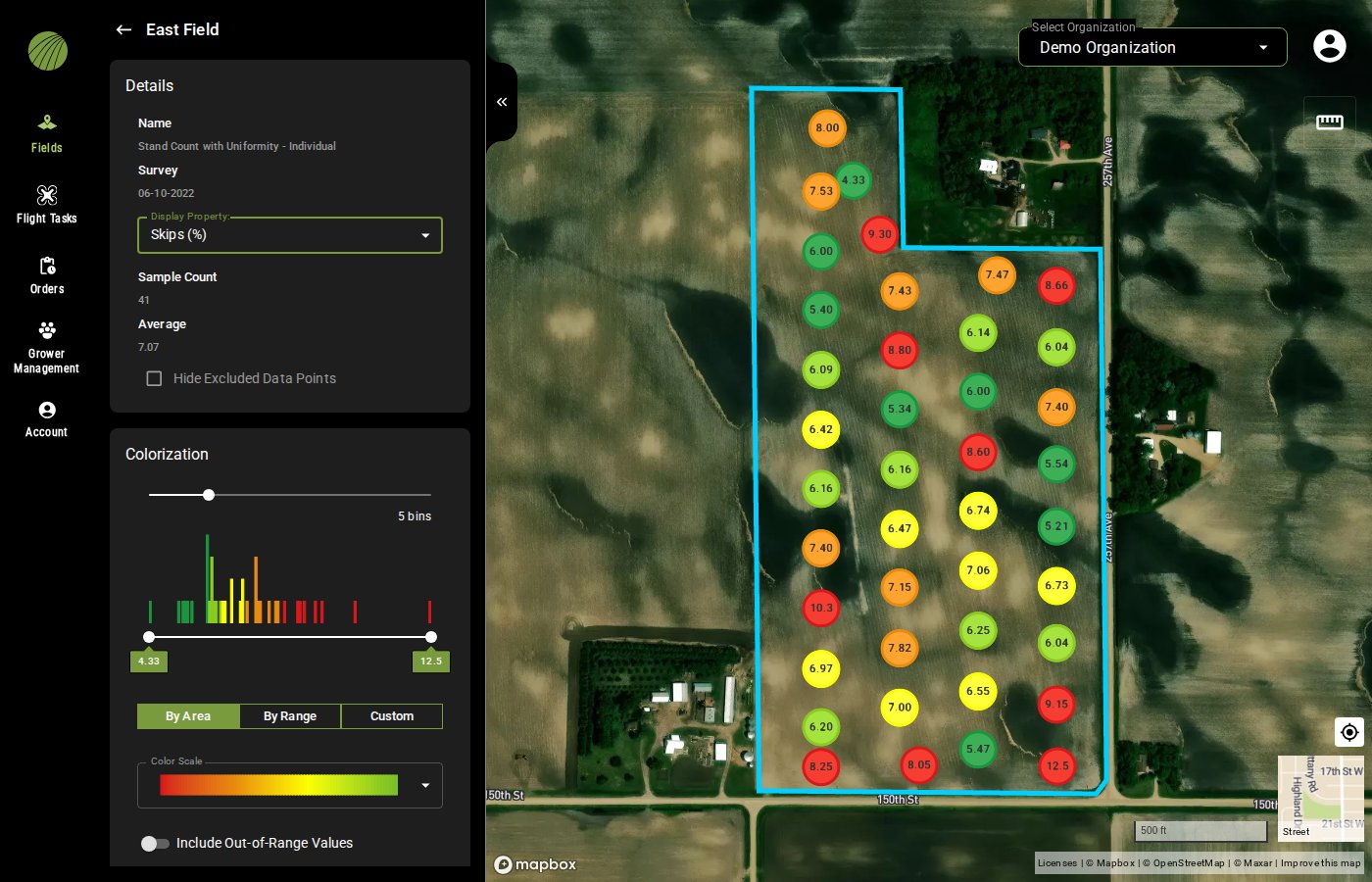
FieldAgent reverses the colors for some properties where a low value is better, such as skips or weed cover. Their lowest values are green and their highest are red, and the histogram in **Colorization** follows.
Skips (%) on the same field. Low skip rates are green.
{% hint style="warning" %}
The **Color Scale** dropdown swatch doesn't reverse. It still runs from red to green, so read these dots by their color and histogram, not by the swatch.
{% endhint %}
Properties with reversed colors
* **Skips (%)** and **Gaps > 5x Seed Spacing (%)**
* **Weed Cover (%)**
* every **Std. Dev.** and **CoV** property
* the expected, median and average **Seed Spacing**
### Try it in the demo
In the demo below, turn on the layer for a field with 41 sample photos and switch it to **Skips (%)** to see the colors reverse. Then add the heatmap.
{% @fieldagent-demo/embed content="stand-uniformity" %}
Open this demo full size
***
## Check a sample
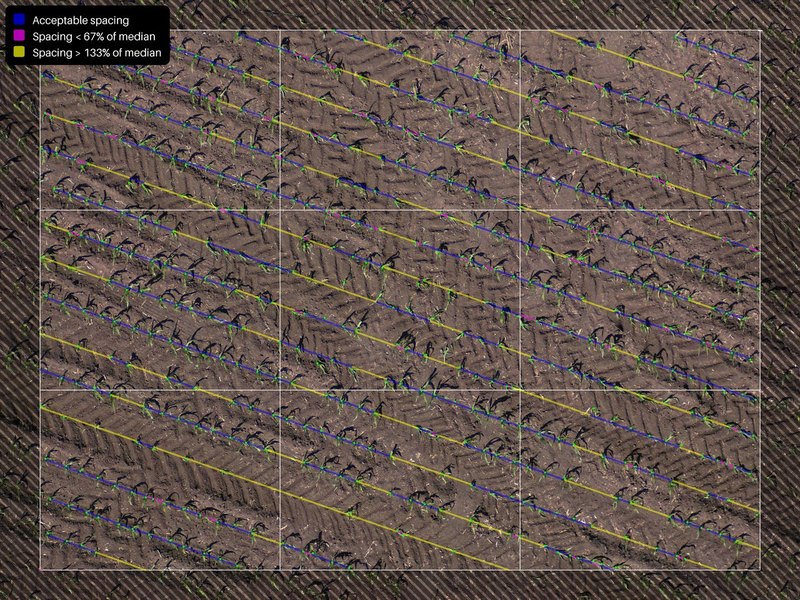
Click a dot to open its photo in the [image viewer](/home/fieldagent-web/view-and-analyze/photo-dots-and-image-viewer.md). The annotated view marks every plant and colors the spacing between neighbors:
* **Acceptable spacing** in blue.
* **Spacing < 67% of median** in magenta, for a double or a plant that's too close.
* **Spacing > 133% of median** in yellow, for a skip or a gap.
{% columns %}
{% column %}
As flown
{% endcolumn %}
{% column %}
Annotated
{% endcolumn %}
{% endcolumns %}
**Count Details** gives the **Crops Detected** per acre and the row spacing for that photo. To check the count yourself with the validator box, follow [Check a sample](/home/fieldagent-web/analytics/stand-count.md#check-a-sample) on Stand Count.
If a photo landed on an end row or a waterway, turn on **Exclude Point**. The sample is then left out of the average and the zone statistics, and **Hide Excluded Data Points** in the layer details takes it off the map.
### Try it in the demo
Open a sample in the demo below, read its spacing colors and count, then exclude it.
{% @fieldagent-demo/embed content="stand-uniformity-check" %}
Open this demo full size
***
## Compare areas of the field
To compare hybrids, planter units, downforce settings or seeding-rate strips, [draw a zone](/home/fieldagent-web/view-and-analyze/zones-and-zone-statistics.md) over each one. Then choose the display property that fits the question. **Zone Statistics** updates as soon as you switch.
* For stand, **Plant Density (per acre)**.
* For planter performance, **Singulation (%)** or **Skips (%)**.
* For evenness, **Seed Spacing - CoV**.
* For early weed pressure, **Weed Cover (%)**.
***
## Use the results
* If the field was imported from Operations Center and **Send Map Layers to Field Analyzer** is on, the heatmap appears in the field's [Field Analyzer](/home/fieldagent-web/integrations/fieldagent-and-operations-center.md) when the count completes.
* Turn the **Stand Count Heatmap** into a prescription with [Zone Rx (Beta)](/home/fieldagent-web/export-and-share/zone-rx-prescriptions.md).
* Download the samples from **Download Files** in the layer details. Every row carries all the properties, so one download serves every comparison.
* [Create a report](/home/fieldagent-web/export-and-share/create-a-report.md) to share the layer as a PDF.
***
## Flight specification
Pick your sensor in **Settings for** to see how to fly it.
{% @sentera-analytics-finder/finder content="audience=support\&view=spec\&product=stand-count-uniformity" %}
***
## Related pages
{% content-ref url="/pages/y5cYSFUW0AytrGKslf0c" %}
[Stand Count](/home/fieldagent-web/analytics/stand-count.md)
{% endcontent-ref %}
{% content-ref url="/pages/dhtWGcJNstJFZXvnKym1" %}
[Order analytics](/home/fieldagent-web/ordering/order-analytics.md)
{% endcontent-ref %}
{% content-ref url="/pages/Jgi1Im9DL0dsUKMeiPFH" %}
[Zones and zone statistics](/home/fieldagent-web/view-and-analyze/zones-and-zone-statistics.md)
{% endcontent-ref %}
{% content-ref url="/pages/3vUSaeGrUKbAZtRHwYK6" %}
[Colorization and visualization](/home/fieldagent-web/view-and-analyze/colorization-and-visualization.md)
{% endcontent-ref %}
{% content-ref url="/pages/NbXwipivNBx5sLB8YHDx" %}
[Download and export data](/home/fieldagent-web/export-and-share/download-and-export-data.md)
{% endcontent-ref %}
---
# Agent Instructions
This documentation is published with GitBook. GitBook is the documentation platform designed so that both humans and AI agents can read, navigate, and reason over technical content effectively. Learn more at gitbook.com.
## Querying This Documentation
If you need additional information that is not directly available in this page, you can query the documentation by asking a question.
Perform an HTTP GET request on the following URL with the `ask` and `goal` query parameters:
```
GET https://support.senterasensors.com/home/fieldagent-web/analytics/stand-count-with-uniformity.md?ask=&goal=
```
`ask` is the immediate question: it should be specific, self-contained, and written in natural language.
`goal` is what the user is ultimately trying to achieve, the reason they need the answer. Sharing it helps GitBook give you a better, more relevant answer. A goal is most helpful when it describes the outcome the user wants rather than restating the question. For example, with `ask=how do I create an API token`, a goal like `automate deployments from our CI pipeline` lets GitBook tailor the answer to that use case.
The response will contain a direct answer to the question and relevant excerpts and sources from the documentation.
Use this mechanism when the answer is not explicitly present in the current page, you need clarification or additional context, or you want to retrieve related documentation sections.


 .
2. Under the survey date, turn on **Stand Count with Uniformity - Individual**.
3. Click the layer name to open its details.
.
2. Under the survey date, turn on **Stand Count with Uniformity - Individual**.
3. Click the layer name to open its details.