> For the complete documentation index, see [llms.txt](https://support.senterasensors.com/home/llms.txt). Markdown versions of documentation pages are available by appending `.md` to page URLs; this page is available as [Markdown](https://support.senterasensors.com/home/fieldagent-web/analytics/stand-count.md).
# Stand Count
Order a stand count, see plant density across the field and verify the count yourself.
Order a stand count, see plant density across the field and verify the count yourself. Stand Count is included in the Advisor and Advanced plans.
***
## Fly and order
{% hint style="warning" %}
Stand count photos are captured with negative overlap. This means the images do not share any area with each other, and they can't be stitched into a mosaic. Don't order a mosaic on a stand count survey, or it ends up as a [failed order](/home/fieldagent-web/ordering/why-cant-i-order.md#the-order-failed).
{% endhint %}
{% stepper %}
{% step %}
#### Fly the field
Fly after emergence and before the plants overlap in the row. That's V2–V5 for corn, V2–V3 for soybean and the 5–6 leaf stage for cotton.
Pick your sensor in **Flight settings for** to see how to fly it, or compare every sensor in the [flight specification](#flight-specification).
{% @sentera-analytics-finder/finder content="audience=support\&view=fly\&product=stand-count" %}
To plan the flight in FieldAgent Mobile, see its [support site](https://support.senterasensors.com/home/fieldagent-mobile-ios/).
{% endstep %}
{% step %}
#### Import the photos
[Import the photos](/home/fieldagent-web/imagery/import-imagery-in-fieldagent-web.md) into the field.
{% endstep %}
{% step %}
#### Order the count
Open the field and use the Order Analytics button:
Choose **Field Scale Stand Count**, then the survey.
Enter the crop type, the seeding rate you planted at and the row spacing. FieldAgent uses the seeding rate to work out emergence. **SUBMIT** becomes clickable once all three are filled in.
{% endstep %}
{% endstepper %}
{% hint style="info" %}
FieldAgent emails you when the count is ready. The results are added to the survey as two layers, **Stand Count - Individual** and **Stand Count Heatmap**.
{% endhint %}
***
## Read the results
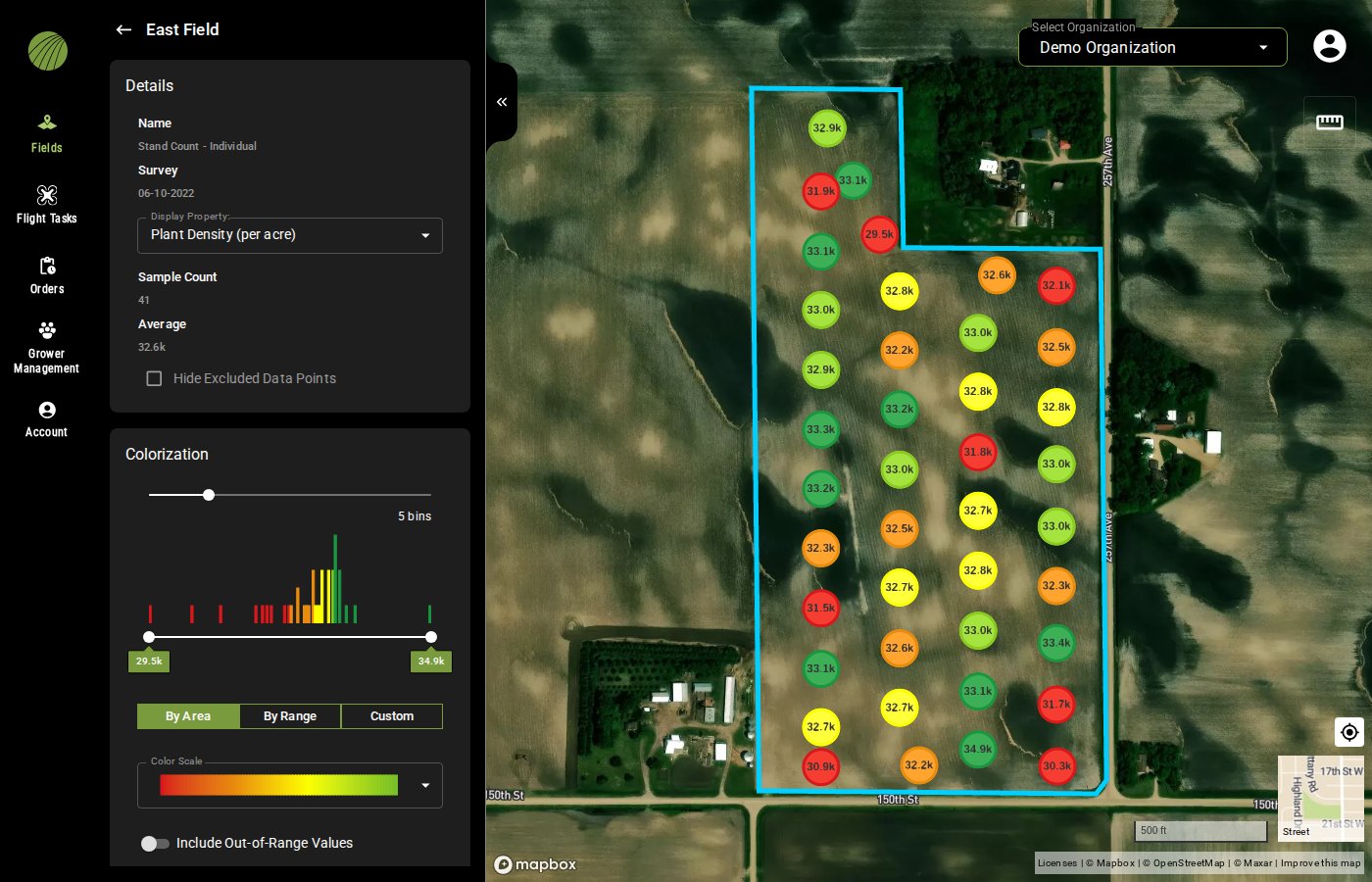
Start with **Stand Count - Individual**. It puts a dot on each sample photo, labeled with its plant density and colored from red (lowest) to green (highest). Each dot opens its photo, so you can check any number that looks wrong.
1. In **Map Layers**, click the layers icon .
2. Under the survey date, turn on **Stand Count - Individual**.
3. Click the layer name to open its details, with the sample count, the average and the colors.
To see the density spread across the whole field, turn on **Stand Count Heatmap** from the same survey.
Everything in the layer details
| Item | Description |
| ----------------------------- | ----------------------------------------------------------------------------------------------------------------------------------------------------------------------------- |
| **Display Property** | The value on the dots. **Plant Density (per acre)**, or **Emergence (%)**, which is the density as a share of the seeding rate you entered. |
| **Sample Count** | How many photos were counted. A photo that couldn't be counted is left out, and shows as a gray dot labeled **-**. |
| **Average** | The mean of the samples you haven't excluded. |
| **Hide Excluded Data Points** | Hides the excluded samples on the map. |
| **Colorization** | The bins, range and color scale of the dots. [Colorization and visualization](/home/fieldagent-web/view-and-analyze/colorization-and-visualization.md) explains each setting. |
| **Zone Statistics** | The minimum, average and maximum density for the field boundary and each zone. |
| **Download Files** | The samples as GeoJSON, CSV or Shapefile. |
### Try it in the demo
In the demo below, you turn on the stand count for a field with 41 sample photos, open its details and add the heatmap. Press **Show me** to watch each step.
{% @fieldagent-demo/embed content="stand-count" %}
Open this demo full size
***
## Check a sample
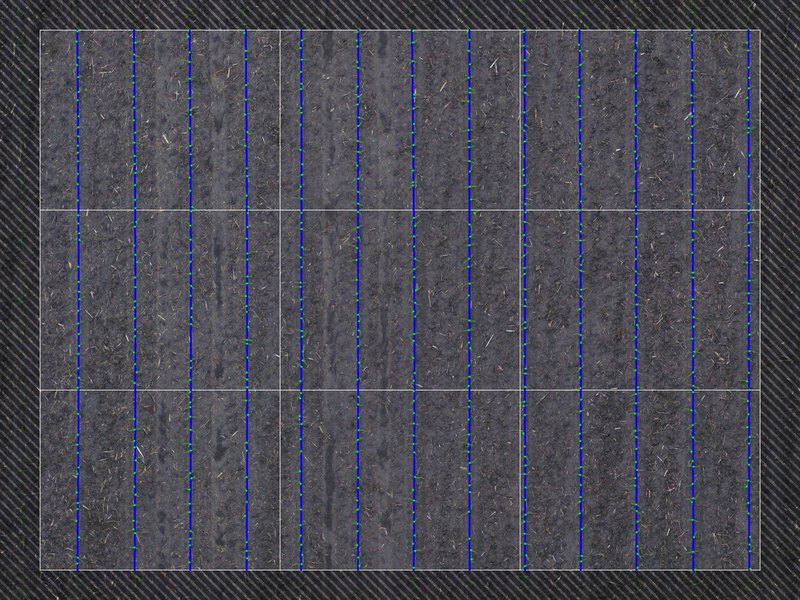
Click a dot to open its photo in the image viewer. **ANNOTATED** shows the rows FieldAgent found and every plant it counted. **RGB** shows the photo as flown.
{% columns %}
{% column %}
RGB
{% endcolumn %}
{% column %}
ANNOTATED
{% endcolumn %}
{% endcolumns %}
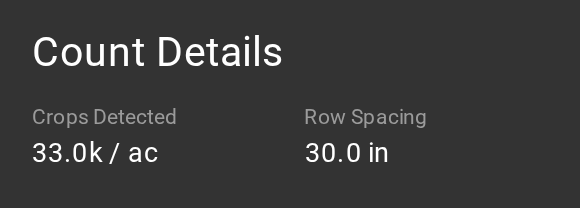
**Crops Detected**, under **Count Details**, is the density FieldAgent counted in that photo.
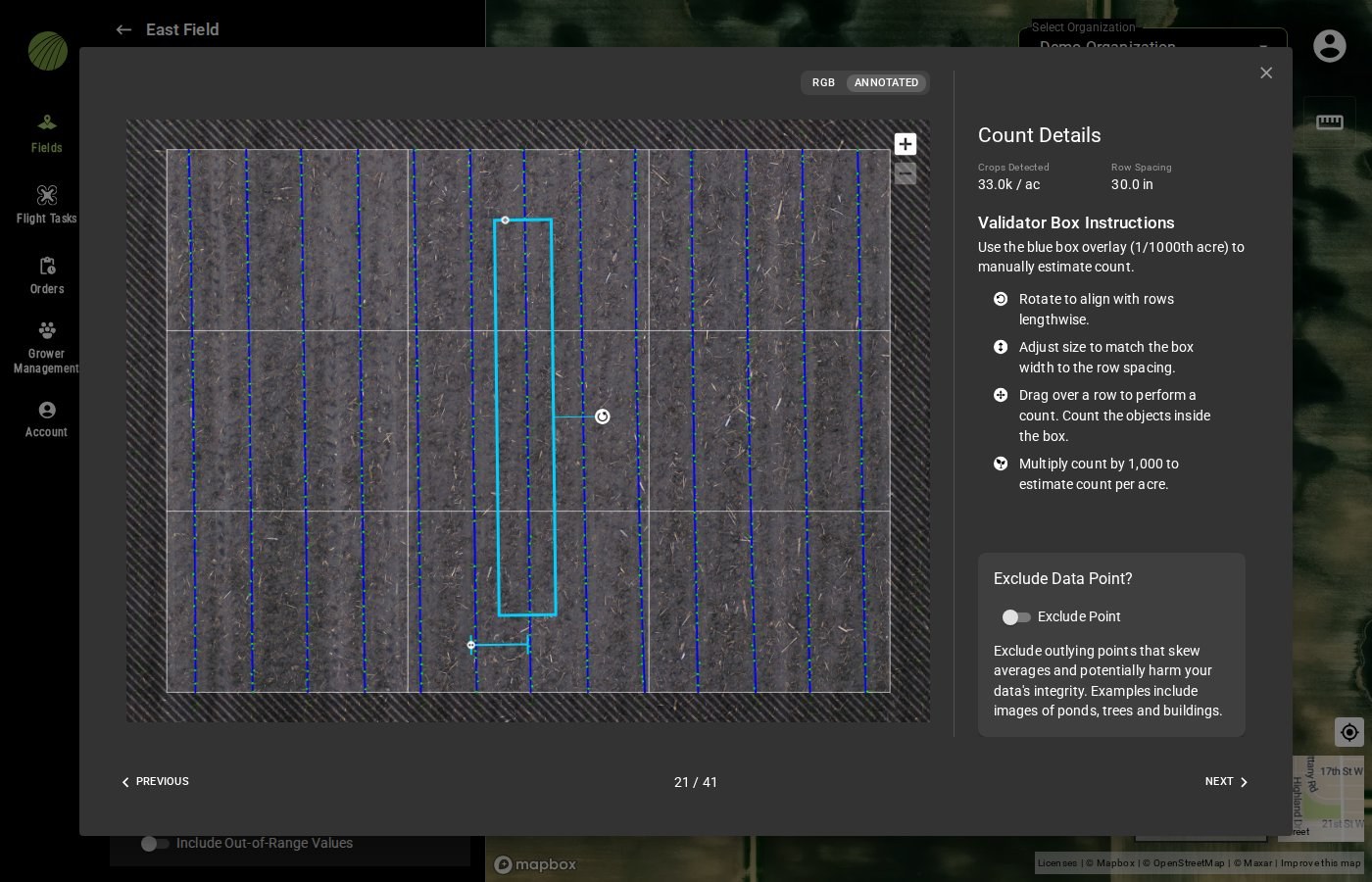
To check it yourself, use the blue validator box, which covers 1/1000 of an acre. Line it up with a row, set its width to the row spacing and count the plants inside it. Multiply by 1,000 and compare your number with **Crops Detected**.
The **Validator Box Instructions** next to the photo show how to rotate and resize the box.
The validator box lined up with a row.
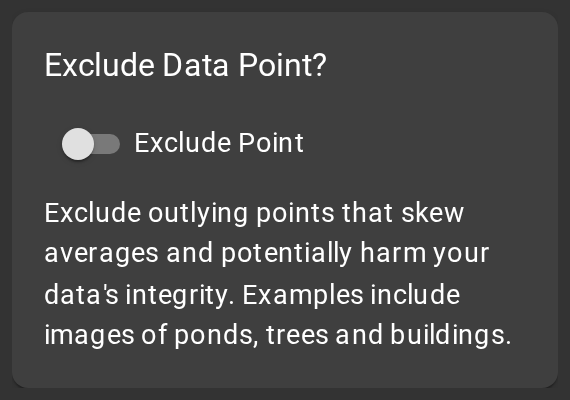
If a photo landed on an end row or a waterway, turn on **Exclude Point**. The sample is then left out of the average and the zone statistics. To hide excluded samples on the map, turn on **Hide Excluded Data Points** in the layer details.
### Try it in the demo
Try the validator box on a low sample in the demo below, then exclude the sample.
{% @fieldagent-demo/embed content="stand-count-check" %}
Open this demo full size
***
## Compare areas of the field
To compare hybrids, planter passes or treatments, [draw a zone](/home/fieldagent-web/view-and-analyze/zones-and-zone-statistics.md) over each one. **Zone Statistics** in the layer details then gives the minimum, average and maximum density in each zone.
{% hint style="info" icon="lightbulb" %}
Set the [colorization](/home/fieldagent-web/view-and-analyze/colorization-and-visualization.md) to two bins by area. The map then splits the field into its better and worse halves.
{% endhint %}
***
## Use the results
* If the field was imported from Operations Center and **Send Map Layers to Field Analyzer** is on, the heatmap appears in the field's [Field Analyzer](/home/fieldagent-web/integrations/fieldagent-and-operations-center.md) when the count completes.
* Turn the heatmap into a variable-rate prescription with [Zone Rx (Beta)](/home/fieldagent-web/export-and-share/zone-rx-prescriptions.md).
* Download the samples as GeoJSON, CSV or Shapefile from **Download Files** in the layer details.
* [Create a report](/home/fieldagent-web/export-and-share/create-a-report.md) to share the layer as a PDF.
***
## Flight specification
Pick your sensor in **Settings for** to see how to fly it.
{% @sentera-analytics-finder/finder content="audience=support\&view=spec\&product=stand-count" %}
***
## Related pages
{% content-ref url="/pages/dhtWGcJNstJFZXvnKym1" %}
[Order analytics](/home/fieldagent-web/ordering/order-analytics.md)
{% endcontent-ref %}
{% content-ref url="/pages/LFUsUJvNPM1MOVSR7hiS" %}
[Stand Count with Uniformity](/home/fieldagent-web/analytics/stand-count-with-uniformity.md)
{% endcontent-ref %}
{% content-ref url="/pages/oldHm5icq8whJj1kPSyo" %}
[Tassel Count and yield estimate](/home/fieldagent-web/analytics/tassel-count.md)
{% endcontent-ref %}
{% content-ref url="/pages/RQ1dUxp96qkvnpVBaQmi" %}
[FieldAgent and Operations Center: how the integration works](/home/fieldagent-web/integrations/fieldagent-and-operations-center.md)
{% endcontent-ref %}
{% content-ref url="/pages/NbXwipivNBx5sLB8YHDx" %}
[Download and export data](/home/fieldagent-web/export-and-share/download-and-export-data.md)
{% endcontent-ref %}
---
# Agent Instructions
This documentation is published with GitBook. GitBook is the documentation platform designed so that both humans and AI agents can read, navigate, and reason over technical content effectively. Learn more at gitbook.com.
## Querying This Documentation
If you need additional information that is not directly available in this page, you can query the documentation by asking a question.
Perform an HTTP GET request on the following URL with the `ask` and `goal` query parameters:
```
GET https://support.senterasensors.com/home/fieldagent-web/analytics/stand-count.md?ask=&goal=
```
`ask` is the immediate question: it should be specific, self-contained, and written in natural language.
`goal` is what the user is ultimately trying to achieve, the reason they need the answer. Sharing it helps GitBook give you a better, more relevant answer. A goal is most helpful when it describes the outcome the user wants rather than restating the question. For example, with `ask=how do I create an API token`, a goal like `automate deployments from our CI pipeline` lets GitBook tailor the answer to that use case.
The response will contain a direct answer to the question and relevant excerpts and sources from the documentation.
Use this mechanism when the answer is not explicitly present in the current page, you need clarification or additional context, or you want to retrieve related documentation sections.

 .
2. Under the survey date, turn on **Stand Count - Individual**.
3. Click the layer name to open its details, with the sample count, the average and the colors.
.
2. Under the survey date, turn on **Stand Count - Individual**.
3. Click the layer name to open its details, with the sample count, the average and the colors.