> For the complete documentation index, see [llms.txt](https://support.senterasensors.com/home/llms.txt). Markdown versions of documentation pages are available by appending `.md` to page URLs; this page is available as [Markdown](https://support.senterasensors.com/home/fieldagent-web/export-and-share/create-a-report.md).
# Create a report
Build a PDF of a field with the map layers you have on, your notes and your logo.
Build a PDF of a field with the map layers you have on, your notes and your logo. A report hands a grower a record of a flight, or puts your findings next to a recommendation. It shows the field as it looks on your map, so set up the layers first.
{% hint style="warning" %}
The report builder works in Chrome and other Chromium-based browsers. In Firefox it can fail with the message "Unexpected Application Error" when it opens.
{% endhint %}
***
## Build the report
{% stepper %}
{% step %}
#### Set up the layers
Open the field and turn on the [layers](/home/fieldagent-web/view-and-analyze/map-layers.md) the report should show. Colorize them the way you want them to appear.
{% hint style="info" %}
The report displays everything you can see on the map, layered the same way. Lower a mosaic's opacity if you want the layer under it to show through.
{% endhint %}
{% endstep %}
{% step %}
#### Open the report builder
In the field view, use the Create Report button:
It stays grayed out until at least one layer is on the map.
{% endstep %}
{% step %}
#### Check the preview
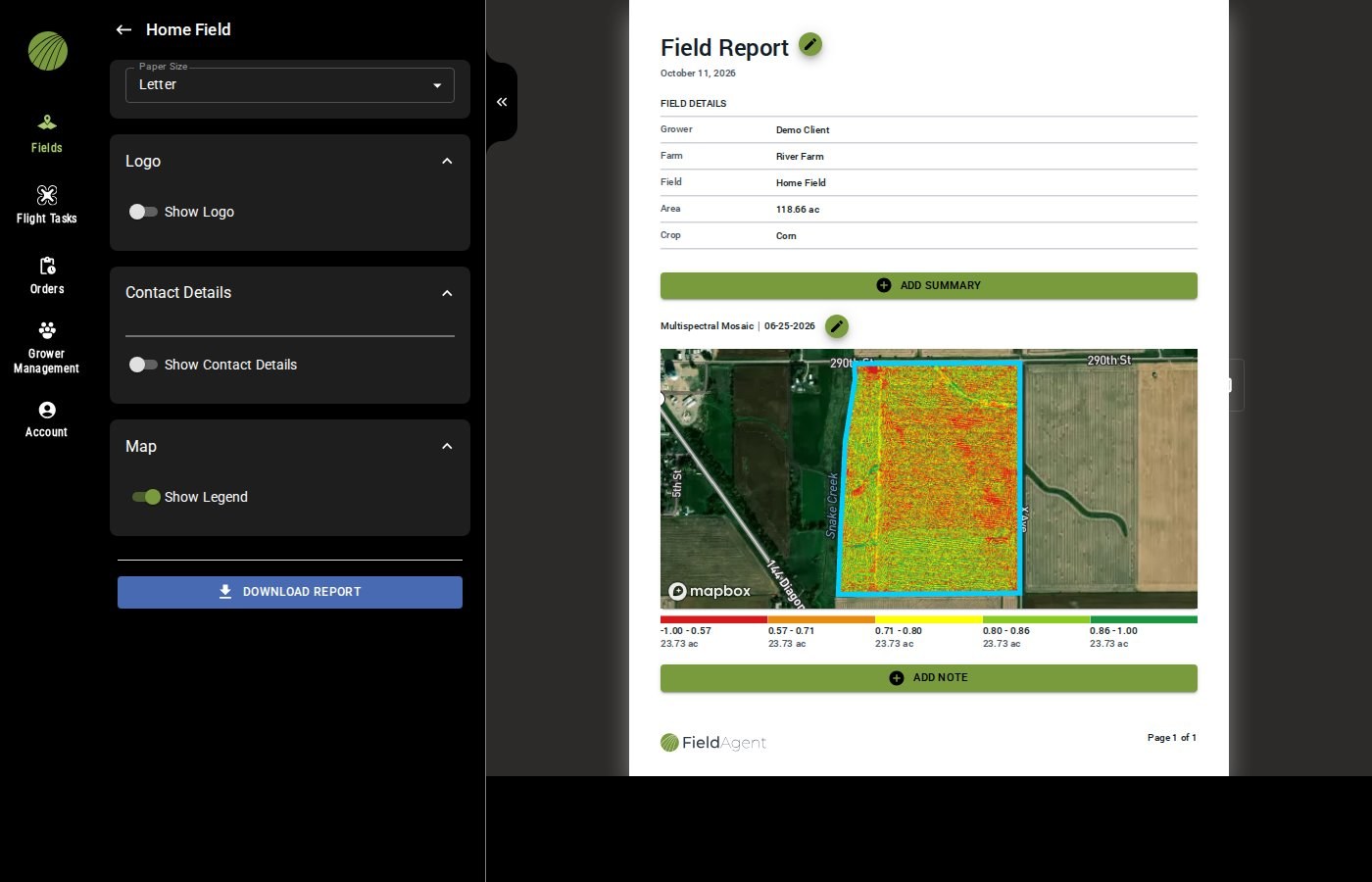
The preview shows the map in one section. With one layer on, the heading gives the layer name and date. A layer colorized in bins, such as NDVI, also prints its color legend.
{% hint style="info" %}
With several layers, the heading shows the range of their dates and no legend prints.
{% endhint %}
Add your logo, a title and notes now if you want them.
{% endstep %}
{% step %}
#### Download
Click **DOWNLOAD REPORT** to save the PDF.
{% endstep %}
{% endstepper %}
{% hint style="info" %}
FieldAgent Web doesn't keep a copy of the report. Share the PDF by email or from your own file storage.
{% endhint %}
### Try it in the demo
In the demo below, turn on a mosaic, open the report builder and download the report.
{% @fieldagent-demo/embed content="report" %}
Open this demo full size
***
## Add your logo and contact details
Save your logo and contact details once and they're ready for every later report.
1. Turn on **Show Logo**. Upload a JPEG or PNG of 300 KB or less. Give it a **Logo Name** and click **SAVE LOGO** to use it again for later reports.
2. Turn on **Show Contact Details** and type your name and contact details. Click **SAVE CONTACT** to keep them for later reports.
3. Choose the **Paper Size**, Letter or A4.
With one layer colorized in bins on the map, the legend prints by default. Turn off **Show Legend** to leave it out.
All report options
| Option | Description |
| ------------------------ | ------------------------------------------------------------------------------------------------------------------ |
| **Paper Size** | Letter or A4. |
| **Show Logo** | Under **Logo**. Adds your logo to the report. |
| **Upload File** | A JPEG or PNG of 300 KB or less. Drag and drop works too. The form recommends at least 350 px wide or 117 px tall. |
| **Logo Name** | The name the logo is saved under. |
| **SAVE LOGO** | Saves the logo for later reports. **CANCEL** closes the form without saving. |
| **Show Contact Details** | Under **Contact Details**. Adds a contact block to the report. |
| **Contact Details** | Your name and contact details. |
| **Contact Details Name** | The name the block is saved under. The default is Contact Details 1. |
| **SAVE CONTACT** | Saves the block for later reports. |
| **Show Legend** | Under **Map**. Prints the color legend when the map shows one layer colorized in bins. On by default. |
***
## Add a title, summary and notes
* Rename the report with the pencil next to the title. Type the new one in the **Edit Title** box and click **SAVE**. The default title is **Field Report**. For a stand count layer the report is titled for the stand count and includes the planting rate and population.
* Click **ADD SUMMARY** for a **Summary** block above the map. Type into it and click **SAVE**.
* Click **ADD NOTE** under the map to add a note. Type it in the **Edit Note** box and click **SAVE**.
* With several layers on the map, the map has no title. Click the plus icon beside its dates, type one in the **Edit Image Title** box and click **SAVE**.
{% hint style="info" %}
FieldAgent fills in the rest. **FIELD DETAILS** lists the grower, farm, field name and area. The report date is the day you create it. The footer shows the FieldAgent logo and the page count.
{% endhint %}
### Try it in the demo
In the demo below, rename the report, then add a summary and a note.
{% @fieldagent-demo/embed content="report-title" %}
Open this demo full size
***
## Related pages
{% content-ref url="/pages/hFBVUsKMPfZeBiEZKD2u" %}
[Map layers](/home/fieldagent-web/view-and-analyze/map-layers.md)
{% endcontent-ref %}
{% content-ref url="/pages/NbXwipivNBx5sLB8YHDx" %}
[Download and export data](/home/fieldagent-web/export-and-share/download-and-export-data.md)
{% endcontent-ref %}
{% content-ref url="/pages/3vUSaeGrUKbAZtRHwYK6" %}
[Colorization and visualization](/home/fieldagent-web/view-and-analyze/colorization-and-visualization.md)
{% endcontent-ref %}
---
# Agent Instructions
This documentation is published with GitBook. GitBook is the documentation platform designed so that both humans and AI agents can read, navigate, and reason over technical content effectively. Learn more at gitbook.com.
## Querying This Documentation
If you need additional information that is not directly available in this page, you can query the documentation by asking a question.
Perform an HTTP GET request on the following URL with the `ask` and `goal` query parameters:
```
GET https://support.senterasensors.com/home/fieldagent-web/export-and-share/create-a-report.md?ask=&goal=
```
`ask` is the immediate question: it should be specific, self-contained, and written in natural language.
`goal` is what the user is ultimately trying to achieve, the reason they need the answer. Sharing it helps GitBook give you a better, more relevant answer. A goal is most helpful when it describes the outcome the user wants rather than restating the question. For example, with `ask=how do I create an API token`, a goal like `automate deployments from our CI pipeline` lets GitBook tailor the answer to that use case.
The response will contain a direct answer to the question and relevant excerpts and sources from the documentation.
Use this mechanism when the answer is not explicitly present in the current page, you need clarification or additional context, or you want to retrieve related documentation sections.

 {% endstep %}
{% endstepper %}
{% hint style="info" %}
FieldAgent Web doesn't keep a copy of the report. Share the PDF by email or from your own file storage.
{% endhint %}
### Try it in the demo
In the demo below, turn on a mosaic, open the report builder and download the report.
{% @fieldagent-demo/embed content="report" %}
Open this demo full size
***
## Add your logo and contact details
Save your logo and contact details once and they're ready for every later report.
1. Turn on **Show Logo**. Upload a JPEG or PNG of 300 KB or less. Give it a **Logo Name** and click **SAVE LOGO** to use it again for later reports.
2. Turn on **Show Contact Details** and type your name and contact details. Click **SAVE CONTACT** to keep them for later reports.
3. Choose the **Paper Size**, Letter or A4.
With one layer colorized in bins on the map, the legend prints by default. Turn off **Show Legend** to leave it out.
{% endstep %}
{% endstepper %}
{% hint style="info" %}
FieldAgent Web doesn't keep a copy of the report. Share the PDF by email or from your own file storage.
{% endhint %}
### Try it in the demo
In the demo below, turn on a mosaic, open the report builder and download the report.
{% @fieldagent-demo/embed content="report" %}
Open this demo full size
***
## Add your logo and contact details
Save your logo and contact details once and they're ready for every later report.
1. Turn on **Show Logo**. Upload a JPEG or PNG of 300 KB or less. Give it a **Logo Name** and click **SAVE LOGO** to use it again for later reports.
2. Turn on **Show Contact Details** and type your name and contact details. Click **SAVE CONTACT** to keep them for later reports.
3. Choose the **Paper Size**, Letter or A4.
With one layer colorized in bins on the map, the legend prints by default. Turn off **Show Legend** to leave it out.
 next to the title. Type the new one in the **Edit Title** box and click **SAVE**. The default title is **Field Report**. For a stand count layer the report is titled for the stand count and includes the planting rate and population.
* Click **ADD SUMMARY** for a **Summary** block above the map. Type into it and click **SAVE**.
* Click **ADD NOTE** under the map to add a note. Type it in the **Edit Note** box and click **SAVE**.
* With several layers on the map, the map has no title. Click the plus icon
next to the title. Type the new one in the **Edit Title** box and click **SAVE**. The default title is **Field Report**. For a stand count layer the report is titled for the stand count and includes the planting rate and population.
* Click **ADD SUMMARY** for a **Summary** block above the map. Type into it and click **SAVE**.
* Click **ADD NOTE** under the map to add a note. Type it in the **Edit Note** box and click **SAVE**.
* With several layers on the map, the map has no title. Click the plus icon  beside its dates, type one in the **Edit Image Title** box and click **SAVE**.
{% hint style="info" %}
FieldAgent fills in the rest. **FIELD DETAILS** lists the grower, farm, field name and area. The report date is the day you create it. The footer shows the FieldAgent logo and the page count.
{% endhint %}
### Try it in the demo
In the demo below, rename the report, then add a summary and a note.
{% @fieldagent-demo/embed content="report-title" %}
Open this demo full size
***
## Related pages
{% content-ref url="/pages/hFBVUsKMPfZeBiEZKD2u" %}
[Map layers](/home/fieldagent-web/view-and-analyze/map-layers.md)
{% endcontent-ref %}
{% content-ref url="/pages/NbXwipivNBx5sLB8YHDx" %}
[Download and export data](/home/fieldagent-web/export-and-share/download-and-export-data.md)
{% endcontent-ref %}
{% content-ref url="/pages/3vUSaeGrUKbAZtRHwYK6" %}
[Colorization and visualization](/home/fieldagent-web/view-and-analyze/colorization-and-visualization.md)
{% endcontent-ref %}
---
# Agent Instructions
This documentation is published with GitBook. GitBook is the documentation platform designed so that both humans and AI agents can read, navigate, and reason over technical content effectively. Learn more at gitbook.com.
## Querying This Documentation
If you need additional information that is not directly available in this page, you can query the documentation by asking a question.
Perform an HTTP GET request on the following URL with the `ask` and `goal` query parameters:
```
GET https://support.senterasensors.com/home/fieldagent-web/export-and-share/create-a-report.md?ask=
beside its dates, type one in the **Edit Image Title** box and click **SAVE**.
{% hint style="info" %}
FieldAgent fills in the rest. **FIELD DETAILS** lists the grower, farm, field name and area. The report date is the day you create it. The footer shows the FieldAgent logo and the page count.
{% endhint %}
### Try it in the demo
In the demo below, rename the report, then add a summary and a note.
{% @fieldagent-demo/embed content="report-title" %}
Open this demo full size
***
## Related pages
{% content-ref url="/pages/hFBVUsKMPfZeBiEZKD2u" %}
[Map layers](/home/fieldagent-web/view-and-analyze/map-layers.md)
{% endcontent-ref %}
{% content-ref url="/pages/NbXwipivNBx5sLB8YHDx" %}
[Download and export data](/home/fieldagent-web/export-and-share/download-and-export-data.md)
{% endcontent-ref %}
{% content-ref url="/pages/3vUSaeGrUKbAZtRHwYK6" %}
[Colorization and visualization](/home/fieldagent-web/view-and-analyze/colorization-and-visualization.md)
{% endcontent-ref %}
---
# Agent Instructions
This documentation is published with GitBook. GitBook is the documentation platform designed so that both humans and AI agents can read, navigate, and reason over technical content effectively. Learn more at gitbook.com.
## Querying This Documentation
If you need additional information that is not directly available in this page, you can query the documentation by asking a question.
Perform an HTTP GET request on the following URL with the `ask` and `goal` query parameters:
```
GET https://support.senterasensors.com/home/fieldagent-web/export-and-share/create-a-report.md?ask=