> For the complete documentation index, see [llms.txt](https://support.senterasensors.com/home/llms.txt). Markdown versions of documentation pages are available by appending `.md` to page URLs; this page is available as [Markdown](https://support.senterasensors.com/home/fieldagent-web/export-and-share/download-and-export-data.md).
# Download and export data
Download your layers, prescriptions and photos, or send results straight to John Deere Operations Center.
Download your layers, prescriptions and photos, or send results straight to John Deere Operations Center. Layer files and prescriptions open in GIS or farm management software. A report is a PDF you can hand to a grower, and the order tables open in a spreadsheet.
| Data | Where to find it | Formats |
| ------------------------------------------------------------------------------------------------------------------------ | -------------------------------------------------------------- | ------------------------------ |
| [Layer files](#download-a-layer) | **Download Files** in the layer's details | GeoJSON, CSV, Shapefile or TIF |
| [Zones](/home/fieldagent-web/view-and-analyze/zones-and-zone-statistics.md#download-zones-and-zone-statistics) | The more icon on the **Zones** module | GeoJSON, Shapefile, CSV or KML |
| [Zone statistics](/home/fieldagent-web/view-and-analyze/zones-and-zone-statistics.md#download-zones-and-zone-statistics) | The more icon next to **Zone Statistics** in a layer's details | GeoJSON, Shapefile or CSV |
| [Prescriptions](#download-a-prescription) | **DOWNLOAD RX** in the **Zone Rx (Beta)** display mode | Shapefile |
| [Original photos](#save-an-original-photo) | The download icon in the image viewer | The original photo file |
| [PDF reports](/home/fieldagent-web/export-and-share/create-a-report.md) | **CREATE REPORT** in the field view | PDF |
| [Orders and flight tasks](#export-the-orders-or-flight-tasks-table) | **EXPORT** in the table toolbar | CSV |
***
## Download a layer
Layer files take the sample points of an analysis, or the image of a mosaic or heatmap, into GIS or farm management software. For the values in each zone, [download the zone statistics](/home/fieldagent-web/view-and-analyze/zones-and-zone-statistics.md#download-zones-and-zone-statistics) instead.
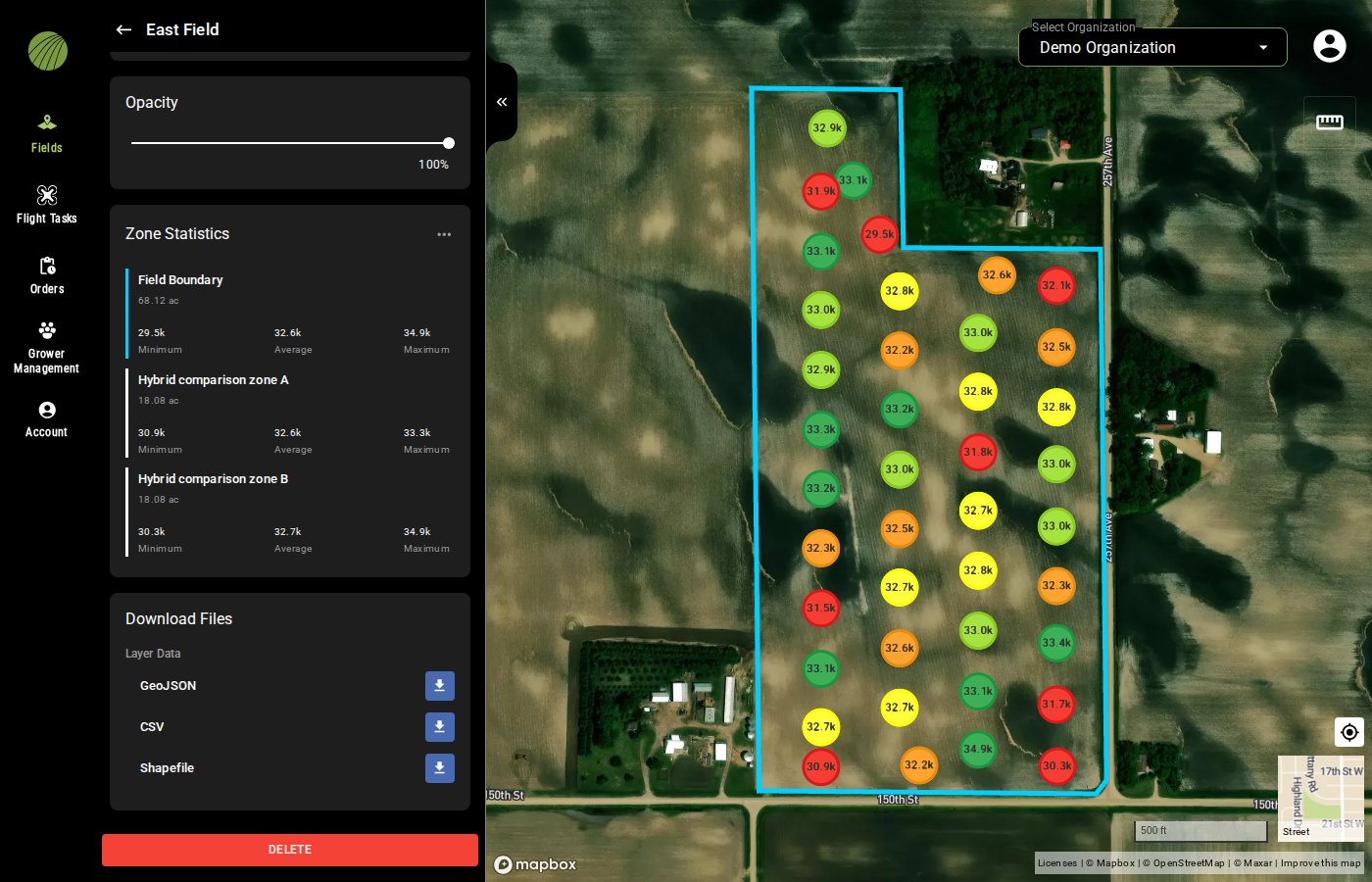
1. Click the layer's name in **Map Layers**.
2. Scroll down to **Download Files** and click the download icon next to each file you need.
{% hint style="info" %}
A shapefile is a set of several files that must stay together. Download every file offered for the shapefile and keep them in the same folder.
{% endhint %}
The files each kind of layer offers
| Layer | Files | Description |
| ----------------------------------------------------------------------------------------------------- | ----------------------- | --------------------------------------------------------------------------------------- |
| Stand Count, Stand Count with Uniformity, Tassel Count, Canopy Cover and other sample-based analytics | GeoJSON, CSV, Shapefile | One point per sample photo, with every property of the layer and the photo's file name. |
| Mosaics and QuickTiles | TIF File | The GeoTIFF of the layer. |
| Multispectral mosaic | TIF File | Every band in one file, at full resolution. |
| Analytic heatmap, such as the Stand Count Heatmap | TIF File | A single-band GeoTIFF of the interpolated values. |
***
## Download a prescription
Build a [prescription](/home/fieldagent-web/export-and-share/zone-rx-prescriptions.md) in the **Zone Rx (Beta)** display mode. Then click **DOWNLOAD RX** to save it as a zipped shapefile for farm management or machine software.
***
## Send results to Operations Center
On a field imported from John Deere Operations Center, FieldAgent [sends results to Operations Center](/home/fieldagent-web/integrations/send-to-operations-center.md) without a download:
* The heatmap of every completed stand count, tassel count and canopy cover order goes to the field's Field Analyzer. This needs the toggle button **Send Map Layers to Field Analyzer** on, under **Connections** on the [Account page](/home/fieldagent-web/account-and-organizations/account-settings.md).
* A Zone Rx prescription goes with **SEND TO OPERATIONS CENTER**.
Mosaics and their index layers aren't sent, and there's no button to send a map layer by hand. A Zone Rx built on an index or elevation layer can be sent like a heatmap is.
***
## Save an original photo
Open a photo from the **Photo Dots** layer, or a sample from a stand or tassel count. In the [image viewer](/home/fieldagent-web/view-and-analyze/photo-dots-and-image-viewer.md), click the download icon to save the original photo file.
***
## Export the Orders or Flight Tasks table
The **Orders** and **Flight Tasks** [tables](/home/fieldagent-web/ordering/orders-and-flight-tasks.md) export to a CSV for a spreadsheet. Click **EXPORT** in the table toolbar and choose **Download as CSV**. The file has the current filters applied.
***
## Get your data through the Sentera API
If you're building your own integration, Sentera's public API uses GraphQL. Start with the [GraphQL documentation](https://api.sentera.com/api/getting_started/introduction.html). To test queries in [GraphiQL](https://api.sentera.com/graphiql), sign in with the API integrator role. Send questions to .
***
## Related pages
{% content-ref url="/pages/hFBVUsKMPfZeBiEZKD2u" %}
[Map layers](/home/fieldagent-web/view-and-analyze/map-layers.md)
{% endcontent-ref %}
{% content-ref url="/pages/zd8QvEvP6Uxj2pt3LgL8" %}
[Zone Rx prescriptions](/home/fieldagent-web/export-and-share/zone-rx-prescriptions.md)
{% endcontent-ref %}
{% content-ref url="/pages/kdYeaictokldDvq8hZkv" %}
[Create a report](/home/fieldagent-web/export-and-share/create-a-report.md)
{% endcontent-ref %}
{% content-ref url="/pages/Jgi1Im9DL0dsUKMeiPFH" %}
[Zones and zone statistics](/home/fieldagent-web/view-and-analyze/zones-and-zone-statistics.md)
{% endcontent-ref %}
{% content-ref url="/pages/X4HopLdNnRzATiB7nWFn" %}
[Send data to Operations Center](/home/fieldagent-web/integrations/send-to-operations-center.md)
{% endcontent-ref %}
---
# Agent Instructions
This documentation is published with GitBook. GitBook is the documentation platform designed so that both humans and AI agents can read, navigate, and reason over technical content effectively. Learn more at gitbook.com.
## Querying This Documentation
If you need additional information that is not directly available in this page, you can query the documentation by asking a question.
Perform an HTTP GET request on the following URL with the `ask` and `goal` query parameters:
```
GET https://support.senterasensors.com/home/fieldagent-web/export-and-share/download-and-export-data.md?ask=&goal=
```
`ask` is the immediate question: it should be specific, self-contained, and written in natural language.
`goal` is what the user is ultimately trying to achieve, the reason they need the answer. Sharing it helps GitBook give you a better, more relevant answer. A goal is most helpful when it describes the outcome the user wants rather than restating the question. For example, with `ask=how do I create an API token`, a goal like `automate deployments from our CI pipeline` lets GitBook tailor the answer to that use case.
The response will contain a direct answer to the question and relevant excerpts and sources from the documentation.
Use this mechanism when the answer is not explicitly present in the current page, you need clarification or additional context, or you want to retrieve related documentation sections.
 ***
## Get your data through the Sentera API
If you're building your own integration, Sentera's public API uses GraphQL. Start with the [GraphQL documentation](https://api.sentera.com/api/getting_started/introduction.html). To test queries in [GraphiQL](https://api.sentera.com/graphiql), sign in with the API integrator role. Send questions to
***
## Get your data through the Sentera API
If you're building your own integration, Sentera's public API uses GraphQL. Start with the [GraphQL documentation](https://api.sentera.com/api/getting_started/introduction.html). To test queries in [GraphiQL](https://api.sentera.com/graphiql), sign in with the API integrator role. Send questions to