> For the complete documentation index, see [llms.txt](https://support.senterasensors.com/home/llms.txt). Markdown versions of documentation pages are available by appending `.md` to page URLs; this page is available as [Markdown](https://support.senterasensors.com/home/fieldagent-web/export-and-share/zone-rx-prescriptions.md).
# Zone Rx prescriptions
Build a variable-rate prescription from a map layer, then download it or send it to John Deere Operations Center.
Zone Rx (Beta) turns a layer, such as a stand count heatmap or an NDVI mosaic, into zones with a rate you set for each one. On a field imported from John Deere Operations Center, the prescription goes across with one click, ready to plan in Work Planner.
{% hint style="warning" %}
On a field created in FieldAgent, **SEND TO OPERATIONS CENTER** stays grayed out. Download the prescription and upload it to Operations Center yourself. [Import the field from Operations Center](/home/fieldagent-web/integrations/import-fields-from-operations-center.md) first if you plan to send it.
{% endhint %}
***
## Build the zones
Zone Rx works on any layer with values, such as an NDVI or elevation mosaic, a satellite scene or the heatmaps from a stand count, tassel count or canopy cover.
{% hint style="info" %}
The prescription zones come from the layer. They are separate from the ones you draw in the **Zones** module.
{% endhint %}
{% hint style="warning" %}
An RGB layer or a multispectral mosaic shown as a composite can't be used, because they have no single value per pixel.
{% endhint %}
{% stepper %}
{% step %}
#### Open the layer details
Turn on the layer and click its name in **Map Layers**.
{% endstep %}
{% step %}
#### Set the bins
In **Colorization**, set the number of bins to the number of zones you want. Each bin becomes one zone. Then choose [how the bins are set](/home/fieldagent-web/view-and-analyze/colorization-and-visualization.md#set-a-layers-colors):
* **By Area** gives each bin the same area of the field.
* **By Range** splits the values into equal steps.
* With **Custom**, you choose the ranges for each bin.
{% hint style="info" %}
Zone Rx is limited to 10 bins.
{% endhint %}
{% endstep %}
{% step %}
#### Switch to Zone Rx
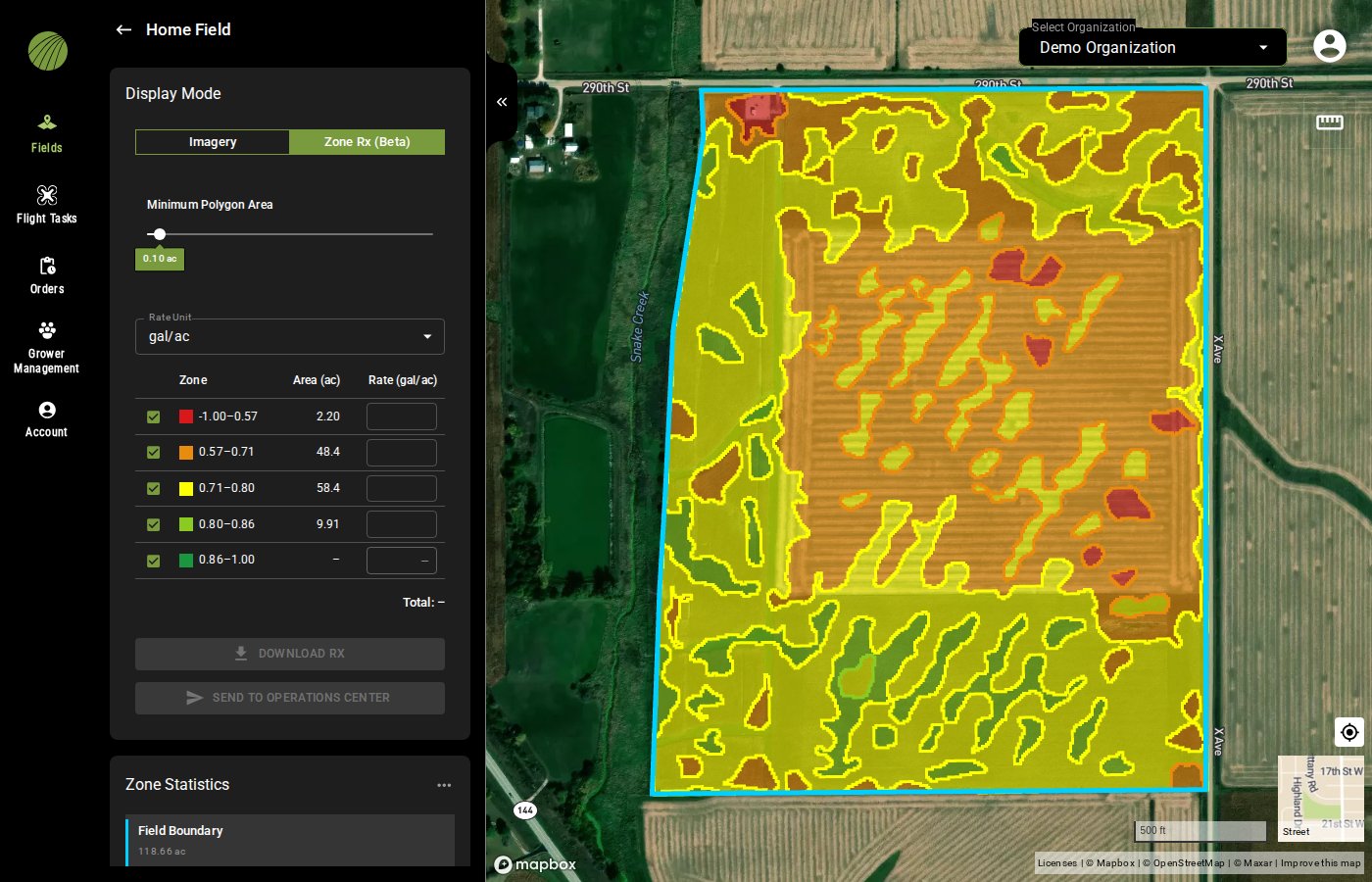
In **Display Mode**, select **Zone Rx (Beta)**. Wait while the panel shows *Generating vector data*. The map then redraws as zones, and the prescription controls become clickable.
Zone Rx (Beta) on an NDVI layer with five bins.
{% endstep %}
{% step %}
#### Set the minimum polygon area
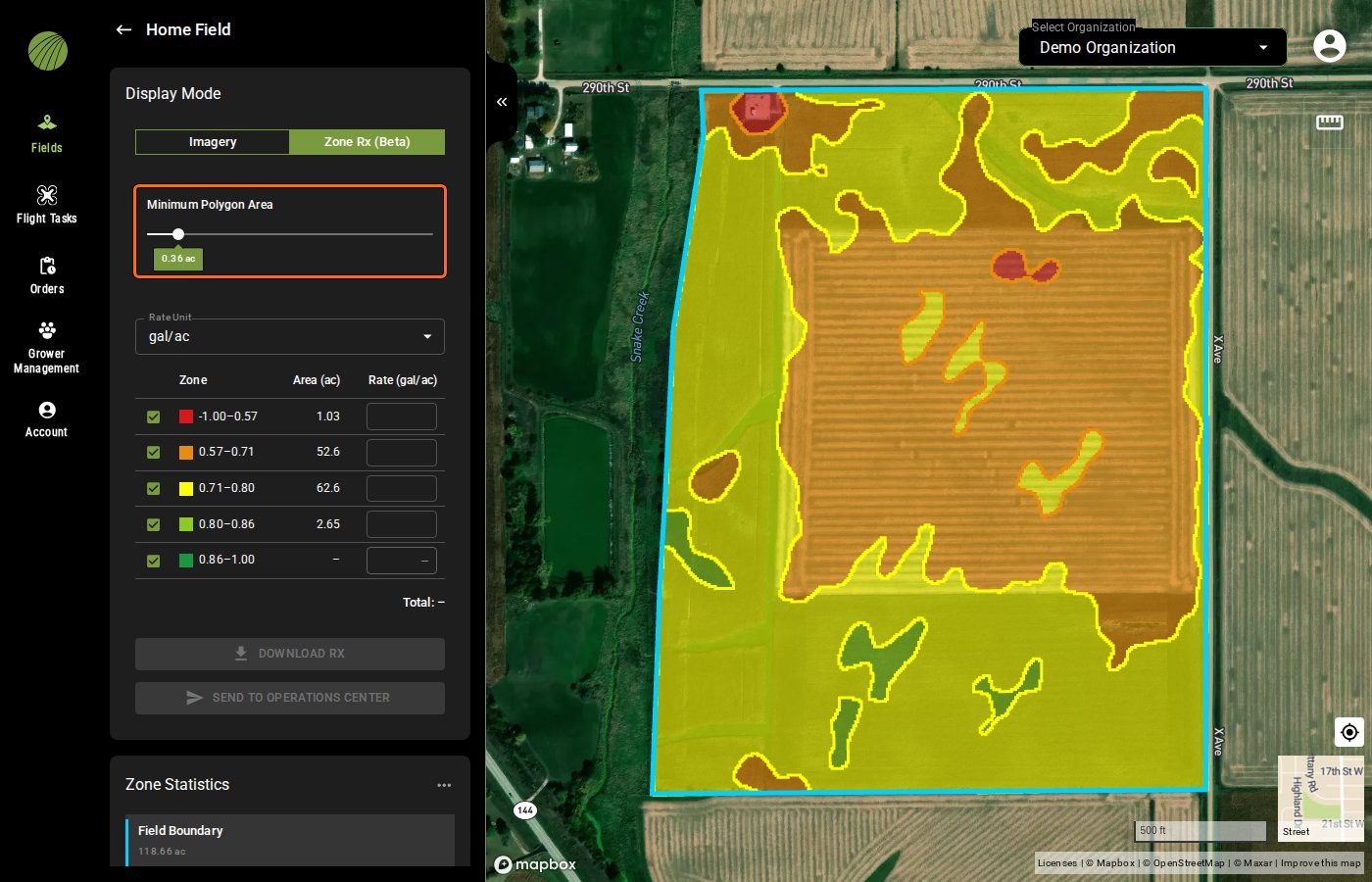
Set **Minimum Polygon Area**. Zones smaller than this merge into their neighbors, which removes specks a machine can't follow. The default is 0.10 ac.
Minimum Polygon Area highlighted
{% endstep %}
{% endstepper %}
{% hint style="info" icon="lightbulb" %}
One zone can cover only the weakest part of the field. Colorize with one bin and drag the upper range handle down.
{% endhint %}
{% hint style="info" %}
Switch **Display Mode** back to **Imagery** to see the layer as a mosaic again.
{% endhint %}
### Try it in the demo
In the demo below, split an NDVI layer into three zones and clean them up with **Minimum Polygon Area**.
{% @fieldagent-demo/embed content="zone-rx" %}
Open this demo full size
***
## Set the rates
{% stepper %}
{% step %}
#### Choose the rate unit
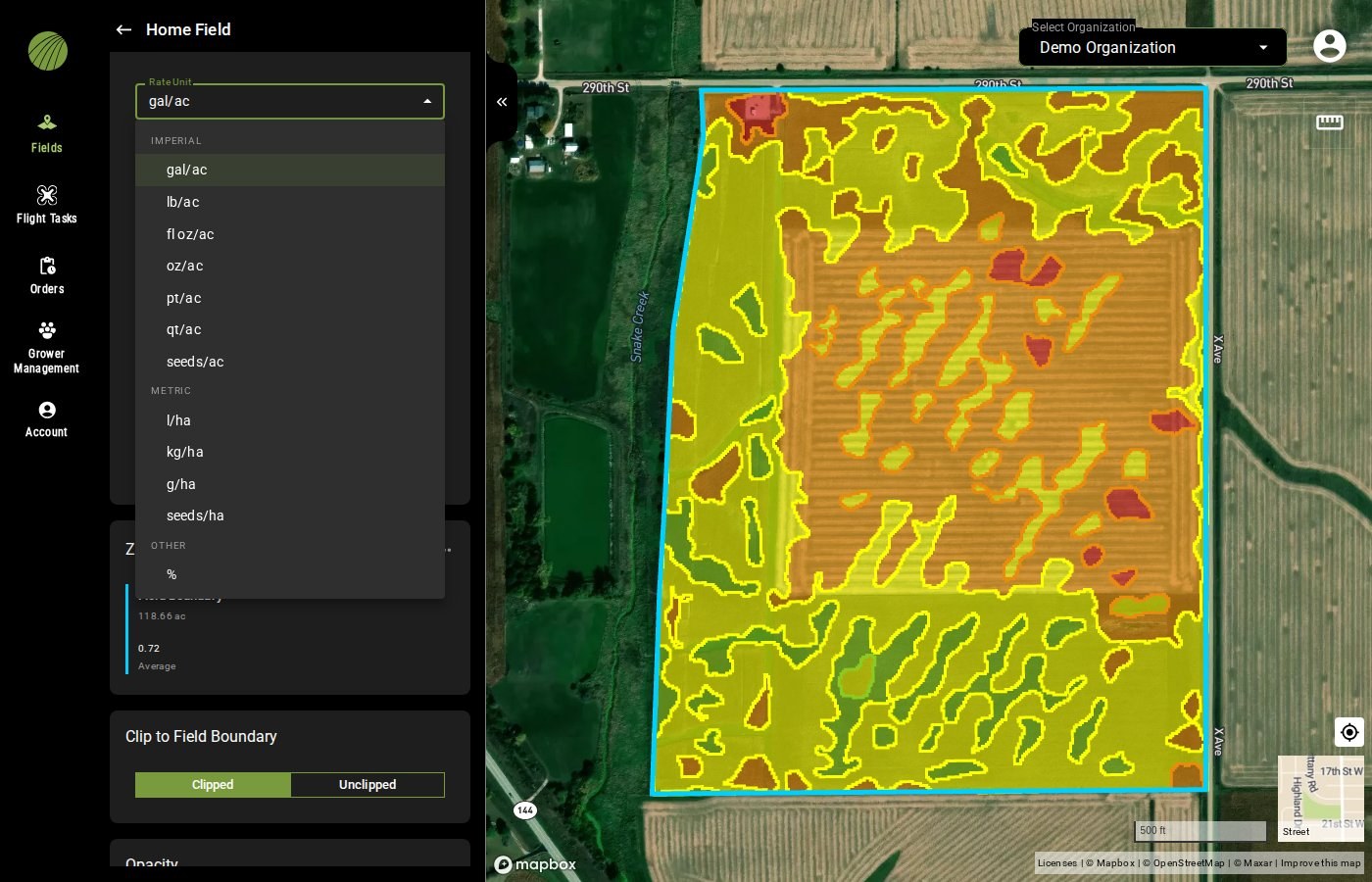
Choose the **Rate Unit**, for example **seeds/ac** for a seeding prescription.
{% endstep %}
{% step %}
#### Enter a rate per zone
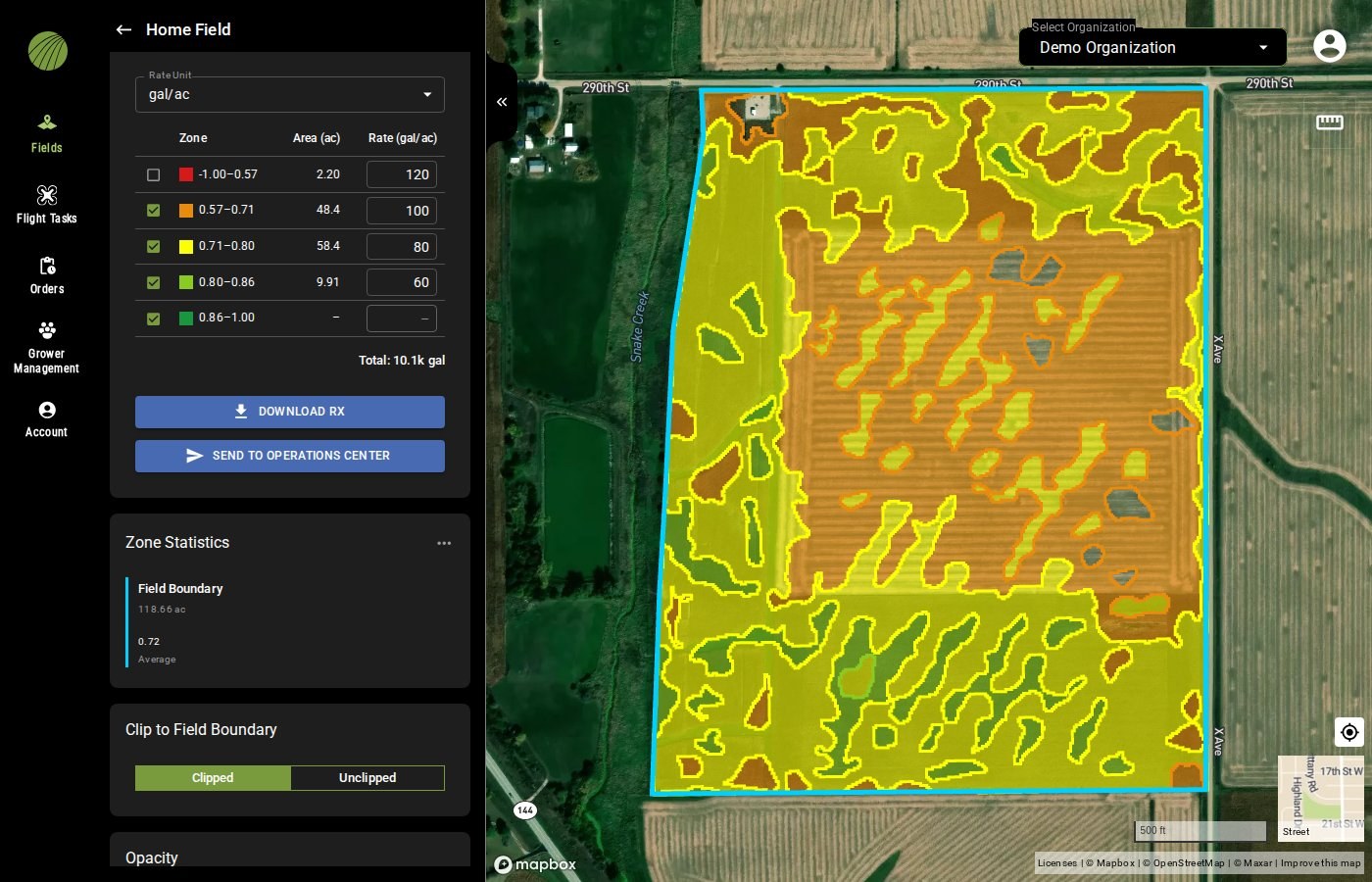
Each row of the zone table is one zone, with its color, value range and area in acres. Type a **Rate** for each zone.
Uncheck a zone's checkbox to leave it out of the prescription. A zone with no area in the field shows a dash instead and takes no rate.
The red zone is left out of the prescription.
{% endstep %}
{% step %}
#### Check the total
**Total** multiplies each rate by its zone's area and adds them up for the field, for example **Total: 113 gal**. Large totals are shortened, as in **Total: 399k seeds**.
{% hint style="info" %}
Total shows a dash until every included zone with an area has a rate.
{% endhint %}
{% endstep %}
{% endstepper %}
Once every rate has been filled in, the **DOWNLOAD RX** button becomes clickable. On a field imported from John Deere Operations Center, the **SEND TO OPERATIONS CENTER** button also becomes clickable.
{% hint style="info" %}
Ensure the **Clip to Field Boundary** setting is on **Clipped**. This keeps the prescription inside the field boundary.
{% endhint %}
All rate units
| Imperial | Metric | Other |
| -------- | -------- | ----- |
| gal/ac | l/ha | % |
| lb/ac | kg/ha | |
| fl oz/ac | g/ha | |
| oz/ac | seeds/ha | |
| pt/ac | | |
| qt/ac | | |
| seeds/ac | | |
### Try it in the demo
In the demo below, choose a seeding rate unit, give each of three zones a rate and check the total.
{% @fieldagent-demo/embed content="zone-rx-rates" %}
Open this demo full size
***
## Send it to Operations Center
On a field imported from Operations Center, click **SEND TO OPERATIONS CENTER**. The prescription goes to the Operations Center account connected under **Account** › **Connections**.
The prescription lands in Operations Center under **Files** › **Prescriptions**. From there, you [plan the seeding or application in Work Planner](/home/fieldagent-web/integrations/send-to-operations-center.md) and send it to the machine.
If the button stays grayed out, check three things:
1. The field's **External Connections** module shows **Connected to Operations Center**. If it doesn't, the field wasn't imported, so download the prescription instead.
2. Every included zone has a rate.
3. Operations Center shows **Connected** on the **Account** page.
***
## Download the prescription
Click **DOWNLOAD RX** to save the prescription as a shapefile for farm management or machine software.
{% hint style="info" %}
The downloaded zip file is named `_Zone_Rx.zip`, or `___Zone_Rx.zip` for a field with a grower and farm. Spaces in the names become underscores.
{% endhint %}
For a field created in FieldAgent, [upload the zip to Operations Center yourself](/home/fieldagent-web/integrations/send-to-operations-center.md#send-to-operations-center-is-grayed-out) under **Files** › **Prescriptions**.
***
## Related pages
{% content-ref url="/pages/3vUSaeGrUKbAZtRHwYK6" %}
[Colorization and visualization](/home/fieldagent-web/view-and-analyze/colorization-and-visualization.md)
{% endcontent-ref %}
{% content-ref url="/pages/Jgi1Im9DL0dsUKMeiPFH" %}
[Zones and zone statistics](/home/fieldagent-web/view-and-analyze/zones-and-zone-statistics.md)
{% endcontent-ref %}
{% content-ref url="/pages/NbXwipivNBx5sLB8YHDx" %}
[Download and export data](/home/fieldagent-web/export-and-share/download-and-export-data.md)
{% endcontent-ref %}
{% content-ref url="/pages/b8kuVYCdfuj6SUIPV7QV" %}
[Import fields from Operations Center](/home/fieldagent-web/integrations/import-fields-from-operations-center.md)
{% endcontent-ref %}
{% content-ref url="/pages/X4HopLdNnRzATiB7nWFn" %}
[Send data to Operations Center](/home/fieldagent-web/integrations/send-to-operations-center.md)
{% endcontent-ref %}
---
# Agent Instructions
This documentation is published with GitBook. GitBook is the documentation platform designed so that both humans and AI agents can read, navigate, and reason over technical content effectively. Learn more at gitbook.com.
## Querying This Documentation
If you need additional information that is not directly available in this page, you can query the documentation by asking a question.
Perform an HTTP GET request on the following URL with the `ask` and `goal` query parameters:
```
GET https://support.senterasensors.com/home/fieldagent-web/export-and-share/zone-rx-prescriptions.md?ask=&goal=
```
`ask` is the immediate question: it should be specific, self-contained, and written in natural language.
`goal` is what the user is ultimately trying to achieve, the reason they need the answer. Sharing it helps GitBook give you a better, more relevant answer. A goal is most helpful when it describes the outcome the user wants rather than restating the question. For example, with `ask=how do I create an API token`, a goal like `automate deployments from our CI pipeline` lets GitBook tailor the answer to that use case.
The response will contain a direct answer to the question and relevant excerpts and sources from the documentation.
Use this mechanism when the answer is not explicitly present in the current page, you need clarification or additional context, or you want to retrieve related documentation sections.