> For the complete documentation index, see [llms.txt](https://support.senterasensors.com/home/llms.txt). Markdown versions of documentation pages are available by appending `.md` to page URLs; this page is available as [Markdown](https://support.senterasensors.com/home/fieldagent-web/fields/create-a-field.md).

# Create a field

Draw a field boundary on the map, or import your fields from John Deere Operations Center or Climate FieldView.

Create a field, and FieldAgent keeps its boundary, imagery, orders, zones and reports together. Do it before you import imagery or order, so the survey and its results land in the right place.

{% hint style="warning" %}
If you use John Deere Operations Center, import your fields from it instead of drawing them. Only a field imported from Operations Center sends results back there. A field you draw isn't linked to Operations Center, and importing the same field later gives you a second field.
{% endhint %}

***

## Draw a field

Draw the boundary yourself. If you already have fields in [Operations Center](#import-fields-from-operations-center) or [Climate FieldView](#import-fields-from-climate-fieldview), import them instead.

{% stepper %}
{% step %}

#### Start a new field

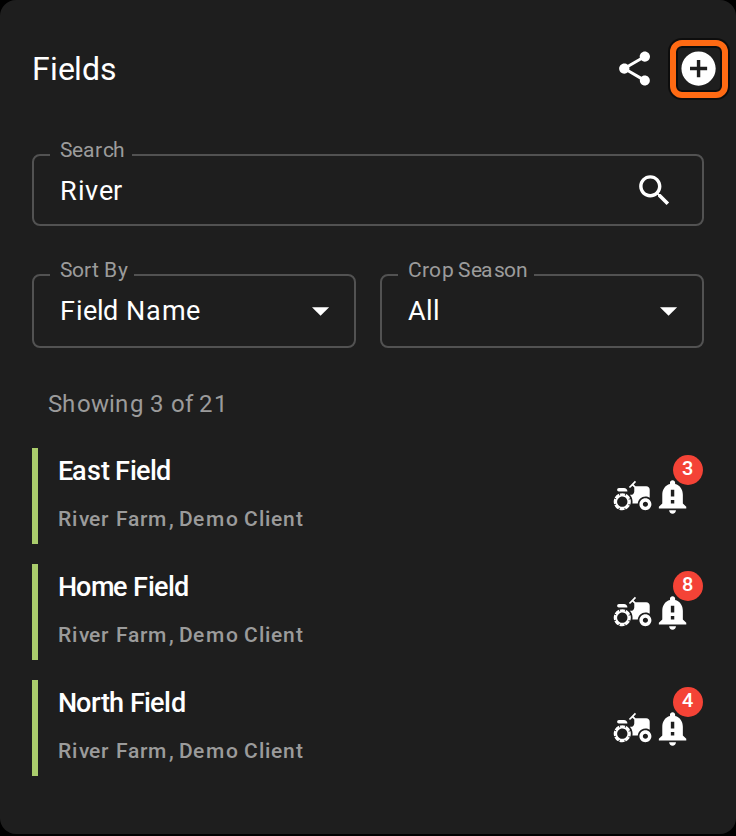
Open **Fields** and click the plus icon <img src="https://2791052504-files.gitbook.io/~/files/v0/b/gitbook-x-prod.appspot.com/o/spaces%2FVt6flh3S4tohPAjrSP91%2Fuploads%2Fgit-blob-93fc4d9f6268e89a5a848974a80ca6a3ffd199a5%2Ffa-web-icon-add.svg?alt=media" alt="add icon" data-size="line">.

<figure><img src="https://2791052504-files.gitbook.io/~/files/v0/b/gitbook-x-prod.appspot.com/o/spaces%2FVt6flh3S4tohPAjrSP91%2Fuploads%2Fgit-blob-7615e70c24ede390d390363a0dd4c407c2f5000b%2Ffa-web-fields-panel-plus.png?alt=media" alt="The Fields panel with the plus icon outlined in its header, next to the share icon, above Search, Sort By, Crop Season and the field list" width="368"><figcaption><p>Plus icon highlighted</p></figcaption></figure>

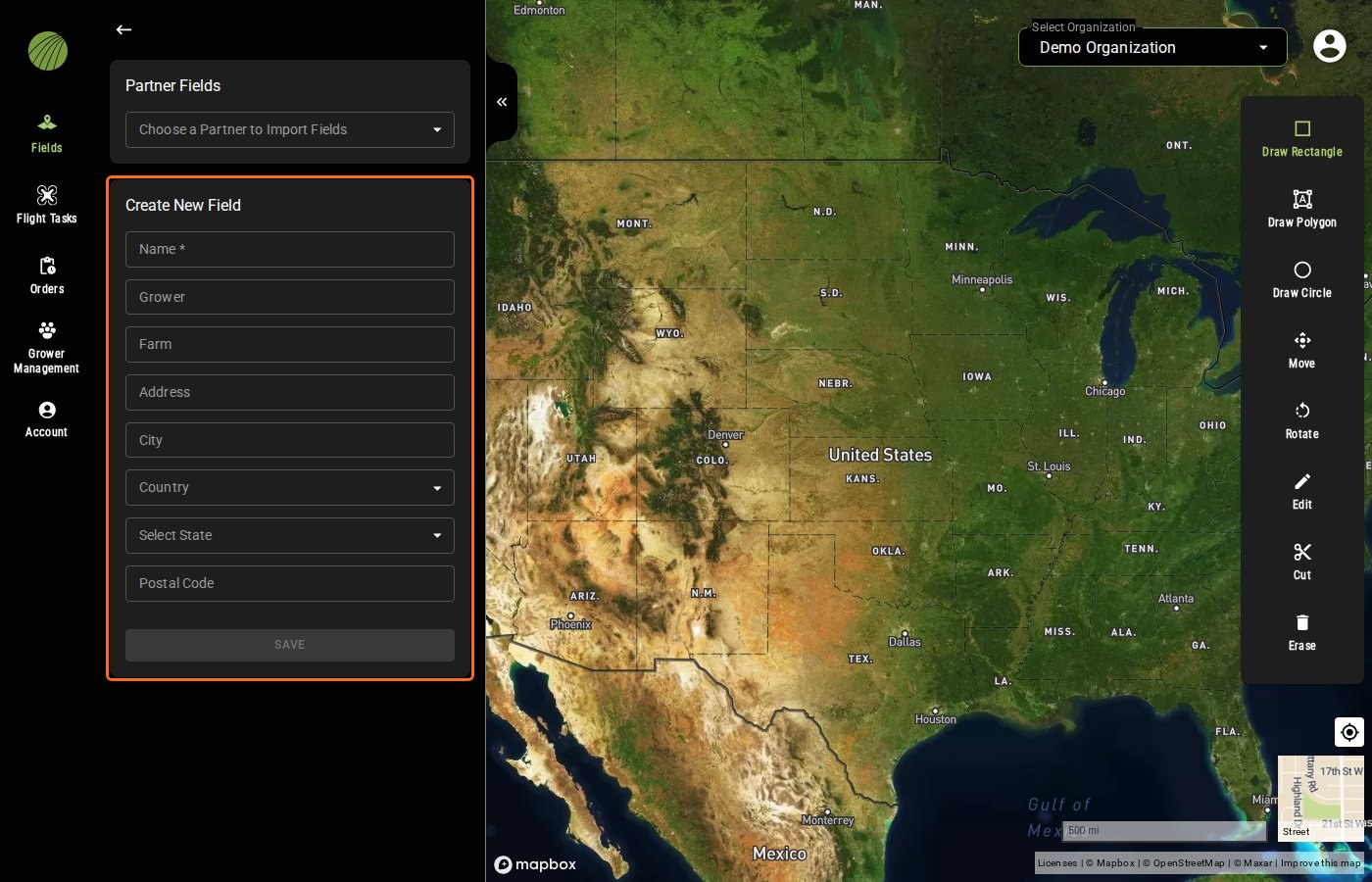
The **Create New Field** form opens, and the drawing tools appear on the map.

<figure><img src="https://2791052504-files.gitbook.io/~/files/v0/b/gitbook-x-prod.appspot.com/o/spaces%2FVt6flh3S4tohPAjrSP91%2Fuploads%2Fgit-blob-5538f3237c736dde3b17718be9b3a37818e5253a%2Ffa-web-create-new-field-form.jpg?alt=media" alt="The Create New Field form outlined below Partner Fields, with Name, Grower, Farm, Address, City, Country, Select State, Postal Code and SAVE, and the map zoomed out over the United States with the drawing tools on the right"><figcaption><p>Create New Field form highlighted</p></figcaption></figure>
{% endstep %}

{% step %}

#### Name the field

Type a **Name**. It's the only box you're required to fill in. Add the **Grower** and **Farm**, so you can search and sort the field list by them.
{% endstep %}

{% step %}

#### Find the field on the map

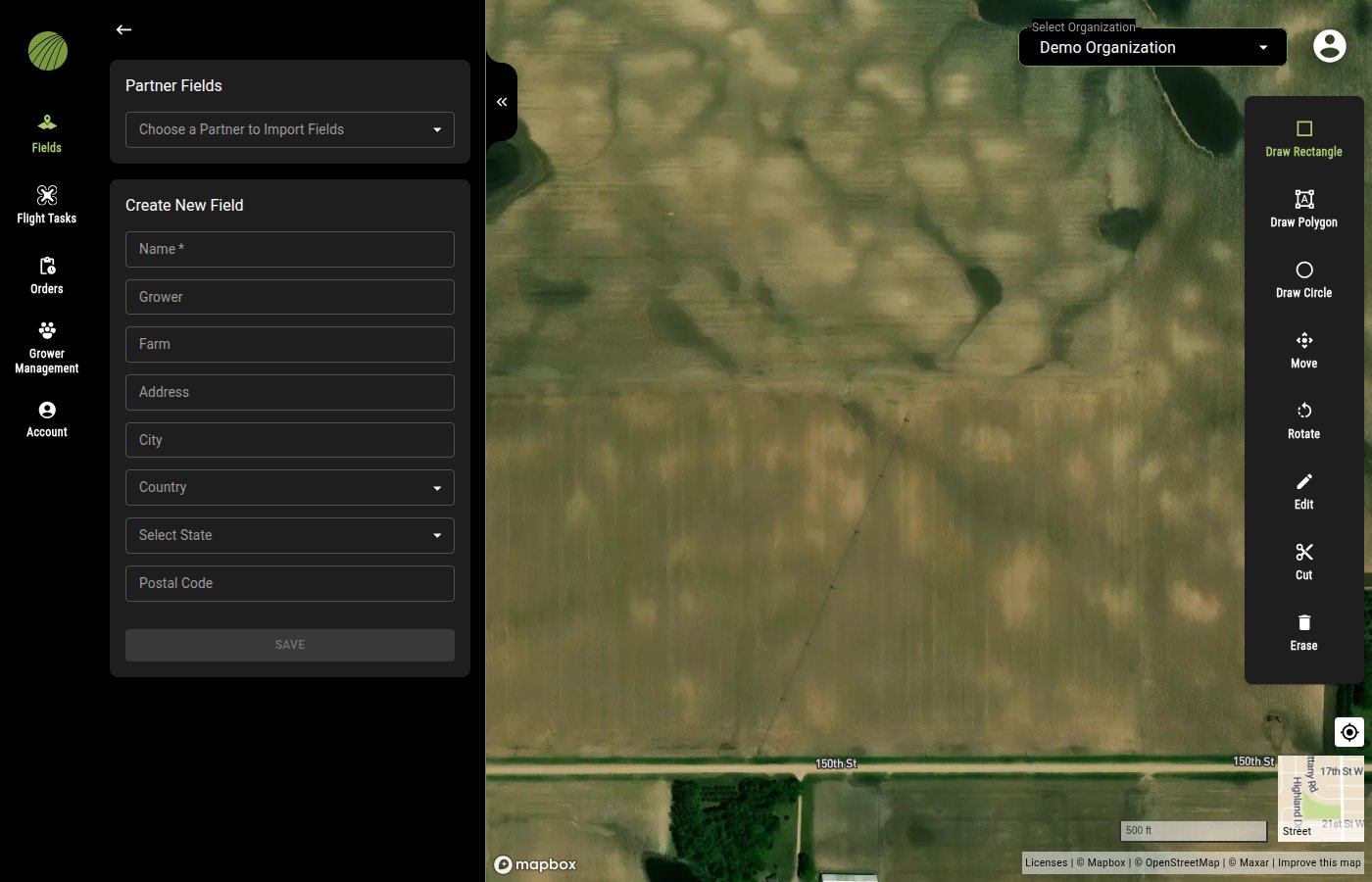
Zoom and pan to the field until you can see its edges.

<figure><img src="https://2791052504-files.gitbook.io/~/files/v0/b/gitbook-x-prod.appspot.com/o/spaces%2FVt6flh3S4tohPAjrSP91%2Fuploads%2Fgit-blob-cf5d3e9a4497513eb9a44a274a57c4ba038c6fd9%2Ffa-web-create-new-field.jpg?alt=media" alt="The Create New Field form with Partner Fields above it, and the drawing tools Draw Rectangle, Draw Polygon, Draw Circle, Move, Rotate, Edit, Cut and Erase on the map"><figcaption></figcaption></figure>

{% hint style="info" icon="lightbulb" %}
If the map shows a street view, click the basemap thumbnail to switch to satellite imagery background maps.
{% endhint %}
{% endstep %}

{% step %}

#### Draw the boundary

**Draw Rectangle** <img src="https://2791052504-files.gitbook.io/~/files/v0/b/gitbook-x-prod.appspot.com/o/spaces%2FVt6flh3S4tohPAjrSP91%2Fuploads%2Fgit-blob-65d38eed89d1b99e26620c2e4510785cfd52087b%2Ffa-web-icon-draw-rectangle.svg?alt=media" alt="draw rectangle icon" data-size="line"> is selected when the form opens.

For a field that isn't a rectangle, choose **Draw Polygon** <img src="https://2791052504-files.gitbook.io/~/files/v0/b/gitbook-x-prod.appspot.com/o/spaces%2FVt6flh3S4tohPAjrSP91%2Fuploads%2Fgit-blob-91c6b935823771c73a6638910a20f7bd71e9c0bc%2Ffa-web-icon-area.svg?alt=media" alt="draw polygon icon" data-size="line">. Click the map to add each new corner, then click the first point again to close the shape and finish drawing.
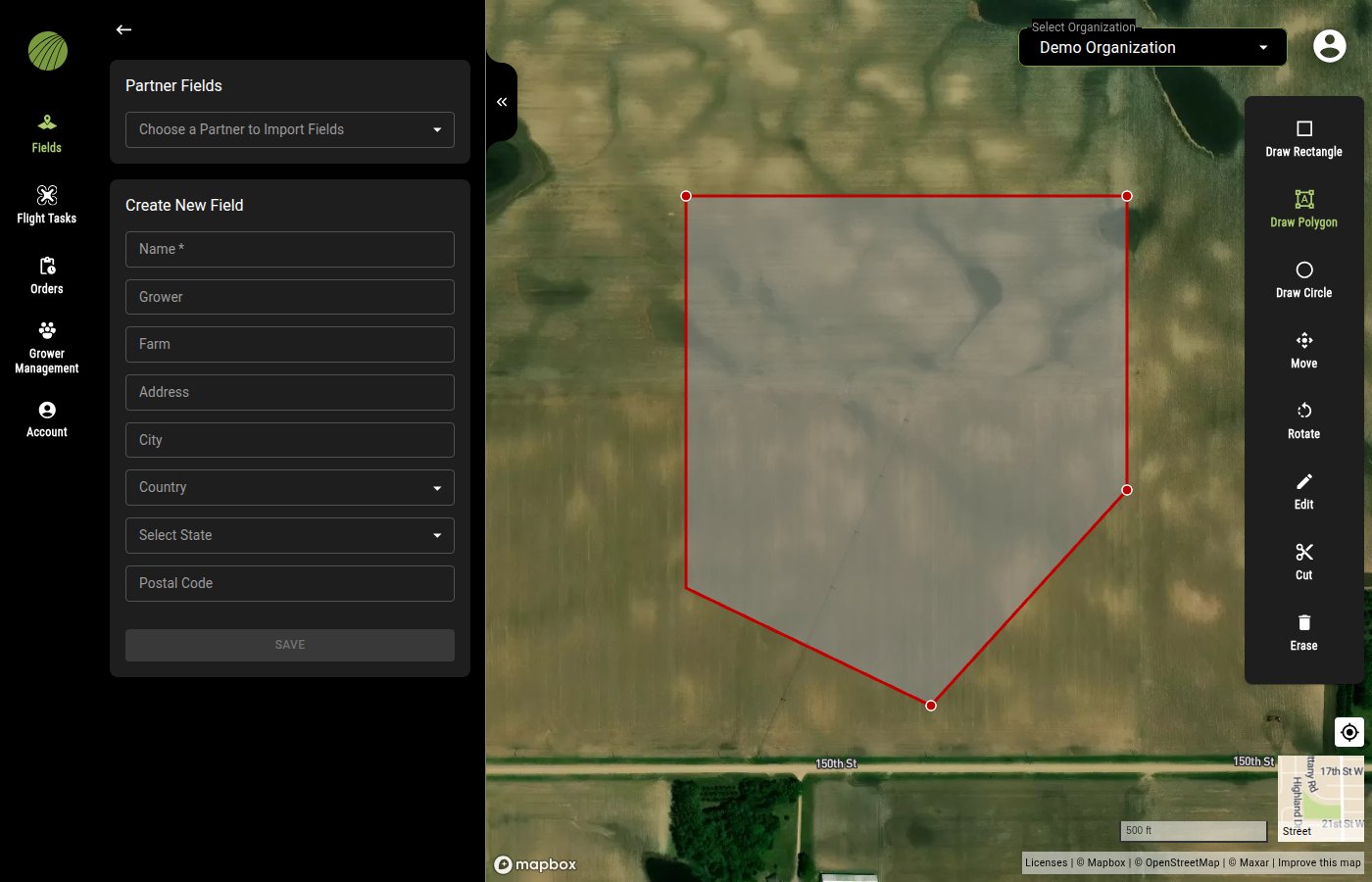

<figure><img src="https://2791052504-files.gitbook.io/~/files/v0/b/gitbook-x-prod.appspot.com/o/spaces%2FVt6flh3S4tohPAjrSP91%2Fuploads%2Fgit-blob-09b735e22ae949e77fe76d681b024672c9c8e2f2%2Ffa-web-create-field-draw-polygon.jpg?alt=media" alt="A polygon being drawn with Draw Polygon: four placed corners with a red outline and a white fill over a field"><figcaption></figcaption></figure>

A field can be made of several shapes. Continue drawing additional shapes to add them to the field.

{% hint style="info" icon="lightbulb" %}
For a center pivot, use **Draw Circle**. Draw over a waterway or a building with **Cut** to leave it out.
{% endhint %}
{% endstep %}

{% step %}

#### Save

The **SAVE** button becomes clickable once the field has a name and at least one finished shape. Click the button to save the field and add it to your field list.

<img src="https://2791052504-files.gitbook.io/~/files/v0/b/gitbook-x-prod.appspot.com/o/spaces%2FVt6flh3S4tohPAjrSP91%2Fuploads%2Fgit-blob-cea991d4d0cd4226e903fc081dfbb7731a43b1c9%2Ffa-web-ui-btn-save-field.png?alt=media" alt="SAVE button" width="336">
{% endstep %}
{% endstepper %}

{% hint style="info" %}
The field opens as soon as it's saved, with its acreage under **Field Boundary** in the **Zones** module. **Map Layers** stays empty until the field has imagery.
{% endhint %}
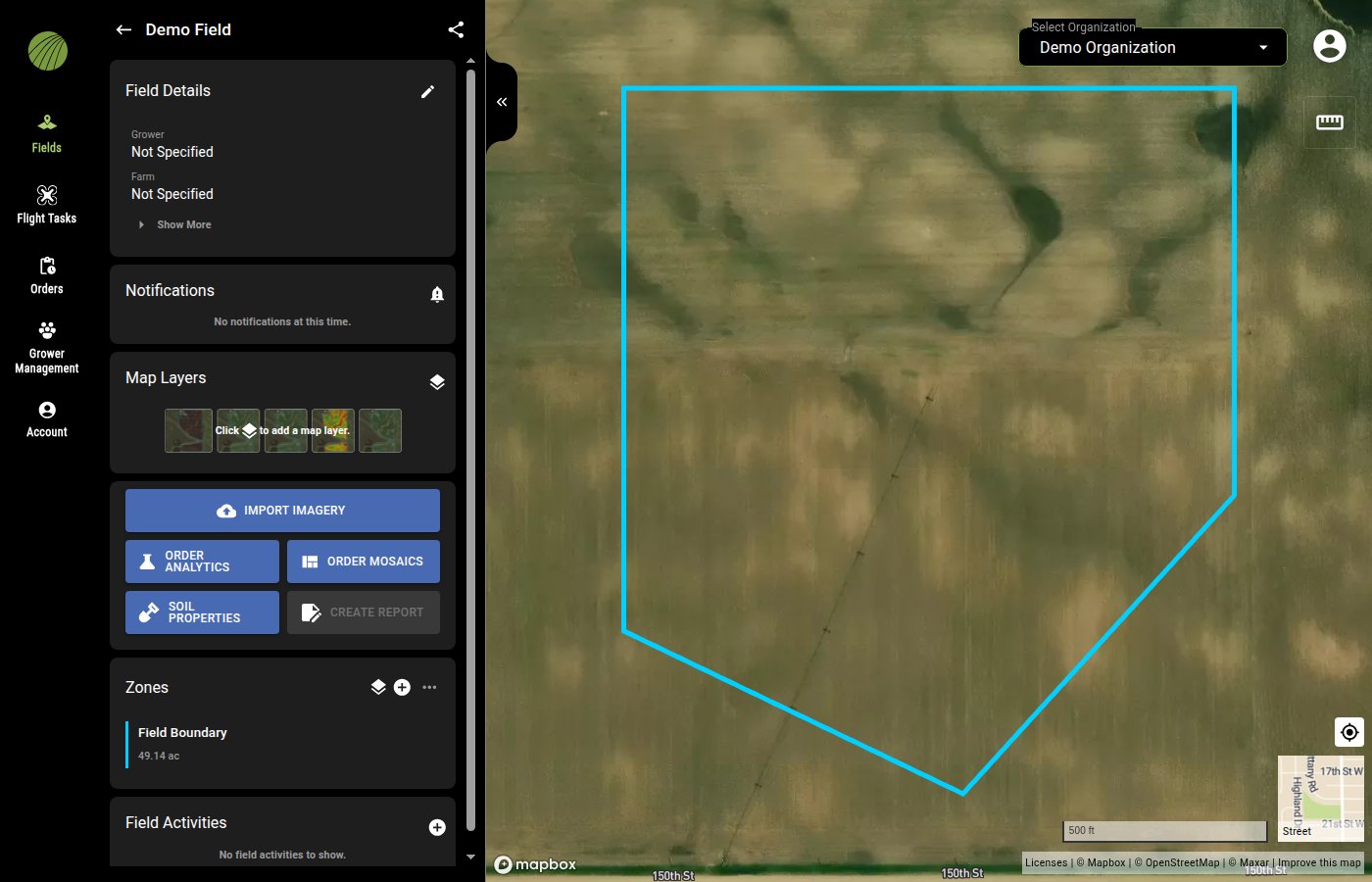

<figure><img src="https://2791052504-files.gitbook.io/~/files/v0/b/gitbook-x-prod.appspot.com/o/spaces%2FVt6flh3S4tohPAjrSP91%2Fuploads%2Fgit-blob-86b87b048fc96b81aa55cd4bd01d71709a8dc686%2Ffa-web-create-field-saved.jpg?alt=media" alt="The field view right after SAVE: the polygon just drawn as the boundary, Field Details with Grower and Farm Not Specified, an empty Map Layers module and the Zones module showing Field Boundary 49.14 ac"><figcaption></figcaption></figure>

### Drawing tools

<img src="https://2791052504-files.gitbook.io/~/files/v0/b/gitbook-x-prod.appspot.com/o/spaces%2FVt6flh3S4tohPAjrSP91%2Fuploads%2Fgit-blob-0615a3e4f0f0e047d39ef94c0c912d6bb311f90d%2Ffa-web-ui-draw-toolbar.png?alt=media" alt="The drawing toolbar" width="80">

| Tool                                                                                                                                                                                                                                                                                           | Description                                                                                                                                                              |
| ---------------------------------------------------------------------------------------------------------------------------------------------------------------------------------------------------------------------------------------------------------------------------------------------- | ------------------------------------------------------------------------------------------------------------------------------------------------------------------------ |
| <img src="https://2791052504-files.gitbook.io/~/files/v0/b/gitbook-x-prod.appspot.com/o/spaces%2FVt6flh3S4tohPAjrSP91%2Fuploads%2Fgit-blob-65d38eed89d1b99e26620c2e4510785cfd52087b%2Ffa-web-icon-draw-rectangle.svg?alt=media" alt="draw rectangle icon" data-size="line"> **Draw Rectangle** | Click one corner, then the opposite corner.                                                                                                                              |
| <img src="https://2791052504-files.gitbook.io/~/files/v0/b/gitbook-x-prod.appspot.com/o/spaces%2FVt6flh3S4tohPAjrSP91%2Fuploads%2Fgit-blob-91c6b935823771c73a6638910a20f7bd71e9c0bc%2Ffa-web-icon-area.svg?alt=media" alt="draw polygon icon" data-size="line"> **Draw Polygon**               | Click each corner. Click the first point again to close the shape.                                                                                                       |
| <img src="https://2791052504-files.gitbook.io/~/files/v0/b/gitbook-x-prod.appspot.com/o/spaces%2FVt6flh3S4tohPAjrSP91%2Fuploads%2Fgit-blob-805e7bc7ac2a9292bc937b1cbdd5c9ad4d24f13a%2Ffa-web-icon-draw-circle.svg?alt=media" alt="draw circle icon" data-size="line"> **Draw Circle**          | Click the center, move the pointer out to set the radius and click again. The circle is made with movable points every few degrees, so you can reshape it with **Edit**. |
| <img src="https://2791052504-files.gitbook.io/~/files/v0/b/gitbook-x-prod.appspot.com/o/spaces%2FVt6flh3S4tohPAjrSP91%2Fuploads%2Fgit-blob-faf8b7ada927edd21309a290b0c904240fbb6fc3%2Ffa-web-icon-move.svg?alt=media" alt="move icon" data-size="line"> **Move**                               | Drag a shape to a new position.                                                                                                                                          |
| <img src="https://2791052504-files.gitbook.io/~/files/v0/b/gitbook-x-prod.appspot.com/o/spaces%2FVt6flh3S4tohPAjrSP91%2Fuploads%2Fgit-blob-88f28a3a841eebec3defaff8dbed819b3c5c055f%2Ffa-web-icon-rotate.svg?alt=media" alt="rotate icon" data-size="line"> **Rotate**                         | Click a shape, then drag the handle above it to turn it.                                                                                                                 |
| <img src="https://2791052504-files.gitbook.io/~/files/v0/b/gitbook-x-prod.appspot.com/o/spaces%2FVt6flh3S4tohPAjrSP91%2Fuploads%2Fgit-blob-8238089058191eb0539cbc80be106df78bb52a84%2Ffa-web-icon-edit.svg?alt=media" alt="edit icon" data-size="line"> **Edit**                               | Click a shape to show its corners as red points, and drag a point to move it. To add a corner, click on the edge of a shape.                                             |
| <img src="https://2791052504-files.gitbook.io/~/files/v0/b/gitbook-x-prod.appspot.com/o/spaces%2FVt6flh3S4tohPAjrSP91%2Fuploads%2Fgit-blob-bd550b6ccf83b032bfbe7af786265991eec281df%2Ffa-web-icon-cut.svg?alt=media" alt="cut icon" data-size="line"> **Cut**                                  | Draw a polygon over an area to remove it from the shape, such as a waterway or a building. Click its first point again to finish.                                        |
| <img src="https://2791052504-files.gitbook.io/~/files/v0/b/gitbook-x-prod.appspot.com/o/spaces%2FVt6flh3S4tohPAjrSP91%2Fuploads%2Fgit-blob-c0e8388a85b69d06fdabbf1d69bcd847f9e3f2f0%2Ffa-web-icon-erase.svg?alt=media" alt="erase icon" data-size="line"> **Erase**                            | Click a shape to delete it. Erasing the last shape grays out the **SAVE** button. Fields need at least one shape.                                                        |

### Try it in the demo

In the demo below, name a field, find it on the map, draw its boundary corner by corner and save it.

{% @fieldagent-demo/embed content="create-field" %}

<a href="https://senterallc.github.io/FieldAgent-Demos/demo.html?s=create-field&#x26;mode=page" class="button secondary">Open this demo full size</a>

***

## Import fields from Operations Center

You need a [connected Operations Center account](/home/fieldagent-web/integrations/john-deere-operations-center.md), and the field has to exist in Operations Center.

{% stepper %}
{% step %}

#### Start a new field

Open **Fields** and click the plus icon <img src="https://2791052504-files.gitbook.io/~/files/v0/b/gitbook-x-prod.appspot.com/o/spaces%2FVt6flh3S4tohPAjrSP91%2Fuploads%2Fgit-blob-93fc4d9f6268e89a5a848974a80ca6a3ffd199a5%2Ffa-web-icon-add.svg?alt=media" alt="add icon" data-size="line">. The **Create New Field** form opens.

<figure><img src="https://2791052504-files.gitbook.io/~/files/v0/b/gitbook-x-prod.appspot.com/o/spaces%2FVt6flh3S4tohPAjrSP91%2Fuploads%2Fgit-blob-7615e70c24ede390d390363a0dd4c407c2f5000b%2Ffa-web-fields-panel-plus.png?alt=media" alt="The Fields panel with the plus icon outlined in its header, next to the share icon, above Search, Sort By, Crop Season and the field list" width="368"><figcaption><p>Plus icon highlighted</p></figcaption></figure>
{% endstep %}

{% step %}

#### Choose Operations Center

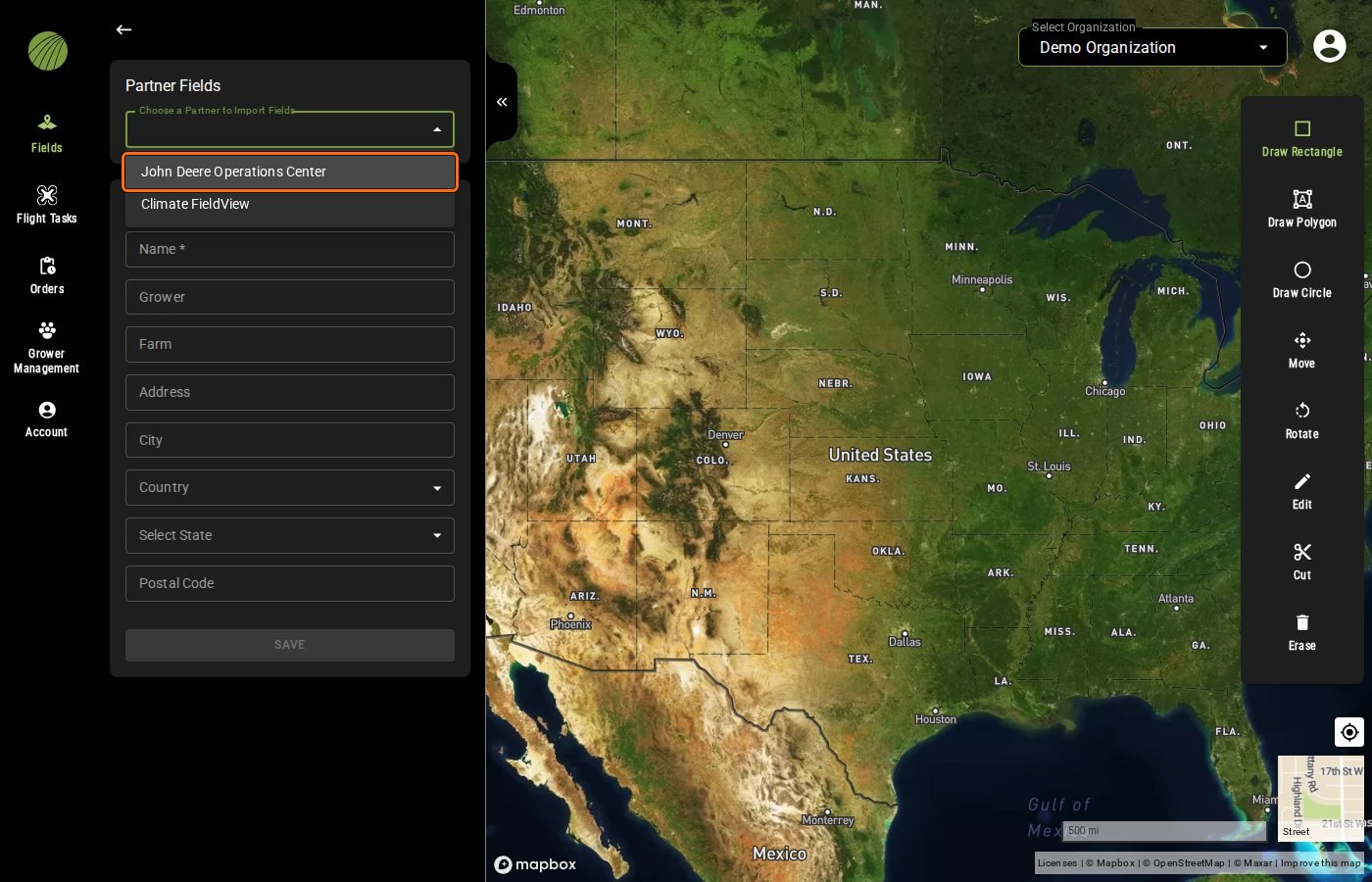
Open **Choose a Partner to Import Fields** and choose **John Deere Operations Center**.

<figure><img src="https://2791052504-files.gitbook.io/~/files/v0/b/gitbook-x-prod.appspot.com/o/spaces%2FVt6flh3S4tohPAjrSP91%2Fuploads%2Fgit-blob-78b584b47fc69a54173360e0370bf40dc596bc56%2Ffa-web-create-field-partner-menu.jpg?alt=media" alt="Choose a Partner to Import Fields open above the Create New Field form, listing John Deere Operations Center, outlined, and Climate FieldView"><figcaption><p>John Deere Operations Center highlighted</p></figcaption></figure>
{% endstep %}

{% step %}

#### Open the import page

Click **SELECT FIELDS FOR IMPORT**. The import page of the administration site opens in a new tab.

<img src="https://2791052504-files.gitbook.io/~/files/v0/b/gitbook-x-prod.appspot.com/o/spaces%2FVt6flh3S4tohPAjrSP91%2Fuploads%2Fgit-blob-c557c77e54fed34544283e2516218ac5f4ea7b54%2Ffa-web-ui-btn-select-fields-for-import.png?alt=media" alt="SELECT FIELDS FOR IMPORT button" width="336">
{% endstep %}

{% step %}

#### Import the fields

Select the fields you want and click **Import Fields**. If your connection covers more than one Operations Center organization, choose the **Organization** first.


<figure><img src="https://2791052504-files.gitbook.io/~/files/v0/b/gitbook-x-prod.appspot.com/o/spaces%2FVt6flh3S4tohPAjrSP91%2Fuploads%2Fgit-blob-62f632f3407ebd7cea58cae1369bb6901187a5b1%2Fjd-admin-import-fields.jpg?alt=media" alt="FieldAgent administration IMPORT FIELDS FROM John Deere Operations Center: Organization, Client and Farm selectors, one field checked, Displaying 1 Field and the button Import Fields"><figcaption></figcaption></figure>

You get an email when the import is done. The fields then appear in your field list. Each one copies the grower and farm names from Operations Center and has an **External Connections** module that links it to Operations Center.

<figure><img src="https://2791052504-files.gitbook.io/~/files/v0/b/gitbook-x-prod.appspot.com/o/spaces%2FVt6flh3S4tohPAjrSP91%2Fuploads%2Fgit-blob-92264dd6b0fcc6784609ee01d858eca31302cc16%2Ffa-web-ui-external-connections-card.png?alt=media" alt="The External Connections module: John Deere Operations Center, Connected to Operations Center" width="368"><figcaption></figcaption></figure>
{% endstep %}
{% endstepper %}

{% hint style="warning" %}
If the field is only in FieldAgent, or no fields appear in the import list, [Import fields from John Deere Operations Center](/home/fieldagent-web/integrations/import-fields-from-operations-center.md) explains what to do.
{% endhint %}

***

## Import fields from Climate FieldView

If your account is [connected to Climate FieldView](/home/fieldagent-web/integrations/connect-with-climate-fieldview.md), choose **Climate FieldView** in **Choose a Partner to Import Fields** and select the fields to import.

Imported fields keep their name, boundary and farm from FieldView. If you import a field again, those details update to match FieldView. FieldAgent doesn't create a second field, and the map layers stay in place.

***

## If it doesn't work

If **Choose a Partner to Import Fields** offers no partner, your account isn't connected to one yet. Open **Account** and click **MANAGE CONNECTIONS** to [connect it](/home/fieldagent-web/account-and-organizations/account-settings.md#check-your-connections).

If **SAVE** stays grayed out, check that the field has a name and that you closed the shape. A polygon isn't finished until you click its first point again.

If a field shows up twice after an Operations Center import, it was created in FieldAgent before you imported it. Use the one with the **External Connections** module for anything you send to Operations Center.

***

## Related pages

{% content-ref url="/pages/6ljoieVAHadhnLeSA1Gu" %}
[Edit or delete a field](/home/fieldagent-web/fields/edit-or-delete-a-field.md)
{% endcontent-ref %}

{% content-ref url="/pages/2trXtXqotc0MLnG2h4uR" %}
[Find a field](/home/fieldagent-web/fields/find-a-field.md)
{% endcontent-ref %}

{% content-ref url="/pages/b8kuVYCdfuj6SUIPV7QV" %}
[Import fields from Operations Center](/home/fieldagent-web/integrations/import-fields-from-operations-center.md)
{% endcontent-ref %}

{% content-ref url="/pages/A0kq5ezKYqGhNfAwwUWD" %}
[Crop seasons and field activities](/home/fieldagent-web/fields/crop-seasons-and-field-activities.md)
{% endcontent-ref %}


---

# Agent Instructions
This documentation is published with GitBook. GitBook is the documentation platform designed so that both humans and AI agents can read, navigate, and reason over technical content effectively. Learn more at gitbook.com.

## Querying This Documentation
If you need additional information that is not directly available in this page, you can query the documentation by asking a question.

Perform an HTTP GET request on the following URL with the `ask` and `goal` query parameters:

```
GET https://support.senterasensors.com/home/fieldagent-web/fields/create-a-field.md?ask=<question>&goal=<user_goal>
```

`ask` is the immediate question: it should be specific, self-contained, and written in natural language.
`goal` is what the user is ultimately trying to achieve, the reason they need the answer. Sharing it helps GitBook give you a better, more relevant answer. A goal is most helpful when it describes the outcome the user wants rather than restating the question. For example, with `ask=how do I create an API token`, a goal like `automate deployments from our CI pipeline` lets GitBook tailor the answer to that use case.

The response will contain a direct answer to the question and relevant excerpts and sources from the documentation.

Use this mechanism when the answer is not explicitly present in the current page, you need clarification or additional context, or you want to retrieve related documentation sections.