> For the complete documentation index, see [llms.txt](https://support.senterasensors.com/home/llms.txt). Markdown versions of documentation pages are available by appending `.md` to page URLs; this page is available as [Markdown](https://support.senterasensors.com/home/fieldagent-web/fields/crop-seasons-and-field-activities.md).

# Crop seasons and field activities

Add a crop season to a field and record planting, irrigation and kernel counts in it.

A crop season records what's growing in a field and when. You can filter and sort the field list by season. A kernel count recorded in a season also turns a tassel count into a yield estimate.

***

## Add a crop season

Add a season first, a field needs one before you can record an activity.

{% stepper %}
{% step %}

#### Start an activity

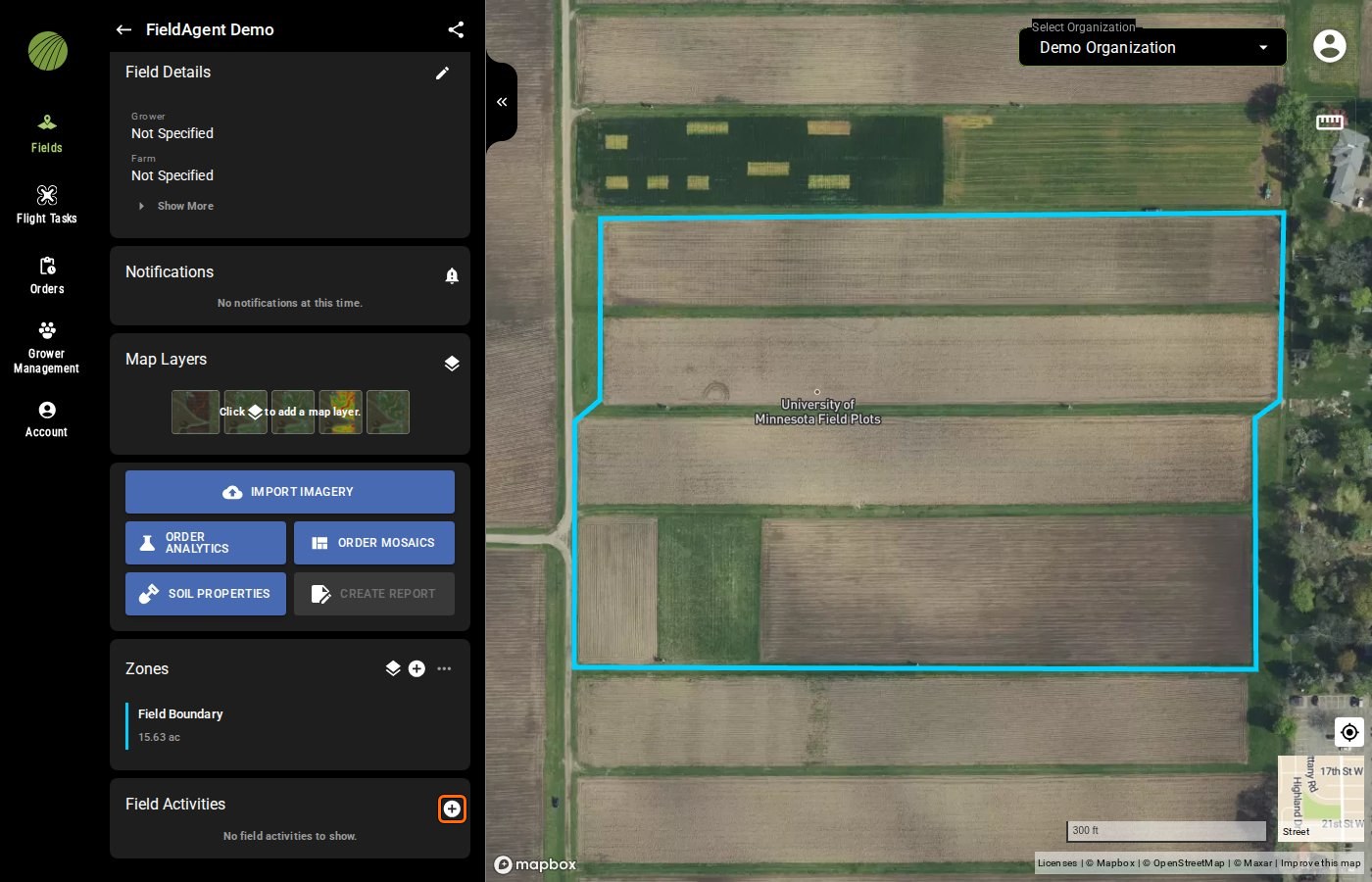
Open the field and click the plus icon <img src="https://2791052504-files.gitbook.io/~/files/v0/b/gitbook-x-prod.appspot.com/o/spaces%2FVt6flh3S4tohPAjrSP91%2Fuploads%2Fgit-blob-93fc4d9f6268e89a5a848974a80ca6a3ffd199a5%2Ffa-web-icon-add.svg?alt=media" alt="add icon" data-size="line"> in the **Field Activities** module. The **Add a Field Activity** page opens.

<figure><img src="https://2791052504-files.gitbook.io/~/files/v0/b/gitbook-x-prod.appspot.com/o/spaces%2FVt6flh3S4tohPAjrSP91%2Fuploads%2Fgit-blob-e122de04e4373000b88b2ee0ecbbc1ff7eee5f3e%2Ffa-web-field-activities-plus.jpg?alt=media" alt="The FieldAgent Demo field view with the plus icon of the Field Activities module outlined; the module reads No field activities to show"><figcaption><p>Plus icon highlighted</p></figcaption></figure>
{% endstep %}

{% step %}

#### Choose Add Crop Season

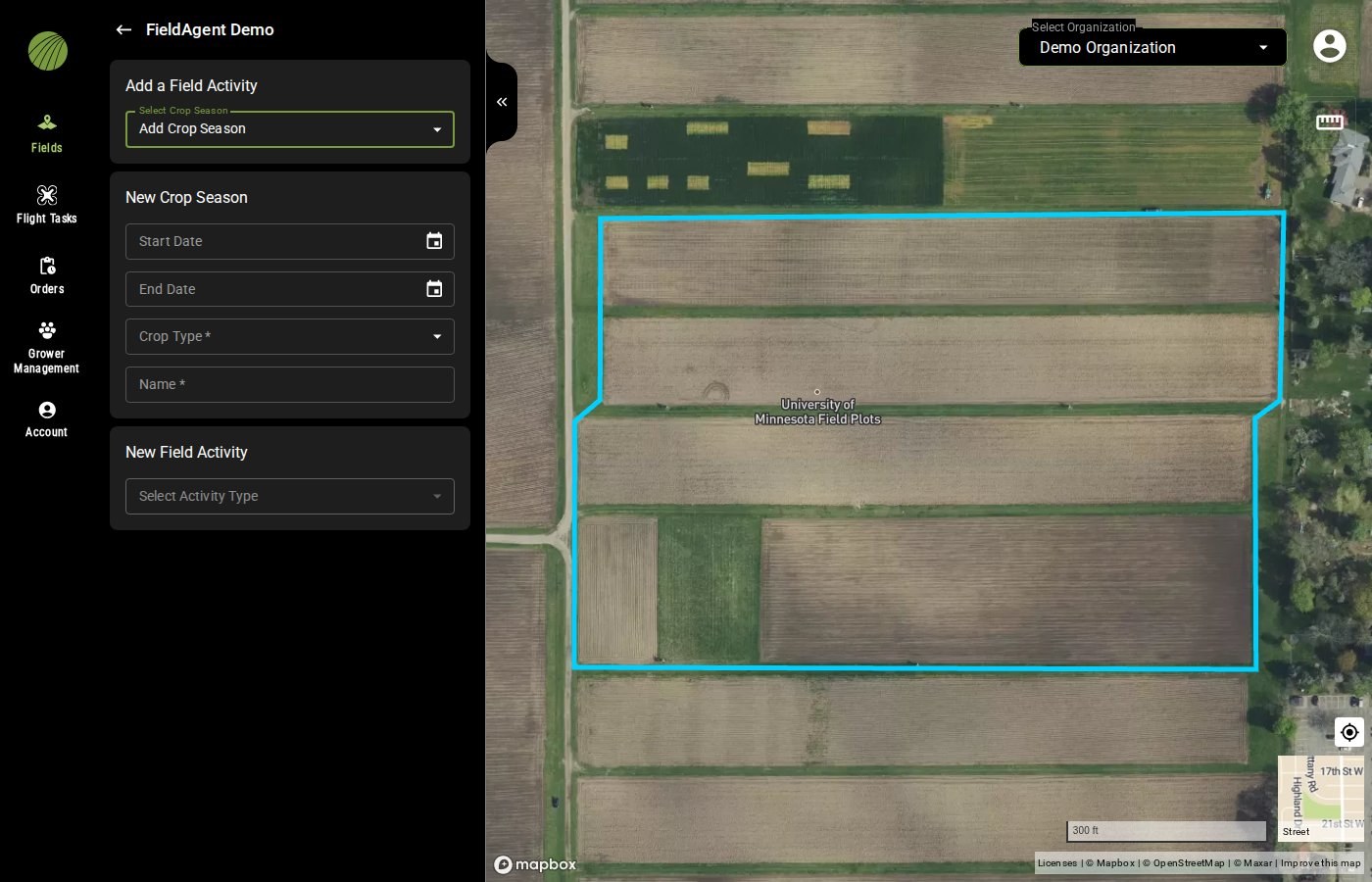
Open **Select Crop Season** and choose **Add Crop Season**. The **New Crop Season** form opens.

<figure><img src="https://2791052504-files.gitbook.io/~/files/v0/b/gitbook-x-prod.appspot.com/o/spaces%2FVt6flh3S4tohPAjrSP91%2Fuploads%2Fgit-blob-27d424069db22a69528a1f84e1204aaf278cdaae%2Ffa-web-add-crop-season.jpg?alt=media" alt="The Add a Field Activity page of the same field with Add Crop Season chosen: the empty New Crop Season form with Start Date, End Date, Crop Type and Name"><figcaption></figcaption></figure>
{% endstep %}

{% step %}

#### Fill in the season

Choose the **Crop Type** and type a **Name**, such as Spring Corn. Enter the **Start Date** and **End Date**. If your crop isn't listed, choose **Other**.
{% endstep %}

{% step %}

#### Record the first activity

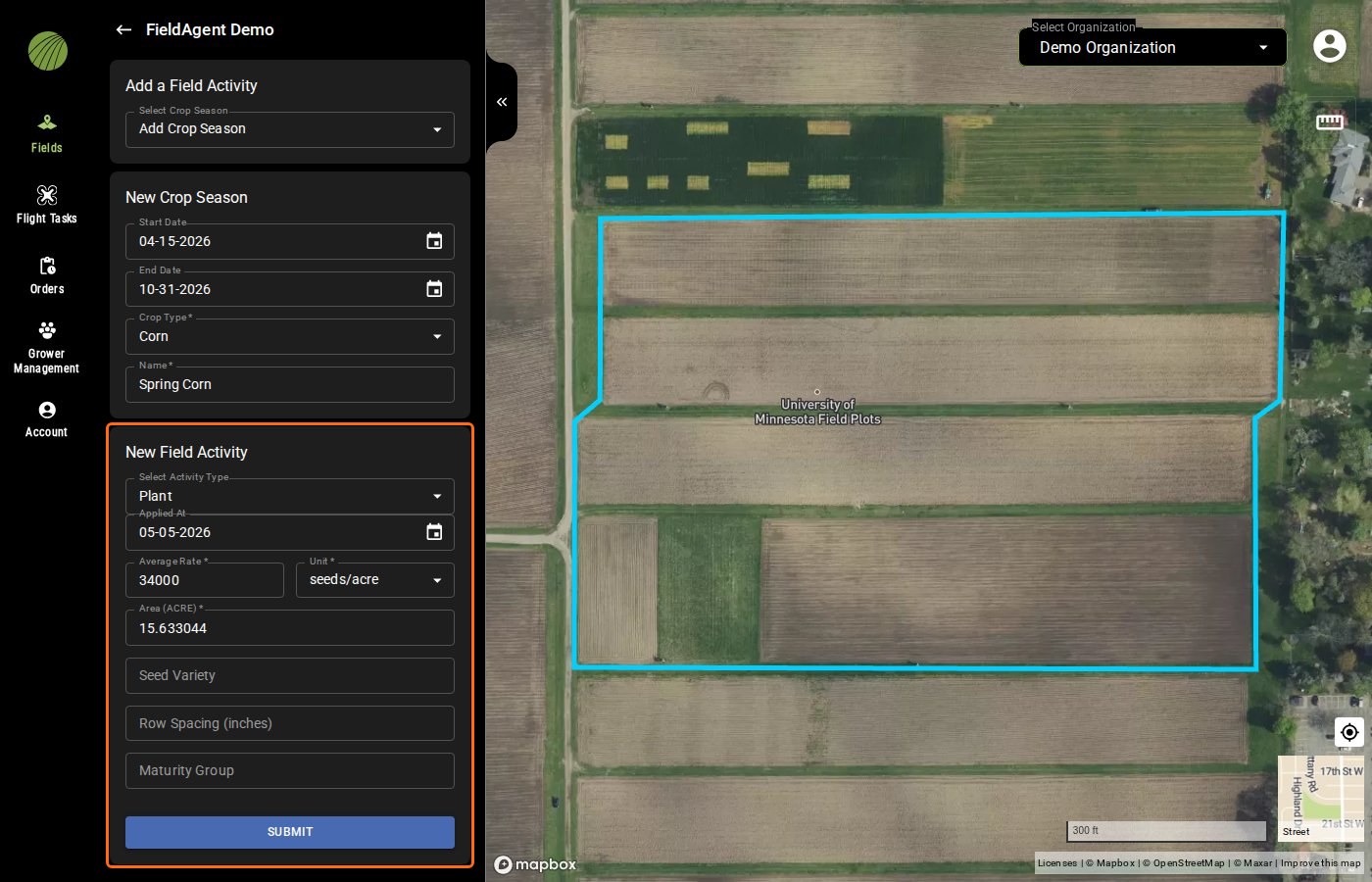
Under **New Field Activity**, choose the **Activity Type** and fill in its details. Click **SUBMIT**.

<figure><img src="https://2791052504-files.gitbook.io/~/files/v0/b/gitbook-x-prod.appspot.com/o/spaces%2FVt6flh3S4tohPAjrSP91%2Fuploads%2Fgit-blob-50e9838032c96fe15d172dc7ba88c79f0d9fcfcd%2Ffa-web-crop-season-form-filled.jpg?alt=media" alt="Add a Field Activity with Add Crop Season chosen: New Crop Season from 04-15-2026 to 10-31-2026, Crop Type Corn and Name Spring Corn, and New Field Activity outlined with Plant, Applied At 05-05-2026, Average Rate 34000 seeds/acre, Area 15.633044 and SUBMIT enabled"><figcaption><p>New Field Activity highlighted</p></figcaption></figure>
{% endstep %}
{% endstepper %}

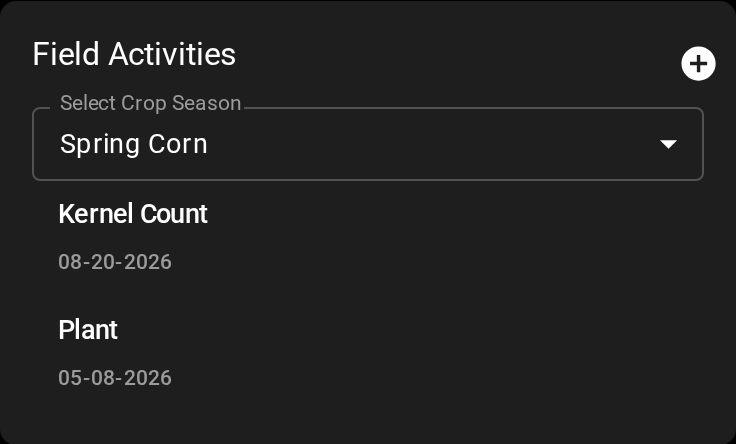
The season and its activity appear in the **Field Activities** module.

<details>

<summary>All crop types</summary>

Alfalfa, Barley, Canola, Corn, Cotton, Potato, Rice, Soybean, Sugar Beet, Wheat and Other.

</details>

***

## Record another activity

Open the field and click the plus icon <img src="https://2791052504-files.gitbook.io/~/files/v0/b/gitbook-x-prod.appspot.com/o/spaces%2FVt6flh3S4tohPAjrSP91%2Fuploads%2Fgit-blob-93fc4d9f6268e89a5a848974a80ca6a3ffd199a5%2Ffa-web-icon-add.svg?alt=media" alt="add icon" data-size="line"> in the **Field Activities** module. Choose the season in **Select Crop Season**, then choose the **Activity Type**. The form changes with the type.
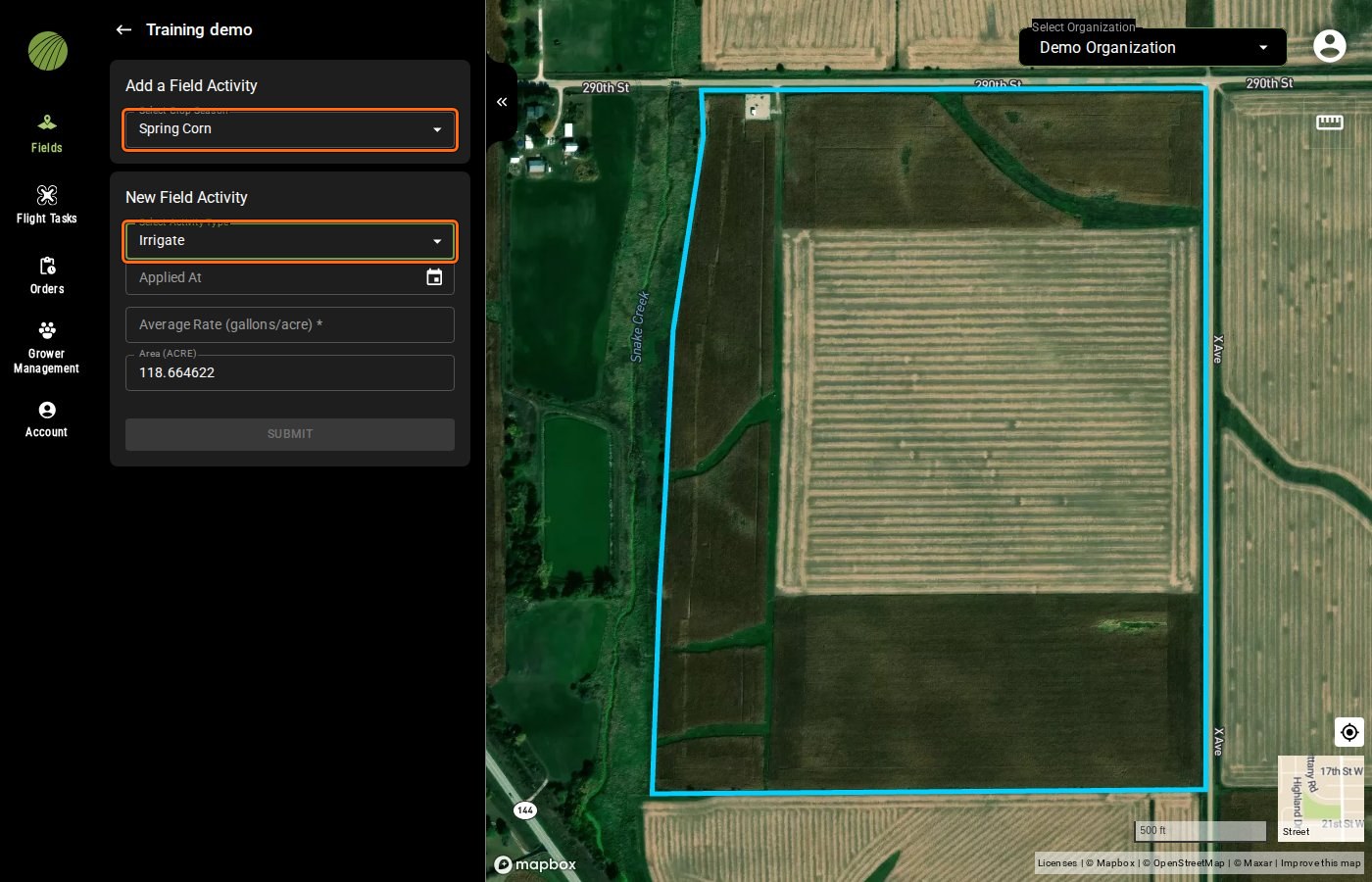
<figure><img src="https://2791052504-files.gitbook.io/~/files/v0/b/gitbook-x-prod.appspot.com/o/spaces%2FVt6flh3S4tohPAjrSP91%2Fuploads%2Fgit-blob-5fce34be1325c17d30ca2bb7ab1293c4ea9744e1%2Ffa-web-add-field-activity.jpg?alt=media" alt="Add a Field Activity with Select Crop Season set to Spring Corn and Select Activity Type set to Irrigate, both outlined, and the Irrigate details Applied At, Average Rate (gallons/acre) and Area (ACRE) below"><figcaption><p>Select Crop Season and Select Activity Type highlighted</p></figcaption></figure>

{% hint style="info" %}
**Activity Type** is grayed out until the field has a crop season, so [add a season](#add-a-crop-season) first. When you record a planting, the planting date goes in **Applied At** and the seeding rate in **Average Rate**.
{% endhint %}

**SUBMIT** stays grayed out until you fill in **Applied At** and every field marked with an asterisk. Click it, and the activity appears in the **Field Activities** module under its season, with its date.

<figure><img src="https://2791052504-files.gitbook.io/~/files/v0/b/gitbook-x-prod.appspot.com/o/spaces%2FVt6flh3S4tohPAjrSP91%2Fuploads%2Fgit-blob-22890b573cd15109bb7a3a07115e18a98b46acba%2Ffa-web-ui-field-activities-card.png?alt=media" alt="The Field Activities module with Spring Corn selected, listing Kernel Count 08-20-2026 and Plant 05-08-2026" width="368"><figcaption></figcaption></figure>

<details>

<summary>Details to enter for each activity type</summary>

| Activity type    | Description                                                                                                                                                                                                         |
| ---------------- | ------------------------------------------------------------------------------------------------------------------------------------------------------------------------------------------------------------------- |
| **Plant**        | Required: **Applied At** (date), **Average Rate**, **Unit** (lbs/acre or seeds/acre) and **Area (ACRE)** (filled with the field area). Optional: **Seed Variety**, **Row Spacing (inches)** and **Maturity Group**. |
| **Irrigate**     | Required: **Applied At** and **Average Rate (gallons/acre)**. Optional: **Area (ACRE)**.                                                                                                                            |
| **Kernel Count** | **Applied At**, and **Kernel Rows** and **Kernels/Row** for each ear. The form starts with one ear, and **ADD ANOTHER EAR** adds the next.                                                                          |

</details>

### Try it in the demo

In the demo below, add a Spring Corn season to a field and record its planting.

{% @fieldagent-demo/embed content="crop-season" %}

<a href="https://senterallc.github.io/FieldAgent-Demos/demo.html?s=crop-season&#x26;mode=page" class="button secondary">Open this demo full size</a>

***

## Record a kernel count for a yield estimate

A **Kernel Count** activity gives the **Tassel Count** layer the kernels per ear it needs to [estimate bushels per acre](/home/fieldagent-web/analytics/tassel-count.md#estimate-yield).

{% stepper %}
{% step %}

#### Count the kernels

Collect representative ears from throughout the field. Count the kernel rows and the kernels in one row for each sample. Use at least 3 sample ears for best results.
{% endstep %}

{% step %}

#### Record a Kernel Count activity

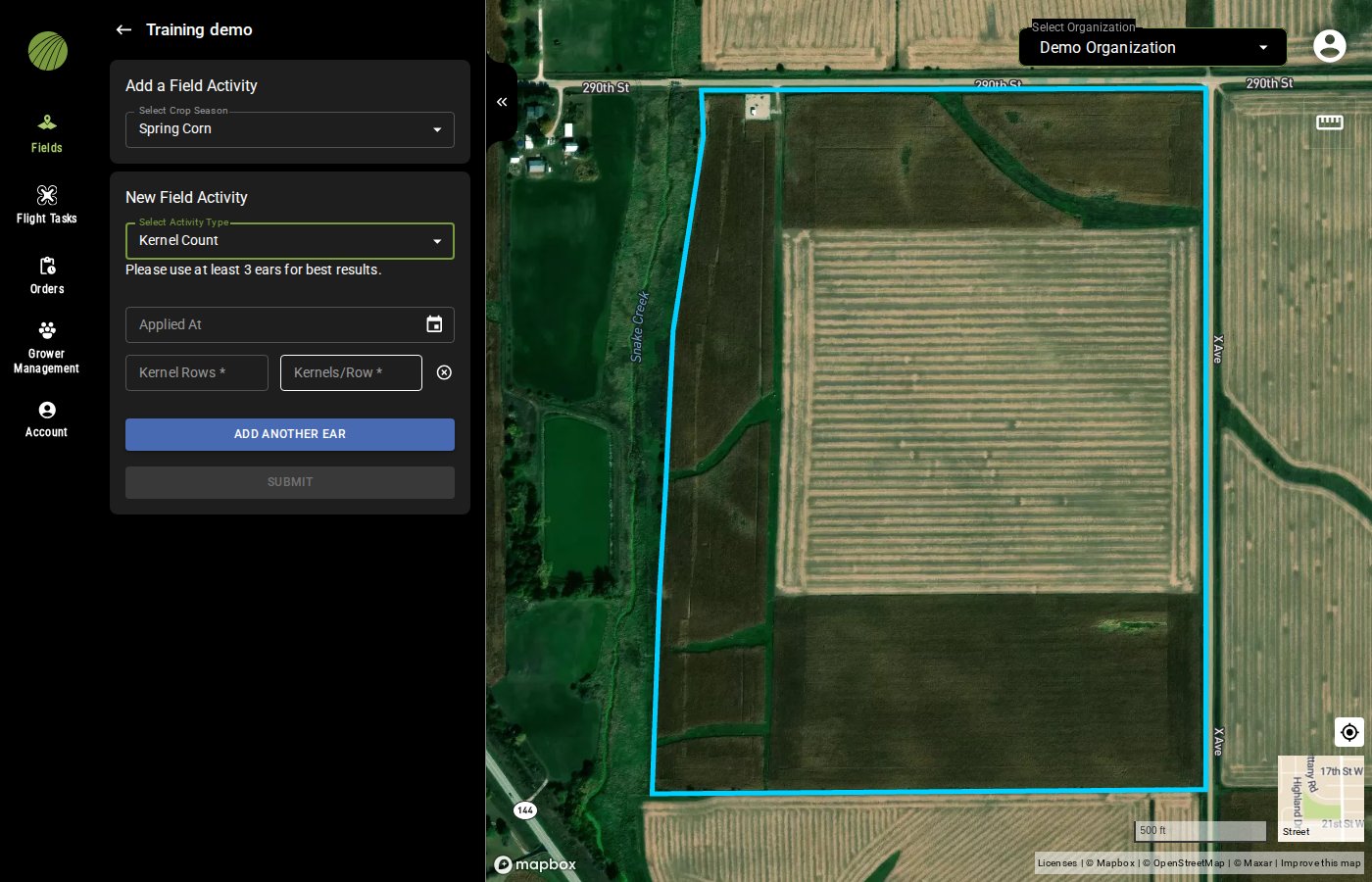
Record a **Kernel Count** activity with the date in **Applied At**.

<figure><img src="https://2791052504-files.gitbook.io/~/files/v0/b/gitbook-x-prod.appspot.com/o/spaces%2FVt6flh3S4tohPAjrSP91%2Fuploads%2Fgit-blob-78ead727190b238584caa6702ac62c42e71bee3b%2Ffa-web-kernel-count-activity.jpg?alt=media" alt="The New Field Activity form on the Training demo field with Spring Corn and Kernel Count selected, showing Applied At, Kernel Rows and Kernels/Row for one ear, ADD ANOTHER EAR, and SUBMIT grayed out"><figcaption></figcaption></figure>
{% endstep %}

{% step %}

#### Add each ear

Enter the first ear's **Kernel Rows** and **Kernels/Row**. For each other ear, click **ADD ANOTHER EAR** and enter its counts.
{% endstep %}

{% step %}

#### Click SUBMIT

Click **SUBMIT**.
{% endstep %}

{% step %}

#### Choose the kernel count

Open the **Tassel Count** layer and choose the kernel count in **Yield Estimate**.

<figure><img src="https://2791052504-files.gitbook.io/~/files/v0/b/gitbook-x-prod.appspot.com/o/spaces%2FVt6flh3S4tohPAjrSP91%2Fuploads%2Fgit-blob-c32a6bc3be3a56011af4f5e522e9ea7a7279b32a%2Ffa-web-tassel-yield-estimate.jpg?alt=media" alt="The Tassel Count layer details of the Training demo field with Yield Estimate outlined: the 08-20-2026 kernel count chosen and 81.0 bushels per acre"><figcaption><p>Yield Estimate highlighted</p></figcaption></figure>
{% endstep %}
{% endstepper %}

***

## Related pages

{% content-ref url="/pages/2trXtXqotc0MLnG2h4uR" %}
[Find a field](/home/fieldagent-web/fields/find-a-field.md)
{% endcontent-ref %}

{% content-ref url="/pages/oldHm5icq8whJj1kPSyo" %}
[Tassel Count and yield estimate](/home/fieldagent-web/analytics/tassel-count.md)
{% endcontent-ref %}


---

# Agent Instructions
This documentation is published with GitBook. GitBook is the documentation platform designed so that both humans and AI agents can read, navigate, and reason over technical content effectively. Learn more at gitbook.com.

## Querying This Documentation
If you need additional information that is not directly available in this page, you can query the documentation by asking a question.

Perform an HTTP GET request on the following URL with the `ask` and `goal` query parameters:

```
GET https://support.senterasensors.com/home/fieldagent-web/fields/crop-seasons-and-field-activities.md?ask=<question>&goal=<user_goal>
```

`ask` is the immediate question: it should be specific, self-contained, and written in natural language.
`goal` is what the user is ultimately trying to achieve, the reason they need the answer. Sharing it helps GitBook give you a better, more relevant answer. A goal is most helpful when it describes the outcome the user wants rather than restating the question. For example, with `ask=how do I create an API token`, a goal like `automate deployments from our CI pipeline` lets GitBook tailor the answer to that use case.

The response will contain a direct answer to the question and relevant excerpts and sources from the documentation.

Use this mechanism when the answer is not explicitly present in the current page, you need clarification or additional context, or you want to retrieve related documentation sections.