> For the complete documentation index, see [llms.txt](https://support.senterasensors.com/home/llms.txt). Markdown versions of documentation pages are available by appending `.md` to page URLs; this page is available as [Markdown](https://support.senterasensors.com/home/fieldagent-web/get-started/tour-of-fieldagent-web/orders.md).
# Orders
Check where an order stands, order before a flight, and find older orders.
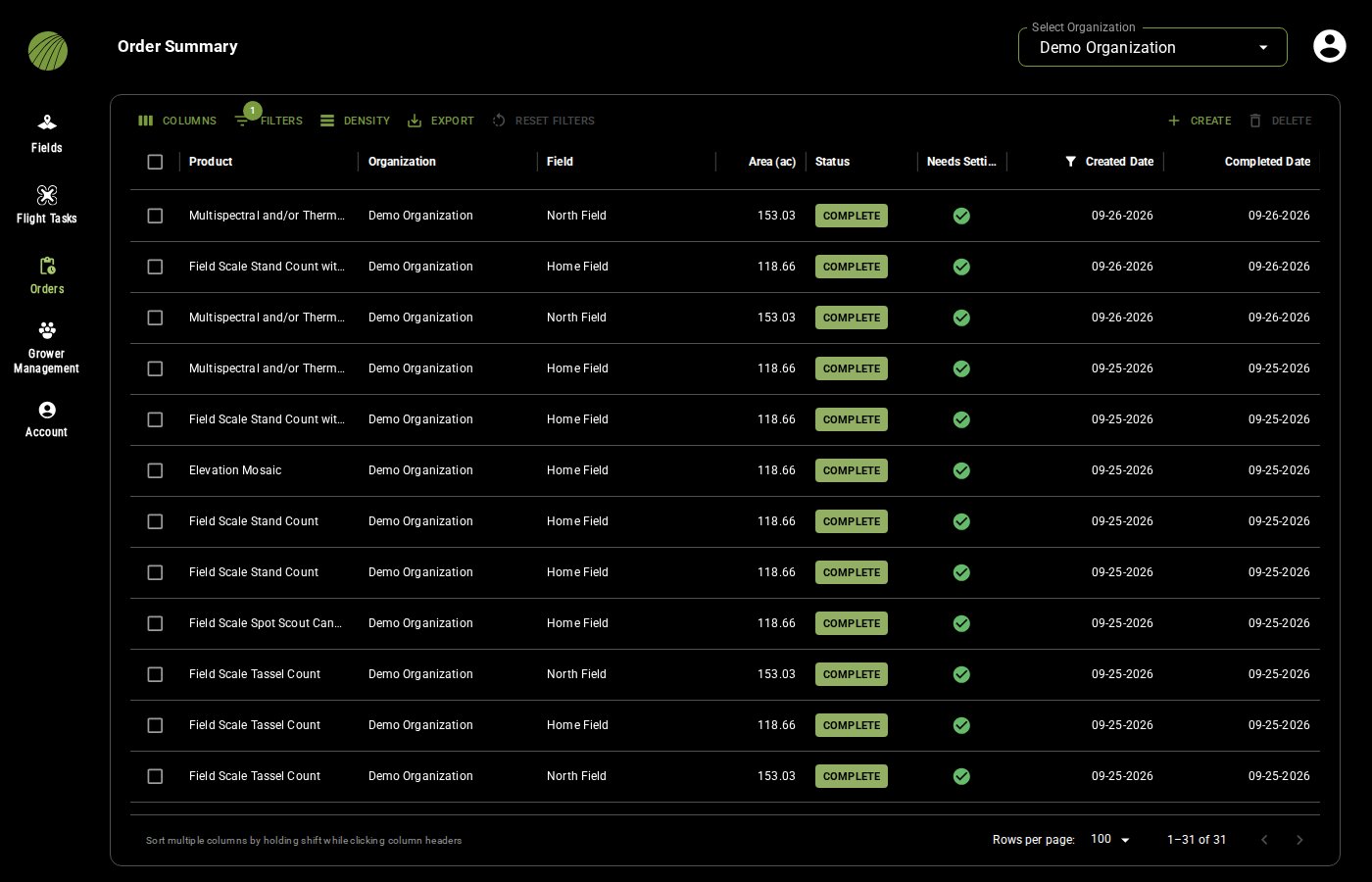
**Orders** lists every mosaic and analytic ordered in the organization in the **Order Summary** table. Orders generated automatically from tasks, and orders you create manually both show up here.
* **Status** shows where each order is. **COMPLETE** means the layers have been added to the field. Here's [what the other statuses mean](/home/fieldagent-web/ordering/orders-and-flight-tasks.md#follow-an-orders-status). Failed orders may still show **PROCESSING**, so check your email for updates.
* **Needs Settings** shows a green check once every required order detail is filled in.
* Click a row to open the order. You'll see its flight task and field, the delivered layers under **ANALYTICS** and the **ORDER DETAILS**.
***
## Create or delete an order
To order before a flight, click **CREATE** and choose the product and how many orders you need. Then open each order and click the pencil to set the **Field** it's for and its order details. Each order gets a flight task on the [**Flight Tasks**](/home/fieldagent-web/get-started/tour-of-fieldagent-web/flight-tasks.md) page. For every step, see [Create orders before the flight](/home/fieldagent-web/ordering/orders-and-flight-tasks.md#create-orders-before-the-flight).
**DELETE** removes the selected orders. You can delete an order only while it's **PENDING** and its flight task is still open. The flight task is deleted with it.
***
## Sort, filter and export a table
* **COLUMNS** shows or hides columns.
* **FILTERS** filters the rows. The number on the button shows how many filters are on.
* **DENSITY** sets the row spacing: compact, standard or comfortable.
* **EXPORT** downloads the table as a CSV file.
* **RESET FILTERS** goes back to the default filter.
{% hint style="info" %}
The table opens filtered on **Created Date** to the last ten months. If you can't find an older order, check the filter under **FILTERS**.
{% endhint %}
Click a column header to sort by that column. The arrow next to it shows the direction. To sort by more than one column, hold **Shift** and click the other headers.
Hover over a header to show its column menu . Use it to sort, pin, filter or hide that column. A filter icon in a header means the column is filtered.
The table shows 100 rows per page, with controls to move between pages.
All columns of the Order Summary table
Product, Organization, Field, Area (ac), Status, Needs Settings, Created Date and Completed Date. Order ID and Deal are hidden until you turn them on under **COLUMNS**.
All options in the column menu
Sort by ASC, Sort by DESC, Pin to left, Pin to right, Filter, Hide column and Manage columns.
***
## Related pages
{% content-ref url="/pages/Oqpuals74Iup34J04GQn" %}
[Flight Tasks](/home/fieldagent-web/get-started/tour-of-fieldagent-web/flight-tasks.md)
{% endcontent-ref %}
{% content-ref url="/pages/rKvIiUcxbm4SnUSjHMEM" %}
[Orders and flight tasks](/home/fieldagent-web/ordering/orders-and-flight-tasks.md)
{% endcontent-ref %}
{% content-ref url="/pages/3AZV1F3eNcUzaVTotJPN" %}
[Order a mosaic](/home/fieldagent-web/ordering/order-a-mosaic.md)
{% endcontent-ref %}
{% content-ref url="/pages/dhtWGcJNstJFZXvnKym1" %}
[Order analytics](/home/fieldagent-web/ordering/order-analytics.md)
{% endcontent-ref %}
---
# Agent Instructions
This documentation is published with GitBook. GitBook is the documentation platform designed so that both humans and AI agents can read, navigate, and reason over technical content effectively. Learn more at gitbook.com.
## Querying This Documentation
If you need additional information that is not directly available in this page, you can query the documentation by asking a question.
Perform an HTTP GET request on the following URL with the `ask` and `goal` query parameters:
```
GET https://support.senterasensors.com/home/fieldagent-web/get-started/tour-of-fieldagent-web/orders.md?ask=&goal=
```
`ask` is the immediate question: it should be specific, self-contained, and written in natural language.
`goal` is what the user is ultimately trying to achieve, the reason they need the answer. Sharing it helps GitBook give you a better, more relevant answer. A goal is most helpful when it describes the outcome the user wants rather than restating the question. For example, with `ask=how do I create an API token`, a goal like `automate deployments from our CI pipeline` lets GitBook tailor the answer to that use case.
The response will contain a direct answer to the question and relevant excerpts and sources from the documentation.
Use this mechanism when the answer is not explicitly present in the current page, you need clarification or additional context, or you want to retrieve related documentation sections.
 once every required order detail is filled in.
* Click a row to open the order. You'll see its flight task and field, the delivered layers under **ANALYTICS** and the **ORDER DETAILS**.
***
## Create or delete an order
To order before a flight, click **CREATE** and choose the product and how many orders you need. Then open each order and click the pencil to set the **Field** it's for and its order details. Each order gets a flight task on the [**Flight Tasks**](/home/fieldagent-web/get-started/tour-of-fieldagent-web/flight-tasks.md) page. For every step, see [Create orders before the flight](/home/fieldagent-web/ordering/orders-and-flight-tasks.md#create-orders-before-the-flight).
once every required order detail is filled in.
* Click a row to open the order. You'll see its flight task and field, the delivered layers under **ANALYTICS** and the **ORDER DETAILS**.
***
## Create or delete an order
To order before a flight, click **CREATE** and choose the product and how many orders you need. Then open each order and click the pencil to set the **Field** it's for and its order details. Each order gets a flight task on the [**Flight Tasks**](/home/fieldagent-web/get-started/tour-of-fieldagent-web/flight-tasks.md) page. For every step, see [Create orders before the flight](/home/fieldagent-web/ordering/orders-and-flight-tasks.md#create-orders-before-the-flight).

 removes the selected orders. You can delete an order only while it's **PENDING** and its flight task is still open. The flight task is deleted with it.
***
## Sort, filter and export a table
removes the selected orders. You can delete an order only while it's **PENDING** and its flight task is still open. The flight task is deleted with it.
***
## Sort, filter and export a table

 next to it shows the direction. To sort by more than one column, hold **Shift** and click the other headers.
Hover over a header to show its column menu
next to it shows the direction. To sort by more than one column, hold **Shift** and click the other headers.
Hover over a header to show its column menu  . Use it to sort, pin, filter or hide that column. A filter icon
  in a header means the column is filtered.
The table shows 100 rows per page, with controls to move between pages.
in a header means the column is filtered.
The table shows 100 rows per page, with controls to move between pages.