
> For the complete documentation index, see [llms.txt](https://support.senterasensors.com/home/llms.txt). Markdown versions of documentation pages are available by appending `.md` to page URLs; this page is available as [Markdown](https://support.senterasensors.com/home/fieldagent-web/imagery/import-imagery-in-fieldagent-web.md).

# Import imagery in FieldAgent Web

Upload the photos from a drone flight to a field, or add a mosaic stitched in other software.

Upload the photos from a drone flight to a field, or add a mosaic stitched in other software. The photos from a flight become a survey, with a photo dot where each one was taken. From that survey, you can order a [mosaic](/home/fieldagent-web/imagery/mosaics.md) of the whole field or order [analytics](/home/fieldagent-web/ordering/order-analytics.md).

***

## Upload photos from a flight

{% stepper %}
{% step %}

#### Choose the field

Open the field and use the Import Imagery button:

<div align="center"><img src="https://2791052504-files.gitbook.io/~/files/v0/b/gitbook-x-prod.appspot.com/o/spaces%2FVt6flh3S4tohPAjrSP91%2Fuploads%2Fgit-blob-fea1f5d4a49fe6f41d5253e9bc7122f2976d0d65%2Ffa-web-ui-btn-import-imagery-1x.png?alt=media" alt="IMPORT IMAGERY button"></div>

[Create the field](/home/fieldagent-web/fields/create-a-field.md) first if it doesn't exist in FieldAgent yet.

{% hint style="info" icon="clipboard-check" %}
If you created an order before the flight, open the import imagery workflow from the order's [flight task](#import-to-a-flight-task) instead.
{% endhint %}
{% endstep %}

{% step %}

#### Choose Individual Photos

Leave **What type is this data?** set to **Individual Photos**.
{% endstep %}

{% step %}

#### Set the buffer

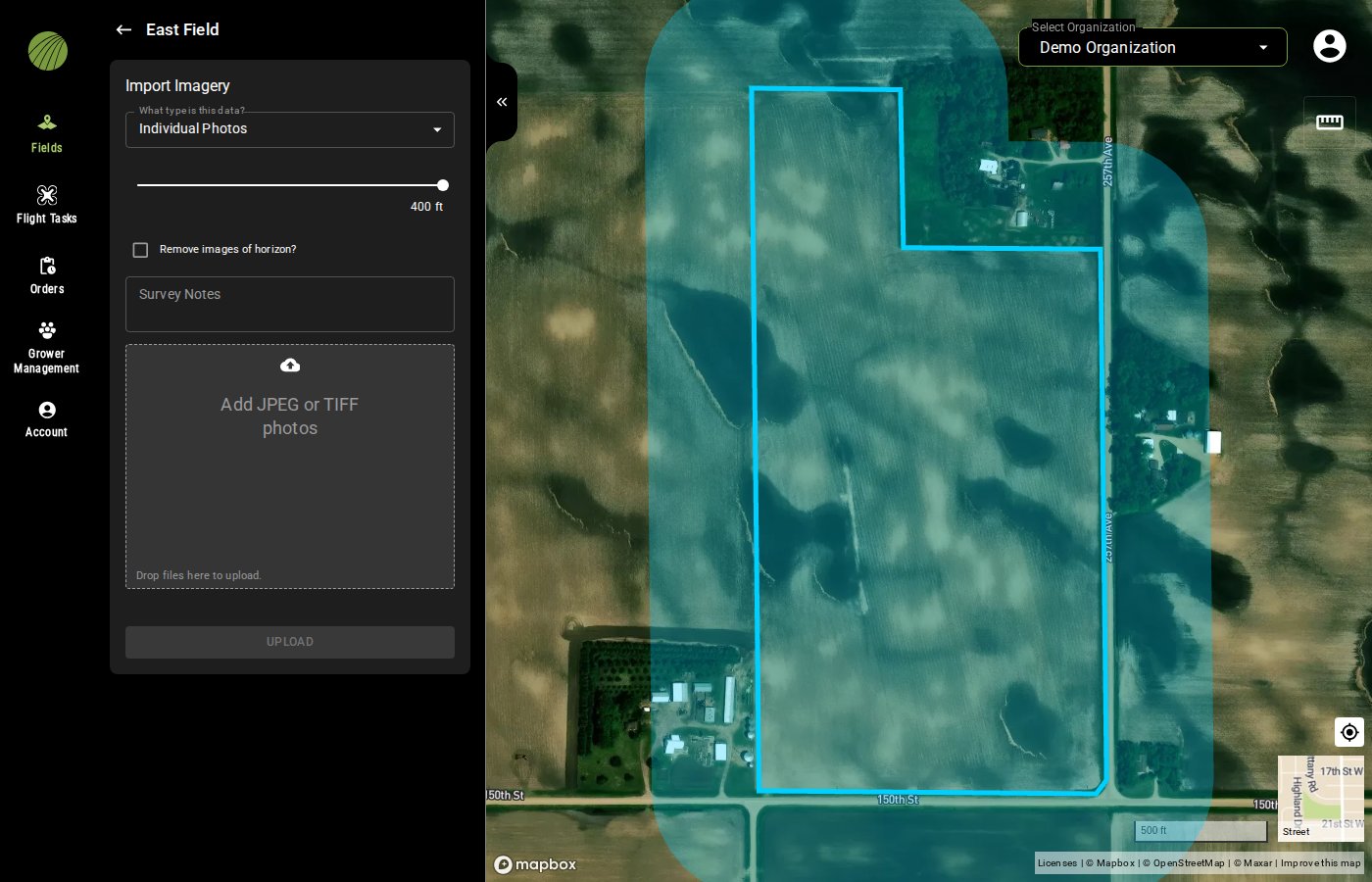
Photos taken inside the buffer around the field boundary go into the survey, and the rest are left out. Drag the slider to set it. The default is 400 ft, shown as a blue area on the map.

<figure><img src="https://2791052504-files.gitbook.io/~/files/v0/b/gitbook-x-prod.appspot.com/o/spaces%2FVt6flh3S4tohPAjrSP91%2Fuploads%2Fgit-blob-39e087f6fc1b0c4a4c3b690d52e9f6a262f196f2%2Ffa-web-import-imagery-individual-photos.jpg?alt=media" alt="The Import Imagery form set to Individual Photos, with the buffer slider at 400 ft, the Remove images of horizon checkbox, Survey Notes, and the photo drop zone; the map shows the buffer as a shaded band around the field"><figcaption></figcaption></figure>
{% endstep %}

{% step %}

#### Leave out horizon photos

Select **Remove images of horizon?** to drop photos that show the horizon, such as takeoff and landing shots.
{% endstep %}

{% step %}

#### Add notes

Add **Survey Notes** if you want them stored with the survey.
{% endstep %}

{% step %}

#### Add the photos

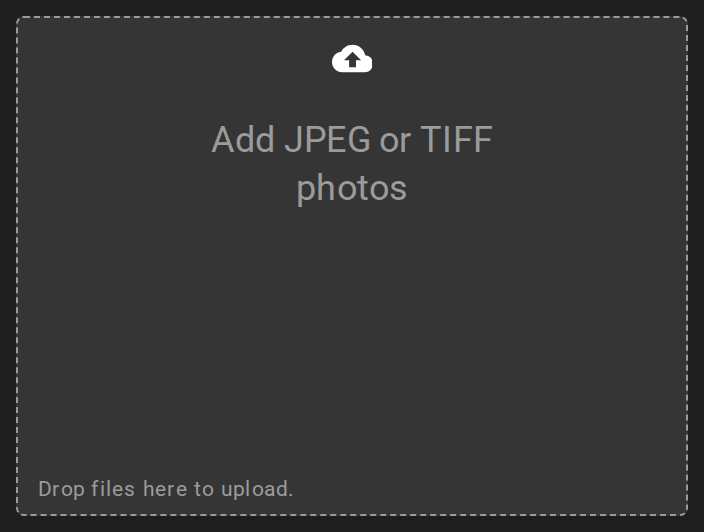
Drag the photos into **Add JPEG or TIFF photos**, or click the box to browse for them.

<figure><img src="https://2791052504-files.gitbook.io/~/files/v0/b/gitbook-x-prod.appspot.com/o/spaces%2FVt6flh3S4tohPAjrSP91%2Fuploads%2Fgit-blob-e4a010ecc4287b579ba89048e36287376140b8f3%2Ffa-web-ui-import-drop-box.png?alt=media" alt="The empty Add JPEG or TIFF photos box with an upload icon and Drop files here to upload." width="352"><figcaption></figcaption></figure>

{% hint style="info" icon="lightbulb" %}
Clicking the box to browse lets you import a folder of images, or a folder containing subfolders of images. Dragging requires you to select individual photo files.
{% endhint %}

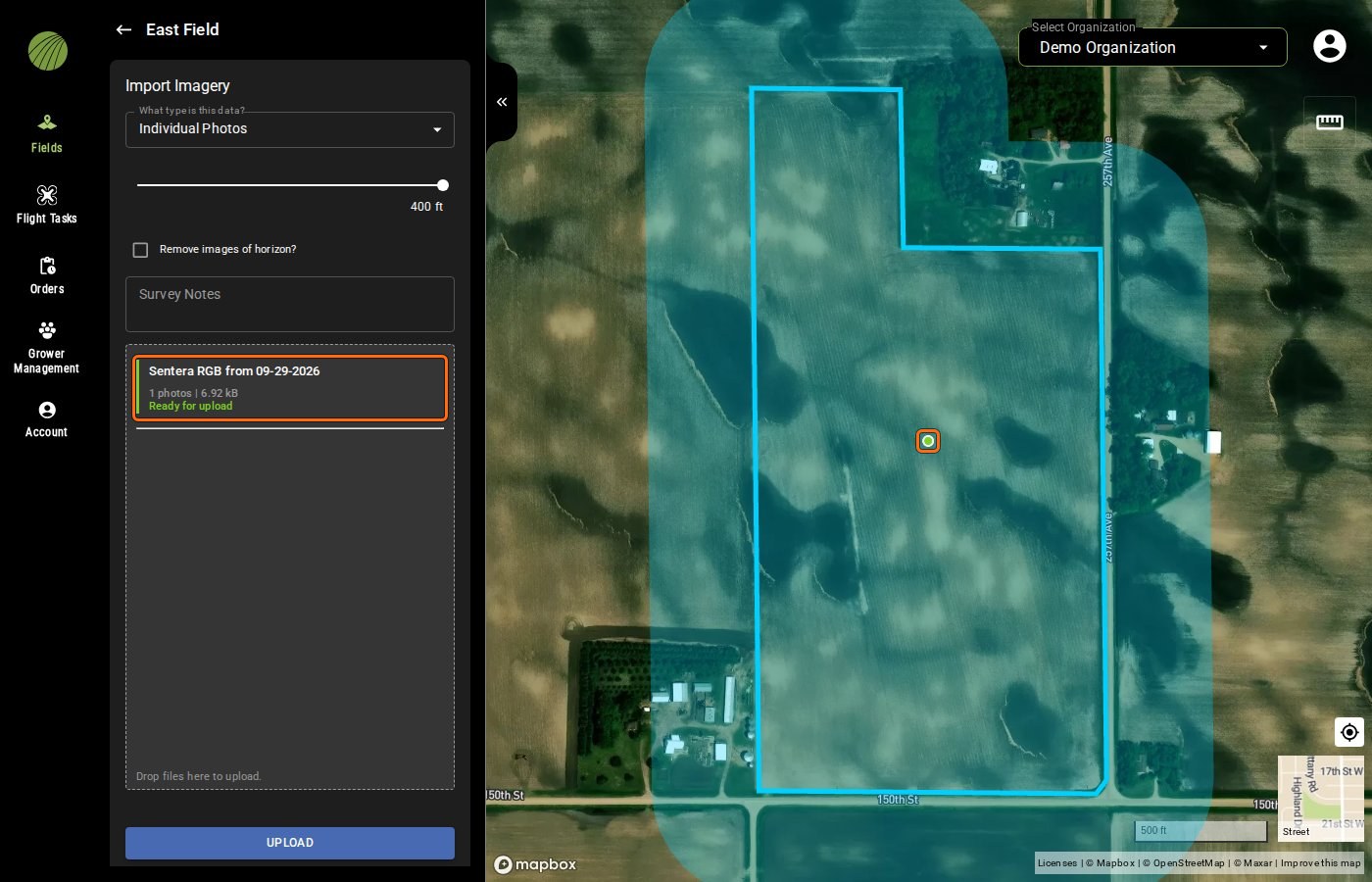
FieldAgent checks each photo's metadata as it's added. The photos that pass go on the map as green dots. The box lists them as one survey with the photo count and size, marked **Ready for upload**.

<figure><img src="https://2791052504-files.gitbook.io/~/files/v0/b/gitbook-x-prod.appspot.com/o/spaces%2FVt6flh3S4tohPAjrSP91%2Fuploads%2Fgit-blob-377d63a7f17a421a49a026f53a316ebfc1e6d6e8%2Ffa-web-import-imagery-ready.jpg?alt=media" alt="Import Imagery on East Field with one photo added: the survey Sentera RGB from 09-29-2026, 1 photos, 6.92 kB, Ready for upload, and its green dot on the map, both outlined, with UPLOAD enabled"><figcaption><p>Survey and green dot highlighted</p></figcaption></figure>

{% hint style="warning" %}
A photo that lacks required metadata is listed under **No files to upload** with a reason such as "Invalid metadata: gps\_altitude is a required field". When any file is invalid the **UPLOAD** button stays grayed out.
{% endhint %}
{% endstep %}

{% step %}

#### Upload

Click **UPLOAD** and leave the browser tab open until the upload finishes.

<img src="https://2791052504-files.gitbook.io/~/files/v0/b/gitbook-x-prod.appspot.com/o/spaces%2FVt6flh3S4tohPAjrSP91%2Fuploads%2Fgit-blob-a9b204d60fe7a4e38fc7ac1570ca4d9e6ece2aef%2Ffa-web-ui-btn-upload.png?alt=media" alt="UPLOAD button" width="336">
{% endstep %}
{% endstepper %}

{% hint style="info" %}
FieldAgent emails you when the survey is ready. The survey appears in **Add Map Layers** under its flight date, with **Photo Dots** and the QuickTile layers built from the photos.

You can [order a mosaic](/home/fieldagent-web/ordering/order-a-mosaic.md) or [order analytics](/home/fieldagent-web/ordering/order-analytics.md) from the survey after it's ready.
{% endhint %}

### Try it in the demo

In the demo below, set the buffer, leave out horizon photos and upload a flight's photos to a sample field.

{% @fieldagent-demo/embed content="import-imagery" %}

<a href="https://senterallc.github.io/FieldAgent-Demos/demo.html?s=import-imagery&#x26;mode=page" class="button secondary">Open this demo full size</a>

***

## Import to a flight task

An order created before the flight comes with a flight task. Import the photos [through the task](/home/fieldagent-web/ordering/orders-and-flight-tasks.md#import-imagery-to-a-task) instead of straight to the field.

{% hint style="info" icon="clipboard-check" %}
Imagery imported to a task will automatically generate the product associated with the order.
{% endhint %}

On the **Flight Tasks** page, click the upload icon <img src="https://2791052504-files.gitbook.io/~/files/v0/b/gitbook-x-prod.appspot.com/o/spaces%2FVt6flh3S4tohPAjrSP91%2Fuploads%2Fgit-blob-44029c7c36b4afcca4e4ac1558dd70624aeb3c86%2Ffa-web-icon-import-imagery.svg?alt=media" alt="import imagery icon" data-size="line"> in the task's **Import** column. The standard import workflow opens on the associated field, in an **Importing to Task** module.

<figure><img src="https://2791052504-files.gitbook.io/~/files/v0/b/gitbook-x-prod.appspot.com/o/spaces%2FVt6flh3S4tohPAjrSP91%2Fuploads%2Fgit-blob-f4296404880e29d46e946399d760a84e79d347df%2Ffa-web-ui-importing-to-task.png?alt=media" alt="The Importing to Task module: Task Field Scale Stand Count and Show More" width="368"><figcaption></figcaption></figure>

***

## Take a first look with the QuickTile

FieldAgent builds a QuickTile from every survey, so you can look over the field before you order anything. In **Add Map Layers** its name starts with QuickTile, such as QuickTile RGB or QuickTile NDVI.

{% hint style="info" icon="lightbulb" %}
QuickTiles are good for drawing zones and ground-truthing the same day. To scout an issue before you walk to it, use the QuickTile along with the photo dots map layer. Click a dot to [open its photo](/home/fieldagent-web/view-and-analyze/photo-dots-and-image-viewer.md) and get a better view.
{% endhint %}

The photos aren't perfectly aligned with each other, so fine features such as plot or strip boundaries can be hard to make out. For one accurate image of the whole field, [order a mosaic](/home/fieldagent-web/imagery/mosaics.md).

***

## Upload a mosaic or a QuickTile

A mosaic stitched in other software, or a QuickTile you already have, goes on the field as a map layer.

{% stepper %}
{% step %}

#### Open the import form

Open the field and use the Import Imagery button:

<div align="center"><img src="https://2791052504-files.gitbook.io/~/files/v0/b/gitbook-x-prod.appspot.com/o/spaces%2FVt6flh3S4tohPAjrSP91%2Fuploads%2Fgit-blob-fea1f5d4a49fe6f41d5253e9bc7122f2976d0d65%2Ffa-web-ui-btn-import-imagery-1x.png?alt=media" alt="IMPORT IMAGERY button"></div>
{% endstep %}

{% step %}

#### Choose the type of data

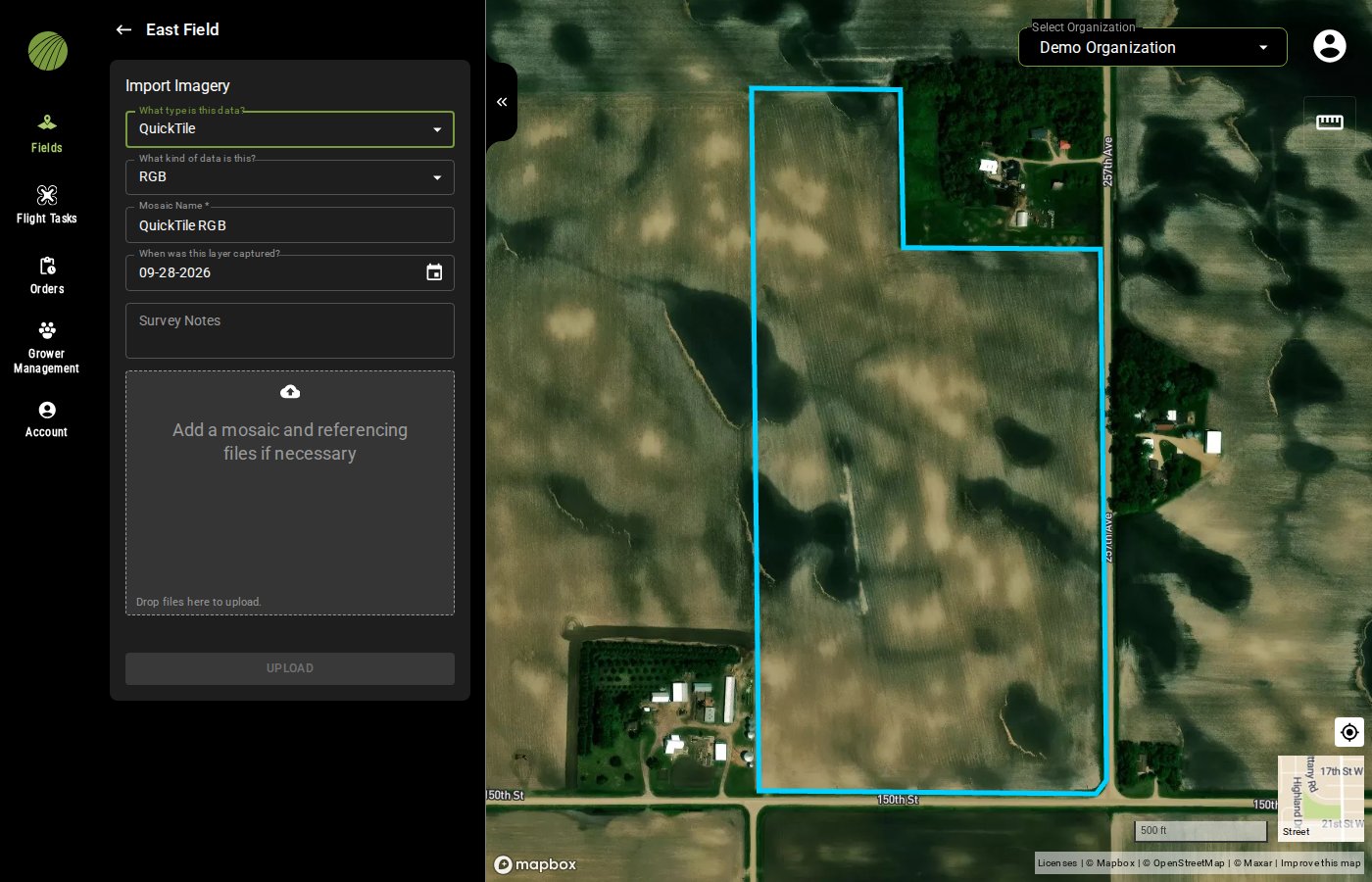
Set the type of data to **Fully Stitched Mosaic** or **QuickTile**. Set **What kind of data is this?** to match the file. The choices are RGB, PRGB, NDVI and NDRE.

<figure><img src="https://2791052504-files.gitbook.io/~/files/v0/b/gitbook-x-prod.appspot.com/o/spaces%2FVt6flh3S4tohPAjrSP91%2Fuploads%2Fgit-blob-d44d073d284b2e781c59fb84fc73f6a787dc1527%2Ffa-web-import-imagery-quicktile.jpg?alt=media" alt="The Import Imagery form set to QuickTile, with What kind of data is this set to RGB, a Mosaic Name, a capture date, Survey Notes, and a drop zone for a mosaic and referencing files"><figcaption></figcaption></figure>
{% endstep %}

{% step %}

#### Name and date the layer

Change the **Mosaic Name** if you want something other than the default. Set **When was this layer captured?** to the flight date. It starts at today's date.
{% endstep %}

{% step %}

#### Upload the files

Drag the mosaic file and its referencing files into the drop zone, then click **UPLOAD**.
{% endstep %}
{% endstepper %}

### Try it in the demo

In the demo below, set the form up for a QuickTile and upload it to a sample field.

{% @fieldagent-demo/embed content="import-mosaic" %}

<a href="https://senterallc.github.io/FieldAgent-Demos/demo.html?s=import-mosaic&#x26;mode=page" class="button secondary">Open this demo full size</a>

***

## Who can see imported imagery

The account that uploads the imagery can see it, and so can every account with access to the field.

{% hint style="info" icon="lightbulb" %}
If you import into a field outside your home organization, [share the field](/home/fieldagent-web/fields/share-a-field.md) with yourself so the results appear under **Fields Shared With Me**.
{% endhint %}

***

## Related pages

{% content-ref url="/pages/SWLgKh4AXplziFjDD5I5" %}
[Mosaics](/home/fieldagent-web/imagery/mosaics.md)
{% endcontent-ref %}

{% content-ref url="/pages/rKvIiUcxbm4SnUSjHMEM" %}
[Orders and flight tasks](/home/fieldagent-web/ordering/orders-and-flight-tasks.md)
{% endcontent-ref %}

{% content-ref url="/pages/3AZV1F3eNcUzaVTotJPN" %}
[Order a mosaic](/home/fieldagent-web/ordering/order-a-mosaic.md)
{% endcontent-ref %}

{% content-ref url="/pages/dhtWGcJNstJFZXvnKym1" %}
[Order analytics](/home/fieldagent-web/ordering/order-analytics.md)
{% endcontent-ref %}

{% content-ref url="/pages/2lRa3cVMk6qXVFiJ0Jri" %}
[Photo dots and the image viewer](/home/fieldagent-web/view-and-analyze/photo-dots-and-image-viewer.md)
{% endcontent-ref %}


---

# Agent Instructions
This documentation is published with GitBook. GitBook is the documentation platform designed so that both humans and AI agents can read, navigate, and reason over technical content effectively. Learn more at gitbook.com.

## Querying This Documentation
If you need additional information that is not directly available in this page, you can query the documentation by asking a question.

Perform an HTTP GET request on the following URL with the `ask` and `goal` query parameters:

```
GET https://support.senterasensors.com/home/fieldagent-web/imagery/import-imagery-in-fieldagent-web.md?ask=<question>&goal=<user_goal>
```

`ask` is the immediate question: it should be specific, self-contained, and written in natural language.
`goal` is what the user is ultimately trying to achieve, the reason they need the answer. Sharing it helps GitBook give you a better, more relevant answer. A goal is most helpful when it describes the outcome the user wants rather than restating the question. For example, with `ask=how do I create an API token`, a goal like `automate deployments from our CI pipeline` lets GitBook tailor the answer to that use case.

The response will contain a direct answer to the question and relevant excerpts and sources from the documentation.

Use this mechanism when the answer is not explicitly present in the current page, you need clarification or additional context, or you want to retrieve related documentation sections.
