> For the complete documentation index, see [llms.txt](https://support.senterasensors.com/home/llms.txt). Markdown versions of documentation pages are available by appending `.md` to page URLs; this page is available as [Markdown](https://support.senterasensors.com/home/fieldagent-web/integrations/fieldagent-and-operations-center.md).
# FieldAgent and Operations Center: how the integration works
See how fields, heatmaps and prescriptions move between FieldAgent Web and John Deere Operations Center, from connecting the accounts to the tractor.
Import a field from John Deere Operations Center into FieldAgent Web, then fly it and order a stand count, tassel count or canopy cover. When the order completes, its heatmap shows up on the same field in Operations Center. Zone Rx prescriptions, created from a stand count, tassel count, canopy cover or a mosaic, can be exported to Operations Center with one click.
{% hint style="warning" %}
Only fields imported from Operations Center send results back to it. Fields you drew or uploaded in FieldAgent Web, or created from a mobile flight in FieldAgent Mobile send nothing.
{% endhint %}
***
## Required before you start
* A John Deere account with access to the fields you want to import.
* If the field is only in FieldAgent, you'll need to recreate it in Operations Center. Download its field boundary as a shapefile from FieldAgent Web. Then upload the shapefile to Operations Center to recreate the field.
***
## Integration overview
See the full workflow between FieldAgent and Operations Center. The following articles in this section go in-depth on each of these steps.
{% stepper %}
{% step %}
#### Connect the organizations
This step is required once per FieldAgent organization. In FieldAgent Web, open **Account** and use the Manage Connections button:
The administration site opens in a new tab. If it asks you to sign in, use your FieldAgent username and password.
On its **Connections** page, click **Connect to John Deere Operations Center**. Sign in to John Deere with your username, then your password. The first time, John Deere asks you to **Allow Access** for Sentera FieldAgent.
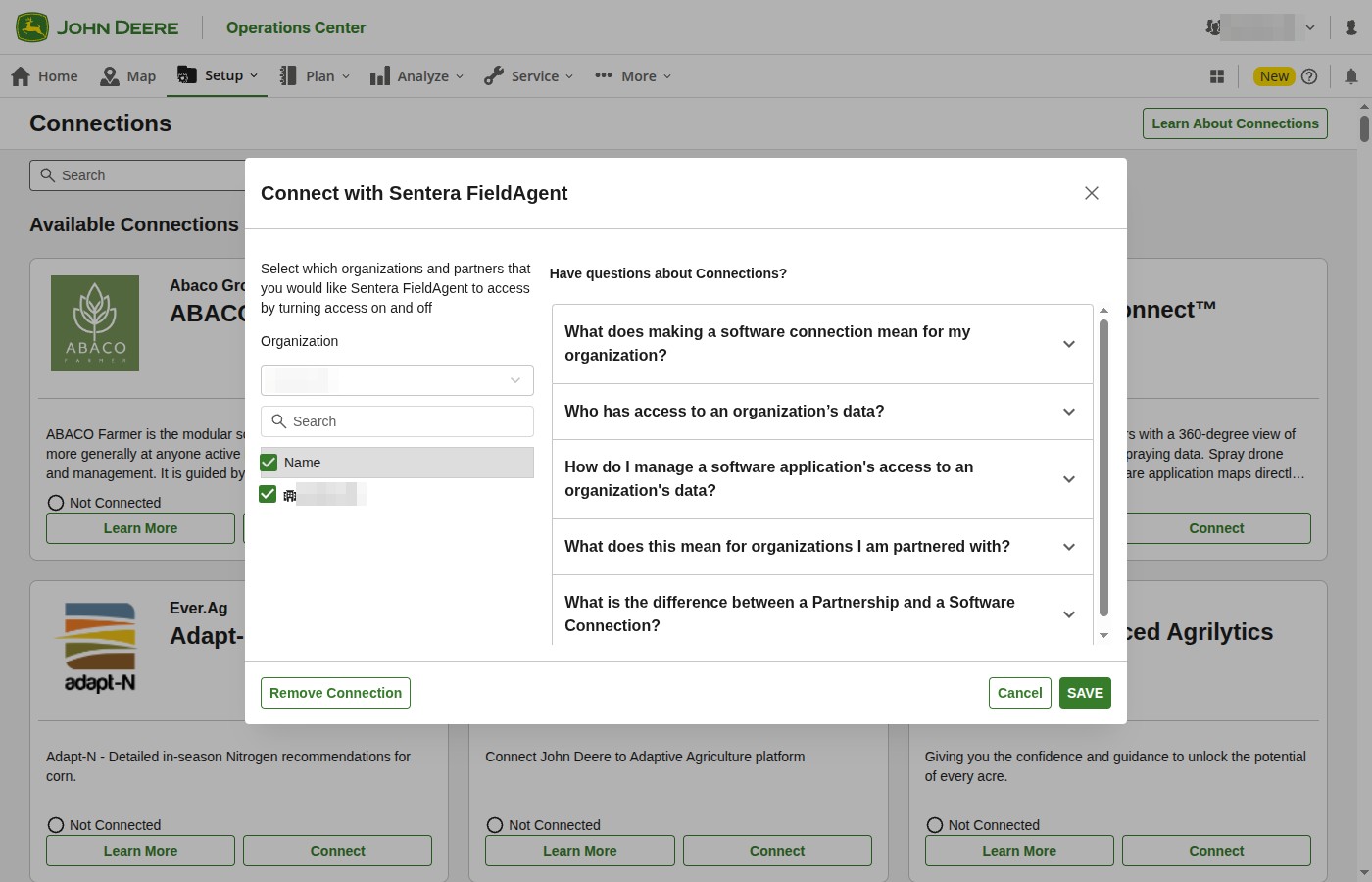
Operations Center then asks which organizations FieldAgent can access. Check them in **Connect with Sentera FieldAgent** and click **SAVE**.
You're then sent back to the FieldAgent administration site, and the John Deere Operations Center row now shows **Connected**.
The connection lasts a year. [Connect to John Deere Operations Center](/home/fieldagent-web/integrations/john-deere-operations-center.md) has every step, and how to renew it.
{% endstep %}
{% step %}
#### Have the field in Operations Center, then import it
The field must exist in Operations Center first. If it's only in FieldAgent, create it in Operations Center [from its boundary shapefile](/home/fieldagent-web/integrations/import-fields-from-operations-center.md#if-the-field-is-only-in-fieldagent).
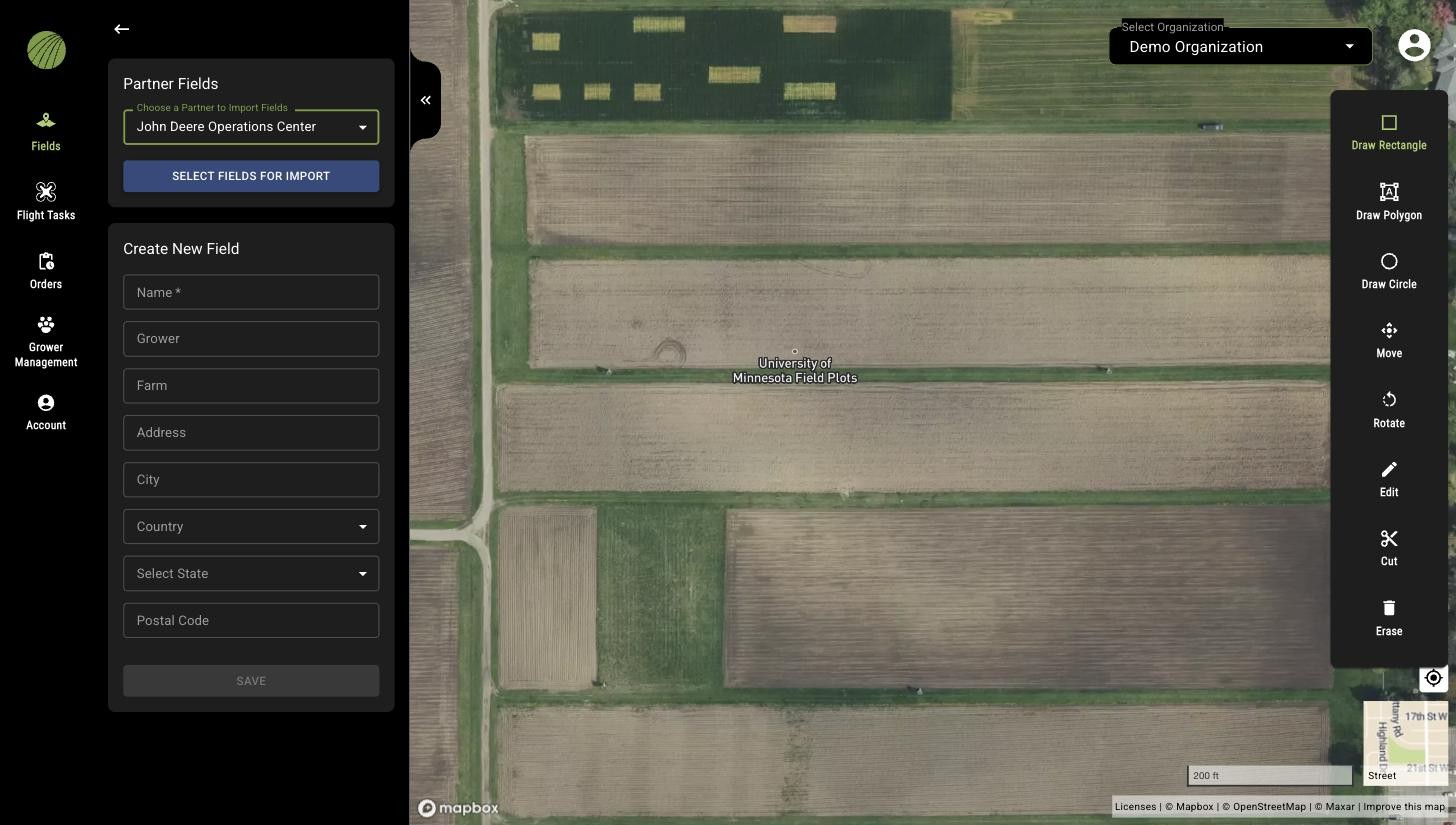
Then import the field into FieldAgent. Click **Create New Field** and choose **Partner Fields**. Pick **John Deere Operations Center** and click **SELECT FIELDS FOR IMPORT**.
The administration site's import page opens. Check the fields you want and click **Import Fields**. The site emails you when the import is done.
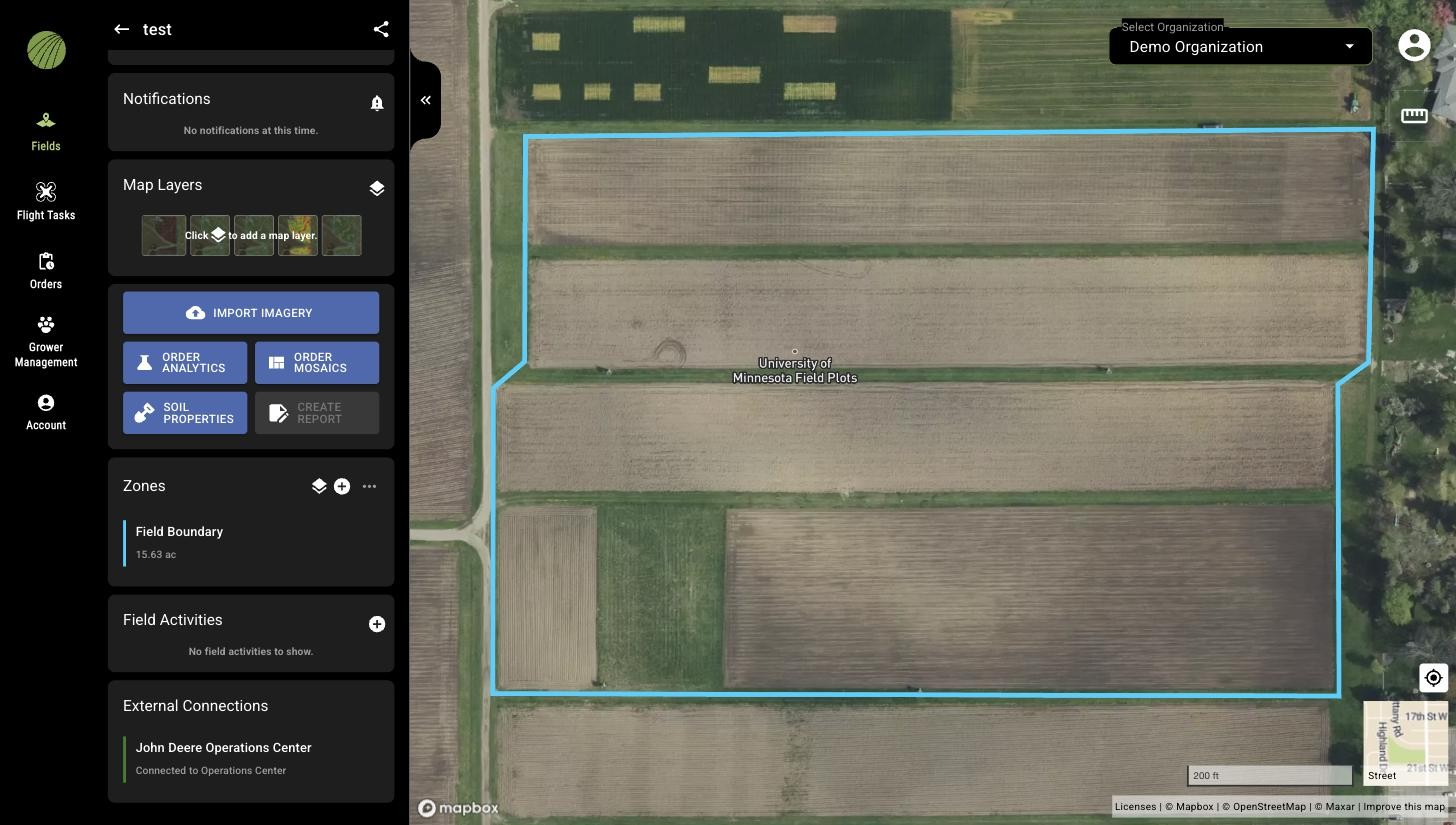
The field then appears in FieldAgent, with an **External Connections** module.
{% endstep %}
{% step %}
#### Collect imagery and order in FieldAgent
Fly the field and [import imagery](/home/fieldagent-web/imagery/import-imagery-in-fieldagent-web.md). Imagery can be imported to a [flight task](/home/fieldagent-web/ordering/orders-and-flight-tasks.md) created by an order, or straight to the field. For either method, use the Import Imagery button:
{% hint style="info" icon="clipboard-check" %}
Imagery imported to a task will automatically generate the product associated with the order.
{% endhint %}
For imagery not imported to a task, order **Field Scale Stand Count**, **Field Scale Tassel Count** or **Field Scale Spot Scout Canopy Cover** with the Order Analytics button:
{% endstep %}
{% step %}
#### Act on the results in Operations Center
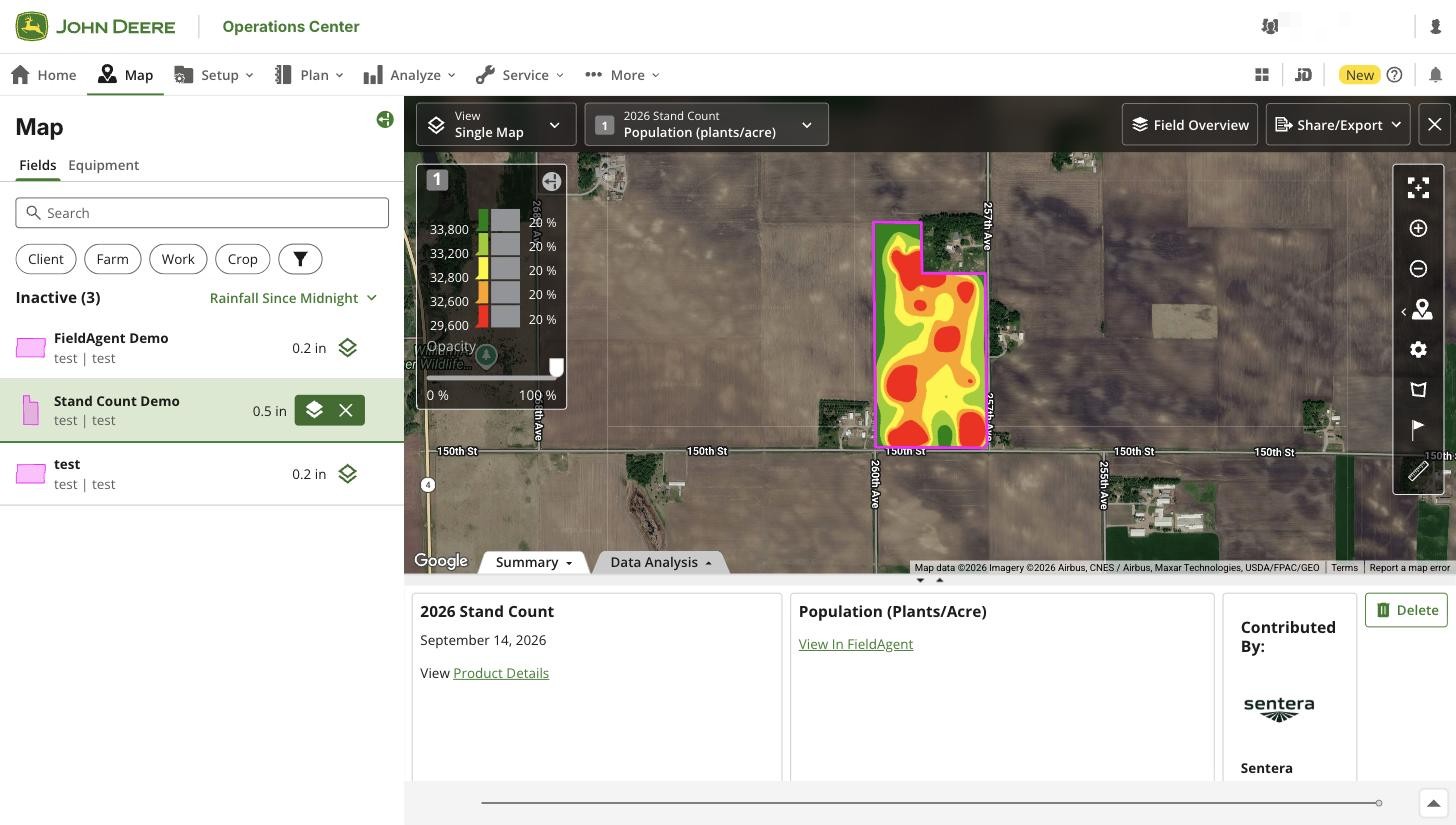
When a stand count, tassel count or canopy cover order completes, its heatmap appears in the field's **Field Analyzer** in Operations Center.
{% hint style="success" icon="tractor" %}
It is marked **Contributed By: Sentera FieldAgent**, and **View In FieldAgent** leads back to the order.
{% endhint %}
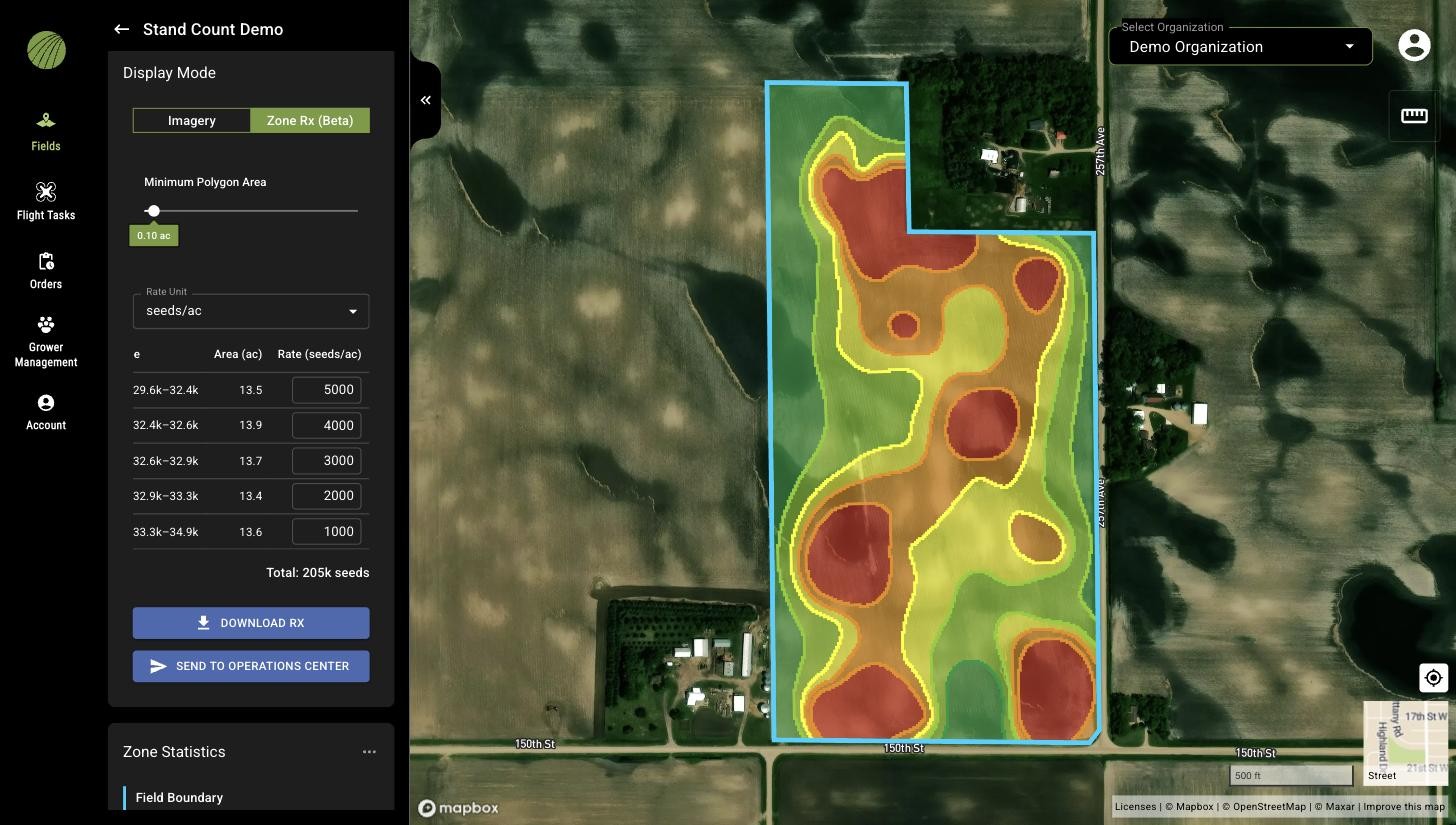
A **Zone Rx (Beta)** prescription built on the heatmap, or a mosaic, goes to Operations Center with **SEND TO OPERATIONS CENTER**.
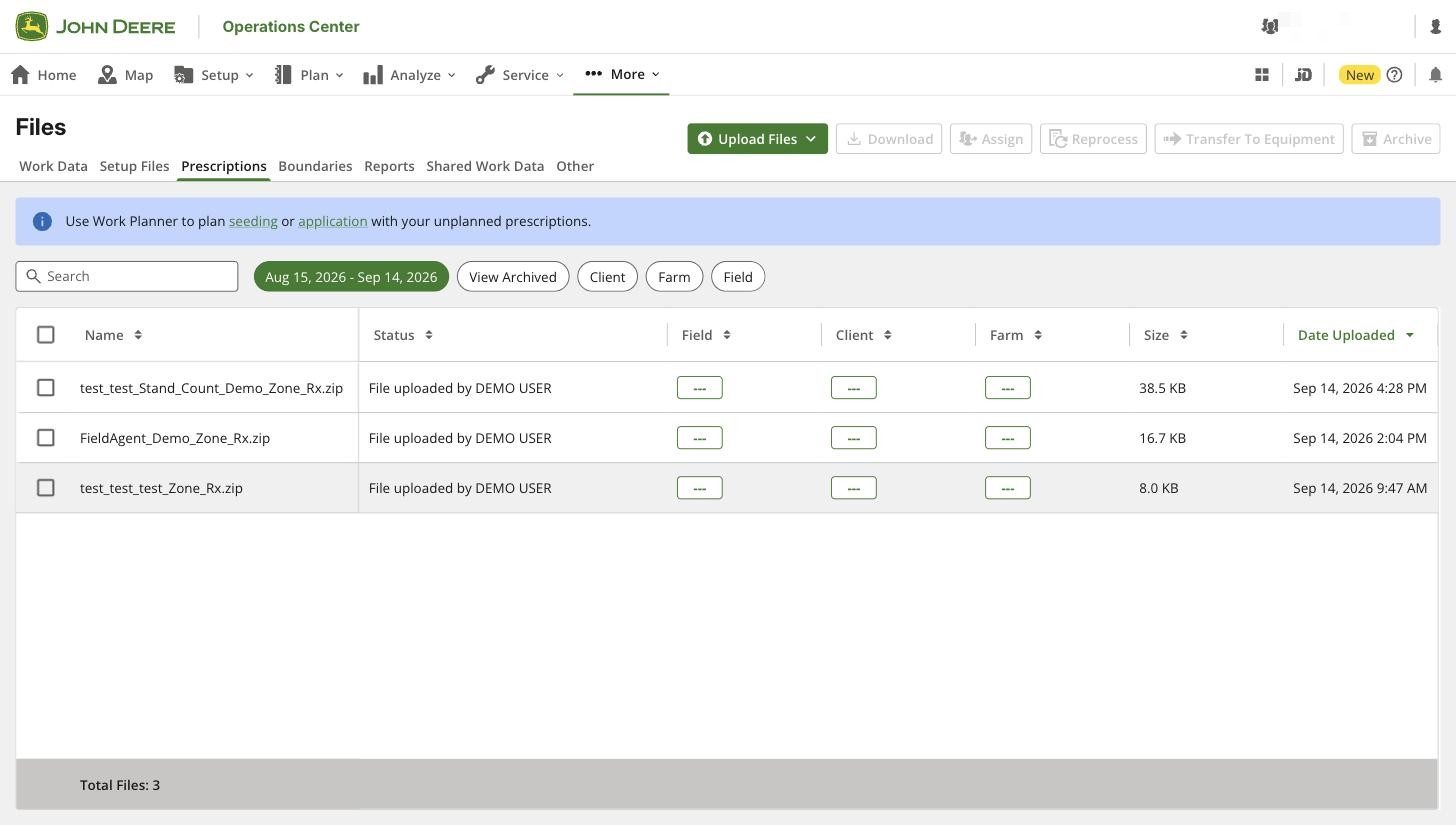
It lands in **Files** › **Prescriptions**, ready for a [seeding plan in Work Planner](/home/fieldagent-web/integrations/send-to-operations-center.md#plan-the-seeding-in-work-planner) that you send to the planter's display. Once the planter has run, the recorded seeding sits in Field Analyzer next to FieldAgent's layers.
{% endstep %}
{% endstepper %}
***
## How data moves between FieldAgent and Operations Center
Three things move between the apps. Only the field import and the prescription need a click.
| Direction | What | How | Where you find it |
| ------------------------------ | ------------------------------------------------------------------------------------------------------- | ------------------------------------------------------------------------------ | ---------------------------------------------------- |
| Operations Center → FieldAgent | A field, with its boundary, client, farm and name | You import it from **Partner Fields** | The FieldAgent **Fields** list |
| FieldAgent → Operations Center | The heatmap of a completed Stand Count, Stand Count with Uniformity, Tassel Count or Canopy Cover order | Automatically, when **Send Map Layers to Field Analyzer** is on in **Account** | The field's **Field Analyzer** |
| FieldAgent → Operations Center | A Zone Rx (Beta) prescription | You click **SEND TO OPERATIONS CENTER** | **Files** › **Prescriptions**, then **Work Planner** |
Where each one shows up
* In the FieldAgent **Fields** list, an imported field shows its farm and grower under its name instead of its acreage. The Operations Center client becomes the grower. The field's **External Connections** module says Connected to Operations Center.
* In Field Analyzer, each order gets its own group under the season, named Stand Count, Tassel Count or Canopy Cover with the order's date. Its layer is Population (plants/acre), Tassel Count (tassels/acre) or Canopy Cover (%).
* In **Files** › **Prescriptions**, a prescription is named `___Zone_Rx.zip` and uploaded by Sentera FieldAgent. **Work Planner** lists it under the field's unplanned prescriptions.
A few things don't go to Operations Center:
* Count numbers. Operations Center gets stand and tassel counts as map images, one color per zone, so **Data Analysis** in Field Analyzer has nothing to compute. For the plant-level samples, use **Download Files** on the layer in FieldAgent, as GeoJSON, CSV or Shapefile.
* Mosaics. RGB, multispectral, thermal and elevation mosaics and their index layers, such as NDVI, aren't sent. FieldAgent Web has no button to send a map layer by hand. A Zone Rx built on an index or elevation layer can be sent like any other.
* Fields created in FieldAgent. They can't be pushed to Operations Center. Create the field there and import it. You then have two FieldAgent fields, and [the imported one is the one to use](/home/fieldagent-web/integrations/import-fields-from-operations-center.md#if-the-field-is-only-in-fieldagent).
The **Generate Work Plans** toggle button on **Account** is for SmartScript: Weeds orders.
***
## Related pages
{% content-ref url="/pages/ouJZuSAbyJ2zygINZwuw" %}
[Connect to John Deere Operations Center](/home/fieldagent-web/integrations/john-deere-operations-center.md)
{% endcontent-ref %}
{% content-ref url="/pages/b8kuVYCdfuj6SUIPV7QV" %}
[Import fields from Operations Center](/home/fieldagent-web/integrations/import-fields-from-operations-center.md)
{% endcontent-ref %}
{% content-ref url="/pages/X4HopLdNnRzATiB7nWFn" %}
[Send data to Operations Center](/home/fieldagent-web/integrations/send-to-operations-center.md)
{% endcontent-ref %}
{% content-ref url="/pages/zd8QvEvP6Uxj2pt3LgL8" %}
[Zone Rx prescriptions](/home/fieldagent-web/export-and-share/zone-rx-prescriptions.md)
{% endcontent-ref %}
{% content-ref url="/pages/rKvIiUcxbm4SnUSjHMEM" %}
[Orders and flight tasks](/home/fieldagent-web/ordering/orders-and-flight-tasks.md)
{% endcontent-ref %}
---
# Agent Instructions
This documentation is published with GitBook. GitBook is the documentation platform designed so that both humans and AI agents can read, navigate, and reason over technical content effectively. Learn more at gitbook.com.
## Querying This Documentation
If you need additional information that is not directly available in this page, you can query the documentation by asking a question.
Perform an HTTP GET request on the following URL with the `ask` and `goal` query parameters:
```
GET https://support.senterasensors.com/home/fieldagent-web/integrations/fieldagent-and-operations-center.md?ask=&goal=
```
`ask` is the immediate question: it should be specific, self-contained, and written in natural language.
`goal` is what the user is ultimately trying to achieve, the reason they need the answer. Sharing it helps GitBook give you a better, more relevant answer. A goal is most helpful when it describes the outcome the user wants rather than restating the question. For example, with `ask=how do I create an API token`, a goal like `automate deployments from our CI pipeline` lets GitBook tailor the answer to that use case.
The response will contain a direct answer to the question and relevant excerpts and sources from the documentation.
Use this mechanism when the answer is not explicitly present in the current page, you need clarification or additional context, or you want to retrieve related documentation sections.

 **Connections** page, click
  **Connect to John Deere Operations Center**. Sign in to John Deere with your username, then your password. The first time, John Deere asks you to **Allow Access** for Sentera FieldAgent.
Operations Center then asks which organizations FieldAgent can access. Check them in **Connect with Sentera FieldAgent** and click **SAVE**.
**Connect to John Deere Operations Center**. Sign in to John Deere with your username, then your password. The first time, John Deere asks you to **Allow Access** for Sentera FieldAgent.
Operations Center then asks which organizations FieldAgent can access. Check them in **Connect with Sentera FieldAgent** and click **SAVE**.

 **Create New Field** and choose **Partner Fields**. Pick **John Deere Operations Center** and click **SELECT FIELDS FOR IMPORT**.