> For the complete documentation index, see [llms.txt](https://support.senterasensors.com/home/llms.txt). Markdown versions of documentation pages are available by appending `.md` to page URLs; this page is available as [Markdown](https://support.senterasensors.com/home/fieldagent-web/integrations/import-fields-from-operations-center.md).
# Import fields from Operations Center
Bring your fields from John Deere Operations Center into FieldAgent Web so their heatmaps and prescriptions can be exported back.
Your John Deere Operations Center fields come into FieldAgent Web with their names and active boundaries, and their clients and farms become growers and farms. Import a field before you order on it, because only an imported field sends its results back.
***
## Required before you start
* A [connection to Operations Center](/home/fieldagent-web/integrations/john-deere-operations-center.md) for your FieldAgent organization.
* The field in Operations Center. For a field that's only in FieldAgent, [create it in Operations Center first](#if-the-field-is-only-in-fieldagent).
***
## Import fields
{% stepper %}
{% step %}
#### Open the import page
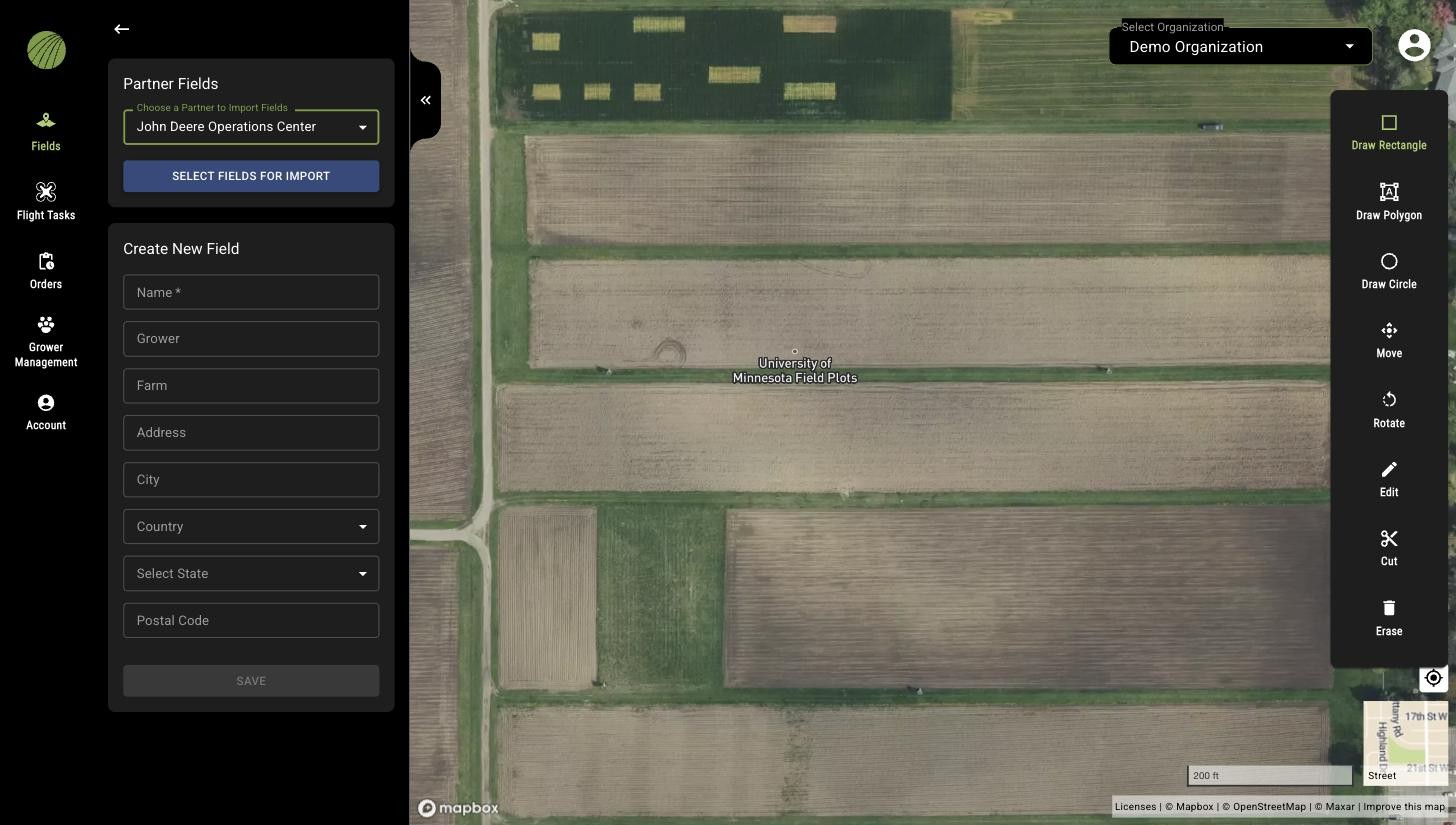
In FieldAgent Web, open **Fields** and click the create icon .
Under **Partner Fields**, choose **John Deere Operations Center**. Click **SELECT FIELDS FOR IMPORT**. The administration site's import page opens in a new tab.
{% endstep %}
{% step %}
#### Choose the fields
Choose the **Organization**. A connection with only one Operations Center organization has it selected already.
Choose a **Client** to narrow the list, and a **Farm** selector appears.
Check the fields you want, or the box in the header row to select them all. **Previously Imported** marks the fields you've imported before.
{% endstep %}
{% step %}
#### Import them
Click **Import Fields**. The administration site returns to its **Fields** page, and a banner confirms that the import is processing.
{% endstep %}
{% endstepper %}
{% hint style="info" %}
The import runs in the background, and the administration site emails you when it's done. The field then appears in the FieldAgent Web **Fields** list.
{% endhint %}
***
## Check the imported field
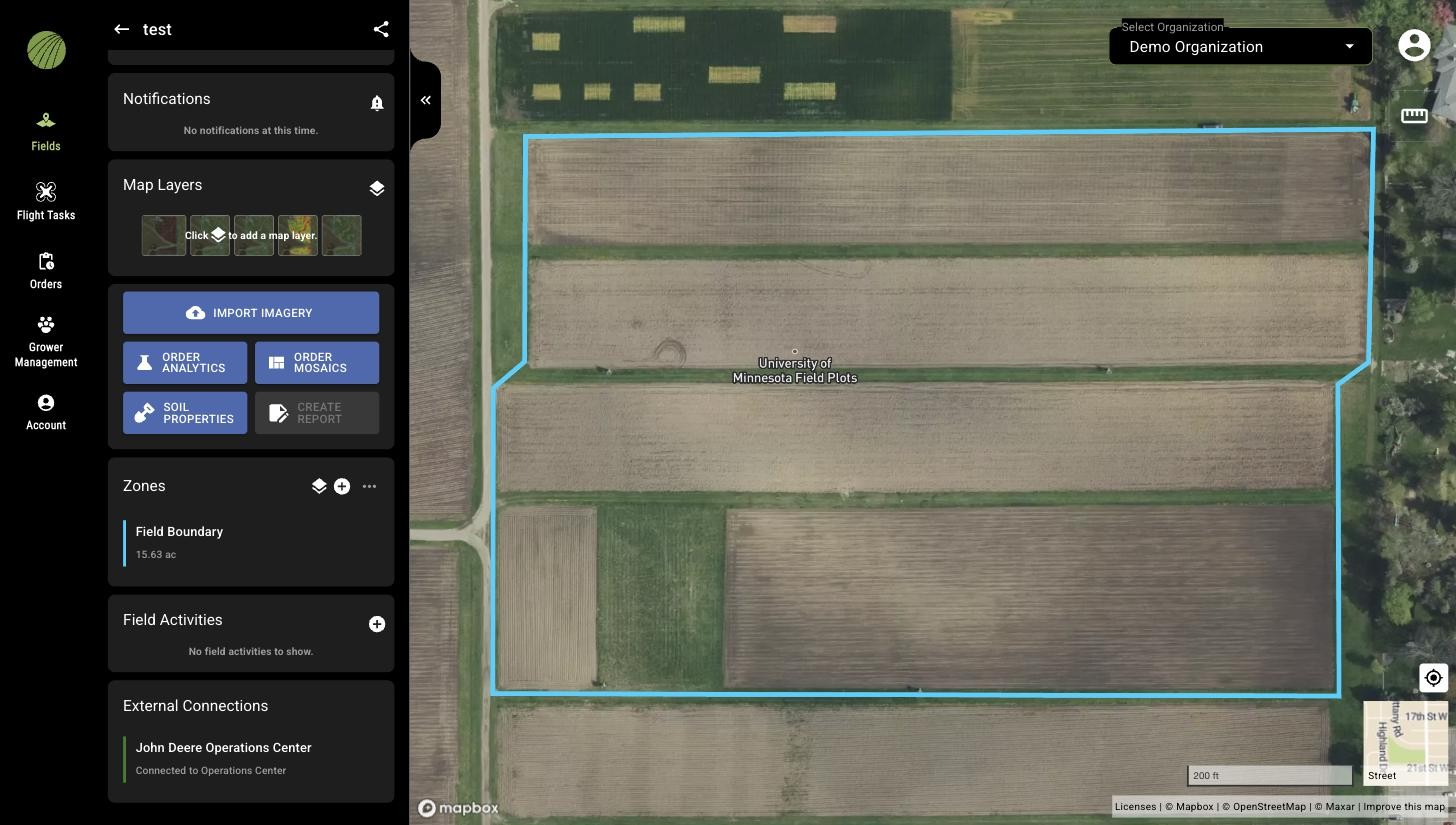
Open the field. **Field Details** shows the grower and farm, and the panel ends with the **External Connections** module. Its **Connected to Operations Center** link opens Operations Center in a new tab.
The administration site's **Fields** page lists the field too, with its acres, grower and farm.
{% hint style="warning" %}
If you have a duplicate of this field in FieldAgent Web, order on the imported field from now on, and its heatmaps and prescriptions can [go to Operations Center](/home/fieldagent-web/integrations/send-to-operations-center.md).
{% endhint %}
### Try it in the demo
In the demo below, import North Field from Operations Center through the administration site and find it in the **Fields** list.
{% @fieldagent-demo/embed content="flow:integration-fields" %}
Open this demo full size
***
## If the field is only in FieldAgent
Create the field in Operations Center from its boundary, then import it. FieldAgent can't push a field to Operations Center.
You then have two FieldAgent fields, and matching names and boundaries don't link them. Use the imported one for anything you want in Operations Center.
{% stepper %}
{% step %}
#### Download the boundary
In FieldAgent, [download the field boundary as a shapefile](/home/fieldagent-web/view-and-analyze/zones-and-zone-statistics.md#download-zones-and-zone-statistics) with the more icon on the field's **Zones** module.
{% endstep %}
{% step %}
#### Open the boundary upload
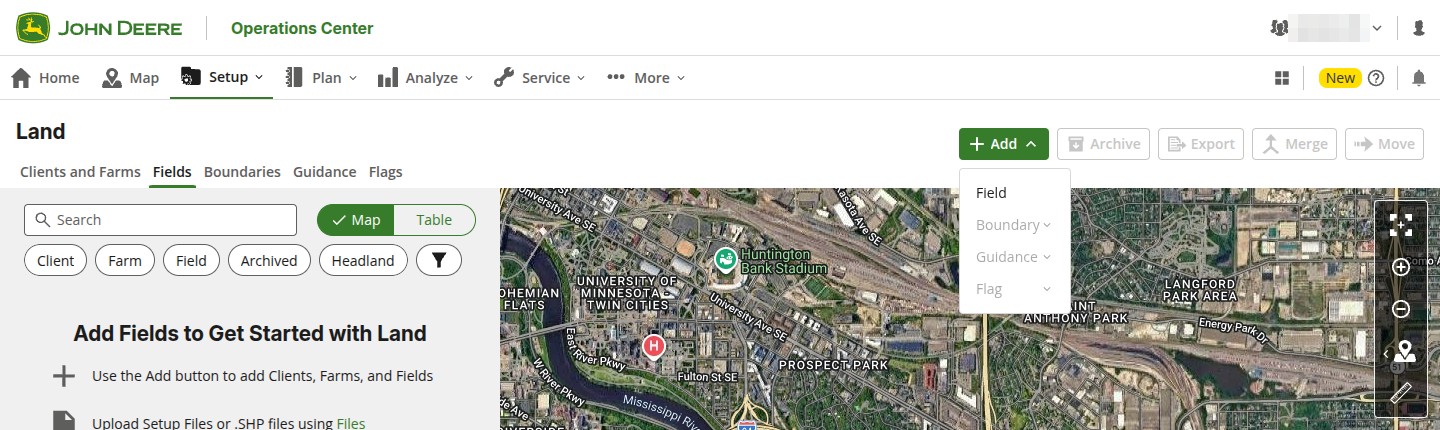
In Operations Center, open **Setup** › **Land**. In **Fields**, click **Add**. Choose **Boundary**, then **Upload**.
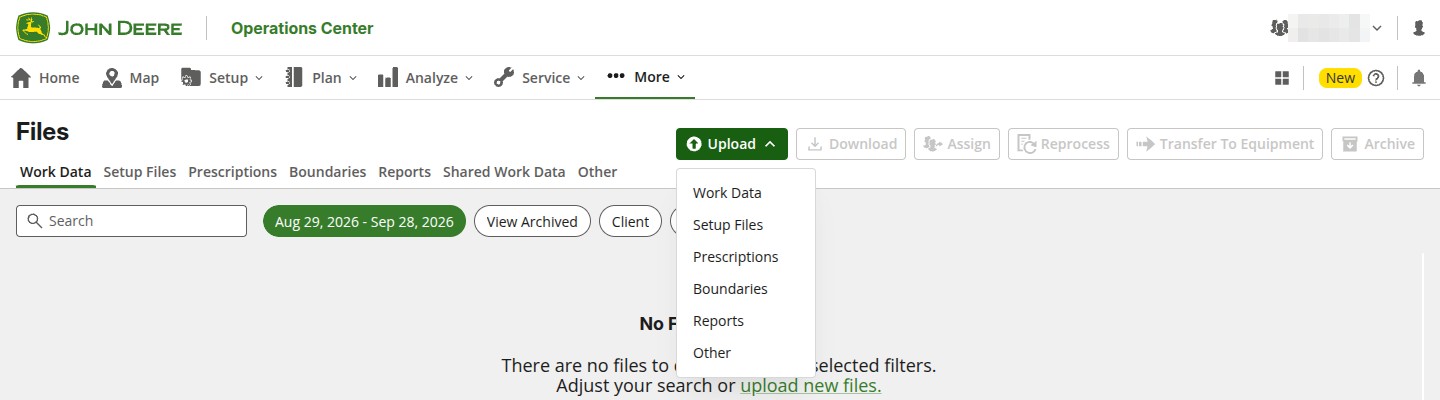
In an organization with no fields yet, the Add menu offers only Field. Open the upload from **More** › **Files** instead.
Click **Upload** and choose **Boundaries**. On a wide window, the button is **Upload Files**.
{% endstep %}
{% step %}
#### Upload the shapefile
Click **Choose Files** and pick the boundary. You can upload a zipped shapefile, or its .shp, .shx, .dbf, .prj and .cpg files, up to 5 MB each. Wait for *Processing Complete*, then click **Next**.
{% endstep %}
{% step %}
#### Skip the column choice
Choose Columns asks which columns hold the client, farm and field. A boundary from FieldAgent has only a name and the acres, so leave each one at No selection and click **Next**. You name them on the next screen.
{% endstep %}
{% step %}
#### Name the client, farm and field
Review Boundaries marks the boundary as incomplete until it has a client, farm and field.
Edit the row. Under **Select a client**, choose **Add New**. Name the client and click **Save**. Do the same under **Select a farm** and **Select a field**.
Give the client and farm the same names as the grower and farm in FieldAgent, so both lists match.
Save the row with its check mark. The import button changes to **Import 1 Boundary**.
{% endstep %}
{% step %}
#### Import the boundary
Click **Import 1 Boundary**. Check the totals in Confirm Import and click **Import**.
Operations Center opens Land › Clients and Farms, and the field is listed under Fields with its client, farm and acreage. Next, [import it into FieldAgent](#import-fields).
{% endstep %}
{% endstepper %}
### Try it in the demo
In the demo below, upload North Field's boundary in Operations Center, name its client, farm and field, and import it.
{% @fieldagent-demo/embed content="flow:integration-boundary" %}
Open this demo full size
***
## If it doesn't work
{% hint style="success" icon="headset" %}
Support is at . Black out anything private in a screenshot before you send it.
{% endhint %}
### No fields appear in the import list
The import page probably shows another organization, or a filter hides the field.
1. On **Account** in FieldAgent Web, check that **Connection Status** shows Connected.
2. On the import page, choose the right **Organization**.
3. Clear the **Client** and **Farm** filters.
4. Check that the field exists in that organization in Operations Center.
If it still doesn't work, send support the selected filters, the field name, the browser and a screenshot of the import page.
### Import Fields asks you to select a field
*At least 1 field needs to be selected.* means no field is checked. Check at least one and click **Import Fields** again.
If it still doesn't work, send support the message you see, the selected filters and the browser.
### The field is in FieldAgent twice
A field created in FieldAgent was later imported from Operations Center. The two aren't linked, even with matching names and boundaries.
1. Open each one and find the field with the **External Connections** module. That's the imported field.
2. Use it for anything you want in Operations Center.
If you can't tell them apart, send support both field names, their grower and farm and screenshots of both field panels.
***
## Related pages
{% content-ref url="/pages/RQ1dUxp96qkvnpVBaQmi" %}
[FieldAgent and Operations Center: how the integration works](/home/fieldagent-web/integrations/fieldagent-and-operations-center.md)
{% endcontent-ref %}
{% content-ref url="/pages/ouJZuSAbyJ2zygINZwuw" %}
[Connect to John Deere Operations Center](/home/fieldagent-web/integrations/john-deere-operations-center.md)
{% endcontent-ref %}
{% content-ref url="/pages/X4HopLdNnRzATiB7nWFn" %}
[Send data to Operations Center](/home/fieldagent-web/integrations/send-to-operations-center.md)
{% endcontent-ref %}
{% content-ref url="/pages/coc3JMK3CQEMMwBxAaDk" %}
[Create a field](/home/fieldagent-web/fields/create-a-field.md)
{% endcontent-ref %}
---
# Agent Instructions
This documentation is published with GitBook. GitBook is the documentation platform designed so that both humans and AI agents can read, navigate, and reason over technical content effectively. Learn more at gitbook.com.
## Querying This Documentation
If you need additional information that is not directly available in this page, you can query the documentation by asking a question.
Perform an HTTP GET request on the following URL with the `ask` and `goal` query parameters:
```
GET https://support.senterasensors.com/home/fieldagent-web/integrations/import-fields-from-operations-center.md?ask=&goal=
```
`ask` is the immediate question: it should be specific, self-contained, and written in natural language.
`goal` is what the user is ultimately trying to achieve, the reason they need the answer. Sharing it helps GitBook give you a better, more relevant answer. A goal is most helpful when it describes the outcome the user wants rather than restating the question. For example, with `ask=how do I create an API token`, a goal like `automate deployments from our CI pipeline` lets GitBook tailor the answer to that use case.
The response will contain a direct answer to the question and relevant excerpts and sources from the documentation.
Use this mechanism when the answer is not explicitly present in the current page, you need clarification or additional context, or you want to retrieve related documentation sections.
 .
Under **Partner Fields**, choose **John Deere Operations Center**. Click **SELECT FIELDS FOR IMPORT**. The administration site's import page opens in a new tab.
.
Under **Partner Fields**, choose **John Deere Operations Center**. Click **SELECT FIELDS FOR IMPORT**. The administration site's import page opens in a new tab.

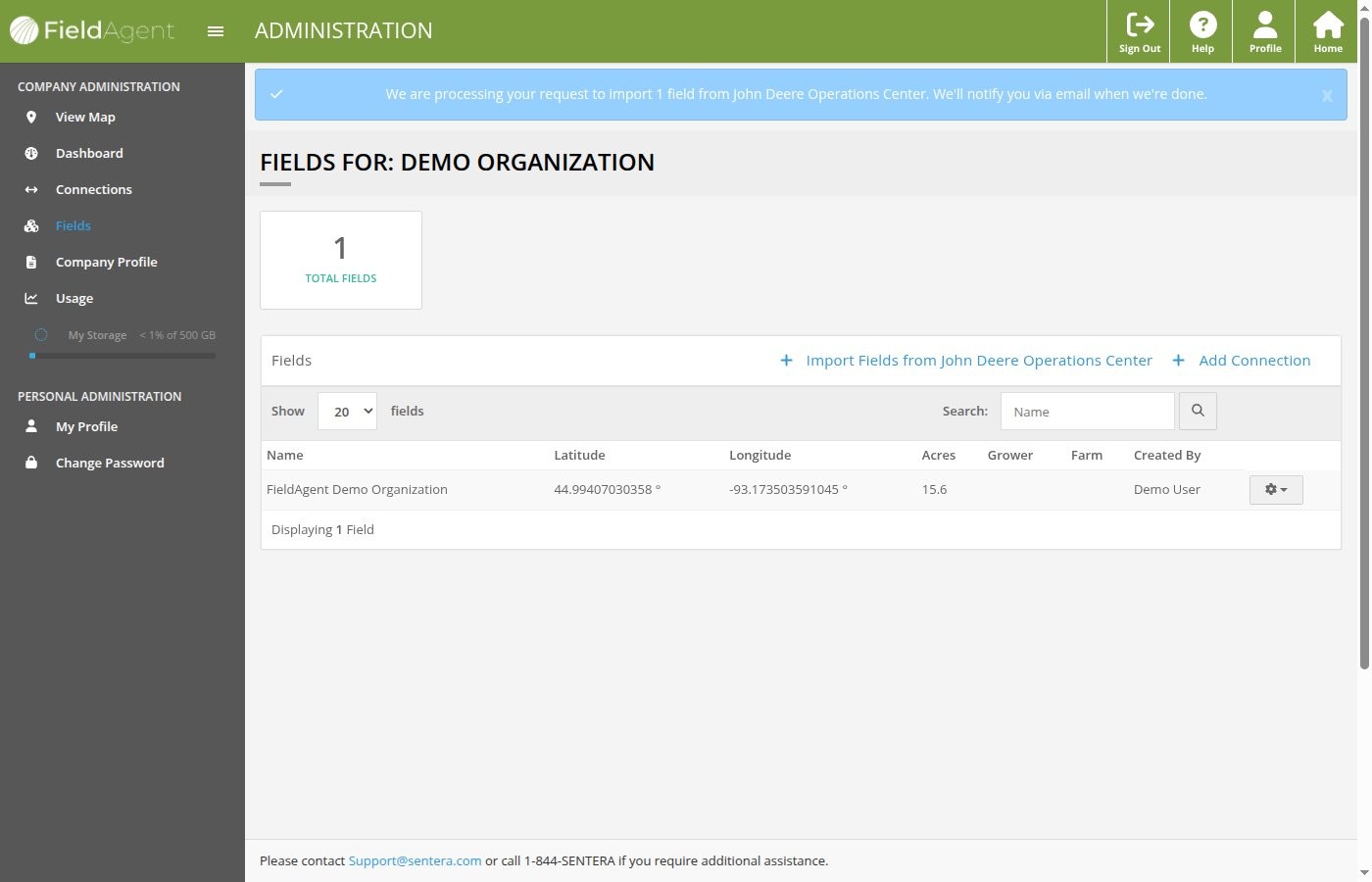
 **Fields** page lists the field too, with its acres, grower and farm.
{% hint style="warning" %}
If you have a duplicate of this field in FieldAgent Web, order on the imported field from now on, and its heatmaps and prescriptions can [go to Operations Center](/home/fieldagent-web/integrations/send-to-operations-center.md).
{% endhint %}
### Try it in the demo
In the demo below, import North Field from Operations Center through the administration site and find it in the **Fields** list.
{% @fieldagent-demo/embed content="flow:integration-fields" %}
Open this demo full size
***
## If the field is only in FieldAgent
Create the field in Operations Center from its boundary, then import it. FieldAgent can't push a field to Operations Center.
You then have two FieldAgent fields, and matching names and boundaries don't link them. Use the imported one for anything you want in Operations Center.
{% stepper %}
{% step %}
#### Download the boundary
In FieldAgent, [download the field boundary as a shapefile](/home/fieldagent-web/view-and-analyze/zones-and-zone-statistics.md#download-zones-and-zone-statistics) with the more icon
**Fields** page lists the field too, with its acres, grower and farm.
{% hint style="warning" %}
If you have a duplicate of this field in FieldAgent Web, order on the imported field from now on, and its heatmaps and prescriptions can [go to Operations Center](/home/fieldagent-web/integrations/send-to-operations-center.md).
{% endhint %}
### Try it in the demo
In the demo below, import North Field from Operations Center through the administration site and find it in the **Fields** list.
{% @fieldagent-demo/embed content="flow:integration-fields" %}
Open this demo full size
***
## If the field is only in FieldAgent
Create the field in Operations Center from its boundary, then import it. FieldAgent can't push a field to Operations Center.
You then have two FieldAgent fields, and matching names and boundaries don't link them. Use the imported one for anything you want in Operations Center.
{% stepper %}
{% step %}
#### Download the boundary
In FieldAgent, [download the field boundary as a shapefile](/home/fieldagent-web/view-and-analyze/zones-and-zone-statistics.md#download-zones-and-zone-statistics) with the more icon  on the field's **Zones** module.
{% endstep %}
{% step %}
#### Open the boundary upload
In Operations Center, open **Setup** › **Land**. In **Fields**, click **Add**. Choose **Boundary**, then **Upload**.
In an organization with no fields yet, the Add menu offers only Field. Open the upload from **More** › **Files** instead.
on the field's **Zones** module.
{% endstep %}
{% step %}
#### Open the boundary upload
In Operations Center, open **Setup** › **Land**. In **Fields**, click **Add**. Choose **Boundary**, then **Upload**.
In an organization with no fields yet, the Add menu offers only Field. Open the upload from **More** › **Files** instead.