> For the complete documentation index, see [llms.txt](https://support.senterasensors.com/home/llms.txt). Markdown versions of documentation pages are available by appending `.md` to page URLs; this page is available as [Markdown](https://support.senterasensors.com/home/fieldagent-web/integrations/john-deere-operations-center.md).
# Connect to John Deere Operations Center
Set up the connection between FieldAgent Web and John Deere Operations Center, and change, renew or remove it when you need to.
With FieldAgent Web connected to John Deere Operations Center, you can import your Operations Center fields and send their heatmaps and prescriptions back. An administrator connects once for the whole FieldAgent organization, and the connection lasts a year.
***
## Required before you start
* A John Deere account that's a member of your Operations Center organization.
***
## Connect the accounts
Connecting is the first step of the [complete workflow](/home/fieldagent-web/integrations/fieldagent-and-operations-center.md) between FieldAgent and Operations Center.
{% stepper %}
{% step %}
#### Open the administration site
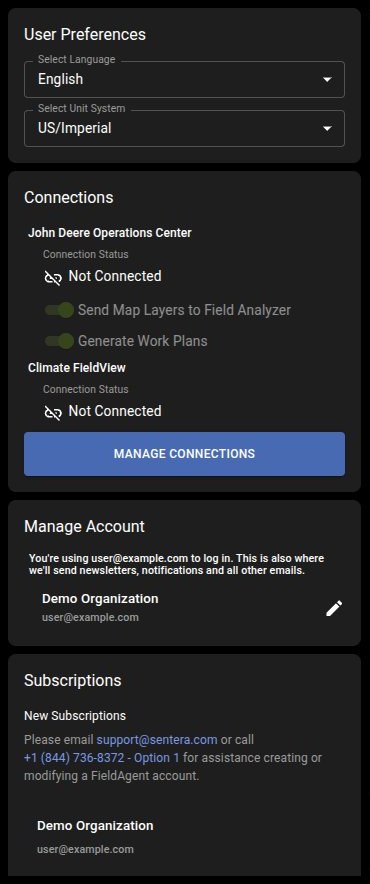
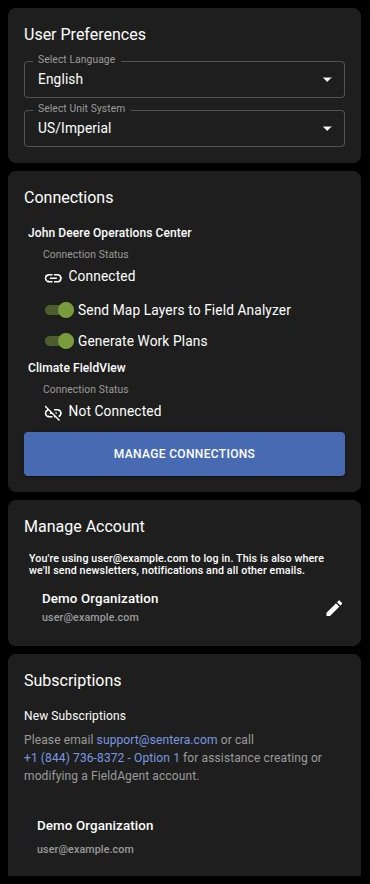
In FieldAgent Web, open **Account**. Until you connect, its **Connections** module shows John Deere Operations Center as **Not Connected**, with both toggle buttons grayed out.
Click the Manage Connections button:
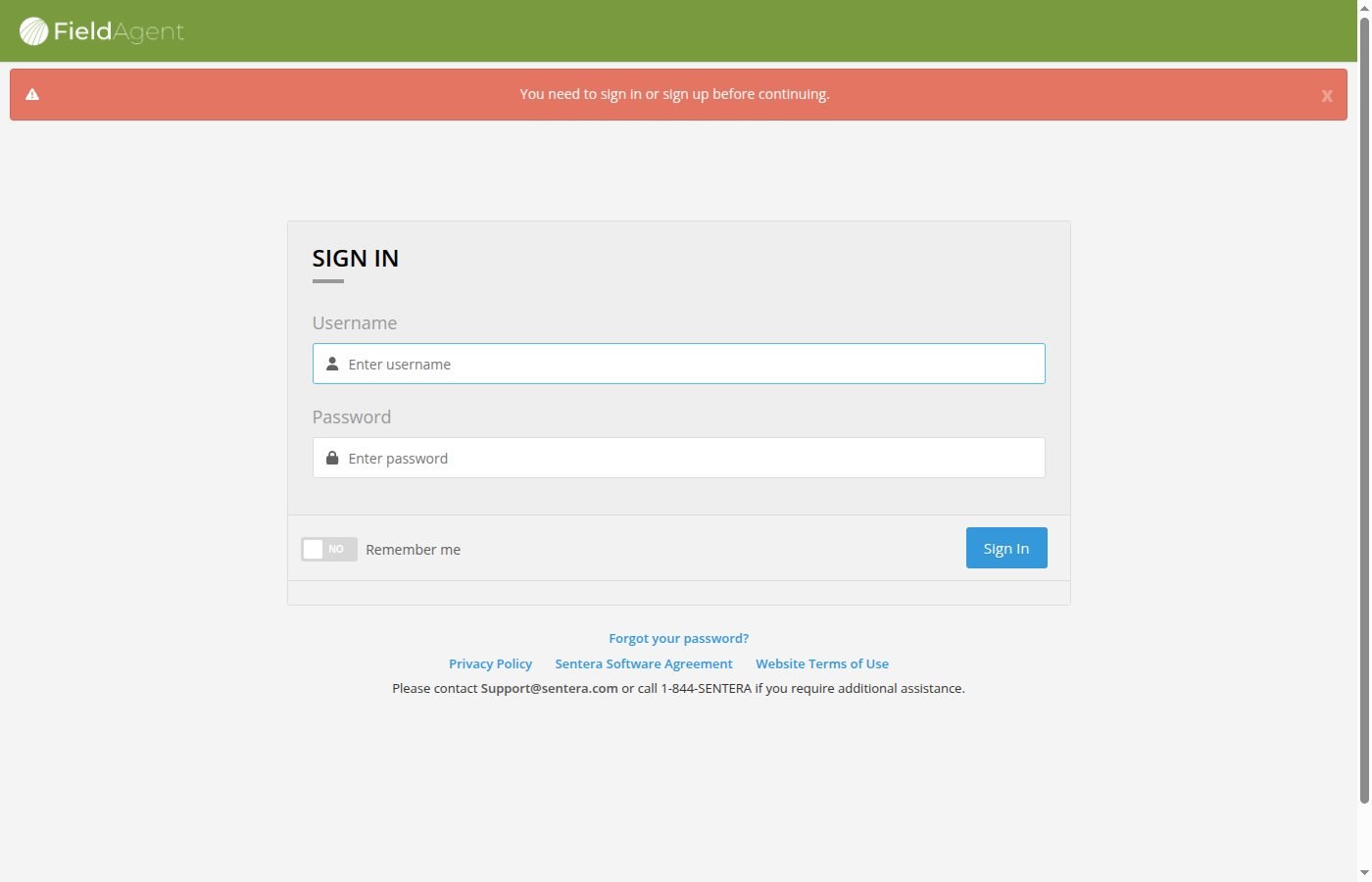
The administration site opens in a new tab. If it asks you to sign in, use your FieldAgent username and password.
{% endstep %}
{% step %}
#### Connect
On the **Connections** page, click **Connect to John Deere Operations Center**.
{% endstep %}
{% step %}
#### Sign in to John Deere
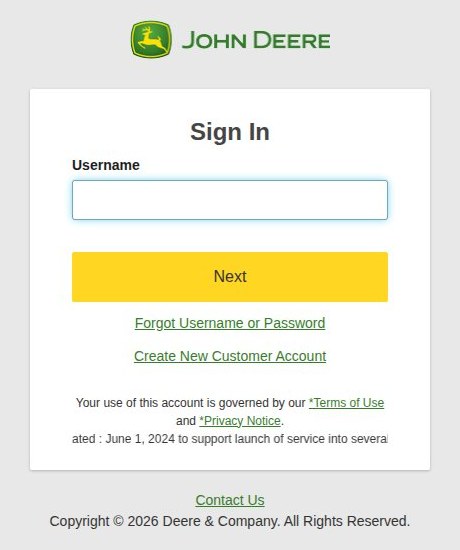
John Deere's sign-in opens in the same tab. Type your John Deere username and click **Next**.
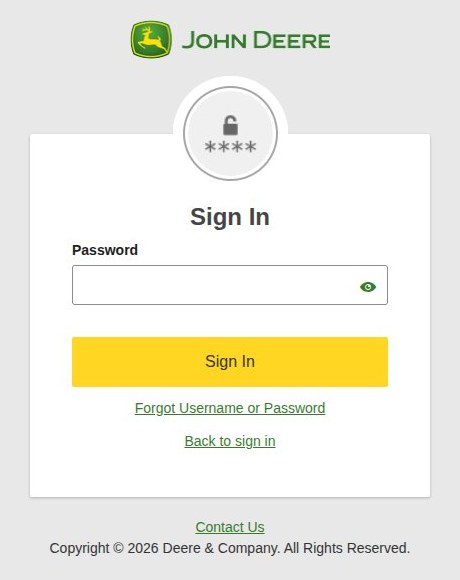
Type the password and click **Sign In**.
{% endstep %}
{% step %}
#### Allow access
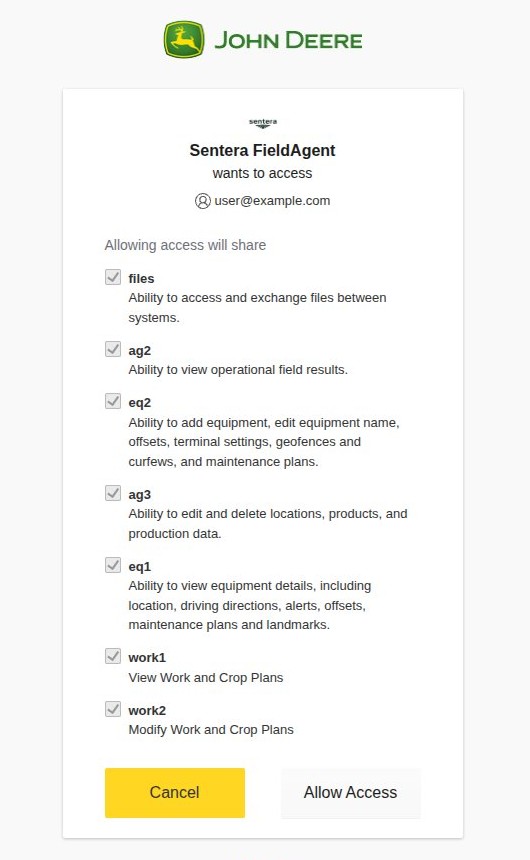
The first time a John Deere account connects, John Deere lists the seven permissions Sentera FieldAgent asks for, all checked. Review them, scroll down and click **Allow Access**.
{% hint style="info" %}
An account that has allowed access before skips this step.
{% endhint %}
{% endstep %}
{% step %}
#### Choose the organizations
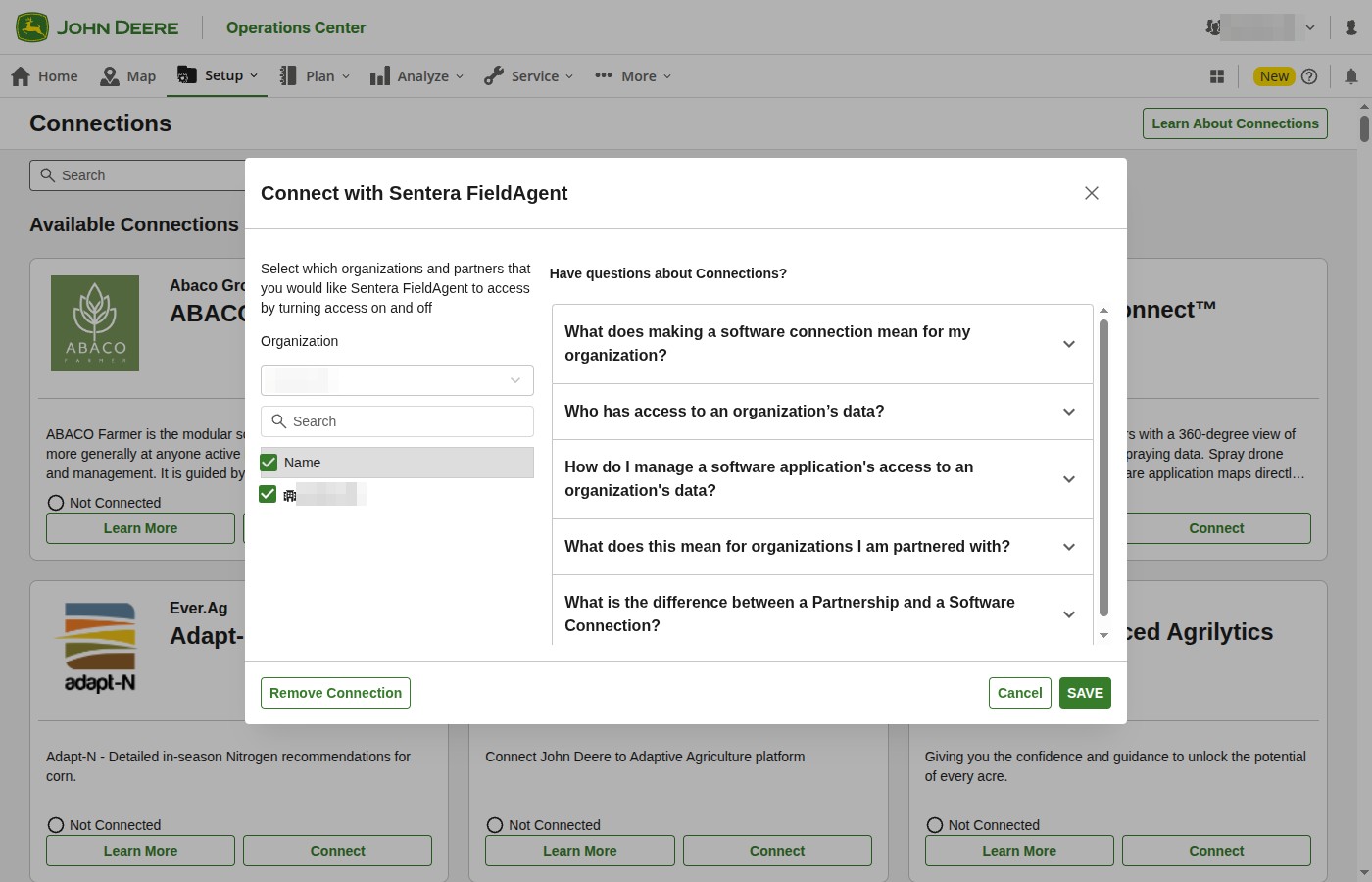
Operations Center then asks which organizations FieldAgent can access, in the **Connect with Sentera FieldAgent** pop-up box.
* A John Deere account with one organization has it checked already. Click **SAVE**.
* For an account with several, check the organizations that FieldAgent should access. **SAVE** becomes clickable once the selection changes.
{% endstep %}
{% step %}
#### Check the row
Operations Center sends you back to the administration site, where the row now shows **Connected** and an **Expires On** date a year from today.
{% endstep %}
{% step %}
#### Reload Account
Back in the FieldAgent Web tab, reload **Account**. It now shows **Connected**. Both toggle buttons, **Send Map Layers to Field Analyzer** and **Generate Work Plans**, are available and on by default.
{% endstep %}
{% endstepper %}
{% hint style="success" icon="tractor" %}
Next, [import your fields from Operations Center](/home/fieldagent-web/integrations/import-fields-from-operations-center.md). Only imported fields export data back to Operations Center.
{% endhint %}
### Try it in the demo
In the demo below, connect the demo organization from FieldAgent Web through the administration site and John Deere, then check Account.
{% @fieldagent-demo/embed content="flow:integration-setup" %}
Open this demo full size
***
## Check the connection in Operations Center
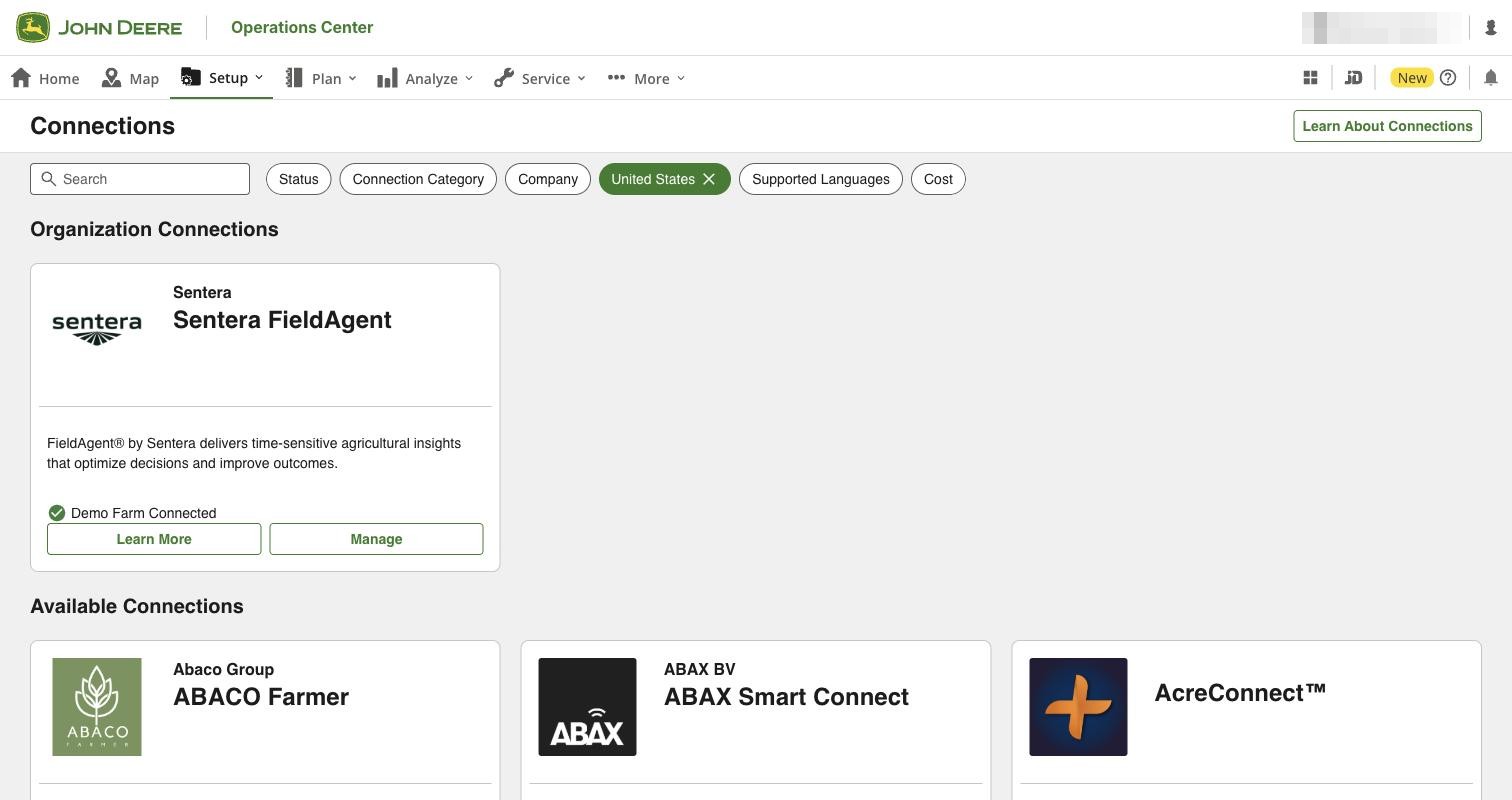
In Operations Center, open **Setup** › **Connections** to see the connection from the John Deere side. The **Sentera FieldAgent** card is under **Organization Connections**.
**Manage** on the card shows who made the connection and what FieldAgent can access. **FieldAgent™** under **Analyze** opens FieldAgent from Operations Center.
Who connected and what FieldAgent can access
**Connected Organizations** shows the team member who made the connection and the date, under My Organization. Under Partner Organization, it lists any partners sharing data through the connection.
**Access** lists what FieldAgent can use, by group, with the number of permissions in each. The Locations group lets FieldAgent read the organization's fields and boundaries and write map layers and prescriptions back to them. **Edit** and **Remove Connection** are there too.
| Group | Permissions |
| -------------- | --------------------- |
| 3 Equipment | View, Edit, Manage |
| 0 Organization | — |
| 3 Locations | View, Analyze, Manage |
| 2 Work | View, Manage |
| 0 Financial | — |
***
## Change, renew or remove the connection
A connection lasts a year, until its **Expires On** date. When **Account** shows it as **Expired**, renew it.
Use the links in the **Action** column of the administration site's **Connections** page.
| Link | Description |
| ----------------------------------------------------------------------------------------------------------------------------------------------------------------------------------------------------------------------------------------------------------------------------------------------------------------------------------------- | ------------------------------------------------------------------------------------ |
| **Renew John Deere Operations Center connection** | Authorizes the connection again. |
| **Select Organizations for John Deere Operations Center** | Opens Operations Center, where you choose which organizations FieldAgent can access. |
| **Disconnect from John Deere Operations Center** | Removes the connection. |
{% hint style="warning" %}
Removing the connection on both sides, in FieldAgent and in Operations Center, ends the integration. Do that only if you mean to stop it.
{% endhint %}
Operations Center can remove the connection too:
{% stepper %}
{% step %}
#### Open the Sentera FieldAgent card
In Operations Center, open **Manage** on the **Sentera FieldAgent** card.
{% endstep %}
{% step %}
#### Remove the connection
Open **Access** and click **Remove Connection**.
{% endstep %}
{% step %}
#### Choose whom to remove it for
Choose whom to remove it for. **Remove for** *\* is selected. The other choices are **Remove for partners** and **Remove for all**.
{% endstep %}
{% step %}
#### Confirm
Click **Remove Connection** to confirm.
{% endstep %}
{% endstepper %}
The **Sentera FieldAgent** card moves back to **Available Connections**, and Operations Center asks you to complete incomplete connections. The organization's access is gone, but the John Deere account stays authorized, so reconnecting skips the permissions page.
FieldAgent then shows the connection as disconnected. Fields you've already imported keep their **External Connections** module, but nothing more is sent until you reconnect. Reconnect with **Connect to John Deere Operations Center** in FieldAgent, then **Select Organizations** on the Operations Center card.
***
## If it doesn't work
{% hint style="success" icon="headset" %}
Support is at . Don't send sign-in details or lists of organizations.
{% endhint %}
### Operations Center asks you to complete incomplete connections
The connection was removed on the Operations Center side, or the John Deere account allowed access but no organization was chosen.
1. In FieldAgent, open **MANAGE CONNECTIONS** and click **Connect to John Deere Operations Center**. If the row still shows **Connected**, click **Select Organizations for John Deere Operations Center** instead.
2. In **Connect with Sentera FieldAgent**, check the organization and click **SAVE**.
3. In Operations Center, check that the **Sentera FieldAgent** card is back under **Organization Connections**.
If it still doesn't work, send support the banner text, the status of the row on the administration site and the time you tried.
### The connection still says Not Connected
The John Deere steps weren't finished, or **Account** hasn't been reloaded.
1. Open **MANAGE CONNECTIONS** and find the John Deere Operations Center row.
2. If it offers **Connect to John Deere Operations Center**, go through the John Deere sign-in, access and organization steps again.
3. Go back to **Account** and reload the page.
If it still doesn't work, send support the connection status, the **Expires On** date if the row shows one, your browser and the time you tried.
### The organization selection can't be saved
**SAVE** stays grayed out when the organization that's already connected is selected and nothing has changed.
1. Check which organization is selected in **Connect with Sentera FieldAgent**.
2. If it's the right one, click **Cancel** to go back to FieldAgent. There's nothing to save.
3. If it's wrong, change the selection and click **SAVE**.
If it still doesn't work, send support a screenshot of the dialog with the organization names and account details hidden.
***
## Related pages
{% content-ref url="/pages/RQ1dUxp96qkvnpVBaQmi" %}
[FieldAgent and Operations Center: how the integration works](/home/fieldagent-web/integrations/fieldagent-and-operations-center.md)
{% endcontent-ref %}
{% content-ref url="/pages/b8kuVYCdfuj6SUIPV7QV" %}
[Import fields from Operations Center](/home/fieldagent-web/integrations/import-fields-from-operations-center.md)
{% endcontent-ref %}
{% content-ref url="/pages/X4HopLdNnRzATiB7nWFn" %}
[Send data to Operations Center](/home/fieldagent-web/integrations/send-to-operations-center.md)
{% endcontent-ref %}
{% content-ref url="/pages/9QAEYl2FGHBGUXwZJosg" %}
[Account settings](/home/fieldagent-web/account-and-organizations/account-settings.md)
{% endcontent-ref %}
---
# Agent Instructions
This documentation is published with GitBook. GitBook is the documentation platform designed so that both humans and AI agents can read, navigate, and reason over technical content effectively. Learn more at gitbook.com.
## Querying This Documentation
If you need additional information that is not directly available in this page, you can query the documentation by asking a question.
Perform an HTTP GET request on the following URL with the `ask` and `goal` query parameters:
```
GET https://support.senterasensors.com/home/fieldagent-web/integrations/john-deere-operations-center.md?ask=&goal=
```
`ask` is the immediate question: it should be specific, self-contained, and written in natural language.
`goal` is what the user is ultimately trying to achieve, the reason they need the answer. Sharing it helps GitBook give you a better, more relevant answer. A goal is most helpful when it describes the outcome the user wants rather than restating the question. For example, with `ask=how do I create an API token`, a goal like `automate deployments from our CI pipeline` lets GitBook tailor the answer to that use case.
The response will contain a direct answer to the question and relevant excerpts and sources from the documentation.
Use this mechanism when the answer is not explicitly present in the current page, you need clarification or additional context, or you want to retrieve related documentation sections.

 **Connections** page, click
  **Connect to John Deere Operations Center**.



 **Disconnect from John Deere Operations Center** | Removes the connection. |
{% hint style="warning" %}
Removing the connection on both sides, in FieldAgent and in Operations Center, ends the integration. Do that only if you mean to stop it.
{% endhint %}
Operations Center can remove the connection too:
{% stepper %}
{% step %}
#### Open the Sentera FieldAgent card
In Operations Center, open **Manage** on the **Sentera FieldAgent** card.
{% endstep %}
{% step %}
#### Remove the connection
Open **Access** and click **Remove Connection**.
{% endstep %}
{% step %}
#### Choose whom to remove it for
Choose whom to remove it for. **Remove for** *\
**Disconnect from John Deere Operations Center** | Removes the connection. |
{% hint style="warning" %}
Removing the connection on both sides, in FieldAgent and in Operations Center, ends the integration. Do that only if you mean to stop it.
{% endhint %}
Operations Center can remove the connection too:
{% stepper %}
{% step %}
#### Open the Sentera FieldAgent card
In Operations Center, open **Manage** on the **Sentera FieldAgent** card.
{% endstep %}
{% step %}
#### Remove the connection
Open **Access** and click **Remove Connection**.
{% endstep %}
{% step %}
#### Choose whom to remove it for
Choose whom to remove it for. **Remove for** *\