> For the complete documentation index, see [llms.txt](https://support.senterasensors.com/home/llms.txt). Markdown versions of documentation pages are available by appending `.md` to page URLs; this page is available as [Markdown](https://support.senterasensors.com/home/fieldagent-web/integrations/send-to-operations-center.md).
# Send data to Operations Center
Get FieldAgent heatmaps and prescriptions into John Deere Operations Center, then plan the seeding from a prescription.
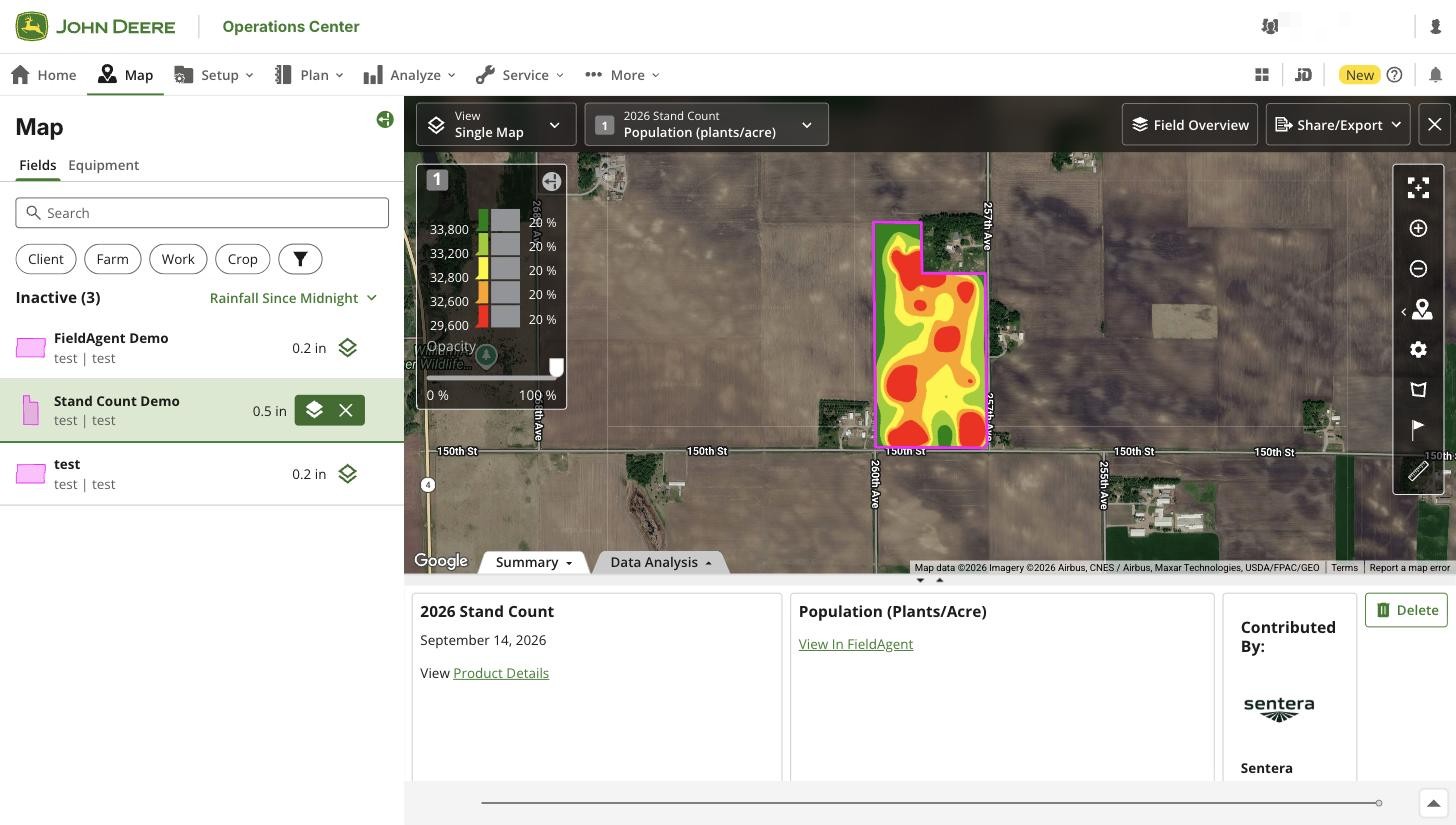
Your stand count, tassel count and canopy cover heatmaps show up on the connected field in John Deere Operations Center when the order completes. A Zone Rx prescription goes across with one click, ready for a seeding plan in Work Planner.
{% hint style="warning" %}
Only fields imported from Operations Center send results back to Operations Center. On a field created in FieldAgent, the heatmaps stay in FieldAgent and **SEND TO OPERATIONS CENTER** stays grayed out. [Import the field](/home/fieldagent-web/integrations/import-fields-from-operations-center.md) before you order on it. For a prescription you've already built on a field created in FieldAgent, [upload it yourself](#send-to-operations-center-is-grayed-out).
{% endhint %}
***
## Required before you start
* FieldAgent Web [connected to Operations Center](/home/fieldagent-web/integrations/john-deere-operations-center.md). On **Account**, **Connection Status** shows Connected. Heatmaps also need **Send Map Layers to Field Analyzer**, which is on by default once you connect.
* The field [imported from Operations Center](/home/fieldagent-web/integrations/import-fields-from-operations-center.md) before you order on it.
***
## Send heatmaps to Field Analyzer
Order on the imported field as usual, and the heatmap goes to the field's Field Analyzer automatically.
{% stepper %}
{% step %}
#### Import the imagery
Fly the imported field and [import the imagery](/home/fieldagent-web/imagery/import-imagery-in-fieldagent-web.md), either to the [flight task](/home/fieldagent-web/ordering/orders-and-flight-tasks.md) your order created or straight into the field.
{% endstep %}
{% step %}
#### Order the analytic
If you imported to the flight task, FieldAgent generates the ordered product automatically, so there's nothing to order.
For imagery imported straight into the field, use the Order Analytics button:
Choose one of the analytics that go to Field Analyzer:
* **Field Scale Stand Count**
* **Field Scale Stand Count with Uniformity**
* **Field Scale Tassel Count**
* **Field Scale Spot Scout Canopy Cover**
Choose the survey and fill in what the analytic asks for, such as the crop type, seeding rate and row spacing. Then click **SUBMIT**. FieldAgent emails you when the results are ready.
{% endstep %}
{% step %}
#### Find the heatmap in Field Analyzer
After the order completes, open **Map** in Operations Center and click the layers icon next to the field. Field Analyzer opens on the newest layer.
{% hint style="success" icon="tractor" %}
FieldAgent's layers are marked Contributed By: Sentera FieldAgent. **View In FieldAgent** opens the layer in FieldAgent Web, with the order, its imagery and the counts behind the heatmap.
{% endhint %}
{% endstep %}
{% endstepper %}
Operations Center gets each heatmap as a map image, one color per zone, not as numbers, so it can't be analyzed in **Data Analysis**. For the plant-level counts, use **Download Files** on the layer in FieldAgent. Mosaics and their index layers, such as NDVI, aren't sent, but a Zone Rx built on one can be.
Deleting a FieldAgent layer in Operations Center removes it for the whole organization. FieldAgent doesn't send it again unless the order is re-run.
The groups and layers FieldAgent adds to Field Analyzer
Each order gets its own group under the season, named after the analytic and the order's date.
| Analytic ordered | Group | Layer |
| --------------------------------------- | ------------ | --------------------------- |
| Field Scale Stand Count | Stand Count | Population (plants/acre) |
| Field Scale Stand Count with Uniformity | Stand Count | Population (plants/acre) |
| Field Scale Tassel Count | Tassel Count | Tassel Count (tassels/acre) |
| Field Scale Spot Scout Canopy Cover | Canopy Cover | Canopy Cover (%) |
### Try it in the demo
In the demo below, order a stand count on a field imported from Operations Center and find its heatmap in Field Analyzer.
{% @fieldagent-demo/embed content="flow:integration-heatmaps" %}
Open this demo full size
***
## Send a prescription
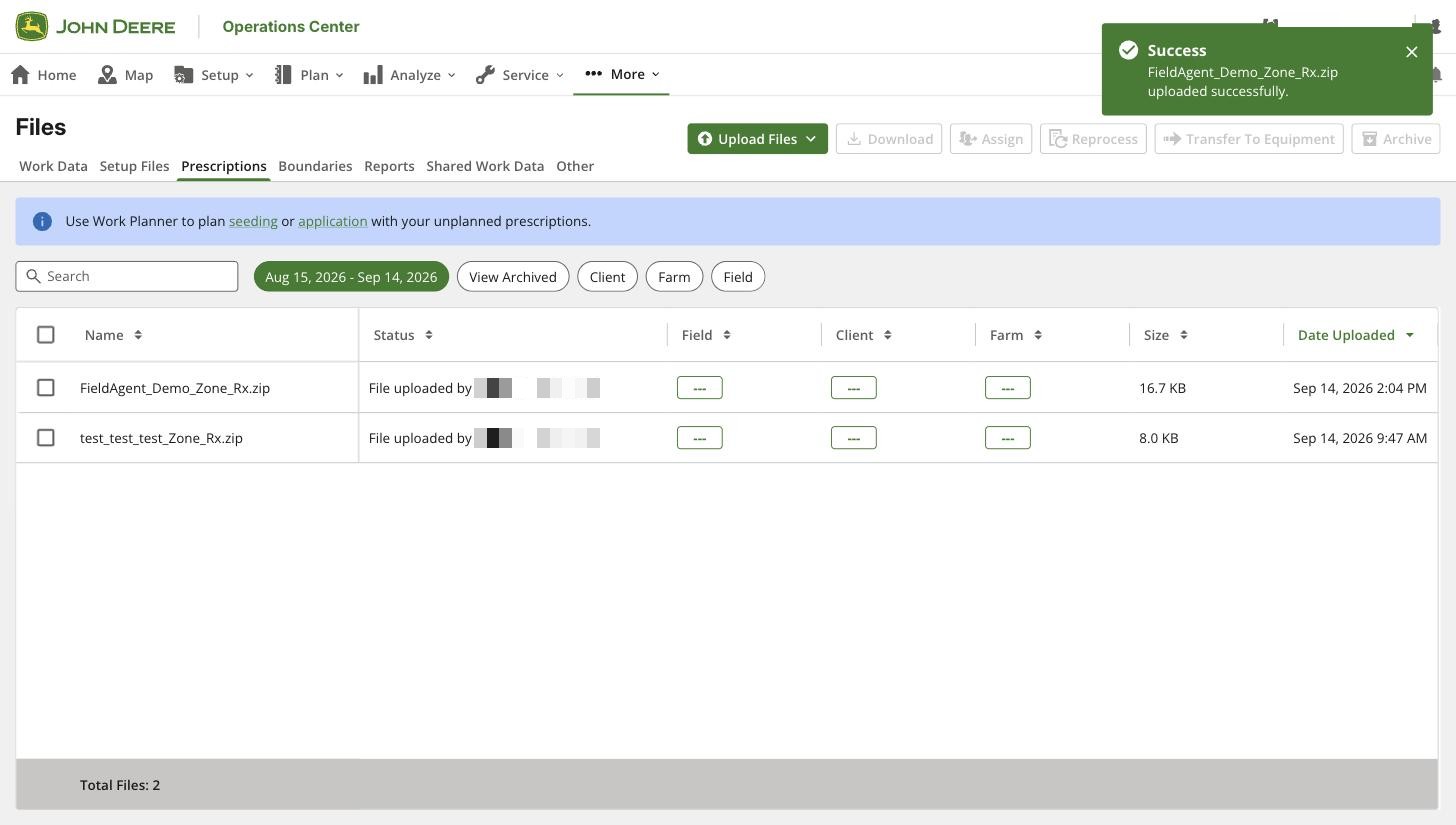
A [Zone Rx prescription](/home/fieldagent-web/export-and-share/zone-rx-prescriptions.md) built on the imported field lands in Files › Prescriptions in Operations Center.
{% stepper %}
{% step %}
#### Build the prescription
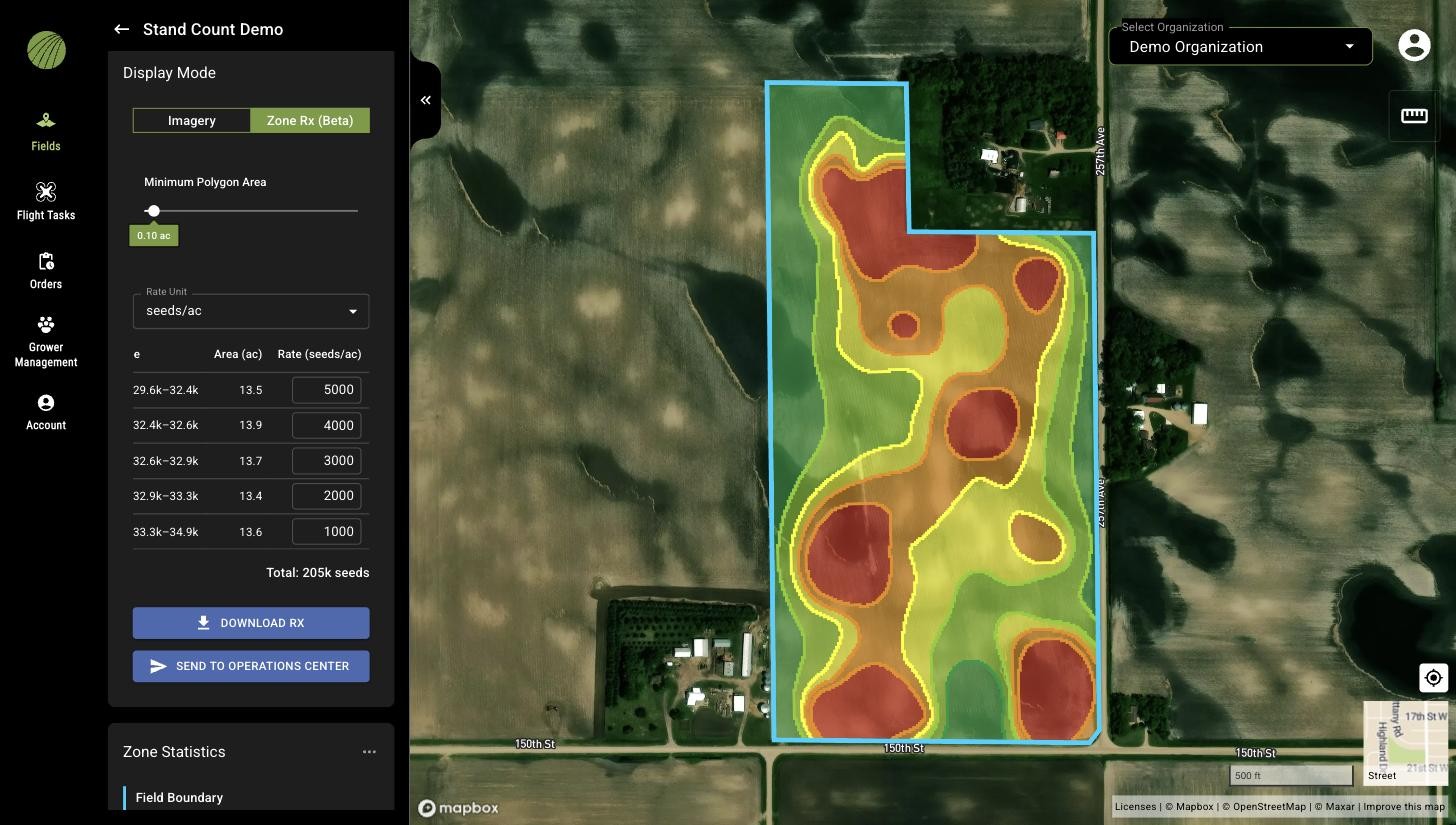
Open the imported field and select the layer to base the prescription on, such as the stand count heatmap. Set **Display Mode** to **Zone Rx (Beta)**, and the layer's color classes become zones.
Choose a **Rate Unit**, such as seeds/ac for seeding, and enter a **Rate** for each zone you include.
{% endstep %}
{% step %}
#### Send it
Check that **Total:** has a value, then use the Send to Operations Center button:
*Successfully sent to Operations Center* confirms the send.
{% endstep %}
{% step %}
#### Find it in Operations Center
In Operations Center, open **More** › **Files**. Click **Prescriptions**.
{% hint style="success" icon="tractor" %}
The file is named `___Zone_Rx.zip`, with underscores for any spaces in the names. Its details show it was uploaded by Sentera FieldAgent.
{% endhint %}
{% endstep %}
{% endstepper %}
### Try it in the demo
In the demo below, build a Zone Rx from a stand count heatmap, send it and find it in Operations Center.
{% @fieldagent-demo/embed content="flow:integration-zone-rx" %}
Open this demo full size
***
## Plan the seeding in Work Planner
Work Planner turns the prescription into a seeding plan for the planter's display. A prescription you [uploaded yourself](#send-to-operations-center-is-grayed-out) works the same way.
{% stepper %}
{% step %}
#### Start the plan
On the Prescriptions list, click **seeding** in the Work Planner banner. Work Planner opens on Field Selection, filtered to fields with unplanned prescriptions, the ones no plan has used yet.
Select the field and click **Next**.
{% endstep %}
{% step %}
#### Choose the crop and variety
Set **Crop**, then choose the variety in **Select Variety**.
If the organization has no varieties yet, click **Add Variety**, then **Add Custom Product**. Give it a name, the crop and a brand such as Generic.
{% endstep %}
{% step %}
#### Pick the prescription
Click **Rx** at the end of the **Rate** box. Choose the FieldAgent file under Unplanned, then its **rate** column. The map shows the zones and their rates.
`rate` and `seeds_p_ac` both hold the seeding rate you entered in FieldAgent. `max` and `min` are each zone's highest and lowest measured population, so they aren't the column to pick.
{% endstep %}
{% step %}
#### Check and save the plan
Check the rates and the total seeds in Prescription Rate Setup. The machine settings can stay at their defaults, and Equipment and Operators can wait.
Open **Save** and choose **Send Later**. The plan waits on the **Planned** tab until you send it in the next step. **Send Now** needs a machine.
Everything in Prescription Rate Setup
| Item | Description |
| --------------------------- | -------------------------------------------------------------------------------------------- |
| **Rates** | **Multiplier** (100% by default), **Minimum**, **Maximum**, **Average** and **Total** seeds. |
| **Out of Zone Rate** | A machine setting. **Keep machine setting** by default. |
| **No GPS Rate** | A machine setting. **Maintain previous rate** by default. |
| **Multiple Zone Rate** | A machine setting. **Keep machine setting** by default. |
| **Look Ahead** | A machine setting. **Keep machine setting** by default. |
| **Equipment and Operators** | **Select Machine**, **Select Implements** and **Select Operator**. They can wait. |
{% endstep %}
{% step %}
#### Send the plan to the planter
{% hint style="warning" %}
Don't send a plan until you've confirmed the product and equipment settings.
{% endhint %}
On Work Planner's **Planned** tab, the plan shows Not Sent. Select it and click **Send to Equipment**. The display gets the plan with the prescription, and the planter runs FieldAgent's rates zone by zone.
{% endstep %}
{% endstepper %}
After the planter has run, Field Analyzer shows the recorded seeding under the season as Seeding: *\*, next to the FieldAgent layers.
### Try it in the demo
In the demo below, plan the seeding from the FieldAgent prescription and save the plan.
{% @fieldagent-demo/embed content="flow:integration-plan-seeding" %}
Open this demo full size
***
## If it doesn't work
{% hint style="success" icon="headset" %}
Support is at . Black out anything private in a screenshot before you send it.
{% endhint %}
### The heatmap isn't in Field Analyzer
Field Analyzer may say no operational maps were found, or the FieldAgent layer is missing from the list.
1. Check that the field was imported. Its **External Connections** module shows Connected to Operations Center.
2. Check that the order shows **COMPLETE** on the FieldAgent **Orders** page.
3. On **Account** in FieldAgent Web, check that **Send Map Layers to Field Analyzer** is on.
4. On **Map** in Operations Center, click the field's layers icon to open Field Analyzer again.
If it still doesn't work, send support the field name, the analytic, the order status and any message Operations Center shows.
### Field Analyzer lists the layer but draws nothing
The order is probably still processing. FieldAgent adds the layer to Field Analyzer when processing starts and sends the image when the order completes.
1. On the FieldAgent **Orders** page, wait for the order to reach **COMPLETE**.
2. Reopen Field Analyzer and select the layer again.
If it still doesn't work, send support the layer's name and date in Field Analyzer, the analytic and the order's completed date.
### SEND TO OPERATIONS CENTER is grayed out
The field was probably created in FieldAgent rather than imported from Operations Center, or a zone has no rate.
1. In **Zone Rx (Beta)**, enter a **Rate** for every zone you include.
2. Open the field and look for the **External Connections** module with **Connected to Operations Center**. Without it, the field wasn't imported. Upload the prescription to Operations Center yourself, in the steps below.
3. [Download the prescription](/home/fieldagent-web/export-and-share/zone-rx-prescriptions.md#download-the-prescription) with the Download Rx button:
4. In Operations Center, open **More** › **Files**. Click **Upload Files** and choose **Prescriptions**.
5. Click **Choose Files**, pick the zip as it is and click **Upload**. Operations Center needs the RX folder inside it.
6. Wait for the *Success* message. The new row shows the file was uploaded by Files Manager.
If it still doesn't work, send support the field name, whether it was imported, the Rate Unit and a screenshot of the Zone Rx panel.
### The prescription isn't in Files
The send may not have finished, another Operations Center organization may be open, or the file may have been archived.
1. In FieldAgent, wait for *Successfully sent to Operations Center*.
2. In Operations Center, open **Files** › **Prescriptions** for the connected organization.
3. Clear the date and field filters, and check **View Archived**.
If it still doesn't work, send support the file name, whether you saw the success message, about when you sent it and a screenshot of Prescriptions.
### The prescription is listed under Unplanned: No Field Assigned
Operations Center matches a prescription to a field by its boundary. When two fields in the organization share a boundary, usually the imported field and an older copy, the file arrives with no field. It's missing from the Unplanned Prescriptions filter, and the **Rx** menu lists it under Unplanned: No Field Assigned.
1. You can still use it. In Work Planner, pick it from Unplanned: No Field Assigned in the **Rx** menu.
2. So that future sends land on the field, archive the copy you didn't import into FieldAgent. It's in **Setup** › **Land**, under Fields.
3. Archive the unassigned file in **Files** › **Prescriptions**, then send the prescription again from FieldAgent.
If it still doesn't work, send support the file name, the names of the fields that share the boundary and a screenshot of the Rx menu.
### Work Planner doesn't show the prescription
The file may not be listed as an unplanned prescription, or the product setup in Work Planner isn't finished.
1. Check that the file is in **Files** › **Prescriptions**.
2. Open Work Planner with the Unplanned Prescriptions filter.
3. Select the field marked Rx and click **Next**.
If it still doesn't work, send support the file name, the field shown in Field Selection and a screenshot.
***
## Related pages
{% content-ref url="/pages/RQ1dUxp96qkvnpVBaQmi" %}
[FieldAgent and Operations Center: how the integration works](/home/fieldagent-web/integrations/fieldagent-and-operations-center.md)
{% endcontent-ref %}
{% content-ref url="/pages/ouJZuSAbyJ2zygINZwuw" %}
[Connect to John Deere Operations Center](/home/fieldagent-web/integrations/john-deere-operations-center.md)
{% endcontent-ref %}
{% content-ref url="/pages/b8kuVYCdfuj6SUIPV7QV" %}
[Import fields from Operations Center](/home/fieldagent-web/integrations/import-fields-from-operations-center.md)
{% endcontent-ref %}
{% content-ref url="/pages/zd8QvEvP6Uxj2pt3LgL8" %}
[Zone Rx prescriptions](/home/fieldagent-web/export-and-share/zone-rx-prescriptions.md)
{% endcontent-ref %}
---
# Agent Instructions
This documentation is published with GitBook. GitBook is the documentation platform designed so that both humans and AI agents can read, navigate, and reason over technical content effectively. Learn more at gitbook.com.
## Querying This Documentation
If you need additional information that is not directly available in this page, you can query the documentation by asking a question.
Perform an HTTP GET request on the following URL with the `ask` and `goal` query parameters:
```
GET https://support.senterasensors.com/home/fieldagent-web/integrations/send-to-operations-center.md?ask=&goal=
```
`ask` is the immediate question: it should be specific, self-contained, and written in natural language.
`goal` is what the user is ultimately trying to achieve, the reason they need the answer. Sharing it helps GitBook give you a better, more relevant answer. A goal is most helpful when it describes the outcome the user wants rather than restating the question. For example, with `ask=how do I create an API token`, a goal like `automate deployments from our CI pipeline` lets GitBook tailor the answer to that use case.
The response will contain a direct answer to the question and relevant excerpts and sources from the documentation.
Use this mechanism when the answer is not explicitly present in the current page, you need clarification or additional context, or you want to retrieve related documentation sections.