> For the complete documentation index, see [llms.txt](https://support.senterasensors.com/home/llms.txt). Markdown versions of documentation pages are available by appending `.md` to page URLs; this page is available as [Markdown](https://support.senterasensors.com/home/fieldagent-web/ordering/order-analytics.md).

# Order analytics

Order a stand count, tassel count, canopy cover or weed pressure analytic from the sample photos you flew over a field.

Order a stand count, tassel count, canopy cover or weed pressure analytic from the sample photos you flew over a field. Sentera counts the plants or tassels in your sample photos, or measures the canopy cover. The results are added to the field as map layers you can view and download.

Before you order, fly the field with the product's [flight specification](https://catalog.sentera.com/products) for your sensor, and [import the photos](/home/fieldagent-web/imagery/import-imagery-in-fieldagent-web.md) into the field.

{% hint style="info" %}
Analytics usually need low-altitude sample photos, not a mosaic flight. [Stand Count](/home/fieldagent-web/analytics/stand-count.md), [Stand Count with Uniformity](/home/fieldagent-web/analytics/stand-count-with-uniformity.md), [Tassel Count](/home/fieldagent-web/analytics/tassel-count.md) and [Canopy Cover](/home/fieldagent-web/analytics/canopy-cover.md) each have a page on when to fly and how to read the results. To plan the flight in FieldAgent Mobile, see its [support site](https://support.senterasensors.com/home/fieldagent-mobile-ios/).
{% endhint %}

{% hint style="info" icon="clipboard-check" %}
If the field hasn't been flown yet, or someone else is flying it for you, you can [create the order first](/home/fieldagent-web/ordering/orders-and-flight-tasks.md#create-orders-before-the-flight) on the **Orders** page. You then import the photos to its flight task, and they're attached to the order.
{% endhint %}

***

## Order from a survey

{% stepper %}
{% step %}

#### Open the form

Open the field and use the Order Analytics button:

<div align="center"><img src="https://2791052504-files.gitbook.io/~/files/v0/b/gitbook-x-prod.appspot.com/o/spaces%2FVt6flh3S4tohPAjrSP91%2Fuploads%2Fgit-blob-b4faf6534b7a4a02e886382cc7d38b5ca2ed2522%2Ffa-web-ui-btn-order-analytics-1x.png?alt=media" alt="ORDER ANALYTICS button"></div>
{% endstep %}

{% step %}

#### Choose the product

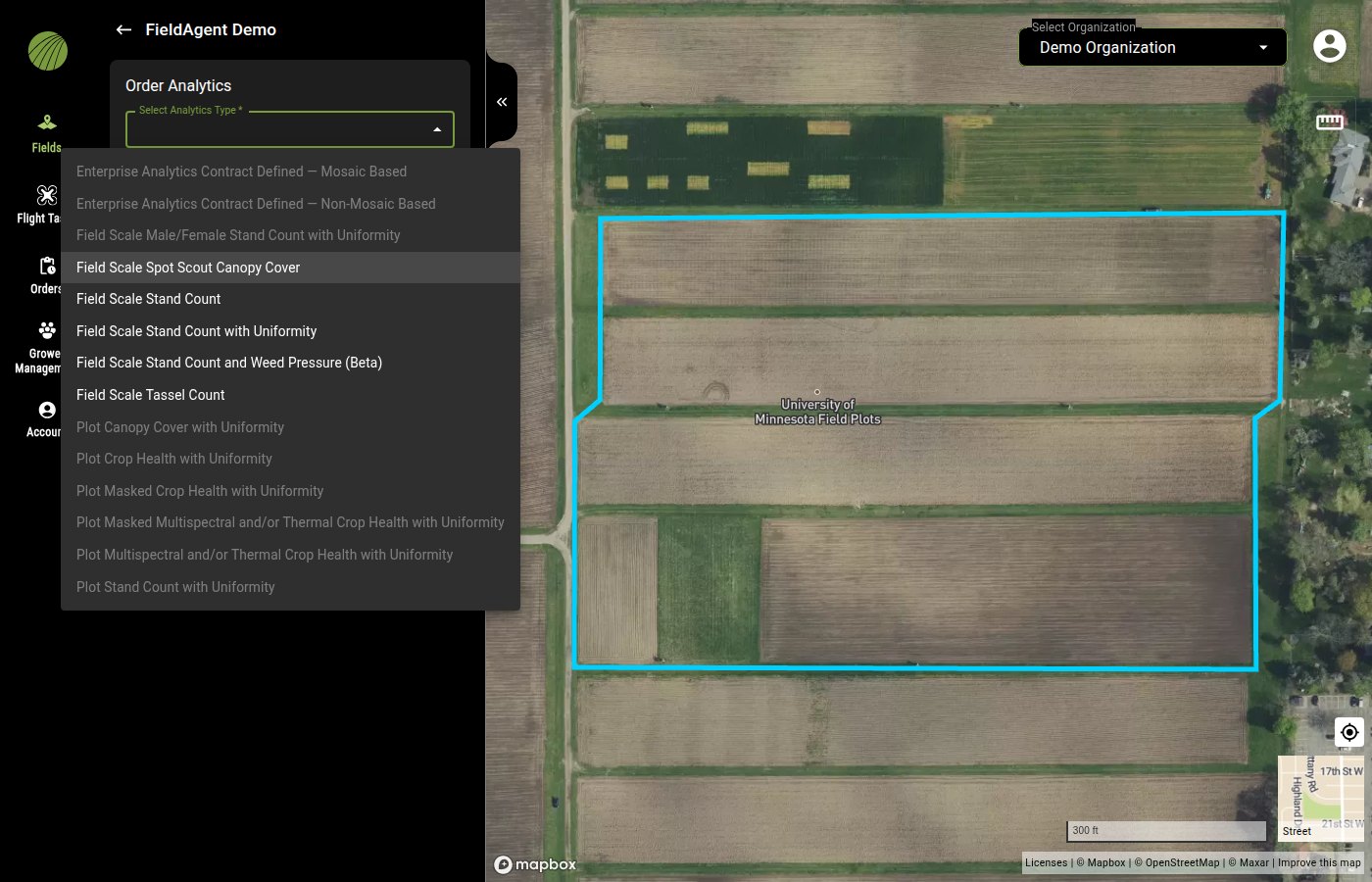
In **Select Analytics Type**, choose the product. Products your plan doesn't include are grayed out.

<figure><img src="https://2791052504-files.gitbook.io/~/files/v0/b/gitbook-x-prod.appspot.com/o/spaces%2FVt6flh3S4tohPAjrSP91%2Fuploads%2Fgit-blob-18830c1ac0bd1aea9f6e90d723ecb3a96c5ae09c%2Ffa-web-order-analytics-types.jpg?alt=media" alt="The Order Analytics panel with the Select Analytics Type menu open. Field Scale Spot Scout Canopy Cover, Field Scale Stand Count, Field Scale Stand Count with Uniformity, Field Scale Stand Count and Weed Pressure (Beta) and Field Scale Tassel Count are selectable; Enterprise Analytics Contract Defined, Field Scale Male/Female Stand Count with Uniformity and the Plot products are grayed out"><figcaption><p>The menu on an Advisor plan.</p></figcaption></figure>
{% endstep %}

{% step %}

#### Choose the survey

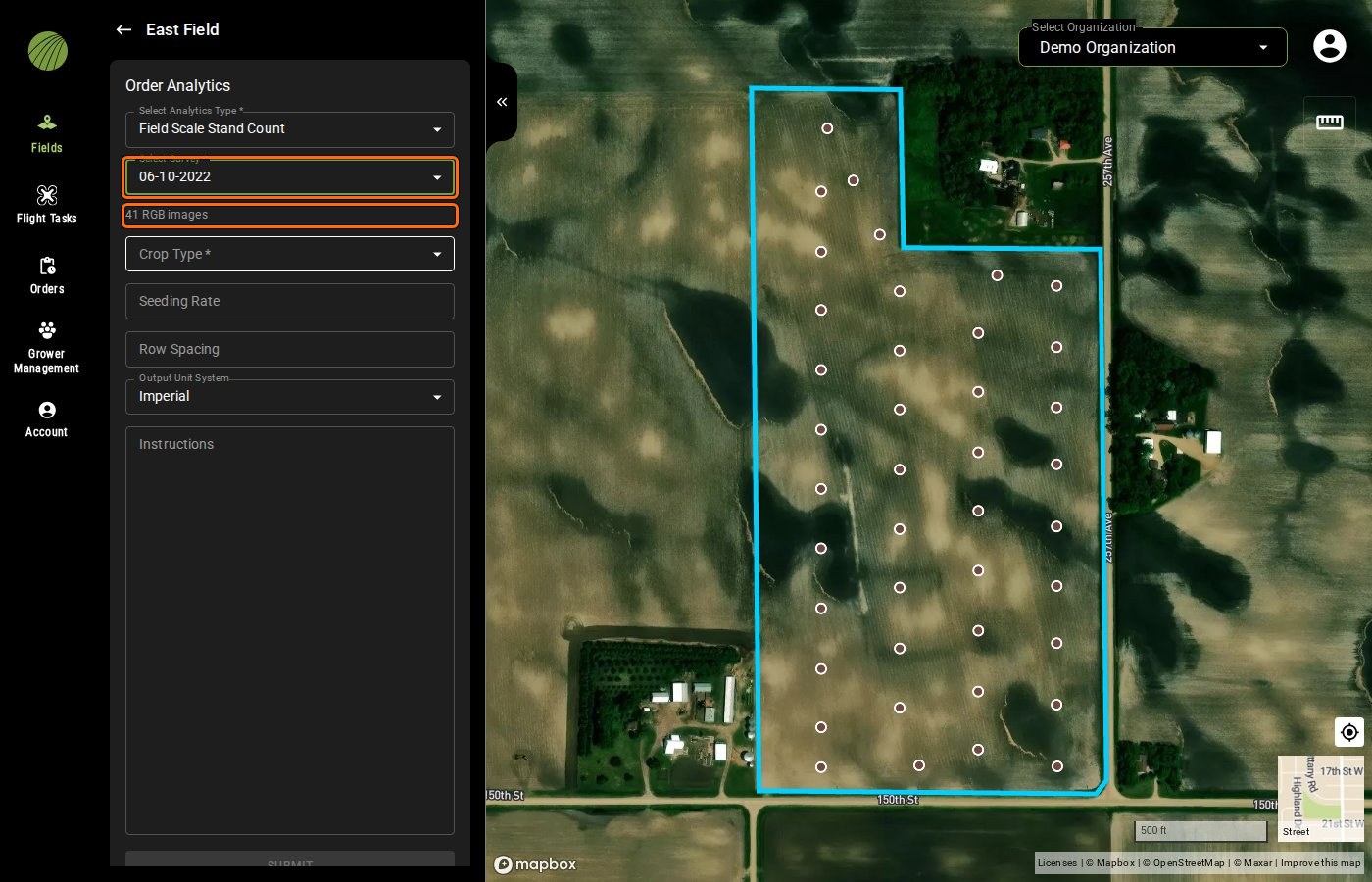
In **Select Survey**, choose the flight. The panel shows how many photos it has, and its photo dots appear on the map.

<figure><img src="https://2791052504-files.gitbook.io/~/files/v0/b/gitbook-x-prod.appspot.com/o/spaces%2FVt6flh3S4tohPAjrSP91%2Fuploads%2Fgit-blob-fec4dcc1f0a77b7fa2637b21fbec11e3af0f72c8%2Ffa-web-order-analytics-survey.jpg?alt=media" alt="The Order Analytics panel of East Field with Field Scale Stand Count, Select Survey set to 06-10-2022 and 41 RGB images outlined, and the survey&#x27;s photo dots on the map"><figcaption><p>Survey and photo count highlighted</p></figcaption></figure>
{% endstep %}

{% step %}

#### Enter the details

Enter the details the product needs. For a stand count or a tassel count, enter the seeding rate and row spacing from the planter. FieldAgent uses them to compare the count with what was planted.

{% hint style="info" %}
**Seeding Rate** and **Row Spacing** each have a unit menu inside the field, with seeds/acre and in (inches) by default. For metric, switch them to seeds/hectare and cm.
{% endhint %}

<figure><img src="https://2791052504-files.gitbook.io/~/files/v0/b/gitbook-x-prod.appspot.com/o/spaces%2FVt6flh3S4tohPAjrSP91%2Fuploads%2Fgit-blob-44f3191f73a7a510469631728165d4aa24b9f202%2Ffa-web-order-analytics-stand-count-form.jpg?alt=media" alt="The Order Analytics panel with Field Scale Stand Count and the 06-10-2022 survey of 41 RGB images: Crop Type Corn, Seeding Rate 34000 seeds/acre, Row Spacing 30 in, Output Unit System Imperial, an empty Instructions box and the SUBMIT button enabled"><figcaption></figcaption></figure>

Only **Crop Type** has an asterisk, but the **SUBMIT** button stays grayed out until the seeding rate and row spacing are filled in too. If **SUBMIT** is grayed out, look for an empty seeding rate or row spacing box.
{% endstep %}

{% step %}

#### Set the units and add instructions

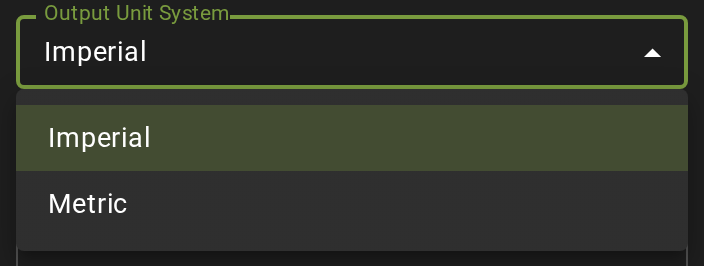
Pick the units of the results in the **Output Unit System** dropdown. It's set to **Imperial** by default, and you can change it to **Metric**. It doesn't change the seeding rate and row spacing units.

<figure><img src="https://2791052504-files.gitbook.io/~/files/v0/b/gitbook-x-prod.appspot.com/o/spaces%2FVt6flh3S4tohPAjrSP91%2Fuploads%2Fgit-blob-dc7183955e46f09ae91b3ea1a6167c04e6f3e641%2Ffa-web-ui-output-unit-menu.png?alt=media" alt="The Output Unit System dropdown open with Imperial selected and Metric below it" width="352"><figcaption></figcaption></figure>

Use **Instructions** to tell the processing team about anything unusual in the field or the flight.
{% endstep %}

{% step %}

#### Submit

Click **SUBMIT**. The panel confirms that the order is being processed.

<img src="https://2791052504-files.gitbook.io/~/files/v0/b/gitbook-x-prod.appspot.com/o/spaces%2FVt6flh3S4tohPAjrSP91%2Fuploads%2Fgit-blob-7d4c84734dc951218bed495caf9867c3d50268d9%2Ffa-web-ui-btn-submit.png?alt=media" alt="SUBMIT button" width="336">

The order shows up right away as **PROCESSING** on the **Orders** page, where you can [follow its progress](/home/fieldagent-web/ordering/orders-and-flight-tasks.md#follow-an-orders-status).
{% endstep %}
{% endstepper %}

{% hint style="info" %}
When the results are ready, FieldAgent adds them to the field under the survey's date and emails you. Each product adds two layers to the survey: its individual count or canopy cover layer and a heatmap.
{% endhint %}

### Try it in the demo

In the demo below, order a stand count from a sample corn field and find the order on the **Orders** page.

{% @fieldagent-demo/embed content="order-analytics" %}

<a href="https://senterallc.github.io/FieldAgent-Demos/demo.html?s=order-analytics&#x26;mode=page" class="button secondary">Open this demo full size</a>

***

## Related pages

{% content-ref url="/pages/y5cYSFUW0AytrGKslf0c" %}
[Stand Count](/home/fieldagent-web/analytics/stand-count.md)
{% endcontent-ref %}

{% content-ref url="/pages/LFUsUJvNPM1MOVSR7hiS" %}
[Stand Count with Uniformity](/home/fieldagent-web/analytics/stand-count-with-uniformity.md)
{% endcontent-ref %}

{% content-ref url="/pages/oldHm5icq8whJj1kPSyo" %}
[Tassel Count and yield estimate](/home/fieldagent-web/analytics/tassel-count.md)
{% endcontent-ref %}

{% content-ref url="/pages/MGBCJnc2tv5obeHq4Iqu" %}
[Canopy Cover](/home/fieldagent-web/analytics/canopy-cover.md)
{% endcontent-ref %}

{% content-ref url="/pages/rKvIiUcxbm4SnUSjHMEM" %}
[Orders and flight tasks](/home/fieldagent-web/ordering/orders-and-flight-tasks.md)
{% endcontent-ref %}

{% content-ref url="/pages/2WsqwOiougiTw8Hpg5Ig" %}
[Why can't I order?](/home/fieldagent-web/ordering/why-cant-i-order.md)
{% endcontent-ref %}


---

# Agent Instructions
This documentation is published with GitBook. GitBook is the documentation platform designed so that both humans and AI agents can read, navigate, and reason over technical content effectively. Learn more at gitbook.com.

## Querying This Documentation
If you need additional information that is not directly available in this page, you can query the documentation by asking a question.

Perform an HTTP GET request on the following URL with the `ask` and `goal` query parameters:

```
GET https://support.senterasensors.com/home/fieldagent-web/ordering/order-analytics.md?ask=<question>&goal=<user_goal>
```

`ask` is the immediate question: it should be specific, self-contained, and written in natural language.
`goal` is what the user is ultimately trying to achieve, the reason they need the answer. Sharing it helps GitBook give you a better, more relevant answer. A goal is most helpful when it describes the outcome the user wants rather than restating the question. For example, with `ask=how do I create an API token`, a goal like `automate deployments from our CI pipeline` lets GitBook tailor the answer to that use case.

The response will contain a direct answer to the question and relevant excerpts and sources from the documentation.

Use this mechanism when the answer is not explicitly present in the current page, you need clarification or additional context, or you want to retrieve related documentation sections.