
> For the complete documentation index, see [llms.txt](https://support.senterasensors.com/home/llms.txt). Markdown versions of documentation pages are available by appending `.md` to page URLs; this page is available as [Markdown](https://support.senterasensors.com/home/fieldagent-web/ordering/orders-and-flight-tasks.md).

# Orders and flight tasks

Order a mosaic or an analytic before anyone flies the field, and follow the order and its flight task until the results are on the field.

Order a mosaic or an analytic before anyone flies the field. Then follow the order and its flight task until the results are on the field.

An order is a mosaic or an analytic you've asked Sentera to make from a field's imagery. Each order you create on the Orders page gets a flight task. Tasks show the associated field, the product ordered, the planned flight date, who's assigned to capture the imagery and the task status.

If the field has already been flown, you don't need a flight task. Import the photos to the field, then [order a mosaic](/home/fieldagent-web/ordering/order-a-mosaic.md) or [order analytics](/home/fieldagent-web/ordering/order-analytics.md) from the survey. These orders appear on the **Orders** page as **PROCESSING** right away.

***

## How ordering first works

{% stepper %}
{% step %}

#### Create the order

[Create the order](#create-orders-before-the-flight) on the **Orders** page and set its field and details. It gets a flight task on the **Flight Tasks** page.
{% endstep %}

{% step %}

#### Schedule the flight task

[Schedule the flight task](#schedule-and-assign-flight-tasks) and assign it to whoever is flying.

{% hint style="info" %}
Flight tasks show up in the [FieldAgent Mobile](https://support.senterasensors.com/home/fieldagent-mobile-ios/) app. The pilot can use a flight task to create a flight plan and export it to the drone's hand controller.
{% endhint %}
{% endstep %}

{% step %}

#### Fly the field

Fly the field.
{% endstep %}

{% step %}

#### Import the photos to the task

[Import the photos to the task](#import-imagery-to-a-task) instead of to the field.
{% endstep %}

{% step %}

#### Follow the order's status

[Follow the order](#follow-an-orders-status) on the **Orders** page until it's **COMPLETE**.
{% endstep %}
{% endstepper %}

{% hint style="info" icon="clipboard-check" %}
Imagery imported to a task will automatically generate the product associated with the order.
{% endhint %}

***

## Create orders before the flight

{% stepper %}
{% step %}

#### Click CREATE

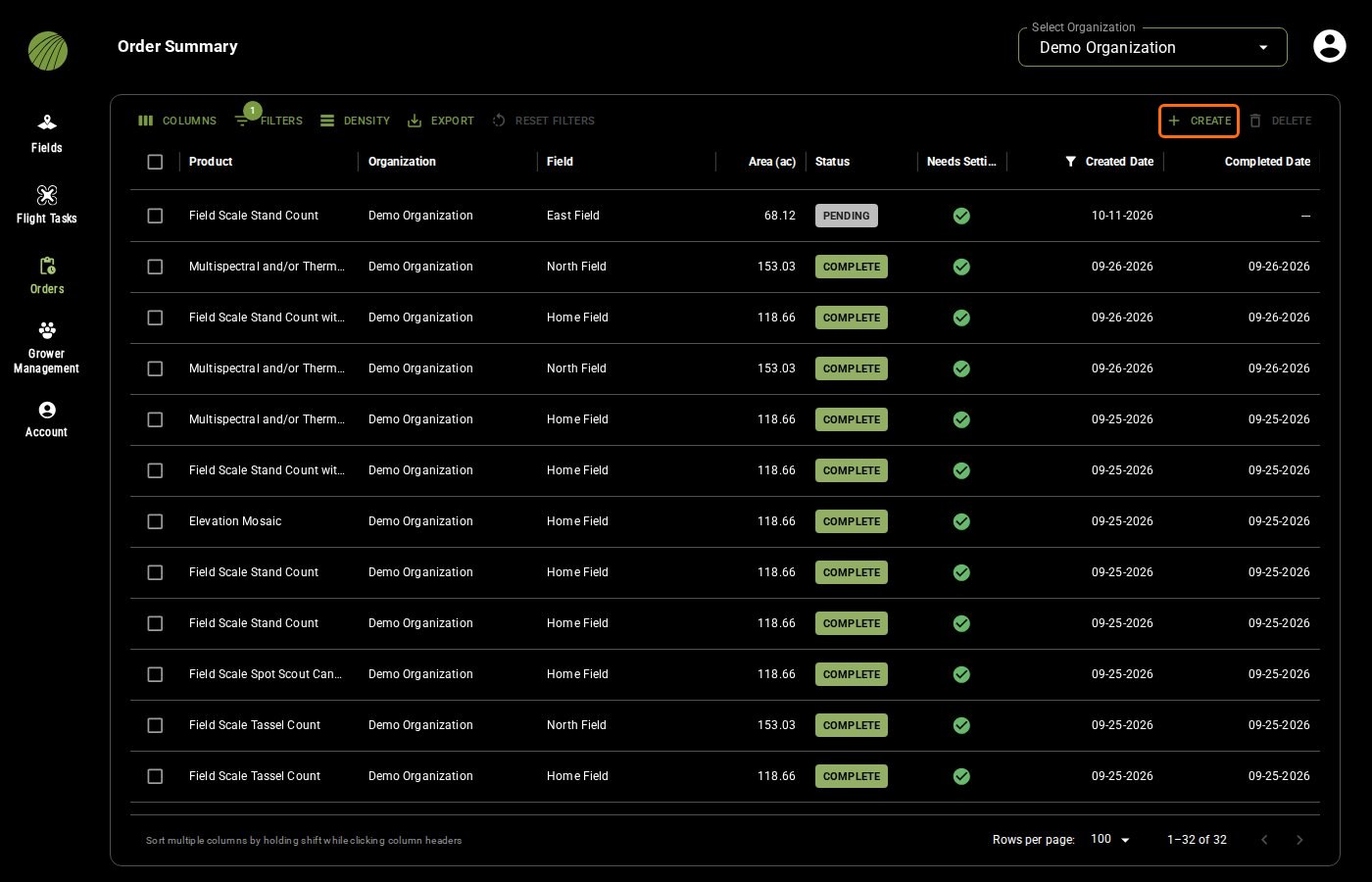
On the **Orders** page, click **CREATE**.

<figure><img src="https://2791052504-files.gitbook.io/~/files/v0/b/gitbook-x-prod.appspot.com/o/spaces%2FVt6flh3S4tohPAjrSP91%2Fuploads%2Fgit-blob-7bb80a4ed0639c60395f06c3e5389f25564d28ea%2Ffa-web-orders-page-create.jpg?alt=media" alt="The Orders page with the Order Summary table and the CREATE button outlined in the table toolbar; the first row is a PENDING Field Scale Stand Count on East Field"><figcaption></figcaption></figure>
{% endstep %}

{% step %}

#### Choose the product and how many

In **Create Orders**, choose the **Product**. In **Number of Orders**, enter how many orders you want, up to 10. They're created in the organization shown at the top.

<figure><img src="https://2791052504-files.gitbook.io/~/files/v0/b/gitbook-x-prod.appspot.com/o/spaces%2FVt6flh3S4tohPAjrSP91%2Fuploads%2Fgit-blob-936cf6ed919c63499da985b3d12a1c9642f7ab97%2Ffa-web-create-orders-dialog.jpg?alt=media" alt="The Create Orders dialog over the Orders page: Organization Demo Organization, Product Field Scale Stand Count, Number of Orders 1 and the CREATE button enabled"><figcaption></figcaption></figure>

<details>

<summary>All products in the menu</summary>

* **FIELD SCALE**
  * Field Scale Stand Count
  * Field Scale Stand Count with Uniformity
  * Field Scale Tassel Count
  * Field Scale Spot Scout Canopy Cover
  * Field Scale Stand Count (Offline)
  * Field Scale Stand Count and Weed Pressure (Beta)
* **MOSAICS**
  * Crop Health Mosaic
  * RGB Mosaic
  * Multispectral and/or Thermal Crop Health Mosaic
  * Elevation Mosaic

Plans with plot analytics also see a plot group.

</details>
{% endstep %}

{% step %}

#### Create the orders

Click **CREATE**. It becomes clickable once the product and number of orders are chosen.

<img src="https://2791052504-files.gitbook.io/~/files/v0/b/gitbook-x-prod.appspot.com/o/spaces%2FVt6flh3S4tohPAjrSP91%2Fuploads%2Fgit-blob-5d5981e4a31baef2c96c916a1c8e6006ec391ae3%2Ffa-web-ui-btn-create-orders-dialog.png?alt=media" alt="CREATE button" width="78">

{% hint style="info" icon="clipboard-check" %}
Each order gets a flight task on the **Flight Tasks** page.
{% endhint %}
{% endstep %}

{% step %}

#### Set each order's field and details

Open each new order and click the pencil <img src="https://2791052504-files.gitbook.io/~/files/v0/b/gitbook-x-prod.appspot.com/o/spaces%2FVt6flh3S4tohPAjrSP91%2Fuploads%2Fgit-blob-8238089058191eb0539cbc80be106df78bb52a84%2Ffa-web-icon-edit.svg?alt=media" alt="edit icon" data-size="line">. Choose the **Field** and fill in the order details the product needs. Details marked with an asterisk are required to start processing.
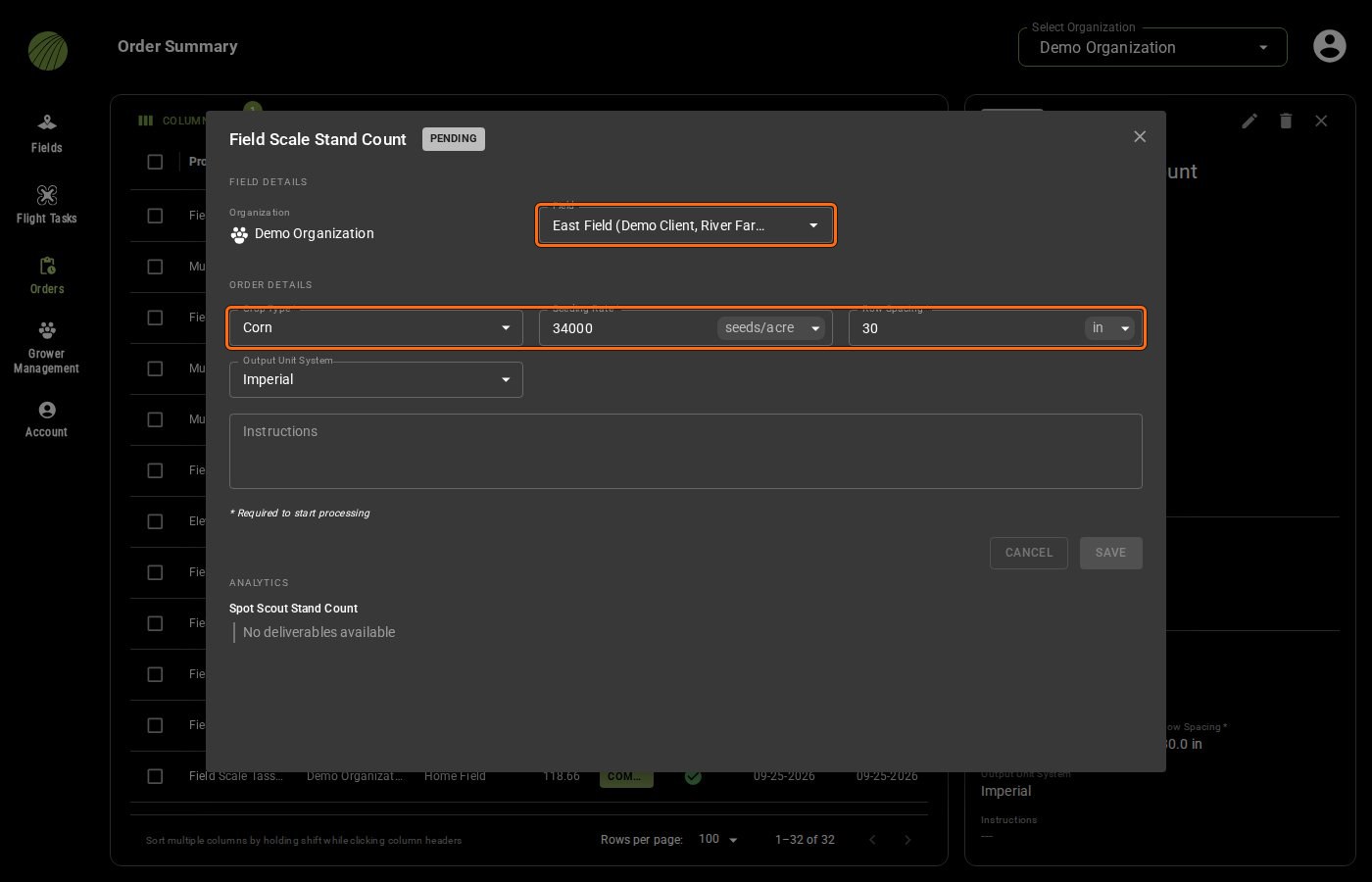
<figure><img src="https://2791052504-files.gitbook.io/~/files/v0/b/gitbook-x-prod.appspot.com/o/spaces%2FVt6flh3S4tohPAjrSP91%2Fuploads%2Fgit-blob-64e3713b498fff993248ba984b5a01101ceee7c6%2Ffa-web-order-edit.jpg?alt=media" alt="A PENDING Field Scale Stand Count order open for editing, with the Field box set to East Field and the required Crop Type Corn, Seeding Rate 34000 seeds/acre and Row Spacing 30 in outlined; Output Unit System, Instructions, CANCEL and SAVE below"><figcaption><p>Field and required order details highlighted</p></figcaption></figure>
{% endstep %}
{% endstepper %}

***

## Schedule and assign flight tasks

Open **Flight Tasks** in the navigation bar to see what's left to fly, set the dates and name who's flying.

{% hint style="info" icon="clipboard-check" %}
Flight tasks also show up in the [FieldAgent Mobile](https://support.senterasensors.com/home/fieldagent-mobile-ios/) app, where you can pick the sensor and drone, create a flight plan and export it to your drone's hand controller.
{% endhint %}

Click a task to open it, then click the pencil <img src="https://2791052504-files.gitbook.io/~/files/v0/b/gitbook-x-prod.appspot.com/o/spaces%2FVt6flh3S4tohPAjrSP91%2Fuploads%2Fgit-blob-8238089058191eb0539cbc80be106df78bb52a84%2Ffa-web-icon-edit.svg?alt=media" alt="edit icon" data-size="line"> to schedule it. Add the site contacts with the plus icon <img src="https://2791052504-files.gitbook.io/~/files/v0/b/gitbook-x-prod.appspot.com/o/spaces%2FVt6flh3S4tohPAjrSP91%2Fuploads%2Fgit-blob-93fc4d9f6268e89a5a848974a80ca6a3ffd199a5%2Ffa-web-icon-add.svg?alt=media" alt="add icon" data-size="line">, set the dates, the assignee and the notes, and click **SAVE**.
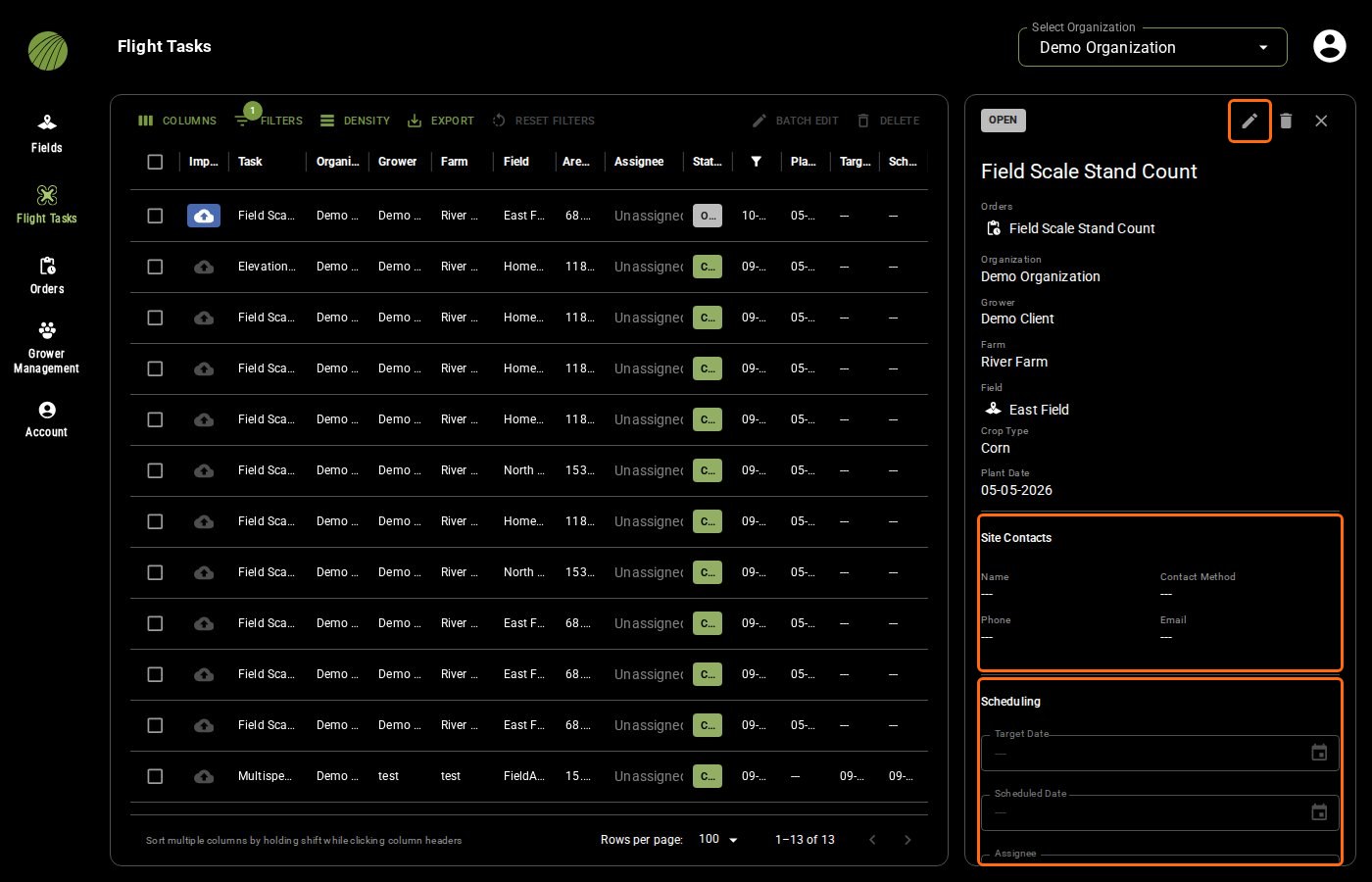
<figure><img src="https://2791052504-files.gitbook.io/~/files/v0/b/gitbook-x-prod.appspot.com/o/spaces%2FVt6flh3S4tohPAjrSP91%2Fuploads%2Fgit-blob-ccb654544c4bee89e3e6a55cb292ac0629b3b05a%2Ffa-web-flight-task-schedule.jpg?alt=media" alt="The Flight Tasks table with an OPEN Field Scale Stand Count task selected and its detail panel showing the order, organization, grower, farm, field, crop type and plant date, with the pencil, Site Contacts and Scheduling outlined"><figcaption><p>Pencil, Site Contacts and Scheduling highlighted</p></figcaption></figure>

Select several tasks with their checkboxes and click **BATCH EDIT** to change their dates, assignee or notes at once. Click **SAVE**, and only what you changed is applied to the selected tasks.

**DELETE** removes the selected tasks. Only **OPEN** tasks can be deleted.

<figure><img src="https://2791052504-files.gitbook.io/~/files/v0/b/gitbook-x-prod.appspot.com/o/spaces%2FVt6flh3S4tohPAjrSP91%2Fuploads%2Fgit-blob-019ddb2bb880e229679fe94fdb886429a4bdcd47%2Ffa-web-ui-list-toolbar-batch.png?alt=media" alt="The BATCH EDIT and DELETE buttons that appear when rows are selected" width="200"><figcaption></figcaption></figure>

<details>

<summary>All fields of a flight task</summary>

| Field              | Description                                                                                                                       |
| ------------------ | --------------------------------------------------------------------------------------------------------------------------------- |
| **Site Contacts**  | Who to reach at the field. Each contact has a name, a contact method (email, phone or text), a phone number and an email address. |
| **Target Date**    | The date the imagery should be collected by.                                                                                      |
| **Scheduled Date** | The date the flight is booked for.                                                                                                |
| **Assignee**       | The email address of the user responsible for the flight.                                                                         |
| **Notes**          | Anything the pilot needs to know, such as a gate code or where to park.                                                           |

Batch edit changes the scheduling only, not the site contacts.

</details>

<details>

<summary>All columns of the Flight Tasks table</summary>

Import, Task (the product ordered), Organization, Grower, Farm, Field, Area (ac), Assignee (Unassigned until someone is named), Status, Created Date, Plant Date, Target Date and Scheduled Date.

</details>

***

## Import imagery to a task

When the flight is done, import the photos through the task so they're attached to the order.

{% stepper %}
{% step %}

#### Click the upload icon

On the **Flight Tasks** page, click the upload icon <img src="https://2791052504-files.gitbook.io/~/files/v0/b/gitbook-x-prod.appspot.com/o/spaces%2FVt6flh3S4tohPAjrSP91%2Fuploads%2Fgit-blob-44029c7c36b4afcca4e4ac1558dd70624aeb3c86%2Ffa-web-icon-import-imagery.svg?alt=media" alt="import imagery icon" data-size="line"> in the task's **Import** column. The icon is grayed out once a task is **COMPLETE**, and on a task with no field.
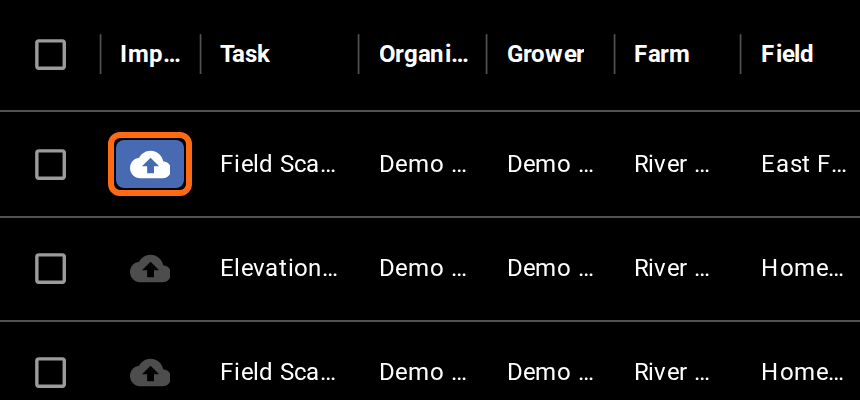
<figure><img src="https://2791052504-files.gitbook.io/~/files/v0/b/gitbook-x-prod.appspot.com/o/spaces%2FVt6flh3S4tohPAjrSP91%2Fuploads%2Fgit-blob-527f4e06fdfb548a079ae95a2c755757ab3cb564%2Ffa-web-ui-flight-tasks-import.png?alt=media" alt="The Import column of the Flight Tasks table: the blue upload icon of an OPEN task outlined, and the grayed-out icons of COMPLETE tasks below it" width="430"><figcaption><p>Upload icon highlighted</p></figcaption></figure>
{% endstep %}

{% step %}

#### Upload the photos

The field opens with the **Import Imagery** form, under an **Importing to Task** module that names the task. From here, upload the photos with the normal [import workflow](/home/fieldagent-web/imagery/import-imagery-in-fieldagent-web.md).

<figure><img src="https://2791052504-files.gitbook.io/~/files/v0/b/gitbook-x-prod.appspot.com/o/spaces%2FVt6flh3S4tohPAjrSP91%2Fuploads%2Fgit-blob-faa429670fd22225d48cfc2ec2da5b6c5797247f%2Ffa-web-import-to-task.jpg?alt=media" alt="East Field with the Importing to Task module outlined above the Import Imagery form, naming the Field Scale Stand Count task, and the blue import area around the field on the map"><figcaption><p>Importing to Task highlighted</p></figcaption></figure>
{% endstep %}
{% endstepper %}

{% hint style="info" icon="clipboard-check" %}
When the photos are uploaded and the required order details are filled in, the order starts processing. FieldAgent adds the layers to the field and emails you when they're ready.
{% endhint %}

***

## Follow an order's status

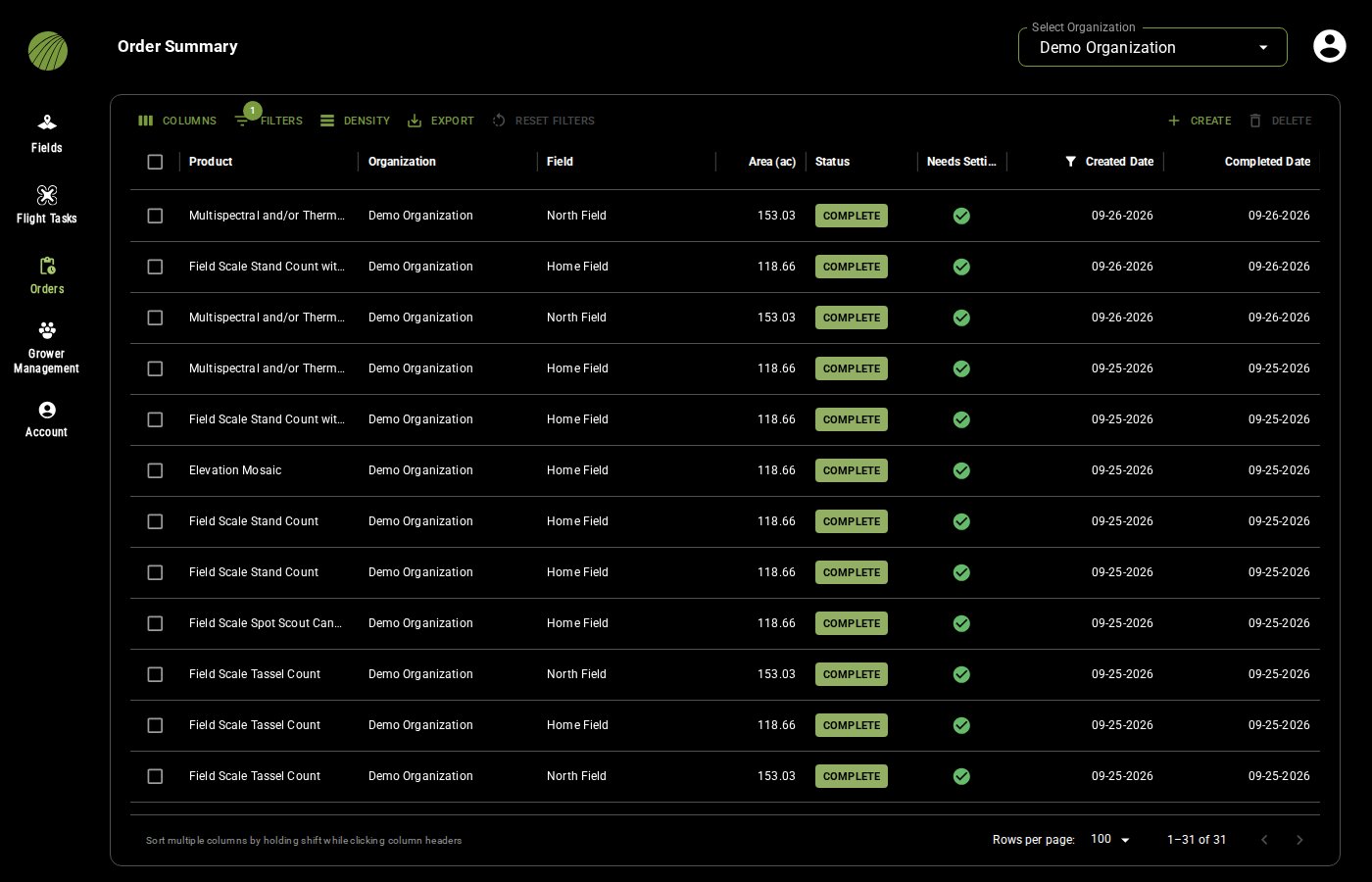
Open **Orders** in the navigation bar to see every mosaic and analytic ordered in the organization. **Status** shows where each order is in the processing pipeline.

<figure><img src="https://2791052504-files.gitbook.io/~/files/v0/b/gitbook-x-prod.appspot.com/o/spaces%2FVt6flh3S4tohPAjrSP91%2Fuploads%2Fgit-blob-3da3a02ad037f620f33fa765316a4c9f89d51a1f%2Ffa-web-orders-page.jpg?alt=media" alt="The Order Summary table listing mosaic and analytic orders with their organization, field, area, status, created date, and completed date"><figcaption></figcaption></figure>

{% hint style="info" %}
**Needs Settings** shows a green check <img src="https://2791052504-files.gitbook.io/~/files/v0/b/gitbook-x-prod.appspot.com/o/spaces%2FVt6flh3S4tohPAjrSP91%2Fuploads%2Fgit-blob-cac9e0f12c6917af863b1acb91bd32ea1f97c0bb%2Ffa-web-icon-check.svg?alt=media" alt="check icon" data-size="line"> once every required order detail is filled in. An orange warning triangle means some are missing. Click it to add them.
{% endhint %}

| Status         | Description                                                                                                                                            |
| -------------- | ------------------------------------------------------------------------------------------------------------------------------------------------------ |
| **PENDING**    | The order was created on the **Orders** page and is waiting for imagery or for its order details.                                                      |
| **PROCESSING** | The imagery has arrived and Sentera is making the layers. Failed orders may still show **PROCESSING**, so check your email for updates.                |
| **COMPLETE**   | The layers have been added to the field.                                                                                                               |
| **FAILED**     | The layers couldn't be made, for example because the photos don't overlap enough for a mosaic. FieldAgent emails you that the order failed to process. |
| **CANCELED**   | The order was canceled and nothing will be delivered.                                                                                                  |

{% hint style="warning" %}
For a failed order, check the [usual causes and fixes](/home/fieldagent-web/ordering/why-cant-i-order.md#the-order-failed).
{% endhint %}

{% hint style="info" %}
The table opens filtered to the orders created in the last ten months. If you can't find an older order, check **FILTERS**.
{% endhint %}

Click a row to open the order and check its flight task, field and **ORDER DETAILS**. On a completed order, the map icon next to each delivered layer under **ANALYTICS** opens it on the field.
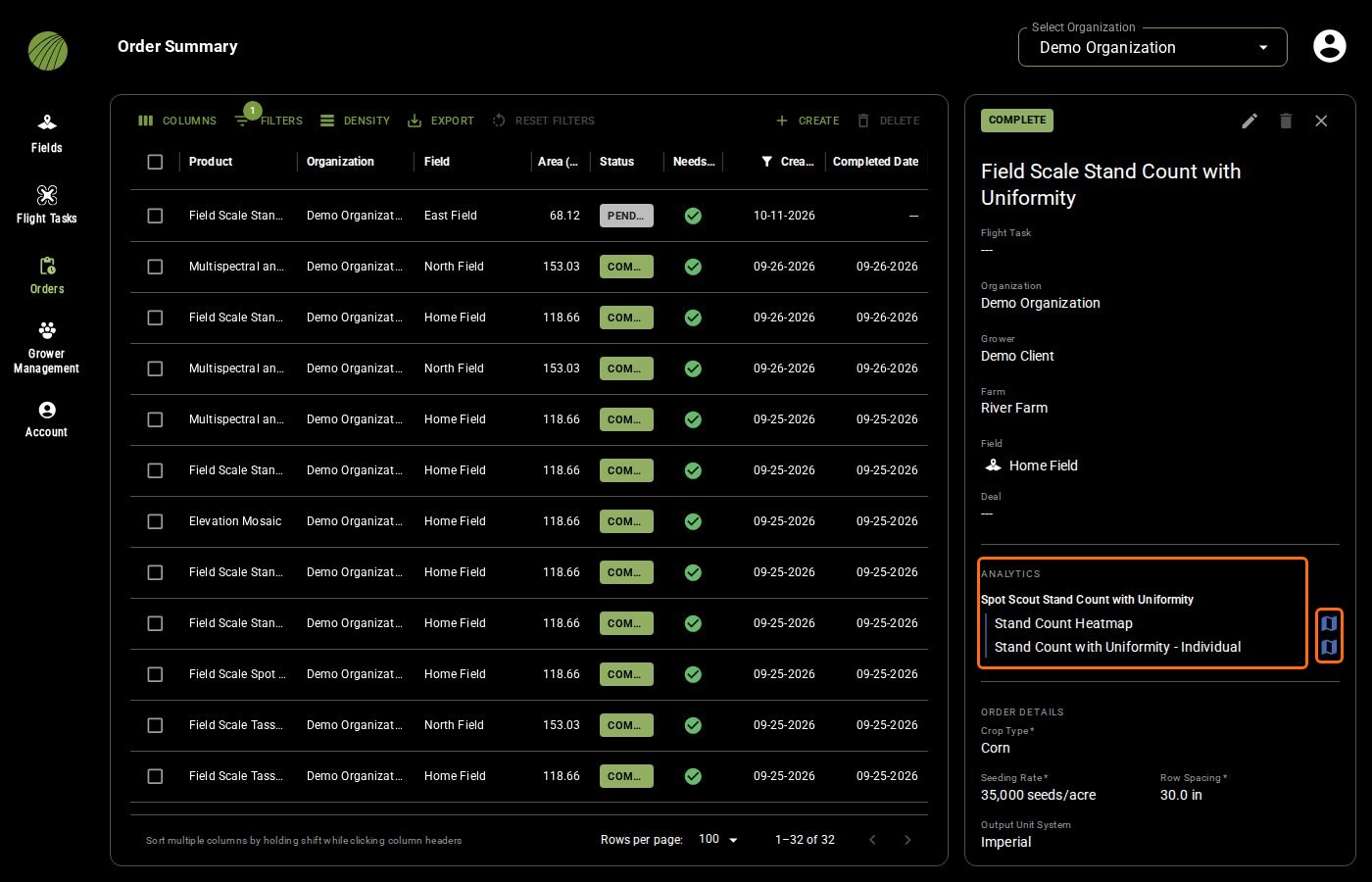
<figure><img src="https://2791052504-files.gitbook.io/~/files/v0/b/gitbook-x-prod.appspot.com/o/spaces%2FVt6flh3S4tohPAjrSP91%2Fuploads%2Fgit-blob-b0d3761543af39c6fbc71b6e125abdf4f4c72bc0%2Ffa-web-order-detail-analytics.jpg?alt=media" alt="A COMPLETE Field Scale Stand Count with Uniformity order opened in the side panel, showing its organization, grower, farm and field, the two delivered layers Stand Count Heatmap and Stand Count with Uniformity - Individual under ANALYTICS with their map icons outlined, and the order details Crop Type Corn, Seeding Rate 35,000 seeds/acre, Row Spacing 30.0 in and Output Unit System Imperial"><figcaption><p>Analytics and map icons highlighted</p></figcaption></figure>

<details>

<summary>Columns, toolbar and column menu of the Order Summary table</summary>

The columns are Product, Organization, Field, Area (ac), Status, Needs Settings, Created Date and Completed Date. Completed Date shows --- until the order is complete. Order ID and Deal are hidden until you turn them on under **COLUMNS**.

<img src="https://2791052504-files.gitbook.io/~/files/v0/b/gitbook-x-prod.appspot.com/o/spaces%2FVt6flh3S4tohPAjrSP91%2Fuploads%2Fgit-blob-bbfd86f9f03691e9b77f24a74002f55d722db8dc%2Ffa-web-ui-list-toolbar.png?alt=media" alt="The table toolbar: COLUMNS, 1 FILTERS, DENSITY, EXPORT, RESET FILTERS" width="495">

* **COLUMNS** shows or hides columns. Its panel has **Show/Hide All** and **RESET**.
* **FILTERS** filters the rows. The number on the button shows how many filters are on. **ADD FILTER** adds another.
* **DENSITY** sets the row spacing to compact, standard or comfortable.
* **EXPORT** downloads the table with **Download as CSV**.
* **RESET FILTERS** goes back to the default filter.

Click a column header to sort the table by that column, and hold **Shift** while you click to sort by more than one. The arrow <img src="https://2791052504-files.gitbook.io/~/files/v0/b/gitbook-x-prod.appspot.com/o/spaces%2FVt6flh3S4tohPAjrSP91%2Fuploads%2Fgit-blob-1aa8deb4fc790fdb70fb427d1e157a2301c039c3%2Ffa-web-icon-sort.svg?alt=media" alt="sort icon" data-size="line"> next to the header shows which way it's sorted. The table shows 100 rows per page.

Hover over a header and click its column menu <img src="https://2791052504-files.gitbook.io/~/files/v0/b/gitbook-x-prod.appspot.com/o/spaces%2FVt6flh3S4tohPAjrSP91%2Fuploads%2Fgit-blob-f1798c1ab228834905a1fc5bd2ad27ac80b9636a%2Ffa-web-icon-column-menu.svg?alt=media" alt="column menu icon" data-size="line"> to sort, pin, filter or hide that column. A filter icon <img src="https://2791052504-files.gitbook.io/~/files/v0/b/gitbook-x-prod.appspot.com/o/spaces%2FVt6flh3S4tohPAjrSP91%2Fuploads%2Fgit-blob-e9a35ab37c0e8df4a5e1b8930ba017c0c1562a18%2Ffa-web-icon-filter.svg?alt=media" alt="filter icon" data-size="line"> in a header means the column is filtered.

The **Flight Tasks** table has the same toolbar and column menu.

</details>

***

## Change or delete an order

Open the order and click the pencil <img src="https://2791052504-files.gitbook.io/~/files/v0/b/gitbook-x-prod.appspot.com/o/spaces%2FVt6flh3S4tohPAjrSP91%2Fuploads%2Fgit-blob-8238089058191eb0539cbc80be106df78bb52a84%2Ffa-web-icon-edit.svg?alt=media" alt="edit icon" data-size="line"> to change its field or order details.

Select orders with their checkboxes and click **DELETE** to delete them. You can delete an order only while it's **PENDING** and its flight task is still open. The flight task is deleted with it.

***

## Related pages

{% content-ref url="/pages/3AZV1F3eNcUzaVTotJPN" %}
[Order a mosaic](/home/fieldagent-web/ordering/order-a-mosaic.md)
{% endcontent-ref %}

{% content-ref url="/pages/dhtWGcJNstJFZXvnKym1" %}
[Order analytics](/home/fieldagent-web/ordering/order-analytics.md)
{% endcontent-ref %}

{% content-ref url="/pages/eQGd3VrN2PYe1llqeR5h" %}
[Import imagery in FieldAgent Web](/home/fieldagent-web/imagery/import-imagery-in-fieldagent-web.md)
{% endcontent-ref %}

{% content-ref url="/pages/2WsqwOiougiTw8Hpg5Ig" %}
[Why can't I order?](/home/fieldagent-web/ordering/why-cant-i-order.md)
{% endcontent-ref %}


---

# Agent Instructions
This documentation is published with GitBook. GitBook is the documentation platform designed so that both humans and AI agents can read, navigate, and reason over technical content effectively. Learn more at gitbook.com.

## Querying This Documentation
If you need additional information that is not directly available in this page, you can query the documentation by asking a question.

Perform an HTTP GET request on the following URL with the `ask` and `goal` query parameters:

```
GET https://support.senterasensors.com/home/fieldagent-web/ordering/orders-and-flight-tasks.md?ask=<question>&goal=<user_goal>
```

`ask` is the immediate question: it should be specific, self-contained, and written in natural language.
`goal` is what the user is ultimately trying to achieve, the reason they need the answer. Sharing it helps GitBook give you a better, more relevant answer. A goal is most helpful when it describes the outcome the user wants rather than restating the question. For example, with `ask=how do I create an API token`, a goal like `automate deployments from our CI pipeline` lets GitBook tailor the answer to that use case.

The response will contain a direct answer to the question and relevant excerpts and sources from the documentation.

Use this mechanism when the answer is not explicitly present in the current page, you need clarification or additional context, or you want to retrieve related documentation sections.