> For the complete documentation index, see [llms.txt](https://support.senterasensors.com/home/llms.txt). Markdown versions of documentation pages are available by appending `.md` to page URLs; this page is available as [Markdown](https://support.senterasensors.com/home/fieldagent-web/view-and-analyze/colorization-and-visualization.md).

# Colorization and visualization

Change how a layer is colored to see the variation across a field, and choose what a multispectral mosaic shows.

Change how a layer is colored to see the variation across a field. Colorization works the same way on drone mosaics, satellite scenes and analytics. The settings below apply to any index or analytic layer.

***

## Set a layer's colors

Open the layer's details and scroll to **Colorization**. A multispectral mosaic shown as a composite has no colors to set, so [choose an index](#choose-what-a-multispectral-mosaic-shows) such as NDVI first.

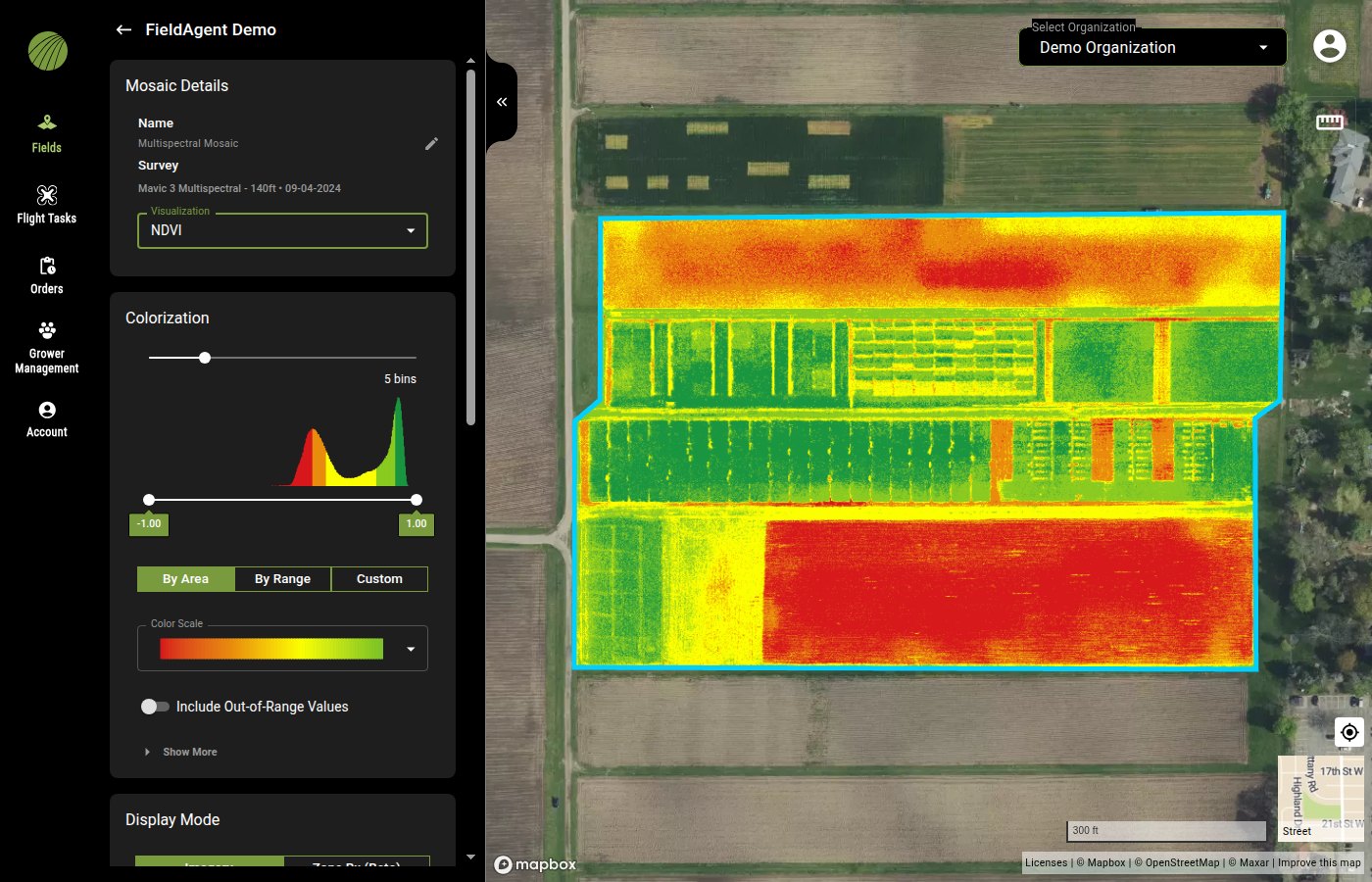
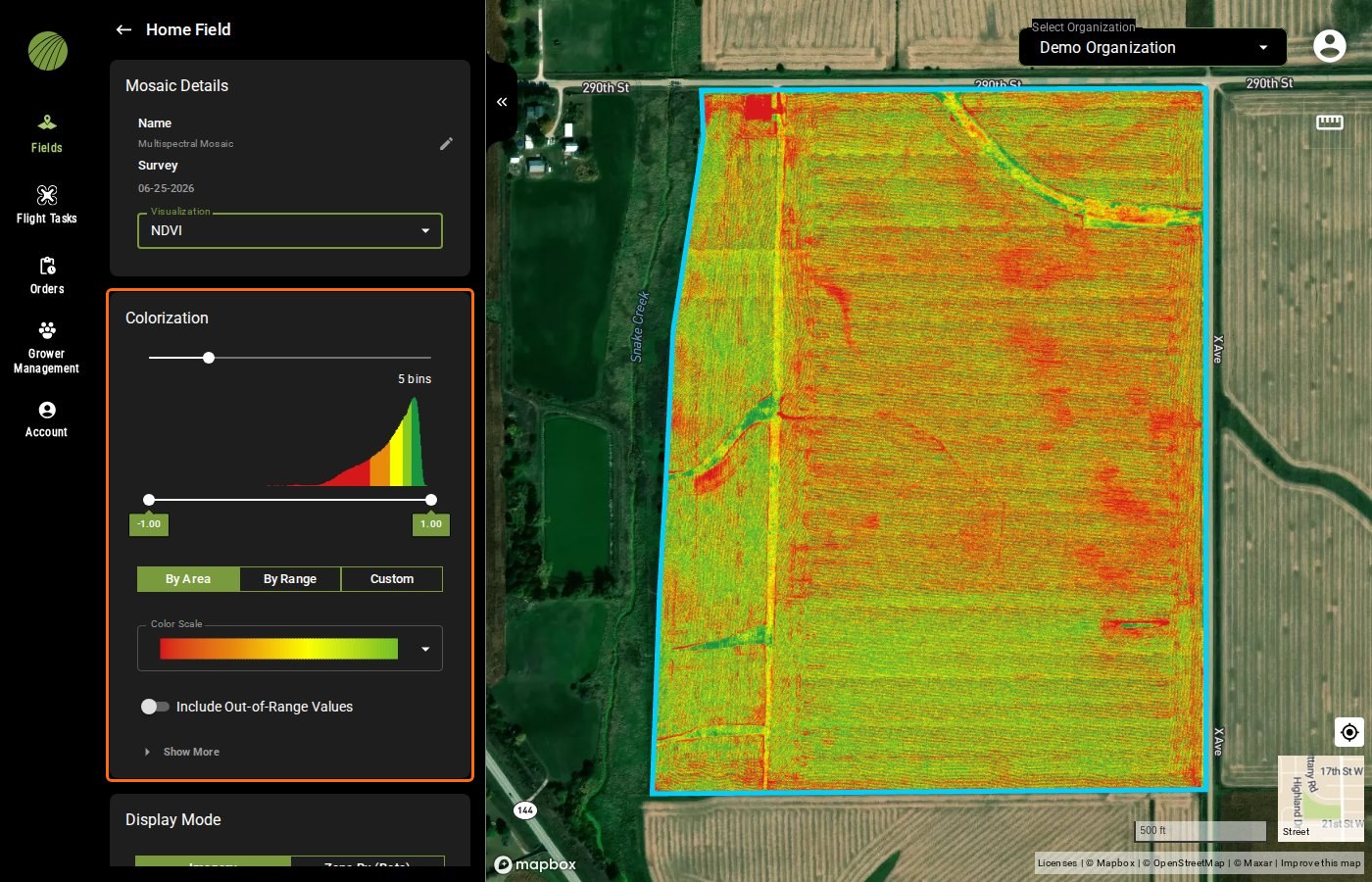
<figure><img src="https://2791052504-files.gitbook.io/~/files/v0/b/gitbook-x-prod.appspot.com/o/spaces%2FVt6flh3S4tohPAjrSP91%2Fuploads%2Fgit-blob-39b01bf26248fbc1004e507bf3375e729d0e6096%2Ffa-web-colorization-panel.jpg?alt=media" alt="Home Field&#x27;s Multispectral Mosaic as NDVI with the Colorization module outlined: 5 bins, the histogram, the range -1.00 to 1.00, By Area, the red-to-green Color Scale and Include Out-of-Range Values"><figcaption><p>Colorization highlighted</p></figcaption></figure>

These are the settings you'll use most.

* Drag the bins slider to split the values into 1 to 20 colors. Fewer bins show the broad pattern, and more bins show detail.
* Drag the range handles to set the lowest and highest values that get a color. Values outside the range aren't drawn. To color them too, turn on **Include Out-of-Range Values**, and they take the lowest or highest color.
* Choose **By Area** to give each color the same share of the field, which suits finding the best and worst parts of one layer. Choose **By Range** for equal value steps, so the same value always gets the same color. Use it to compare dates or fields.
* Open **Color Scale** to choose another color ramp. The default runs from red (low) through yellow to green (high).

{% hint style="info" %}
**By Area** colors are relative to the layer. With the default color scale, its lowest bin is red even when the whole field is healthy. When you want each color to mean a fixed value, use **By Range**.
{% endhint %}

Click **Show More** to open the color table. It lists each bin's color, values and area. Use it to put a number on what you see, such as how many acres of the field fall in the lowest NDVI bin.

<figure><img src="https://2791052504-files.gitbook.io/~/files/v0/b/gitbook-x-prod.appspot.com/o/spaces%2FVt6flh3S4tohPAjrSP91%2Fuploads%2Fgit-blob-b1331ebcd1862d380820f44aab40d2b50895ac82%2Ffa-web-ui-color-table.png?alt=media" alt="The color table under Show Less: five bins with their colors, values from -1.00 to 0.57 up to 0.86 to 1.00, and 23.73 ac each" width="336"><figcaption></figcaption></figure>

{% hint style="info" %}
With **Include Out-of-Range Values** on, the lowest and highest bins also color the values outside the range. Their **Area** still counts only the part inside it.
{% endhint %}

<details>

<summary>All Colorization controls</summary>

| Control                         | Description                                                                                                                                                                                 |
| ------------------------------- | ------------------------------------------------------------------------------------------------------------------------------------------------------------------------------------------- |
| Bins slider                     | Sets how many colors the values are divided into, from 1 to 20. Fewer bins make a simpler map that shows the broad pattern. More bins show more detail.                                     |
| Histogram                       | Shows how the layer's values are distributed. Each bar takes the color of the bin it falls in, so you can see where the breaks are.                                                         |
| Range sliders                   | Set the lowest and highest values that are colored. Values outside the range aren't drawn unless **Include Out-of-Range Values** is on. The boxes under the slider show the current limits. |
| **By Area**                     | Sets the bin breaks so that each color covers the same area of the field. Good for seeing the best and worst parts of one layer.                                                            |
| **By Range**                    | Sets the bin breaks at equal value intervals. Good for comparing layers from different dates or different fields, because the same value always gets the same color.                        |
| **Custom**                      | Lets you set the break values yourself.                                                                                                                                                     |
| **Color Scale**                 | Chooses the color ramp from a menu of gradient swatches. The default runs from red (low) through yellow to green (high).                                                                    |
| **Include Out-of-Range Values** | When on, values below the range take the lowest color and values above it take the highest, so the whole layer stays visible.                                                               |
| **Show More**                   | Expands the color table. For each bin it lists its **Color**, the range of **Values** it covers and the **Area** of the field in that bin. **Show Less** folds it away again.               |

The other color scales are brown to green, an elevation ramp, white to red and red through yellow to blue. There are also white to green, black to white, black to yellow and dark purple to yellow. Some layers open on a different default. A Canopy Cover layer opens on white to green, and the thermal band on dark purple to yellow.

</details>

### Try it in the demo

In the demo below, a multispectral mosaic shown as NDVI is on the map with its details open. Try fewer bins, a narrower range, **By Range**, another color scale and the color table.

{% @fieldagent-demo/embed content="colorization" %}

<a href="https://senterallc.github.io/FieldAgent-Demos/demo.html?s=colorization&#x26;mode=page" class="button secondary">Open this demo full size</a>

***

## Settings for common jobs

| Goal                                          | Colorization settings                                                                                                     |
| --------------------------------------------- | ------------------------------------------------------------------------------------------------------------------------- |
| Find the weakest part of the field            | 1 bin. Drag the upper range handle down until only the low values are colored, then read the **Area** in the color table. |
| Find the strongest part of the field          | 1 bin. Drag the lower range handle up.                                                                                    |
| Compare two flights of the same field         | The same index on both layers, with **By Range** and the same bins and range.                                             |
| Split the field into three management classes | Switch **Display Mode** to **Zone Rx (Beta)**. 3 bins with **By Area** or **Custom** breaks.                              |

***

## Choose what a multispectral mosaic shows

A **Multispectral Mosaic** stores every band the sensor captured, so one layer can show the crop as a picture, as an index or as a single band.

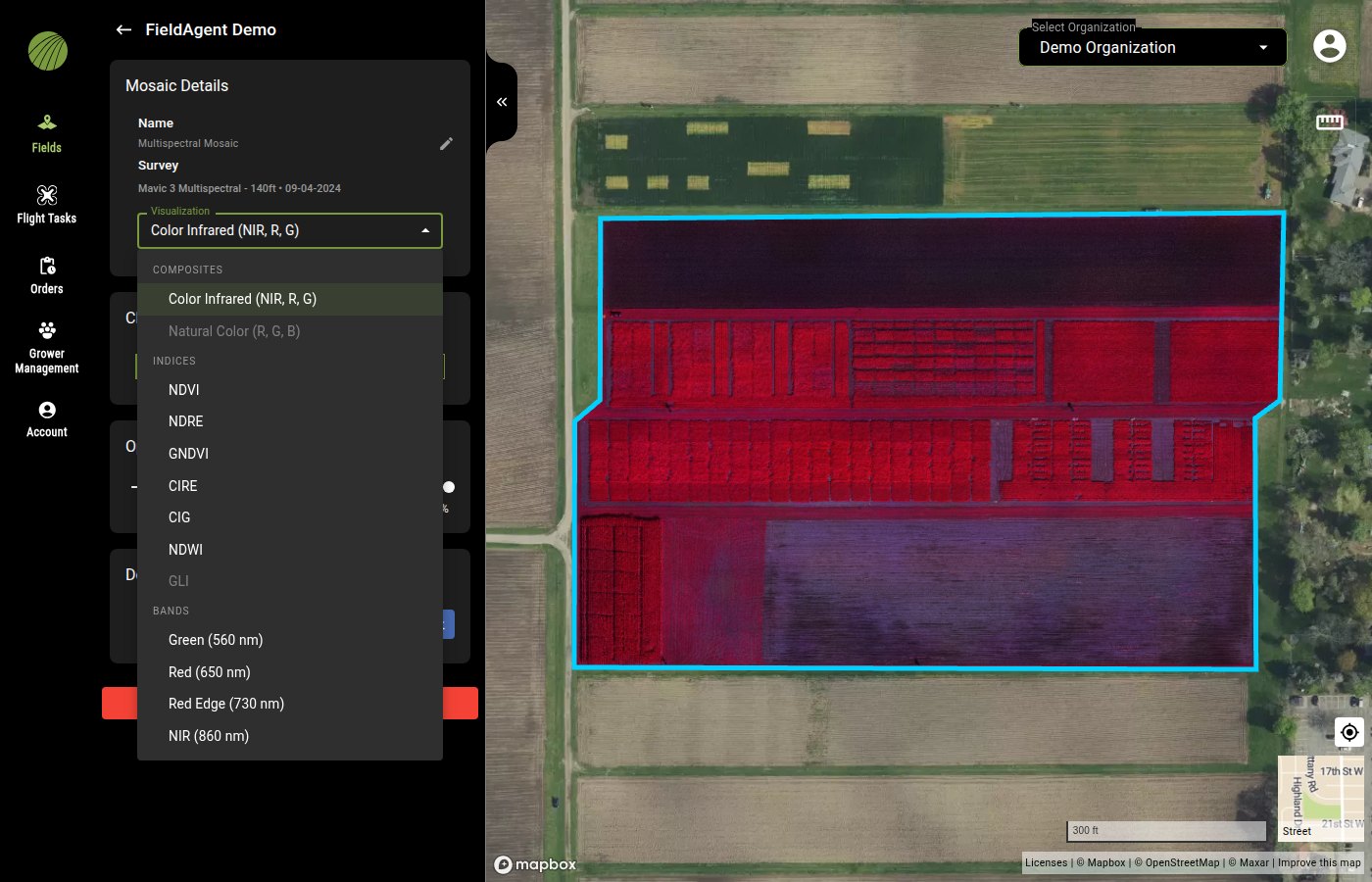
Open the mosaic's details and choose an option from the **Visualization** menu in **Mosaic Details**. The layer keeps the visualization you choose while it's on the map.

{% tabs %}
{% tab title="Visualization menu" %}

<figure><img src="https://2791052504-files.gitbook.io/~/files/v0/b/gitbook-x-prod.appspot.com/o/spaces%2FVt6flh3S4tohPAjrSP91%2Fuploads%2Fgit-blob-bb2c79a0ff68dca48a9f90a62c782494c043db5b%2Ffa-web-mosaic-visualization-menu.jpg?alt=media" alt="The Mosaic Details panel of a Multispectral Mosaic with the Visualization menu open, grouped into COMPOSITES with Color Infrared (NIR, R, G) selected and Natural Color (R, G, B) grayed out, INDICES with NDVI, NDRE, GNDVI, CIRE, CIG, NDWI and GLI, and BANDS with Green (560 nm), Red (650 nm), Red Edge (730 nm) and NIR (860 nm); the map shows the color infrared mosaic"><figcaption></figcaption></figure>

{% hint style="info" %}
Anything the survey's sensor can't produce is grayed out.
{% endhint %}
{% endtab %}

{% tab title="Shown as NDVI" %}

<figure><img src="https://2791052504-files.gitbook.io/~/files/v0/b/gitbook-x-prod.appspot.com/o/spaces%2FVt6flh3S4tohPAjrSP91%2Fuploads%2Fgit-blob-ced3026a4accf47f6918dac8d23eefb6e5f5fa6d%2Ffa-web-mosaic-ndvi-panel.jpg?alt=media" alt="The same Multispectral Mosaic shown as NDVI, with the Colorization panel: a 5 bins slider, a histogram colored red to green, range values -1.00 and 1.00, By Area selected, a red-to-green Color Scale, the Include Out-of-Range Values toggle button off, Show More, and the Display Mode module below"><figcaption><p>The same mosaic with the NDVI visualization. Colorization and Display Mode appear in the panel.</p></figcaption></figure>
{% endtab %}
{% endtabs %}

Satellite indices and analytics such as a stand count have no **Visualization** menu. Sample-based analytics have a **Display Property** menu instead, which chooses the value shown on the dots. Their colorization works the same way.

### Composites, indices and bands

| Group          | Options                                                                | Description                                                                                                                            |
| -------------- | ---------------------------------------------------------------------- | -------------------------------------------------------------------------------------------------------------------------------------- |
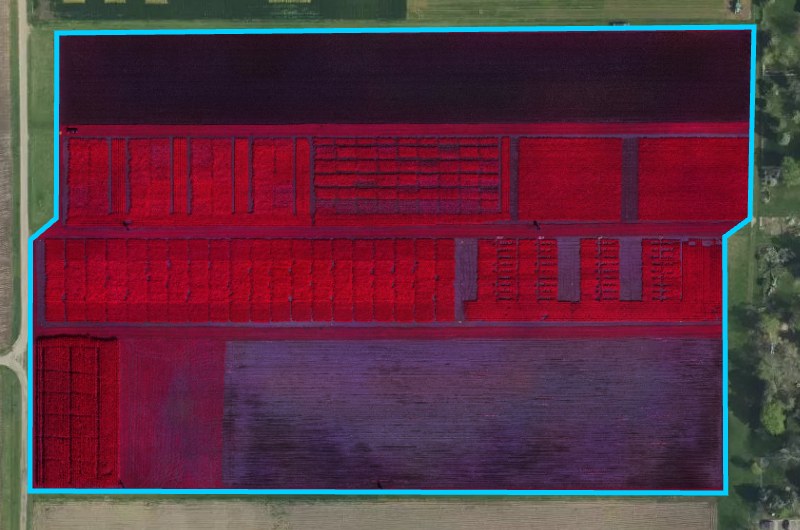
| **COMPOSITES** | **Color Infrared (NIR, R, G)** and **Natural Color (R, G, B)**         | A picture of the crop. There's no single value per pixel, so there are no colors to set.                                               |
| **INDICES**    | **NDVI**, **NDRE**, **GNDVI**, **CIRE**, **CIG**, **NDWI** and **GLI** | One value per pixel, so the panel adds Colorization, Display Mode and Zone Statistics.                                                 |
| **BANDS**      | One entry per band the sensor captured, with its wavelength            | The raw reflectance or temperature of one band. One value per pixel, so the panel adds Colorization, Display Mode and Zone Statistics. |

{% columns %}
{% column %}

<figure><img src="https://2791052504-files.gitbook.io/~/files/v0/b/gitbook-x-prod.appspot.com/o/spaces%2FVt6flh3S4tohPAjrSP91%2Fuploads%2Fgit-blob-17fa379d2d9f734cb4a4b078b0bfefaea80277c8%2Ffa-web-layer-multispectral-mosaic.jpg?alt=media" alt="The demo field under a Multispectral Mosaic shown as a composite"><figcaption><p>A composite: a picture of the crop, nothing to colorize.</p></figcaption></figure>
{% endcolumn %}

{% column %}

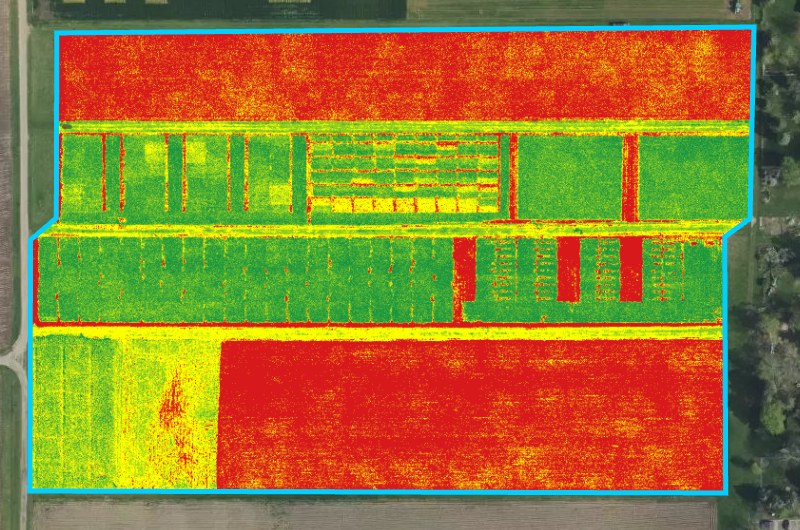
<figure><img src="https://2791052504-files.gitbook.io/~/files/v0/b/gitbook-x-prod.appspot.com/o/spaces%2FVt6flh3S4tohPAjrSP91%2Fuploads%2Fgit-blob-73d41b503a4627166e0e84e1d8a5bc4be93b7b07%2Ffa-web-layer-vari-mosaic.jpg?alt=media" alt="The demo field under a VARI index layer colorized red to green"><figcaption><p>A VARI index: one value per pixel, colorized red to green.</p></figcaption></figure>
{% endcolumn %}
{% endcolumns %}

{% hint style="warning" %}
A VARI layer from an RGB camera isn't NDVI. VARI is a less sensitive estimate from visible light, so compare a layer only with layers of the [same index](/home/fieldagent-web/analytics/crop-health-mosaics.md).
{% endhint %}

<details>

<summary>The band list by sensor</summary>

| Sensor                    | BANDS                                                                                              |
| ------------------------- | -------------------------------------------------------------------------------------------------- |
| DJI Mavic 3 Multispectral | **Green (560 nm)**, **Red (650 nm)**, **Red Edge (730 nm)**, **NIR (860 nm)**                      |
| Sentera 6X Multispectral  | **Blue (475 nm)**, **Green (550 nm)**, **Red (670 nm)**, **Red Edge (715 nm)**, **NIR (840 nm)**   |
| Sentera 6X Thermal Pro    | **Green (550 nm)**, **Red (670 nm)**, **Red Edge (715 nm)**, **NIR (840 nm)**, **LWIR (11.00 μm)** |

</details>

### Try it in the demo

In the demo below, switch one mosaic from a composite to two indices and a single band, and watch the panel change.

{% @fieldagent-demo/embed content="visualization" %}

<a href="https://senterallc.github.io/FieldAgent-Demos/demo.html?s=visualization&#x26;mode=page" class="button secondary">Open this demo full size</a>

***

## Thermal band

On a Sentera 6X Thermal Pro survey, open the **Visualization** menu and choose the thermal band, **LWIR (11.00 μm)**, to [map surface temperature](/home/fieldagent-web/analytics/crop-health-mosaics.md#read-a-thermal-mosaic). It opens on a dark-purple-to-yellow color scale, with values in Celsius to one decimal.

<figure><img src="https://2791052504-files.gitbook.io/~/files/v0/b/gitbook-x-prod.appspot.com/o/spaces%2FVt6flh3S4tohPAjrSP91%2Fuploads%2Fgit-blob-e93fbaf2f07d31b7442a5665b3703850f406feea%2Ffa-web-thermal-mosaic-lwir.jpg?alt=media" alt="A Multispectral Mosaic from a 6X Thermal Pro survey shown as LWIR (11.00 μm): the research plots in dark purple, magenta and orange over the satellite basemap, and the Mosaic Details panel with Visualization LWIR (11.00 μm), a Colorization histogram in the same colors, the range 23.9 to 49.9, By Area, a dark purple to orange Color Scale, and the Display Mode selector"><figcaption></figcaption></figure>

***

## Related pages

{% content-ref url="/pages/hFBVUsKMPfZeBiEZKD2u" %}
[Map layers](/home/fieldagent-web/view-and-analyze/map-layers.md)
{% endcontent-ref %}

{% content-ref url="/pages/Jgi1Im9DL0dsUKMeiPFH" %}
[Zones and zone statistics](/home/fieldagent-web/view-and-analyze/zones-and-zone-statistics.md)
{% endcontent-ref %}

{% content-ref url="/pages/zd8QvEvP6Uxj2pt3LgL8" %}
[Zone Rx prescriptions](/home/fieldagent-web/export-and-share/zone-rx-prescriptions.md)
{% endcontent-ref %}


---

# Agent Instructions
This documentation is published with GitBook. GitBook is the documentation platform designed so that both humans and AI agents can read, navigate, and reason over technical content effectively. Learn more at gitbook.com.

## Querying This Documentation
If you need additional information that is not directly available in this page, you can query the documentation by asking a question.

Perform an HTTP GET request on the following URL with the `ask` and `goal` query parameters:

```
GET https://support.senterasensors.com/home/fieldagent-web/view-and-analyze/colorization-and-visualization.md?ask=<question>&goal=<user_goal>
```

`ask` is the immediate question: it should be specific, self-contained, and written in natural language.
`goal` is what the user is ultimately trying to achieve, the reason they need the answer. Sharing it helps GitBook give you a better, more relevant answer. A goal is most helpful when it describes the outcome the user wants rather than restating the question. For example, with `ask=how do I create an API token`, a goal like `automate deployments from our CI pipeline` lets GitBook tailor the answer to that use case.

The response will contain a direct answer to the question and relevant excerpts and sources from the documentation.

Use this mechanism when the answer is not explicitly present in the current page, you need clarification or additional context, or you want to retrieve related documentation sections.