> For the complete documentation index, see [llms.txt](https://support.senterasensors.com/home/llms.txt). Markdown versions of documentation pages are available by appending `.md` to page URLs; this page is available as [Markdown](https://support.senterasensors.com/home/fieldagent-web/view-and-analyze/map-layers.md).

# Map layers

Add drone and satellite layers to a field's map, hide or reorder them and open a layer's details.

Mosaics, analytics, photo dots and satellite scenes all go on a field's map as layers. Turn one on to look at it, or stack several in the field view's **Map Layers** module to compare.

***

## Add a layer

{% stepper %}
{% step %}

#### Open Add Map Layers

Open the field and click the layers icon <img src="https://2791052504-files.gitbook.io/~/files/v0/b/gitbook-x-prod.appspot.com/o/spaces%2FVt6flh3S4tohPAjrSP91%2Fuploads%2Fgit-blob-63327f0a1a9668fc0304dc7f1979ade39d585d00%2Ffa-web-icon-layers.svg?alt=media" alt="layers icon" data-size="line"> in the **Map Layers** module.

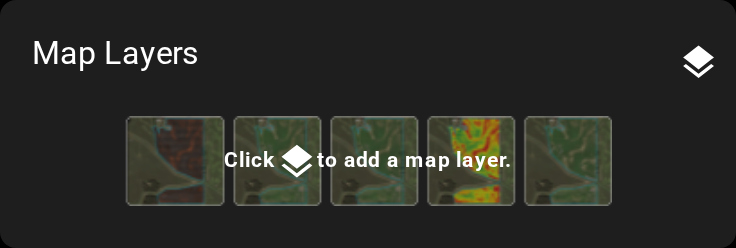
<div align="center"><img src="https://2791052504-files.gitbook.io/~/files/v0/b/gitbook-x-prod.appspot.com/o/spaces%2FVt6flh3S4tohPAjrSP91%2Fuploads%2Fgit-blob-b2b5d212b170f6607077fb93ff04200fbb204f71%2Ffa-web-ui-map-layers-card.png?alt=media" alt="The Map Layers module with no layer on: the layers icon in its header and five sample thumbnails behind the text Click the layers icon to add a map layer" width="368"></div>
{% endstep %}

{% step %}

#### Turn on a layer

Click the circle next to a layer. It turns into a green check <img src="https://2791052504-files.gitbook.io/~/files/v0/b/gitbook-x-prod.appspot.com/o/spaces%2FVt6flh3S4tohPAjrSP91%2Fuploads%2Fgit-blob-cac9e0f12c6917af863b1acb91bd32ea1f97c0bb%2Ffa-web-icon-check.svg?alt=media" alt="check icon" data-size="line"> and the layer displays on the map. You can add multiple layers, from the same or different surveys.
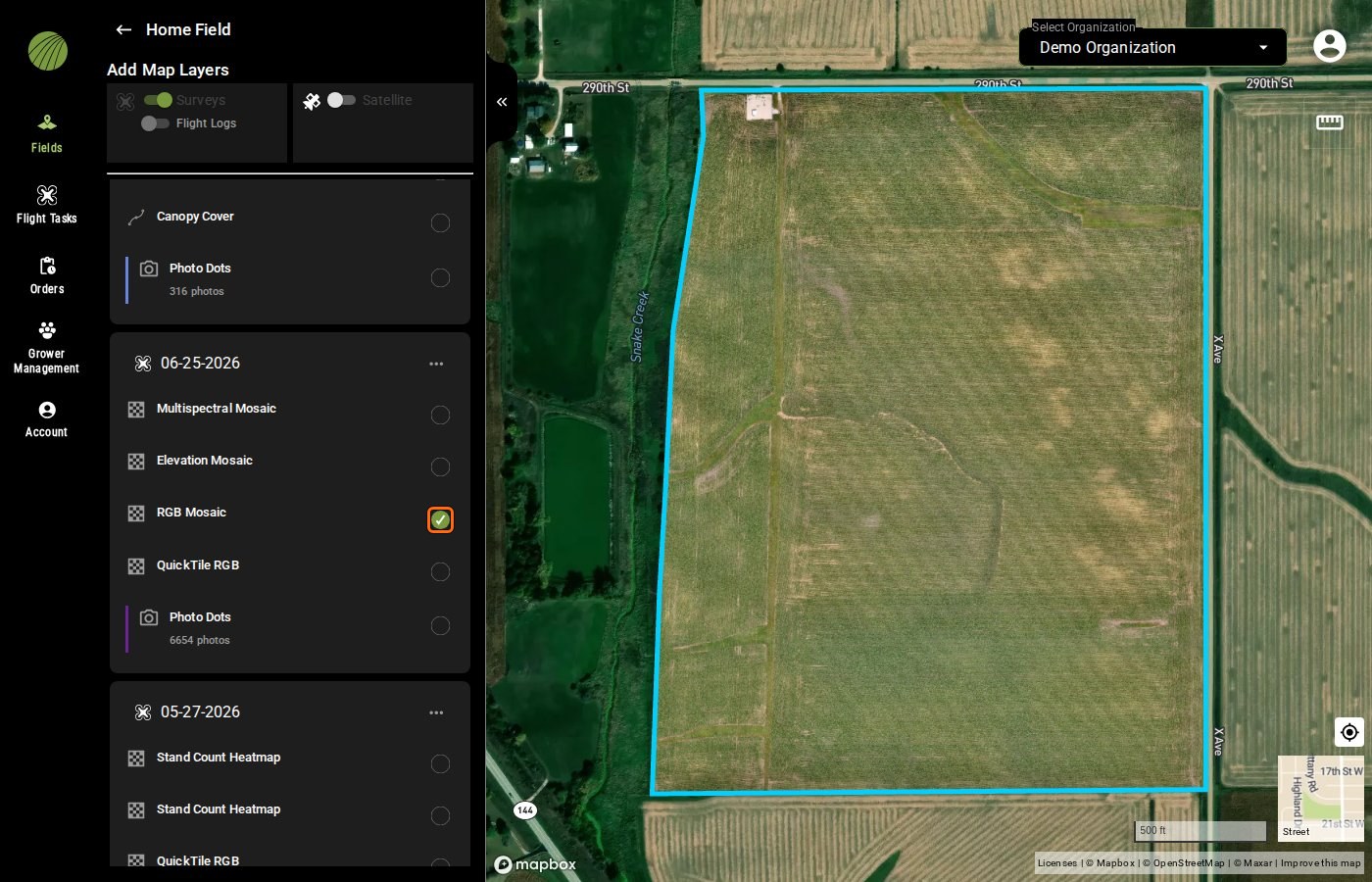
<figure><img src="https://2791052504-files.gitbook.io/~/files/v0/b/gitbook-x-prod.appspot.com/o/spaces%2FVt6flh3S4tohPAjrSP91%2Fuploads%2Fgit-blob-788a467ad476cff000a733800715bb326dd45f35%2Ffa-web-add-map-layers.jpg?alt=media" alt="The Add Map Layers panel of Home Field with Surveys on: under the 06-25-2026 survey, RGB Mosaic shows a green check, outlined, and the RGB Mosaic is drawn on the field; Multispectral Mosaic, Elevation Mosaic, QuickTile RGB and Photo Dots are off"><figcaption><p>Green check highlighted</p></figcaption></figure>

{% hint style="info" %}
The layers are grouped by survey. Each survey is one flight. They list the mosaics and analytics you ordered, the flight's photo dots and the automatic QuickTile layers.
{% endhint %}

The toggle buttons in **Add Map Layers** choose what types of layers are listed. **Surveys** is on by default. Turn on **Satellite** to include Sentinel-2 imagery.

<figure><img src="https://2791052504-files.gitbook.io/~/files/v0/b/gitbook-x-prod.appspot.com/o/spaces%2FVt6flh3S4tohPAjrSP91%2Fuploads%2Fgit-blob-e4b002648e84548ab176d01d415acce945ce1f58%2Ffa-web-add-map-layers-satellite.jpg?alt=media" alt="Add Map Layers with the Satellite toggle button on and outlined, listing the scenes of 08-28-2026 and 08-26-2026 with NDVI, NDRE and RGB, and the 08-26-2026 NDVI scene checked and drawn on the field"><figcaption><p>Satellite toggle highlighted</p></figcaption></figure>
{% endstep %}

{% step %}

#### Return to the field view

Click the back arrow <img src="https://2791052504-files.gitbook.io/~/files/v0/b/gitbook-x-prod.appspot.com/o/spaces%2FVt6flh3S4tohPAjrSP91%2Fuploads%2Fgit-blob-c930078ef86c804492ab88f23c629f01e5f13eba%2Ffa-web-icon-back.svg?alt=media" alt="back icon" data-size="line">. Each layer you turned on is listed in the **Map Layers** module with its survey name and date.
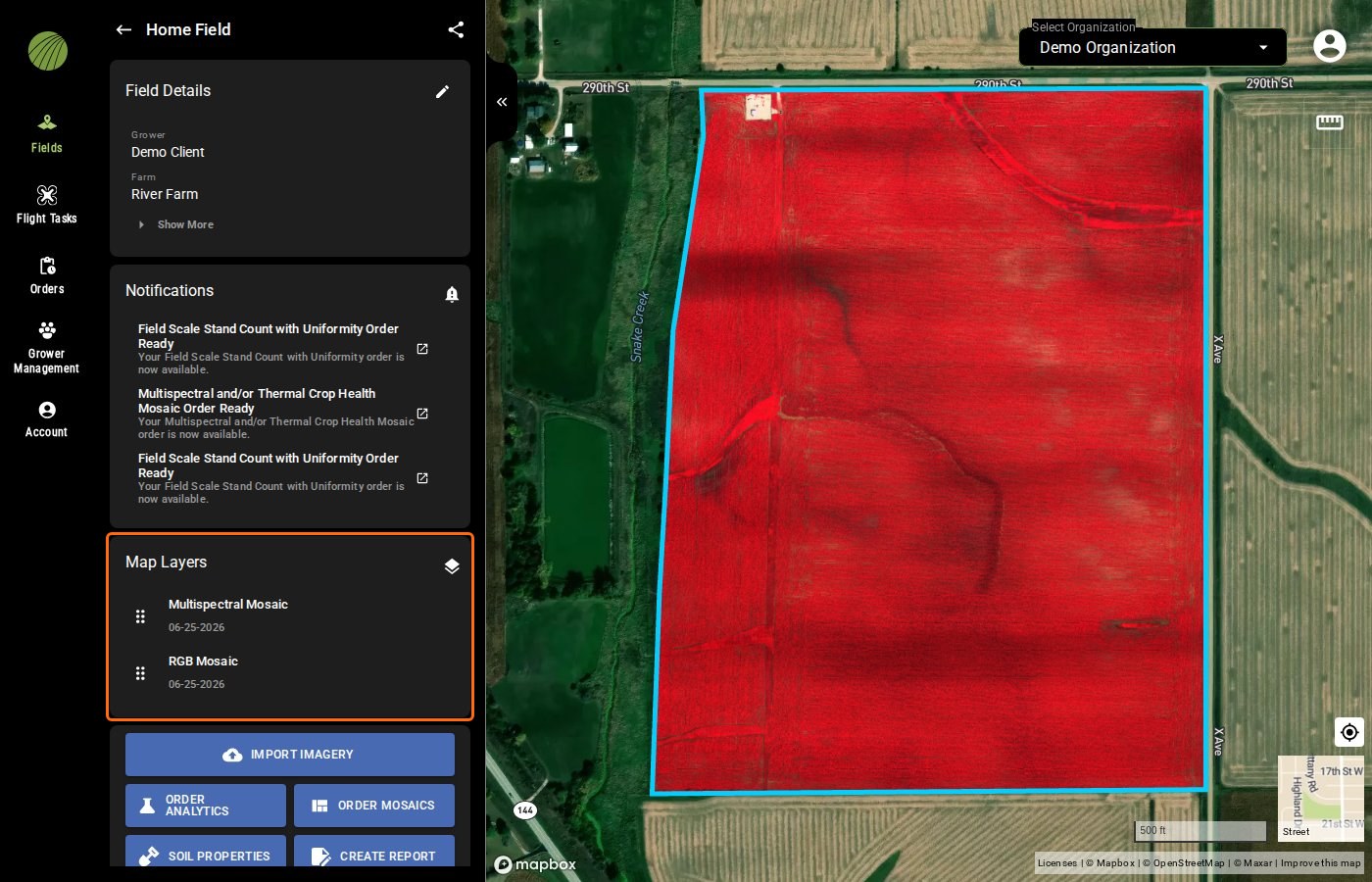
<figure><img src="https://2791052504-files.gitbook.io/~/files/v0/b/gitbook-x-prod.appspot.com/o/spaces%2FVt6flh3S4tohPAjrSP91%2Fuploads%2Fgit-blob-839e8858c8c21e0bccac6a4cfee75ceff0b62a26%2Ffa-web-map-layers-module.jpg?alt=media" alt="The Home Field field view with the Map Layers module outlined, listing Multispectral Mosaic and RGB Mosaic, both 06-25-2026, and the Multispectral Mosaic drawn on the field"><figcaption><p>Map Layers highlighted</p></figcaption></figure>
{% endstep %}
{% endstepper %}

### Try it in the demo

In the demo below, nothing is on the field's map yet. Turn on two mosaics from one survey and find them in the **Map Layers** module.

{% @fieldagent-demo/embed content="map-layers" %}

<a href="https://senterallc.github.io/FieldAgent-Demos/demo.html?s=map-layers&#x26;mode=page" class="button secondary">Open this demo full size</a>

***

## Open a layer's details

Click a layer's name in **Map Layers** to open its details panel. That's where you set its [colors](/home/fieldagent-web/view-and-analyze/colorization-and-visualization.md), read its [zone statistics](/home/fieldagent-web/view-and-analyze/zones-and-zone-statistics.md) and [download its data](/home/fieldagent-web/export-and-share/download-and-export-data.md). Click the back arrow <img src="https://2791052504-files.gitbook.io/~/files/v0/b/gitbook-x-prod.appspot.com/o/spaces%2FVt6flh3S4tohPAjrSP91%2Fuploads%2Fgit-blob-c930078ef86c804492ab88f23c629f01e5f13eba%2Ffa-web-icon-back.svg?alt=media" alt="back icon" data-size="line"> to return to the field view.

<figure><img src="https://2791052504-files.gitbook.io/~/files/v0/b/gitbook-x-prod.appspot.com/o/spaces%2FVt6flh3S4tohPAjrSP91%2Fuploads%2Fgit-blob-875513e19ca5f1ef64d941a47abd277c179a3f0b%2Ffa-web-layer-details-panel.jpg?alt=media" alt="The details of East Field&#x27;s Stand Count Heatmap in place of the field view: Mosaic Details, Colorization with the histogram and By Area, and Display Mode, with the heatmap on the map"><figcaption></figcaption></figure>

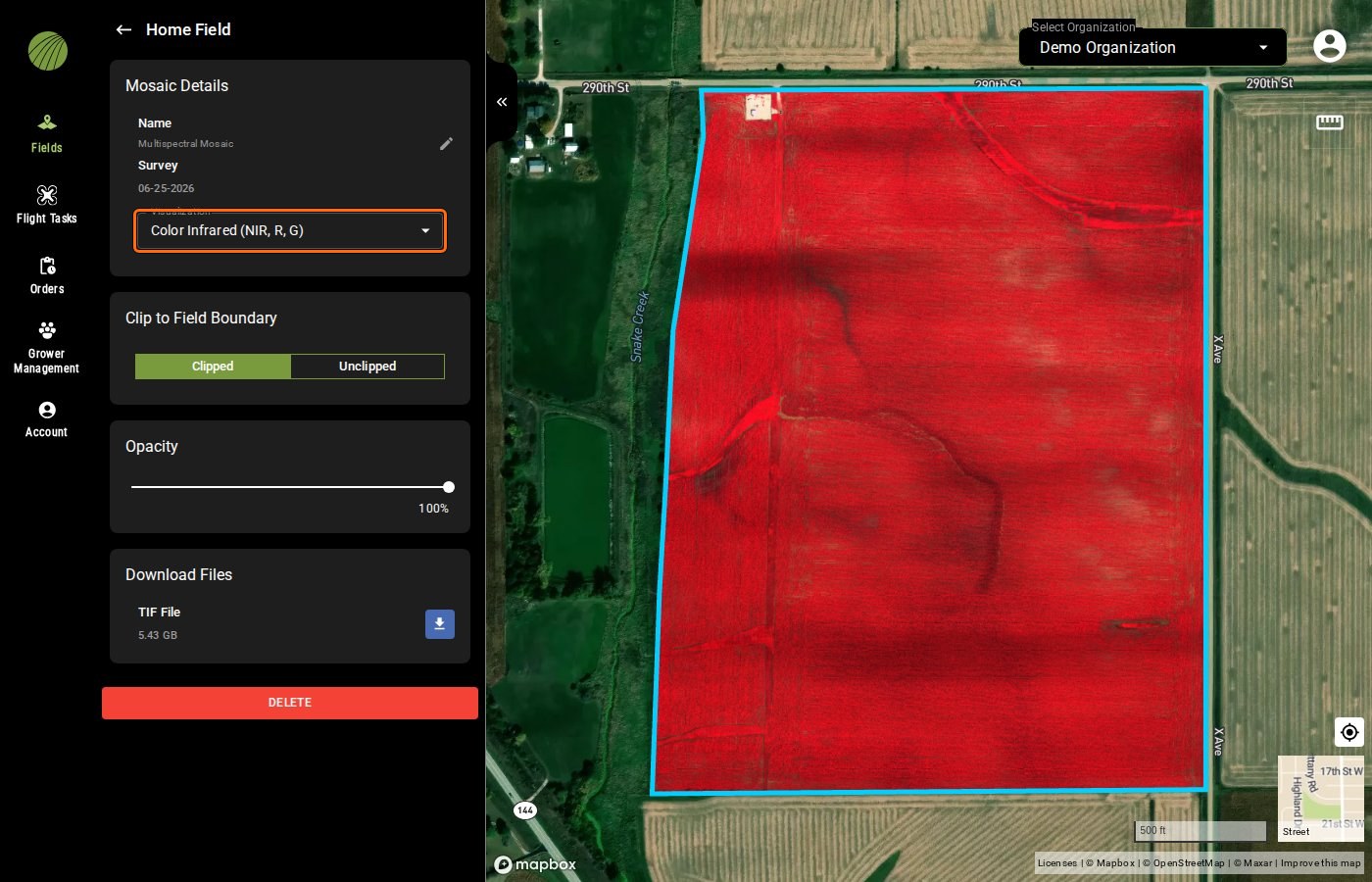
The sections in a layer's detail panel depend on the layer. A multispectral mosaic shown as a composite, such as Color Infrared, has no colors to set and the panel has fewer features.

<figure><img src="https://2791052504-files.gitbook.io/~/files/v0/b/gitbook-x-prod.appspot.com/o/spaces%2FVt6flh3S4tohPAjrSP91%2Fuploads%2Fgit-blob-e23c1956e51262da4844dd1cdf7339741135f6c4%2Ffa-web-layer-details-composite.jpg?alt=media" alt="The details of Home Field&#x27;s Multispectral Mosaic with Visualization set to Color Infrared (NIR, R, G) and outlined: below it only Clip to Field Boundary, Opacity, Download Files and DELETE"><figcaption><p>Visualization highlighted</p></figcaption></figure>

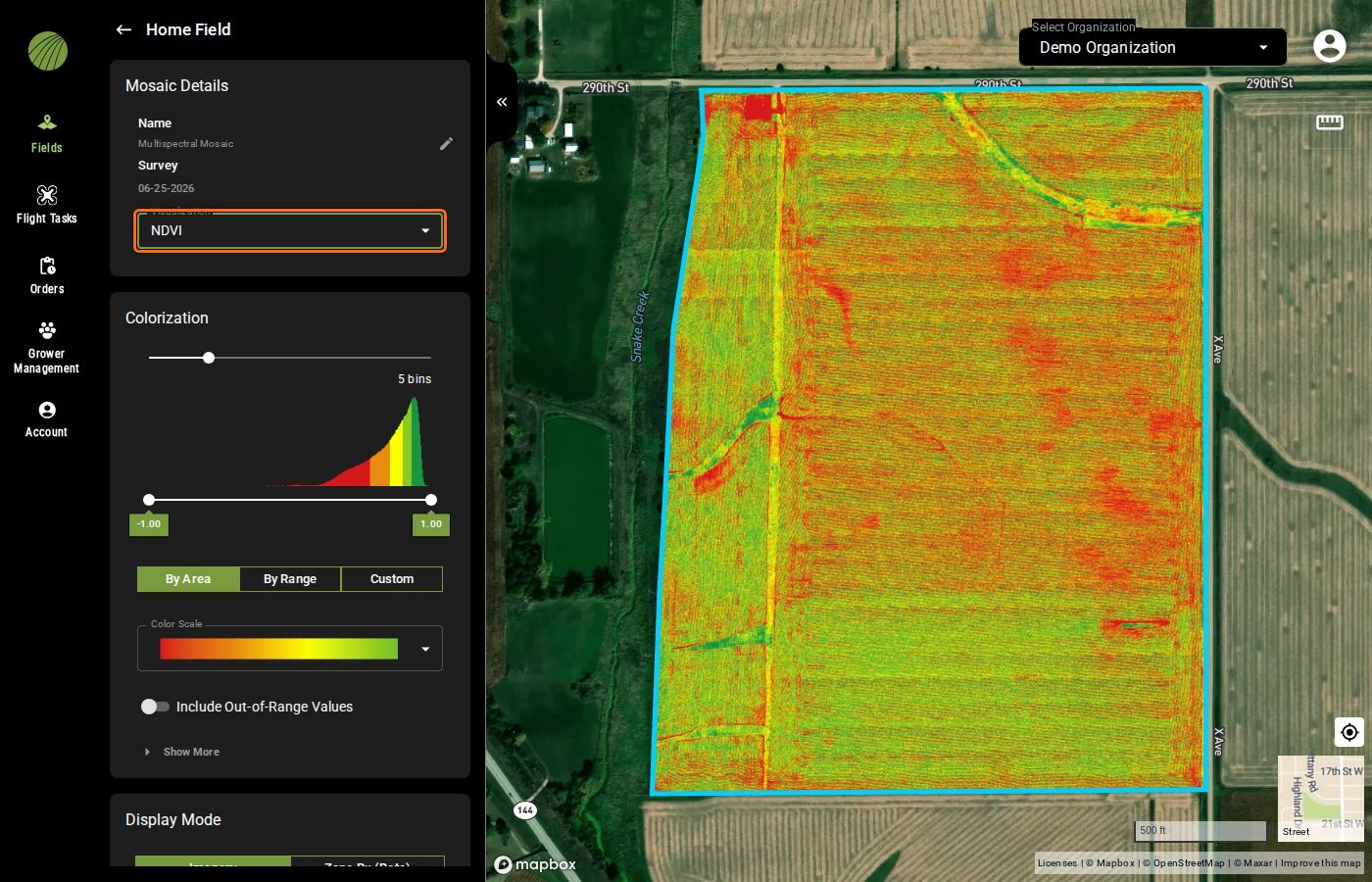
Switch its **Visualization** to an index such as NDVI and the panel adds Colorization, Display Mode and Zone Statistics.

<figure><img src="https://2791052504-files.gitbook.io/~/files/v0/b/gitbook-x-prod.appspot.com/o/spaces%2FVt6flh3S4tohPAjrSP91%2Fuploads%2Fgit-blob-f74626e83235bd67393647d411849f59dcf8aa13%2Ffa-web-layer-details-ndvi.jpg?alt=media" alt="The same mosaic with Visualization set to NDVI and outlined: the panel now shows Colorization with a five-bin histogram, By Area and the red-to-green Color Scale, and Display Mode below"><figcaption><p>Visualization highlighted</p></figcaption></figure>

{% hint style="warning" %}
**DELETE** in the details panel deletes the layer from the field. That isn't the same as taking it off your map. To take a layer off the map, use the X <img src="https://2791052504-files.gitbook.io/~/files/v0/b/gitbook-x-prod.appspot.com/o/spaces%2FVt6flh3S4tohPAjrSP91%2Fuploads%2Fgit-blob-53dc3e0bb2f625103210b4d48bf7939370919e05%2Ffa-web-icon-remove.svg?alt=media" alt="remove icon" data-size="line"> on its row in **Map Layers** instead.
{% endhint %}

<details>

<summary>Sections of the layer details panel</summary>

| Section                           | Description                                                                                                                                                                                                                                                                                                                                                                                                                                                                  |
| --------------------------------- | ---------------------------------------------------------------------------------------------------------------------------------------------------------------------------------------------------------------------------------------------------------------------------------------------------------------------------------------------------------------------------------------------------------------------------------------------------------------------------- |
| **Mosaic Details** or **Details** | The layer's **Name** (the pencil <img src="https://2791052504-files.gitbook.io/~/files/v0/b/gitbook-x-prod.appspot.com/o/spaces%2FVt6flh3S4tohPAjrSP91%2Fuploads%2Fgit-blob-8238089058191eb0539cbc80be106df78bb52a84%2Ffa-web-icon-edit.svg?alt=media" alt="edit icon" data-size="line"> renames it), the **Survey** date and, for a multispectral mosaic, the **Visualization** selector. Analytics show a **Display Property** selector, **Sample Count** and **Average**. |
| **Colorization**                  | How the layer is [colored](/home/fieldagent-web/view-and-analyze/colorization-and-visualization.md): bins, histogram, value range, binning method, color scale and color table.                                                                                                                                                                                                                                                                                              |
| **Display Mode**                  | **Imagery** shows the layer as pixels. **Zone Rx (Beta)** groups it into zones for a [prescription](/home/fieldagent-web/export-and-share/zone-rx-prescriptions.md).                                                                                                                                                                                                                                                                                                         |
| **Zone Statistics**               | The layer's values inside the field boundary and inside each [zone](/home/fieldagent-web/view-and-analyze/zones-and-zone-statistics.md). Shows "Loading…" while the values are computed.                                                                                                                                                                                                                                                                                     |
| **Clip to Field Boundary**        | Whether the layer is [clipped](#clip-a-layer-and-set-its-opacity) to the boundary: **Clipped** or **Unclipped**.                                                                                                                                                                                                                                                                                                                                                             |
| **Opacity**                       | Fades the layer so layers or the basemap underneath show through.                                                                                                                                                                                                                                                                                                                                                                                                            |
| **Download Files**                | The layer's [data files](/home/fieldagent-web/export-and-share/download-and-export-data.md), for example **TIF File** with its size for a mosaic.                                                                                                                                                                                                                                                                                                                            |
| **DELETE**                        | Deletes the layer from the field.                                                                                                                                                                                                                                                                                                                                                                                                                                            |

</details>

***

## Hide, reorder or remove layers

Hover over a layer in the **Map Layers** module to see its controls. The top layer in the list displays on top of the others, so the order determines what you see.

<figure><img src="https://2791052504-files.gitbook.io/~/files/v0/b/gitbook-x-prod.appspot.com/o/spaces%2FVt6flh3S4tohPAjrSP91%2Fuploads%2Fgit-blob-938adb2d73f7a5829798a6aaaed9e28a07c52734%2Ffa-web-map-layers-hover-icons.png?alt=media" alt="The Map Layers module listing Photo Dots, RGB Mosaic, and Multispectral Mosaic, with the hide and remove icons shown on the hovered RGB Mosaic layer and drag handles on the left" width="299"><figcaption></figcaption></figure>

| Control                                                                                                                                                                                                                                                                                | Description                                                                                                                       |
| -------------------------------------------------------------------------------------------------------------------------------------------------------------------------------------------------------------------------------------------------------------------------------------- | --------------------------------------------------------------------------------------------------------------------------------- |
| Drag handle <img src="https://2791052504-files.gitbook.io/~/files/v0/b/gitbook-x-prod.appspot.com/o/spaces%2FVt6flh3S4tohPAjrSP91%2Fuploads%2Fgit-blob-1d6302193bf33bcdcca09bf10d624d3a1a6ad50b%2Ffa-web-icon-drag.svg?alt=media" alt="drag icon" data-size="line"> (dots on the left) | Drag a layer up or down. Layers higher in the list draw on top of layers below them. A layer you add goes to the top of the list. |
| Eye icon <img src="https://2791052504-files.gitbook.io/~/files/v0/b/gitbook-x-prod.appspot.com/o/spaces%2FVt6flh3S4tohPAjrSP91%2Fuploads%2Fgit-blob-196dac835404dc07d9251e1d985128485bff4ab9%2Ffa-web-icon-hide.svg?alt=media" alt="hide icon" data-size="line">                       | Hides the layer without removing it. Click again to show it. Hiding doesn't change the order.                                     |
| X icon <img src="https://2791052504-files.gitbook.io/~/files/v0/b/gitbook-x-prod.appspot.com/o/spaces%2FVt6flh3S4tohPAjrSP91%2Fuploads%2Fgit-blob-53dc3e0bb2f625103210b4d48bf7939370919e05%2Ffa-web-icon-remove.svg?alt=media" alt="remove icon" data-size="line">                     | Removes the layer from the map. The data isn't deleted, so you can add it again from **Add Map Layers**.                          |

**Photo Dots** are the exception. They always display on top of the other layers and can't be dragged lower. Their row has the eye <img src="https://2791052504-files.gitbook.io/~/files/v0/b/gitbook-x-prod.appspot.com/o/spaces%2FVt6flh3S4tohPAjrSP91%2Fuploads%2Fgit-blob-196dac835404dc07d9251e1d985128485bff4ab9%2Ffa-web-icon-hide.svg?alt=media" alt="hide icon" data-size="line"> and X <img src="https://2791052504-files.gitbook.io/~/files/v0/b/gitbook-x-prod.appspot.com/o/spaces%2FVt6flh3S4tohPAjrSP91%2Fuploads%2Fgit-blob-53dc3e0bb2f625103210b4d48bf7939370919e05%2Ffa-web-icon-remove.svg?alt=media" alt="remove icon" data-size="line"> icons but no details panel. Click a dot on the map to [open its photo](/home/fieldagent-web/view-and-analyze/photo-dots-and-image-viewer.md) instead.

{% hint style="info" icon="lightbulb" %}
To compare two dates, turn on both layers. If they're multispectral mosaics, set both to the same index under **Visualization**, such as NDVI. Then give them the same [By Range bins](/home/fieldagent-web/view-and-analyze/colorization-and-visualization.md#set-a-layers-colors), so a color means the same value on both. Open the upper one and lower its **Opacity**, or hide and show it with the eye icon <img src="https://2791052504-files.gitbook.io/~/files/v0/b/gitbook-x-prod.appspot.com/o/spaces%2FVt6flh3S4tohPAjrSP91%2Fuploads%2Fgit-blob-196dac835404dc07d9251e1d985128485bff4ab9%2Ffa-web-icon-hide.svg?alt=media" alt="hide icon" data-size="line">.
{% endhint %}

### Try it in the demo

In the demo below, a multispectral mosaic shown as NDVI sits over an RGB mosaic from the same survey. Swap them, hide one, take it off the map and add it back, then see where **Photo Dots** go.

{% @fieldagent-demo/embed content="layer-order" %}

<a href="https://senterallc.github.io/FieldAgent-Demos/demo.html?s=layer-order&#x26;mode=page" class="button secondary">Open this demo full size</a>

***

## Clip a layer and set its opacity

Clipping hides the parts of a layer outside the field boundary, and opacity lets the layers underneath show through. Both are in the layer's details panel.

Under **Clip to Field Boundary**, **Clipped** is the default. **Unclipped** shows everything the flight covered, including headlands and neighboring ground. Use **Clipped** for reports and prescriptions.

{% columns %}
{% column %}

<figure><img src="https://2791052504-files.gitbook.io/~/files/v0/b/gitbook-x-prod.appspot.com/o/spaces%2FVt6flh3S4tohPAjrSP91%2Fuploads%2Fgit-blob-10d06302124d06d5783473654202e30afb74a9e3%2Ffa-web-layer-clipped.jpg?alt=media" alt="Home Field&#x27;s NDVI layer clipped to the field boundary"><figcaption><p>Clipped</p></figcaption></figure>
{% endcolumn %}

{% column %}

<figure><img src="https://2791052504-files.gitbook.io/~/files/v0/b/gitbook-x-prod.appspot.com/o/spaces%2FVt6flh3S4tohPAjrSP91%2Fuploads%2Fgit-blob-b7988baa31161c59a7ba1aa7f56160a1a772f96d%2Ffa-web-layer-unclipped.jpg?alt=media" alt="The same NDVI layer unclipped: the whole area of the flight, including the headlands and the ground outside the field boundary"><figcaption><p>Unclipped</p></figcaption></figure>
{% endcolumn %}
{% endcolumns %}

Drag the **Opacity** slider down from 100% to fade the layer, so the layers or the basemap underneath show through. Fade an index layer over an RGB mosaic to see which rows or patches on the ground match the low and high values.

<figure><img src="https://2791052504-files.gitbook.io/~/files/v0/b/gitbook-x-prod.appspot.com/o/spaces%2FVt6flh3S4tohPAjrSP91%2Fuploads%2Fgit-blob-170f0381f17242761ac765751c79ae9a4ad65f51%2Ffa-web-layer-opacity.jpg?alt=media" alt="Home Field&#x27;s NDVI layer at 50% Opacity over the RGB Mosaic, with the Opacity slider outlined in the details panel"><figcaption><p>Opacity highlighted</p></figcaption></figure>

### Try it in the demo

In the demo below, a multispectral mosaic shown as NDVI sits over an RGB mosaic, with its details open. Set it to **Unclipped** and back to **Clipped**, then fade it.

{% @fieldagent-demo/embed content="clip-opacity" %}

<a href="https://senterallc.github.io/FieldAgent-Demos/demo.html?s=clip-opacity&#x26;mode=page" class="button secondary">Open this demo full size</a>

***

## Related pages

{% content-ref url="/pages/3vUSaeGrUKbAZtRHwYK6" %}
[Colorization and visualization](/home/fieldagent-web/view-and-analyze/colorization-and-visualization.md)
{% endcontent-ref %}

{% content-ref url="/pages/Jgi1Im9DL0dsUKMeiPFH" %}
[Zones and zone statistics](/home/fieldagent-web/view-and-analyze/zones-and-zone-statistics.md)
{% endcontent-ref %}

{% content-ref url="/pages/2lRa3cVMk6qXVFiJ0Jri" %}
[Photo dots and the image viewer](/home/fieldagent-web/view-and-analyze/photo-dots-and-image-viewer.md)
{% endcontent-ref %}

{% content-ref url="/pages/5fTTnfbxwUpnJveZVC03" %}
[Satellite imagery](/home/fieldagent-web/analytics/satellite-imagery.md)
{% endcontent-ref %}


---

# Agent Instructions
This documentation is published with GitBook. GitBook is the documentation platform designed so that both humans and AI agents can read, navigate, and reason over technical content effectively. Learn more at gitbook.com.

## Querying This Documentation
If you need additional information that is not directly available in this page, you can query the documentation by asking a question.

Perform an HTTP GET request on the following URL with the `ask` and `goal` query parameters:

```
GET https://support.senterasensors.com/home/fieldagent-web/view-and-analyze/map-layers.md?ask=<question>&goal=<user_goal>
```

`ask` is the immediate question: it should be specific, self-contained, and written in natural language.
`goal` is what the user is ultimately trying to achieve, the reason they need the answer. Sharing it helps GitBook give you a better, more relevant answer. A goal is most helpful when it describes the outcome the user wants rather than restating the question. For example, with `ask=how do I create an API token`, a goal like `automate deployments from our CI pipeline` lets GitBook tailor the answer to that use case.

The response will contain a direct answer to the question and relevant excerpts and sources from the documentation.

Use this mechanism when the answer is not explicitly present in the current page, you need clarification or additional context, or you want to retrieve related documentation sections.