> For the complete documentation index, see [llms.txt](https://support.senterasensors.com/home/llms.txt). Markdown versions of documentation pages are available by appending `.md` to page URLs; this page is available as [Markdown](https://support.senterasensors.com/home/fieldagent-web/view-and-analyze/photo-dots-and-image-viewer.md).
# Photo dots and the image viewer
Find the photo taken at any spot of a flight, switch its bands and check the camera's metadata.
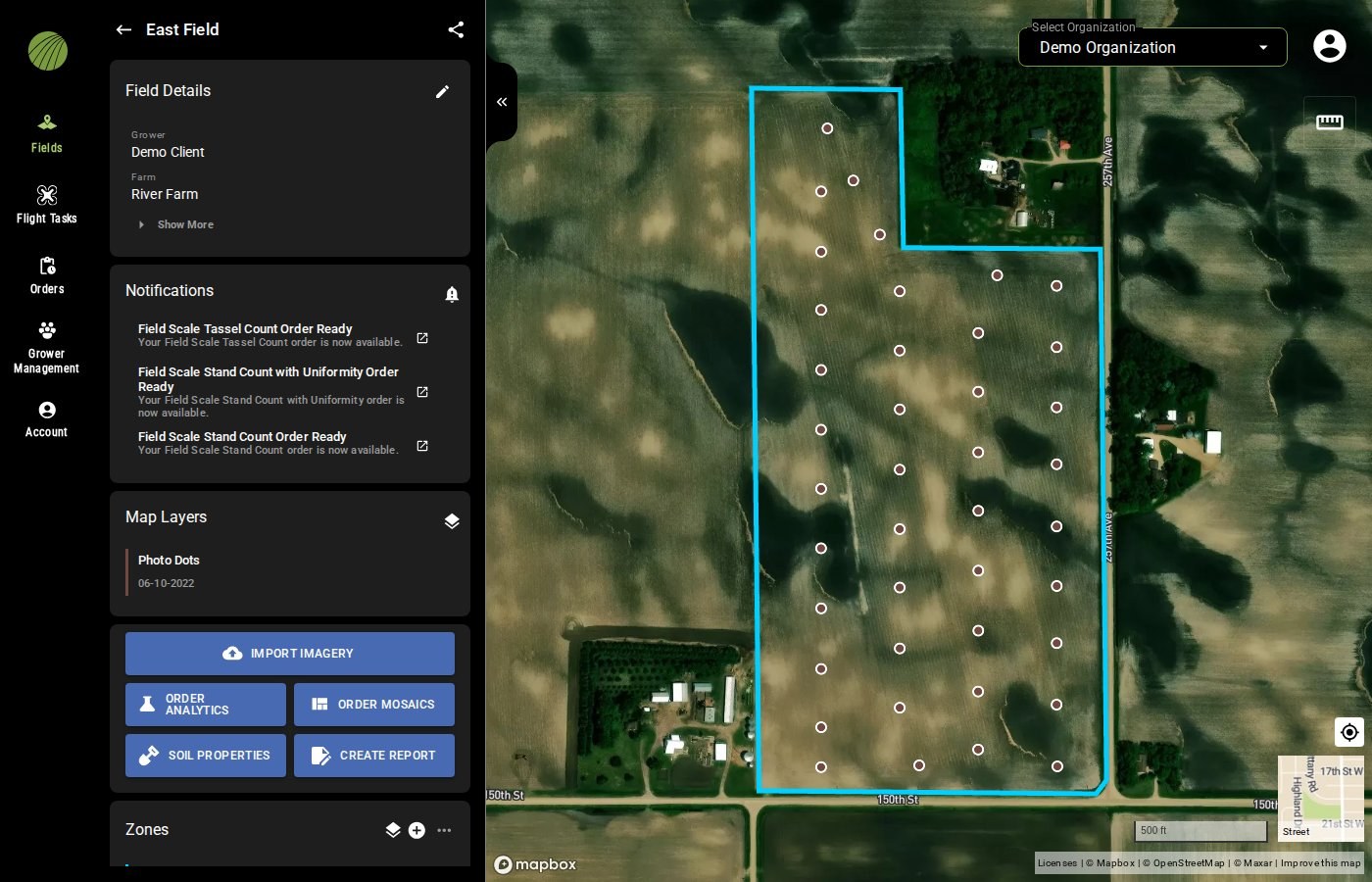
Every survey has photo dots, one on the map for each photo in the flight, placed where it was taken. Click a dot to open the imagery behind a mosaic or analytic.
***
## Show the photo dots
{% stepper %}
{% step %}
#### Open Add Map Layers
Open the field and click the layers icon in the **Map Layers** module.
{% endstep %}
{% step %}
#### Turn on Photo Dots
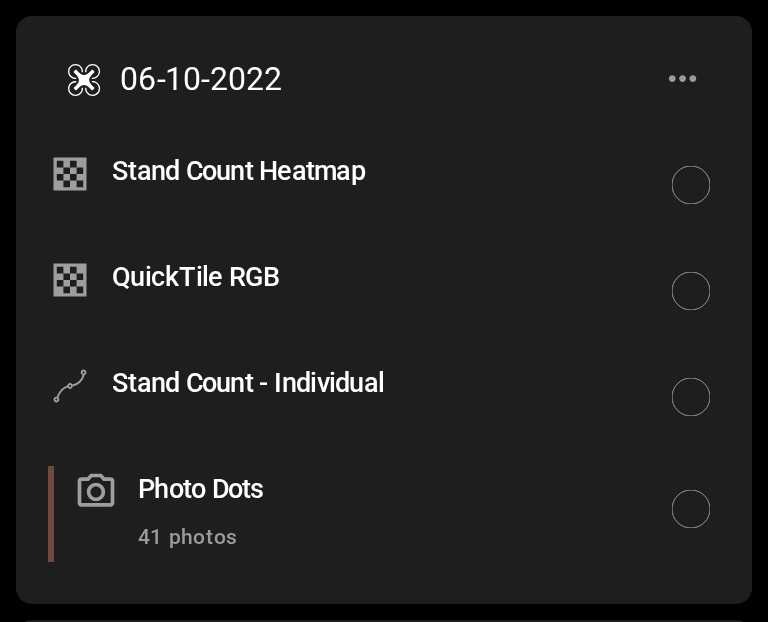
Under the survey, turn on **Photo Dots**. The row previews how many photos the survey has, for example 41 photos.
{% hint style="info" %}
Surveys with a large number of photos may load slowly.
{% endhint %}
{% endstep %}
{% step %}
#### Return to the field
Click the back arrow . The dots appear on the map, on top of any other layers you have on.
{% endstep %}
{% endstepper %}
Hover over the **Photo Dots** row in **Map Layers** to hide or remove the dots. Click the hide icon to hide them, or the remove icon to take them off the map. The row has no details panel, so clicking it does nothing. Click a photo dot instead to view it.
Analytics layers such as Stand Count and Tassel Count are dots too, one per sample photo, each labeled with the value measured in that photo. Clicking them opens the photo viewer with the count details, so you can [check a sample](/home/fieldagent-web/analytics/stand-count.md#check-a-sample).
***
## Open a photo
Click a dot. The image viewer opens over the map.
{% hint style="info" %}
Click the download icon to keep a copy. You get the original file, as it came from the camera.
{% endhint %}
Switch views with the buttons above the photo. The buttons you get depends on the sensor, and whether the photo has annotations from an analytic.
### Try it in the demo
In the demo below, nothing is on the field's map yet. Turn on a survey's photo dots, open a photo, change its band and switch to the next photo.
{% @fieldagent-demo/embed content="photo-dots" %}
Open this demo full size
***
## Check a photo's metadata
The photo viewer also displays an image's metadata. Click to expand the **Image Metadata** list, then open the group you need.
* **exif** has the exposure and focal length.
* **file** has the file name and size.
* **gps** has the position and altitude.
* **xmp** has the sensor's own tags.
***
## Related pages
{% content-ref url="/pages/hFBVUsKMPfZeBiEZKD2u" %}
[Map layers](/home/fieldagent-web/view-and-analyze/map-layers.md)
{% endcontent-ref %}
{% content-ref url="/pages/eQGd3VrN2PYe1llqeR5h" %}
[Import imagery in FieldAgent Web](/home/fieldagent-web/imagery/import-imagery-in-fieldagent-web.md)
{% endcontent-ref %}
{% content-ref url="/pages/y5cYSFUW0AytrGKslf0c" %}
[Stand Count](/home/fieldagent-web/analytics/stand-count.md)
{% endcontent-ref %}
---
# Agent Instructions
This documentation is published with GitBook. GitBook is the documentation platform designed so that both humans and AI agents can read, navigate, and reason over technical content effectively. Learn more at gitbook.com.
## Querying This Documentation
If you need additional information that is not directly available in this page, you can query the documentation by asking a question.
Perform an HTTP GET request on the following URL with the `ask` and `goal` query parameters:
```
GET https://support.senterasensors.com/home/fieldagent-web/view-and-analyze/photo-dots-and-image-viewer.md?ask=&goal=
```
`ask` is the immediate question: it should be specific, self-contained, and written in natural language.
`goal` is what the user is ultimately trying to achieve, the reason they need the answer. Sharing it helps GitBook give you a better, more relevant answer. A goal is most helpful when it describes the outcome the user wants rather than restating the question. For example, with `ask=how do I create an API token`, a goal like `automate deployments from our CI pipeline` lets GitBook tailor the answer to that use case.
The response will contain a direct answer to the question and relevant excerpts and sources from the documentation.
Use this mechanism when the answer is not explicitly present in the current page, you need clarification or additional context, or you want to retrieve related documentation sections.
 in the **Map Layers** module.
{% endstep %}
{% step %}
#### Turn on Photo Dots
Under the survey, turn on **Photo Dots**. The row previews how many photos the survey has, for example 41 photos.
in the **Map Layers** module.
{% endstep %}
{% step %}
#### Turn on Photo Dots
Under the survey, turn on **Photo Dots**. The row previews how many photos the survey has, for example 41 photos.
 . The dots appear on the map, on top of any other layers you have on.
 to hide them, or the remove icon
  to take them off the map. The row has no details panel, so clicking it does nothing. Click a photo dot instead to view it.
Analytics layers such as Stand Count and Tassel Count are dots too, one per sample photo, each labeled with the value measured in that photo. Clicking them opens the photo viewer with the count details, so you can [check a sample](/home/fieldagent-web/analytics/stand-count.md#check-a-sample).
***
## Open a photo
Click a dot. The image viewer opens over the map.
to take them off the map. The row has no details panel, so clicking it does nothing. Click a photo dot instead to view it.
Analytics layers such as Stand Count and Tassel Count are dots too, one per sample photo, each labeled with the value measured in that photo. Clicking them opens the photo viewer with the count details, so you can [check a sample](/home/fieldagent-web/analytics/stand-count.md#check-a-sample).
***
## Open a photo
Click a dot. The image viewer opens over the map.


