> For the complete documentation index, see [llms.txt](https://support.senterasensors.com/home/llms.txt). Markdown versions of documentation pages are available by appending `.md` to page URLs; this page is available as [Markdown](https://support.senterasensors.com/home/fieldagent-web/view-and-analyze/zones-and-zone-statistics.md).

# Zones and zone statistics

Draw zones inside a field, compare a layer's values in each one and download them.

Zones turn what you see on the map into numbers you can compare. Draw a zone around a hybrid strip, a treatment block or a wet spot, and every layer reports its values inside it.

***

## Draw a zone

{% stepper %}
{% step %}

#### Start a zone

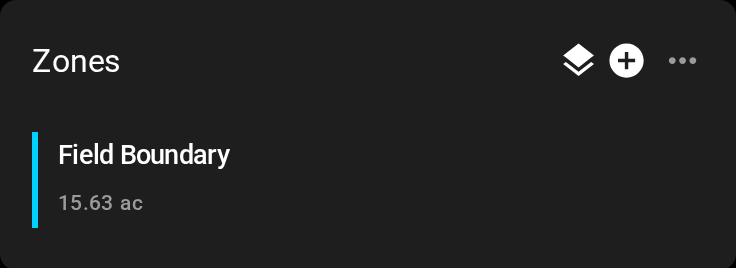
Open the field and click the plus icon <img src="https://2791052504-files.gitbook.io/~/files/v0/b/gitbook-x-prod.appspot.com/o/spaces%2FVt6flh3S4tohPAjrSP91%2Fuploads%2Fgit-blob-93fc4d9f6268e89a5a848974a80ca6a3ffd199a5%2Ffa-web-icon-add.svg?alt=media" alt="add icon" data-size="line"> in the **Zones** module.

<img src="https://2791052504-files.gitbook.io/~/files/v0/b/gitbook-x-prod.appspot.com/o/spaces%2FVt6flh3S4tohPAjrSP91%2Fuploads%2Fgit-blob-2664bcfdd15f5b7e3a541f13fe9177dbb0267486%2Ffa-web-ui-zones-card.png?alt=media" alt="The Zones module with its plus icon" width="320">
{% endstep %}

{% step %}

#### Name it

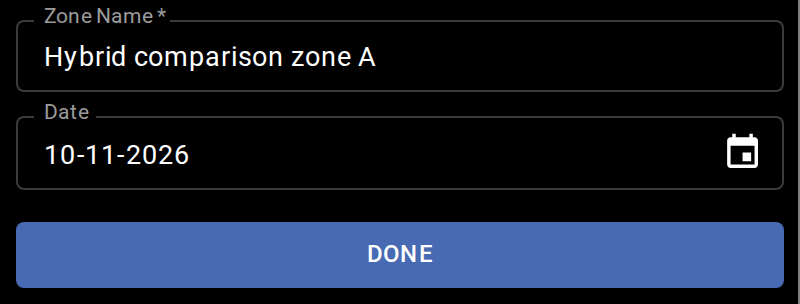
Type a **Zone Name**. The **Date** defaults to today.

<figure><img src="https://2791052504-files.gitbook.io/~/files/v0/b/gitbook-x-prod.appspot.com/o/spaces%2FVt6flh3S4tohPAjrSP91%2Fuploads%2Fgit-blob-f135bbf868d44d3141584349c08426dbd2d460d5%2Ffa-web-ui-zone-name-date.png?alt=media" alt="The new zone form with Zone Name Hybrid comparison zone A, Date 10-11-2026 and the DONE button" width="400"><figcaption></figcaption></figure>
{% endstep %}

{% step %}

#### Draw the shape

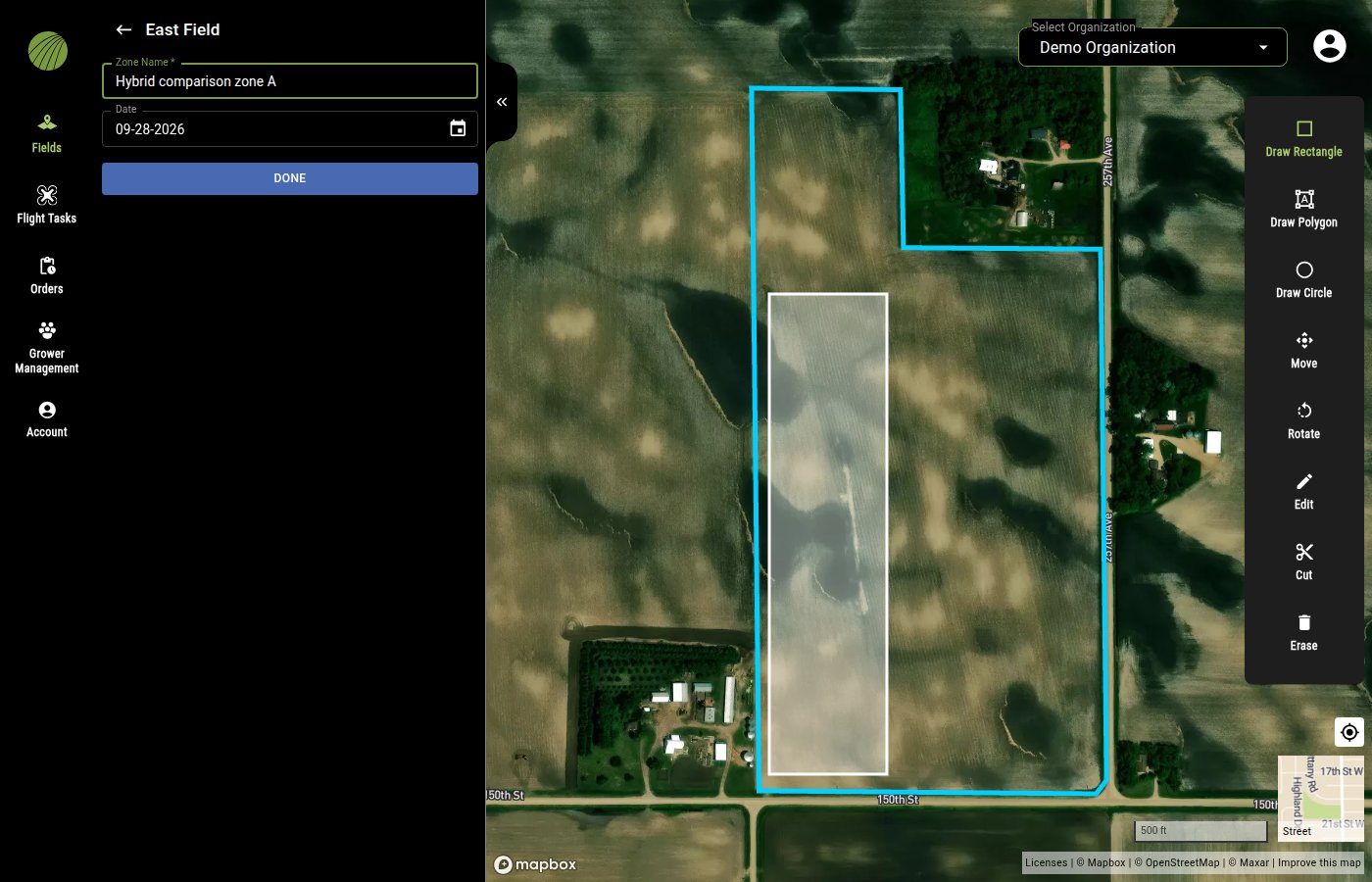
Draw the shape with the tool you need.

* <img src="https://2791052504-files.gitbook.io/~/files/v0/b/gitbook-x-prod.appspot.com/o/spaces%2FVt6flh3S4tohPAjrSP91%2Fuploads%2Fgit-blob-65d38eed89d1b99e26620c2e4510785cfd52087b%2Ffa-web-icon-draw-rectangle.svg?alt=media" alt="draw rectangle icon" data-size="line"> **Draw Rectangle**. Click two opposite corners.
* <img src="https://2791052504-files.gitbook.io/~/files/v0/b/gitbook-x-prod.appspot.com/o/spaces%2FVt6flh3S4tohPAjrSP91%2Fuploads%2Fgit-blob-91c6b935823771c73a6638910a20f7bd71e9c0bc%2Ffa-web-icon-area.svg?alt=media" alt="draw polygon icon" data-size="line"> **Draw Polygon**. Click each corner and finish on the first point.
* <img src="https://2791052504-files.gitbook.io/~/files/v0/b/gitbook-x-prod.appspot.com/o/spaces%2FVt6flh3S4tohPAjrSP91%2Fuploads%2Fgit-blob-805e7bc7ac2a9292bc937b1cbdd5c9ad4d24f13a%2Ffa-web-icon-draw-circle.svg?alt=media" alt="draw circle icon" data-size="line"> **Draw Circle**. Click the center and then the edge.
<figure><img src="https://2791052504-files.gitbook.io/~/files/v0/b/gitbook-x-prod.appspot.com/o/spaces%2FVt6flh3S4tohPAjrSP91%2Fuploads%2Fgit-blob-4824872b7bc9ed65a31108c86e914cc6e42d17e2%2Ffa-web-zone-new-drawn.jpg?alt=media" alt="The new zone form with Zone Name set to Hybrid comparison zone A, a Date field, and a DONE button; on the map a white rectangle zone drawn inside the cyan field boundary, and the drawing toolbar on the right with Draw Rectangle active"><figcaption></figcaption></figure>

The tool stays selected, so drawing again adds a second shape to the same zone. The other tools on the toolbar adjust the shape the same way as when you [draw a field boundary](/home/fieldagent-web/fields/create-a-field.md#drawing-tools).

<img src="https://2791052504-files.gitbook.io/~/files/v0/b/gitbook-x-prod.appspot.com/o/spaces%2FVt6flh3S4tohPAjrSP91%2Fuploads%2Fgit-blob-0615a3e4f0f0e047d39ef94c0c912d6bb311f90d%2Ffa-web-ui-draw-toolbar.png?alt=media" alt="The drawing toolbar at the right edge of the map" width="80">
{% endstep %}

{% step %}

#### Save

Click **DONE**. The button is grayed out until the zone has a name and at least one shape.

<img src="https://2791052504-files.gitbook.io/~/files/v0/b/gitbook-x-prod.appspot.com/o/spaces%2FVt6flh3S4tohPAjrSP91%2Fuploads%2Fgit-blob-62d97b55957b03a9dc04557ba0f3eedefa6a3ffa%2Ffa-web-ui-btn-done.png?alt=media" alt="DONE button" width="384">
{% endstep %}
{% endstepper %}

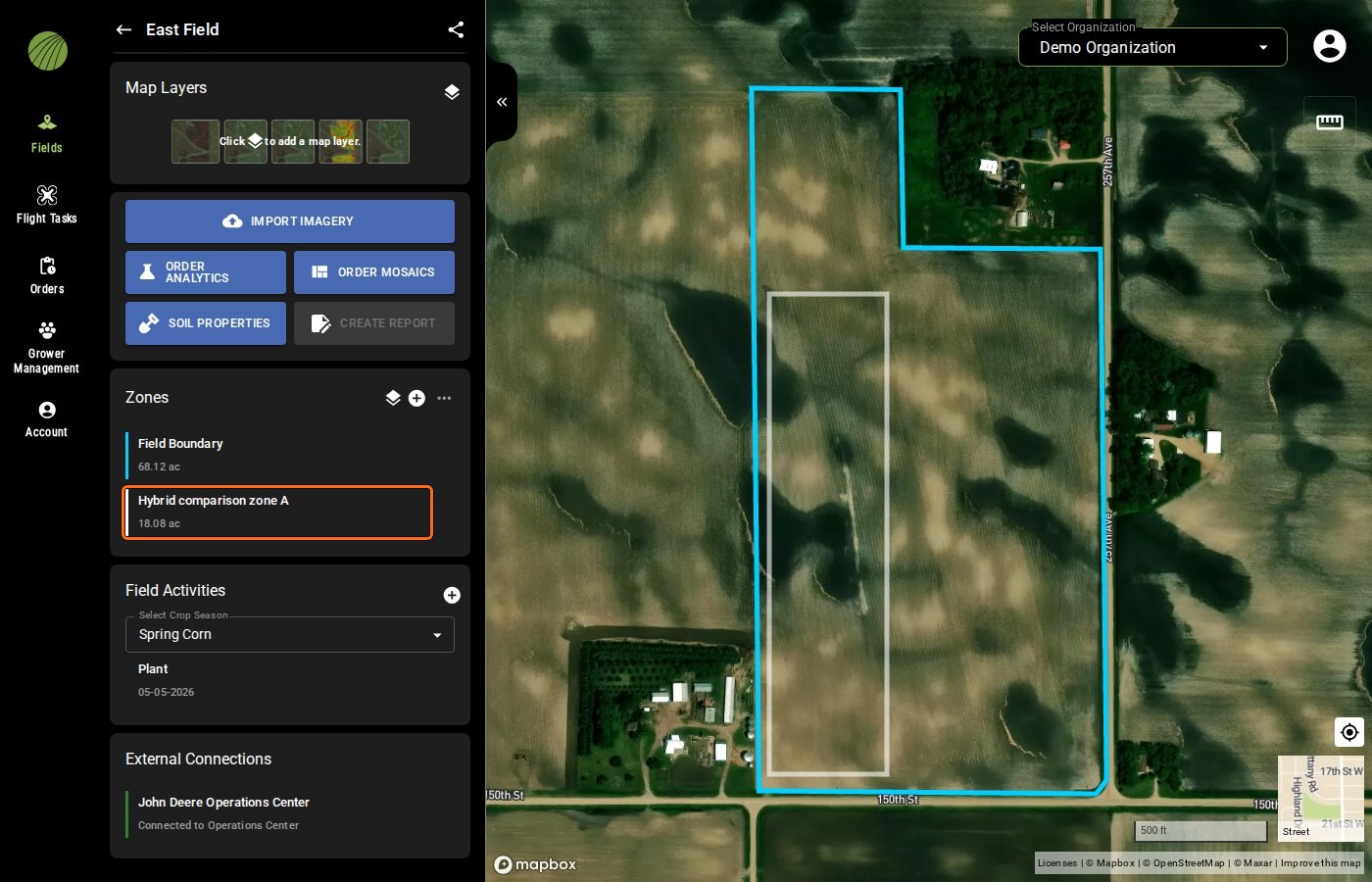
The zone appears in the **Zones** module under the field boundary, switched on. It also appears under **Zone Statistics** in a layer's details.
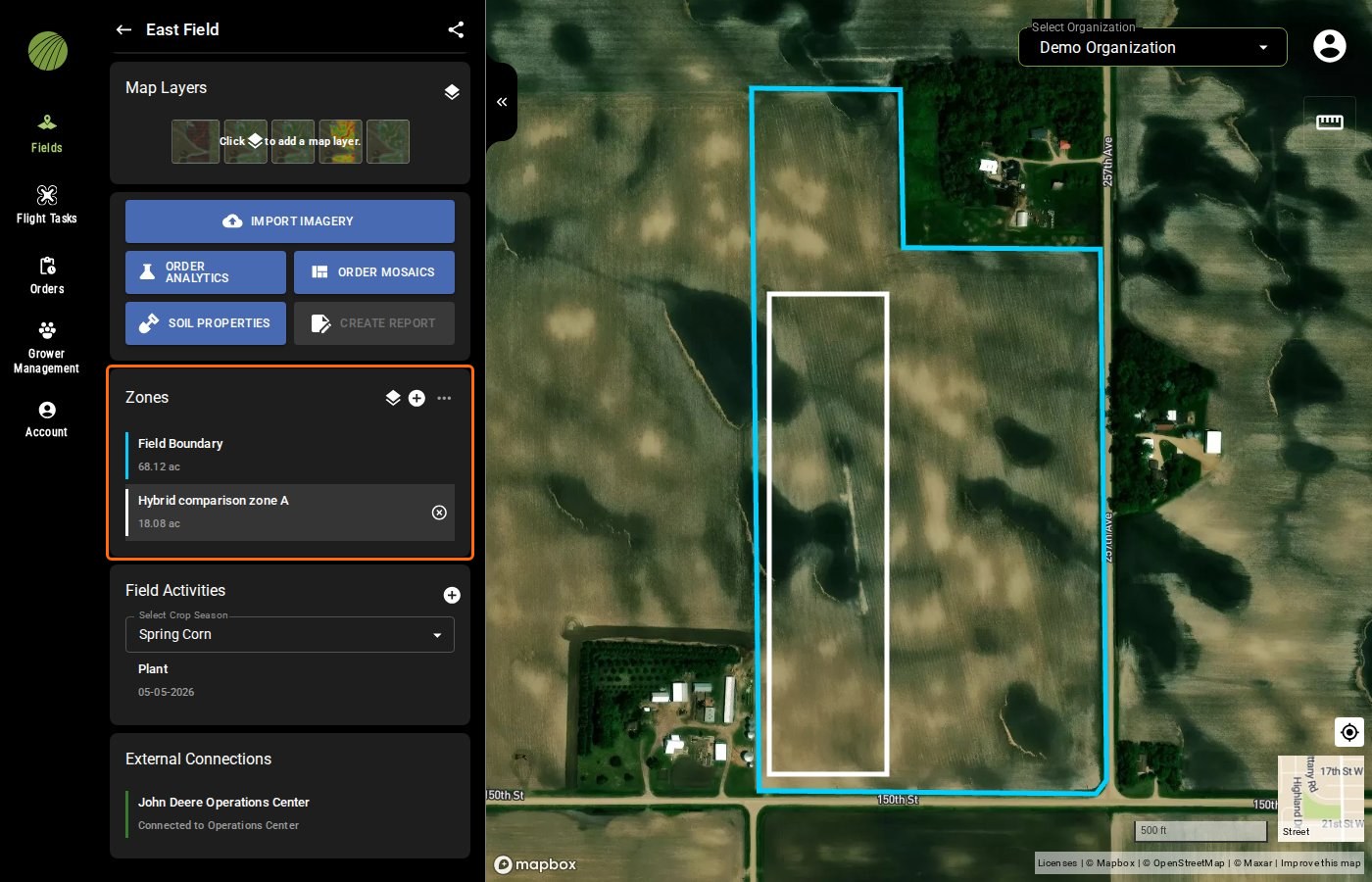
<figure><img src="https://2791052504-files.gitbook.io/~/files/v0/b/gitbook-x-prod.appspot.com/o/spaces%2FVt6flh3S4tohPAjrSP91%2Fuploads%2Fgit-blob-b3a1af0dfdc7cbb25e6305fdd547871df51b1ace%2Ffa-web-zone-in-module.jpg?alt=media" alt="East Field with Hybrid comparison zone A, 18.08 ac, outlined in the Zones module under Field Boundary, and the zone drawn as a white rectangle on the map"><figcaption><p>Hybrid comparison zone A highlighted</p></figcaption></figure>

{% hint style="info" icon="lightbulb" %}
Hand-drawn zones are for comparison. For rate zones split from a layer's values, use [Zone Rx prescriptions](/home/fieldagent-web/export-and-share/zone-rx-prescriptions.md) instead.
{% endhint %}

### Try it in the demo

In the demo below, name a zone, draw it as a rectangle and save it.

{% @fieldagent-demo/embed content="draw-zone" %}

<a href="https://senterallc.github.io/FieldAgent-Demos/demo.html?s=draw-zone&#x26;mode=page" class="button secondary">Open this demo full size</a>

***

## Show or hide zones on the map

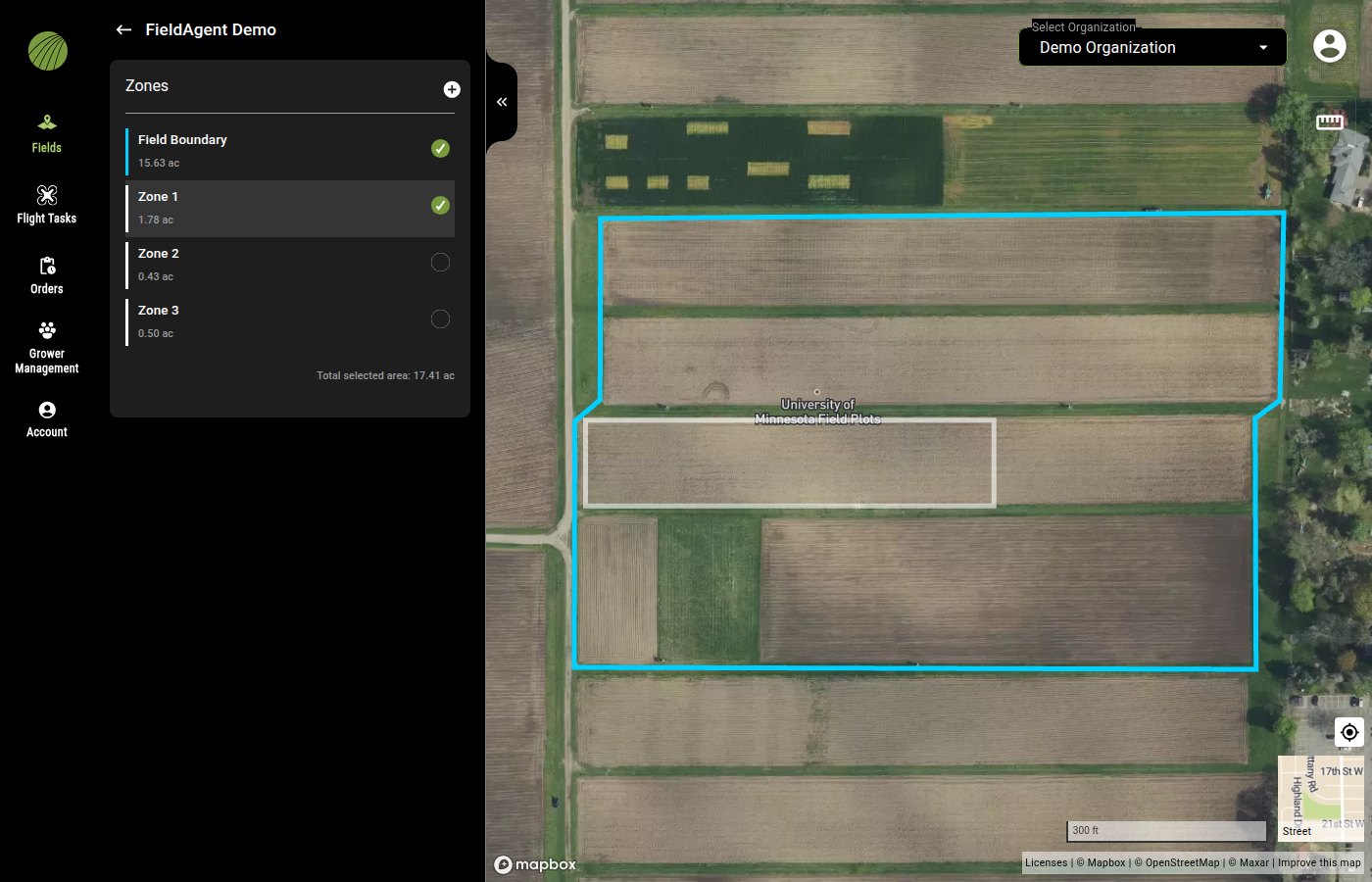
When you open a field, only the field boundary is on the map. Choose the zones you want to see in the **Zones** picker.

{% stepper %}
{% step %}

#### Open the Zones picker

Click the layers icon <img src="https://2791052504-files.gitbook.io/~/files/v0/b/gitbook-x-prod.appspot.com/o/spaces%2FVt6flh3S4tohPAjrSP91%2Fuploads%2Fgit-blob-63327f0a1a9668fc0304dc7f1979ade39d585d00%2Ffa-web-icon-layers.svg?alt=media" alt="layers icon" data-size="line"> in the **Zones** module.
{% endstep %}

{% step %}

#### Choose the zones

Click the circle next to a zone to draw it on the map. Click it again to take it off.
<figure><img src="https://2791052504-files.gitbook.io/~/files/v0/b/gitbook-x-prod.appspot.com/o/spaces%2FVt6flh3S4tohPAjrSP91%2Fuploads%2Fgit-blob-dcf8debc822c04c938410e44b863be0abc7a2813%2Ffa-web-zones-picker.jpg?alt=media" alt="The Zones picker listing Field Boundary 15.63 ac and Zone 1 1.78 ac with green checks, Zone 2 0.43 ac and Zone 3 0.50 ac unselected, and the footer Total selected area: 17.41 ac; the selected zone is outlined on the map"><figcaption></figcaption></figure>
{% endstep %}

{% step %}

#### Check the Zones module

The **Zones** module lists the field boundary and each zone on the map, along with its area. Hover over a row and click the × to take that zone, or the boundary, off the map. Click a zone to edit it, or click **Field Boundary** to [edit the field's boundary](/home/fieldagent-web/fields/edit-or-delete-a-field.md#edit-the-boundary).

<figure><img src="https://2791052504-files.gitbook.io/~/files/v0/b/gitbook-x-prod.appspot.com/o/spaces%2FVt6flh3S4tohPAjrSP91%2Fuploads%2Fgit-blob-1ad6a785a1fe1164bbcd03d5cdea8c6a480998c4%2Ffa-web-zones-module.jpg?alt=media" alt="East Field&#x27;s Zones module outlined, listing Field Boundary 68.12 ac and Hybrid comparison zone A 18.08 ac, with the pointer over the zone&#x27;s row showing its × icon"><figcaption><p>Zones module highlighted</p></figcaption></figure>
{% endstep %}
{% endstepper %}

{% hint style="info" %}
Taking a zone off the map doesn't delete it. It stays in the picker, and its statistics still appear under **Zone Statistics**.
{% endhint %}

***

## Rename, reshape or delete a zone

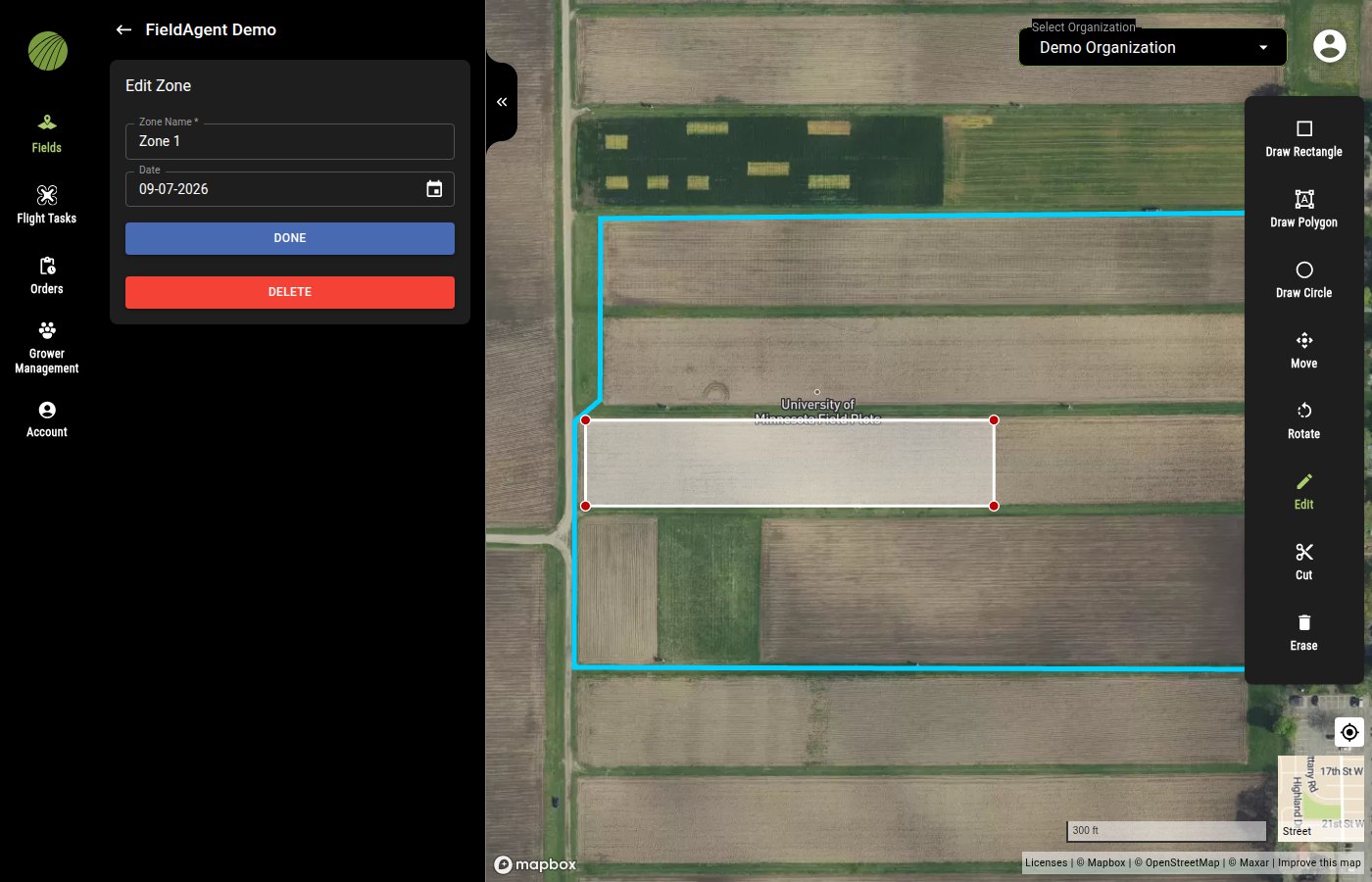
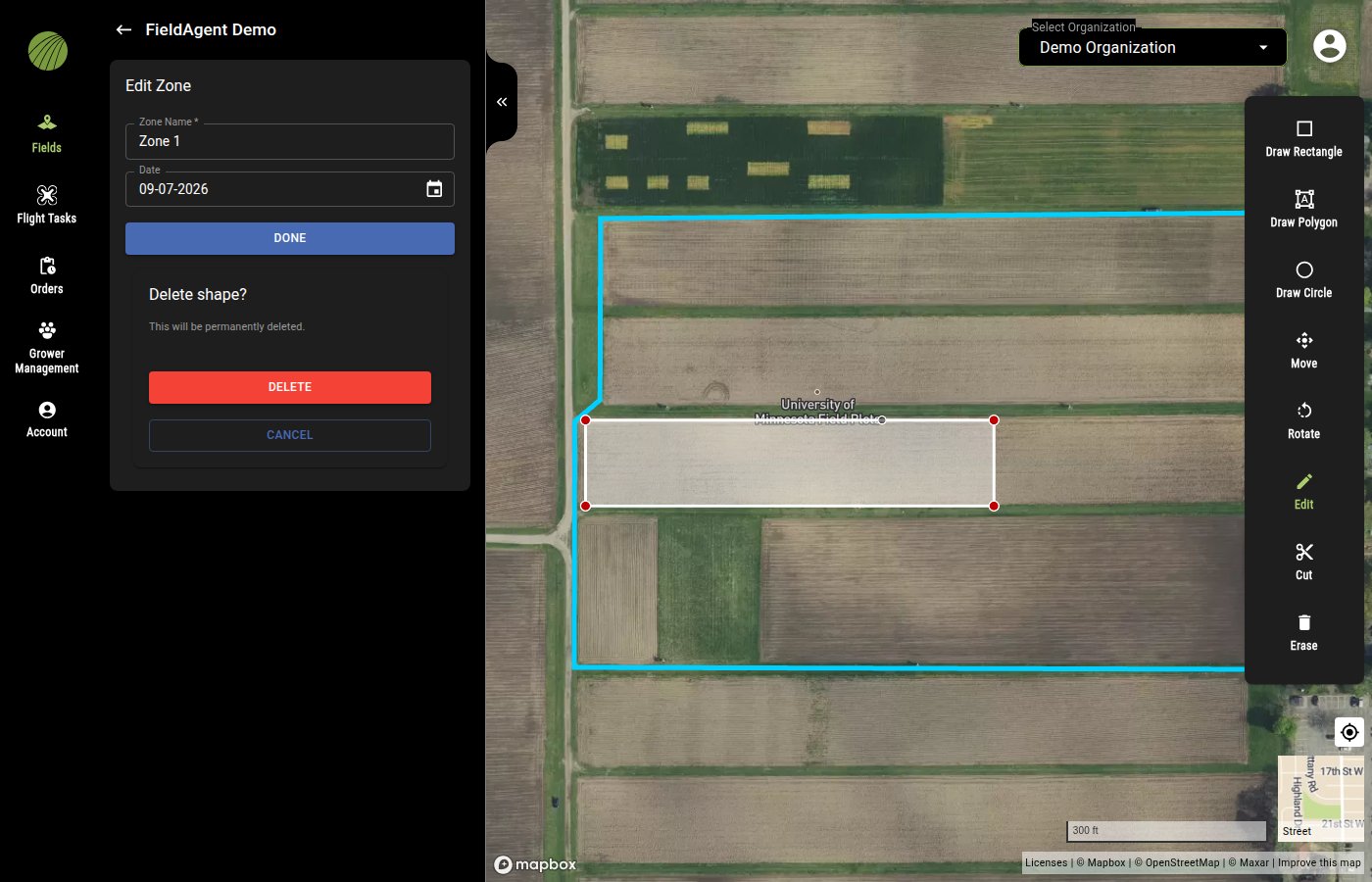
Click a zone's name in the **Zones** module to open **Edit Zone**. Change the name or use the draw tools to reshape the zone, then click **DONE**.

<figure><img src="https://2791052504-files.gitbook.io/~/files/v0/b/gitbook-x-prod.appspot.com/o/spaces%2FVt6flh3S4tohPAjrSP91%2Fuploads%2Fgit-blob-7d2fe6cbc1ef471e0c7af427c7e40ea2b049dcc1%2Ffa-web-edit-zone.jpg?alt=media" alt="The Edit Zone panel with Zone Name set to Zone 1, a Date field, a blue DONE button and a red DELETE button; on the map the zone shows red vertex points, and the drawing toolbar on the right lists Draw Rectangle, Draw Polygon, Draw Circle, Move, Rotate, Edit, Cut, and Erase"><figcaption></figcaption></figure>

{% hint style="warning" %}
The back arrow <img src="https://2791052504-files.gitbook.io/~/files/v0/b/gitbook-x-prod.appspot.com/o/spaces%2FVt6flh3S4tohPAjrSP91%2Fuploads%2Fgit-blob-c930078ef86c804492ab88f23c629f01e5f13eba%2Ffa-web-icon-back.svg?alt=media" alt="back icon" data-size="line"> leaves **Edit Zone** without saving and without asking.
{% endhint %}

To delete the zone, click **DELETE** and confirm in the **Delete shape?** box. A zone you delete is gone for good.
<figure><img src="https://2791052504-files.gitbook.io/~/files/v0/b/gitbook-x-prod.appspot.com/o/spaces%2FVt6flh3S4tohPAjrSP91%2Fuploads%2Fgit-blob-1fd8b37a586b0cb876be3f2f8d363e29084676a2%2Ffa-web-edit-zone-delete-confirm.jpg?alt=media" alt="The Edit Zone panel with the Delete shape? confirmation box below DONE, reading This will be permanently deleted. above red DELETE and outlined CANCEL buttons; on the map the reshaped zone shows red corner points inside the field boundary"><figcaption></figcaption></figure>

<details>

<summary>Edit Zone controls</summary>

| Control                                                                                                                                                                                                                                                                                                                                                                                                                                                                                                                                     | Description                                                                                             |
| ------------------------------------------------------------------------------------------------------------------------------------------------------------------------------------------------------------------------------------------------------------------------------------------------------------------------------------------------------------------------------------------------------------------------------------------------------------------------------------------------------------------------------------------- | ------------------------------------------------------------------------------------------------------- |
| **Zone Name**                                                                                                                                                                                                                                                                                                                                                                                                                                                                                                                               | The name shown in the **Zones** module and under **Zone Statistics** on every layer. Required.          |
| **Date**                                                                                                                                                                                                                                                                                                                                                                                                                                                                                                                                    | The date the zone belongs to.                                                                           |
| <img src="https://2791052504-files.gitbook.io/~/files/v0/b/gitbook-x-prod.appspot.com/o/spaces%2FVt6flh3S4tohPAjrSP91%2Fuploads%2Fgit-blob-8238089058191eb0539cbc80be106df78bb52a84%2Ffa-web-icon-edit.svg?alt=media" alt="edit icon" data-size="line"> **Edit**                                                                                                                                                                                                                                                                            | Drags the red points. Click an edge to add a point there.                                               |
| <img src="https://2791052504-files.gitbook.io/~/files/v0/b/gitbook-x-prod.appspot.com/o/spaces%2FVt6flh3S4tohPAjrSP91%2Fuploads%2Fgit-blob-faf8b7ada927edd21309a290b0c904240fbb6fc3%2Ffa-web-icon-move.svg?alt=media" alt="move icon" data-size="line"> **Move** and <img src="https://2791052504-files.gitbook.io/~/files/v0/b/gitbook-x-prod.appspot.com/o/spaces%2FVt6flh3S4tohPAjrSP91%2Fuploads%2Fgit-blob-88f28a3a841eebec3defaff8dbed819b3c5c055f%2Ffa-web-icon-rotate.svg?alt=media" alt="rotate icon" data-size="line"> **Rotate** | Shift or turn the whole shape.                                                                          |
| <img src="https://2791052504-files.gitbook.io/~/files/v0/b/gitbook-x-prod.appspot.com/o/spaces%2FVt6flh3S4tohPAjrSP91%2Fuploads%2Fgit-blob-bd550b6ccf83b032bfbe7af786265991eec281df%2Ffa-web-icon-cut.svg?alt=media" alt="cut icon" data-size="line"> **Cut** and <img src="https://2791052504-files.gitbook.io/~/files/v0/b/gitbook-x-prod.appspot.com/o/spaces%2FVt6flh3S4tohPAjrSP91%2Fuploads%2Fgit-blob-c0e8388a85b69d06fdabbf1d69bcd847f9e3f2f0%2Ffa-web-icon-erase.svg?alt=media" alt="erase icon" data-size="line"> **Erase**       | Take area away from the shape.                                                                          |
| Draw tools                                                                                                                                                                                                                                                                                                                                                                                                                                                                                                                                  | Add a shape to the zone.                                                                                |
| **DONE**                                                                                                                                                                                                                                                                                                                                                                                                                                                                                                                                    | Saves the name, date and shape.                                                                         |
| **DELETE**                                                                                                                                                                                                                                                                                                                                                                                                                                                                                                                                  | Asks you to confirm in a **Delete shape?** box, then deletes the zone permanently. **CANCEL** keeps it. |
</details>

### Try it in the demo

In the demo below, rename a zone, drag one of its red points and delete another zone.

{% @fieldagent-demo/embed content="edit-zone" %}

<a href="https://senterallc.github.io/FieldAgent-Demos/demo.html?s=edit-zone&#x26;mode=page" class="button secondary">Open this demo full size</a>

***

## Read zone statistics

A layer's details page lists the values for each zone and the whole field.

{% stepper %}
{% step %}

#### Open the layer details

Turn on the layer you want to see numbers for. Click its name in the **Map Layers** module to open its details.
{% endstep %}

{% step %}

#### Find Zone Statistics

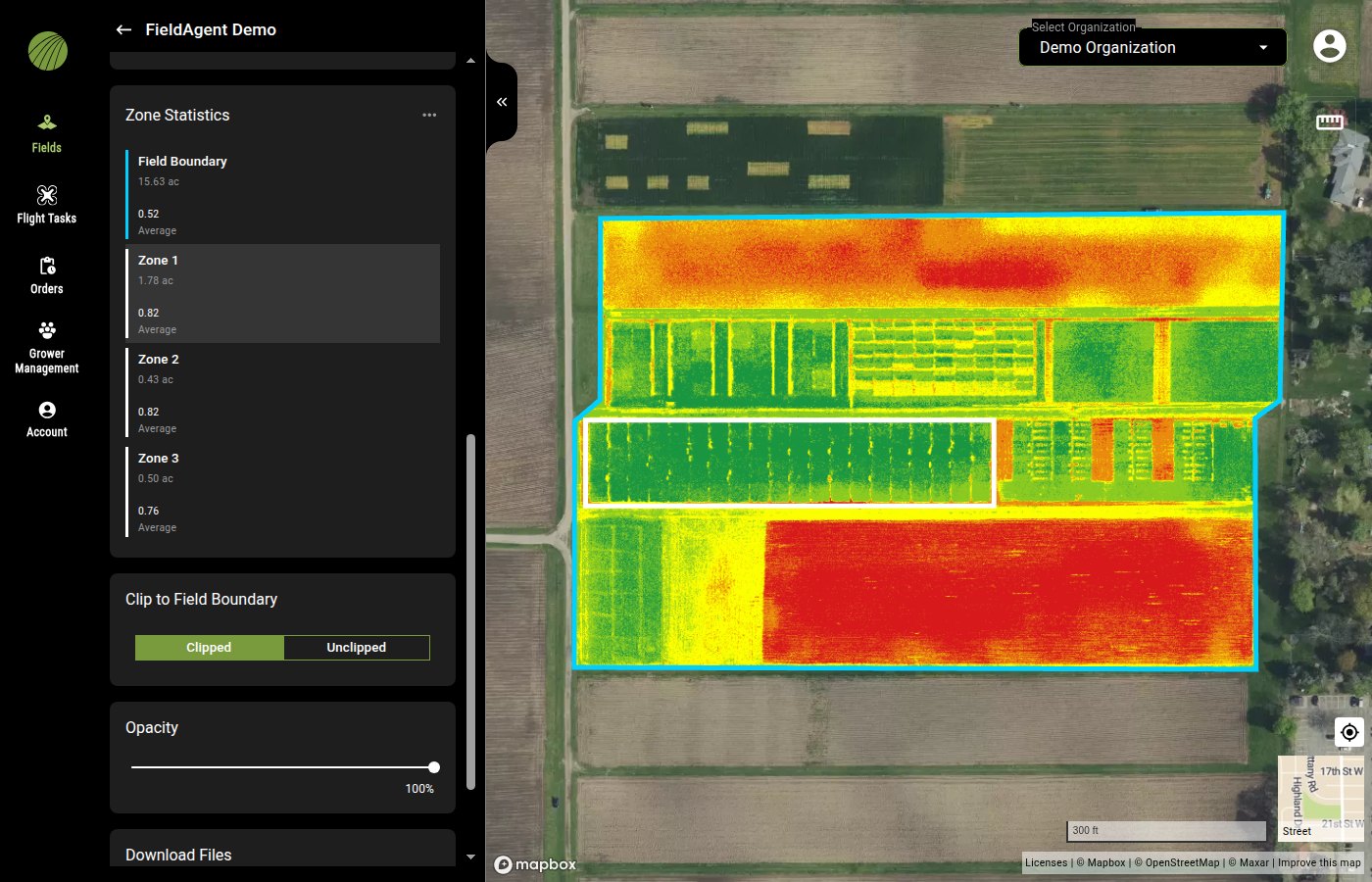
Scroll to **Zone Statistics**. The **Field Boundary** row gives the value for the whole field, and each zone below it gives the value inside that zone.
{% endstep %}

{% step %}

#### Find a zone on the map

Hover over a row to outline its zone on the map.
{% endstep %}
{% endstepper %}

<figure><img src="https://2791052504-files.gitbook.io/~/files/v0/b/gitbook-x-prod.appspot.com/o/spaces%2FVt6flh3S4tohPAjrSP91%2Fuploads%2Fgit-blob-221048b82222e1b5ee67c223083e28823ec1af40%2Ffa-web-zone-statistics-hover.jpg?alt=media" alt="The Zone Statistics section of an NDVI layer listing Field Boundary 15.63 ac with 0.52 Average, Zone 1 1.78 ac with 0.82 Average, Zone 2 0.43 ac with 0.82 Average, and Zone 3 0.50 ac with 0.76 Average; the pointer is over Zone 1 and that zone is outlined in white on the NDVI map"><figcaption><p>Zone Statistics on an NDVI layer. The hovered zone is outlined in white on the map.</p></figcaption></figure>

Each zone's statistics depend on the layer.

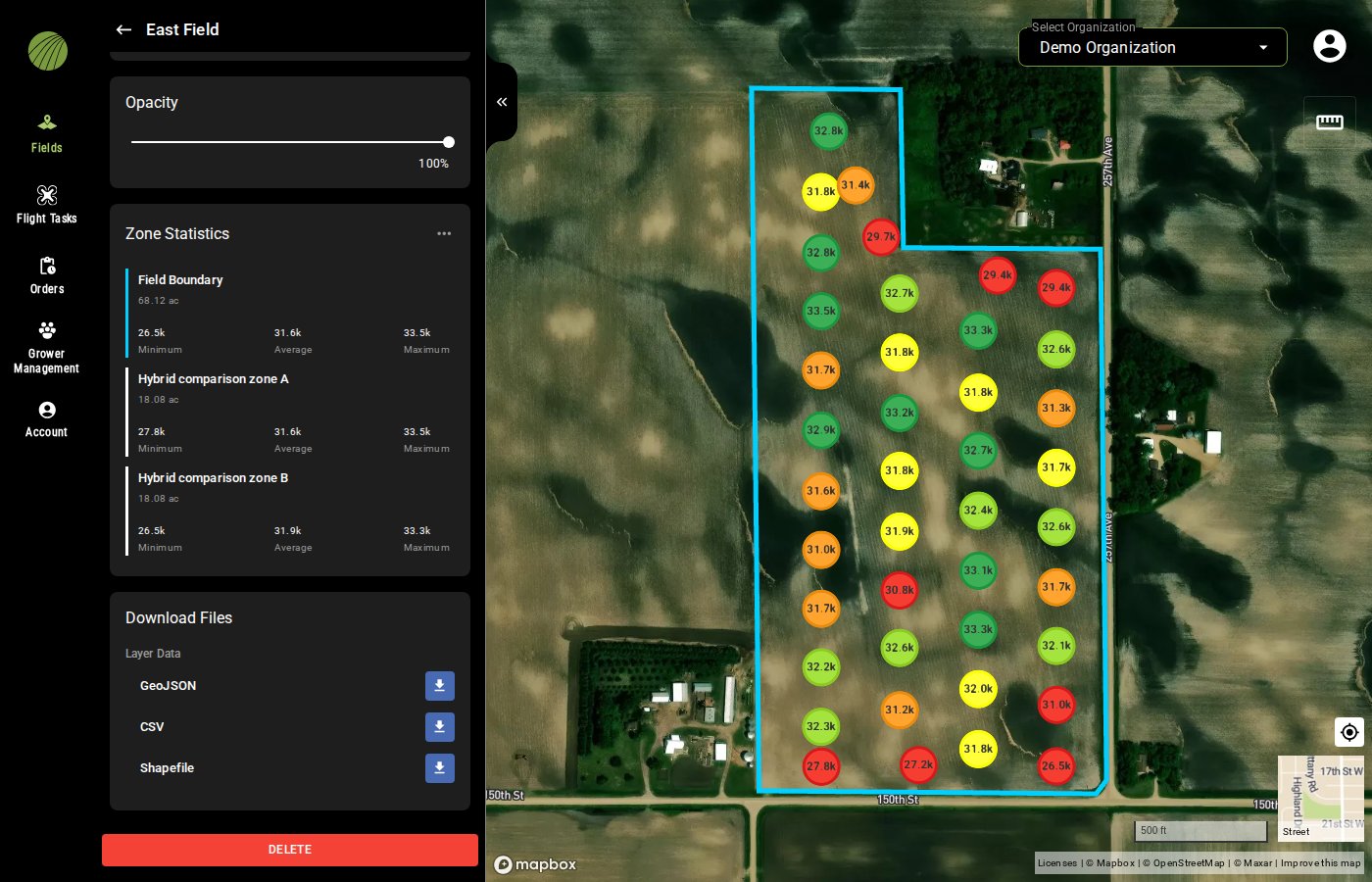
* Stand counts and tassel counts show the minimum, average and maximum of the samples inside the zone.
* Index layers, such as an NDVI mosaic or a satellite scene, show the zone's average value.

<figure><img src="https://2791052504-files.gitbook.io/~/files/v0/b/gitbook-x-prod.appspot.com/o/spaces%2FVt6flh3S4tohPAjrSP91%2Fuploads%2Fgit-blob-9b7984a8f7502a5379754a2abb5e9fd89c8b872e%2Ffa-web-tassel-count-zone-stats.jpg?alt=media" alt="The Tassel Count layer details with the Zone Statistics section listing Field Boundary, Hybrid comparison zone A, and Hybrid comparison zone B, each with its area and Minimum, Average, and Maximum tassels per acre, above the Download Files section"><figcaption><p>Zone Statistics on a Tassel Count layer comparing two hybrid zones. Zones not shown on the map.</p></figcaption></figure>

{% hint style="info" icon="lightbulb" %}
Zone statistics work across dates. Open a satellite NDVI layer from each week of the season and compare the field-boundary averages to follow the crop's dry-down.
{% endhint %}

### Try it in the demo

In the demo below, open an NDVI layer's details, read its zone statistics and hover over a row to find its zone.

{% @fieldagent-demo/embed content="zones" %}

<a href="https://senterallc.github.io/FieldAgent-Demos/demo.html?s=zones&#x26;mode=page" class="button secondary">Open this demo full size</a>

***

## Download zones and zone statistics

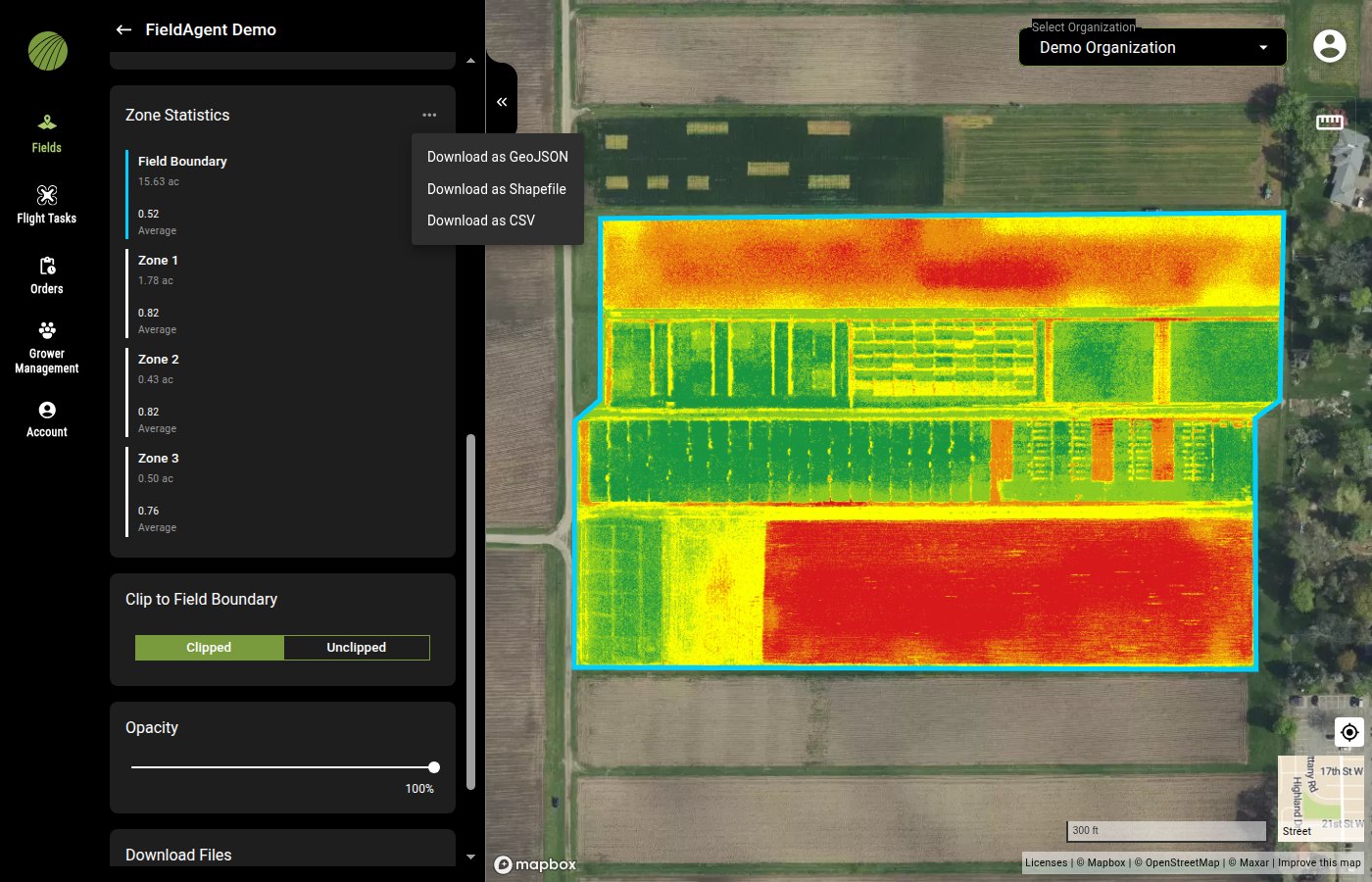
Download a layer's zone statistics, such as the average NDVI or the stand count per zone, to work with them in a spreadsheet or GIS. The zones also download on their own, as shapes for other software.

| Menu                                                                                                                                                                                                                                                                                                     | Options                                                                                      | Description                                                            |
| -------------------------------------------------------------------------------------------------------------------------------------------------------------------------------------------------------------------------------------------------------------------------------------------------------- | -------------------------------------------------------------------------------------------- | ---------------------------------------------------------------------- |
| <img src="https://2791052504-files.gitbook.io/~/files/v0/b/gitbook-x-prod.appspot.com/o/spaces%2FVt6flh3S4tohPAjrSP91%2Fuploads%2Fgit-blob-af1d89f73283de675c257e23342cc23a0c4f7ba9%2Ffa-web-icon-more.svg?alt=media" alt="more icon" data-size="line"> on the **Zones** module in the field view        | **Download as GeoJSON**, **Download as Shapefile**, **Download as CSV**, **Download as KML** | The field boundary and the zones as shapes, for use in other software. |
| <img src="https://2791052504-files.gitbook.io/~/files/v0/b/gitbook-x-prod.appspot.com/o/spaces%2FVt6flh3S4tohPAjrSP91%2Fuploads%2Fgit-blob-af1d89f73283de675c257e23342cc23a0c4f7ba9%2Ffa-web-icon-more.svg?alt=media" alt="more icon" data-size="line"> next to **Zone Statistics** in a layer's details | **Download as GeoJSON**, **Download as Shapefile**, **Download as CSV**                      | The same shapes with that layer's statistics attached to each of them. |
<figure><img src="https://2791052504-files.gitbook.io/~/files/v0/b/gitbook-x-prod.appspot.com/o/spaces%2FVt6flh3S4tohPAjrSP91%2Fuploads%2Fgit-blob-e7f29ae9990b0410ae88336ab135afb7b434a265%2Ffa-web-zone-statistics-menu.jpg?alt=media" alt="The Zone Statistics menu of an NDVI layer open, listing Download as GeoJSON, Download as Shapefile, and Download as CSV"><figcaption></figcaption></figure>

***

## Related pages

{% content-ref url="/pages/hFBVUsKMPfZeBiEZKD2u" %}
[Map layers](/home/fieldagent-web/view-and-analyze/map-layers.md)
{% endcontent-ref %}

{% content-ref url="/pages/3vUSaeGrUKbAZtRHwYK6" %}
[Colorization and visualization](/home/fieldagent-web/view-and-analyze/colorization-and-visualization.md)
{% endcontent-ref %}

{% content-ref url="/pages/NbXwipivNBx5sLB8YHDx" %}
[Download and export data](/home/fieldagent-web/export-and-share/download-and-export-data.md)
{% endcontent-ref %}


---

# Agent Instructions
This documentation is published with GitBook. GitBook is the documentation platform designed so that both humans and AI agents can read, navigate, and reason over technical content effectively. Learn more at gitbook.com.

## Querying This Documentation
If you need additional information that is not directly available in this page, you can query the documentation by asking a question.

Perform an HTTP GET request on the following URL with the `ask` and `goal` query parameters:

```
GET https://support.senterasensors.com/home/fieldagent-web/view-and-analyze/zones-and-zone-statistics.md?ask=<question>&goal=<user_goal>
```

`ask` is the immediate question: it should be specific, self-contained, and written in natural language.
`goal` is what the user is ultimately trying to achieve, the reason they need the answer. Sharing it helps GitBook give you a better, more relevant answer. A goal is most helpful when it describes the outcome the user wants rather than restating the question. For example, with `ask=how do I create an API token`, a goal like `automate deployments from our CI pipeline` lets GitBook tailor the answer to that use case.

The response will contain a direct answer to the question and relevant excerpts and sources from the documentation.

Use this mechanism when the answer is not explicitly present in the current page, you need clarification or additional context, or you want to retrieve related documentation sections.