> For the complete documentation index, see [llms.txt](https://support.senterasensors.com/home/llms.txt). Markdown versions of documentation pages are available by appending `.md` to page URLs; this page is available as [Markdown](https://support.senterasensors.com/home/fieldagent/how-to-link-john-deere-operations-center-user-guide.md).
# How to link John Deere Operations Center User Guide
This page goes through how to link John Deere Operations Center to FieldAgent and how to import and export data.
## Set Up the John Deere Operations Center Connection
The connection between FieldAgent and John Deere Operations Center is setup and managed on the FieldAgent Admin page. In order to connect John Deere Operations Center either follow instructions for if you are on FieldAgent Web or FieldAgent Desktop below.
### Connect John Deere Operations Center on FieldAgent Web
To login through FieldAgent Web:
1. Open either Chrome or Microsoft Edge.
2. Navigate to fieldagent.sentera.com.
3. Log in as you normally would.
4. Click account on the left hand pane and then select Manage connections.
5. Click on "↔ Connections " tab on the left pane and then click on "Connect to John Deere Operations Center".
6. Sign into John Deere Ops Center.
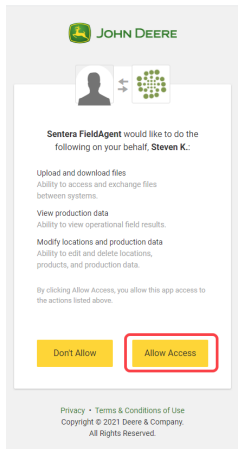
7. Click on Allow Access button to allow access for FieldAgent to access your John Deere account.
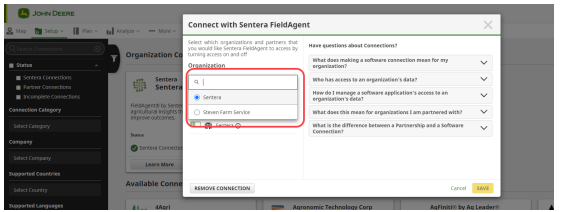
8. Select the organization from the list.
Note: If you only have one organization, it is selected by default and no action is necessary, so click Cancel.
9. Check the organization to confirm the selection and then click Save button.
10. Navigate back to the connections tab in FieldAgent under account in order to see if John Deere Operations Center is connected.
### Connect John Deere Ops Center on FieldAgent Desktop
To login through FieldAgent Desktop:
1. Launch the FieldAgent Desktop App.
2. Log in to FieldAgent.
3. Click the Gear Icon in the top right corner and select Cloud Dashboard on dropdown.
4. From the Administration Page menu, click ↔ Connections on left hand pane.
5. Click Connect to John Deere Operations Center link on the right.
6. Sign into your John Deere Operations Center Account.
7. Click on Allow Access button to allow access for FieldAgent to access your John Deere account.
8. Select the organization from the list.
Note: If you only have one organization, it is selected by default and no action is necessary, so click Cancel.
9. Check the organization to confirm the selection and then click Save.
10. Go back to the connections tab on admin page in order to see if John Deere Operations Center is connected.
### Import Fields from John Deere Operations Center
Follow the steps below to import fields from John Deere Operations Center.
1. From the Administration Page menu, click Fields, and then click "Import Fields from John Deere Operations Center".
2. You can sort the fields by Organization, Client, and Farm, currently imported fields, and select fields to import.
3. Once the field(s) have been selected, click Import Fields button. If you missed or forgot a field, this process can be repeated as needed.
4. View the status message up on the top.
5. Once the import is complete, an email will be sent to confirm the import.
## Export Field from FieldAgent to John Deere Operations Center (FA Desktop)
Follow steps below to export field(s) or mosaic(s) from FieldAgent Desktop to John Deere Operations Center, follow instructions below.
1. Select the survey to export to John Deere Operations Center.
2. Navigate down to Field Boundary under zones
3. To export, left-click on the gear icon and click on Export.
4. Select "John Deere" on the dropdown from the "Export To" field. In addition, you can change the export name to change the name of the field boundary when it gets exported to John Deere Operations Center.
5. Click Export button.
6. Once the export is complete, a Success dialog box displays. Then click Close button.
7. If necessary, you can repeat these steps for any of the following datasets in FieldAgent:
* Field Boundary
* QuickTile RGB, NIR and NDVI
* Full Mosaic
---
# Agent Instructions
This documentation is published with GitBook. GitBook is the documentation platform designed so that both humans and AI agents can read, navigate, and reason over technical content effectively. Learn more at gitbook.com.
## Querying This Documentation
If you need additional information that is not directly available in this page, you can query the documentation dynamically by asking a question.
Perform an HTTP GET request on the current page URL with the `ask` query parameter, and the optional `goal` query parameter:
```
GET https://support.senterasensors.com/home/fieldagent/how-to-link-john-deere-operations-center-user-guide.md?ask=&goal=
```
`ask` is the immediate question: it should be specific, self-contained, and written in natural language.
`goal` is optional and describes the broader end goal you are ultimately trying to accomplish on behalf of the user. GitBook uses it to tailor the answer towards what is most useful for that goal.
The response will contain a direct answer to the question and relevant excerpts and sources from the documentation.
Use this mechanism when the answer is not explicitly present in the current page, you need clarification or additional context, or you want to retrieve related documentation sections.


 Note: If you only have one organization, it is selected by default and no action is necessary, so click Cancel.
9. Check the organization to confirm the selection and then click Save button.
Note: If you only have one organization, it is selected by default and no action is necessary, so click Cancel.
9. Check the organization to confirm the selection and then click Save button.