
 in the **Map Layers** module.
 and the layer displays on the map. You can add multiple layers, from the same or different surveys.

Green check highlighted

Satellite toggle highlighted
 . Each layer you turned on is listed in the **Map Layers** module with its survey name and date.
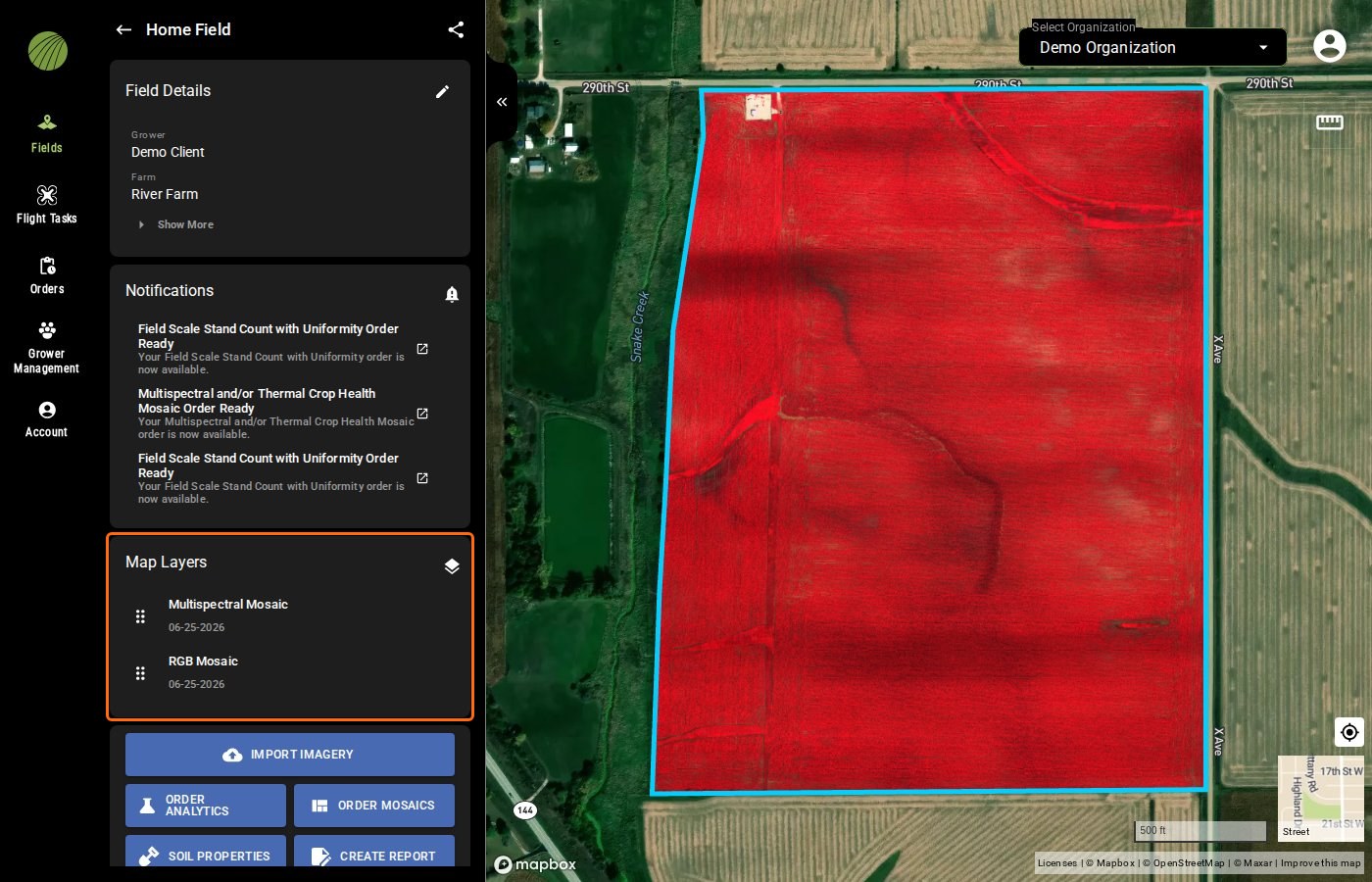
Map Layers highlighted
to return to the field view.

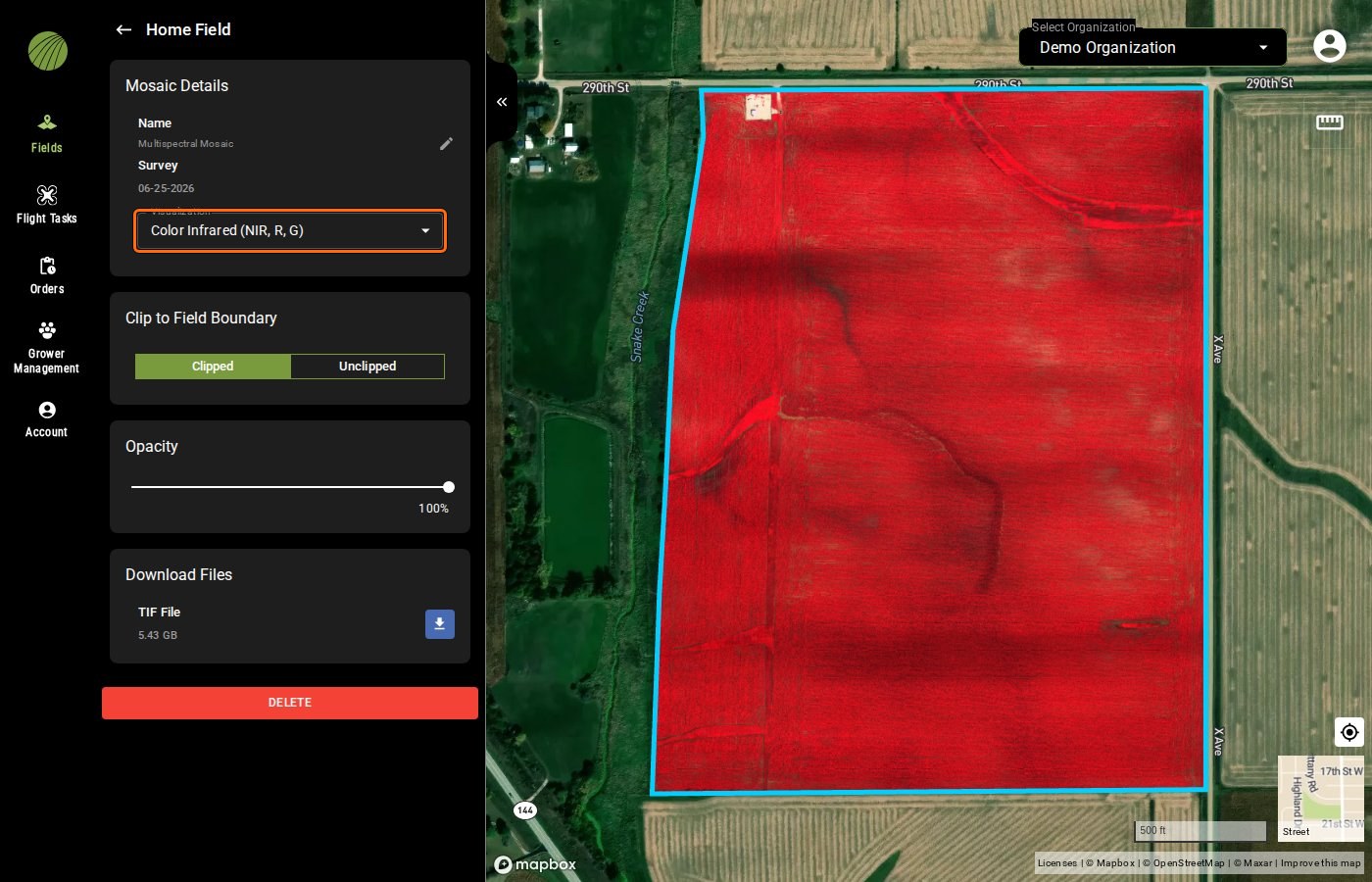
Visualization highlighted
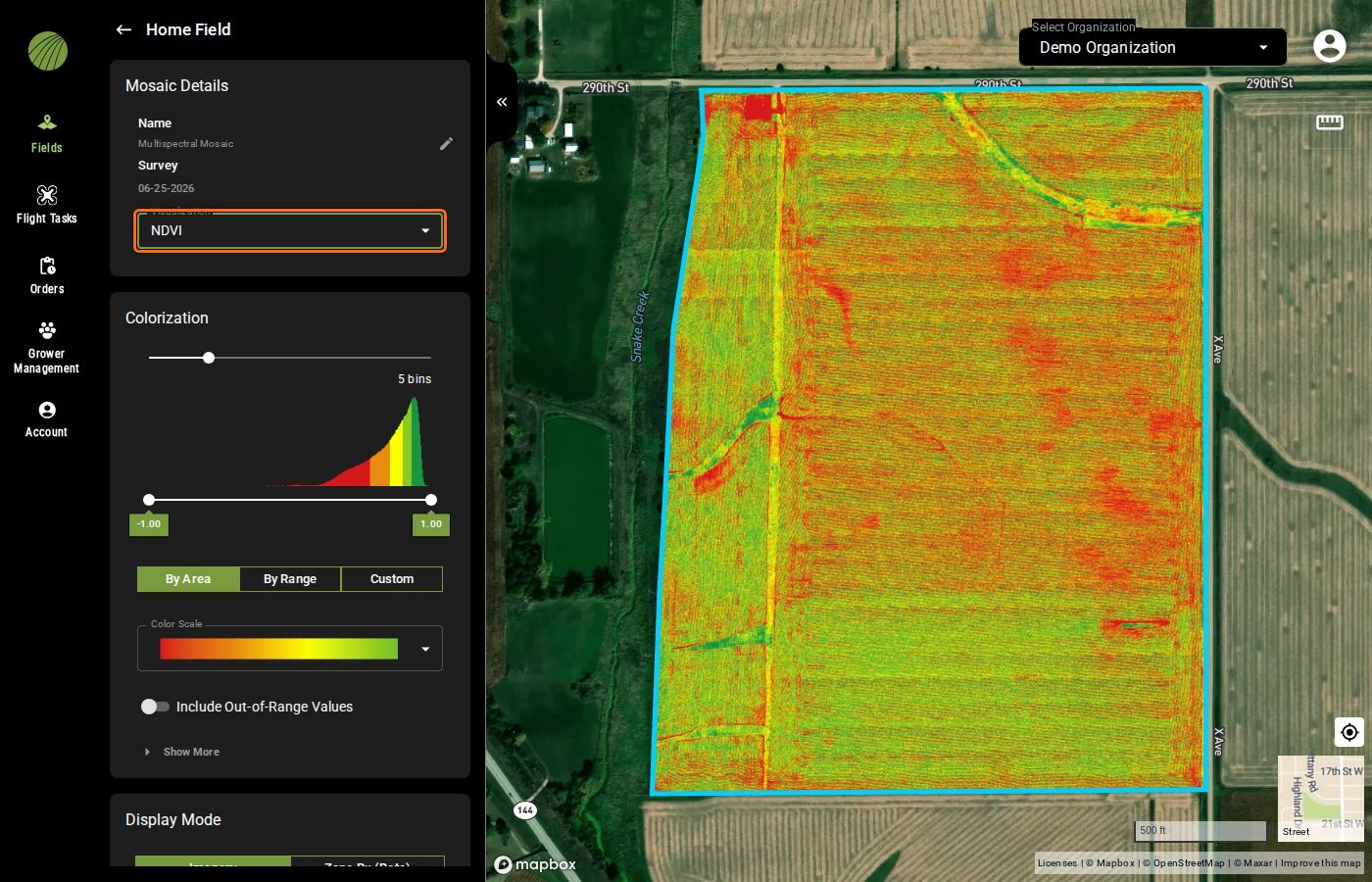
Visualization highlighted
 on its row in **Map Layers** instead.
{% endhint %}
on its row in **Map Layers** instead.
{% endhint %}
 renames it), the **Survey** date and, for a multispectral mosaic, the **Visualization** selector. Analytics show a **Display Property** selector, **Sample Count** and **Average**. |
| **Colorization** | How the layer is [colored](/home/fieldagent-web/view-and-analyze/colorization-and-visualization.md): bins, histogram, value range, binning method, color scale and color table. |
| **Display Mode** | **Imagery** shows the layer as pixels. **Zone Rx (Beta)** groups it into zones for a [prescription](/home/fieldagent-web/export-and-share/zone-rx-prescriptions.md). |
| **Zone Statistics** | The layer's values inside the field boundary and inside each [zone](/home/fieldagent-web/view-and-analyze/zones-and-zone-statistics.md). Shows "Loading…" while the values are computed. |
| **Clip to Field Boundary** | Whether the layer is [clipped](#clip-a-layer-and-set-its-opacity) to the boundary: **Clipped** or **Unclipped**. |
| **Opacity** | Fades the layer so layers or the basemap underneath show through. |
| **Download Files** | The layer's [data files](/home/fieldagent-web/export-and-share/download-and-export-data.md), for example **TIF File** with its size for a mosaic. |
| **DELETE** | Deletes the layer from the field. |
renames it), the **Survey** date and, for a multispectral mosaic, the **Visualization** selector. Analytics show a **Display Property** selector, **Sample Count** and **Average**. |
| **Colorization** | How the layer is [colored](/home/fieldagent-web/view-and-analyze/colorization-and-visualization.md): bins, histogram, value range, binning method, color scale and color table. |
| **Display Mode** | **Imagery** shows the layer as pixels. **Zone Rx (Beta)** groups it into zones for a [prescription](/home/fieldagent-web/export-and-share/zone-rx-prescriptions.md). |
| **Zone Statistics** | The layer's values inside the field boundary and inside each [zone](/home/fieldagent-web/view-and-analyze/zones-and-zone-statistics.md). Shows "Loading…" while the values are computed. |
| **Clip to Field Boundary** | Whether the layer is [clipped](#clip-a-layer-and-set-its-opacity) to the boundary: **Clipped** or **Unclipped**. |
| **Opacity** | Fades the layer so layers or the basemap underneath show through. |
| **Download Files** | The layer's [data files](/home/fieldagent-web/export-and-share/download-and-export-data.md), for example **TIF File** with its size for a mosaic. |
| **DELETE** | Deletes the layer from the field. |

 (dots on the left) | Drag a layer up or down. Layers higher in the list draw on top of layers below them. A layer you add goes to the top of the list. |
| Eye icon
(dots on the left) | Drag a layer up or down. Layers higher in the list draw on top of layers below them. A layer you add goes to the top of the list. |
| Eye icon  | Hides the layer without removing it. Click again to show it. Hiding doesn't change the order. |
| X icon | Removes the layer from the map. The data isn't deleted, so you can add it again from **Add Map Layers**. |
**Photo Dots** are the exception. They always display on top of the other layers and can't be dragged lower. Their row has the eye and X icons but no details panel. Click a dot on the map to [open its photo](/home/fieldagent-web/view-and-analyze/photo-dots-and-image-viewer.md) instead.
{% hint style="info" icon="lightbulb" %}
To compare two dates, turn on both layers. If they're multispectral mosaics, set both to the same index under **Visualization**, such as NDVI. Then give them the same [By Range bins](/home/fieldagent-web/view-and-analyze/colorization-and-visualization.md#set-a-layers-colors), so a color means the same value on both. Open the upper one and lower its **Opacity**, or hide and show it with the eye icon .
{% endhint %}
### Try it in the demo
In the demo below, a multispectral mosaic shown as NDVI sits over an RGB mosaic from the same survey. Swap them, hide one, take it off the map and add it back, then see where **Photo Dots** go.
{% @fieldagent-demo/embed content="layer-order" %}
Open this demo full size
***
## Clip a layer and set its opacity
Clipping hides the parts of a layer outside the field boundary, and opacity lets the layers underneath show through. Both are in the layer's details panel.
Under **Clip to Field Boundary**, **Clipped** is the default. **Unclipped** shows everything the flight covered, including headlands and neighboring ground. Use **Clipped** for reports and prescriptions.
{% columns %}
{% column %}
| Hides the layer without removing it. Click again to show it. Hiding doesn't change the order. |
| X icon | Removes the layer from the map. The data isn't deleted, so you can add it again from **Add Map Layers**. |
**Photo Dots** are the exception. They always display on top of the other layers and can't be dragged lower. Their row has the eye and X icons but no details panel. Click a dot on the map to [open its photo](/home/fieldagent-web/view-and-analyze/photo-dots-and-image-viewer.md) instead.
{% hint style="info" icon="lightbulb" %}
To compare two dates, turn on both layers. If they're multispectral mosaics, set both to the same index under **Visualization**, such as NDVI. Then give them the same [By Range bins](/home/fieldagent-web/view-and-analyze/colorization-and-visualization.md#set-a-layers-colors), so a color means the same value on both. Open the upper one and lower its **Opacity**, or hide and show it with the eye icon .
{% endhint %}
### Try it in the demo
In the demo below, a multispectral mosaic shown as NDVI sits over an RGB mosaic from the same survey. Swap them, hide one, take it off the map and add it back, then see where **Photo Dots** go.
{% @fieldagent-demo/embed content="layer-order" %}
Open this demo full size
***
## Clip a layer and set its opacity
Clipping hides the parts of a layer outside the field boundary, and opacity lets the layers underneath show through. Both are in the layer's details panel.
Under **Clip to Field Boundary**, **Clipped** is the default. **Unclipped** shows everything the flight covered, including headlands and neighboring ground. Use **Clipped** for reports and prescriptions.
{% columns %}
{% column %}

Clipped

Unclipped

Opacity highlighted