Laptop NTRIP

Equipment

Required Equipment

Drone

Antenna

RTK-PPK Module

Coax Cable

Sentera Sensor

Sentera Ground Radio

Laptop*

USB to USB-C Cable**

Hotspot Device

*Ensure your laptop has the NTRIP client installed.

**Use a USB-A to USB-C or USB-C to USB-C cable to connect your laptop to the USB-C port on the sentera ground radio.


Instructions

1

Power on Laptop & Connect to Hotspot

Turn the laptop on and connect the laptop to the mobile hotspot.

Verify internet connection.

2

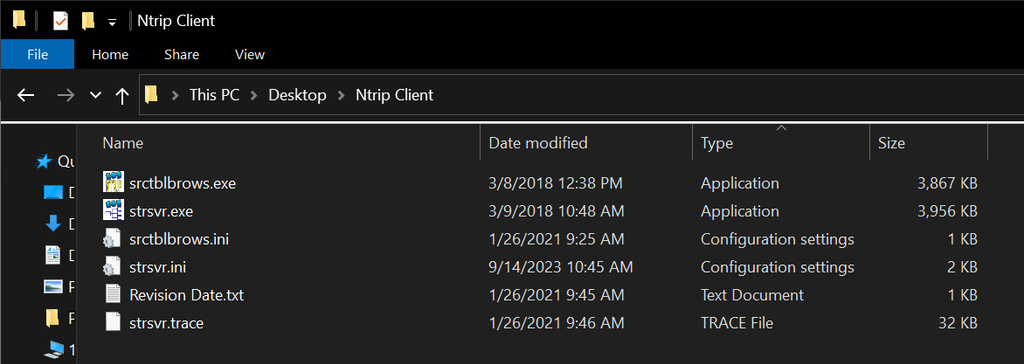
Open NTRIP Client Folder

Navigate to where the NTRIP Client folder was unzipped to/stored.

3

Run strsvr.eve

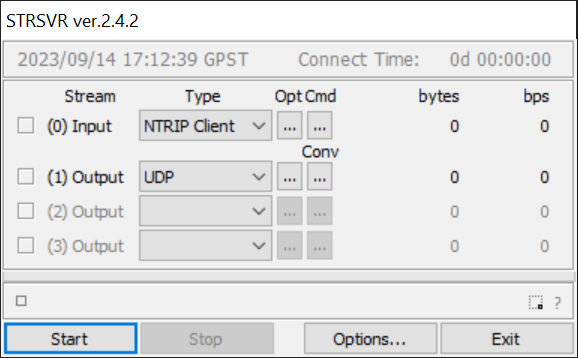
Double click strsvr.exe to start the NTRIP client.

4

Enter Location Information

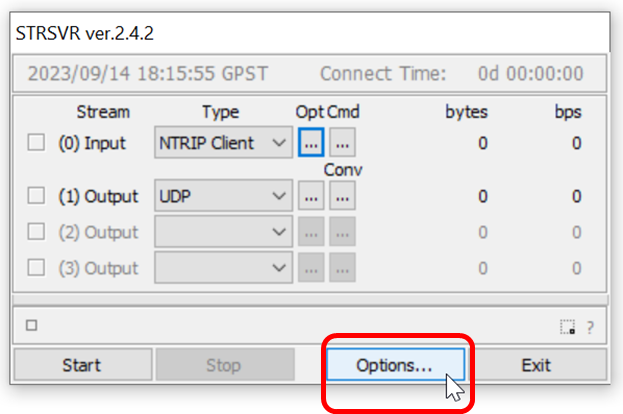
Select the Options button.

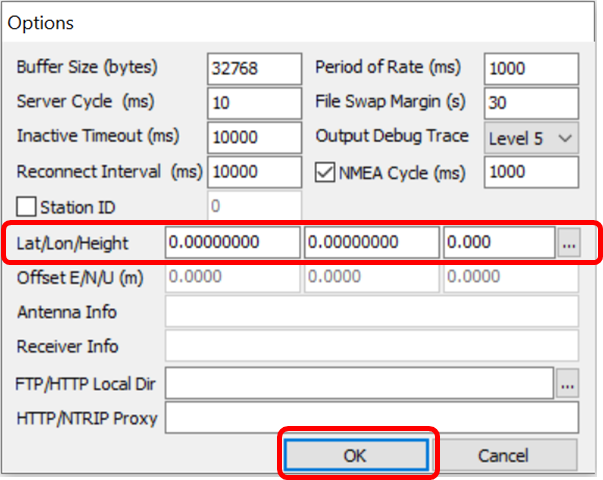
A pop up window will appear.

Enter the Latitude (decimal), Longitude (decimal), and Attitude (meters) information of the location the pilot is flying at. Then press okay.

5

Start Stream

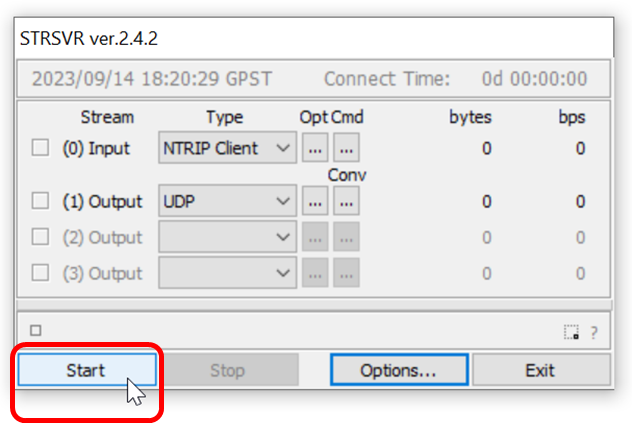
Press the start button in the lower left hand corner to start streaming corrections messages.

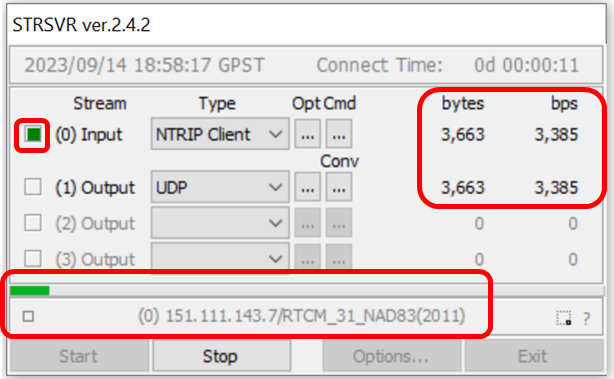
A successful stream will show the green check box next to Input, a green loading bar at the bottom, and the bytes/bps counters will begin to increase.

6

Verify Antenna is mounted

Verify that the Antenna is mounted on the drone.

7

Verify Radio Connection

Verify that the Antenna is mounted on the drone, and the Sentera ground radio RSSI status lights are either scrolling green (searching for air radio) or solid green (connected to air radio).

Last updated