> For the complete documentation index, see [llms.txt](https://support.senterasensors.com/home/llms.txt). Markdown versions of documentation pages are available by appending `.md` to page URLs; this page is available as [Markdown](https://support.senterasensors.com/home/double-4k-sensor/double-4k/faqs/faqs-how-do-i-use-a-new-microsd-card-with-my-sentera-sensor.md).
# FAQS: How do I use a new MicroSD Card with my Sentera Sensor?
 Note: Double 4K - Skyport is formerly known as AGX710.
First, confirm that you are using a MicroSD Card of the correct size and speed.\
\
**Speed Specifications:**
We recommend using a class 3 (U3 \~ 100mb/s) card
**Maximum Card Size Specifications:**
* Single and Quad Sensors = 32 GB
* Double 4K and Skyport = 64 GB
**Determining the Format of your MicroSD Card**
Note: Double 4K - Skyport is formerly known as AGX710.
First, confirm that you are using a MicroSD Card of the correct size and speed.\
\
**Speed Specifications:**
We recommend using a class 3 (U3 \~ 100mb/s) card
**Maximum Card Size Specifications:**
* Single and Quad Sensors = 32 GB
* Double 4K and Skyport = 64 GB
**Determining the Format of your MicroSD Card**
 All SD Cards used in Sentera Sensors, must be in FAT32 format.\
\
To determine the current format of your MicroSD Card:
1. Insert the MicroSD card into a computer
2. Locate the MicroSD card in a finder window.
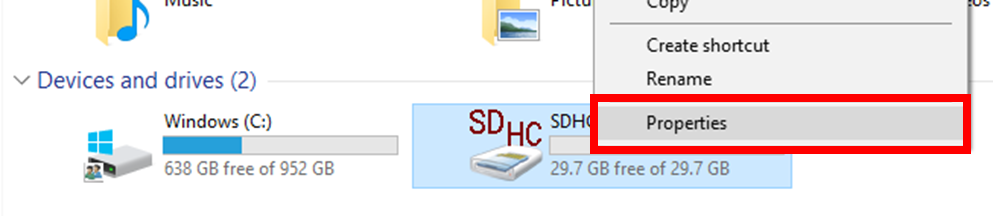
3. Right click and select properties as shown below.
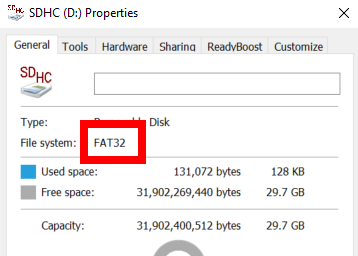
4. Check the file system for "FAT32" as shown below.
If your MicroSD Card is already formatted to FAT32, move onto the next section, Using your FAT32 MicroSD Card. In addition, If your SD Card is not formatted to FAT32, follow the instructions detailed in the last section, Formatting an SD Card to FAT32.\
\
**Using your FAT32**
1. Insert your SD Card into your Sensor and if applicable, install your sensor onto your aircraft.
2. Power on the aircraft. The Sensor will write the necessary files to the card.
1. For the Sentera Single Sensor you will see Green, Yellow, and Red LED's. Please wait until the Red LED turns off.
2. For the Double 4K Sensor or Skyport you will need to wait until you have a solid Green LED.
**Formatting an SD Card to FAT32**\
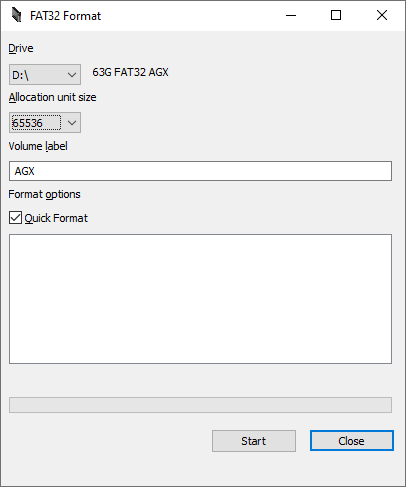
If your SD Card is not formatted to FAT32, you will need to format the card using the tool below as Windows does not support the format natively.
All SD Cards used in Sentera Sensors, must be in FAT32 format.\
\
To determine the current format of your MicroSD Card:
1. Insert the MicroSD card into a computer
2. Locate the MicroSD card in a finder window.
3. Right click and select properties as shown below.
4. Check the file system for "FAT32" as shown below.
If your MicroSD Card is already formatted to FAT32, move onto the next section, Using your FAT32 MicroSD Card. In addition, If your SD Card is not formatted to FAT32, follow the instructions detailed in the last section, Formatting an SD Card to FAT32.\
\
**Using your FAT32**
1. Insert your SD Card into your Sensor and if applicable, install your sensor onto your aircraft.
2. Power on the aircraft. The Sensor will write the necessary files to the card.
1. For the Sentera Single Sensor you will see Green, Yellow, and Red LED's. Please wait until the Red LED turns off.
2. For the Double 4K Sensor or Skyport you will need to wait until you have a solid Green LED.
**Formatting an SD Card to FAT32**\
If your SD Card is not formatted to FAT32, you will need to format the card using the tool below as Windows does not support the format natively.
 Note: Windows might not download it when clicking on the link as it will say its suspicious, have windows download it anyway.
* Software download link:
{% file src="/files/TjPiBNiyLUJtxfu35CDS" %}
***Before using the FAT32 Formatter Tool copy it to your Desktop, close Windows Explorer, then launch FAT32 Formatter.***
**Allocation Size for MicroSD Cards**\
When using the FAT32 Formatter Tool, set it to the appropriate allocation size based on card storage.
* 16 GB Cards = 16384
* 32 GB Cards = 32768
* 64 GB Cards = 65536
You can now insert the newly formatted MicroSD Card in to the Sensor and power on the aircraft. The Sensor will write the necessary files to the card. **Make sure you power on the sensor for about 5 minutes with the microsd card in the sensor.**
* For the Sentera Single Sensor you will see Green, Yellow, and Red LEDs. Please wait until the Red LED turns off.
* For the Double 4K Sensor or Skyport you will need to wait until you have a solid Green LED. Typically, you will want to test this outside in order to get a Green LED, i.e., the sensor needs GPS and needs direct line of sight with the sky.
---
# Agent Instructions
This documentation is published with GitBook. GitBook is the documentation platform designed so that both humans and AI agents can read, navigate, and reason over technical content effectively. Learn more at gitbook.com.
## Querying This Documentation
If you need additional information that is not directly available in this page, you can query the documentation dynamically by asking a question.
Perform an HTTP GET request on the current page URL with the `ask` query parameter, and the optional `goal` query parameter:
```
GET https://support.senterasensors.com/home/double-4k-sensor/double-4k/faqs/faqs-how-do-i-use-a-new-microsd-card-with-my-sentera-sensor.md?ask=&goal=
```
`ask` is the immediate question: it should be specific, self-contained, and written in natural language.
`goal` is optional and describes the broader end goal you are ultimately trying to accomplish on behalf of the user. GitBook uses it to tailor the answer towards what is most useful for that goal.
The response will contain a direct answer to the question and relevant excerpts and sources from the documentation.
Use this mechanism when the answer is not explicitly present in the current page, you need clarification or additional context, or you want to retrieve related documentation sections.
Note: Windows might not download it when clicking on the link as it will say its suspicious, have windows download it anyway.
* Software download link:
{% file src="/files/TjPiBNiyLUJtxfu35CDS" %}
***Before using the FAT32 Formatter Tool copy it to your Desktop, close Windows Explorer, then launch FAT32 Formatter.***
**Allocation Size for MicroSD Cards**\
When using the FAT32 Formatter Tool, set it to the appropriate allocation size based on card storage.
* 16 GB Cards = 16384
* 32 GB Cards = 32768
* 64 GB Cards = 65536
You can now insert the newly formatted MicroSD Card in to the Sensor and power on the aircraft. The Sensor will write the necessary files to the card. **Make sure you power on the sensor for about 5 minutes with the microsd card in the sensor.**
* For the Sentera Single Sensor you will see Green, Yellow, and Red LEDs. Please wait until the Red LED turns off.
* For the Double 4K Sensor or Skyport you will need to wait until you have a solid Green LED. Typically, you will want to test this outside in order to get a Green LED, i.e., the sensor needs GPS and needs direct line of sight with the sky.
---
# Agent Instructions
This documentation is published with GitBook. GitBook is the documentation platform designed so that both humans and AI agents can read, navigate, and reason over technical content effectively. Learn more at gitbook.com.
## Querying This Documentation
If you need additional information that is not directly available in this page, you can query the documentation dynamically by asking a question.
Perform an HTTP GET request on the current page URL with the `ask` query parameter, and the optional `goal` query parameter:
```
GET https://support.senterasensors.com/home/double-4k-sensor/double-4k/faqs/faqs-how-do-i-use-a-new-microsd-card-with-my-sentera-sensor.md?ask=&goal=
```
`ask` is the immediate question: it should be specific, self-contained, and written in natural language.
`goal` is optional and describes the broader end goal you are ultimately trying to accomplish on behalf of the user. GitBook uses it to tailor the answer towards what is most useful for that goal.
The response will contain a direct answer to the question and relevant excerpts and sources from the documentation.
Use this mechanism when the answer is not explicitly present in the current page, you need clarification or additional context, or you want to retrieve related documentation sections.