> This is part 1 of 2 of the full documentation (pages 1–100 of 109).
> The content is paginated: fetch every part to see all of it.
> Next part: https://support.senterasensors.com/65r-sensor-user-guide/llms-full.txt/1
> Page index: https://support.senterasensors.com/65r-sensor-user-guide/llms.txt

# 65R Sensor

<table data-view="cards"><thead><tr><th></th><th></th><th></th><th data-hidden data-type="content-ref"></th></tr></thead><tbody><tr><td><h4>Sensor Information</h4></td><td>Learn about the 65R Sensor's hardware, supported drone systems and data products</td><td><p><a href="/65r-sensor-user-guide/65r-sensor/whats-in-the-box">What's in the Box</a></p><p><a href="/65r-sensor-user-guide/65r-sensor/anatomy">Sensor Anatomy</a></p><p><a href="/65r-sensor-user-guide/65r-sensor/variants">Sensor Variants</a></p><p><a href="/65r-sensor-user-guide/65r-sensor/specifications">Specifications</a></p><p><a href="/65r-sensor-user-guide/65r-sensor/supported-platforms">Supported Platforms</a></p><p><a href="/65r-sensor-user-guide/65r-sensor/supported-data-products">Supported Data Products</a></p></td><td><a href="broken://pages/wHMr3pfYQM1UNFTVEjdd">Broken link</a></td></tr><tr><td><h4>Getting Started</h4></td><td>Quick guides on the fundamentals of installation, operation and data offload.</td><td><p><a href="/65r-sensor-user-guide/quick-start-guide/setup">Quick Start Guide</a></p><p><a href="/65r-sensor-user-guide/quick-start-guide/installation">Installation</a></p><p><a href="/65r-sensor-user-guide/quick-start-guide/operation">Operation</a></p><p><a href="/65r-sensor-user-guide/quick-start-guide/data-offload">Data Offload</a></p></td><td></td></tr><tr><td><h4>Configuration and Settings</h4></td><td>See how to change your sensors configuration, settings and update firmware</td><td><p><a href="/65r-sensor-user-guide/65r-sensor/firmware-update">Firmware Update</a></p><p><a href="/65r-sensor-user-guide/65r-sensor/configuration-and-settings/how-to-access-web-user-interface">Access Sensor Web Page User Interface</a></p><p><a href="/65r-sensor-user-guide/65r-sensor/configuration-and-settings/configuration">Sensor Configuration</a></p><p><a href="/65r-sensor-user-guide/65r-sensor/configuration-and-settings/image-adjustment">Image Setting Adjustment</a></p></td><td></td></tr><tr><td><h4>Installation</h4></td><td>Detailed instructions for Installing your sensor on different drone platforms</td><td><p><a href="/65r-sensor-user-guide/65r-sensor/installation/dji">DJI Installation</a></p><p><a href="/65r-sensor-user-guide/65r-sensor/installation/freefly">Freefly Installation</a></p><p><a href="/65r-sensor-user-guide/65r-sensor/installation/inspired-flight">Inspired Flight Installation</a></p></td><td></td></tr><tr><td><h4>Operation</h4></td><td>Learn the standard practices for preparing and operating your sensor.</td><td><p><a href="/65r-sensor-user-guide/65r-sensor/operation/standard-operating-procedure">Standard Operating Procedure</a></p><p><a href="/65r-sensor-user-guide/65r-sensor/operation/recommended-flight-settings">Recommended Flight Settings</a></p><p><a href="/65r-sensor-user-guide/65r-sensor/operation/gimbal-steering">Gimbal Steering</a></p><p><a href="/65r-sensor-user-guide/65r-sensor/operation/leds">Sensor Status LEDs</a></p><p><a href="/65r-sensor-user-guide/65r-sensor/operation/sd-card">SD Card</a></p></td><td></td></tr><tr><td><h4>Data Offload</h4></td><td>Learn how to offload data from your sensor.</td><td><p><a href="/65r-sensor-user-guide/65r-sensor/data-offload/offload-process">Windows Offload Instructions</a></p><p><a href="/65r-sensor-user-guide/65r-sensor/data-offload/offload-process/offload-process-mac">MacOS Offload Instructions</a></p><p><a href="/65r-sensor-user-guide/65r-sensor/data-offload/data-import">Importing 65R Data into Processing Applications</a></p></td><td></td></tr><tr><td><h4>Integration Information</h4></td><td>Technical information for custom integrations with drones and software</td><td><p><a href="/65r-sensor-user-guide/integration-information/i-o">I/O</a></p><p><a href="/65r-sensor-user-guide/integration-information/communication-protocol">Communication Protocol</a></p><p><a href="/65r-sensor-user-guide/integration-information/mechanical">Mechanical</a></p><p><a href="/65r-sensor-user-guide/integration-information/electrical-connectors">Electrical Connectors</a></p><p><a href="/65r-sensor-user-guide/integration-information/exif-and-xmp-tags">EXIF and XMP Tags</a></p></td><td></td></tr></tbody></table>


# Introduction

<figure><img src="https://3675182560-files.gitbook.io/~/files/v0/b/gitbook-x-prod.appspot.com/o/spaces%2FXxc0lOfDa92aCfFa5lb4%2Fuploads%2FJRWTdji6YMAsYaL6Mzwh%2Fimage.png?alt=media&amp;token=32757eb5-f2f6-4fb1-9ce9-6f5a75804948" alt="" width="375"><figcaption></figcaption></figure>

<figure><img src="https://3675182560-files.gitbook.io/~/files/v0/b/gitbook-x-prod.appspot.com/o/spaces%2FXxc0lOfDa92aCfFa5lb4%2Fuploads%2FA3HNLkhvu70CHDT3MzcV%2FSentera%2065R%20Orange%20RGB.png?alt=media&amp;token=be7f2360-b87f-494f-af90-e72e1f9f9733" alt="" width="375"><figcaption></figcaption></figure>

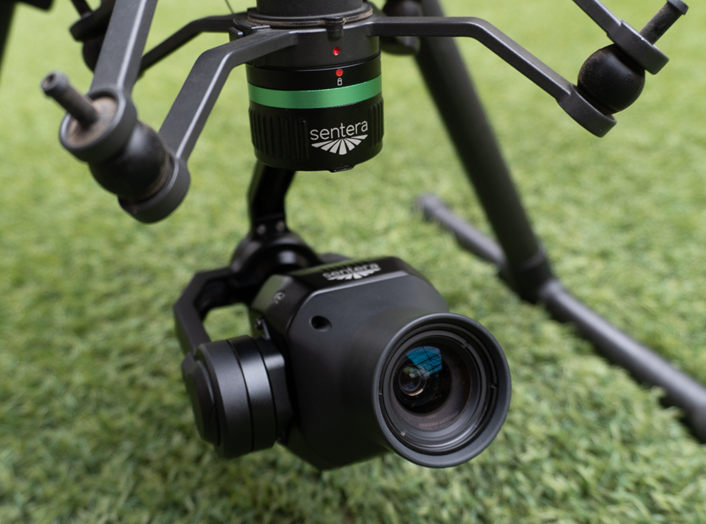
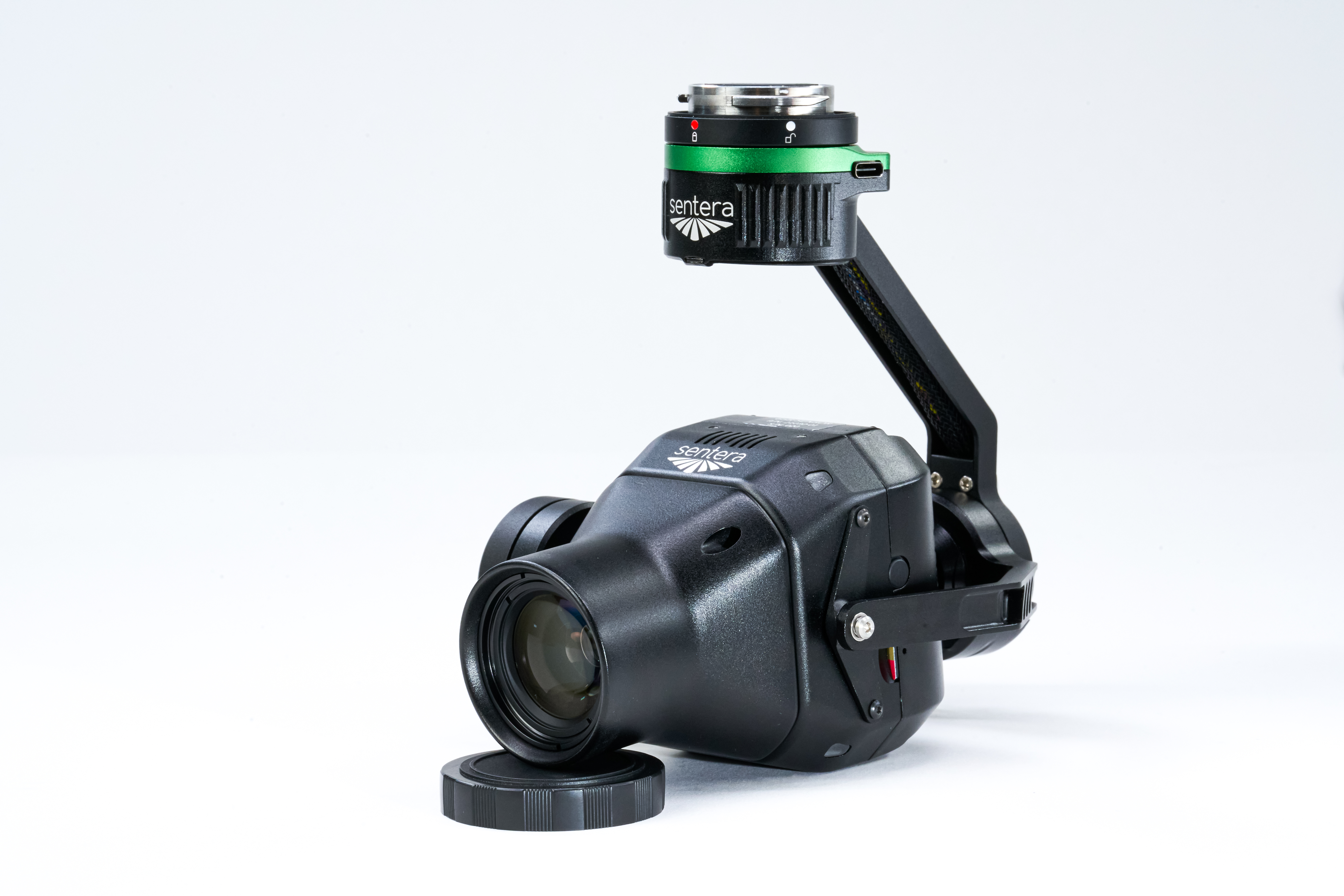
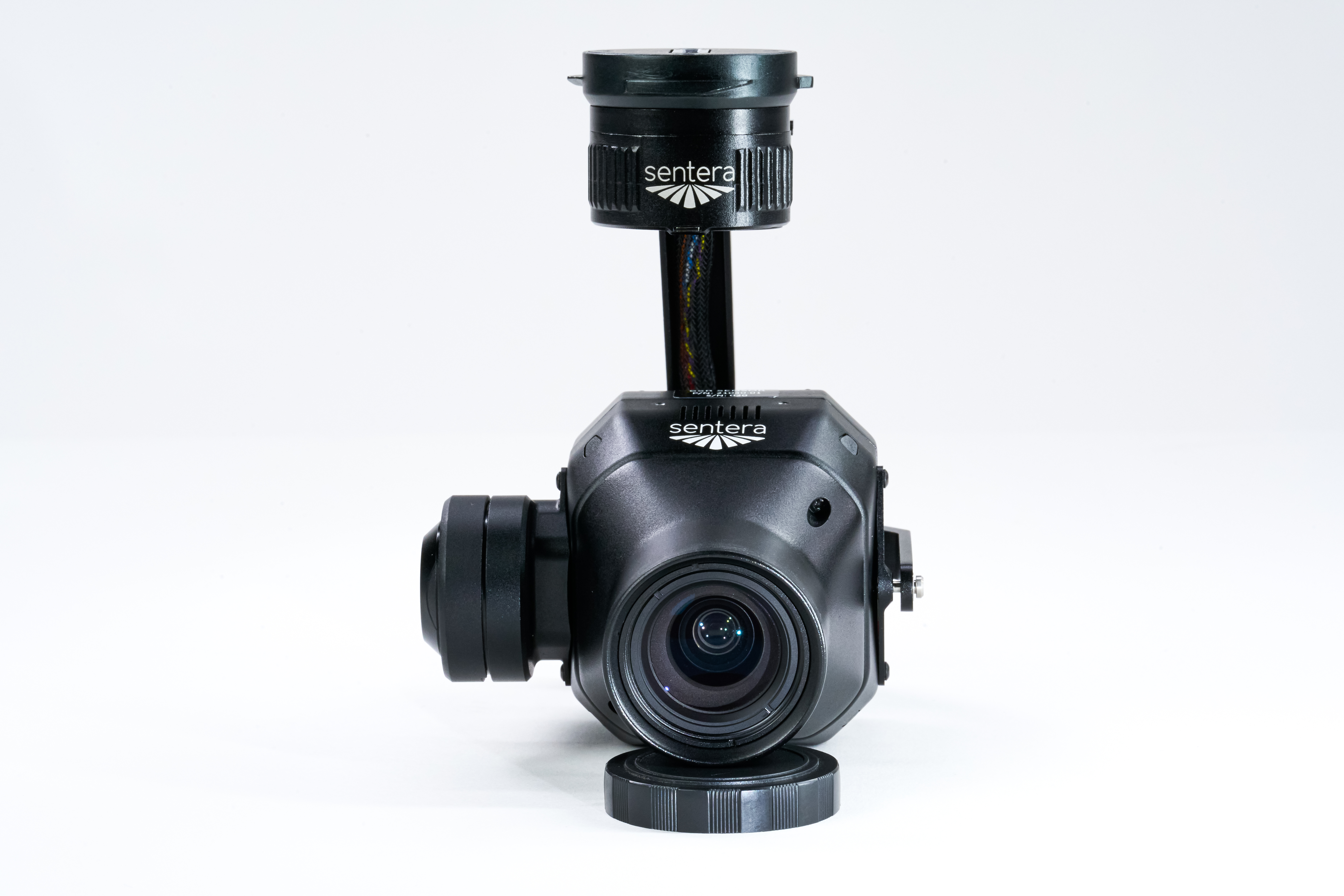
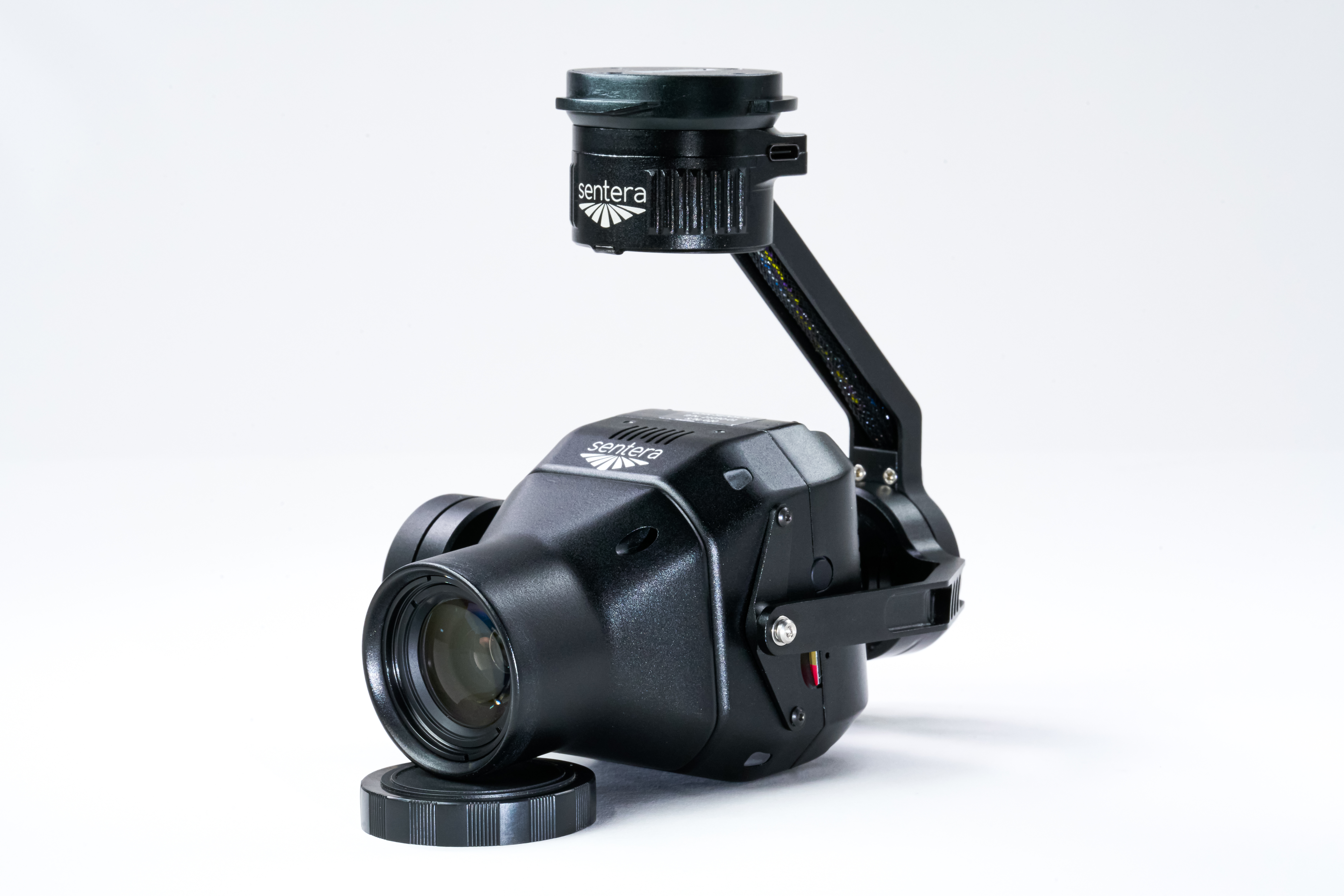
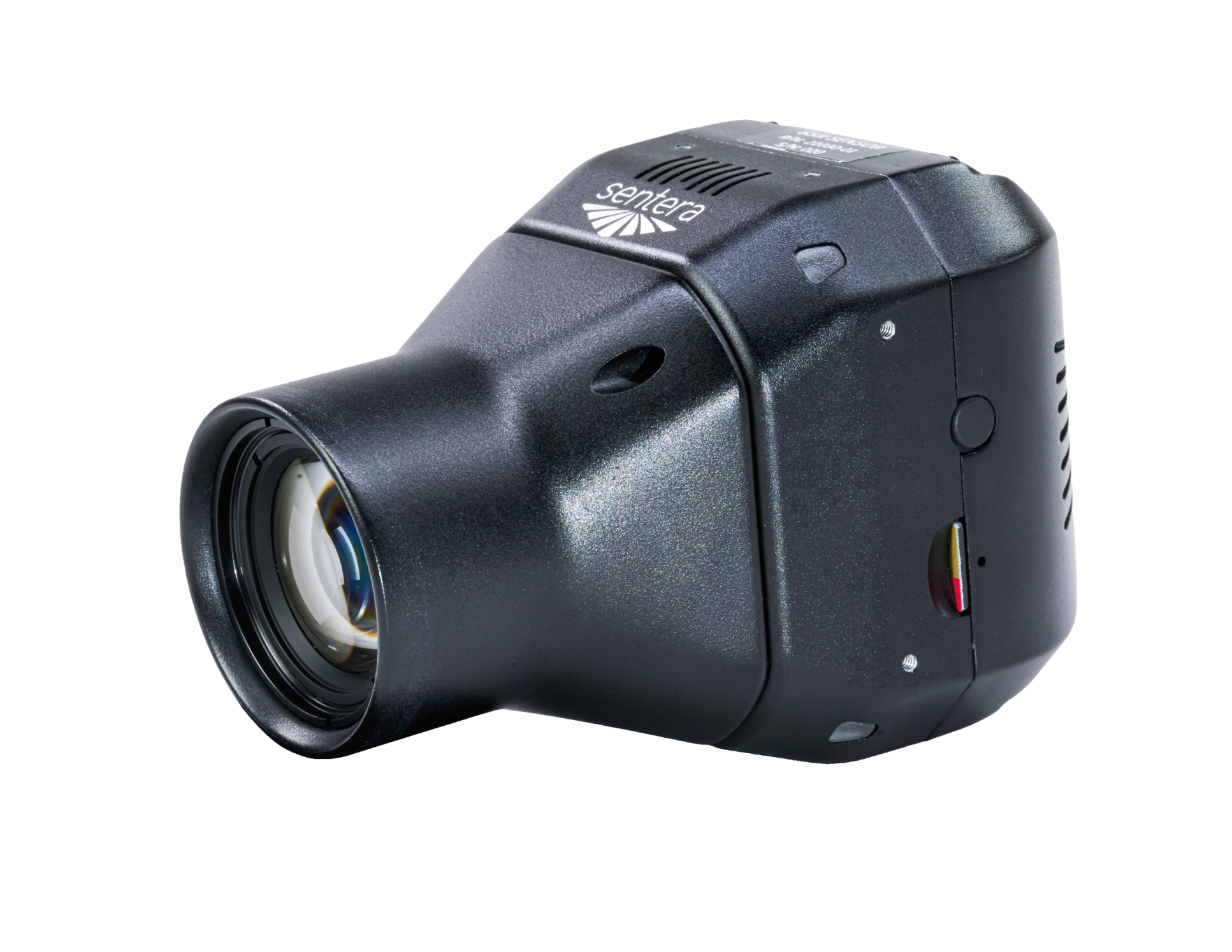
The Sentera 65R sensor delivers 65MP resolution, global shutter RGB imagery in a compact package optimized for drone operations. The 65R offers outstanding image quality, fast capture rate, and user-friendly operation. The sensor can be integrated stand-alone or with stabilizing gimbal that is plug-and-play with the most popular drone platforms.

<figure><img src="https://3675182560-files.gitbook.io/~/files/v0/b/gitbook-x-prod.appspot.com/o/spaces%2FXxc0lOfDa92aCfFa5lb4%2Fuploads%2F0HqwHxaKc8dmR4Zk7iaq%2Fimage.png?alt=media&amp;token=219fffbd-ac37-4bda-a23a-0e370609a7e1" alt=""><figcaption></figcaption></figure>

<figure><img src="https://3675182560-files.gitbook.io/~/files/v0/b/gitbook-x-prod.appspot.com/o/spaces%2FXxc0lOfDa92aCfFa5lb4%2Fuploads%2FcRrczqMbJKUFWN6Ykebg%2FDSC05198-Enhanced-NR.jpg?alt=media&amp;token=0e3dc05e-b878-4340-bdb4-bcf175d2e0df" alt=""><figcaption></figcaption></figure>

<figure><img src="https://3675182560-files.gitbook.io/~/files/v0/b/gitbook-x-prod.appspot.com/o/spaces%2FXxc0lOfDa92aCfFa5lb4%2Fuploads%2FmZ2CAIbHtj2nOYO6Qv8C%2FIMG_3541.jpg?alt=media&amp;token=c78574c9-02c3-44c9-bb6b-fc8830ba96ff" alt=""><figcaption></figcaption></figure>

<figure><img src="https://3675182560-files.gitbook.io/~/files/v0/b/gitbook-x-prod.appspot.com/o/spaces%2FXxc0lOfDa92aCfFa5lb4%2Fuploads%2FEMlDJwQQyoqlZKk3ppVV%2FIF1200A65R0121.jpg?alt=media&amp;token=da1c232a-a229-48f4-9477-19586452b4d3" alt=""><figcaption></figcaption></figure>


# Variants

<table data-card-size="large" data-view="cards"><thead><tr><th align="center"></th><th align="center"></th></tr></thead><tbody><tr><td align="center"><img src="https://3675182560-files.gitbook.io/~/files/v0/b/gitbook-x-prod.appspot.com/o/spaces%2FXxc0lOfDa92aCfFa5lb4%2Fuploads%2Fv4ieAw9jYTll7j7Soeui%2F65r.png?alt=media&amp;token=b4f073f2-bd91-478c-8766-fea152b509a8" alt="" data-size="original"></td><td align="center">27mm (Standard)</td></tr><tr><td align="center"><img src="https://3675182560-files.gitbook.io/~/files/v0/b/gitbook-x-prod.appspot.com/o/spaces%2FXxc0lOfDa92aCfFa5lb4%2Fuploads%2FqMXG8AmPaIILBZFWMBAB%2F65ROEM0135_edit%2060mm%20Mock.png?alt=media&amp;token=d26c36a9-3af7-4621-bae2-27ee0363a979" alt="" data-size="original"></td><td align="center">60mm</td></tr></tbody></table>

***

## What's The Difference?

The lens and lens mount are different. The 27mm standard lens was designed from the ground up specifically for the 65R and provides the highest image quality.

The 27mm lens, with its wider FOV, is ideal for large-area mapping and broad coverage applications, reducing the number of images needed per flight. The 60mm lens, with its narrowere FOV and finer GSD, is best suited for high-detail imaging in infrastructure inspections, surveying, and precision measurements where accuracy at a distance is critical.


# Specifications

## Specification Sheet Download

{% file src="/files/DcEBL0yGLxtUWKkloxKM" %}

## Key Specifications

| Size                 | 2.5” x 2.78” x 4.19”                                                                                       |
| -------------------- | ---------------------------------------------------------------------------------------------------------- |
| Resolution           | 9344px by 7000px                                                                                           |
| Shutter              | Global                                                                                                     |
| Metadata             | Stamped at time of capture                                                                                 |
| Weight (sensor only) | 330g                                                                                                       |
| Weight (with gimbal) | \~600g (connector & lens dependent)                                                                        |
| Power                | 12W Typical, 15W Max 10.5 - 26V Input Range                                                                |
| Image Format         | JPEG, RAW                                                                                                  |
| Capture Rate         | 3Hz (sustained)                                                                                            |
| Storage              | 512 GB Internal SSD (PCIe NVME)                                                                            |
| Interfaces           | USB-C, Gigabit Ethernet, Expansion Port                                                                    |
| Supported Protocols  | DJI, MAVlink V1 & V2                                                                                       |
| Video                | <p>RTSP URL: rtsp\://192.168.144.141:8554/video<br>FPS: 18fps<br>Bitrate: 3Mbps<br>Resolution: 960x720</p> |

## Imager Specifications

| <p><br>CMOS Sensor</p> | GMAX 3265                       |
| ---------------------- | ------------------------------- |
| Shutter Type           | Global                          |
| Sensor Size            | 29.9mm (W) x 22.4mm (H)         |
| Resolution             | 65.4 MP 9344px (H) x 7000px (V) |
| Image Format           | 8-bit JPG, 12-bit RAW           |
| Pixel Size             | 3.2 x 3.2um                     |
| Lens Focal Length      | 27.4mm, 59.0mm                  |
| Field of View          | 57.6 x 44.8, 27.8 x 21.0        |
| Lens F Stop            | F4                              |
| Lens Distortion        | < 3.5%                          |
| UV/IR Cut Filter Range | 390 ±5 nm to 690 ±7nm           |


# Dimensions

### 27mm Standard Lens

{% tabs %}
{% tab title="DJI Skyport" %}

<figure><img src="https://3675182560-files.gitbook.io/~/files/v0/b/gitbook-x-prod.appspot.com/o/spaces%2FXxc0lOfDa92aCfFa5lb4%2Fuploads%2F6qhB92BMWIY7R2GdMTfx%2Fimage.png?alt=media&#x26;token=3e8deeb3-7749-4eb9-b970-dd5b5a04a354" alt=""><figcaption></figcaption></figure>
{% endtab %}

{% tab title="Smart Dovetail" %}

<figure><img src="https://3675182560-files.gitbook.io/~/files/v0/b/gitbook-x-prod.appspot.com/o/spaces%2FXxc0lOfDa92aCfFa5lb4%2Fuploads%2Fq5BnaQrplClw3ZS6ZCDZ%2Fimage.png?alt=media&#x26;token=8a5e6546-7190-4d53-b229-361b33f61048" alt=""><figcaption></figcaption></figure>
{% endtab %}

{% tab title="Gremsy Hyper Quick" %}

<figure><img src="https://3675182560-files.gitbook.io/~/files/v0/b/gitbook-x-prod.appspot.com/o/spaces%2FXxc0lOfDa92aCfFa5lb4%2Fuploads%2FT8AuzstrEihTtoHx34Pm%2Fimage.png?alt=media&#x26;token=089def93-2bd2-48d8-97cd-79a13c1f2c93" alt=""><figcaption></figcaption></figure>
{% endtab %}

{% tab title="OEM" %}

<figure><img src="https://3675182560-files.gitbook.io/~/files/v0/b/gitbook-x-prod.appspot.com/o/spaces%2FXxc0lOfDa92aCfFa5lb4%2Fuploads%2FxnsJl67hkNvfPvApPF2I%2Fimage.png?alt=media&#x26;token=bbd4371a-f0e4-43d2-941b-c6e301713a67" alt=""><figcaption></figcaption></figure>
{% endtab %}
{% endtabs %}

## Sensor Orientation Reference

<figure><img src="https://3675182560-files.gitbook.io/~/files/v0/b/gitbook-x-prod.appspot.com/o/spaces%2FXxc0lOfDa92aCfFa5lb4%2Fuploads%2FOnduHaTRBNlqgeRncBoL%2Fimage.png?alt=media&#x26;token=56f9642c-06dc-4347-9a72-f5914cd7c3b6" alt=""><figcaption></figcaption></figure>


# Capture Rate Charts

The maximum capture rate of the 65R is 3 FPS. The charts below show how the camera performs given different altitude, flight speed, and overlap settings.

### Capture Rate Versus Altitude - Constant Speed

{% tabs %}
{% tab title="70% Front Overlap" %}

<figure><img src="https://3675182560-files.gitbook.io/~/files/v0/b/gitbook-x-prod.appspot.com/o/spaces%2FXxc0lOfDa92aCfFa5lb4%2Fuploads%2F4ENrZNctr6iZ45DjucOb%2F65r%20speed%2070.png?alt=media&amp;token=9624d3e8-1709-4387-9783-b080e3d2b7e7" alt=""><figcaption></figcaption></figure>
{% endtab %}

{% tab title="75% Front Overlap" %}

<figure><img src="https://3675182560-files.gitbook.io/~/files/v0/b/gitbook-x-prod.appspot.com/o/spaces%2FXxc0lOfDa92aCfFa5lb4%2Fuploads%2FwK1VRrpQRcb8cPGr05IT%2F65r%20speed%2075.png?alt=media&amp;token=9b2e4c42-5e28-4cca-a700-69aab9bd0810" alt=""><figcaption></figcaption></figure>
{% endtab %}

{% tab title="80% Front Overlap" %}

<figure><img src="https://3675182560-files.gitbook.io/~/files/v0/b/gitbook-x-prod.appspot.com/o/spaces%2FXxc0lOfDa92aCfFa5lb4%2Fuploads%2F5JA8cd3IWrxoo7wM0SFA%2F65r%20speed%2080.png?alt=media&amp;token=931d3d01-96f1-4b97-be99-6f11742734d0" alt=""><figcaption></figcaption></figure>
{% endtab %}

{% tab title="85% Front Overlap" %}

<figure><img src="https://3675182560-files.gitbook.io/~/files/v0/b/gitbook-x-prod.appspot.com/o/spaces%2FXxc0lOfDa92aCfFa5lb4%2Fuploads%2Fk8PpohPNRVmvvaxRWDML%2F65r%20speed%2085.png?alt=media&amp;token=477cb382-0397-4a77-a0ea-e570b3148058" alt=""><figcaption></figcaption></figure>
{% endtab %}
{% endtabs %}

### Capture Rate Versus Flight Speed - Constant Altitude

{% tabs %}
{% tab title="70% Front Overlap" %}

<figure><img src="https://3675182560-files.gitbook.io/~/files/v0/b/gitbook-x-prod.appspot.com/o/spaces%2FXxc0lOfDa92aCfFa5lb4%2Fuploads%2FUoi1W2bcYkihHorvug9g%2F65r%20altitude%2070.png?alt=media&amp;token=3fe39217-a2fd-4c16-8ca7-9040f1e0d495" alt=""><figcaption></figcaption></figure>
{% endtab %}

{% tab title="75% Front Overlap" %}

<figure><img src="https://3675182560-files.gitbook.io/~/files/v0/b/gitbook-x-prod.appspot.com/o/spaces%2FXxc0lOfDa92aCfFa5lb4%2Fuploads%2FrChXr7idkjS63nLXBiyG%2F65r%20altitude%2075.png?alt=media&amp;token=9d29cebc-1c37-40a3-a063-2b5e82d61987" alt=""><figcaption></figcaption></figure>
{% endtab %}

{% tab title="80% Front Overlap" %}

<figure><img src="https://3675182560-files.gitbook.io/~/files/v0/b/gitbook-x-prod.appspot.com/o/spaces%2FXxc0lOfDa92aCfFa5lb4%2Fuploads%2FA6AiurzKL41QYuuSBMts%2F65r%20altitude%2080.png?alt=media&amp;token=707a2c4c-3a72-4766-96f4-2649e96e9482" alt=""><figcaption></figcaption></figure>
{% endtab %}

{% tab title="85% Front Overlap" %}

<figure><img src="https://3675182560-files.gitbook.io/~/files/v0/b/gitbook-x-prod.appspot.com/o/spaces%2FXxc0lOfDa92aCfFa5lb4%2Fuploads%2F6QLveLqEF3igT6GHh6Ei%2F65r%20altitude%2085.png?alt=media&amp;token=668d48ee-b4b2-4c61-80ca-5eb5724ecbcd" alt=""><figcaption></figcaption></figure>
{% endtab %}
{% endtabs %}


# Ground Sample Distance Chart

The following charts show the change in Ground Sample Distance(GSD) per pixel for 65R Series Sensors.

{% hint style="warning" %}
Flying below recommended altitude will bring sensor out of focus and reduce image quality
{% endhint %}

### Metric

<figure><img src="https://3675182560-files.gitbook.io/~/files/v0/b/gitbook-x-prod.appspot.com/o/spaces%2FXxc0lOfDa92aCfFa5lb4%2Fuploads%2FyP5hbkaOiXymNNmJDOlr%2F65R_m.png?alt=media&amp;token=71baed19-b97d-49e6-b134-ab8ab310afac" alt=""><figcaption></figcaption></figure>

***

### Imperial

<figure><img src="https://3675182560-files.gitbook.io/~/files/v0/b/gitbook-x-prod.appspot.com/o/spaces%2FXxc0lOfDa92aCfFa5lb4%2Fuploads%2FGFzu4hwCAKsumjosTG4H%2F65R_i.png?alt=media&amp;token=9e4de7d8-4b3d-4c2d-8794-44e1506efa7c" alt=""><figcaption></figcaption></figure>


# Supported Platforms

## DJI

<table data-card-size="large" data-view="cards"><thead><tr><th align="center"></th><th align="center"></th></tr></thead><tbody><tr><td align="center"><img src="https://3675182560-files.gitbook.io/~/files/v0/b/gitbook-x-prod.appspot.com/o/spaces%2FXxc0lOfDa92aCfFa5lb4%2Fuploads%2F5a83U3JmUZTTmMyj4BNR%2FM30065RSPV20018.jpg?alt=media&amp;token=006e05a0-fbe8-494d-8e88-1d4e49c81b94" alt="" data-size="original"></td><td align="center">M300 &#x26; M350</td></tr><tr><td align="center"><img src="https://3675182560-files.gitbook.io/~/files/v0/b/gitbook-x-prod.appspot.com/o/spaces%2FXxc0lOfDa92aCfFa5lb4%2Fuploads%2F0f3n3Yf6A7sH2MNPIrn5%2Fimage.png?alt=media&amp;token=d2282f30-b8ec-488a-9117-4b1748f7f0eb" alt="" data-size="original"></td><td align="center">M200 &#x26; M210</td></tr></tbody></table>

***

## Sentera

<table data-card-size="large" data-view="cards"><thead><tr><th align="center"></th><th align="center"></th></tr></thead><tbody><tr><td align="center"><img src="https://3675182560-files.gitbook.io/~/files/v0/b/gitbook-x-prod.appspot.com/o/spaces%2FXxc0lOfDa92aCfFa5lb4%2Fuploads%2F6BKfKCRfDy6H4dZjsnIK%2FPHX65R%200072.jpg?alt=media&amp;token=aff2895a-9c42-47d9-b891-63873f1a1b45" alt="" data-size="original"></td><td align="center">PHX Fixed Wing</td></tr></tbody></table>

***

## Freefly

<table data-card-size="large" data-view="cards"><thead><tr><th align="center"></th><th align="center"></th></tr></thead><tbody><tr><td align="center"><img src="https://3675182560-files.gitbook.io/~/files/v0/b/gitbook-x-prod.appspot.com/o/spaces%2FXxc0lOfDa92aCfFa5lb4%2Fuploads%2FBCcsJHMwt1tDEvTKcS4A%2FASTRO65RSDT%200051.jpg?alt=media&amp;token=d37a8671-7336-40a6-a922-8173ad1563da" alt="" data-size="original"></td><td align="center">Astro</td></tr><tr><td align="center"><img src="https://3675182560-files.gitbook.io/~/files/v0/b/gitbook-x-prod.appspot.com/o/spaces%2FXxc0lOfDa92aCfFa5lb4%2Fuploads%2FbdXwxH2SvPYQsaJUPVPB%2FDSC06351.png?alt=media&amp;token=510cb584-7039-42ea-b368-d422b01228b2" alt="" data-size="original"></td><td align="center">Alta X Gen2</td></tr></tbody></table>

***

## Inspired Flight

<table data-card-size="large" data-view="cards"><thead><tr><th align="center"></th><th align="center"></th></tr></thead><tbody><tr><td align="center"><img src="https://3675182560-files.gitbook.io/~/files/v0/b/gitbook-x-prod.appspot.com/o/spaces%2FXxc0lOfDa92aCfFa5lb4%2Fuploads%2F7haqUP0Kncbn1JQOVdc8%2FDSC05239-Enhanced-NR-2-SM.jpg?alt=media&amp;token=acaa95fb-3435-4228-afed-d866f0960a05" alt="" data-size="original"></td><td align="center">IF800</td></tr><tr><td align="center"><img src="https://3675182560-files.gitbook.io/~/files/v0/b/gitbook-x-prod.appspot.com/o/spaces%2FXxc0lOfDa92aCfFa5lb4%2Fuploads%2FYplH0qb9EWr1NPwjs6R3%2FIF1200A65R0124.jpg?alt=media&amp;token=381cb435-21e7-454b-8d25-1c553512e616" alt="" data-size="original"></td><td align="center">IF1200</td></tr></tbody></table>

***

## Other

65R can be readily adapted to work on nearly any drone that can support the following connectors.

<table data-view="cards"><thead><tr><th align="center"></th><th align="center"></th></tr></thead><tbody><tr><td align="center"><img src="https://3675182560-files.gitbook.io/~/files/v0/b/gitbook-x-prod.appspot.com/o/spaces%2FXxc0lOfDa92aCfFa5lb4%2Fuploads%2FwTX2vY0jcbqsORwPCulS%2Fimage.png?alt=media&amp;token=d9d5fe2f-ec50-4a6a-8ed6-a0116a145e30" alt="" data-size="original"></td><td align="center">Gremsy Hyper Quick HDMI Mount</td></tr><tr><td align="center"><img src="https://3675182560-files.gitbook.io/~/files/v0/b/gitbook-x-prod.appspot.com/o/spaces%2FXxc0lOfDa92aCfFa5lb4%2Fuploads%2F9uiviuh3DuS26ZJD5DzQ%2Fimage.png?alt=media&amp;token=ea916606-6d71-4ea8-9373-c98192ca959a" alt="" data-size="original"></td><td align="center">Smart Dovetail</td></tr><tr><td align="center"><img src="https://3675182560-files.gitbook.io/~/files/v0/b/gitbook-x-prod.appspot.com/o/spaces%2FXxc0lOfDa92aCfFa5lb4%2Fuploads%2FpOV1aMr1bsPYZIt3kD4X%2Fimage.png?alt=media&amp;token=0b44abed-397b-4094-b3fe-2206bb2fa466" alt="" data-size="original"></td><td align="center">DJI Z30 Connector</td></tr></tbody></table>

***


# Supported Data Products

## General Data Products

### Orthomosaic

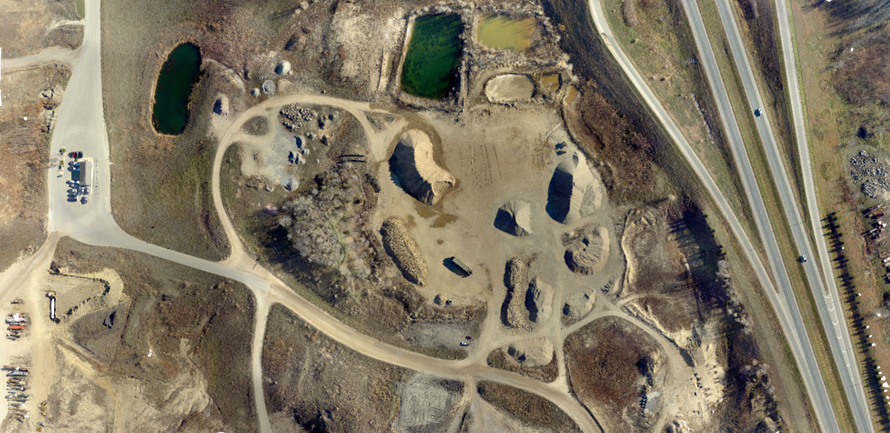
#### RGB Mosaic

<figure><img src="https://3675182560-files.gitbook.io/~/files/v0/b/gitbook-x-prod.appspot.com/o/spaces%2FXxc0lOfDa92aCfFa5lb4%2Fuploads%2Fg2473zw9TYfeieY6WrzD%2Fimage.png?alt=media&amp;token=a93cce9a-1c3d-4097-aa00-fdfba46f00bd" alt=""><figcaption></figcaption></figure>

<figure><img src="https://3675182560-files.gitbook.io/~/files/v0/b/gitbook-x-prod.appspot.com/o/spaces%2FXxc0lOfDa92aCfFa5lb4%2Fuploads%2FM3eEToXaz5IUtv3Tk1LL%2Fimage.png?alt=media&amp;token=b88b4efd-705c-4f16-89b6-da8eab0326e8" alt=""><figcaption></figcaption></figure>

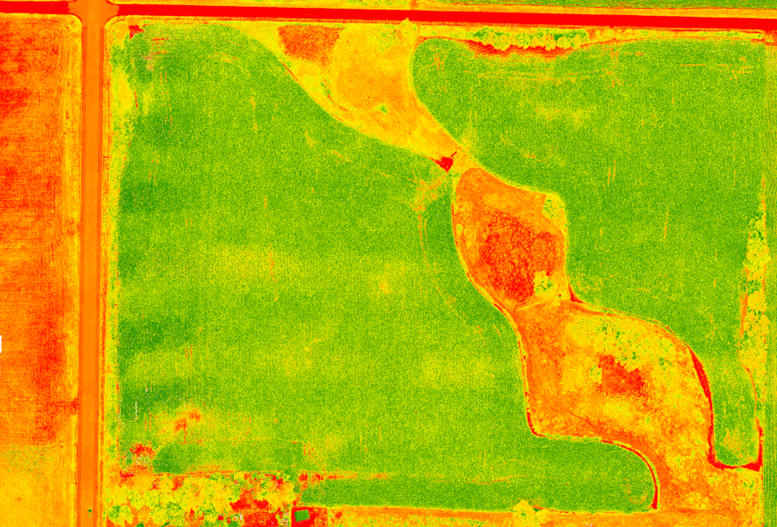
#### VARI Map Mosaic

<figure><img src="https://3675182560-files.gitbook.io/~/files/v0/b/gitbook-x-prod.appspot.com/o/spaces%2FXxc0lOfDa92aCfFa5lb4%2Fuploads%2F9EHOQxdTMQsadZNzoU2v%2Fimage.png?alt=media&amp;token=8f3e8a7b-3d19-4eab-b416-3346626f78c9" alt=""><figcaption></figcaption></figure>

### DSM

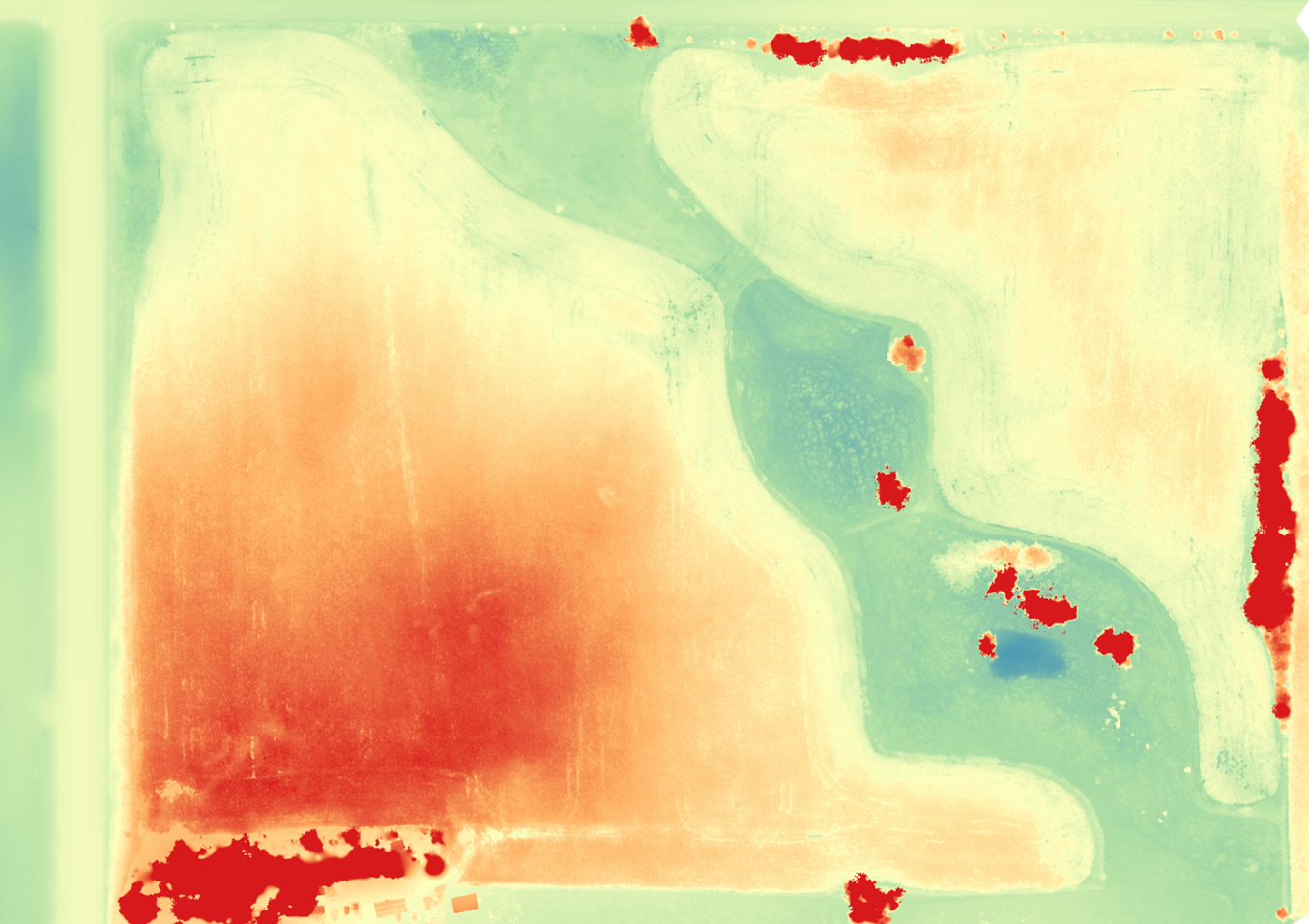
<figure><img src="https://3675182560-files.gitbook.io/~/files/v0/b/gitbook-x-prod.appspot.com/o/spaces%2FXxc0lOfDa92aCfFa5lb4%2Fuploads%2FYdyfKW112FwlNfNwViJd%2Fimage.png?alt=media&amp;token=8900f23d-3a43-4c37-8757-06d4de3510ea" alt=""><figcaption></figcaption></figure>

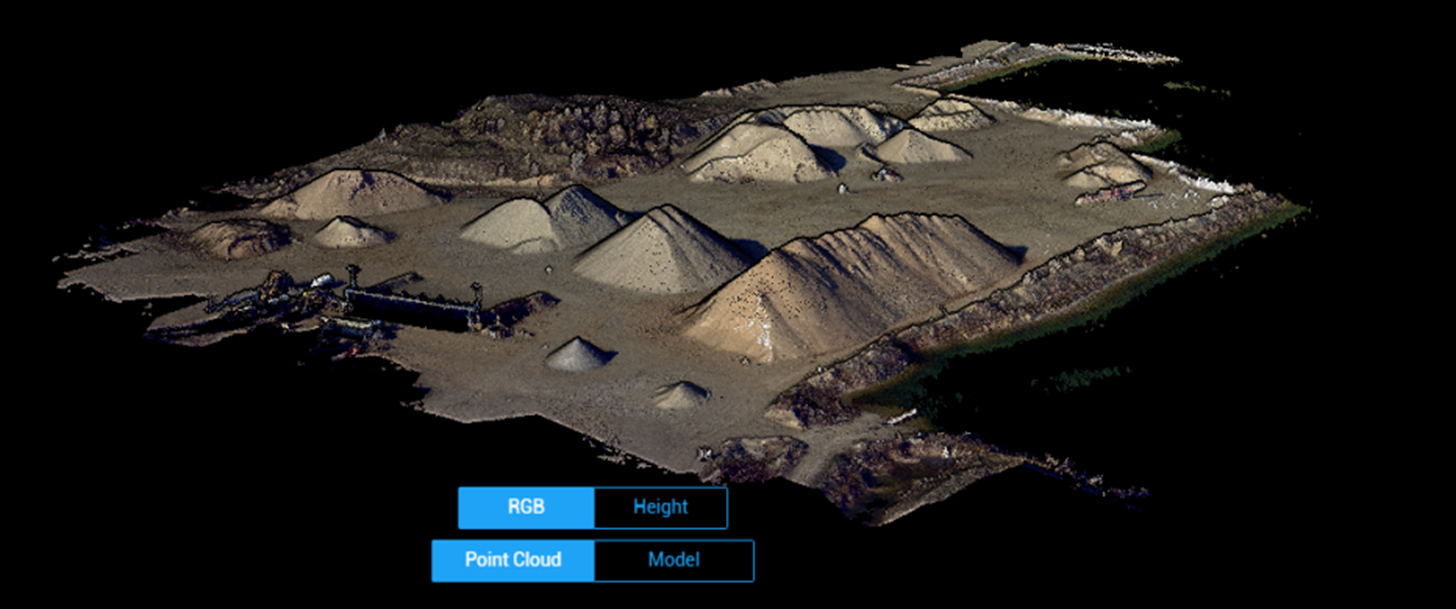
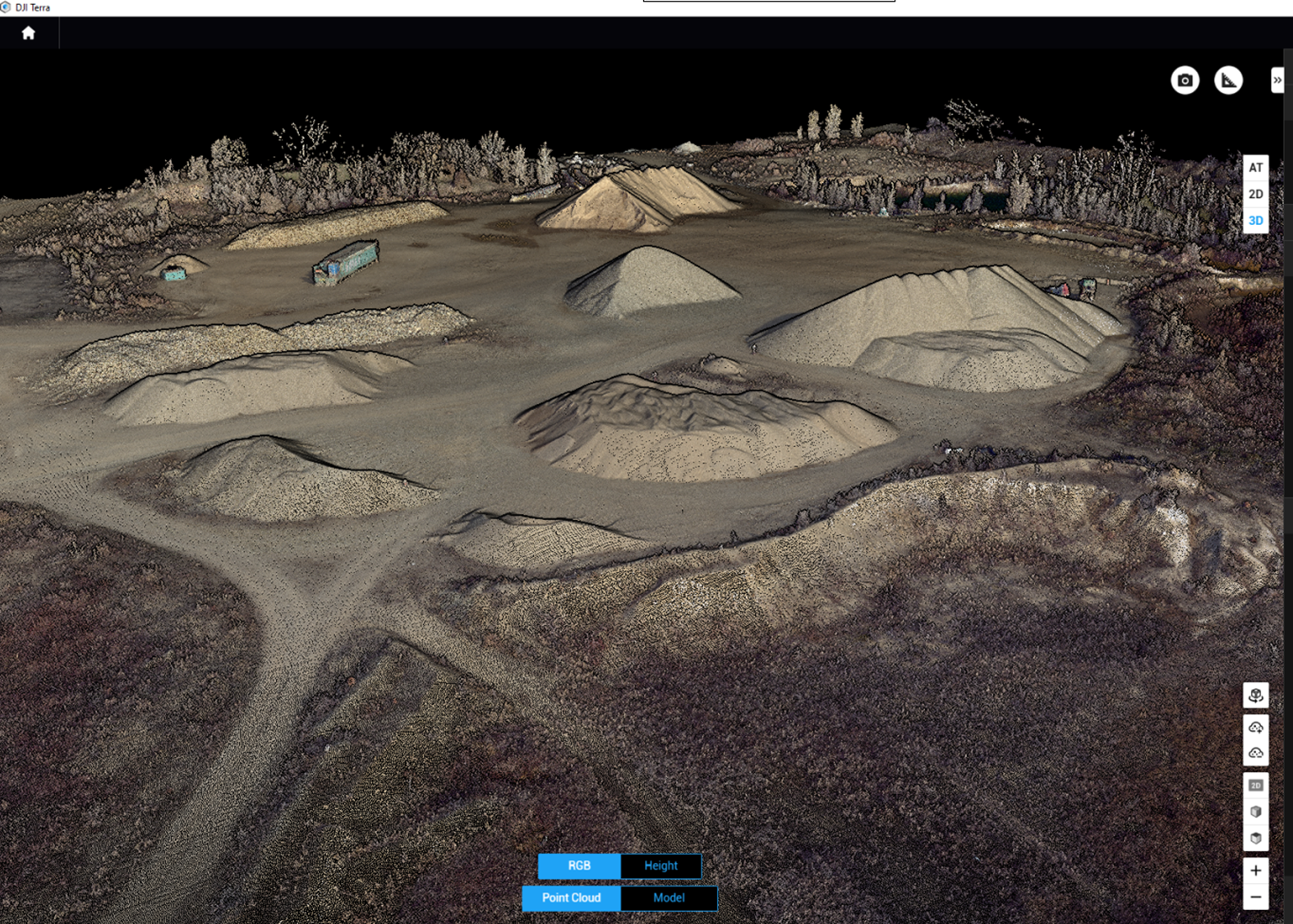
### 3D Reconstruction

<figure><img src="https://3675182560-files.gitbook.io/~/files/v0/b/gitbook-x-prod.appspot.com/o/spaces%2FXxc0lOfDa92aCfFa5lb4%2Fuploads%2FCafLlOyGlCQWvmmE8cMe%2Fimage.png?alt=media&amp;token=42f2ba05-24b8-45a8-8d74-363a9fa6f9ac" alt=""><figcaption></figcaption></figure>

<figure><img src="https://3675182560-files.gitbook.io/~/files/v0/b/gitbook-x-prod.appspot.com/o/spaces%2FXxc0lOfDa92aCfFa5lb4%2Fuploads%2Fj23rwC0tRcGjq9rURME4%2Fimage.png?alt=media&amp;token=179421dc-4e7b-4f59-81bb-196c704cb819" alt=""><figcaption></figcaption></figure>

<figure><img src="https://3675182560-files.gitbook.io/~/files/v0/b/gitbook-x-prod.appspot.com/o/spaces%2FXxc0lOfDa92aCfFa5lb4%2Fuploads%2FDFNNMHb0w3sqPaacvzjK%2Fimage.png?alt=media&amp;token=66cd2fe8-eda7-4cd2-b1e6-215a6379e02b" alt=""><figcaption></figcaption></figure>

***

## Sentera Product Catalog

These are products that can be ordered via Sentera FieldAgent. The links below will define the required flight settings and the data product deliverables.

### Plot

* [Plot Stand Count and Uniformity](https://catalog.sentera.com/products/plot_stand_count_uniformity)
* [Plot Crop Health with Uniformity](https://catalog.sentera.com/products/plot_crop_health_uniformity)
* [Plot Masked Crop Health with Uniformity](https://catalog.sentera.com/products/plot_crop_health_uniformity_masked)
* [Plot Canopy Cover and Uniformity](https://catalog.sentera.com/products/plot_canopy_cover_uniformity)
* [Plot Anomaly Detection](https://catalog.sentera.com/products/plot_anomaly_detection)

### Field Scale

* [Field Scale Stand Count](https://catalog.sentera.com/products/field_scale_stand_count)
* [Field Scale Stand Count (Offline)](https://catalog.sentera.com/products/field_scale_stand_count_offline)
* [Field Scale Stand Count with Uniformity](https://catalog.sentera.com/products/field_scale_stand_count_uniformity)
* [Field Scale Male/Female Stand Count with Uniformity](https://catalog.sentera.com/products/field_scale_stand_count_mf_uniformity)
* [Field Scale Tassel Count](https://catalog.sentera.com/products/field_scale_tassel_count)
* [Field Scale Male/Female Tassel Count](https://catalog.sentera.com/products/field_scale_tassel_count_mf)
* [Field Scale Crop Area](https://catalog.sentera.com/products/field_scale_crop_area)

### Mosaics

* [RGB Mosaic](https://catalog.sentera.com/products/field_scale_mosaic_rgb)
* [Precision Aligned RGB Mosaic](https://catalog.sentera.com/products/field_scale_mosaic_rgb_aligned)
* [Crop Health Mosaic](https://catalog.sentera.com/products/field_scale_crop_health_mosaic)
* [Precision Aligned Crop Health Mosaic](https://catalog.sentera.com/products/field_scale_crop_health_mosaic_aligned)
* [Elevation Mosaic](https://catalog.sentera.com/products/field_scale_elevation)
* [Precision Aligned Elevation Mosaic](https://catalog.sentera.com/products/field_scale_elevation_aligned)


# What's In The Box

## Introduction

Learn more about what is included with the 65R sensor. The contents of the 65R case will vary based on the 65R model that was purchased, as well as if optional accessories are also purchased.

***

<table data-view="cards"><thead><tr><th></th></tr></thead><tbody><tr><td><h4><a href="/65r-sensor-user-guide/65r-sensor/whats-in-the-box/sensor-w-gimbal">Sensor with Gimbal</a></h4></td></tr><tr><td><h4><a href="/65r-sensor-user-guide/65r-sensor/whats-in-the-box/oem-sensor">OEM Sensor</a></h4></td></tr><tr><td><h4><a href="/65r-sensor-user-guide/65r-sensor/whats-in-the-box/replacement-cables">Replacement Cables</a></h4></td></tr></tbody></table>


# Sensor w/ Gimbal

## Base Kit

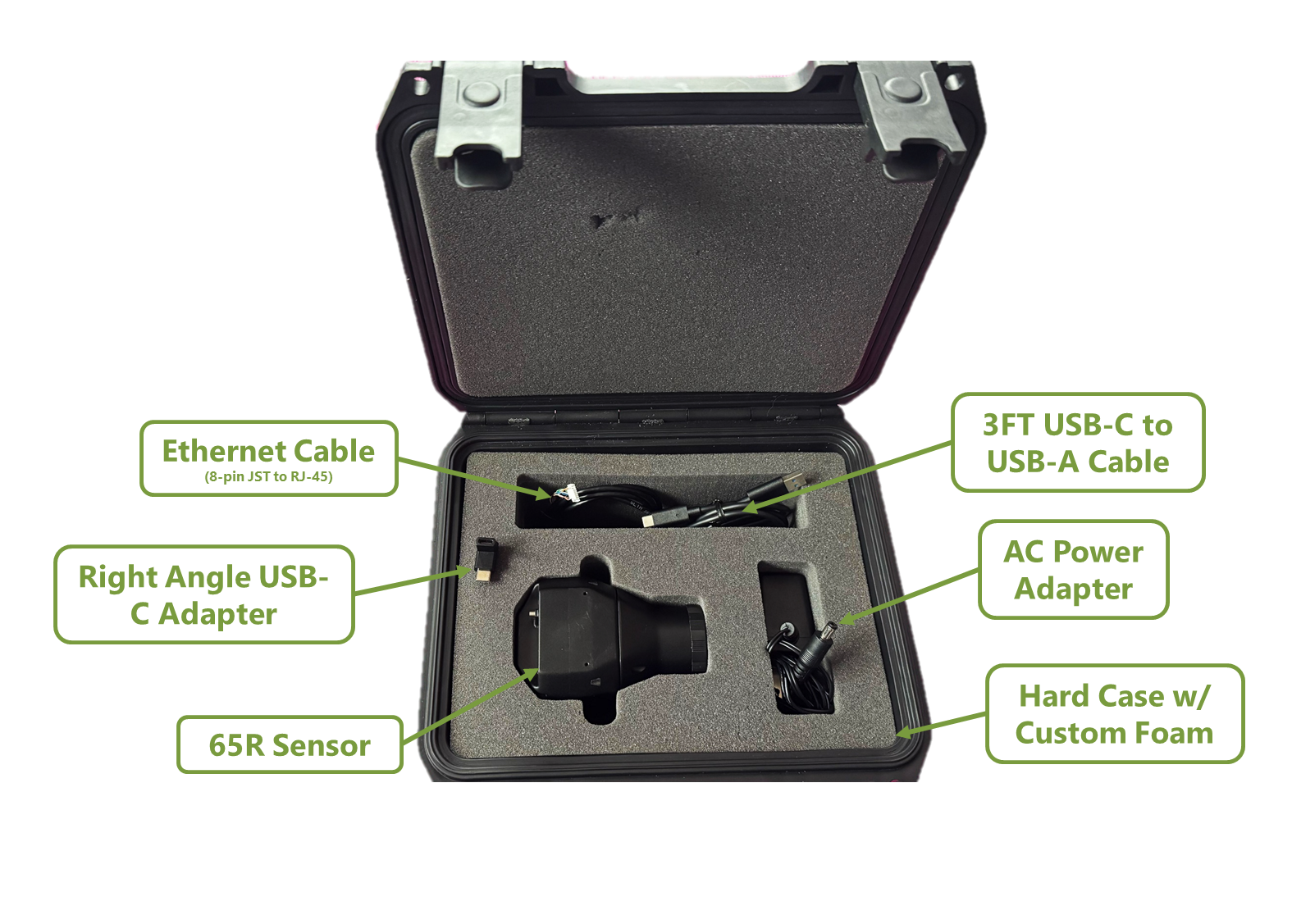
<figure><img src="https://3675182560-files.gitbook.io/~/files/v0/b/gitbook-x-prod.appspot.com/o/spaces%2FXxc0lOfDa92aCfFa5lb4%2Fuploads%2FHonAp7i9f2vgqnw5Ccas%2Fimage.png?alt=media&amp;token=c5f8d0ea-8132-42d6-85f9-d258330c0f21" alt=""><figcaption></figcaption></figure>

* 65R Sensor
* Hard Case w/ Custom Foam
* External Power Supply
* 10ft USB-C to USB-A Cable
* Right Angle USB-C Adapter

***

## Compatibility

### Base Kit

| Aircraft             | SKU      |
| -------------------- | -------- |
| M300/350             | 21931-00 |
| Freefly Astro        | 21931-02 |
| Freefly Alta X GenII | 21931-40 |
| IF800                | 21931-04 |
| IF1200               | 21931-06 |

***


# OEM Sensor

## Base Kit

### SKU: 21931-08

<figure><img src="https://3675182560-files.gitbook.io/~/files/v0/b/gitbook-x-prod.appspot.com/o/spaces%2FXxc0lOfDa92aCfFa5lb4%2Fuploads%2FZp1KjbaP8P2oTwxWOtRq%2Fimage.png?alt=media&amp;token=cc06be01-4065-47e7-8d79-849c84be9e94" alt=""><figcaption></figcaption></figure>

* 65R Sensor
* Hard Case w/ Custom Foam
* 4ft Custom Ethernet Cable
* 6ft USB-C to USB-A Cable
* Right Angle USB-C Adapter


# Optional Accessories

The 65R sensor has an optional external GPS unit that can be added to the base kit. The purpose of the GPS unit is to provide GPS metadata to the images when GPS, attitude, and altitude information can not be provided by the host system.

***

## External GPS Kit

<figure><img src="https://3675182560-files.gitbook.io/~/files/v0/b/gitbook-x-prod.appspot.com/o/spaces%2FXxc0lOfDa92aCfFa5lb4%2Fuploads%2FcEj41yRIiZfulObmOZDV%2Fimage.png?alt=media&amp;token=543fd69e-0674-4c8a-9724-d0e0bd5fe6a6" alt=""><figcaption></figcaption></figure>

***

## External GPS Kit Contents

Select the tab with your aircraft for kit contents.

{% tabs %}
{% tab title="M300/350" %}
SKU: 21221-06

<table data-view="cards"><thead><tr><th align="center"></th><th align="center"></th></tr></thead><tbody><tr><td align="center"><img src="https://3675182560-files.gitbook.io/~/files/v0/b/gitbook-x-prod.appspot.com/o/spaces%2FXxc0lOfDa92aCfFa5lb4%2Fuploads%2FL5WLa1HTkxnPmQuQjfiK%2Fimage.png?alt=media&amp;token=c9f66b7a-e0a4-478c-8e09-6f9e0de19e29" alt="" data-size="original"></td><td align="center">External GPS</td></tr><tr><td align="center"><img src="https://3675182560-files.gitbook.io/~/files/v0/b/gitbook-x-prod.appspot.com/o/spaces%2FXxc0lOfDa92aCfFa5lb4%2Fuploads%2FHzNt5sXxgy44kKOzf0cA%2Fimage.png?alt=media&amp;token=94977f12-548e-4404-b5aa-0a6e6c7f3818" alt="" data-size="original"></td><td align="center">GPS Mounting Tray</td></tr><tr><td align="center"><img src="https://3675182560-files.gitbook.io/~/files/v0/b/gitbook-x-prod.appspot.com/o/spaces%2FXxc0lOfDa92aCfFa5lb4%2Fuploads%2FHVfDjYDupYxPhMjM7IPM%2Fimage.png?alt=media&amp;token=ca8150f0-000a-4cad-95e7-ee0e568036d4" alt="" data-size="original"></td><td align="center">GPS Mount</td></tr><tr><td align="center"><img src="https://3675182560-files.gitbook.io/~/files/v0/b/gitbook-x-prod.appspot.com/o/spaces%2FXxc0lOfDa92aCfFa5lb4%2Fuploads%2FiX83687Dj4NsZvKRpOiO%2Fimage.png?alt=media&amp;token=e1c02276-54bd-43b9-893a-f946685f0e3a" alt="" data-size="original"></td><td align="center">1.5ft USB-C to USB-C Cable</td></tr><tr><td align="center"><img src="https://3675182560-files.gitbook.io/~/files/v0/b/gitbook-x-prod.appspot.com/o/spaces%2FXxc0lOfDa92aCfFa5lb4%2Fuploads%2FsFe93J6GglvJTOR7eUs3%2Fimage.png?alt=media&amp;token=97b5bece-ef1d-4224-9156-d00c33150dd0" alt="" data-size="original"></td><td align="center">Cable Clip</td></tr><tr><td align="center"><img src="https://3675182560-files.gitbook.io/~/files/v0/b/gitbook-x-prod.appspot.com/o/spaces%2FXxc0lOfDa92aCfFa5lb4%2Fuploads%2FJXJkF6w8bdQ8urr4nj7B%2Fimage.png?alt=media&amp;token=b668d75d-8a99-4553-9525-909382570918" alt="" data-size="original"></td><td align="center">Alcohol Wipes</td></tr><tr><td align="center"><img src="https://3675182560-files.gitbook.io/~/files/v0/b/gitbook-x-prod.appspot.com/o/spaces%2FXxc0lOfDa92aCfFa5lb4%2Fuploads%2FcxPqZ3uTb4AzT2AHmwJa%2Fimage.png?alt=media&amp;token=8b224448-1f7a-4bc3-8006-11735b631c79" alt="" data-size="original"></td><td align="center">M3 Screw (QTY 4)</td></tr></tbody></table>
{% endtab %}

{% tab title="Astro" %}
SKU: 21221-07

<table data-view="cards"><thead><tr><th align="center"></th><th align="center"></th></tr></thead><tbody><tr><td align="center"><img src="https://3675182560-files.gitbook.io/~/files/v0/b/gitbook-x-prod.appspot.com/o/spaces%2FXxc0lOfDa92aCfFa5lb4%2Fuploads%2FL5WLa1HTkxnPmQuQjfiK%2Fimage.png?alt=media&amp;token=c9f66b7a-e0a4-478c-8e09-6f9e0de19e29" alt="" data-size="original"></td><td align="center">External GPS</td></tr><tr><td align="center"><img src="https://3675182560-files.gitbook.io/~/files/v0/b/gitbook-x-prod.appspot.com/o/spaces%2FXxc0lOfDa92aCfFa5lb4%2Fuploads%2FHzNt5sXxgy44kKOzf0cA%2Fimage.png?alt=media&amp;token=94977f12-548e-4404-b5aa-0a6e6c7f3818" alt="" data-size="original"></td><td align="center">GPS Mounting Tray</td></tr><tr><td align="center"><img src="https://3675182560-files.gitbook.io/~/files/v0/b/gitbook-x-prod.appspot.com/o/spaces%2FXxc0lOfDa92aCfFa5lb4%2Fuploads%2FwlJgxtGM0eldGAzPV7fB%2Fimage.png?alt=media&amp;token=8137e8bc-416a-4c1d-a277-c966dda78c2c" alt="" data-size="original"></td><td align="center">GPS Mount</td></tr><tr><td align="center"><img src="https://3675182560-files.gitbook.io/~/files/v0/b/gitbook-x-prod.appspot.com/o/spaces%2FXxc0lOfDa92aCfFa5lb4%2Fuploads%2FD5zI4DCjxctrL7deW0pe%2Fimage.png?alt=media&amp;token=ab80e008-fcc1-4c77-a0af-84953747679e" alt="" data-size="original"></td><td align="center">1ft 90 Degree USB-C to USB-C Cable</td></tr><tr><td align="center"><img src="https://3675182560-files.gitbook.io/~/files/v0/b/gitbook-x-prod.appspot.com/o/spaces%2FXxc0lOfDa92aCfFa5lb4%2Fuploads%2FsFe93J6GglvJTOR7eUs3%2Fimage.png?alt=media&amp;token=97b5bece-ef1d-4224-9156-d00c33150dd0" alt="" data-size="original"></td><td align="center">Cable Clip</td></tr><tr><td align="center"><img src="https://3675182560-files.gitbook.io/~/files/v0/b/gitbook-x-prod.appspot.com/o/spaces%2FXxc0lOfDa92aCfFa5lb4%2Fuploads%2FJXJkF6w8bdQ8urr4nj7B%2Fimage.png?alt=media&amp;token=b668d75d-8a99-4553-9525-909382570918" alt="" data-size="original"></td><td align="center">Alcohol Wipes</td></tr><tr><td align="center"><img src="https://3675182560-files.gitbook.io/~/files/v0/b/gitbook-x-prod.appspot.com/o/spaces%2FXxc0lOfDa92aCfFa5lb4%2Fuploads%2FcxPqZ3uTb4AzT2AHmwJa%2Fimage.png?alt=media&amp;token=8b224448-1f7a-4bc3-8006-11735b631c79" alt="" data-size="original"></td><td align="center">M3 x 8mm Screw (QTY 2)</td></tr></tbody></table>
{% endtab %}

{% tab title="IF1200" %}
SKU: 21221-09

<table data-view="cards"><thead><tr><th align="center"></th><th align="center"></th></tr></thead><tbody><tr><td align="center"><img src="https://3675182560-files.gitbook.io/~/files/v0/b/gitbook-x-prod.appspot.com/o/spaces%2FXxc0lOfDa92aCfFa5lb4%2Fuploads%2FL5WLa1HTkxnPmQuQjfiK%2Fimage.png?alt=media&amp;token=c9f66b7a-e0a4-478c-8e09-6f9e0de19e29" alt="" data-size="original"></td><td align="center">External GPS</td></tr><tr><td align="center"><img src="https://3675182560-files.gitbook.io/~/files/v0/b/gitbook-x-prod.appspot.com/o/spaces%2FXxc0lOfDa92aCfFa5lb4%2Fuploads%2FY9yBOGDJORKPmj1DG1fG%2Fimage.png?alt=media&amp;token=7f4d6f9a-536c-4083-bf3a-ce89e57ddce9" alt="" data-size="original"></td><td align="center">GPS Mount</td></tr><tr><td align="center"><img src="https://3675182560-files.gitbook.io/~/files/v0/b/gitbook-x-prod.appspot.com/o/spaces%2FXxc0lOfDa92aCfFa5lb4%2Fuploads%2F1uGkTgj9AaPfMj0RLiBg%2Fimage.png?alt=media&amp;token=16ca8d4a-a8bf-4eb4-b9ca-912b33298aeb" alt="" data-size="original"></td><td align="center">3ft USB-C to USB-C Cable</td></tr><tr><td align="center"><img src="https://3675182560-files.gitbook.io/~/files/v0/b/gitbook-x-prod.appspot.com/o/spaces%2FXxc0lOfDa92aCfFa5lb4%2Fuploads%2FsFe93J6GglvJTOR7eUs3%2Fimage.png?alt=media&amp;token=97b5bece-ef1d-4224-9156-d00c33150dd0" alt="" data-size="original"></td><td align="center">Cable Clip (QTY 2)</td></tr><tr><td align="center"><img src="https://3675182560-files.gitbook.io/~/files/v0/b/gitbook-x-prod.appspot.com/o/spaces%2FXxc0lOfDa92aCfFa5lb4%2Fuploads%2FJXJkF6w8bdQ8urr4nj7B%2Fimage.png?alt=media&amp;token=b668d75d-8a99-4553-9525-909382570918" alt="" data-size="original"></td><td align="center">Alcohol Wipes</td></tr><tr><td align="center"><img src="https://3675182560-files.gitbook.io/~/files/v0/b/gitbook-x-prod.appspot.com/o/spaces%2FXxc0lOfDa92aCfFa5lb4%2Fuploads%2FxWOX8pecvdwY6mgCAv3W%2Fimage.png?alt=media&amp;token=1778f761-91ae-4780-93d9-aa9b2f7f5e8b" alt="" data-size="original"></td><td align="center">M3 x 10mm Screw (QTY 2)</td></tr></tbody></table>
{% endtab %}

{% tab title="IF800" %}
SKU: 2122-08

<table data-view="cards"><thead><tr><th align="center"></th><th align="center"></th></tr></thead><tbody><tr><td align="center"><img src="https://3675182560-files.gitbook.io/~/files/v0/b/gitbook-x-prod.appspot.com/o/spaces%2FXxc0lOfDa92aCfFa5lb4%2Fuploads%2FL5WLa1HTkxnPmQuQjfiK%2Fimage.png?alt=media&amp;token=c9f66b7a-e0a4-478c-8e09-6f9e0de19e29" alt="" data-size="original"></td><td align="center">External GPS</td></tr><tr><td align="center"><img src="https://3675182560-files.gitbook.io/~/files/v0/b/gitbook-x-prod.appspot.com/o/spaces%2FXxc0lOfDa92aCfFa5lb4%2Fuploads%2FHzNt5sXxgy44kKOzf0cA%2Fimage.png?alt=media&amp;token=94977f12-548e-4404-b5aa-0a6e6c7f3818" alt="" data-size="original"></td><td align="center">GPS Mounting Tray</td></tr><tr><td align="center"><img src="https://3675182560-files.gitbook.io/~/files/v0/b/gitbook-x-prod.appspot.com/o/spaces%2FXxc0lOfDa92aCfFa5lb4%2Fuploads%2FyifFAXoaGqJ5ZdL7nITM%2Fimage.png?alt=media&amp;token=3596f2cf-9969-46da-9a1d-d8635cbd2679" alt="" data-size="original"></td><td align="center">GPS Mount</td></tr><tr><td align="center"><img src="https://3675182560-files.gitbook.io/~/files/v0/b/gitbook-x-prod.appspot.com/o/spaces%2FXxc0lOfDa92aCfFa5lb4%2Fuploads%2FiX83687Dj4NsZvKRpOiO%2Fimage.png?alt=media&amp;token=e1c02276-54bd-43b9-893a-f946685f0e3a" alt="" data-size="original"></td><td align="center">1.5ft USB-C to USB-C Cable</td></tr><tr><td align="center"><img src="https://3675182560-files.gitbook.io/~/files/v0/b/gitbook-x-prod.appspot.com/o/spaces%2FXxc0lOfDa92aCfFa5lb4%2Fuploads%2FsFe93J6GglvJTOR7eUs3%2Fimage.png?alt=media&amp;token=97b5bece-ef1d-4224-9156-d00c33150dd0" alt="" data-size="original"></td><td align="center">Cable Clip</td></tr><tr><td align="center"><img src="https://3675182560-files.gitbook.io/~/files/v0/b/gitbook-x-prod.appspot.com/o/spaces%2FXxc0lOfDa92aCfFa5lb4%2Fuploads%2FJXJkF6w8bdQ8urr4nj7B%2Fimage.png?alt=media&amp;token=b668d75d-8a99-4553-9525-909382570918" alt="" data-size="original"></td><td align="center">Alcohol Wipes</td></tr><tr><td align="center"><img src="https://3675182560-files.gitbook.io/~/files/v0/b/gitbook-x-prod.appspot.com/o/spaces%2FXxc0lOfDa92aCfFa5lb4%2Fuploads%2FcxPqZ3uTb4AzT2AHmwJa%2Fimage.png?alt=media&amp;token=8b224448-1f7a-4bc3-8006-11735b631c79" alt="" data-size="original"></td><td align="center">M3 x 5mm Screw (QTY 4)</td></tr></tbody></table>
{% endtab %}

{% tab title="Custom" %}

<table data-card-size="large" data-view="cards"><thead><tr><th align="center"></th><th align="center"></th></tr></thead><tbody><tr><td align="center"><img src="https://3675182560-files.gitbook.io/~/files/v0/b/gitbook-x-prod.appspot.com/o/spaces%2FXxc0lOfDa92aCfFa5lb4%2Fuploads%2FL5WLa1HTkxnPmQuQjfiK%2Fimage.png?alt=media&amp;token=c9f66b7a-e0a4-478c-8e09-6f9e0de19e29" alt="" data-size="original"></td><td align="center">External GPS</td></tr><tr><td align="center"><img src="https://3675182560-files.gitbook.io/~/files/v0/b/gitbook-x-prod.appspot.com/o/spaces%2FXxc0lOfDa92aCfFa5lb4%2Fuploads%2FHzNt5sXxgy44kKOzf0cA%2Fimage.png?alt=media&amp;token=94977f12-548e-4404-b5aa-0a6e6c7f3818" alt="" data-size="original"></td><td align="center">GPS Mounting Tray</td></tr><tr><td align="center"><img src="https://3675182560-files.gitbook.io/~/files/v0/b/gitbook-x-prod.appspot.com/o/spaces%2FXxc0lOfDa92aCfFa5lb4%2Fuploads%2FrNCIkY5iMQvUzIQc81m4%2Fimage.png?alt=media&amp;token=d314a095-246b-4b93-acfb-4da908441385" alt="" data-size="original"></td><td align="center">3ft USB-C to USB-C Cable</td></tr><tr><td align="center"><img src="https://3675182560-files.gitbook.io/~/files/v0/b/gitbook-x-prod.appspot.com/o/spaces%2FXxc0lOfDa92aCfFa5lb4%2Fuploads%2FiNRGAci0fXwSAJ7aqgdA%2Fimage.png?alt=media&amp;token=84e4084f-732f-43e2-bf5f-872c70260d61" alt="" data-size="original"></td><td align="center">Cable Tie</td></tr><tr><td align="center"><img src="https://3675182560-files.gitbook.io/~/files/v0/b/gitbook-x-prod.appspot.com/o/spaces%2FXxc0lOfDa92aCfFa5lb4%2Fuploads%2FJXJkF6w8bdQ8urr4nj7B%2Fimage.png?alt=media&amp;token=b668d75d-8a99-4553-9525-909382570918" alt="" data-size="original"></td><td align="center">Alcohol Wipes</td></tr></tbody></table>
{% endtab %}
{% endtabs %}

***

## Compatibility

### Sensor with Gimbal & External GPS

| Aircraft      | SKU      |
| ------------- | -------- |
| M300/350      | 21931-01 |
| Freefly Astro | 21931-03 |
| IF800         | 21931-05 |
| IF1200        | 21931-07 |

### OEM Sensor & External GPS

| Aircraft | SKU      |
| -------- | -------- |
| Custom   | 21931-09 |


# Replacement Cables

## Sensor Cables

### Data Transfer Cables

#### **USB-C to USB-A**

{% embed url="<https://www.amazon.com/Anker-Powerline-Pull-up-Resistor-MacBook/dp/B01MZIPYPY?th=1>" %}

#### **USB-C to USB-C**

{% embed url="<https://www.amazon.com/dp/B07X31FG6Z?ref=cm_sw_r_cso_cp_apin_dp_1Z3454X0ETWSVFXN3SYS&ref_=cm_sw_r_cso_cp_apin_dp_1Z3454X0ETWSVFXN3SYS&social_share=cm_sw_r_cso_cp_apin_dp_1Z3454X0ETWSVFXN3SYS&starsLeft=1&skipTwisterOG=1&th=1>" %}

#### **All Options**

| Cable                                                                                                                                                                                                                                                 | Cable Type     | Length |
| ----------------------------------------------------------------------------------------------------------------------------------------------------------------------------------------------------------------------------------------------------- | -------------- | ------ |
| [Anker](https://www.amazon.com/Anker-Powerline-Pull-up-Resistor-MacBook/dp/B01MZIPYPY?th=1)                                                                                                                                                           | USB-A to USB-C | 10ft   |
| [Cable Matters](https://www.amazon.com/dp/B07X31FG6Z?ref=cm_sw_r_cso_cp_apin_dp_1Z3454X0ETWSVFXN3SYS\&ref_=cm_sw_r_cso_cp_apin_dp_1Z3454X0ETWSVFXN3SYS\&social_share=cm_sw_r_cso_cp_apin_dp_1Z3454X0ETWSVFXN3SYS\&starsLeft=1\&skipTwisterOG=1\&th=1) | USB-C to USB-C | 6ft    |
| [Anker](https://www.amazon.com/Anker-Powerline-Pull-up-Resistor-Samsung/dp/B01A6F3WHG?th=1)                                                                                                                                                           | USB-A to USB-C | 3ft    |
| [Cable Matters](https://www.amazon.com/Cable-Matters-USB-IF-Certified-Black/dp/B06XMY49BM?th=1)                                                                                                                                                       | USB-A to USB-C | 3.3ft  |
| [Anker](https://www.amazon.com/Anker-Powerline-Durability-Samsung-MacBook/dp/B01M5GMZ6X?th=1)                                                                                                                                                         | USB-A to USB-C | 6ft    |
| [Anker](https://www.amazon.com/Anker-Charger-Powerline-Pull-up-Resistor/dp/B01E9W8KYC?th=1)                                                                                                                                                           | USB-A to USB-C | 6ft    |
| [Anker](https://www.amazon.com/Anker-Powerline-Delivery-Matebook-Chromebook/dp/B072JYDQ7N)                                                                                                                                                            | USB-C to USB-C | 3ft    |
| [Cable Matters](https://www.amazon.com/Cable-Matters-USB-IF-Certified-Delivery/dp/B01L0F6AJI?th=1)                                                                                                                                                    | USB-C to USB-C | 3.3ft  |
| [NIMASO](https://www.amazon.com/NIMASO-Charging-Transfer-Braided-Compatible/dp/B07MZLDLB2)                                                                                                                                                            | USB-C to USB-C | 6.6ft  |

### Power Cable

SKU: SWI36-24-N-P5

<div align="left"><figure><img src="https://3675182560-files.gitbook.io/~/files/v0/b/gitbook-x-prod.appspot.com/o/spaces%2FXxc0lOfDa92aCfFa5lb4%2Fuploads%2FkrZAE5icogL5MavXCg3p%2Fimage.png?alt=media&amp;token=c8f53e38-a4c7-432b-a4ca-91dbd26dba33" alt=""><figcaption></figcaption></figure></div>

{% embed url="<https://www.digikey.com/en/products/detail/cui-inc/SMI36-24-N-P5/14753419?utm_adgroup=Battery%20Products&utm_source=google&utm_medium=cpc&utm_campaign=Dynamic%20Search_EN_Product&utm_term=&utm_content=Battery%20Products&utm_id=go_cmp-120565755_adg-9159613275_ad-398870538372_dsa-436222764897_dev-c_ext-_prd-_sig-Cj0KCQjwjY64BhCaARIsAIfc7YYPmbJ-ffJxLZe594Sw-iDtQ8AxHQMtM0m-SbP6dKqBx9OGjwHIRm4aAj_5EALw_wcB&gad_source=1&gclid=Cj0KCQjwjY64BhCaARIsAIfc7YYPmbJ-ffJxLZe594Sw-iDtQ8AxHQMtM0m-SbP6dKqBx9OGjwHIRm4aAj_5EALw_wcB>" %}

***


# Anatomy

## Introduction

Learn more about the anatomy of the 65R sensor or gimbal.

***

<table data-view="cards"><thead><tr><th></th></tr></thead><tbody><tr><td><h4><a href="/65r-sensor-user-guide/65r-sensor/anatomy/sensor">Sensor Anatomy</a></h4></td></tr><tr><td><h4><a href="/65r-sensor-user-guide/65r-sensor/anatomy/gimbal">Gimbal Anatomy</a></h4></td></tr></tbody></table>


# Sensor

## Isometric

<figure><img src="https://3675182560-files.gitbook.io/~/files/v0/b/gitbook-x-prod.appspot.com/o/spaces%2FXxc0lOfDa92aCfFa5lb4%2Fuploads%2FHurPcIaWWjt6bnPGEBcy%2Fimage.png?alt=media&amp;token=cc32b503-c2ab-4a2b-94df-e480a3e88e24" alt=""><figcaption></figcaption></figure>

## Top

<figure><img src="https://3675182560-files.gitbook.io/~/files/v0/b/gitbook-x-prod.appspot.com/o/spaces%2FXxc0lOfDa92aCfFa5lb4%2Fuploads%2Fu9jY1X1Klvy9PgvGRoJO%2Fimage.png?alt=media&amp;token=50125836-87bd-4098-ba9c-83bf86a71997" alt=""><figcaption></figcaption></figure>

## Left

<figure><img src="https://3675182560-files.gitbook.io/~/files/v0/b/gitbook-x-prod.appspot.com/o/spaces%2FXxc0lOfDa92aCfFa5lb4%2Fuploads%2FgpYtP0Cia02lfiqrQDTv%2Fimage.png?alt=media&amp;token=8d37fa81-059d-4320-b755-26bb3cb5cbc7" alt=""><figcaption></figcaption></figure>

## Right

<figure><img src="https://3675182560-files.gitbook.io/~/files/v0/b/gitbook-x-prod.appspot.com/o/spaces%2FXxc0lOfDa92aCfFa5lb4%2Fuploads%2FN1clQon2q3eRR5hB5AwO%2Fimage.png?alt=media&amp;token=e9dba989-891c-464a-81b7-677a02c3da51" alt=""><figcaption></figcaption></figure>

## Lens Lock Ring (43mm ONLY)

<figure><img src="https://3675182560-files.gitbook.io/~/files/v0/b/gitbook-x-prod.appspot.com/o/spaces%2FXxc0lOfDa92aCfFa5lb4%2Fuploads%2FV48elffh0uzj4cQDSZ1t%2Fimage.png?alt=media&amp;token=be0817d6-e69a-4ffa-afe3-f2a7d94cf471" alt=""><figcaption></figcaption></figure>


# Gimbal

## Information

The Sentera gimbal stabilizes the sensor in a dual-axis pitch and roll. Gimbals allow a sensor to continuously point nadir (straight down), while flying faster, covering more ground, with more accuracy, allowing the ability to gather more information, while maintaining high quality tagged images.

## Isometric

<figure><img src="https://3675182560-files.gitbook.io/~/files/v0/b/gitbook-x-prod.appspot.com/o/spaces%2FXxc0lOfDa92aCfFa5lb4%2Fuploads%2FcJnV1IL46fVgxtZjvCU2%2Fimage.png?alt=media&amp;token=a4443a33-3650-4948-8d9f-64f44622e10e" alt=""><figcaption></figcaption></figure>

## Front

<figure><img src="https://3675182560-files.gitbook.io/~/files/v0/b/gitbook-x-prod.appspot.com/o/spaces%2FXxc0lOfDa92aCfFa5lb4%2Fuploads%2FjtdT1RVGm6BgG374otlN%2Fimage.png?alt=media&amp;token=ad7917f6-6f69-4168-96b8-ae160920a220" alt=""><figcaption></figcaption></figure>

## Profile

<figure><img src="https://3675182560-files.gitbook.io/~/files/v0/b/gitbook-x-prod.appspot.com/o/spaces%2FXxc0lOfDa92aCfFa5lb4%2Fuploads%2FqloHQv95IzQyNelFjWBq%2Fimage.png?alt=media&amp;token=908df2cc-f47f-4066-82b9-d0e921976a92" alt=""><figcaption></figcaption></figure>


# Interface Variants

## DJI Skyport

<table data-card-size="large" data-view="cards"><thead><tr><th align="center"></th></tr></thead><tbody><tr><td align="center"><img src="https://3675182560-files.gitbook.io/~/files/v0/b/gitbook-x-prod.appspot.com/o/spaces%2FXxc0lOfDa92aCfFa5lb4%2Fuploads%2FIH3yKLiDpse0hSVhhb0Q%2F65RSPV20196.jpg?alt=media&amp;token=75d3553f-0ff5-4f62-ad99-7a23c362b454" alt="" data-size="original"></td></tr><tr><td align="center"><img src="https://3675182560-files.gitbook.io/~/files/v0/b/gitbook-x-prod.appspot.com/o/spaces%2FXxc0lOfDa92aCfFa5lb4%2Fuploads%2F6cTBieinroZa6Q1HJxVi%2F65RSPV20197.jpg?alt=media&amp;token=bf799135-867d-4e97-a7b5-e65528be7cb7" alt="" data-size="original"></td></tr></tbody></table>

## Smart Dovetail

<table data-card-size="large" data-view="cards"><thead><tr><th align="center"></th></tr></thead><tbody><tr><td align="center"><img src="https://3675182560-files.gitbook.io/~/files/v0/b/gitbook-x-prod.appspot.com/o/spaces%2FXxc0lOfDa92aCfFa5lb4%2Fuploads%2F7J8s9H7D34eeQbE17m4R%2F65RSDT0175.jpg?alt=media&amp;token=808eca15-edf6-4629-98af-5b6c88ae9055" alt="" data-size="original"></td></tr><tr><td align="center"><img src="https://3675182560-files.gitbook.io/~/files/v0/b/gitbook-x-prod.appspot.com/o/spaces%2FXxc0lOfDa92aCfFa5lb4%2Fuploads%2FypX7n4ps8AXzkw5txTR9%2F65RSDT0176.jpg?alt=media&amp;token=ad981de4-2749-46ab-ac3d-00da4924636f" alt="" data-size="original"></td></tr></tbody></table>

## Gremsy Hyper Quick

<table data-card-size="large" data-view="cards"><thead><tr><th align="center"></th></tr></thead><tbody><tr><td align="center"><img src="https://3675182560-files.gitbook.io/~/files/v0/b/gitbook-x-prod.appspot.com/o/spaces%2FXxc0lOfDa92aCfFa5lb4%2Fuploads%2FNtJiSfPSZ8ZD5dY1Zn2k%2F65RGREMSY0162.jpg?alt=media&amp;token=eaf137cd-deee-479e-83fe-68810eb7d943" alt="" data-size="original"></td></tr><tr><td align="center"><img src="https://3675182560-files.gitbook.io/~/files/v0/b/gitbook-x-prod.appspot.com/o/spaces%2FXxc0lOfDa92aCfFa5lb4%2Fuploads%2Fcp7yWB1cUBfNWf0utur5%2F65RGREMSY0163.jpg?alt=media&amp;token=fd2f896a-2966-4e84-940b-42a980b49326" alt="" data-size="original"></td></tr></tbody></table>


# Installation

Installation instructions for the gimballed 65R sensor on supported drone platforms.

For custom OEM installations please see the [integration section](/65r-sensor-user-guide/integration-information/introduction) of this manual.

***

<table data-view="cards"><thead><tr><th></th><th></th></tr></thead><tbody><tr><td><h3>DJI Aircraft</h3></td><td><p><a href="/65r-sensor-user-guide/65r-sensor/installation/dji/dji-m300-and-m350">M300/M350</a></p><p><a href="/65r-sensor-user-guide/65r-sensor/installation/dji/dji-m200-and-m210">M200/M210</a></p></td></tr><tr><td><h3>Freefly</h3></td><td><p><a href="/65r-sensor-user-guide/65r-sensor/installation/freefly/astro">Astro</a></p><p><a href="/65r-sensor-user-guide/65r-sensor/installation/freefly/alta-x-gen2">Alta X Gen 2</a></p><p><a href="/65r-sensor-user-guide/65r-sensor/installation/freefly/freefly-compatibility-settings">Compatibility Settings</a></p></td></tr><tr><td><h3>Inspired Flight</h3></td><td><p><a href="/65r-sensor-user-guide/65r-sensor/installation/inspired-flight/if800-tomcat">IF800 Tomcat</a></p><p><a href="/65r-sensor-user-guide/65r-sensor/installation/inspired-flight/if1200">IF1200</a></p><p><a href="/65r-sensor-user-guide/65r-sensor/installation/inspired-flight/inspired-flight-compatibility-settings">Compatibility Settings</a></p></td></tr></tbody></table>


# DJI


# DJI M300 & M350

## Instructions

1. Align the white dot on the gimbal connector with the red dot on the drone connector.
2. The turn until the red dot on the gimbal connector and drone connector align.
3. Power on aircraft.

<figure><img src="https://3675182560-files.gitbook.io/~/files/v0/b/gitbook-x-prod.appspot.com/o/spaces%2FXxc0lOfDa92aCfFa5lb4%2Fuploads%2FEo4BcPmdz1TaEJdOjEoq%2FM300%20install%20%E2%80%91%20Made%20with%20FlexClip.gif?alt=media&amp;token=145ed415-4537-4547-8b30-2d59c849efad" alt=""><figcaption></figcaption></figure>

***

## Dual Gimbal Setup

For dual gimbal mount setup the 65R should be placed in the correct port for the selected mode of operation (sensor configuration).

### Integrated Mode

Use gimbal slot 1. This will power the sensor/gimbal/light sensor, and allow the sensor to communicate with the DJI autopilot and ingest trigger commands, GPS, altitude, and attitude information.

<figure><img src="https://3675182560-files.gitbook.io/~/files/v0/b/gitbook-x-prod.appspot.com/o/spaces%2FXxc0lOfDa92aCfFa5lb4%2Fuploads%2F3YALimoFTT7MBmODALVO%2Fimage.png?alt=media&amp;token=7f458afd-d6e2-4628-a023-194f6d1c1140" alt=""><figcaption></figcaption></figure>

***

## Compatibility

Please see the page linked below for skyport compatibility information, such as supported skyport firmware versions.

{% content-ref url="/pages/LD1MjuCvALh8ImI6D5O3" %}
[DJI Skyport](/65r-sensor-user-guide/integration-information/communication-protocol/dji-skyport)
{% endcontent-ref %}

***

## Adding to DJI Pilot

{% content-ref url="/pages/t9BJdrqZcPkVGJbRp83f" %}
[Adding 65R to DJI Pilot](/65r-sensor-user-guide/integration-information/communication-protocol/dji-skyport/adding-65r-to-dji-pilot)
{% endcontent-ref %}

***


# DJI M200 & M210

## Instructions

1. Align the white dot on the gimbal connector with the red dot on the drone connector.
2. The turn until the red dot on the gimbal connector and drone connector align.
3. Power on aircraft.

<figure><img src="https://3675182560-files.gitbook.io/~/files/v0/b/gitbook-x-prod.appspot.com/o/spaces%2FXxc0lOfDa92aCfFa5lb4%2Fuploads%2FkdwJnQIc4BVGNo1K3KmY%2Fm200%20install%20%E2%80%91%20Made%20with%20FlexClip.gif?alt=media&amp;token=54824824-0e4b-4a39-a26b-983b9f762310" alt=""><figcaption></figcaption></figure>

***

## Dual Gimbal Setup

For dual gimbal mount setup the 65R should be placed in the correct port for the selected mode of operation (sensor configuration).

### Integrated Mode

Use gimbal slot 1. This will power the sensor/gimbal/light sensor, and allow the sensor to communicate with the DJI autopilot and ingest trigger commands, GPS, altitude, and attitude information.

<figure><img src="https://3675182560-files.gitbook.io/~/files/v0/b/gitbook-x-prod.appspot.com/o/spaces%2FXxc0lOfDa92aCfFa5lb4%2Fuploads%2FT1TVGPTWBnBPjnK0HwyG%2Fimage.png?alt=media&amp;token=015eaf2f-ddd9-4295-b05b-35333b8877cc" alt=""><figcaption></figcaption></figure>

***

## Compatibility

Please see the page linked below for skyport compatibility information, such as supported skyport firmware versions.

{% content-ref url="/pages/LD1MjuCvALh8ImI6D5O3" %}
[DJI Skyport](/65r-sensor-user-guide/integration-information/communication-protocol/dji-skyport)
{% endcontent-ref %}

***

## Adding to DJI Pilot

{% content-ref url="/pages/t9BJdrqZcPkVGJbRp83f" %}
[Adding 65R to DJI Pilot](/65r-sensor-user-guide/integration-information/communication-protocol/dji-skyport/adding-65r-to-dji-pilot)
{% endcontent-ref %}

***


# Freefly


# Astro

## Instructions

### 65R Gimbal

1. Install 65R gimbal into smart dovetail mount.
2. Secure latch.
3. Power on Aircraft.

<figure><img src="https://3675182560-files.gitbook.io/~/files/v0/b/gitbook-x-prod.appspot.com/o/spaces%2FXxc0lOfDa92aCfFa5lb4%2Fuploads%2FLftFJhJlFElVNlNBrVTm%2FAstro%20Install.gif?alt=media&amp;token=c9575a0b-c74d-4919-9dd7-48bbe1a21ed7" alt=""><figcaption></figcaption></figure>

## Compatibility Instructions

Current Astro and 65R firmware requires a few settings to be changed for seamless operation. Please use the page linked below for instructions on how to set the parameters.

{% content-ref url="/pages/DkPsOo50AxZz6y3PRjY1" %}
[Freefly Compatibility Settings](/65r-sensor-user-guide/65r-sensor/installation/freefly/freefly-compatibility-settings)
{% endcontent-ref %}

***


# Alta X Gen2

## Instructions

{% stepper %}
{% step %}

### Install Sensor

Install 65R gimbal into smart dovetail mount and secure the latch.

{% embed url="<https://files.gitbook.com/v0/b/gitbook-x-prod.appspot.com/o/spaces%2FXxc0lOfDa92aCfFa5lb4%2Fuploads%2F1FV1WfIQjqDP7dL0zwDG%2F65r-alta-install.mp4?alt=media&token=666daeaa-8971-41e1-991f-5a6aa5e63ba4>" %}
{% endstep %}

{% step %}

### Power Aircraft

Connect the battery cables to power the aircraft and sensor

{% embed url="<https://files.gitbook.com/v0/b/gitbook-x-prod.appspot.com/o/spaces%2FXxc0lOfDa92aCfFa5lb4%2Fuploads%2Fx7loNlk1gEaEYFGfbCHr%2F65r-alta-power-on.mp4?alt=media&token=500e0263-f438-41ef-ba71-ffc6eb2a67bd>" %}

{% hint style="info" %}
Wait for the Sensor's LEDs to turn green before starting a mission.
{% endhint %}
{% endstep %}
{% endstepper %}


# Freefly Compatibility Settings

## Information

For proper functionality of 65R with Freefly aircraft a few items need to be set on the aircraft via the hand controller.

## Setup Checklist

* [ ] Verify Sentera camera firmware is up to date.
* [ ] Complete the parameter setup instructions.
* [ ] Complete the video stream setup instructions.

## Links

{% content-ref url="/pages/tXsqhRaXYzg6CRc3UbyP" %}
[Firmware Update](/65r-sensor-user-guide/65r-sensor/firmware-update)
{% endcontent-ref %}

{% content-ref url="/pages/Oeg2ovdOwMsmUgWuwemR" %}
[Parameter Setup](/65r-sensor-user-guide/65r-sensor/installation/freefly/freefly-compatibility-settings/parameter-setup)
{% endcontent-ref %}

{% content-ref url="/pages/MxACdgCx2CWoWaKFlAH2" %}
[Video Stream Setup](/65r-sensor-user-guide/65r-sensor/installation/freefly/freefly-compatibility-settings/video-stream-setup)
{% endcontent-ref %}


# Parameter Setup

## Parameters

One parameter change from the default Freefly settings is required for proper functionality of the 65R. Please see the instructions below.

{% hint style="warning" %}
Firmware Updates for the Freefly Aircraft will reset this parameter change. After each update from Freefly, the parameter change must be peformed again.
{% endhint %}

| Parameter    | Value  |
| ------------ | ------ |
| MAV\_2\_MODE | NORMAL |

## Parameter Setup Instructions

{% stepper %}
{% step %}

### Power on the Aircraft and Hand Controller

Power the aircraft and hand controller on.
{% endstep %}

{% step %}

### Open AMC

Open AMC and verify the aircraft and hand controller are connected to each other.

<figure><img src="https://3675182560-files.gitbook.io/~/files/v0/b/gitbook-x-prod.appspot.com/o/spaces%2FXxc0lOfDa92aCfFa5lb4%2Fuploads%2Fhu9e762h1vMseGJjgvR3%2Fimage.png?alt=media&amp;token=c014540f-b354-45dd-a51f-cc41fffa299a" alt=""><figcaption></figcaption></figure>
{% endstep %}

{% step %}

### Enter Advanced mode

Repeatedly tap the Auterion logo in the upper left hand corner until the advanced mode pop up appears. Select Switch to Advanced.

<figure><img src="https://3675182560-files.gitbook.io/~/files/v0/b/gitbook-x-prod.appspot.com/o/spaces%2FXxc0lOfDa92aCfFa5lb4%2Fuploads%2FXgGqjPh1VeiIiCRcIXPO%2Fimage.png?alt=media&amp;token=8e1b2091-0644-4685-a762-468892ed68f8" alt=""><figcaption></figcaption></figure>

<figure><img src="https://3675182560-files.gitbook.io/~/files/v0/b/gitbook-x-prod.appspot.com/o/spaces%2FXxc0lOfDa92aCfFa5lb4%2Fuploads%2FMR1frFu9IziGNnKVMNph%2Fimage.png?alt=media&amp;token=66d3be2a-457f-4adb-a42c-6d8718bbaae3" alt=""><figcaption></figcaption></figure>
{% endstep %}

{% step %}

### Open the Advanced Menu

Press the Auterion Logo in the upper left hand corner to open the menu, then select the Advanced tab.

<figure><img src="https://3675182560-files.gitbook.io/~/files/v0/b/gitbook-x-prod.appspot.com/o/spaces%2FXxc0lOfDa92aCfFa5lb4%2Fuploads%2FWnL9KOnSDROX2txCB0bw%2Fimage.png?alt=media&amp;token=3ebb4d9e-be42-4c2a-8bc1-513f5f014c33" alt=""><figcaption></figcaption></figure>

<figure><img src="https://3675182560-files.gitbook.io/~/files/v0/b/gitbook-x-prod.appspot.com/o/spaces%2FXxc0lOfDa92aCfFa5lb4%2Fuploads%2FeR4KXgIBflqHIwbPg7Gr%2Fimage.png?alt=media&amp;token=16008cf7-f530-44dd-bfbc-9ca05a97446c" alt=""><figcaption></figcaption></figure>
{% endstep %}

{% step %}

### Open Parameter Menu

Scroll down in the left hand menu and select Parameters.

<figure><img src="https://3675182560-files.gitbook.io/~/files/v0/b/gitbook-x-prod.appspot.com/o/spaces%2FXxc0lOfDa92aCfFa5lb4%2Fuploads%2Flkxhmovska2fgZg1X4GZ%2Fimage.png?alt=media&amp;token=80e55396-8b97-403d-a482-ab92c7318bc6" alt=""><figcaption></figcaption></figure>

<figure><img src="https://3675182560-files.gitbook.io/~/files/v0/b/gitbook-x-prod.appspot.com/o/spaces%2FXxc0lOfDa92aCfFa5lb4%2Fuploads%2FEY53iBjQWlc8xIN4ynHg%2Fimage.png?alt=media&amp;token=854079fa-7d82-4cdc-abb8-6ff0f9e673ad" alt=""><figcaption></figcaption></figure>
{% endstep %}

{% step %}

### Search for MAV\_2\_MODE

In the search bar at the top of the menu search for "MAV\_2\_MODE".

<figure><img src="https://3675182560-files.gitbook.io/~/files/v0/b/gitbook-x-prod.appspot.com/o/spaces%2FXxc0lOfDa92aCfFa5lb4%2Fuploads%2F1vabSV1q7SlNSYEAAruu%2Fimage.png?alt=media&amp;token=8c26b3d1-dd2c-4595-923f-9b3ed4974584" alt=""><figcaption></figcaption></figure>
{% endstep %}

{% step %}

### Change from GIMBAL to NORMAL

Tap on the parameter and a menu will appear on the right hand side of the screen. In the drop down menu select Normal and press Save.

<figure><img src="https://3675182560-files.gitbook.io/~/files/v0/b/gitbook-x-prod.appspot.com/o/spaces%2FXxc0lOfDa92aCfFa5lb4%2Fuploads%2FBeh42w19LZNuSO2aMU1O%2Fimage.png?alt=media&amp;token=27370ce5-c65a-4510-a997-bb5db8ced7d5" alt=""><figcaption></figcaption></figure>

<figure><img src="https://3675182560-files.gitbook.io/~/files/v0/b/gitbook-x-prod.appspot.com/o/spaces%2FXxc0lOfDa92aCfFa5lb4%2Fuploads%2Fv4XaZLGFXZg408kXvGOx%2Fimage.png?alt=media&amp;token=3af715f2-b032-4331-926f-6eeadba412e4" alt=""><figcaption></figcaption></figure>
{% endstep %}

{% step %}

### Power Off Aircraft

To apply the changes the aircraft needs to be rebooted. Power the aircraft off.
{% endstep %}

{% step %}

### Install Sensor & Power On Aircraft

Install the 65R and power the aircraft & hand controller on.

{% content-ref url="/pages/Ok4gVOIefawjh6DpBYYr" %}
[Astro](/65r-sensor-user-guide/65r-sensor/installation/freefly/astro)
{% endcontent-ref %}
{% endstep %}

{% step %}

### Disable Advanced Mode

Repeatedly tap the Auterion logo in the upper left hand corner until the Normal mode pop up appears. Select Switch to Normal.

Or restart app/hand controller to switch back to normal mode.

<figure><img src="https://3675182560-files.gitbook.io/~/files/v0/b/gitbook-x-prod.appspot.com/o/spaces%2FXxc0lOfDa92aCfFa5lb4%2Fuploads%2FtM7T05PeRPZAlnD3EALx%2Fimage.png?alt=media&amp;token=c73655f1-eb39-4d4b-8af9-2da1d3ac1d91" alt=""><figcaption></figcaption></figure>
{% endstep %}

{% step %}

### Verify Functionality

Allow the aircraft and sensor to fully boot. Once the aircraft has achieved a 3D satellite fix the sensor will start a session and the light on the sensor will turn green.

{% hint style="warning" %}
The aircraft may need to be taken outside to obtain a GPS fix depending on your environment.
{% endhint %}

Other functionalities that can be checked:

* **Gimbal Steering:** Use the rocker wheel on the left side of the controller to change the pitch angle of the gimbal
* **Camera Triggering:** Use the physical image capture button to test the image capture. The lights on the camera will flash white. This can also be done with the on screen button in the video window.
  {% endstep %}
  {% endstepper %}


# Video Stream Setup

## Video Streaming

The following video streaming settings need to be changed from the default Freefly settings for the 65R video stream to work properly. Please see the following instructions.

| Parameter                | Value                              |
| ------------------------ | ---------------------------------- |
| Video Source             | RTSP Video Stream                  |
| RTSP URL                 | rtsp\://192.168.144.141:8554/video |
| Aspect Ratio             | 1.777777                           |
| Buffer Size Milliseconds | 17                                 |
| Disable When Disarmed    | Off                                |
| Low Latency Mode         | No recommendation                  |
| Enable Payload Manager   | No recommendation                  |

## Video Streaming Setup Instructions

{% stepper %}
{% step %}

### Install 65R

{% content-ref url="/pages/Ok4gVOIefawjh6DpBYYr" %}
[Astro](/65r-sensor-user-guide/65r-sensor/installation/freefly/astro)
{% endcontent-ref %}
{% endstep %}

{% step %}

### Power on the Aircraft and Hand Controller

Power the aircraft and hand controller on.
{% endstep %}

{% step %}

### Open AMC

Open AMC and verify the aircraft and hand controller are connected to each other.

<figure><img src="https://3675182560-files.gitbook.io/~/files/v0/b/gitbook-x-prod.appspot.com/o/spaces%2FXxc0lOfDa92aCfFa5lb4%2Fuploads%2FDAfdrlCxhhiO5uTZRroS%2Fimage.png?alt=media&amp;token=c927ee9d-8e3d-4b35-b015-25be25802536" alt=""><figcaption></figcaption></figure>
{% endstep %}

{% step %}

### Enter Advanced Mode

Repeatedly tap the Auterion logo in the upper left hand corner until the advanced mode pop up appears. Select Switch to Advanced.

<figure><img src="https://3675182560-files.gitbook.io/~/files/v0/b/gitbook-x-prod.appspot.com/o/spaces%2FXxc0lOfDa92aCfFa5lb4%2Fuploads%2FXgGqjPh1VeiIiCRcIXPO%2Fimage.png?alt=media&amp;token=8e1b2091-0644-4685-a762-468892ed68f8" alt=""><figcaption></figcaption></figure>

<figure><img src="https://3675182560-files.gitbook.io/~/files/v0/b/gitbook-x-prod.appspot.com/o/spaces%2FXxc0lOfDa92aCfFa5lb4%2Fuploads%2FGUHBcAJQFLpA5aiSlYKQ%2Fimage.png?alt=media&amp;token=dc7d8707-e504-4cee-a948-8f4c0dc8c447" alt=""><figcaption></figcaption></figure>
{% endstep %}

{% step %}

### Open Settings Menu

Press the Auterion Logo in the upper left hand corner to open the menu, then select the Settings tab.

<figure><img src="https://3675182560-files.gitbook.io/~/files/v0/b/gitbook-x-prod.appspot.com/o/spaces%2FXxc0lOfDa92aCfFa5lb4%2Fuploads%2FQViSA2np07ykTksWTt3N%2Fimage.png?alt=media&amp;token=11f93b12-6619-4a83-8eaa-94909d47b67f" alt=""><figcaption></figcaption></figure>

<figure><img src="https://3675182560-files.gitbook.io/~/files/v0/b/gitbook-x-prod.appspot.com/o/spaces%2FXxc0lOfDa92aCfFa5lb4%2Fuploads%2FrfHEs4Gyy7bKeSM7IMW0%2Fimage.png?alt=media&amp;token=65de4c23-85b1-41be-8dc7-5d6325d2f804" alt=""><figcaption></figcaption></figure>
{% endstep %}

{% step %}

### Scroll to Video Settings

<figure><img src="https://3675182560-files.gitbook.io/~/files/v0/b/gitbook-x-prod.appspot.com/o/spaces%2FXxc0lOfDa92aCfFa5lb4%2Fuploads%2FajOgJUzLnIiqEaBy0GFd%2Fimage.png?alt=media&amp;token=e1e2d01a-7390-4658-9a27-374da27c17a3" alt=""><figcaption></figcaption></figure>
{% endstep %}

{% step %}

### Enter The RTSP Information

Enter the information as shown.

```
rtsp://192.168.144.141:8554/video
```

<figure><img src="https://3675182560-files.gitbook.io/~/files/v0/b/gitbook-x-prod.appspot.com/o/spaces%2FXxc0lOfDa92aCfFa5lb4%2Fuploads%2FXnYSXUgM3GocL0U8zd3S%2Fimage.png?alt=media&amp;token=71672b5e-d48e-4f9b-996d-114f4edb9cc9" alt=""><figcaption></figcaption></figure>
{% endstep %}

{% step %}

### Return to Fly Screen

Press the Auterion Logo in the upper left hand corner to open the menu, then select the Fly tab.

You should now see the 65R video stream in the video window in the lower left corner.

{% hint style="warning" %}
The lights on the 65R must be green for the video stream to start. This requires a 3D GPS fix on the aircraft. The aircraft may need to be taken outside to obtain a GPS fix depending on your environment.
{% endhint %}

<figure><img src="https://3675182560-files.gitbook.io/~/files/v0/b/gitbook-x-prod.appspot.com/o/spaces%2FXxc0lOfDa92aCfFa5lb4%2Fuploads%2FZB3Lt0LPIV3OOH0fjPGm%2Fimage.png?alt=media&amp;token=402881fb-cc89-4397-9818-4a9bea01adb2" alt=""><figcaption></figcaption></figure>

<figure><img src="https://3675182560-files.gitbook.io/~/files/v0/b/gitbook-x-prod.appspot.com/o/spaces%2FXxc0lOfDa92aCfFa5lb4%2Fuploads%2FsOWwQbHJ6CMloIX5Tcer%2Fimage.png?alt=media&amp;token=4a8e1f12-b8dc-45b0-8c4e-f970158d8da4" alt=""><figcaption></figcaption></figure>
{% endstep %}

{% step %}

### Verify Video Stream

Tap on the video window to make it full screen.

The camera interface should appear on the right hand side of the screen, displaying the camera part number, on screen camera capture button, and settings menu.

<figure><img src="https://3675182560-files.gitbook.io/~/files/v0/b/gitbook-x-prod.appspot.com/o/spaces%2FXxc0lOfDa92aCfFa5lb4%2Fuploads%2FZojBscVfyH9ZhMehXW8G%2Fimage.png?alt=media&amp;token=64b849f1-4db7-4df3-b3d3-3a70b511f2ab" alt=""><figcaption></figcaption></figure>
{% endstep %}

{% step %}

### Disable Advanced Mode

Repeatedly tap the Auterion logo in the upper left hand corner until the Normal mode pop up appears. Select Switch to Normal.

Or restart the app/hand controller to switch back to normal mode.

<figure><img src="https://3675182560-files.gitbook.io/~/files/v0/b/gitbook-x-prod.appspot.com/o/spaces%2FXxc0lOfDa92aCfFa5lb4%2Fuploads%2F3Kk2GvsEWQwXg442mLpB%2Fimage.png?alt=media&amp;token=41c238cd-37aa-43c1-a122-b81cff1c5c1d" alt=""><figcaption></figcaption></figure>
{% endstep %}
{% endstepper %}


# Inspired Flight


# IF800 Tomcat

## 65R Gimbal

### Instructions

1. Install 65R into smart dovetail mount
2. Secure latch
3. Power on aircraft.

<figure><img src="https://3675182560-files.gitbook.io/~/files/v0/b/gitbook-x-prod.appspot.com/o/spaces%2FXxc0lOfDa92aCfFa5lb4%2Fuploads%2FvLyDO7sh02HibO33zTl3%2F65R%20Install%20IF800%20%E2%80%91%20Made%20with%20FlexClip.gif?alt=media&amp;token=71ba8a55-e0af-4327-9efa-f8e2297ef788" alt=""><figcaption></figcaption></figure>

***

## Compatibility

If you have an IF800 that was not configured for Sentera sensors by Inspired Flight or Sentera, use the following instructions:

{% content-ref url="/pages/ctzVTXMyLCu9MWQ4QfYn" %}
[Inspired Flight Compatibility Settings](/65r-sensor-user-guide/65r-sensor/installation/inspired-flight/inspired-flight-compatibility-settings)
{% endcontent-ref %}


# IF1200

Coming Soon!


# Inspired Flight Compatibility Settings

## Getting Started

IGC v1.3 and greater has automatic payload detection, parameter application, and video stream settings for 65R. When prompted please apply the payload parameters when prompted by IGC.

<figure><img src="https://3675182560-files.gitbook.io/~/files/v0/b/gitbook-x-prod.appspot.com/o/spaces%2FXxc0lOfDa92aCfFa5lb4%2Fuploads%2FvpZhIzQRynJYnxyg0PZF%2Fimage.png?alt=media&amp;token=2fa2bbbc-b82e-4297-b805-49552aa4e3ab" alt="" width="563"><figcaption></figcaption></figure>

<figure><img src="https://3675182560-files.gitbook.io/~/files/v0/b/gitbook-x-prod.appspot.com/o/spaces%2FXxc0lOfDa92aCfFa5lb4%2Fuploads%2FaWqCNqOgbYp8xvOv8gMe%2Fimage.png?alt=media&amp;token=041490a0-c4ed-413f-b629-a65b008dec3c" alt="" width="563"><figcaption></figcaption></figure>

{% hint style="danger" %}
Video Streaming requires IGC V1.3 or greater.
{% endhint %}

## Setup Checklist

* [ ] Verify Sentera camera firmware is up to date.
* [ ] Verify IGC version is up to date.
* [ ] Complete the parameter setup instructions (only required for IGC V1.2.5 or earlier).
* [ ] Complete the video stream setup instructions (for reference only).

## Links

{% content-ref url="/pages/tXsqhRaXYzg6CRc3UbyP" %}
[Firmware Update](/65r-sensor-user-guide/65r-sensor/firmware-update)
{% endcontent-ref %}

{% embed url="<https://docs.inspiredflight.com/inspired-documentation/products/inspired-suite/inspired-ground-control-igc>" %}

{% content-ref url="/pages/F7Z4FNr1VRR4xFNpFIjj" %}
[Parameter Setup](/65r-sensor-user-guide/65r-sensor/installation/inspired-flight/inspired-flight-compatibility-settings/parameter-setup)
{% endcontent-ref %}

{% content-ref url="/pages/ph5eD6znAIMwlWOwbBdW" %}
[Video Streaming Setup](/65r-sensor-user-guide/65r-sensor/installation/inspired-flight/inspired-flight-compatibility-settings/video-streaming-setup)
{% endcontent-ref %}


# Parameter Setup

## Getting Started

IGC v1.3 and greater will has automatic payload detection, parameter application, and video stream settings for 65R. When prompted please apply the payload parameters via IGC.

{% hint style="warning" %}
If you are on IGC v1.2.5 or earlier please see the instructions below.
{% endhint %}

## Parameters

The following parameter changes from the Inspired Flight defaults are required for proper functionality of the 65R. Please see the instructions below.

| Parameter         | Value        |
| ----------------- | ------------ |
| CAM2\_TYPE        | 5            |
| SERIAL4\_PROTOCOL | MAVlink 2    |
| SERIAL4\_BAUD     | 115200       |
| SR4\_EXTRA1       | 10           |
| SR4\_EXTRA3       | 2            |
| SR4\_POSITION     | 4            |
| SR4\_EXT\_STAT    | 10           |
| MNT1\_Type        | Gremsy (6)   |
| MNT1\_RC\_RATE    | 60 deg/s     |
| MNT1\_PITCH\_MIN  | -90 deg      |
| RC6\_OPTION       | Mount1 Pitch |
| RC6\_DZ           | 20 PWM       |

## Parameter Setup Instructions

{% stepper %}
{% step %}

### Power on the Aircraft and Hand Controller

Power the aircraft and hand controller on.
{% endstep %}

{% step %}

### Open IGC

Open IGC and verify the aircraft and hand controller are connected to each other.

<figure><img src="https://3675182560-files.gitbook.io/~/files/v0/b/gitbook-x-prod.appspot.com/o/spaces%2FXxc0lOfDa92aCfFa5lb4%2Fuploads%2FGMrK6JDWWOvB2BMNFVds%2Fimage.png?alt=media&amp;token=b9371b0b-5b07-438e-8df6-95aa1b277c9c" alt=""><figcaption></figcaption></figure>
{% endstep %}

{% step %}

### Open the Setting Menu

Press the IFT Logo in the upper left hand corner to open the menu.

<figure><img src="https://3675182560-files.gitbook.io/~/files/v0/b/gitbook-x-prod.appspot.com/o/spaces%2FXxc0lOfDa92aCfFa5lb4%2Fuploads%2FVDz4RXlkkqjTbsvdzPb5%2Fimage.png?alt=media&amp;token=f172cfe5-0312-421d-8829-ecb2635f42c1" alt=""><figcaption></figcaption></figure>
{% endstep %}

{% step %}

### Select Vehicle Setup

<figure><img src="https://3675182560-files.gitbook.io/~/files/v0/b/gitbook-x-prod.appspot.com/o/spaces%2FXxc0lOfDa92aCfFa5lb4%2Fuploads%2F7pqO8J3ZkrmtkDcYy2Br%2Fimage.png?alt=media&amp;token=96baf74e-f653-414f-acbe-be266f9485bc" alt=""><figcaption></figcaption></figure>

<figure><img src="https://3675182560-files.gitbook.io/~/files/v0/b/gitbook-x-prod.appspot.com/o/spaces%2FXxc0lOfDa92aCfFa5lb4%2Fuploads%2FvRifclfkh4pdE3PKvdCz%2Fimage.png?alt=media&amp;token=90c16db2-c03f-4f0a-a12e-fafd84718fc7" alt=""><figcaption></figcaption></figure>
{% endstep %}

{% step %}

### Open the Parameter Menu

Scroll down and select the Parameter menu on the left hand side of the screen.

<figure><img src="https://3675182560-files.gitbook.io/~/files/v0/b/gitbook-x-prod.appspot.com/o/spaces%2FXxc0lOfDa92aCfFa5lb4%2Fuploads%2FHgi8Od6oTgBYesGDurjT%2Fimage.png?alt=media&amp;token=ce1f5797-5d53-43d3-8a17-88091a2c309c" alt=""><figcaption></figcaption></figure>

<figure><img src="https://3675182560-files.gitbook.io/~/files/v0/b/gitbook-x-prod.appspot.com/o/spaces%2FXxc0lOfDa92aCfFa5lb4%2Fuploads%2FJiMEQYFYcn0KWhuVGfNG%2Fimage.png?alt=media&amp;token=bc4f2310-5efb-4089-ac27-36fec5ecfd00" alt=""><figcaption></figcaption></figure>
{% endstep %}

{% step %}

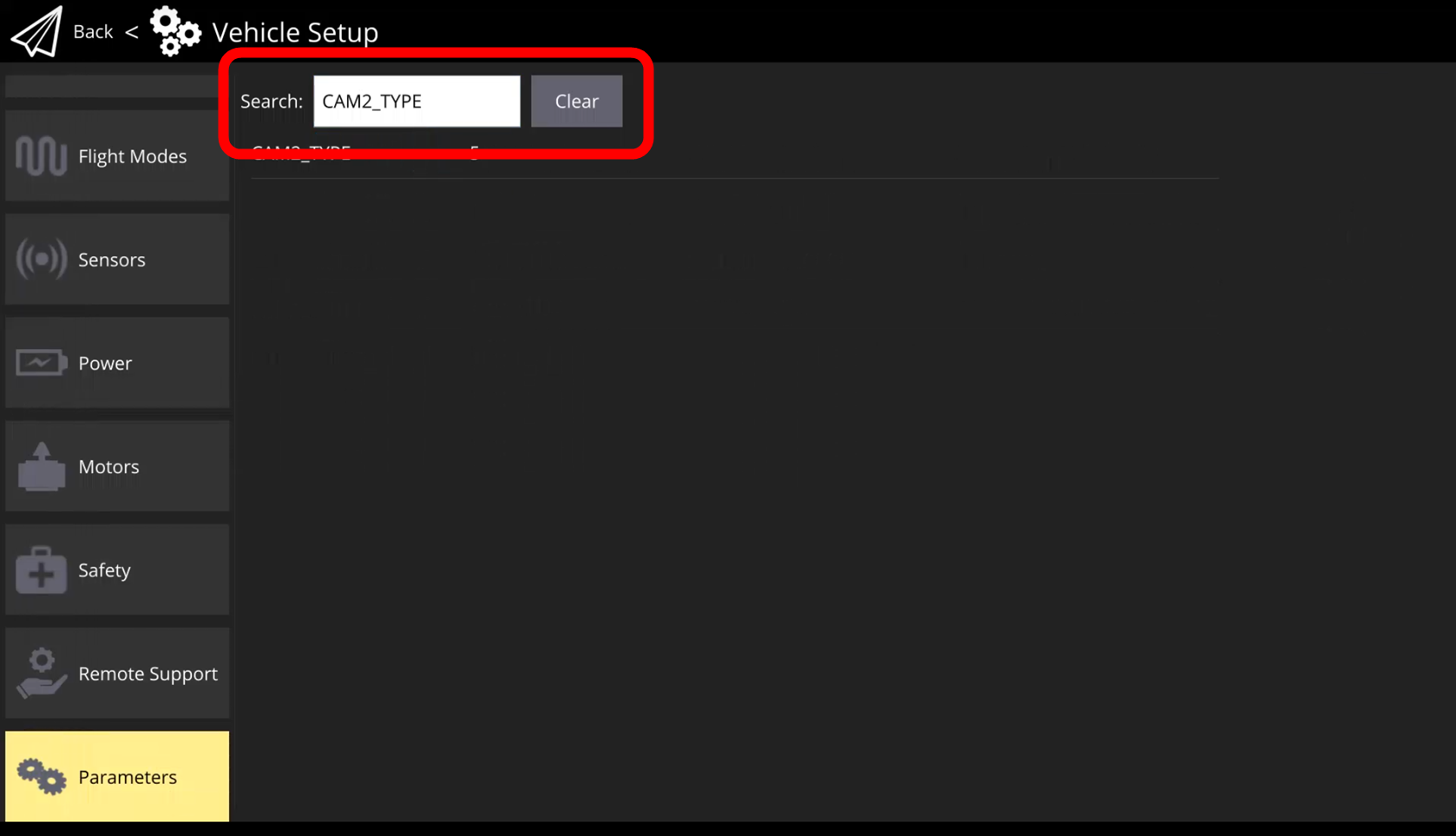
### Search For CAM2\_TYPE

In the search bar at the top of the menu search for "CAM2\_TYPE"

<figure><img src="https://3675182560-files.gitbook.io/~/files/v0/b/gitbook-x-prod.appspot.com/o/spaces%2FXxc0lOfDa92aCfFa5lb4%2Fuploads%2Fhcb7zGWUeyWaGTPGjioD%2Fimage.png?alt=media&amp;token=4a2cdd3c-6d1b-4960-ae05-e1f1df545de9" alt=""><figcaption></figcaption></figure>
{% endstep %}

{% step %}

### Set CAM2\_TYPE to 5

Tap on the parameter and the parameter editor window will appear.

Set the value to 5 and press Save.

<figure><img src="https://3675182560-files.gitbook.io/~/files/v0/b/gitbook-x-prod.appspot.com/o/spaces%2FXxc0lOfDa92aCfFa5lb4%2Fuploads%2FxLmYKCuQ83GgVrIquyVC%2Fimage.png?alt=media&amp;token=003593b3-2b60-44f3-89ad-abbcc9f573ec" alt=""><figcaption></figcaption></figure>
{% endstep %}

{% step %}

### Repeat Steps 6 & 7 For the Parameters Listed In the Table Above

Set all of the listed parameters from the table.
{% endstep %}

{% step %}

### Power Down Aircraft

To apply the changes the aircraft needs to be rebooted. Power the aircraft off.
{% endstep %}

{% step %}

### Install Sensor & Power On Aircraft

Install the 65R and power the aircraft & hand controller on.

{% content-ref url="/pages/LeaZm0e5Q2Smbe5yjI0I" %}
[IF800 Tomcat](/65r-sensor-user-guide/65r-sensor/installation/inspired-flight/if800-tomcat)
{% endcontent-ref %}

{% content-ref url="/pages/GplavTIwYGre63kgkjVV" %}
[IF1200](/65r-sensor-user-guide/65r-sensor/installation/inspired-flight/if1200)
{% endcontent-ref %}
{% endstep %}

{% step %}

### Verify Functionality

Allow the aircraft and sensor to fully boot. Once the aircraft has achieved a 3D satellite fix the sensor will start a session and the light on the sensor will turn green.

{% hint style="warning" %}
The aircraft may need to be taken outside to obtain a GPS fix depending on your environment.
{% endhint %}

Other functionalities that can be checked:

* **Gimbal Steering:** Use the rocker wheel on the left side of the controller to change the pitch angle of the gimbal
* **Camera Triggering:** Use the on screen image capture button to test the image capture. The lights on the camera will flash white.

{% hint style="info" %}
IGC v1.4 and greater will enable the use of the physical manual trigger button.
{% endhint %}
{% endstep %}
{% endstepper %}


# Video Streaming Setup

## Getting Started

{% hint style="danger" %}
Video Streaming requires IGC v1.3 or greater.
{% endhint %}

IGC v1.3 and greater has automatic payload detection, parameter application, and video stream settings for 65R. When prompted please apply the payload parameters via IGC.

## Video Streaming Parameters <a href="#video-streaming" id="video-streaming"></a>

| Parameter        | Value   |
| ---------------- | ------- |
| Stream 2         | SENTERA |
| Low Latency Mode | Enabled |

## Video Streaming Setup Instructions

{% stepper %}
{% step %}

### Check!

These setup instructions are only necessary if the payload detection is not working, or if the settings are accidentally changed.

Video streaming is not supported on IGC v1.2.5 or earlier.
{% endstep %}

{% step %}

### Install 65R

{% content-ref url="/pages/LeaZm0e5Q2Smbe5yjI0I" %}
[IF800 Tomcat](/65r-sensor-user-guide/65r-sensor/installation/inspired-flight/if800-tomcat)
{% endcontent-ref %}

{% content-ref url="/pages/GplavTIwYGre63kgkjVV" %}
[IF1200](/65r-sensor-user-guide/65r-sensor/installation/inspired-flight/if1200)
{% endcontent-ref %}
{% endstep %}

{% step %}

### Power On the Aircraft and Hand Controller

Power the aircraft and hand controller on..
{% endstep %}

{% step %}

### Open IGC

Open IGC and verify the aircraft and hand controller are connected to each other.

<figure><img src="https://3675182560-files.gitbook.io/~/files/v0/b/gitbook-x-prod.appspot.com/o/spaces%2FXxc0lOfDa92aCfFa5lb4%2Fuploads%2FGMrK6JDWWOvB2BMNFVds%2Fimage.png?alt=media&amp;token=b9371b0b-5b07-438e-8df6-95aa1b277c9c" alt=""><figcaption></figcaption></figure>
{% endstep %}

{% step %}

### Open the Settings Menu

Press the IFT Logo in the upper left hand corner to open the menu.

<figure><img src="https://3675182560-files.gitbook.io/~/files/v0/b/gitbook-x-prod.appspot.com/o/spaces%2FXxc0lOfDa92aCfFa5lb4%2Fuploads%2FVDz4RXlkkqjTbsvdzPb5%2Fimage.png?alt=media&amp;token=f172cfe5-0312-421d-8829-ecb2635f42c1" alt=""><figcaption></figcaption></figure>
{% endstep %}

{% step %}

### Select Application Settings

<figure><img src="https://3675182560-files.gitbook.io/~/files/v0/b/gitbook-x-prod.appspot.com/o/spaces%2FXxc0lOfDa92aCfFa5lb4%2Fuploads%2FucsNmp51o0iNcp042GgY%2Fimage.png?alt=media&amp;token=aa8a247c-7014-42be-b49f-d61936a5c987" alt=""><figcaption></figcaption></figure>

<figure><img src="https://3675182560-files.gitbook.io/~/files/v0/b/gitbook-x-prod.appspot.com/o/spaces%2FXxc0lOfDa92aCfFa5lb4%2Fuploads%2FaOhtWB6doNaC6WTS789L%2Fimage.png?alt=media&amp;token=2b7f293e-1a57-45cb-b6e9-6aa507822a4a" alt=""><figcaption></figcaption></figure>
{% endstep %}

{% step %}

### Scroll to Video Settings

<figure><img src="https://3675182560-files.gitbook.io/~/files/v0/b/gitbook-x-prod.appspot.com/o/spaces%2FXxc0lOfDa92aCfFa5lb4%2Fuploads%2F3EaObqvG7Vpl6SOJ2BW1%2Fimage.png?alt=media&amp;token=91d1de33-63db-496d-befe-aba7434d2364" alt=""><figcaption></figcaption></figure>
{% endstep %}

{% step %}

### Select Stream 2

Select the drop down menu and select SENTERA

<figure><img src="https://3675182560-files.gitbook.io/~/files/v0/b/gitbook-x-prod.appspot.com/o/spaces%2FXxc0lOfDa92aCfFa5lb4%2Fuploads%2FRZAGa8Sg7OwuZx0KGdIq%2Fimage.png?alt=media&amp;token=9be7caa5-6bf9-4751-97db-2e5f9ada233f" alt=""><figcaption></figcaption></figure>
{% endstep %}

{% step %}

### Enable Low Latency Mode

<figure><img src="https://3675182560-files.gitbook.io/~/files/v0/b/gitbook-x-prod.appspot.com/o/spaces%2FXxc0lOfDa92aCfFa5lb4%2Fuploads%2FXMUQAHnHKEXRajyXhpZJ%2Fimage.png?alt=media&amp;token=bb32c02a-a00b-4b30-9ace-4402f98a50d8" alt=""><figcaption></figcaption></figure>
{% endstep %}

{% step %}

### Return to Fly Screen

<figure><img src="https://3675182560-files.gitbook.io/~/files/v0/b/gitbook-x-prod.appspot.com/o/spaces%2FXxc0lOfDa92aCfFa5lb4%2Fuploads%2FauxrOFrfsySrD1THvzJ1%2Fimage.png?alt=media&amp;token=32a83016-71f3-4c43-b283-eedfa35f9aea" alt=""><figcaption></figcaption></figure>
{% endstep %}

{% step %}

### Press the On Screen Video Stream Button to Change to Stream 2

Tap the "1" box on the right hand side of the screen to switch to the secondary video stream.

The video stream for the 65R will now be displayed in the video window.

<figure><img src="https://3675182560-files.gitbook.io/~/files/v0/b/gitbook-x-prod.appspot.com/o/spaces%2FXxc0lOfDa92aCfFa5lb4%2Fuploads%2F7jnmFQLoNhTguKkHLmgM%2Fimage.png?alt=media&amp;token=c8ffc29b-8dce-48df-b067-9d82f9d98d22" alt=""><figcaption></figcaption></figure>

<figure><img src="https://3675182560-files.gitbook.io/~/files/v0/b/gitbook-x-prod.appspot.com/o/spaces%2FXxc0lOfDa92aCfFa5lb4%2Fuploads%2FpIaJGUS6Zgolk7IeMZBc%2Fimage.png?alt=media&amp;token=955ee2c5-2c7d-4d15-ac38-dcdfdc5491cb" alt=""><figcaption></figcaption></figure>
{% endstep %}
{% endstepper %}


# Operation

## Introduction

Learn more about operating the 65R sensor, what flight settings should be used, and how to offload data.

***

<table data-view="cards"><thead><tr><th></th></tr></thead><tbody><tr><td><h4>Standard Operating Procedure</h4><p><a href="/65r-sensor-user-guide/65r-sensor/operation/standard-operating-procedure">Overview</a></p><p><a href="/65r-sensor-user-guide/65r-sensor/operation/standard-operating-procedure/integrated-mode">Integrated Mode</a></p><p><a href="/65r-sensor-user-guide/65r-sensor/operation/standard-operating-procedure/stand-alone-mode-external-gps">Stand Alone Mode (External GPS)</a></p></td></tr><tr><td><h4>Recommended Flight Settings</h4><p><a href="/65r-sensor-user-guide/65r-sensor/operation/recommended-flight-settings">Overview</a></p><p><a href="https://senterasensors.com/mission-calculator/">Mission Calculator</a></p></td></tr><tr><td><h4>Gimbal Steering</h4><p><a href="/65r-sensor-user-guide/65r-sensor/operation/gimbal-steering/inspired-flight">Inspired Flight</a></p><p><a href="/65r-sensor-user-guide/65r-sensor/operation/gimbal-steering/freefly">Freefly</a></p></td></tr><tr><td><h4><a href="/65r-sensor-user-guide/65r-sensor/operation/leds">Status LEDs</a></h4></td></tr><tr><td><h4><a href="/65r-sensor-user-guide/65r-sensor/operation/sd-card">SD Card</a></h4></td></tr></tbody></table>


# Standard Operating Procedure

## Operational Modes

The 65R can operate in two different modes. Each of these modes has a slightly different Standard Operating Procedure.

***

### Integrated Mode

{% content-ref url="/pages/bPRgxzg9ZmodLN3JqD6d" %}
[Integrated Mode](/65r-sensor-user-guide/65r-sensor/operation/standard-operating-procedure/integrated-mode)
{% endcontent-ref %}

In this mode the 65R ingests triggering commands and GPS/Altitude/Attitude from the drone to capture and geotag imagery. This is the most common operational mode.

Support Aircraft:

* DJI M300/M350
* DJI M200/210
* Freefly Astro
* IF800 & IF1200

***

### Stand Alone Mode (Sentera GPS)

{% content-ref url="/pages/YpCv3HvZTz7MyNdGF0vm" %}
[Stand Alone Mode (External GPS)](/65r-sensor-user-guide/65r-sensor/operation/standard-operating-procedure/stand-alone-mode-external-gps)
{% endcontent-ref %}

In this mode the 65R uses GPS data from the light sensor/GPS module to determine when it should trigger the camera.

***

## Notes

{% hint style="info" %}
Operational mode and capture settings are selected using the configuration menu.
{% endhint %}

{% hint style="warning" %}
Advanced or custom configurations of the 65R may required a modified standard operating procedure.
{% endhint %}


# Integrated Mode

## General Instructions

<figure><img src="https://3675182560-files.gitbook.io/~/files/v0/b/gitbook-x-prod.appspot.com/o/spaces%2FXxc0lOfDa92aCfFa5lb4%2Fuploads%2FUIo43wHl3uezS35x4GAI%2F65R%20SOP%20-%20Commanded%20%E2%80%91%20Made%20with%20FlexClip%20(2).gif?alt=media&amp;token=509ad41c-65af-4315-a4e7-3c729c14b2e0" alt=""><figcaption></figcaption></figure>

1. Assemble aircraft.
2. Install the 65R.
3. Power the aircraft.
4. Verify a session has started.
5. Verify camera model, altitude, overlap , and flight speed settings in flight app.
6. Fly.
7. Offload data (optional).

***

## Detailed Instructions

### Assemble Aircraft

Assembly the aircraft per manufacturer instructions.

<figure><img src="https://3675182560-files.gitbook.io/~/files/v0/b/gitbook-x-prod.appspot.com/o/spaces%2FXxc0lOfDa92aCfFa5lb4%2Fuploads%2FUhhTxr4t7OknRbbzj5k2%2F65R%20SOP%20-%20Assembly%20aircraft%20%20%E2%80%91%20Made%20with%20FlexClip.gif?alt=media&amp;token=e1438aca-889f-4e97-8ad6-7a791e355eab" alt=""><figcaption></figcaption></figure>

### Attach 65R

Attach the 65R to the aircraft.

<figure><img src="https://3675182560-files.gitbook.io/~/files/v0/b/gitbook-x-prod.appspot.com/o/spaces%2FXxc0lOfDa92aCfFa5lb4%2Fuploads%2FWQsshqoW2cBgveBrM71v%2F65R%20SOP%20-%20%20attach%20sensor%20%20%E2%80%91%20Made%20with%20FlexClip.gif?alt=media&amp;token=f47007a1-6dcf-42a6-9ead-24f3cfd6b2b8" alt=""><figcaption></figcaption></figure>

### Power Aircraft & Wait for Session Start

1. Power the aircraft on.
2. Let the 65R boot (solid status red LEDs).
3. Verify the 65R has started a session (solid green status LEDs). This takes about 1 minute and requires a GPS fix.

<figure><img src="https://3675182560-files.gitbook.io/~/files/v0/b/gitbook-x-prod.appspot.com/o/spaces%2FXxc0lOfDa92aCfFa5lb4%2Fuploads%2FDbpJeZP3NaoIJ881raSL%2F65R%20SOP%20-%20%20Power%20on%20and%20session%20start%20%E2%80%91%20Made%20with%20FlexClip.gif?alt=media&amp;token=29ca3f74-c67c-46fd-95e3-7a402420db70" alt=""><figcaption></figcaption></figure>

### Verify Flight Settings

Verify the camera model/parameters, flight speed, survey altitude, and overlap settings.

<figure><img src="https://3675182560-files.gitbook.io/~/files/v0/b/gitbook-x-prod.appspot.com/o/spaces%2FXxc0lOfDa92aCfFa5lb4%2Fuploads%2FB4Q3sUmdHq83eRlvEHIm%2F65R%20SOP%20-%20%20flight%20settings%20%E2%80%91%20Made%20with%20FlexClip.gif?alt=media&amp;token=206905f1-9cfd-499a-9d50-8135d74f4f74" alt=""><figcaption></figcaption></figure>

### Fly

Prepare the aircraft for launch, then fly.

<figure><img src="https://3675182560-files.gitbook.io/~/files/v0/b/gitbook-x-prod.appspot.com/o/spaces%2FXxc0lOfDa92aCfFa5lb4%2Fuploads%2FqSTYx6tYMkLHbdajbqeK%2F65R%20SOP%20-%20%20fly%20%E2%80%91%20Made%20with%20FlexClip.gif?alt=media&amp;token=32645cba-c28a-43dc-b310-55256e7fa2be" alt=""><figcaption></figcaption></figure>

### Offload Data (optional)

{% content-ref url="/pages/9vf5pmISGFZAE0A2xE0a" %}
[Data Offload](/65r-sensor-user-guide/65r-sensor/data-offload)
{% endcontent-ref %}


# Integrate Mode Details

## About

In this mode the 65R ingests triggering commands and GPS/Altitude/Attitude from the drone to capture and geotag imagery.

<figure><img src="https://3675182560-files.gitbook.io/~/files/v0/b/gitbook-x-prod.appspot.com/o/spaces%2FXxc0lOfDa92aCfFa5lb4%2Fuploads%2FWRzggVSNySiaZCPD9lET%2Fimage.png?alt=media&amp;token=6f970674-5923-4b7a-b9b9-0d362a037f62" alt=""><figcaption></figcaption></figure>

## Default Configuration

| Aircraft               | Config Name             |
| ---------------------- | ----------------------- |
| DJI M400               | DJI Skyport - M400      |
| DJI M300/M350          | DJI Skyport - M2XX/M3XX |
| DJI M200/210           | DJI Skyport - M2XX/M3XX |
| Freefly Astro          | Freefly Astro Gimbal    |
| Alta X Gen2            | Alta X Gen2             |
| Inspired Flight IF800  | IF800                   |
| Inspired Flight IF1200 | IF1200                  |


# Stand Alone Mode (External GPS)

## General Instructions

1. Assemble aircraft.
2. Install 65R & external GPS module.
3. Power aircraft
4. Verify a session has started.
5. Verify overlap settings on 65R via webpage user interface.
6. Verify camera model, altitude, overlap, and flight speed settings in flight app.
   * Aircraft must be flown East facing.
7. Fly.
8. Offload data (Optional).

***

## Detailed Instructions

### Assemble Aircraft

Assembly the aircraft per manufacturer instructions.

### Attach 65R & External GPS Module

1. Attach the 65R to the aircraft.
2. Attach the external GPS module to the aircraft.
3. Connect the external GPS module to the 65R using the provided USB-C to USB-C cable.
4. Secure the USB-C to USB-C cable to the aircraft.

### Power Aircraft & Wait For Session Start

1. Power the aircraft on.
2. Let the 65R boot (solid status red LEDs).
3. Verify the 65R has started a session (solid green status LEDs). This take about 1 minute and requires a GPS fix.

### Verify Camera Settings

1. Connect USB-C cable to the USB-C port on the 65R.
2. Connect the other end of the cable to a laptop.
3. Open the webpage user interface.
4. Select Configuration.
5. Under Trigger verify the overlap is set to the desired percentage.
6. Unplug the USB-C cable from the 65R.

### Verify Flight Settings

Verify the camera model/parameters, flight speed, survey altitude, and overlap settings.

The side overlap setting in the flight planning app should match the overlap setting on the 65R. This ensures the aircraft will fly with the appropriate spacing between transects that the 6X is expecting.

{% hint style="info" %}
Aircraft must be flown in an East facing direction.
{% endhint %}

### Fly

Prepare the aircraft for launch, then fly.

### Offload Data (Optional)

Offload the data after aircraft has landed or fly again.

{% content-ref url="/pages/9vf5pmISGFZAE0A2xE0a" %}
[Data Offload](/65r-sensor-user-guide/65r-sensor/data-offload)
{% endcontent-ref %}


# Stand Alone Mode Details

## About

In this mode the 65R uses GPS data from the light sensor/GPS module to determine when it should trigger the camera.

{% hint style="info" %}
Aircraft must be flown in an East facing direction.
{% endhint %}

{% hint style="info" %}
OEM 65R Sensors flown in this configuration will have Pitch & Roll locked at 0 degrees.
{% endhint %}

<figure><img src="https://3675182560-files.gitbook.io/~/files/v0/b/gitbook-x-prod.appspot.com/o/spaces%2FXxc0lOfDa92aCfFa5lb4%2Fuploads%2FrPcqNKRXgx2XMUzJFCt4%2Fimage.png?alt=media&amp;token=bf914f5c-c5fe-40f1-b0c7-e92bcb7a5ff7" alt=""><figcaption></figcaption></figure>

## Default Configuration

| Aircraft      | Config Name |
| ------------- | ----------- |
| DJI Inspire 2 | Sentera GPS |
| OEM 65R       | Sentera GPS |


# PHX

## For use with the PHX see the 65R PHX Payload User Guide:

{% embed url="<https://sentera.atlassian.net/wiki/spaces/PUG/pages/3306782768/PHX+65R+Payload+User+Guide>" %}


# Recommended Flight Settings

## Orthomosaic

| Altitude (ft) | Speed (mph) | Overlap (%) |
| :-----------: | :---------: | :---------: |
|   50 to 150   |   5 to 15   |   70 to 80  |
|   150 to 400  |   15 to 45  |   70 to 80  |

{% hint style="info" %}
These settings should be used as a starting point. Adjustments should be made based on background, time of year, location, weather, and other factors.
{% endhint %}

***

## Environmental Considerations

### Time of Day

Fly mid-day when the sun is highest in the sky (solar noon) to reduce shadowing effects. Solar noon will change depending on global location and time of year.

<figure><img src="https://3675182560-files.gitbook.io/~/files/v0/b/gitbook-x-prod.appspot.com/o/spaces%2FXxc0lOfDa92aCfFa5lb4%2Fuploads%2FJ08JrsxMDQAHM7E4gJ87%2Fimage.png?alt=media&amp;token=6549ae4b-756d-4277-811d-57b86b61bcb7" alt=""><figcaption></figcaption></figure>

### Cloud Cover

Flying with uniform lighting conditions is optimal for 65R. This means no clouds (clear), mostly clear, or completely overcast.

<details>

<summary>Optimal Lighting Conditions</summary>

#### Clear Skies

![](https://3675182560-files.gitbook.io/~/files/v0/b/gitbook-x-prod.appspot.com/o/spaces%2FXxc0lOfDa92aCfFa5lb4%2Fuploads%2FMQacDQQROqWyKYuLYY65%2Fimage.png?alt=media\&token=250f697e-a37c-4d9c-be4a-8ab266f9ccd4)

#### Overcast

![](https://3675182560-files.gitbook.io/~/files/v0/b/gitbook-x-prod.appspot.com/o/spaces%2FXxc0lOfDa92aCfFa5lb4%2Fuploads%2FY2FhrIGWG7wT0DH9byER%2Fimage.png?alt=media\&token=6fe5aa13-5bd5-4846-b1b6-2ee917f11ba4)

</details>

<details>

<summary>Undesirable Lighting Conditions</summary>

#### Partially Cloudy

![](https://3675182560-files.gitbook.io/~/files/v0/b/gitbook-x-prod.appspot.com/o/spaces%2FXxc0lOfDa92aCfFa5lb4%2Fuploads%2FHGZKorTuBngq5sn391ZG%2Fimage.png?alt=media\&token=6369efcf-5470-4bdd-927a-7cd3264dcaca)

</details>

### Precipitation

Flying in foggy, rainy, or snowy conditions is **not advised**.

![](https://3675182560-files.gitbook.io/~/files/v0/b/gitbook-x-prod.appspot.com/o/spaces%2FXxc0lOfDa92aCfFa5lb4%2Fuploads%2F46bmSzdU2wZ27UxbgUTF%2Fimage.png?alt=media\&token=2c3f09b5-3980-4fad-876c-5a4fa2209bc7) ![](https://3675182560-files.gitbook.io/~/files/v0/b/gitbook-x-prod.appspot.com/o/spaces%2FXxc0lOfDa92aCfFa5lb4%2Fuploads%2FQu8EVBWMlhJOYV8bBvLR%2Fimage.png?alt=media\&token=cb9447a3-303a-474d-9c18-6e3a6420a069) ![](https://3675182560-files.gitbook.io/~/files/v0/b/gitbook-x-prod.appspot.com/o/spaces%2FXxc0lOfDa92aCfFa5lb4%2Fuploads%2FMtlDAMMmd2DpRRsTLuad%2Fimage.png?alt=media\&token=209806d4-9390-4390-9bfb-53069259760f)

***

## Sentera Product Catalog

{% embed url="<https://catalog.sentera.com/products>" %}


# LEDs

## Red Solid

The 65R is booting/not ready.

<figure><img src="https://3675182560-files.gitbook.io/~/files/v0/b/gitbook-x-prod.appspot.com/o/spaces%2FXxc0lOfDa92aCfFa5lb4%2Fuploads%2FroMp2oSVWIxQSjCL38zk%2F65R%20LEDS%20-%20Boot%20%E2%80%91%20Made%20with%20FlexClip.gif?alt=media&amp;token=8b1ee9ff-ade4-49c0-999d-2bd566e52a86" alt=""><figcaption></figcaption></figure>

## Green Solid

The 65R has booted and a session has started.

<figure><img src="https://3675182560-files.gitbook.io/~/files/v0/b/gitbook-x-prod.appspot.com/o/spaces%2FXxc0lOfDa92aCfFa5lb4%2Fuploads%2FjtivCe4P1t5YmVu006fm%2F65R%20LEDS%20-%20Ready%20%E2%80%91%20Made%20with%20FlexClip.gif?alt=media&amp;token=4939e297-455d-43dd-babd-3ed3f0183730" alt=""><figcaption></figcaption></figure>

## White Flash

The 65R took a picture.

<figure><img src="https://3675182560-files.gitbook.io/~/files/v0/b/gitbook-x-prod.appspot.com/o/spaces%2FXxc0lOfDa92aCfFa5lb4%2Fuploads%2FyT14ifOl33XNsstn44r9%2F65R%20LEDS%20-%20take%20picture%20%E2%80%91%20Made%20with%20FlexClip.gif?alt=media&amp;token=61811f99-b41c-4ab5-b5cb-2a05d43415a0" alt=""><figcaption></figcaption></figure>

## Red Flashing

the 65R has detected an error.

<figure><img src="https://3675182560-files.gitbook.io/~/files/v0/b/gitbook-x-prod.appspot.com/o/spaces%2FXxc0lOfDa92aCfFa5lb4%2Fuploads%2FjtObNEhYWQUQCASTi0sW%2F65R%20LEDS%20-%20error%20%E2%80%91%20Made%20with%20FlexClip.gif?alt=media&amp;token=b9672b71-80f1-462a-a4b3-040f844ac2f2" alt=""><figcaption></figcaption></figure>


# SD Card

## Purpose

The Micro SD card is used for recording diagnostic log file data.

{% hint style="warning" %}
Images are NOT written to the SD Card. Images are stored on the internal SSD.
{% endhint %}

## Specifications

<figure><img src="https://3675182560-files.gitbook.io/~/files/v0/b/gitbook-x-prod.appspot.com/o/spaces%2FXxc0lOfDa92aCfFa5lb4%2Fuploads%2FiF2bpOUdMdJJsFUM4i3K%2Fimage.png?alt=media&amp;token=02f57e40-3f90-4de7-a097-9e0efce11e91" alt="" width="375"><figcaption></figcaption></figure>

| Item                          | Value    |
| ----------------------------- | -------- |
| Size                          | 32GB     |
| Format                        | FAT32    |
| UHS Speed Class               | Class 3  |
| Video Speed Class             | Class 30 |
| Application Performance Class | Class 1  |
| Bus Interface                 | UHS-I    |

## Provided Card

{% embed url="<https://www.amazon.com/SanDisk-Extreme-Mobile-Gaming-microSD/dp/B089M5KV4Y/ref=sr_1_13?crid=KW6CZH7397Y6&keywords=sandisk+extreme+32gb&qid=1698793678&sprefix=san+disk+extreme+32gb,aps,113&sr=8-13&th=1>" %}

## SD Card Formatting Tool

If your SD Card is not formatted to FAT32, you will need to format the card using the tool below as Windows does not support the format natively.

{% file src="/files/SFhgkQSi9csL7ARA1j8X" %}


# Gimbal Steering

Learn how to use the gimbal steering functionality for the 65R on various platforms:

{% content-ref url="/pages/Rzv66issHBeECyRYSoeu" %}
[Inspired Flight](/65r-sensor-user-guide/65r-sensor/operation/gimbal-steering/inspired-flight)
{% endcontent-ref %}

{% content-ref url="/pages/3hpe5ROCWINW4VXrigNM" %}
[Freefly](/65r-sensor-user-guide/65r-sensor/operation/gimbal-steering/freefly)
{% endcontent-ref %}


# Inspired Flight

## Getting Started <a href="#getting-started" id="getting-started"></a>

To ensure the gimbal steering for the 6X Series Sensors will work for Inspired Flight aircraft two things need to be checked:

* [ ] Verify the sensor firmware is v3.13.1 or higher
* [ ] Verify Inspired Flight compatibility settings have been applied to the aircraft.

{% content-ref url="/pages/tXsqhRaXYzg6CRc3UbyP" %}
[Firmware Update](/65r-sensor-user-guide/65r-sensor/firmware-update)
{% endcontent-ref %}

{% content-ref url="/pages/ctzVTXMyLCu9MWQ4QfYn" %}
[Inspired Flight Compatibility Settings](/65r-sensor-user-guide/65r-sensor/installation/inspired-flight/inspired-flight-compatibility-settings)
{% endcontent-ref %}

{% hint style="info" %}
IGC v1.4 and greater will display the gimbal angle indicator.
{% endhint %}

***

## Manual Gimbal Control <a href="#manual-gimbal-control" id="manual-gimbal-control"></a>

To manually control the gimbal use the rocker wheel on the left hand side of the hand controller.

Pushing the wheel to the right will point the gimbal downwards (NADIR).

Pushing the wheel to the left will point the gimbal forward.

***

## Automated Gimbal Control

{% stepper %}
{% step %}

### Navigate to the Plan Screen

<figure><img src="https://3675182560-files.gitbook.io/~/files/v0/b/gitbook-x-prod.appspot.com/o/spaces%2FXxc0lOfDa92aCfFa5lb4%2Fuploads%2Fj2VIxtzQgD9zLQ2h4nfj%2Fimage.png?alt=media&amp;token=411420e3-fdcb-4711-b8cd-7a4b3080b477" alt=""><figcaption></figcaption></figure>
{% endstep %}

{% step %}

### Select Mission Type

<figure><img src="https://3675182560-files.gitbook.io/~/files/v0/b/gitbook-x-prod.appspot.com/o/spaces%2FXxc0lOfDa92aCfFa5lb4%2Fuploads%2FZZw1rRLXsHiGcV0w6BDU%2Fimage.png?alt=media&amp;token=e9ce3f76-fe71-4c69-af9d-17c273d420df" alt=""><figcaption></figcaption></figure>
{% endstep %}

{% step %}

### Select Waypoint From the Left Hand Menu

<figure><img src="https://3675182560-files.gitbook.io/~/files/v0/b/gitbook-x-prod.appspot.com/o/spaces%2FXxc0lOfDa92aCfFa5lb4%2Fuploads%2FqcWTKgtIIf24dEcOUZ40%2Fimage.png?alt=media&amp;token=9bc80530-cee5-4d73-8137-079731e914f4" alt=""><figcaption></figcaption></figure>
{% endstep %}

{% step %}

### Place a Waypoint

<figure><img src="https://3675182560-files.gitbook.io/~/files/v0/b/gitbook-x-prod.appspot.com/o/spaces%2FXxc0lOfDa92aCfFa5lb4%2Fuploads%2FpFVXhXPPTjF9rLrcaf8P%2Fimage.png?alt=media&amp;token=733ee63e-7021-49bb-9eb5-55f631c03c2d" alt=""><figcaption></figcaption></figure>
{% endstep %}

{% step %}

### Expand Camera Dropdown Menu

In the waypoint mission item on the right hand side of the screen select the camera drop down menu.

<figure><img src="https://3675182560-files.gitbook.io/~/files/v0/b/gitbook-x-prod.appspot.com/o/spaces%2FXxc0lOfDa92aCfFa5lb4%2Fuploads%2Fjxp4nsIYgcmVR0Au5dga%2Fimage.png?alt=media&amp;token=db85669e-26eb-46ae-939c-2b3f7ec4409b" alt=""><figcaption></figcaption></figure>

<figure><img src="https://3675182560-files.gitbook.io/~/files/v0/b/gitbook-x-prod.appspot.com/o/spaces%2FXxc0lOfDa92aCfFa5lb4%2Fuploads%2Fala4Ye3nt7UEk0PdeJcM%2Fimage.png?alt=media&amp;token=b1d9b4ba-69ee-45a2-a0ff-33c40c41df06" alt=""><figcaption></figcaption></figure>
{% endstep %}

{% step %}

### Check the Gimbal Box and Set Gimbal Angle

Check the gimbal options box, then enter your desired gimbal pitch angle

<figure><img src="https://3675182560-files.gitbook.io/~/files/v0/b/gitbook-x-prod.appspot.com/o/spaces%2FXxc0lOfDa92aCfFa5lb4%2Fuploads%2FuP98c68KTpr2rCJvZLQo%2Fimage.png?alt=media&amp;token=dbf3792d-634b-4a9b-b565-9424173fa2f8" alt=""><figcaption></figcaption></figure>
{% endstep %}

{% step %}

### Finish Planning Mission

Plan the rest of your mission as normal. The gimbal will change the pitch angle of the sensor at the waypoint and remain at that pitch angle throughout the rest of the mission.

To add additional gimbal pitch changes use the same method between survey mission items, or plan a waypoint mission and add the gimbal change commands as desired.
{% endstep %}

{% step %}

### Upload

Upload the mission to the aircraft.
{% endstep %}
{% endstepper %}

***

## Gimbal Angle Orientation Reference

<figure><img src="https://3675182560-files.gitbook.io/~/files/v0/b/gitbook-x-prod.appspot.com/o/spaces%2FXxc0lOfDa92aCfFa5lb4%2Fuploads%2FAp48sud9kh015A59JptJ%2Fimage.png?alt=media&amp;token=9c00c968-5a94-4e04-ae90-30c6e3959995" alt=""><figcaption></figcaption></figure>


# Freefly

## Getting Started

To ensure the gimbal steering for the 6X Series Sensors will work for Freefly aircraft two things need to be checked:

* [ ] Verify sensor firmware is v3.16.1 or greater.
* [ ] Verify Freefly compatibility settings have been applied to the aircraft.

{% content-ref url="/pages/tXsqhRaXYzg6CRc3UbyP" %}
[Firmware Update](/65r-sensor-user-guide/65r-sensor/firmware-update)
{% endcontent-ref %}

{% content-ref url="/pages/DkPsOo50AxZz6y3PRjY1" %}
[Freefly Compatibility Settings](/65r-sensor-user-guide/65r-sensor/installation/freefly/freefly-compatibility-settings)
{% endcontent-ref %}

### IMPORTANT!

When the aircraft, sensor, and hand controller are all connected and booted the gimbal will automatically point forward (90 degrees from NADIR) by default.

The default gimbal angle for survey mission types is -90 degrees (NADIR). The gimbal will automatically point NADIR at the beginning of the survey mission item unless the gimbal angle is set otherwise.

The gimbal will automatically point forward again when return mode is activated.

{% hint style="info" %}
Astro Firmware 2.0.22 and greater will display the gimbal angle indicator.
{% endhint %}

***

## Manual Gimbal Control

To manually control the gimbal use the rocker wheel on the left hand side of the hand controller.

Pushing the wheel to the right will point the gimbal downwards (NADIR).

Pushing the wheel to the left will point the gimbal forward.

***

## Automated Gimbal Control for Survey

{% stepper %}
{% step %}

### Navigate To Plan Screen

<figure><img src="https://3675182560-files.gitbook.io/~/files/v0/b/gitbook-x-prod.appspot.com/o/spaces%2FXxc0lOfDa92aCfFa5lb4%2Fuploads%2FtF5y6KqvjXVMo5CBSVRr%2Fimage.png?alt=media&amp;token=ef9dde4a-3421-4ded-b7a2-cdea2c61ffef" alt=""><figcaption></figcaption></figure>

<figure><img src="https://3675182560-files.gitbook.io/~/files/v0/b/gitbook-x-prod.appspot.com/o/spaces%2FXxc0lOfDa92aCfFa5lb4%2Fuploads%2F6fpJ84d4djbw9E4gGIi9%2Fimage.png?alt=media&amp;token=cbe84bad-b0c5-4e67-83ff-c5486a3ca300" alt=""><figcaption></figcaption></figure>
{% endstep %}

{% step %}

### Place Survey

<figure><img src="https://3675182560-files.gitbook.io/~/files/v0/b/gitbook-x-prod.appspot.com/o/spaces%2FXxc0lOfDa92aCfFa5lb4%2Fuploads%2FOjIRwRjLUE0q34ylnGtO%2Fimage.png?alt=media&amp;token=972c0ec4-d7d1-4cae-a798-def0c9710bcb" alt=""><figcaption></figcaption></figure>
{% endstep %}

{% step %}

### Select Camera

<figure><img src="https://3675182560-files.gitbook.io/~/files/v0/b/gitbook-x-prod.appspot.com/o/spaces%2FXxc0lOfDa92aCfFa5lb4%2Fuploads%2FgLu72dtxEkoDlD1erRg6%2Fimage.png?alt=media&amp;token=6ae21ff0-69e5-4e50-86bd-5fb616231eb9" alt=""><figcaption></figcaption></figure>

<figure><img src="https://3675182560-files.gitbook.io/~/files/v0/b/gitbook-x-prod.appspot.com/o/spaces%2FXxc0lOfDa92aCfFa5lb4%2Fuploads%2FsT3XgF9AgchecaTmEBIa%2Fimage.png?alt=media&amp;token=b2bf61e7-1f3b-43aa-8988-8c8b2da422bb" alt=""><figcaption></figcaption></figure>
{% endstep %}

{% step %}

### Expand Camera Orientation Settings Menu

<figure><img src="https://3675182560-files.gitbook.io/~/files/v0/b/gitbook-x-prod.appspot.com/o/spaces%2FXxc0lOfDa92aCfFa5lb4%2Fuploads%2Fen4hjScxAvBx5iFPxfgW%2Fimage.png?alt=media&amp;token=8b6f090a-cdd7-4c5d-b6aa-7b9d64b9c285" alt=""><figcaption></figcaption></figure>
{% endstep %}

{% step %}

### Set Desired Gimbal Angle

<figure><img src="https://3675182560-files.gitbook.io/~/files/v0/b/gitbook-x-prod.appspot.com/o/spaces%2FXxc0lOfDa92aCfFa5lb4%2Fuploads%2Fm29TSD0lqoWfRZUFJUzA%2Fimage.png?alt=media&amp;token=464f9f08-016c-404f-b37c-73100dd00539" alt=""><figcaption></figcaption></figure>
{% endstep %}

{% step %}

### Upload Mission

<figure><img src="https://3675182560-files.gitbook.io/~/files/v0/b/gitbook-x-prod.appspot.com/o/spaces%2FXxc0lOfDa92aCfFa5lb4%2Fuploads%2F0S5QDTsoYnlCIkxT83SD%2Fimage.png?alt=media&amp;token=5b625a36-adc0-48ad-9df7-275e5d720c8f" alt=""><figcaption></figcaption></figure>
{% endstep %}
{% endstepper %}

***

## Automated Gimbal Control for Waypoints

{% stepper %}
{% step %}

### Navigate To Plan Screen

<figure><img src="https://3675182560-files.gitbook.io/~/files/v0/b/gitbook-x-prod.appspot.com/o/spaces%2FXxc0lOfDa92aCfFa5lb4%2Fuploads%2FRPChtZELBYAHkZ2mRBeQ%2Fimage.png?alt=media&amp;token=11a9e3d2-7b0a-45e4-b20e-2c795111199f" alt=""><figcaption></figcaption></figure>

<figure><img src="https://3675182560-files.gitbook.io/~/files/v0/b/gitbook-x-prod.appspot.com/o/spaces%2FXxc0lOfDa92aCfFa5lb4%2Fuploads%2F1Xbtgd3lwqabDzlOw9jT%2Fimage.png?alt=media&amp;token=1cb2bb31-b48d-4cad-b0dc-f16f9ae31e14" alt=""><figcaption></figcaption></figure>
{% endstep %}

{% step %}

### Place Waypoint

<figure><img src="https://3675182560-files.gitbook.io/~/files/v0/b/gitbook-x-prod.appspot.com/o/spaces%2FXxc0lOfDa92aCfFa5lb4%2Fuploads%2F5JAEJCSEZDZAAY2nm6Os%2Fimage.png?alt=media&amp;token=0c477702-5cf8-4e8e-ad18-85ed09488fea" alt=""><figcaption></figcaption></figure>
{% endstep %}

{% step %}

### Scroll Down to Camera Actions

<figure><img src="https://3675182560-files.gitbook.io/~/files/v0/b/gitbook-x-prod.appspot.com/o/spaces%2FXxc0lOfDa92aCfFa5lb4%2Fuploads%2FdOb3Ah6cssKgkcsTgCjz%2Fimage.png?alt=media&amp;token=2d2ac44c-6567-45fb-879b-b2f2e2164a5d" alt=""><figcaption></figcaption></figure>
{% endstep %}

{% step %}

### Check Gimbal & Set Desired Gimbal Angle

<figure><img src="https://3675182560-files.gitbook.io/~/files/v0/b/gitbook-x-prod.appspot.com/o/spaces%2FXxc0lOfDa92aCfFa5lb4%2Fuploads%2FGRsDdwqvmwQpCM0ZvT3f%2Fimage.png?alt=media&amp;token=7e4b03c5-53ce-44e4-8c42-86a73a68bd9a" alt=""><figcaption></figcaption></figure>
{% endstep %}

{% step %}

### Finish Planning the Mission & Upload Mission

<figure><img src="https://3675182560-files.gitbook.io/~/files/v0/b/gitbook-x-prod.appspot.com/o/spaces%2FXxc0lOfDa92aCfFa5lb4%2Fuploads%2F3hwJM8S6Ecr8MMmUTUov%2Fimage.png?alt=media&amp;token=583958d8-5f2b-4135-bbcc-6f7704c883ed" alt=""><figcaption></figcaption></figure>
{% endstep %}
{% endstepper %}

***

## Gimbal Angle Orientation Reference

<figure><img src="https://3675182560-files.gitbook.io/~/files/v0/b/gitbook-x-prod.appspot.com/o/spaces%2FXxc0lOfDa92aCfFa5lb4%2Fuploads%2F4ncycCyQ2faCDRbB431d%2Fimage.png?alt=media&amp;token=ebb89ba8-8599-4527-a45d-a0fc2d54c147" alt=""><figcaption></figcaption></figure>


# Data Offload

## Getting Started

## Introduction

Use the following pages to learn about what equipment is needed to offload data from the 65R, how to offload the data, and how to import the data into post processing software.

***

<table data-view="cards"><thead><tr><th></th></tr></thead><tbody><tr><td><h4><a href="/65r-sensor-user-guide/65r-sensor/data-offload/equipment">Equipment</a></h4></td></tr><tr><td><h4><a href="/65r-sensor-user-guide/65r-sensor/data-offload/file-structure">File Structure</a></h4></td></tr><tr><td><h4><a href="/65r-sensor-user-guide/65r-sensor/data-offload/data-import">Data Import</a></h4></td></tr><tr><td><h4>Offload Process</h4><p><a href="/65r-sensor-user-guide/65r-sensor/data-offload/offload-process">Windows</a></p><p><a href="/65r-sensor-user-guide/65r-sensor/data-offload/offload-process/offload-process-mac">Mac</a></p><p><a href="/65r-sensor-user-guide/65r-sensor/data-offload/offload-process/connecting-with-domain-controlled-accounts">Connecting With Domain Controlled Accounts</a></p></td></tr><tr><td></td></tr></tbody></table>


# Equipment

## Required

<table data-view="cards"><thead><tr><th align="center"></th><th align="center"></th></tr></thead><tbody><tr><td align="center"><img src="https://3675182560-files.gitbook.io/~/files/v0/b/gitbook-x-prod.appspot.com/o/spaces%2FXxc0lOfDa92aCfFa5lb4%2Fuploads%2FFlUK9nZd2yTdDn45iH0w%2Fimage.png?alt=media&amp;token=68ae9b87-b579-4b3f-afba-7c21eaa2da2d" alt="" data-size="original"></td><td align="center">USB-C Cable</td></tr><tr><td align="center"><img src="https://3675182560-files.gitbook.io/~/files/v0/b/gitbook-x-prod.appspot.com/o/spaces%2FXxc0lOfDa92aCfFa5lb4%2Fuploads%2FmqV205zTrzhGnnOlgi99%2Fimage.png?alt=media&amp;token=498056ed-b549-421d-bf95-de0a322b9e4d" alt="" data-size="original"></td><td align="center">Power Supply or Aircraft Battery</td></tr><tr><td align="center"><img src="https://3675182560-files.gitbook.io/~/files/v0/b/gitbook-x-prod.appspot.com/o/spaces%2FXxc0lOfDa92aCfFa5lb4%2Fuploads%2FhpnNzgW2XOg0k8dDKJjC%2Fimage.png?alt=media&amp;token=7f5e699a-fabc-49b8-9f2d-2223a23cf1c8" alt="" data-size="original"></td><td align="center">Laptop/Computer<br>(Windows &#x26; Mac compatible)</td></tr></tbody></table>

## Optional

<table data-card-size="large" data-view="cards"><thead><tr><th align="center"></th><th align="center"></th></tr></thead><tbody><tr><td align="center"><img src="https://3675182560-files.gitbook.io/~/files/v0/b/gitbook-x-prod.appspot.com/o/spaces%2FXxc0lOfDa92aCfFa5lb4%2Fuploads%2FLvXljklQfeovw21toS61%2Fimage.png?alt=media&amp;token=438e5c82-1a8e-4b1b-a251-6b4284442de1" alt="" data-size="original"></td><td align="center">External Hard Drive</td></tr></tbody></table>


# Offload Process

## Getting Started

The 65R stores the imagery on an internal solid state hard drive that is not removable from the sensor. Use the process outline below to access the collected data.

{% hint style="warning" %}
Imagery is NOT stored on the micro SD card.
{% endhint %}

## Instructions

{% stepper %}
{% step %}

### Power On Sensor

Power the 65R using the AC adapter or keep it attached to the aircraft and turn the aircraft on.

Then wait for the LEDS on the sensor to do the following:

<table><thead><tr><th width="217">Power Method</th><th>LED Behavior</th></tr></thead><tbody><tr><td>AC Power Adapter</td><td>Flashing Red</td></tr><tr><td>Drone Power</td><td>Solid Green (Requires GPS Fix)<br>Solid Red (After 2 minutes w/o GPS)</td></tr></tbody></table>

This verifies that the sensor is fully booted and ready for data offload.

<div data-with-frame="true"><figure><img src="https://3675182560-files.gitbook.io/~/files/v0/b/gitbook-x-prod.appspot.com/o/spaces%2FXxc0lOfDa92aCfFa5lb4%2Fuploads%2FyG6IkdRE7VOay9AtHDVy%2Fimage.png?alt=media&amp;token=63f869a4-66f8-4d68-baf8-9e11115b7031" alt=""><figcaption></figcaption></figure></div>
{% endstep %}

{% step %}

### Connect USB Cable to Sensor and Computer

Connect the sensor to the computer using a USB cable.

{% hint style="info" %}
Use the USB-C port on the sensor not the USB-C port on the top of the gimbal.
{% endhint %}

{% hint style="warning" %}
Use the [USB-C Cable provided with the 65R](https://www.amazon.com/Anker-Powerline-Pull-up-Resistor-MacBook/dp/B01MZIPYPY?th=1). This cable gives the best and most reliable performance.
{% endhint %}

<div data-with-frame="true"><figure><img src="https://3675182560-files.gitbook.io/~/files/v0/b/gitbook-x-prod.appspot.com/o/spaces%2FXxc0lOfDa92aCfFa5lb4%2Fuploads%2FPrkZdyCkJA4sXcoOs0uw%2Fimage.png?alt=media&amp;token=8e31d1cf-dad8-4042-b901-43d59fed13a1" alt=""><figcaption></figcaption></figure></div>
{% endstep %}

{% step %}

### Open a File Browser Window

<div data-with-frame="true"><figure><img src="https://3675182560-files.gitbook.io/~/files/v0/b/gitbook-x-prod.appspot.com/o/spaces%2FXxc0lOfDa92aCfFa5lb4%2Fuploads%2FbuqJmBphkkgui8INanJR%2Fimage.png?alt=media&amp;token=53708d5a-8958-4454-86a8-d1f67f7f3ad5" alt=""><figcaption></figcaption></figure></div>
{% endstep %}

{% step %}

### Navigate to Sensor Storage

Navigate to the 65R internal storage by typing \\\192.168.42.1 into the address bar of the file browser and pressing enter.

```
\\192.168.42.1
```

{% hint style="info" %}
Backslashes are required to navigate to the sensor internal storage. Ensure that you type \\\ before the sensor IP address.
{% endhint %}

{% hint style="info" %}
The sensor may need a minute to fully boot before it can be accessed via the file browser.
{% endhint %}

<div data-with-frame="true"><figure><img src="https://3675182560-files.gitbook.io/~/files/v0/b/gitbook-x-prod.appspot.com/o/spaces%2FXxc0lOfDa92aCfFa5lb4%2Fuploads%2FnC8lVYo9DKCJENDJPpf9%2Fimage.png?alt=media&amp;token=fb8542ba-9e24-4a15-8494-7561a9a17fc4" alt=""><figcaption></figcaption></figure></div>

{% hint style="info" %}
If the 65R can't be connected to after a few minutes try the following:\
\- Turn off/disconnect any Wi-Fi or Ethernet connections that have internet access.\
\- Verify the USB cable being used is the provided cable or one of the listed [compatible cables](https://sentera.gitbook.io/65r-sensor-user-guide/65r-sensor/whats-in-the-box/replacement-cables)
{% endhint %}

{% hint style="info" %}
Adding this file path to Quick Access can be helpful for repeated use.
{% endhint %}
{% endstep %}

{% step %}

### Login to Sensor

Windows will display a network credentials pop-up. The user name is sentera and there is no password. Press OK.

<div data-with-frame="true"><figure><img src="https://3675182560-files.gitbook.io/~/files/v0/b/gitbook-x-prod.appspot.com/o/spaces%2FXxc0lOfDa92aCfFa5lb4%2Fuploads%2F0nwcFs9USnGrgWOoHt2o%2Fimage.png?alt=media&amp;token=0d46d4d6-21a3-4aa6-bd44-b127cc9a3b61" alt=""><figcaption></figcaption></figure></div>

{% hint style="info" %}
If your user account is controlled by a domain .\sentera may need to be used as the username. If this does not work please see link below on how to resolve issue.
{% endhint %}

{% content-ref url="/pages/OoFUzpC3mF33OuWfL3Ia" %}
[Connecting With Domain Controlled Accounts](/65r-sensor-user-guide/65r-sensor/data-offload/offload-process/connecting-with-domain-controlled-accounts)
{% endcontent-ref %}
{% endstep %}

{% step %}

### Select Data Folder

<div data-with-frame="true"><figure><img src="https://3675182560-files.gitbook.io/~/files/v0/b/gitbook-x-prod.appspot.com/o/spaces%2FXxc0lOfDa92aCfFa5lb4%2Fuploads%2F9qDkevEkO8LIE071w2GF%2Fimage.png?alt=media&amp;token=ede96ac8-be05-44aa-9c35-c78dbc3d18cd" alt=""><figcaption></figcaption></figure></div>
{% endstep %}

{% step %}

### Select Snapshots Folder

<div data-with-frame="true"><figure><img src="https://3675182560-files.gitbook.io/~/files/v0/b/gitbook-x-prod.appspot.com/o/spaces%2FXxc0lOfDa92aCfFa5lb4%2Fuploads%2FAfZSfH2134MtqpZ0ehCZ%2Fimage.png?alt=media&amp;token=49e93e8b-8537-4348-9685-91b992287014" alt=""><figcaption></figcaption></figure></div>
{% endstep %}

{% step %}

### Select Session Folder

Session folders are the folders where the imagery is stored for each flight.

<div data-with-frame="true"><figure><img src="https://3675182560-files.gitbook.io/~/files/v0/b/gitbook-x-prod.appspot.com/o/spaces%2FXxc0lOfDa92aCfFa5lb4%2Fuploads%2FZBhAZldf1Jb5DBDE0OBx%2Fimage.png?alt=media&amp;token=1e480dba-a046-4548-a4d2-930bb750e212" alt=""><figcaption></figcaption></figure></div>

{% hint style="info" %}
If the 65R is not power cycled between flights that are intended to be separate (i.e. not a battery swap) all of the photos from both flights will be stored in the same session folder.
{% endhint %}
{% endstep %}

{% step %}

### Copy Folder

{% hint style="warning" %}
Ensure that you always copy-paste (ctrl+C) and not cut-paste (ctrl+X). Using cut-paste can lead to data loss that cannot be undone.
{% endhint %}

<div data-with-frame="true"><figure><img src="https://3675182560-files.gitbook.io/~/files/v0/b/gitbook-x-prod.appspot.com/o/spaces%2FXxc0lOfDa92aCfFa5lb4%2Fuploads%2FOGgyZ6zYTNWVus4HwsjR%2Fimage.png?alt=media&amp;token=5ce889ea-7216-437e-b5ab-ec80d4562023" alt=""><figcaption></figcaption></figure></div>
{% endstep %}
{% endstepper %}


# Offload Process - Mac

## Getting Started

The 65R stores the imagery on an internal solid state hard drive that is not removable from the sensor. Use the process outline below to access the collected data.

{% hint style="warning" %}
Imagery is NOT stored on the micro SD card.
{% endhint %}

## Instructions

{% stepper %}
{% step %}

### Power On Sensor

Power the 65R using the AC adapter or keep it attached to the aircraft and turn the aircraft on.

Then wait for the LEDS on the sensor to do the following:

<table><thead><tr><th width="217">Power Method</th><th>LED Behavior</th></tr></thead><tbody><tr><td>AC Power Adapter</td><td>Flashing Red</td></tr><tr><td>Drone Power</td><td>Solid Green (Requires GPS Fix)<br>Solid Red (After 2 minutes w/o GPS)</td></tr></tbody></table>

This verifies that the sensor is fully booted and ready for data offload.

<div data-with-frame="true"><figure><img src="https://3675182560-files.gitbook.io/~/files/v0/b/gitbook-x-prod.appspot.com/o/spaces%2FXxc0lOfDa92aCfFa5lb4%2Fuploads%2FVhVjV9qRMU7xgtHuLRXL%2Fimage.png?alt=media&amp;token=bbbdce71-8a04-49d5-b0de-a9ff3dc5ed3b" alt=""><figcaption></figcaption></figure></div>
{% endstep %}

{% step %}

### Connect USB Cable to Sensor and Computer

Connect the sensor to the computer using a USB cable.

{% hint style="info" %}
Use the USB-C port on the sensor not the USB-C port on the top of the gimbal.
{% endhint %}

{% hint style="warning" %}
Use the [USB-C Cable provided with the 65R](https://www.amazon.com/Anker-Powerline-Pull-up-Resistor-MacBook/dp/B01MZIPYPY?th=1). This cable gives the best and most reliable performance.
{% endhint %}

<div data-with-frame="true"><figure><img src="https://3675182560-files.gitbook.io/~/files/v0/b/gitbook-x-prod.appspot.com/o/spaces%2FXxc0lOfDa92aCfFa5lb4%2Fuploads%2FIpXjQuKxS3qCFQM165Oq%2Fimage.png?alt=media&amp;token=c5ee9971-229c-460c-be9d-81e2234876f9" alt=""><figcaption></figcaption></figure></div>
{% endstep %}

{% step %}

### Open a Finder Window

Once the 65R is fully booted it will appear as a network location in the left hand menu of the Finder window.

{% hint style="info" %}
If the 65R doesn't automatically show up, select the Network option under Locations, as it may appear there the first time the 65R is connected.

If there is a SENTERA-65R-SMB as well, select SENTERA-65R.
{% endhint %}

{% hint style="info" %}
If the 65R can't be connected to after a few minutes try the following: - Turn off/disconnect any Wi-Fi or Ethernet connections that have internet access. - Verify the USB cable being used is the provided cable or one of the listed [compatible cables.](https://sentera.gitbook.io/65r-sensor-user-guide/65r-sensor/whats-in-the-box/replacement-cables)
{% endhint %}

<div data-with-frame="true"><figure><img src="https://3675182560-files.gitbook.io/~/files/v0/b/gitbook-x-prod.appspot.com/o/spaces%2FXxc0lOfDa92aCfFa5lb4%2Fuploads%2FnCEm1mGlE5wa8GmKqMel%2Fimage.png?alt=media&amp;token=87da3ea9-c555-479f-b46f-644706cc3455" alt=""><figcaption></figcaption></figure></div>
{% endstep %}

{% step %}

### Select Data Folder

<div data-with-frame="true"><figure><img src="https://3675182560-files.gitbook.io/~/files/v0/b/gitbook-x-prod.appspot.com/o/spaces%2FXxc0lOfDa92aCfFa5lb4%2Fuploads%2FJBV8dblCFXBxK87MYvWd%2Fimage.png?alt=media&amp;token=0f68e222-b49b-45bf-bbe8-582d1c17e709" alt=""><figcaption></figcaption></figure></div>
{% endstep %}

{% step %}

### Select Snapshots Folder

<div data-with-frame="true"><figure><img src="https://3675182560-files.gitbook.io/~/files/v0/b/gitbook-x-prod.appspot.com/o/spaces%2FXxc0lOfDa92aCfFa5lb4%2Fuploads%2F6Dqsn4zIaoEdv7QakEMc%2Fimage.png?alt=media&amp;token=0a5a959d-bf76-4130-b2b2-62cf20f9971f" alt=""><figcaption></figcaption></figure></div>
{% endstep %}

{% step %}

### Select Session Folder

Session folders are the folders where the imagery is stored for each flight.

{% hint style="info" %}
If the 65R is not power cycled between flights that are intended to be separate (i.e. not a battery swap) all of the photos from both flights will be stored in the same session folder.
{% endhint %}

<div data-with-frame="true"><figure><img src="https://3675182560-files.gitbook.io/~/files/v0/b/gitbook-x-prod.appspot.com/o/spaces%2FXxc0lOfDa92aCfFa5lb4%2Fuploads%2FjAB5uMxrxF4MXconXZSb%2Fimage.png?alt=media&amp;token=977d1877-32bf-43f7-85bb-35bc3c5aa62f" alt=""><figcaption></figcaption></figure></div>
{% endstep %}

{% step %}

### Copy Folder

{% hint style="warning" %}
Ensure that you always copy-paste (cmd+C) and not cut-paste (cmd+X). Using cut-paste can lead to data loss that can not be undone.
{% endhint %}

<div data-with-frame="true"><figure><img src="https://3675182560-files.gitbook.io/~/files/v0/b/gitbook-x-prod.appspot.com/o/spaces%2FXxc0lOfDa92aCfFa5lb4%2Fuploads%2FzHxnk3MBsI2pPQWD1KeT%2Fimage.png?alt=media&amp;token=b05db1a0-9311-4def-872d-e608589edf25" alt=""><figcaption></figcaption></figure></div>

<div data-with-frame="true"><figure><img src="https://3675182560-files.gitbook.io/~/files/v0/b/gitbook-x-prod.appspot.com/o/spaces%2FXxc0lOfDa92aCfFa5lb4%2Fuploads%2FTlnvGPyNQI0hKltZH3vz%2Fimage.png?alt=media&amp;token=a4b3e07c-612b-45ad-b2d1-dbcd20bbae78" alt=""><figcaption></figcaption></figure></div>
{% endstep %}

{% step %}

### Eject Sensor

{% hint style="info" %}
Use the eject button to release the sensor from the OS. This provides the best reliability.
{% endhint %}

<div data-with-frame="true"><figure><img src="https://3675182560-files.gitbook.io/~/files/v0/b/gitbook-x-prod.appspot.com/o/spaces%2FXxc0lOfDa92aCfFa5lb4%2Fuploads%2F9cCZ0uCg07fhiXXob5Lx%2Fimage.png?alt=media&amp;token=9fc4f21d-91e9-4c16-bad2-432cd1eadabc" alt=""><figcaption></figcaption></figure></div>
{% endstep %}
{% endstepper %}


# Connecting With Domain Controlled Accounts

If you are trying to offload data and are running into issue's to where its asking for a pin number instead of username and password and are running on a domain controlled account, see image below. Please go through the following steps below.

{% hint style="warning" %}
This is only pertaining to Windows 11 OS with domain based account.
{% endhint %}

<figure><img src="https://3675182560-files.gitbook.io/~/files/v0/b/gitbook-x-prod.appspot.com/o/spaces%2FXxc0lOfDa92aCfFa5lb4%2Fuploads%2FYY3yBy2eccqL07NPxHl2%2FTest.jpg?alt=media&amp;token=dfb373f9-d0b5-4bc4-848c-524ae4e3a86c" alt=""><figcaption></figcaption></figure>

Steps to resolve issue:

1. Press windows button + L on your keyboard on your laptop or desktop computer. This will then go to the lock screen.
2. Click on "sign-in options" button underneath the pin, see image below.

<figure><img src="https://3675182560-files.gitbook.io/~/files/v0/b/gitbook-x-prod.appspot.com/o/spaces%2FXxc0lOfDa92aCfFa5lb4%2Fuploads%2FstlM6oGeMeCqcDtB99lo%2FTest2.jpg?alt=media&amp;token=c2089f8c-f98a-4921-a848-73c8425c683a" alt=""><figcaption></figcaption></figure>

3. Select password, i.e., there should be an icon that looks like a key, select the key button and then type in the windows password to get into the computer.
4. Go through the data offload process again, this time it should work. see link to page below.

{% content-ref url="/pages/2MjvedMtHNR0k2ADGUpC" %}
[Offload Process](/65r-sensor-user-guide/65r-sensor/data-offload/offload-process)
{% endcontent-ref %}


# Data Import

## Introduction

65R uses standard metadata tagging formats and labels, such as EXIF and XMP. They are compatible with standard GIS and image processing tools, such as Pix4D.

## Common Post Processing Tools

<table data-view="cards"><thead><tr><th align="center"></th><th align="center"></th></tr></thead><tbody><tr><td align="center"><img src="https://3675182560-files.gitbook.io/~/files/v0/b/gitbook-x-prod.appspot.com/o/spaces%2FXxc0lOfDa92aCfFa5lb4%2Fuploads%2FQ1VrKKDAk6paFTczuwm5%2Fimage.png?alt=media&amp;token=5f3e9ad3-7d4c-4320-a78e-82f0983c30ba" alt="" data-size="original"></td><td align="center">FieldAgent</td></tr><tr><td align="center"><img src="https://3675182560-files.gitbook.io/~/files/v0/b/gitbook-x-prod.appspot.com/o/spaces%2FXxc0lOfDa92aCfFa5lb4%2Fuploads%2FaM285GeiqU6Xbnpx2u2y%2Fimage.png?alt=media&amp;token=c2c9d785-1c9d-4b90-b611-0e2fa51439b1" alt="" data-size="original"></td><td align="center">Pix4D</td></tr><tr><td align="center"><img src="https://3675182560-files.gitbook.io/~/files/v0/b/gitbook-x-prod.appspot.com/o/spaces%2FXxc0lOfDa92aCfFa5lb4%2Fuploads%2Fm8B9kCbBKiirBCSOTMtI%2Fimage.png?alt=media&amp;token=a21ba92f-11d4-478a-81d6-2384ce1503e1" alt="" data-size="original"></td><td align="center">Metashape</td></tr></tbody></table>


# File Structure

## Introduction

The 65R uses an internal SSD to store the captured data. This article will describe the file storage structure.

***

## File Structure

The 65R file structure is as follows:

**data > snapshots > session folders > rgb > image files**

The session folders are labeled as YYYY-MM-DD\_HH-MM-SS. Where YYYY-MM-DD is the date that the imagery was collected on, and HH-MM-SS is the UTC time that the session folder created at (when the 6X status lights turned green).

{% hint style="info" %}
If the 65R is power cycled between flights over a single area, there will be a session folder for each power up and session start of the camera. i.e. the imagery will be split between each folder.
{% endhint %}

<figure><img src="https://3675182560-files.gitbook.io/~/files/v0/b/gitbook-x-prod.appspot.com/o/spaces%2FXxc0lOfDa92aCfFa5lb4%2Fuploads%2FC0IUZ3hZVJym5qiMRhZn%2Fimage.png?alt=media&amp;token=80ab3ac9-2fdf-426b-b0c3-9ba78b26628d" alt=""><figcaption></figcaption></figure>

Inside of each session folder is a sub folder labeled rgb. This folder contains the the imagery.

<figure><img src="https://3675182560-files.gitbook.io/~/files/v0/b/gitbook-x-prod.appspot.com/o/spaces%2FXxc0lOfDa92aCfFa5lb4%2Fuploads%2FwfXKbfT72hZNTSdwg6LK%2Fimage.png?alt=media&amp;token=ed13fbcd-6b51-48a4-9764-52131c30db98" alt=""><figcaption></figcaption></figure>

<figure><img src="https://3675182560-files.gitbook.io/~/files/v0/b/gitbook-x-prod.appspot.com/o/spaces%2FXxc0lOfDa92aCfFa5lb4%2Fuploads%2FH9mKka1wyMpOhlxyOrRI%2Fimage.png?alt=media&amp;token=5abab5c5-17f0-45da-8e45-ef11483bd08b" alt=""><figcaption></figcaption></figure>


# Firmware Update

## Getting Started

Learn how to update the firmware for the 65R sensor.

***

<table data-view="cards"><thead><tr><th></th></tr></thead><tbody><tr><td><h4><a href="/65r-sensor-user-guide/65r-sensor/firmware-update/latest-version">Latest Version</a></h4></td></tr><tr><td><h4><a href="/65r-sensor-user-guide/65r-sensor/firmware-update/equipment">Equipment</a></h4></td></tr><tr><td><h4><a href="/65r-sensor-user-guide/65r-sensor/firmware-update/how-to-update">How to Update</a></h4></td></tr></tbody></table>

***

## Firmware Email Notification Sign up

Stay up to date with the latest firmware. Sign up and receive an email whenever we release a new firmware for your sensor

{% embed url="<https://forms.zohopublic.com/senterallc/form/FirmwareUpdateEmailList/formperma/6GDLbvpaP0rr4X-INqw92ciZnvuOXNCOaZq7AlVZ6Ns>" %}


# Latest Version

## Version 4.8.1

<table data-view="cards"><thead><tr><th align="center"></th><th align="center"></th><th data-hidden data-card-cover data-type="files"></th></tr></thead><tbody><tr><td align="center"></td><td align="center"><a href="https://workdrive.zohoexternal.com/external/e40394ecbe2e718cbeaf318b1813322d3debae957be6bfd89e0518715a589aca/download">65R Sensor Firmware Download</a></td><td><a href="https://3675182560-files.gitbook.io/~/files/v0/b/gitbook-x-prod.appspot.com/o/spaces%2FXxc0lOfDa92aCfFa5lb4%2Fuploads%2FJRWTdji6YMAsYaL6Mzwh%2Fimage.png?alt=media&amp;token=32757eb5-f2f6-4fb1-9ce9-6f5a75804948">image.png</a></td></tr></tbody></table>

***

## Release Notes

### 4.8.1

#### Features

* Add support for DJI M400 drone.
* Add support for Harris Aerial drones.
  * Carrier H6 Electric
  * Carrier H6 Hybrid
  * Carrier HX8
  * H4C Quad
* Add support for Freefly Alta X Gen2 drone.
* Add RTK correction age status to the camera webpage.
* Display the number of image slots remaining on the camera webpage.
* Allow manual exposure and gain adjustments for specific exposure settings.
* Improve firmware update handling and prevent incompatible firmware downgrades.
* Improved support for file deletion from FieldAgent.
* Improved interval-trigger capture consistency on MAVLink platforms.
* Add ability to save DNG/RAW images instead of jpgs.
  * Either JPG or DNG, switching modes will clear existing images and require a reboot.
  * This is configurable via the `Image Adjustment` page.
* Add MAVLink non-gimballed installation support.

#### Bug Fixes

* Fixed intermittent missed photo captures during flight.
* Fixed factory reset and restart operations that did not restart the camera correctly.
* Fixed session names with trailing spaces creating incorrectly named folders.
* Fixed camera version display in DJI Pilot.

***

## Previous Releases

<details>

<summary>4.5.1</summary>

#### Known Issues

* Camera storage can become corrupted if completely filled with imagery. Mitigate by verifying before flight execution that the camera contains enough available storage for the estimated number of photo captures.

#### Features

* Add black level correction for improved imagery quality.
* (PixelScout) Add bad pixel replacement for improved imagery quality.
* (PixelScout) Add PixelScout-v4.0 assembly and configuration support.

#### Bug Fixes

* Fix issue with some images not being visible on FieldAgent import or in Windows Explorer.

</details>

<details>

<summary>4.4.0</summary>

#### Features

* Update IFT RTK/PPK platforms to use WGS-84 height datum. Allows for easier usage in post-processing tools.
* Add configuration for IFT IF1200A RTK/PPK operation.
* Update link on webpage for new support site.
* Add Open Source Software (OSS) webpage to list OSS compliance.
* Update SMB server to ksmb - providing better performance.
* (PixelScout) Add support for PixelScout-v4.0 camera.

#### Bug Fixes

* Fix tagging of invalid metadata on IFT platforms after switching between installed payloads.

</details>

<details>

<summary>4.3.0</summary>

#### Features

* Update webpage GPS information to add system time synchronization status
* Add Sentera XMP tag 'AppliedRigRelatives' for better operational observability
* Improve application logging

#### Bug Fixes

* Adjust IF800 RTK/PPK antenna offset 5mm for more accurate antenna phase center
* Fix webpage communication lag, which increased with time

</details>

<details>

<summary>4.2.1</summary>

#### Features

* Add payload detection and better user feedback on MAVLink based platforms
* Add gimbal control & video feed for Freefly Astro platform
* Add diagnostic webpage for debug ability
* Update IFT IF800 PPK generated file names with prefix for easier organization

#### Bug Fixes

* Fix EXIF GPS:DateStamp formatting for "YYYY:MM:DD" output
* Fix REST API server crash

</details>

<details>

<summary>4.1.3</summary>

#### Features

* Add WeedScout Phase-3 payload support
* Add Sentera RTK/PPK module support for IF800 drones
* Add CAMERA\_INFORMATION message for MAVLink systems
* Network configurations allow for multiple IP addresses on a single port for platform compatibility
* Video feeds can be enabled to stream video over RTSP on supported platforms
  * Currently enabled for Inspired Flight UAVs
  * When enabled, the RTSP feed is found at: rtsp\://\[ip]:8554/video
* Upgraded camera operating system

#### Bug fixes

* Fixed purple pixels and scaling of video stream
* Fixed unique Ethernet MAC address issue
* Fixed intermittent application failure on WeedScout platforms
* Fixed metadata failure 71.5 minutes after power-on on WeedScout platforms

#### Known Issues

* The video feed appears to be all I-frames, which results in lower quality
* Manual photo capture button in IGC does not work
* Payload detection on Astro hangs on initialization within Auterion Mission Control

</details>

<details>

<summary>3.13.1</summary>

#### Features

* Add gimbal control for Inspired Flight IF800/IF1200A

#### Bug fixes

* Fix "extraneous bytes before marker 0xd0" in JPG image data

</details>

<details>

<summary>3.12.0</summary>

#### Features

* Add UHS SD Card Support (hw: 21030-02)
* Add gimbal spotting support for WeedScout Phase-2

#### Bug fixes

* Fix repeated image captures with MAVLink-v2 operation
* Fix disabling of Color Correction Matrix (CCM)

</details>

<details>

<summary>3.10.1</summary>

#### Features

* Add 65R DGR logging improvements

#### Bug fixes

* N/A

</details>

<details>

<summary>3.10.0</summary>

#### Features

* Add WeedScout Phase 2 support

#### Bug fixes

* N/A

</details>

<details>

<summary>3.9.1</summary>

#### Features

* Improved capture synchronization on dual 65R systems
* Eliminated image artifacts that could occur 1/3 and 2/3 of the way from the top of image
* Log connection speed of USB and Ethernet connections

#### Bug fixes

* N/A

</details>

<details>

<summary>3.9.0</summary>

#### Features

* Added support for dual 65R assembly
* Improved USB connectivity robustness
* Improved application logging

#### Bug fixes

* N/A

</details>

<details>

<summary>3.8.1</summary>

#### Features

* Remove leftover fsck \*.rec files on startup
* Update wording about potential dataloss when updating firmware
* Add autobaud support for gimballed MAVLink systems

#### Bug fixes

* Fix incorrect `XMP::PerspectiveFocalLength` tag on calibrated DGR systems

</details>

<details>

<summary>3.8.0</summary>

#### Features

* Added support for gimballed Sentera GPS
* Added support for SBG Quanta DGR
* Added support for Inspired Flight IF800/IF1200A
* Improved error messages on web page when storage is full
* Improved mono band alignment in new 6X camera builds
* Improved metadata location/attitude accuracy for Skyport V2 systems
* Improved metadata location/attitude accuracy on supported Mavlink2 RTK systems
* Improved USB connectivity and performance

#### Bug fixes

* Fixed calibration images not showing calibration running on web page
* Fixed bad color in pixels in very bright lighting
* Fixed 1 pixel wide artifacts that could occur along encoder boundaries

</details>

<details>

<summary>3.7.0</summary>

#### Features

* Added support for DJI Skyport V2 hardware.
* Added support for Freefly Astro systems.
* Added support for new 27.4 mm lens (21030-01).
* Reduced session startup time.
* Improved sharpening of camera to reduce "soft" images.

#### Bug fixes

* Firmware updates will now delete all images on camera when applied to prevent image corruption issues.
* Fixed color artifacts when pixels were saturated at very low ISO values Fixed improper encoding for exif tag GPSProcessingMethod.
* Fixed rare issue causing invalid exif tag GPSHPositioningError.
* Increased allowed maximum RGB JPG size to prevent images from being clipped.
* (DJI RTK) Improved switching algorithm and accuracy when using DJI RTK enabled systems.
* (DGR) Fixed gimbal not found error reporting on M300 DGR system.

</details>

<details>

<summary>3.6.0</summary>

#### Features

* Improved color and behavior of saturated pixels in images.
* Improved vignetting correction settings.
* Allow settable baud rates on all UARTS for OEM integrators.
* Add ExifImageHeight and ExifImageWidth tags to jpegs to allow easier reading of image size.
* Allow triggering captures via the cameras pushbutton.
* Update branding on configuration webpages.
* Inhibit DJI Skyport image triggers for non-command modes (e.g., overlap mode) to prevent double triggering during flight.
* Add support for new gimbal hardware revision.

#### Bug Fixes

* Fix an issue preventing photo counts from updating in DJI Pilot.
* Fix a rare image corruption issue causing bad captures and missing exif data.

</details>

<details>

<summary>3.5.0</summary>

#### Features

* Initial Customer Release.

#### Bug Fixes

* N/A

</details>


# Equipment

<table data-view="cards"><thead><tr><th align="center"></th><th align="center"></th></tr></thead><tbody><tr><td align="center"><img src="https://3675182560-files.gitbook.io/~/files/v0/b/gitbook-x-prod.appspot.com/o/spaces%2FXxc0lOfDa92aCfFa5lb4%2Fuploads%2FFlUK9nZd2yTdDn45iH0w%2Fimage.png?alt=media&amp;token=68ae9b87-b579-4b3f-afba-7c21eaa2da2d" alt="" data-size="original"></td><td align="center">USB-C Cable</td></tr><tr><td align="center"><img src="https://3675182560-files.gitbook.io/~/files/v0/b/gitbook-x-prod.appspot.com/o/spaces%2FXxc0lOfDa92aCfFa5lb4%2Fuploads%2FmqV205zTrzhGnnOlgi99%2Fimage.png?alt=media&amp;token=498056ed-b549-421d-bf95-de0a322b9e4d" alt="" data-size="original"></td><td align="center">Power Supply or Aircraft Battery</td></tr><tr><td align="center"><img src="https://3675182560-files.gitbook.io/~/files/v0/b/gitbook-x-prod.appspot.com/o/spaces%2FXxc0lOfDa92aCfFa5lb4%2Fuploads%2FhpnNzgW2XOg0k8dDKJjC%2Fimage.png?alt=media&amp;token=7f5e699a-fabc-49b8-9f2d-2223a23cf1c8" alt="" data-size="original"></td><td align="center">Laptop/Computer</td></tr></tbody></table>


# How To Update

## Download Firmware Update File

{% content-ref url="/pages/bnRoqYlfx6PI9ZhE5GX9" %}
[Latest Version](/65r-sensor-user-guide/65r-sensor/firmware-update/latest-version)
{% endcontent-ref %}

## Before You Start

{% hint style="warning" %}
Data will be deleted during the firmware upgrade process. Make sure to copy the data off your sensor before performing the update.
{% endhint %}

{% hint style="info" %}
This Process works on Windows or Mac.
{% endhint %}

## Power On Sensor

Power the 65R using the AC adapters or keep it attached to the aircraft and turn the aircraft on.

Then wait for the LEDS on the sensor to do the following:

| Power Method     | LED Behavior                                                                    |
| ---------------- | ------------------------------------------------------------------------------- |
| AC Power Adapter | Flashing Red                                                                    |
| Drone Power      | <p>Solid Green (Requires GPS Fix)</p><p>Solid Red (After 2 minutes w/o GPS)</p> |

This verifies that the sensor is fully booted.

<figure><img src="https://3675182560-files.gitbook.io/~/files/v0/b/gitbook-x-prod.appspot.com/o/spaces%2FXxc0lOfDa92aCfFa5lb4%2Fuploads%2F6wG3SWwZiy4i25XGxPFU%2Fimage.png?alt=media&amp;token=13f82373-7a3b-49a2-b662-39567b642044" alt=""><figcaption></figcaption></figure>

## Connect Sensor to Computer

Connect the sensor to the computer using a USB cable.

{% hint style="info" %}
Use the USB-C port on the sensor not the USB-C port on the top of the gimbal.
{% endhint %}

{% hint style="warning" %}
Use the [USB-C Cable provided with the 65R](https://www.amazon.com/Anker-Powerline-Pull-up-Resistor-MacBook/dp/B01MZIPYPY?th=1). This cable gives the best and most reliable performance.
{% endhint %}

<figure><img src="https://3675182560-files.gitbook.io/~/files/v0/b/gitbook-x-prod.appspot.com/o/spaces%2FXxc0lOfDa92aCfFa5lb4%2Fuploads%2F9hYVzTWV4nCECkN1hsJq%2Fimage.png?alt=media&amp;token=73c13f75-c80e-4843-b4d2-c0fc78bc4bce" alt=""><figcaption></figcaption></figure>

## Verify Connection

Open your wifi/network panel from the task bar. Verify that you see "unidentified network - No internet". This is the 65R appearing as a network device.

<figure><img src="https://3675182560-files.gitbook.io/~/files/v0/b/gitbook-x-prod.appspot.com/o/spaces%2FXxc0lOfDa92aCfFa5lb4%2Fuploads%2FLNWPwCOexuorbGGoNyTq%2Fimage.png?alt=media&amp;token=0211a02e-f8fa-46cf-b802-608b6a960d73" alt="" width="302"><figcaption></figcaption></figure>

## Open Sensor Webpage

In a web browser (no internet required) type 192.168.42.1 into the address bar and press enter.

{% content-ref url="/pages/8YiTG9euURv1IzhSXz9Q" %}
[How To Access Web User Interface](/65r-sensor-user-guide/65r-sensor/configuration-and-settings/how-to-access-web-user-interface)
{% endcontent-ref %}

<figure><img src="https://3675182560-files.gitbook.io/~/files/v0/b/gitbook-x-prod.appspot.com/o/spaces%2FXxc0lOfDa92aCfFa5lb4%2Fuploads%2FJbKzI8bUs0tVKJVbALHQ%2Fimage.png?alt=media&amp;token=86b94c30-f01e-45a4-8981-39f11f86a91d" alt=""><figcaption></figcaption></figure>

{% hint style="info" %}
If the sensor is being powered by the AC adapter the screen will appear red with a warning message.
{% endhint %}

## Select Update Firmware

<figure><img src="https://3675182560-files.gitbook.io/~/files/v0/b/gitbook-x-prod.appspot.com/o/spaces%2FXxc0lOfDa92aCfFa5lb4%2Fuploads%2FVaCXbogt1Xx7boBuzVEE%2Fimage.png?alt=media&amp;token=6653cbac-e3d7-4e0e-8a19-c0097c4f5935" alt=""><figcaption></figcaption></figure>

<figure><img src="https://3675182560-files.gitbook.io/~/files/v0/b/gitbook-x-prod.appspot.com/o/spaces%2FXxc0lOfDa92aCfFa5lb4%2Fuploads%2FldRyC5LkrSOZ8Bwb7n8U%2Fimage.png?alt=media&amp;token=4cf99eeb-140e-48d1-972e-5bcdc8c59c15" alt=""><figcaption></figcaption></figure>

## Apply Firmware File

<figure><img src="https://3675182560-files.gitbook.io/~/files/v0/b/gitbook-x-prod.appspot.com/o/spaces%2FXxc0lOfDa92aCfFa5lb4%2Fuploads%2FfDvlnI69oq2RX3Q83Q7p%2Fimage.png?alt=media&amp;token=e3d52b9b-23d0-4323-b710-9f402fcff724" alt=""><figcaption></figcaption></figure>

## Allow Update to Execute

The software update process begins and may take several minutes. Do not turn off the power or disconnect the cable during this process. It may reboot several times during the process.

<figure><img src="https://3675182560-files.gitbook.io/~/files/v0/b/gitbook-x-prod.appspot.com/o/spaces%2FXxc0lOfDa92aCfFa5lb4%2Fuploads%2FceIYHEZYJQaeAUwdmtyL%2Fimage.png?alt=media&amp;token=afa399e8-1a73-4f93-8ef5-1ab9210c2dca" alt=""><figcaption></figcaption></figure>

## Allow Sensor to Self-Reboot

<figure><img src="https://3675182560-files.gitbook.io/~/files/v0/b/gitbook-x-prod.appspot.com/o/spaces%2FXxc0lOfDa92aCfFa5lb4%2Fuploads%2FQE7BWaV9RDVcLAS4k9NE%2Fimage.png?alt=media&amp;token=17b03b70-f660-48aa-b424-7e98becd1891" alt=""><figcaption></figcaption></figure>

## Complete

Once complete, the web page will refresh. You can check the firmware version after the web page refreshes by checking the 'Current Version' at the top of the update page, or the version in the lower left of the web page menu bar.


# Configuration & Status

## Introduction

The 65R hosts a local web page that is used for several functions including: monitoring status, configuring the camera, and updating firmware.

<table data-view="cards"><thead><tr><th></th></tr></thead><tbody><tr><td><h4>How to Access the Web Page UI</h4><p><a href="/65r-sensor-user-guide/65r-sensor/configuration-and-settings/how-to-access-web-user-interface">Computer</a></p><p><a href="/65r-sensor-user-guide/65r-sensor/configuration-and-settings/how-to-access-web-user-interface/accessing-the-web-user-interface-on-the-inspired-flight-hand-controller">Inspired Flight Hand Controller</a></p><p><a href="/65r-sensor-user-guide/65r-sensor/configuration-and-settings/how-to-access-web-user-interface/accessing-the-web-user-interface-on-the-freefly-hand-controller">Freefly Hand Controller</a></p></td></tr><tr><td><h4>Home Page</h4><p><a href="/65r-sensor-user-guide/65r-sensor/configuration-and-settings/home">Overview</a></p></td></tr><tr><td><h4>Configuration</h4><p><a href="/65r-sensor-user-guide/65r-sensor/configuration-and-settings/configuration">Overview</a></p><p><a href="/65r-sensor-user-guide/65r-sensor/configuration-and-settings/configuration/how-to-change-configuration">How to change Configuration</a></p><p><a href="/65r-sensor-user-guide/65r-sensor/configuration-and-settings/configuration/how-to-change-overlap-settings">How to change Overlap Settings</a></p></td></tr><tr><td><h4>Image Adjustment</h4><p><a href="/65r-sensor-user-guide/65r-sensor/configuration-and-settings/image-adjustment">Overview</a></p><p><a href="/65r-sensor-user-guide/65r-sensor/configuration-and-settings/image-adjustment/how-to-change-image-settings">How to change Image Settings</a></p></td></tr><tr><td><h4>Diagnostics</h4><p><a href="/65r-sensor-user-guide/65r-sensor/configuration-and-settings/diagnostics">Overview</a></p><p><a href="/65r-sensor-user-guide/65r-sensor/configuration-and-settings/diagnostics/how-to-save-logs">How to save Logs</a></p></td></tr><tr><td><h4>OSS Licenses</h4><p><a href="/65r-sensor-user-guide/65r-sensor/configuration-and-settings/oss-licenses">Overview</a></p></td></tr></tbody></table>

<figure><img src="https://3675182560-files.gitbook.io/~/files/v0/b/gitbook-x-prod.appspot.com/o/spaces%2FXxc0lOfDa92aCfFa5lb4%2Fuploads%2Fgit-blob-2198d335403c592dcfb07df9ea36d1b3fc074235%2F65r%20homepage.png?alt=media" alt=""><figcaption></figcaption></figure>


# How To Access Web User Interface

## Power Sensor

Power the sensor using the AC power adapter or install into the aircraft and turn the aircraft on.

Then wait for the LEDS on the sensor to do the following:

| Power Method     | LED Behavior                                                                  |
| ---------------- | ----------------------------------------------------------------------------- |
| AC Power Adapter | Flashings Red                                                                 |
| Drone Power      | <p>Solid Green (Requires GPS Fix)<br>Solid Red ( After 2 minutes w/o GPS)</p> |

This verifies that the sensor is fully booted.

<figure><img src="https://3675182560-files.gitbook.io/~/files/v0/b/gitbook-x-prod.appspot.com/o/spaces%2FXxc0lOfDa92aCfFa5lb4%2Fuploads%2FXtqGetUrOGYhAIDg8pkM%2Fimage.png?alt=media&amp;token=f23f7090-a619-43ca-a782-1fbf3647e700" alt=""><figcaption></figcaption></figure>

## Connect To Computer

Connect the sensor to the computer using a USB cable.

{% hint style="info" %}
Use the USB-C port on the sensor not the USB-C port on the top of the gimbal.
{% endhint %}

<figure><img src="https://3675182560-files.gitbook.io/~/files/v0/b/gitbook-x-prod.appspot.com/o/spaces%2FXxc0lOfDa92aCfFa5lb4%2Fuploads%2FRbDJ6SjMypg5a8A6EuLy%2Fimage.png?alt=media&amp;token=9f7efe02-a11f-4048-b8d8-c94e6f97cac3" alt=""><figcaption></figcaption></figure>

## Verify Connection

Open your wifi/network panel from the task bar. Verify that you see "unidentified network - No internet". This is the 65R appearing as a network device.

<figure><img src="https://3675182560-files.gitbook.io/~/files/v0/b/gitbook-x-prod.appspot.com/o/spaces%2FXxc0lOfDa92aCfFa5lb4%2Fuploads%2FLNWPwCOexuorbGGoNyTq%2Fimage.png?alt=media&amp;token=0211a02e-f8fa-46cf-b802-608b6a960d73" alt="" width="302"><figcaption></figcaption></figure>

## Open Web Browser

Open a web browser (chrome, safari, firefox, etc).

{% hint style="info" %}
No internet connection is required.
{% endhint %}

<figure><img src="https://3675182560-files.gitbook.io/~/files/v0/b/gitbook-x-prod.appspot.com/o/spaces%2FXxc0lOfDa92aCfFa5lb4%2Fuploads%2F3lF7LgN2pKtHqFIzAmQW%2Fimage.png?alt=media&amp;token=e1140930-e396-4f58-b0d1-1c53b24ce957" alt=""><figcaption></figcaption></figure>

## Enter IP Address

In the address bar enter 192.168.42.1 and press enter/go.

<figure><img src="https://3675182560-files.gitbook.io/~/files/v0/b/gitbook-x-prod.appspot.com/o/spaces%2FXxc0lOfDa92aCfFa5lb4%2Fuploads%2FwX4qFdaklrDbmPsKyrrz%2Fimage.png?alt=media&amp;token=0d3ee7ec-2f5a-4f7d-b159-dcb69e2c0258" alt=""><figcaption></figcaption></figure>

## Page Appears

The webpage will appear.

<figure><img src="https://3675182560-files.gitbook.io/~/files/v0/b/gitbook-x-prod.appspot.com/o/spaces%2FXxc0lOfDa92aCfFa5lb4%2Fuploads%2Fgit-blob-2198d335403c592dcfb07df9ea36d1b3fc074235%2F65r%20homepage.png?alt=media" alt=""><figcaption></figcaption></figure>

{% hint style="info" %}
If the webpage can't be connected to after a few minutes try the following:\
\- Verify the sensor has had around a minute to boot.\
\- Turn off/disconnect any Wi-Fi or Ethernet connections that have internet access.\
\- Verify the USB cable being used is the provided cable or one of the listed compatible cables.
{% endhint %}

{% hint style="info" %}
If the 65R is being powered with the AC power adapter, the No Gimbal Communication application will appear. This is expected as the gimbal itself is now powered.
{% endhint %}

<figure><img src="https://3675182560-files.gitbook.io/~/files/v0/b/gitbook-x-prod.appspot.com/o/spaces%2FXxc0lOfDa92aCfFa5lb4%2Fuploads%2FGaJWsXIYOieXK5a6cFmI%2F65R%20home%20AC.png?alt=media&amp;token=4342ea51-136f-4edd-9063-09a7aee31893" alt=""><figcaption></figcaption></figure>


# Accessing the Web User Interface on The Inspired Flight Hand Controller

The Web User Interface for the 65R Sensor can be reach via the Inspired Flight Hand Controller. The Web User Interface can be used to check the status, change settings and manually trigger the sensor.

{% stepper %}
{% step %}

### Power on Drone and Hand Controller

{% endstep %}

{% step %}

### Navigate to the Home Page on your Hand Controller

<figure><img src="https://3675182560-files.gitbook.io/~/files/v0/b/gitbook-x-prod.appspot.com/o/spaces%2FXxc0lOfDa92aCfFa5lb4%2Fuploads%2FewA6qk4LFm7SYvo1ed6r%2FOptimus%208_28_2025%203_35_03%20PM.png?alt=media&amp;token=1b0da651-b6e5-469d-8ed4-f263b2e8d6d5" alt=""><figcaption></figcaption></figure>
{% endstep %}

{% step %}

### Open the Application Menu

Click the grid icon in the lower right hand corner to open the Application Menu.

<figure><img src="https://3675182560-files.gitbook.io/~/files/v0/b/gitbook-x-prod.appspot.com/o/spaces%2FXxc0lOfDa92aCfFa5lb4%2Fuploads%2FPpQI4uetLEwY9dsXyaue%2FOptimus%208_28_2025%203_35_33%20PM.png?alt=media&amp;token=76c2dcfb-71cc-4e0b-bb24-a45541ec8aea" alt=""><figcaption></figcaption></figure>
{% endstep %}

{% step %}

#### Open the Web Browser Application

Click the WebView Browser to open a webpage.

<figure><img src="https://3675182560-files.gitbook.io/~/files/v0/b/gitbook-x-prod.appspot.com/o/spaces%2FXxc0lOfDa92aCfFa5lb4%2Fuploads%2FundgwSMBW4SAgZT4smBX%2FOptimus%208_28_2025%203_35_45%20PM.png?alt=media&amp;token=70d71e91-bd50-49c6-a0ce-1494fdbb6d6e" alt=""><figcaption></figcaption></figure>
{% endstep %}

{% step %}

### Enter The Sensor's IP Address in the browser

To navigate to the Web User Interface, enter the IP address listed below, then press the arrow icon.

```
192.168.144.141
```

<figure><img src="https://3675182560-files.gitbook.io/~/files/v0/b/gitbook-x-prod.appspot.com/o/spaces%2FXxc0lOfDa92aCfFa5lb4%2Fuploads%2F8UtZGFYABgyBffyDduso%2FOptimus%208_28_2025%203_42_44%20PM.png?alt=media&amp;token=2f504213-8404-4878-a9fc-1a4c3b7eccfb" alt=""><figcaption></figcaption></figure>
{% endstep %}

{% step %}

### Web User Interface

From the home page you can check the status of the sensor, manually capture images, or navigate to other pages from the left hand side bar.

<figure><img src="https://3675182560-files.gitbook.io/~/files/v0/b/gitbook-x-prod.appspot.com/o/spaces%2FXxc0lOfDa92aCfFa5lb4%2Fuploads%2FjvFdieIzHR3wxMwFtzrU%2FOptimus%208_28_2025%203_41_02%20PM.png?alt=media&amp;token=76e3c221-9198-41f6-815e-ca58135d5c24" alt=""><figcaption></figcaption></figure>
{% endstep %}
{% endstepper %}


# Accessing the Web User Interface on The Freefly Hand Controller

The Web User Interface for the 65R Sensor can be reach via the Freefly Hand Controller. The Web User Interface can be used to check the status, change settings and manually trigger the sensor.

{% stepper %}
{% step %}

### Power on Drone and Hand Controller

{% endstep %}

{% step %}

### Navigate to the Home Page on your Hand Controller

<figure><img src="https://3675182560-files.gitbook.io/~/files/v0/b/gitbook-x-prod.appspot.com/o/spaces%2FXxc0lOfDa92aCfFa5lb4%2Fuploads%2FYCyYXQXZVEaCfQkhEM4z%2Fscrcpy-win64-v2.7%20and%201%20more%20tab%20-%20File%20Explorer%208_28_2025%203_47_04%20PM.png?alt=media&amp;token=fe98a8ac-a846-418b-bac1-f8da436fc2a6" alt=""><figcaption></figcaption></figure>
{% endstep %}

{% step %}

### Open the Application Menu

Click the grid icon in the lower right hand corner to open the Application Menu.

<figure><img src="https://3675182560-files.gitbook.io/~/files/v0/b/gitbook-x-prod.appspot.com/o/spaces%2FXxc0lOfDa92aCfFa5lb4%2Fuploads%2FlryoiokQceCxJgwGpMOj%2Fscrcpy-win64-v2.7%20and%201%20more%20tab%20-%20File%20Explorer%208_28_2025%203_47_04%20PM.png?alt=media&amp;token=a7353b51-e0d7-4af9-8d54-b0a851788aa8" alt=""><figcaption></figcaption></figure>
{% endstep %}

{% step %}

### Open the Web Browser Application

Click the Chrome Icon to open a webpage.

<figure><img src="https://3675182560-files.gitbook.io/~/files/v0/b/gitbook-x-prod.appspot.com/o/spaces%2FXxc0lOfDa92aCfFa5lb4%2Fuploads%2Fl2exwfr2Uq9DYnRdlNcv%2FOptimus%208_28_2025%203_47_14%20PM.png?alt=media&amp;token=03eb4b9a-2fcc-4bce-9d46-b0c5b02dd881" alt=""><figcaption></figcaption></figure>
{% endstep %}

{% step %}

### Enter The Sensor's IP Address in the browser

To navigate to the Web User Interface, enter the IP address listed below, then press go.

```
192.168.144.141
```

<figure><img src="https://3675182560-files.gitbook.io/~/files/v0/b/gitbook-x-prod.appspot.com/o/spaces%2FXxc0lOfDa92aCfFa5lb4%2Fuploads%2FcSzdH7DaqJssKRI5tGsg%2FOptimus%208_28_2025%204_03_32%20PM.png?alt=media&amp;token=62eab428-6290-48ff-a8e6-610a0bd60b70" alt=""><figcaption></figcaption></figure>
{% endstep %}

{% step %}

### Web User Interface

From the home page you can check the status of the sensor, manually capture images, or navigate to other pages from the left hand side bar.

<figure><img src="https://3675182560-files.gitbook.io/~/files/v0/b/gitbook-x-prod.appspot.com/o/spaces%2FXxc0lOfDa92aCfFa5lb4%2Fuploads%2Fe1Ct9nDwk9EoaMxF2ob5%2FOptimus%208_28_2025%203_50_05%20PM.png?alt=media&amp;token=0aa7b189-89da-46c8-98f1-8b2e773ae8e8" alt=""><figcaption></figcaption></figure>
{% endstep %}
{% endstepper %}


# Home

## Introduction

The home page of the 65R webpage displays the sensor status, session control, trigger control, and calibration control menus. This is the default landing page when the webpage is accessed.

<figure><img src="https://3675182560-files.gitbook.io/~/files/v0/b/gitbook-x-prod.appspot.com/o/spaces%2FXxc0lOfDa92aCfFa5lb4%2Fuploads%2Fgit-blob-2198d335403c592dcfb07df9ea36d1b3fc074235%2F65r%20homepage.png?alt=media" alt=""><figcaption></figcaption></figure>

## Storage Information

The storage information bar displays the amount of storage currently used on the 65R. The bar is blue when storage usage is 50% or less and changes to yellow when storage usage exceeds 50%. A yellow bar indicates that imagery should be cleared from the camera before future sessions to prevent the camera from becoming full.

<figure><img src="https://3675182560-files.gitbook.io/~/files/v0/b/gitbook-x-prod.appspot.com/o/spaces%2FXxc0lOfDa92aCfFa5lb4%2Fuploads%2Fgit-blob-7ee3d646ea9ce3a4134fadaf1a21ddc42caaf835%2Fimage%20(376).png?alt=media" alt=""><figcaption></figcaption></figure>

## Telemetry Status

This field displays the telemetry information received from external sources like the aircraft autopilot or light sensor/GPS.

<figure><img src="https://3675182560-files.gitbook.io/~/files/v0/b/gitbook-x-prod.appspot.com/o/spaces%2FXxc0lOfDa92aCfFa5lb4%2Fuploads%2Fgit-blob-3317ddff5a4f0b2b5e51229896fe627f019c98d4%2Fimage.png?alt=media" alt=""><figcaption></figcaption></figure>

### GPS Status

The GPS status displays the GPS information currently available to the 65R.

<table><thead><tr><th width="152">Item</th><th>Information</th></tr></thead><tbody><tr><td>Latitude</td><td>latitude location in decimal degrees.</td></tr><tr><td>Longitude</td><td>Longitude location in decimal degrees.</td></tr><tr><td>Alt</td><td>Current altitude in meters (<a href="https://en.wikipedia.org/wiki/Height_above_mean_sea_level">AMSL</a>)</td></tr><tr><td>GPS Time</td><td>The <a href="https://en.wikipedia.org/wiki/Coordinated_Universal_Time">Coordinated Universal Time</a> as received from the satellites.</td></tr><tr><td>Fix Type</td><td><p>The type of GPS fix that has been acquired.<br><br><strong>Unknown</strong> - Unknown fix type.<br></p><p><strong>None</strong> - No fix achieved.<br></p><p><strong>2D</strong> - 2 dimensional position.<br></p><p><strong>3D</strong> - 3 dimensional position.<br><br><strong>DGPS</strong> - <a href="https://en.wikipedia.org/wiki/GNSS_augmentation">DGPS/SBAS</a> aided 3D position.<br><br><strong>RTK Float</strong> - <a href="https://en.wikipedia.org/wiki/Real-time_kinematic_positioning">RTK</a> with float ambiguities.<br></p><p><strong>RTK Fixed</strong> - <a href="https://en.wikipedia.org/wiki/Real-time_kinematic_positioning">RTK</a> with fixed ambiguities.</p></td></tr><tr><td>Sats</td><td>The number of satellites that are detected by the GPS source.</td></tr><tr><td>Horz Acc</td><td>The horizontal accuracy of the GPS fix in meters.</td></tr><tr><td>Vert Acc</td><td>The vertical accuracy of the GPS fix in meters.</td></tr><tr><td>DOP</td><td>The <a href="https://en.wikipedia.org/wiki/Dilution_of_precision_(navigation)">dilution of precision</a> of the GPS accuracy.</td></tr></tbody></table>

### Attitude

The attitude status displays the current attitude of the 65R in the [earth reference frame](https://en.wikipedia.org/wiki/Earth-centered_inertial).

{% hint style="info" %}
The attitude information source is dependent on the selected configuration. See the configuration page for detailed information.
{% endhint %}

| Item  | Information                               |
| ----- | ----------------------------------------- |
| Roll  | The roll angle of the sensor in degrees.  |
| Pitch | The pitch angle of the sensor in degrees. |
| Yaw   | The yaw angle of the sensor in degrees.   |

## Session Control

Session Control displays if the 65R is ready to take imagery or not. If a session is started, the 65R is ready. If a session is not started automatically the 65R may not be ready. However, a session can be started manually if desired.

### Session control is displayed in 2 states:

#### Session In Progress

The 65R has detected that it is ready to begin collecting imagery. The session start criteria is based on the configuration of the 65R.

<figure><img src="https://3675182560-files.gitbook.io/~/files/v0/b/gitbook-x-prod.appspot.com/o/spaces%2FXxc0lOfDa92aCfFa5lb4%2Fuploads%2Fg4AeLHVEwgRDdZGCL5VC%2Fimage.png?alt=media&amp;token=2ac42a1d-9bc7-4511-a209-45a4e41ce263" alt=""><figcaption></figcaption></figure>

#### Start Session

The 65R did not automatically start a session.

<figure><img src="https://3675182560-files.gitbook.io/~/files/v0/b/gitbook-x-prod.appspot.com/o/spaces%2FXxc0lOfDa92aCfFa5lb4%2Fuploads%2FoFbDizj17Enq0wcCPviE%2Fimage.png?alt=media&amp;token=6cea6916-0e89-41ff-b175-64f723a187bf" alt=""><figcaption></figcaption></figure>

To start a session manually:

1. Name the session in the text input box, or leave the default web\_session name.
2. Press the Start Session button.
3. Verify the status lights on the 65R turn solid green.

{% hint style="warning" %}
Starting a session manually can be useful for ground testing.

Starting a session manually before a flight is not recommended as the 65R may not have the telemetry information necessary for successful data capture.
{% endhint %}

## Trigger Control

The 65R can be manually triggered using the Capture Image button in the Trigger Control field. This is useful for ground testing, or when manual image capture is applicable.

<figure><img src="https://3675182560-files.gitbook.io/~/files/v0/b/gitbook-x-prod.appspot.com/o/spaces%2FXxc0lOfDa92aCfFa5lb4%2Fuploads%2FaNedenYyRucxWCMI8rDO%2Fimage.png?alt=media&amp;token=cef3978e-0437-4b41-ba59-0c22b141525f" alt=""><figcaption></figcaption></figure>

Press the Capture Image button (a session must be started) and the 6X will take an image (1 image per imager). The status LEDs on the 65R will briefly flash from green to white.

The 65R can also be manually triggered using the physical pushbutton trigger on the side of the sensor.

***

## Calibration Control

This is not used for the 65R sensor. This feature is the result of the shared code base of the 6X series sensors and the 65R sensor. Calibration is not function for the 65R.

***


# Configuration

## Introduction

The configuration page is used to change:

* How the 65R interacts with the aircraft it is connected to.
* The triggering method

In most cases the 65R is preconfigured based on what aircraft/system the camera is ordered for and the configuration doesn't need to be changed.

{% hint style="info" %}
If using the Inspired Flight RTK PPK Module please ensure the sensor is set to the Sentera GNSS configuration. View the Support link below for information on changing sensor configuration.\
[65R Sensor | Sentera Support](https://support.senterasensors.com/home/rtk-ppk-module/setup-and-installation/sentera-sensor-setup/65r-sensor#software-configuration)
{% endhint %}

To learn how to change the configuration of the 65R or change the overlap for auto-height overlap mode, see the pages linked below.

<figure><img src="https://3675182560-files.gitbook.io/~/files/v0/b/gitbook-x-prod.appspot.com/o/spaces%2FXxc0lOfDa92aCfFa5lb4%2Fuploads%2FoGBR9oD2xByP5TXhgdvK%2F65R%20config.png?alt=media&amp;token=1fb1370c-2fe1-4baa-9429-3cb451d5395e" alt=""><figcaption></figcaption></figure>

***

## How To Instructions

{% content-ref url="/pages/ZJmkZYzsQfw6ofxLoWo3" %}
[How To Change Overlap Settings](/65r-sensor-user-guide/65r-sensor/configuration-and-settings/configuration/how-to-change-overlap-settings)
{% endcontent-ref %}

{% content-ref url="/pages/e5cOPQCznLLL0THgNXnJ" %}
[How To Change Configuration](/65r-sensor-user-guide/65r-sensor/configuration-and-settings/configuration/how-to-change-configuration)
{% endcontent-ref %}

***

## Platform/Metadata Configuration

The platform and metadata configuration is used to tell the 65R what aircraft it will be used with and where data sources (altitude, GPS, heading, etc) will come from.

### Config File

The Config File field will display the currently config file. It also contains the change button used for changing the config file.

Depending on the current config file there will be limited config files displayed in the change menu. To display all configuration file options select the "All platform configurations" and/or the "Advanced configurations" radio buttons as shown in the advanced tab below.

<figure><img src="https://3675182560-files.gitbook.io/~/files/v0/b/gitbook-x-prod.appspot.com/o/spaces%2FXxc0lOfDa92aCfFa5lb4%2Fuploads%2Fnfamuy4Eb23gRem5hQ7g%2Fimage.png?alt=media&amp;token=e48dc36c-cfb2-46ea-9a2a-8008a09f8bf5" alt=""><figcaption></figcaption></figure>

{% tabs %}
{% tab title="Standard" %}

<figure><img src="https://3675182560-files.gitbook.io/~/files/v0/b/gitbook-x-prod.appspot.com/o/spaces%2FXxc0lOfDa92aCfFa5lb4%2Fuploads%2Fhfx28LPk1PXyuliLa1uj%2F65R%20config%20popup.png?alt=media&amp;token=602f6321-3d35-494e-ab46-617167ed9343" alt=""><figcaption></figcaption></figure>

<figure><img src="https://3675182560-files.gitbook.io/~/files/v0/b/gitbook-x-prod.appspot.com/o/spaces%2FXxc0lOfDa92aCfFa5lb4%2Fuploads%2F82tTZ9IjobiQnvFM4vfw%2F65R%20config%20popup%20normal%20dropdown.png?alt=media&amp;token=b6382d52-71f1-4e29-ad3b-7a8f9468a599" alt=""><figcaption></figcaption></figure>
{% endtab %}

{% tab title="Advanced" %}

<figure><img src="https://3675182560-files.gitbook.io/~/files/v0/b/gitbook-x-prod.appspot.com/o/spaces%2FXxc0lOfDa92aCfFa5lb4%2Fuploads%2FHFxQ1TcVnRPlNKirEtwl%2F65R%20config%20popup%20both%20checked.png?alt=media&amp;token=e909676d-5456-4ca2-b278-cdb5e50ea5fd" alt=""><figcaption></figcaption></figure>

<figure><img src="https://3675182560-files.gitbook.io/~/files/v0/b/gitbook-x-prod.appspot.com/o/spaces%2FXxc0lOfDa92aCfFa5lb4%2Fuploads%2F47R85i1LT2OyAIeP68eo%2F65R%20config%20popup%20all%20options%20dropdown.png?alt=media&amp;token=4ff0d97e-d368-4e90-b1dc-3a48d84101e0" alt=""><figcaption></figcaption></figure>
{% endtab %}
{% endtabs %}

### Config Type

The Config Type is tied to the config file and gives more specific instruction about the metadata sources. The config names and data source information are listed below.

{% tabs %}
{% tab title="Gimballed" %}

<table><thead><tr><th width="115">Name</th><th width="128" align="center">GPS Source</th><th width="151" align="center">Attitude Source</th><th width="144" align="center">Trigger Source</th><th align="center">Platform Compatibility</th></tr></thead><tbody><tr><td>DJI Skyport - M400</td><td align="center">DJI Autopilot</td><td align="center">DJI Autopilot</td><td align="center">DJI Autopilot</td><td align="center">M400</td></tr><tr><td>DJI Skyport - M2XX/M3XX</td><td align="center">DJI Autopilot</td><td align="center">DJI Autopilot</td><td align="center">DJI Autopilot</td><td align="center">M350<br>M300<br>M200<br>M210</td></tr><tr><td>Sentera GPS</td><td align="center">Sentera External GPS</td><td align="center">Internal IMU (Yaw locked at 90)</td><td align="center">65R Sensor</td><td align="center">All</td></tr></tbody></table>
{% endtab %}

{% tab title="Freefly" %}

<table><thead><tr><th>Name</th><th width="128" align="center">GPS Source</th><th width="102" align="center">Attitude Source</th><th width="144" align="center">Trigger Source</th><th align="center">Platform Compatibility</th></tr></thead><tbody><tr><td>Freefly Astro Gimbal</td><td align="center">Astro Autopilot</td><td align="center">Astro Autopilot</td><td align="center">Astro Autopilot</td><td align="center">Astro</td></tr><tr><td>Alta X Gen2</td><td align="center">Astro Autopilot</td><td align="center">Astro Autopilot</td><td align="center">Astro Autopilot</td><td align="center">Alta X Gen2</td></tr></tbody></table>
{% endtab %}

{% tab title="Inspired Flight" %}

<table><thead><tr><th width="149">Name</th><th width="128" align="center">GPS Source</th><th width="103" align="center">Attitude Source</th><th width="144" align="center">Trigger Source</th><th align="center">Platform Compatibility</th></tr></thead><tbody><tr><td>IF800</td><td align="center">IF800 Autopilot</td><td align="center">IF800 Autopilot</td><td align="center">IF800 Autopilot</td><td align="center">IF800</td></tr><tr><td>IF800 - Sentera GNSS</td><td align="center">Sentera RTK PPK Module</td><td align="center">IF800 Autopilot</td><td align="center">IF800 Autopilot</td><td align="center">IF800</td></tr><tr><td>IF1200A</td><td align="center">IF1200 Autopilot</td><td align="center">IF1200 Autopilot</td><td align="center">IF200 Autopilot</td><td align="center">IF1200</td></tr><tr><td>IF1200A - Sentera GNSS</td><td align="center">Sentera RTK PPK Module</td><td align="center">IF1200 Autopilot</td><td align="center">IF1200 Autopilot</td><td align="center">IF1200</td></tr></tbody></table>

{% hint style="warning" %}
In the IF800 GNSS configuration, the RTK-PPK module is required to initialize the sensor. Without the RTK-PPK module, the sensor will not get green LED indicator lights, and will not be ready to capture data.
{% endhint %}
{% endtab %}

{% tab title="Gremsy Hyper Quick" %}

<table><thead><tr><th width="144">Name</th><th width="120" align="center">GPS Source</th><th width="107" align="center">Attitude Source</th><th width="144" align="center">Trigger Source</th><th align="center">Platform Compatibility</th></tr></thead><tbody><tr><td>MAVLink-V2</td><td align="center">MAVlink Autopilot</td><td align="center">MAVlink Autopilot</td><td align="center">MAVlink Autopilot</td><td align="center">Custom MAVlink Autopilot Systems</td></tr></tbody></table>
{% endtab %}

{% tab title="PHX" %}

<table><thead><tr><th width="121">Name</th><th width="128" align="center">GPS Source</th><th width="133" align="center">Attitude Source</th><th width="144" align="center">Trigger Source</th><th align="center">Platform Compatibility</th></tr></thead><tbody><tr><td>Sentera PHX</td><td align="center">PHX Autopilot (MAVlink V1)</td><td align="center">PHX Autopilot (MAVlink V1)</td><td align="center">PHX Autopilot (MAVlink V1)</td><td align="center">PHX</td></tr></tbody></table>
{% endtab %}

{% tab title="DGR" %}

<table><thead><tr><th>Name</th><th width="128" align="center">GPS Source</th><th width="124" align="center">Attitude Source</th><th width="144" align="center">Trigger Source</th><th align="center">Platform Compatibility</th></tr></thead><tbody><tr><td>DGR Dual Fixed - Primary</td><td align="center">Sentera DGR Sensor Package</td><td align="center">Sentera DGR Sensor Package</td><td align="center">Sentera DGR Sensor Package</td><td align="center">M300<br>M350</td></tr><tr><td>DGR Dual Fixed - Secondary</td><td align="center">Sentera DGR Sensor Package</td><td align="center">Sentera DGR Sensor Package</td><td align="center">Sentera DGR Sensor Package</td><td align="center">M300<br>M350</td></tr><tr><td>DGR Dual Gimbal - Primary</td><td align="center">Sentera DGR Sensor Package</td><td align="center">Sentera DGR Sensor Package</td><td align="center">Sentera DGR Sensor Package</td><td align="center">M300<br>M350</td></tr><tr><td>DGR Dual Gimbal - Secondary</td><td align="center">Sentera DGR Sensor Package</td><td align="center">Sentera DGR Sensor Package</td><td align="center">Sentera DGR Sensor Package</td><td align="center">M300<br>M350</td></tr><tr><td>DJI M300 DGR</td><td align="center">Sentera DGR Sensor Package</td><td align="center">Sentera DGR Sensor Package</td><td align="center">Sentera DGR Sensor Package</td><td align="center">M300<br>M350</td></tr></tbody></table>
{% endtab %}
{% endtabs %}

{% hint style="info" %}
Configurations with 65R Sensor Internal IMU as an Attitude source does not contain yaw/heading information.
{% endhint %}

***

## Trigger

The trigger field is used to set the trigger type and related settings.

<figure><img src="https://3675182560-files.gitbook.io/~/files/v0/b/gitbook-x-prod.appspot.com/o/spaces%2FXxc0lOfDa92aCfFa5lb4%2Fuploads%2F0d9QXoPx3UYwbu6P0dZL%2Fimage.png?alt=media&amp;token=67a27e79-d3db-4f40-856b-d77057d493f6" alt=""><figcaption></figcaption></figure>

### Trigger Type

{% tabs %}
{% tab title="Command" %}
The Command trigger type is used when the trigger commands come directly from the aircraft autopilot.

<figure><img src="https://3675182560-files.gitbook.io/~/files/v0/b/gitbook-x-prod.appspot.com/o/spaces%2FXxc0lOfDa92aCfFa5lb4%2Fuploads%2FnukVrW6OZyMWDshNigH7%2Fimage.png?alt=media&amp;token=cebafac0-858b-4cc2-bcda-56134ce75d4d" alt=""><figcaption></figcaption></figure>

No settings are provided for this mode. The sensor will only trigger if it receives a trigger command from MAVLink, the web page, Payload SDK, or the custom Sentera Protocol.
{% endtab %}

{% tab title="External" %}
The External trigger type is used when an external source is used to trigger the 65R.

There are 4 options for the external trigger commands. See the details in the table below.

#### Rising/Falling Edge

<figure><img src="https://3675182560-files.gitbook.io/~/files/v0/b/gitbook-x-prod.appspot.com/o/spaces%2FXxc0lOfDa92aCfFa5lb4%2Fuploads%2FAh2IUV9dsHZY38jnebLd%2Fimage.png?alt=media&amp;token=a4015fbd-6fa9-441c-9994-1f0de1a29f5c" alt=""><figcaption></figcaption></figure>

#### Low/High PWM

<figure><img src="https://3675182560-files.gitbook.io/~/files/v0/b/gitbook-x-prod.appspot.com/o/spaces%2FXxc0lOfDa92aCfFa5lb4%2Fuploads%2FJMYhLjj9akcg5efdBf9j%2Fimage.png?alt=media&amp;token=692c268a-9e53-43cc-b68d-4fb6484eadd0" alt=""><figcaption></figcaption></figure>

<table><thead><tr><th width="151.5">Mode</th><th>Description</th></tr></thead><tbody><tr><td>Rising Edge</td><td>The trigger input must be stable for 50 milliseconds to register as a commanded trigger. This is also known as the mechanical switch debounce period.</td></tr><tr><td>Falling Edge</td><td>The trigger input must be stable for 50 milliseconds to register as a commanded trigger. This is also known as the mechanical switch debounce period.</td></tr><tr><td>Low PWM</td><td>The lower value of the PWM TRIGGER input in milliseconds.</td></tr><tr><td>High PWM</td><td>The higher value of the PWM TRIGGER input in milliseconds.</td></tr></tbody></table>

The trigger input is the TRIGGER signal on connector J2.

{% content-ref url="/pages/iLLsqSW4NyFVIN8ilS3n" %}
[I/O](/65r-sensor-user-guide/integration-information/i-o)
{% endcontent-ref %}

{% hint style="info" %}
For all modes, the TRIGGER input must be actively driven using 3.3V logic levels.
{% endhint %}
{% endtab %}

{% tab title="Interval" %}
The Interval trigger type is used to capture images at a specified time interval rather than distance travelled. The minimum capture interval is 0.333 seconds (3Hz).

<figure><img src="https://3675182560-files.gitbook.io/~/files/v0/b/gitbook-x-prod.appspot.com/o/spaces%2FXxc0lOfDa92aCfFa5lb4%2Fuploads%2Fgit-blob-c01f02e40aaeb5b3ebd2ce8fbfc0d3c9c9fecd8d%2Fimage%20(377).png?alt=media" alt=""><figcaption></figcaption></figure>

{% hint style="warning" %}
The sensor will start triggering the moment a session starts, so this may result in images taken on the ground as well as in the air.
{% endhint %}
{% endtab %}

{% tab title="Overlap" %}
The Overlap trigger type is used when the the 65R is being powered by an aircraft, not receiving triggers from the aircraft or an external device, and classical overlap settings are used. This is useful for many applications as it removes the need for in depth integration with the aircraft. The 65R in combination with the Light Sensor/GPS will operate without direct communication with the aircraft.

Once 65R detects it is more than the minimum altitude above the takeoff point, it begins to capture images and continues to do so to achieve the correct image overlap. Triggering stops when it detects the platform has departed from the minimum altitude.

The 65R works with any ground station or flight controller in this mode, as it makes calculations about altitude using the GPS receiver’s measured altitude at takeoff.

{% hint style="info" %}
This is the standard setting for systems without MAVLink or DJI Skyport.
{% endhint %}

There are 2 overlap modes:

#### Auto Height (most common)

The 65R detects the flight altitude (AGL) based on the detected GPS altitude between where the session starts (on the ground) and where the aircraft flies at (survey altitude).

<figure><img src="https://3675182560-files.gitbook.io/~/files/v0/b/gitbook-x-prod.appspot.com/o/spaces%2FXxc0lOfDa92aCfFa5lb4%2Fuploads%2Fgit-blob-b50d4f12dcdcb737281d7bb8c2a2f80766c4103f%2Fimage%20(378).png?alt=media" alt=""><figcaption></figcaption></figure>

#### Fixed Height

The 65R assumes the survey altitude of the aircraft matches the fixed height input in the altitude box.

<figure><img src="https://3675182560-files.gitbook.io/~/files/v0/b/gitbook-x-prod.appspot.com/o/spaces%2FXxc0lOfDa92aCfFa5lb4%2Fuploads%2Fgit-blob-ab7c918d5967c492513cc9d1b22055dde56c0e67%2Fimage%20(379).png?alt=media" alt=""><figcaption></figcaption></figure>

| Item          | Description                                                                                                                                                                                                                                                                                                                                   |
| ------------- | --------------------------------------------------------------------------------------------------------------------------------------------------------------------------------------------------------------------------------------------------------------------------------------------------------------------------------------------- |
| Overlap       | Changes the frequency of the trigger based on the overlap of the image. Fifty percent overlap means that when the sensor has moved such that 50% of the image is new, an image will be triggered. Use the slider to adjust the overlap percentage in the text box. There are markers present in the slider at settings for typical use cases. |
| Altitude Type | Selects whether a fixed altitude is used for calculating overlap, or automatic altitude determined from GPS.                                                                                                                                                                                                                                  |
| Atlitide      | Selects whether a fixed altitude is used for calculating overlap, or automatic altitude determined from GPS.                                                                                                                                                                                                                                  |
| Min AGL       | To prevent triggers from occurring while walking around on the ground, a minimum altitude can be set. Any triggers that occur due to the sensor moving around will be blocked if the sensor estimates that its altitude is less than this number.                                                                                             |
| Min Distance  | If the sensor is flying very low to the ground, the overlap setting may result in very rapid triggers. To prevent a flood of images, a minimum trigger distance can be set. This distance is the minimum distance the sensor must travel before the next trigger can be sent.                                                                 |
| {% endtab %}  |                                                                                                                                                                                                                                                                                                                                               |
| {% endtabs %} |                                                                                                                                                                                                                                                                                                                                               |


# How To Change Configuration

## Navigate to Configuration Page

<figure><img src="https://3675182560-files.gitbook.io/~/files/v0/b/gitbook-x-prod.appspot.com/o/spaces%2FXxc0lOfDa92aCfFa5lb4%2Fuploads%2F90xqFrfAEUgG9XriP8IP%2F65r%20home%20page%20config%20circle.png?alt=media&amp;token=38f2c2f7-b05a-419d-9ed4-d23e863f6a54" alt=""><figcaption></figcaption></figure>

{% content-ref url="/pages/8YiTG9euURv1IzhSXz9Q" %}
[How To Access Web User Interface](/65r-sensor-user-guide/65r-sensor/configuration-and-settings/how-to-access-web-user-interface)
{% endcontent-ref %}

## Click Change Button

<figure><img src="https://3675182560-files.gitbook.io/~/files/v0/b/gitbook-x-prod.appspot.com/o/spaces%2FXxc0lOfDa92aCfFa5lb4%2Fuploads%2FFvbLt3t9KKccgVgcOEq1%2F65r%20change%20config%20circle.png?alt=media&amp;token=9f28f893-d269-43c8-887b-043ca2aa9442" alt=""><figcaption></figcaption></figure>

## Select Desired Configuration

{% hint style="info" %}
Depending on your current or desired configuration the All Platform Configurations check box may need to be selected to display the option in the drop down menu.
{% endhint %}

<figure><img src="https://3675182560-files.gitbook.io/~/files/v0/b/gitbook-x-prod.appspot.com/o/spaces%2FXxc0lOfDa92aCfFa5lb4%2Fuploads%2F47R85i1LT2OyAIeP68eo%2F65R%20config%20popup%20all%20options%20dropdown.png?alt=media&amp;token=4ff0d97e-d368-4e90-b1dc-3a48d84101e0" alt=""><figcaption></figcaption></figure>

## Click Apply and Restart

<figure><img src="https://3675182560-files.gitbook.io/~/files/v0/b/gitbook-x-prod.appspot.com/o/spaces%2FXxc0lOfDa92aCfFa5lb4%2Fuploads%2FBS67Cw76nzf6qNRrsySB%2Fimage.png?alt=media&amp;token=b715cc8b-33d8-4534-b67d-cee06691680e" alt=""><figcaption></figcaption></figure>

## Wait For Sensor to Reconnect

<figure><img src="https://3675182560-files.gitbook.io/~/files/v0/b/gitbook-x-prod.appspot.com/o/spaces%2FXxc0lOfDa92aCfFa5lb4%2Fuploads%2FClf50m4cIVm1FQxbRjJm%2F65R%20config%20restart%20for%20new%20config.png?alt=media&amp;token=3a9dfa16-157d-44e2-917c-ba7880227535" alt=""><figcaption></figcaption></figure>

## Verify Correct Configuration is Shown

<figure><img src="https://3675182560-files.gitbook.io/~/files/v0/b/gitbook-x-prod.appspot.com/o/spaces%2FXxc0lOfDa92aCfFa5lb4%2Fuploads%2FhjtaDmdeBLYDL91ht5Zx%2F65R%20new%20config%20after%20restart.png?alt=media&amp;token=9dfc68e3-cf4e-40ea-a558-a51ed0d03ab5" alt=""><figcaption></figcaption></figure>


# How To Change Overlap Settings

## Navigate to Configuration Page

<figure><img src="https://3675182560-files.gitbook.io/~/files/v0/b/gitbook-x-prod.appspot.com/o/spaces%2FXxc0lOfDa92aCfFa5lb4%2Fuploads%2F90xqFrfAEUgG9XriP8IP%2F65r%20home%20page%20config%20circle.png?alt=media&amp;token=38f2c2f7-b05a-419d-9ed4-d23e863f6a54" alt=""><figcaption></figcaption></figure>

{% content-ref url="/pages/8YiTG9euURv1IzhSXz9Q" %}
[How To Access Web User Interface](/65r-sensor-user-guide/65r-sensor/configuration-and-settings/how-to-access-web-user-interface)
{% endcontent-ref %}

## Locate Trigger Field and Select Overlap

<figure><img src="https://3675182560-files.gitbook.io/~/files/v0/b/gitbook-x-prod.appspot.com/o/spaces%2FXxc0lOfDa92aCfFa5lb4%2Fuploads%2Fs2HsIR4Le3JdJ8hU3tL4%2F65R%20overlap%20tab%20cirlced.png?alt=media&amp;token=2b4bafb1-4dc4-42eb-8ac1-38db76bc8d17" alt=""><figcaption></figcaption></figure>

## Set Overlap

<figure><img src="https://3675182560-files.gitbook.io/~/files/v0/b/gitbook-x-prod.appspot.com/o/spaces%2FXxc0lOfDa92aCfFa5lb4%2Fuploads%2F48lu19PgD26swRYpp9lt%2F65R%20overlap%20mouse%20on%20dot%20help%20text.png?alt=media&amp;token=b966fead-bace-4b95-9ee4-1aed41643f57" alt=""><figcaption></figcaption></figure>

Click and drag the dot to adjust the overlap value.

## Press Apply and Restart

## Wait For Sensor to Reconnect

<figure><img src="https://3675182560-files.gitbook.io/~/files/v0/b/gitbook-x-prod.appspot.com/o/spaces%2FXxc0lOfDa92aCfFa5lb4%2Fuploads%2FX36baRZ0sNZybaERYnXx%2F65R%20overlap%20restart%20to%20update%20to%2070.png?alt=media&amp;token=dd4fc456-075a-4c6f-8fc5-c312cd01893d" alt=""><figcaption></figcaption></figure>

## Verify Correct Overlap is Shown


# Image Adjustment

## Introduction

65R image settings are set by default for the best settings in most use cases. There is also the ability to alter some of the color and exposure settings for custom applications.

{% hint style="info" %}
Changing these values is not necessary for most applications and may prevent standard analytics from being run.
{% endhint %}

<figure><img src="https://3675182560-files.gitbook.io/~/files/v0/b/gitbook-x-prod.appspot.com/o/spaces%2FXxc0lOfDa92aCfFa5lb4%2Fuploads%2Fgit-blob-efe0f2cef78d0e01f261512b00b66514eccf14f5%2Fimage.png?alt=media" alt=""><figcaption></figcaption></figure>

### Exposure (Auto)

<figure><img src="https://3675182560-files.gitbook.io/~/files/v0/b/gitbook-x-prod.appspot.com/o/spaces%2FXxc0lOfDa92aCfFa5lb4%2Fuploads%2Fgit-blob-457537220c24afd544a89c808028951b0c77f0dc%2Fimage.png?alt=media" alt="" width="375"><figcaption></figcaption></figure>

In most normal usage, the exposure should not need to be adjusted, however if your images are consistently too bright or too dark, the auto-exposure settings can be modified. These settings will change how bright / dark the image is, as well as the shutter speeds and gains used to capture the image.

{% tabs %}
{% tab title="Exposure Target" %}

#### Range

0 - 255

#### Recommended Value

60

#### Description

Sets the average pixel value across the entire frame that the auto-exposure attempts to achieve. It is calculated before any ISP corrections are performed. This means that the final image will likely have an average brightness much higher than this target due to vignetting and gamma correction being applied in later steps. Due to this, in general the target value should be kept lower than 100.
{% endtab %}

{% tab title="Shutter Min" %}

#### Range

200 - {Shutter Max}

#### Recommended Value

400

#### Description

This value is the shortest shutter speed in us (microseconds) that will be used before the camera drops to a lower ISO. If the camera is already running at the lowest ISO, then the shutter speed will go faster until it hits the limit of the sensor.
{% endtab %}

{% tab title="Shutter Max" %}

#### Range

{Shutter Min} – 25000

#### Recommended Value

2000

#### Description

This value is the longest shutter speed in us (microseconds) the camera will use before increasing the ISO to attempt to stay below this value. For most flights, you should not see a longer shutter speed unless the field has insufficient lighting, forcing the shutter to go longer (see Shutter Unlock). It is recommended to keep this value lower than 3ms (3000us) to avoid motion blur caused by the groundspeed of the UAV.
{% endtab %}

{% tab title="Shutter Unlock" %}

#### Range

100 – 12800

#### Recommended Value

600

#### Description

If the ISO gets set to this value or greater by the auto-exposure, then the shutter max value is ignored, allowing the shutter speed to go slower. This is to prevent the camera from using very high gains, which can have worse effects on image quality than the motion blur from a slow shutter speed . It is also useful for taking images indoors, where lighting is insufficient to capture images otherwise.
{% endtab %}
{% endtabs %}

### Exposure (Manual)

<figure><img src="https://3675182560-files.gitbook.io/~/files/v0/b/gitbook-x-prod.appspot.com/o/spaces%2FXxc0lOfDa92aCfFa5lb4%2Fuploads%2Fgit-blob-eb1c01af99f19ebd876d5fff0449e43c1e61c1f4%2Fimage%20(374).png?alt=media" alt="" width="375"><figcaption></figcaption></figure>

In manual exposure mode, the camera does not continuously adjust shutter speed and gain to maintain a target brightness. Instead, the exposure is set directly to a fixed value, which can be useful under consistent lighting conditions when a specific exposure is needed for a repeatable capture setup.

{% tabs %}
{% tab title="Fixed Exposure" %}

#### Range

21 - 49076

#### Recommended Value

2000

#### Description

Sets the fixed shutter speed in us (microseconds) used when manual exposure mode is enabled. This value controls how long the sensor collects light for each capture and should be adjusted based on lighting conditions and motion requirements.
{% endtab %}

{% tab title="Fixed Gain" %}

#### Range

100 - 600

#### Recommended Value

100

#### Description

Sets the fixed gain multiplier used when manual exposure mode is enabled. A value of 100 is the base ISO setting, while higher values increase sensor gain to compensate for lower light levels at the expense of image noise and quality.
{% endtab %}
{% endtabs %}

### Color Adjustments

These settings allow adjustment to the overall brightness, contrast, and saturation of the image without modifying the exposure. They should be used for fine color adjustment if the default settings are not giving the quality of image needed for your application.

<figure><img src="https://3675182560-files.gitbook.io/~/files/v0/b/gitbook-x-prod.appspot.com/o/spaces%2FXxc0lOfDa92aCfFa5lb4%2Fuploads%2FibZb1Weu0acrDW118wbz%2Fimage.png?alt=media&amp;token=97d8792c-9972-4234-9067-8f9dcd9cb972" alt="" width="375"><figcaption></figcaption></figure>

{% tabs %}
{% tab title="Brightness" %}

#### Range

-255.0 – 255.0

#### Recommended Value

-1.0

#### Description

Sets how bright/dark the overall image is. This value is added or subtracted from each pixel. Higher values result in the image looking more washed out, and lower values make it darker.
{% endtab %}

{% tab title="Contrast" %}

#### Range

0.0 – 2.0

#### Recommended Value

1.0

#### Description

Adjusts the difference between the light and dark values. This effectively multiplies every value by X. So setting this to 1.1 will take 1.1x each pixel value. For example, if you have a value of 20 and 200 (180 apart) normally, setting contrast to 1.1 will change the values to 22 and 220 (198 apart) effectively increasing the contrast between bright and dark.
{% endtab %}

{% tab title="Saturation" %}

#### Range

0.0 – 2.0

#### Recommended Value

1.0

#### Description

Adjusts the vibrancy of the color in the image. This will affect the color and changing this by too much can result in imagery with less ‘true’ color. This increases the ‘contrast’ of each color. For example, if something is bright green, increasing saturation adjusts it to be even more green than a darker green in the same image.
{% endtab %}
{% endtabs %}

### Black Level

Camera black level correction is a processing step that removes the sensor’s inherent offset so that pixels with no light correctly map to true black. This correction compensates for dark current, readout offsets, and analog bias which can change continuously during operation (e.g., based on camera temperature).

<figure><img src="https://3675182560-files.gitbook.io/~/files/v0/b/gitbook-x-prod.appspot.com/o/spaces%2FXxc0lOfDa92aCfFa5lb4%2Fuploads%2FpUEtA7jjk4TK6FJHruuU%2Fimage.png?alt=media&amp;token=6a02356e-86ba-4b4d-afcb-37febfecf761" alt=""><figcaption></figcaption></figure>

{% tabs %}
{% tab title="Mode" %}

#### Range

Fixed / Auto

#### Recommended Value

Auto

#### Description

Operation in "Auto" mode causes the camera to continuously compensate for changes in black level values. Operation in "Fixed" mode causes the camera to always apply the same bias for black level correction.
{% endtab %}

{% tab title="Target (Auto)" %}

#### Range

10 - 245

#### Recommended Value

16

#### Description

This setting is only preset when operating in `Auto` black level mode.

This 12-bit value is set to a small positive value so that software tracking of black level can be accomplished. The small black level offset in imagery can be subsequently removed using the `Color Adjustements` setting for `Brightness`.
{% endtab %}

{% tab title="DOFF (Fixed)" %}

#### Range

-8192 - 8191

#### Recommended Value

-1280

#### Description

This setting is only preset when operating in `Fixed` black level mode.

This digital offset (DOFF) register value biases black level correction. An increased (i.e., more negative) DOFF value results in additional black level biasing - i.e., on average, pixel values will decrease.
{% endtab %}
{% endtabs %}

### Pipeline (JPG)

There are several onboard processing steps that the sensor performs to provide the best data product possible. While we recommend leaving these at their default settings, each of the processing stages can be disabled to get completely unmodified imagery from the sensor.

{% hint style="info" %}
Switching from RAW output to JPG output will clear all imagery from the camera.
{% endhint %}

<figure><img src="https://3675182560-files.gitbook.io/~/files/v0/b/gitbook-x-prod.appspot.com/o/spaces%2FXxc0lOfDa92aCfFa5lb4%2Fuploads%2Fgit-blob-2f1f5e0a898985b13bcf88b8776329fe4ec125db%2Fimage.png?alt=media" alt=""><figcaption></figcaption></figure>

{% tabs %}
{% tab title="Bad Pixel Replacement" %}

#### Recommend

Enabled

#### Description

Camera bad pixel replacement is an image processing step that replaces defective sensor pixels (stuck, hot, or dead pixels) with neighboring pixel data. This prevents visible bright or dark specks in the image and improves overall image visual quality.

{% hint style="info" %}
For execution of bad pixel replacement, additional camera calibration is required over that which is performed by default. Contact Sentera for details.
{% endhint %}
{% endtab %}

{% tab title="Color Correction" %}

#### Recommend

Enabled

#### Description

This enables use of the internal color correction matrix on the sensor. The purpose is to compensate for the exact response of the sensor and produce an image with correct color and white balance. Disabling this is not recommended, as the resulting images will appear ‘greenish’ due to the sensitivity profile of the imager.
{% endtab %}

{% tab title="Gamma Correction" %}

#### Recommend

Enabled

#### Description

Enables the use of gamma correction on imagery. Most software expects jpg data to have gamma correction applied, so disabling this is not recommended as the images may appear too dark for most processing.
{% endtab %}

{% tab title="Image Sharpening" %}

#### Recommend

Enabled

#### Description

Enables an image sharpening algorithm to be executed on the imagery. This is done to provide “crisper” imagery with better visual separation of subject matter.
{% endtab %}

{% tab title="Vingetting Correction" %}

#### Recommend

RGB: Enabled

#### Description

Enables onboard correction for lens vignetting effects. This is done by applying a higher gain to the corners and edges of the image where fall off effects due to the lens occur.
{% endtab %}
{% endtabs %}

### Pipeline (RAW)

The RAW pipeline outputs 12-bit raw Bayer data as DNG files. These DNG files contain calibration and color science metadata required for downstream processing tools.

{% hint style="info" %}
Switching from JPG output to RAW output will clear all imagery from the camera.
{% endhint %}

<figure><img src="https://3675182560-files.gitbook.io/~/files/v0/b/gitbook-x-prod.appspot.com/o/spaces%2FXxc0lOfDa92aCfFa5lb4%2Fuploads%2Fgit-blob-ba89a78c83297f4e4c9a2e6e024c1403b0e3b4f8%2Fimage%20(375).png?alt=media" alt=""><figcaption></figcaption></figure>


# How To Change Image Settings

## Navigate to Image Adjustment Page

<figure><img src="https://3675182560-files.gitbook.io/~/files/v0/b/gitbook-x-prod.appspot.com/o/spaces%2FXxc0lOfDa92aCfFa5lb4%2Fuploads%2FbzPw8cYfS9zKKuw9tHLW%2F65r%20home%20page%20image%20adjust%20circle.png?alt=media&amp;token=427ab3e5-1afd-4eb6-92b8-9618bae913ab" alt=""><figcaption></figcaption></figure>

{% content-ref url="/pages/8YiTG9euURv1IzhSXz9Q" %}
[How To Access Web User Interface](/65r-sensor-user-guide/65r-sensor/configuration-and-settings/how-to-access-web-user-interface)
{% endcontent-ref %}

## Set Desired Values

The settings on this page can be applied while a session is currently running and no reboot of the camera is needed.

<figure><img src="https://3675182560-files.gitbook.io/~/files/v0/b/gitbook-x-prod.appspot.com/o/spaces%2FXxc0lOfDa92aCfFa5lb4%2Fuploads%2FdMejlShiZbmoC8U5YrS3%2F65R%20Image%20Adjustment.png?alt=media&amp;token=18313e6c-883f-4c40-ac68-39cc29e671f8" alt=""><figcaption></figcaption></figure>

## Press Apply

After modifying one or more values, click the ‘Apply’ button in the lower right corner of the page. The settings will be updated for the next trigger.

<figure><img src="https://3675182560-files.gitbook.io/~/files/v0/b/gitbook-x-prod.appspot.com/o/spaces%2FXxc0lOfDa92aCfFa5lb4%2Fuploads%2FIbEeI2Q6MPlf2IgAPBwO%2F65R%20Image%20Adjustment.png?alt=media&amp;token=ce24c2c0-acb3-4ef3-a128-12e78906aa20" alt=""><figcaption></figcaption></figure>

## Test Image (optional)

If a session is currently running, the ‘Capture Image’ button will be enabled on this page to allow more rapid testing of settings changes. Sessions can be started from the \`Home\` page if one isn’t currently running.

<figure><img src="https://3675182560-files.gitbook.io/~/files/v0/b/gitbook-x-prod.appspot.com/o/spaces%2FXxc0lOfDa92aCfFa5lb4%2Fuploads%2FttFllZU7s5HfGDs3ztWb%2Fimage.png?alt=media&amp;token=0f33ab3c-a708-440b-9bcb-db01454ade16" alt=""><figcaption></figcaption></figure>

{% hint style="info" %}
Large changes to auto-exposure will apply right away, but the camera may take 10+ seconds to stabilize on the new exposure settings. Other settings changes are reflected in the images much quicker.
{% endhint %}


# Diagnostics

## Introduction <a href="#introduction" id="introduction"></a>

The Diagnostics page is used to:

* Identify the Sensor's Part and Serial Number.
* Identify the Connection Status and speed.
* Save log files for troubleshooting.

The diagnostics page is a streamlined interface designed to help with support issues.

<figure><img src="https://3675182560-files.gitbook.io/~/files/v0/b/gitbook-x-prod.appspot.com/o/spaces%2FXxc0lOfDa92aCfFa5lb4%2Fuploads%2FSIDX86QpmlMhMVmT08ct%2F65R%20diagnostics%20page.png?alt=media&amp;token=93f72f23-9e82-4123-b1a5-6cef283d85a8" alt=""><figcaption></figcaption></figure>


# How To Save Logs

## Navigate to Diagnostics Page

<figure><img src="https://3675182560-files.gitbook.io/~/files/v0/b/gitbook-x-prod.appspot.com/o/spaces%2FXxc0lOfDa92aCfFa5lb4%2Fuploads%2FveOP1v6jkwcowzuTNtRW%2F65r%20diagnostics%20circled%20on%20home%20page.png?alt=media&amp;token=66bca2eb-bbe8-4969-8127-16e67b8edd33" alt=""><figcaption></figcaption></figure>

{% content-ref url="/pages/8YiTG9euURv1IzhSXz9Q" %}
[How To Access Web User Interface](/65r-sensor-user-guide/65r-sensor/configuration-and-settings/how-to-access-web-user-interface)
{% endcontent-ref %}

## Click Save Log Files

<figure><img src="https://3675182560-files.gitbook.io/~/files/v0/b/gitbook-x-prod.appspot.com/o/spaces%2FXxc0lOfDa92aCfFa5lb4%2Fuploads%2Fbz0BooYidlIOlKpK2T88%2F65R%20diagnostics%20page%20click%20save%20log%20files.png?alt=media&amp;token=d4036577-e287-4b9a-bf1e-f4cfcf5d25bd" alt=""><figcaption></figcaption></figure>

## Wait for logs to export

<figure><img src="https://3675182560-files.gitbook.io/~/files/v0/b/gitbook-x-prod.appspot.com/o/spaces%2FXxc0lOfDa92aCfFa5lb4%2Fuploads%2F4B2hHjCaIE8nO1cfxJ7f%2F65R%20exporting%20log%20files.png?alt=media&amp;token=f5d47721-dc2e-417e-a100-922150d09cbb" alt=""><figcaption></figcaption></figure>

## Allow download file

<figure><img src="https://3675182560-files.gitbook.io/~/files/v0/b/gitbook-x-prod.appspot.com/o/spaces%2FXxc0lOfDa92aCfFa5lb4%2Fuploads%2FC8esdEZdysmxrt3o92kk%2FSentera%2065R%20-%20Web%20Interface%20-%20Google%20Chrome%208_26_2025%201_06_18%20PM.png?alt=media&amp;token=e3da8ccd-0a57-4c4a-a060-233d4abfbc5c" alt=""><figcaption></figcaption></figure>


# OSS Licenses

## Introduction <a href="#introduction" id="introduction"></a>

This page lists the open-source software licenses used in the camera system. It provides the licensing information for the third-party components and dependencies included in the product so that the software usage and attribution requirements are clearly documented.

<figure><img src="https://3675182560-files.gitbook.io/~/files/v0/b/gitbook-x-prod.appspot.com/o/spaces%2FXxc0lOfDa92aCfFa5lb4%2Fuploads%2Fgit-blob-00476956b8ecb9167850e44730e914cdadbeaddb%2Fimage%20(380).png?alt=media" alt=""><figcaption></figcaption></figure>


# Compliance

| Item             | Value         |
| ---------------- | ------------- |
| CE Certification | No            |
| NDAA Compliance  | Yes           |
| Blue UAS         | No (eligible) |
| Export Control   | No            |

***

## Documentation

### NDAA Compliance

{% file src="/files/cg44rn3v391fI1XY7CXG" %}

***

### Blue UAS

the 65R is eligible for Blue UAS conformity. If Blue UAS is a requirement or you wish to sponsor the 65R for Blue UAS conformity please contact Sentera.

***


# Customization

Please contact <support@sentera.com> for more information.


# Setup

## New 65R Sensors

Brand new 65R sensors should come pre-configured for the aircraft/installation that it is expected to be used with. This information is provided when the 65R is purchased from Sentera.

This means that the camera configuration should not need to be changed.

## Used 65R Sensors

If a 65R has been used before and the configuration is unknown the camera configuration should be verified and changed as required.

{% content-ref url="/pages/LVzDO4M0qkvqFH3zaRLO" %}
[Configuration](/65r-sensor-user-guide/65r-sensor/configuration-and-settings/configuration)
{% endcontent-ref %}

The most common configurations are:

| Config Type            | Config File             | Compatible Aircraft                 |
| ---------------------- | ----------------------- | ----------------------------------- |
| Gimballed              | DJI Skyport - M400      | DJI M400                            |
| Gimballed              | DJI Skyport - M2XX/M3XX | <p>DJI M300/350<br>DJI M200/210</p> |
| Freefly Gimbal         | Alta X Gen2             | Freefly Alta X Gen2                 |
| Freefly Gimbal         | Astro                   | Freefly Astro                       |
| Inspired Flight Gimbal | IF800                   | IF800                               |
| Inspired Flight Gimbal | IF800 - Sentera GNSS    | IF800                               |
| Inspired Flight Gimbal | IF1200                  | IF1200                              |
| Inspired Flight Gimbal | IF1200 - Sentera GNSS   | IF1200                              |


# Installation

## Getting Started

Everything needed to install the 65R sensor will be included in the case. This is the best place to start with a new 65R.

It is recommended to install the 65R and related equipment onto the aircraft in a controlled environment like an office before your first flight to ensure that everything fits and powers on as expected.

***

## 65R Installation

1. Install the 65R onto the aircraft.
2. Power the aircraft.

<figure><img src="https://3675182560-files.gitbook.io/~/files/v0/b/gitbook-x-prod.appspot.com/o/spaces%2FXxc0lOfDa92aCfFa5lb4%2Fuploads%2FvLyDO7sh02HibO33zTl3%2F65R%20Install%20IF800%20%E2%80%91%20Made%20with%20FlexClip.gif?alt=media&amp;token=71ba8a55-e0af-4327-9efa-f8e2297ef788" alt=""><figcaption></figcaption></figure>

***

## Detailed Sensor Installation Instructions

{% content-ref url="/pages/HZRcGWL97GlhXyLcBl9P" %}
[Installation](/65r-sensor-user-guide/65r-sensor/installation)
{% endcontent-ref %}

***


# Operation

## Getting Started

<figure><img src="https://3675182560-files.gitbook.io/~/files/v0/b/gitbook-x-prod.appspot.com/o/spaces%2FXxc0lOfDa92aCfFa5lb4%2Fuploads%2FUIo43wHl3uezS35x4GAI%2F65R%20SOP%20-%20Commanded%20%E2%80%91%20Made%20with%20FlexClip%20(2).gif?alt=media&amp;token=509ad41c-65af-4315-a4e7-3c729c14b2e0" alt=""><figcaption></figcaption></figure>

1. Assemble aircraft.
2. Install the 65R.
3. Power the aircraft.
4. Verify a session has started.
5. Verify camera model, altitude, overlap , and flight speed settings in flight app.
6. Fly.
7. Offload data (optional).

***

## Detailed Operating Instructions

{% content-ref url="/pages/QunsqWOPegq47XyLHkmZ" %}
[Standard Operating Procedure](/65r-sensor-user-guide/65r-sensor/operation/standard-operating-procedure)
{% endcontent-ref %}

***


# Data Offload

## General Instruction

<figure><img src="https://3675182560-files.gitbook.io/~/files/v0/b/gitbook-x-prod.appspot.com/o/spaces%2FXxc0lOfDa92aCfFa5lb4%2Fuploads%2FpdJHyCXB0T0FjLIk5ECV%2F65R%20Data%20offload%20%E2%80%91%20Made%20with%20FlexClip.gif?alt=media&amp;token=fe914d57-9c43-4722-9bc2-2cab261e7e03" alt=""><figcaption></figcaption></figure>

1. Power 65R using aircraft battery or AC power cable.
2. Connect 65R to a computer using the provided USB-C cable.
3. Open a file browser.
4. In the address bar type \\\192.168.42.1 and press enter.
5. Login into the sensor. Enter the user name sentera and press okay. There is no password.
6. Select the data folder.
7. Select the snapshots folder.
8. Select the session folder with the correct data and copy it to the computer or an external hard drive

***

## Detailed Data Offload Instructions

{% content-ref url="/pages/9vf5pmISGFZAE0A2xE0a" %}
[Data Offload](/65r-sensor-user-guide/65r-sensor/data-offload)
{% endcontent-ref %}

***


# Introduction

65R Sensor Integration Information - Introduction

<table data-view="cards"><thead><tr><th></th></tr></thead><tbody><tr><td><h4>Communication Protocol</h4><p><a href="/65r-sensor-user-guide/integration-information/communication-protocol/mavlink">MAVlink</a></p><p><a href="/65r-sensor-user-guide/integration-information/communication-protocol/dji-skyport">DJI Skyport</a></p><p><a href="/65r-sensor-user-guide/integration-information/communication-protocol/gps-messages">GPS Messages</a></p><p><a href="/65r-sensor-user-guide/integration-information/communication-protocol/custom-integration">Custom Integration</a></p></td></tr><tr><td><h4>Gimbal Connectors</h4><p><a href="/65r-sensor-user-guide/integration-information/gimbal-connectors/smart-dovetail">Smart Dovetail</a></p><p><a href="/65r-sensor-user-guide/integration-information/gimbal-connectors/gremsy-hdmi-hyper-quick">Gremsy HDMI Hyper Quick</a></p><p><a href="/65r-sensor-user-guide/integration-information/gimbal-connectors/dji-xt30">DJI XT30</a></p></td></tr></tbody></table>

<table data-view="cards"><thead><tr><th></th></tr></thead><tbody><tr><td><h4><a href="/65r-sensor-user-guide/integration-information/i-o">I/O</a></h4></td></tr><tr><td><h4><a href="/65r-sensor-user-guide/integration-information/mechanical">Mechanical</a></h4></td></tr><tr><td><h4><a href="/65r-sensor-user-guide/integration-information/electrical-connectors">Electrical Connectors</a></h4></td></tr><tr><td><h4><a href="/65r-sensor-user-guide/integration-information/cad-download">CAD Download</a></h4></td></tr><tr><td><h4><a href="/65r-sensor-user-guide/integration-information/exif-and-xmp-tags">EXIF and XMP Tags</a></h4></td></tr></tbody></table>

There are multiple options available for users to interface with the 65R. These interfaces support the following hardware devices:

* Sentera external GPS based triggering/metadata
* DJI Skyport based systems (plug and play gimbal mount)
* Freefly Dovetail based systems (plug and play gimbal mount)
* MAVLink based systems (3.3V UART)
* Sentera based systems (Ethernet)
* Custom rosbridge websocket applications (example applications for 65R functionality)
* Gremsy HDMI Hyper Quick Mount based systems (plug and play gimbal mount)

***

Cables to interface to the sensor can be purchased directly from Sentera upon request.

{% content-ref url="/spaces/YjKqlweoJ4h9IWkrPQK6/pages/AgOoc2Qi8ZTmiHefEQX4" %}
[Submit a ticket](https://support.senterasensors.com/home/submit-a-ticket)
{% endcontent-ref %}


# I/O

<figure><img src="https://3675182560-files.gitbook.io/~/files/v0/b/gitbook-x-prod.appspot.com/o/spaces%2FXxc0lOfDa92aCfFa5lb4%2Fuploads%2FTIlrrLoHdhYe3oMn0seQ%2Fimage.png?alt=media&amp;token=c322f44d-3493-4b92-97a6-9e28e252ab6c" alt=""><figcaption></figcaption></figure>

## J1 - Power In

<table><thead><tr><th width="98" align="center">Pin</th><th width="150" align="center">Signal</th><th width="145" align="center">Type</th><th>Description</th></tr></thead><tbody><tr><td align="center">1</td><td align="center">VCC</td><td align="center">PWR</td><td>10.5 - 26V Input 1A @ 12V Typical</td></tr><tr><td align="center">2</td><td align="center">VCC</td><td align="center">PWR</td><td>10.5 - 26V Input 1A @ 12V Typical</td></tr><tr><td align="center">3</td><td align="center">GND</td><td align="center">PWR</td><td>N/A</td></tr><tr><td align="center">4</td><td align="center">GND</td><td align="center">PWR</td><td>N/A</td></tr><tr><td align="center">5</td><td align="center">SDA</td><td align="center">I/O</td><td>I2C - Motor Controller IMU</td></tr><tr><td align="center">6</td><td align="center">SCL</td><td align="center">I/O</td><td>I2C - Motor Controller IMU</td></tr></tbody></table>

## J2 - User I/O

<table><thead><tr><th width="98" align="center">Pin</th><th width="148" align="center">Signal</th><th width="145" align="center">Type</th><th>Description</th></tr></thead><tbody><tr><td align="center">1</td><td align="center">UART2_TX</td><td align="center">O</td><td>3.3V UART Output - Primary UART</td></tr><tr><td align="center">2</td><td align="center">UART2_RX</td><td align="center">I</td><td>3.3V UART Input - Primary UART</td></tr><tr><td align="center">3</td><td align="center">UART3_TX</td><td align="center">O</td><td>3.3V UART Output - Secondary UART</td></tr><tr><td align="center">4</td><td align="center">UART3_RX</td><td align="center">I</td><td>3.3V UART Input - Secondary UART</td></tr><tr><td align="center">5</td><td align="center">PPS</td><td align="center">I</td><td>3.3V Pulse Per Second Input - RTK</td></tr><tr><td align="center">6</td><td align="center">EVENT_OUT</td><td align="center">O</td><td>3.3V Event Output - RTK</td></tr><tr><td align="center">7</td><td align="center">TRIGGER</td><td align="center">I</td><td>3.3V Trigger</td></tr><tr><td align="center">8</td><td align="center">RSVD1</td><td align="center">I/O</td><td>Reserved for future use</td></tr><tr><td align="center">9</td><td align="center">GND</td><td align="center">PWR</td><td>N/A</td></tr><tr><td align="center">10</td><td align="center">GND</td><td align="center">PWR</td><td>N/A</td></tr></tbody></table>

## J3 - Ethernet

<table><thead><tr><th width="98" align="center">Pin</th><th width="194" align="center">Signal - 100BASE-T</th><th width="197" align="center">Signal - 1000BASE-T</th><th>Description</th></tr></thead><tbody><tr><td align="center">1</td><td align="center">TX+</td><td align="center">BI_DA+</td><td>GRN/WHT</td></tr><tr><td align="center">2</td><td align="center">TX-</td><td align="center">BI_DA-</td><td>GRN</td></tr><tr><td align="center">3</td><td align="center">RX+</td><td align="center">BI_DB+</td><td>ORG/WHT</td></tr><tr><td align="center">4</td><td align="center">RX-</td><td align="center">BI_DB-</td><td>ORG</td></tr><tr><td align="center">5</td><td align="center">N/A</td><td align="center">BI_DC+</td><td>BLU/WHT</td></tr><tr><td align="center">6</td><td align="center">N/A</td><td align="center">BI_DC-</td><td>BLU</td></tr><tr><td align="center">7</td><td align="center">N/A</td><td align="center">BI_DD+</td><td>BRN/WHT</td></tr><tr><td align="center">8</td><td align="center">N/A</td><td align="center">BI_DD-</td><td>BRN</td></tr></tbody></table>

## J4 - USB-C

Used for data transfer to/from sensor.

## J5 - Power Input

External Power input

10.5 - 26V Input 1A @ 12V Typical

## Micro-SD Card

<figure><img src="https://3675182560-files.gitbook.io/~/files/v0/b/gitbook-x-prod.appspot.com/o/spaces%2FXxc0lOfDa92aCfFa5lb4%2Fuploads%2FAdmQ3iiVJnqlmTHEgeZx%2Fimage.png?alt=media&amp;token=c6940a12-66b9-401b-8062-409ad815a364" alt=""><figcaption></figcaption></figure>

User for recording diagnostic log file data.


# Communication Protocol

## MAVlink

{% content-ref url="/pages/kyjrRCVms9tDqnaZ8tUS" %}
[MAVlink](/65r-sensor-user-guide/integration-information/communication-protocol/mavlink)
{% endcontent-ref %}

***

## DJI Skyport

{% content-ref url="/pages/LD1MjuCvALh8ImI6D5O3" %}
[DJI Skyport](/65r-sensor-user-guide/integration-information/communication-protocol/dji-skyport)
{% endcontent-ref %}

***

## GPS Messages

{% content-ref url="/pages/rbRjVfJp9mQhdvo2IBaD" %}
[GPS Messages](/65r-sensor-user-guide/integration-information/communication-protocol/gps-messages)
{% endcontent-ref %}

***


# Custom Integration

Software tools and examples for integrating 65R cameras into custom applications.

Use this page to find software examples for integrating a 65R camera into your own application or platform. For hardware interfaces and communication details, see the related documentation below.

## Sentera Camera Tools

[**Explore the Sentera Camera Tools repository on GitHub →**](https://github.com/SenteraLLC/sentera-camera-tools)

Scripts and examples for customers and integrators building Sentera camera support into their projects. The repository includes:

* Test APIs demonstrating camera communication and common workflows.
* A 65R example for connecting to the camera's ROS bridge.
* Setup and usage guidance to help you get started.

Refer to the repository's README for setup requirements and instructions for each example.


# MAVlink

## Introduction

MAVLink is a very lightweight messaging protocol for communicating with drones, as well as between onboard drone components. It is a very commonly used protocol in the open source drone community.

## 65R OEM

65R supports image metadata tagging and sensor triggering using MAVLink V1 messages. The required serial port configuration for the MAVLink controller is 460800, 8-N-1, and it must be connected to 6X connector J2, pins 1/2 (UART2 TX/RX) with 3.3v signal levels.

{% content-ref url="/pages/Q0dehbCPTBUP3rCbHhxD" %}
[MAVlink V1](/65r-sensor-user-guide/integration-information/communication-protocol/mavlink/mavlink-v1)
{% endcontent-ref %}

## 65R Gimbal

The gimbaled 65R supports image metadata tagging and sensor triggering using MAVlink V2 messages. The MAVlink messages are ingested into the gimbal hardware and automatically forwarded to the 65R.

{% content-ref url="/pages/0S2pe95TjyugFWmIY9e5" %}
[MAVlink V2](/65r-sensor-user-guide/integration-information/communication-protocol/mavlink/mavlink-v2)
{% endcontent-ref %}

***

## Integrated Platforms

Please see the compatibility settings if you are using a fully integrated platform:

{% content-ref url="/pages/DkPsOo50AxZz6y3PRjY1" %}
[Freefly Compatibility Settings](/65r-sensor-user-guide/65r-sensor/installation/freefly/freefly-compatibility-settings)
{% endcontent-ref %}

{% content-ref url="/pages/ctzVTXMyLCu9MWQ4QfYn" %}
[Inspired Flight Compatibility Settings](/65r-sensor-user-guide/65r-sensor/installation/inspired-flight/inspired-flight-compatibility-settings)
{% endcontent-ref %}

***

## Generic Settings

These are generic MAVlink settings for use with the 65R sensor.

{% hint style="info" %}
For non-gimballed sensors use the listed baud rates. For gimballed sensors a baud rate of 115200 or greater is recommended.
{% endhint %}

### PX4 Settings

<table><thead><tr><th width="280">Parameter</th><th>Value</th><th></th></tr></thead><tbody><tr><td>TRIG_INTERFACE</td><td>MAVlink</td><td>Sets MAVlink messages as the trigger commands.</td></tr><tr><td>TRIG_MODE</td><td>Distance Based (Survey Mode)</td><td>Distance-based on command (Survey mode)</td></tr><tr><td>MAV_X_CONFIG</td><td>TELEM2 (or any other configurable UART)</td><td>Sets the configuration of the desired MAVlink stream on a serial/UART port.</td></tr><tr><td>MAV_X_RATE</td><td>0 b/s</td><td>PX4 Default (half of theoretical max).</td></tr><tr><td>MAV_X_MODE</td><td>Gimbal or Normal</td><td>Sets the MAVlink message set.</td></tr><tr><td>MAV_X_FORWARD</td><td>Enable</td><td>Enables forwarding of MAVlink messages on the configured MAVlink stream.</td></tr><tr><td>SER_X_BAUD</td><td>460800 8N1</td><td>Baudrate for the configured serial port.</td></tr></tbody></table>

### Ardupilot Settings

<table><thead><tr><th width="279">Parameter</th><th>Value</th><th>Description</th></tr></thead><tbody><tr><td>SERIALX_BAUD</td><td>460800</td><td>Baudrate for configured serial port.</td></tr><tr><td>SERIALX_PROTOCOL</td><td>MAVlink 1 (OEM)<br>MAVlink 2 (Gimballed)</td><td>MAVlink protocol for configured serial port.</td></tr><tr><td>SRX_EXTRA1</td><td>10</td><td>Rate for attitude messages (10Hz).</td></tr><tr><td>SRX_EXTRA3</td><td>2</td><td>Rate for UTC time messages (2Hz).</td></tr><tr><td>SRX_POSITION</td><td>4</td><td>Rate for GPS position messages (4Hz).</td></tr><tr><td>SRX_EXT_STAT</td><td>10</td><td>MAVLink Stream rate of SYS_STATUS, POWER_STATUS, MCU_STATUS, MEMINFO, CURRENT_WAYPOINT, GPS_RAW_INT, GPS_RTK (if available), GPS2_RAW_INT (if available), GPS2_RTK (if available), NAV_CONTROLLER_OUTPUT, FENCE_STATUS, and GLOBAL_TARGET_POS_INT</td></tr><tr><td>CAMX_TYPE</td><td>5</td><td>How to trigger the camera to take a picture</td></tr></tbody></table>


# MAVlink V1

## Messages <a href="#messages" id="messages"></a>

### Image Metadata Messages <a href="#image-metadata-messages" id="image-metadata-messages"></a>

| Message                                 | Description                                                                         |
| --------------------------------------- | ----------------------------------------------------------------------------------- |
| MAVLINK\_MSG\_ID\_SYSTEM\_TIME          | Telemetry data the camera uses for operation and imagery stamping (i.e., EXIF/XMP). |
| MAVLINK\_MSG\_ID\_GPS\_RAW\_INT         | Telemetry data the camera uses for operation and imagery stamping (i.e., EXIF/XMP). |
| MAVLINK\_MSG\_ID\_ATTITUDE              | Telemetry data the camera uses for operation and imagery stamping (i.e., EXIF/XMP). |
| MAVLINK\_MSG\_ID\_GLOBAL\_POSITION\_INT | Telemetry data the camera uses for operation and imagery stamping (i.e., EXIF/XMP). |

#### Sensor Triggering Messages <a href="#sensor-triggering-messages" id="sensor-triggering-messages"></a>

| Message                                                         | Description                          |
| --------------------------------------------------------------- | ------------------------------------ |
| MAVLINK\_MSG\_ID\_COMMAND\_LONG::MAV\_CMD\_DO\_DIGICAM\_CONTROL | Command to request an image capture. |

***

### Supported Configurations <a href="#supported-configurations" id="supported-configurations"></a>

| Configuration Name | Platform |
| ------------------ | -------- |
| OEM - MAVlink      | Generic  |
| Sentera PHX        | PHX      |


# MAVlink V2

## Information

These systems implement the MAVlink Camera Protocol V2 and the MAVLink GImbal Protocol V2

{% embed url="<https://mavlink.io/en/services/camera.html>" %}

{% embed url="<https://mavlink.io/en/services/gimbal_v2.html>" %}

## Messages <a href="#messages" id="messages"></a>

### Camera Operation

| Message                                                          | Description                                                                                                                                                                                                                                                                                           |
| ---------------------------------------------------------------- | ----------------------------------------------------------------------------------------------------------------------------------------------------------------------------------------------------------------------------------------------------------------------------------------------------- |
| MAVLINK\_MSG\_ID\_HEARTBEAT                                      | A heartbeat from the autopilot is required to know which system ID to use for publishing of camera data (currently just a heartbeat) and also which system to request telemetry data from (see below).                                                                                                |
| MAVLINK\_MSG\_ID\_SYSTEM\_TIME                                   | Telemetry data the camera uses for operation and imagery stamping (i.e., EXIF/XMP).                                                                                                                                                                                                                   |
| MAVLINK\_MSG\_ID\_GPS\_RAW\_INT                                  | Telemetry data the camera uses for operation and imagery stamping (i.e., EXIF/XMP).                                                                                                                                                                                                                   |
| MAVLINK\_MSG\_ID\_ATTITUDE                                       | Telemetry data the camera uses for operation and imagery stamping (i.e., EXIF/XMP).                                                                                                                                                                                                                   |
| MAVLINK\_MSG\_ID\_GLOBAL\_POSITION\_INT                          | Telemetry data the camera uses for operation and imagery stamping (i.e., EXIF/XMP).                                                                                                                                                                                                                   |
| MAVLINK\_MSG\_ID\_COMMAND\_LONG (MAV\_CMD\_DO\_DIGICAM\_CONTROL) | Command to request an image capture.                                                                                                                                                                                                                                                                  |
| MAVLINK\_MSG\_ID\_COMMAND\_ACK                                   | During startup, the camera requests (MAVLINK\_MSG\_ID\_COMMAND\_LONG - MAV\_CMD\_SET\_MESSAGE\_INTERVAL) messages from the autopilot. Requested messages include the above telemetry data messages, and also MAVLINK\_MSG\_ID\_CAMERA\_TRIGGER (required on PX4 systems to get camera captures sent). |

### System Synchronization <a href="#system-synchronization" id="system-synchronization"></a>

| Message                    | Description                                                                                                                                                                                                               |
| -------------------------- | ------------------------------------------------------------------------------------------------------------------------------------------------------------------------------------------------------------------------- |
| MAVLINK\_MSG\_ID\_TIMESYNC | The camera implements "Time Synchronization Protocol v2" (<https://mavlink.io/en/services/timesync.html>) to perform synchronization with the autopilot - so that precise timestamping of telemetry data can be achieved. |

### Gimbal Operation <a href="#gimbal-operation" id="gimbal-operation"></a>

| Message                                                                                                                 | Description                                                                               |
| ----------------------------------------------------------------------------------------------------------------------- | ----------------------------------------------------------------------------------------- |
| MAVLINK\_MSG\_ID\_GIMBAL\_DEVICE\_SET\_ATTITUDE                                                                         | Command to control gimbal movement.                                                       |
| MAVLINK\_MSG\_ID\_COMMAND\_LONG (MAV\_CMD\_REQUEST\_MESSAGE - MAVLINK\_MSG\_ID\_GIMBAL\_DEVICE\_INFORMATION)            | Commands to request gimbal information and control the output message rate of the gimbal. |
| MAVLINK\_MSG\_ID\_COMMAND\_LONG (MAV\_CMD\_SET\_MESSAGE\_INTERVAL - MAVLINK\_MSG\_ID\_GIMBAL\_DEVICE\_ATTITUDE\_STATUS) | Commands to request gimbal information and control the output message rate of the gimbal. |

***

## Supported Camera Protocol V2 Messages <a href="#supported-camera-protocol-v2-messages" id="supported-camera-protocol-v2-messages"></a>

| Message                                      | Status      |
| -------------------------------------------- | ----------- |
| MAVLINK\_MSG\_ID\_CAMERA\_INFORMATION        | Supported   |
| MAVLINK\_MSG\_ID\_CAMERA\_SETTINGS           | Supported   |
| MAVLINK\_MSG\_ID\_CAMERA\_CAPTURE\_STATUS    | Supported   |
| MAVLINK\_MSG\_ID\_STORAGE\_INFORMATION       | Supported   |
| MAVLINK\_MSG\_ID\_CAMERA\_IMAGE\_CAPTURED    | Supported   |
| MAVLINK\_MSG\_ID\_VIDEO\_STREAM\_INFORMATION | Unsupported |
| MAVLINK\_MSG\_ID\_VIDEO\_STREAM\_STATUS      | Unsupported |
| MAV\_CMD\_RESET\_CAMERA\_SETTINGS            | Unsupported |
| MAV\_CMD\_SET\_CAMERA\_MODE                  | Unsupported |
| MAV\_CMD\_STORAGE\_FORMAT                    | Unsupported |
| MAV\_CMD\_IMAGE\_START\_CAPTURE              | Supported   |
| MAV\_CMD\_IMAGE\_STOP\_CAPTURE               | Supported   |
| MAV\_CMD\_VIDEO\_START\_CAPTURE              | Unsupported |
| MAV\_CMD\_VIDEO\_STOP\_CAPTURE               | Unsupported |
| MAV\_CMD\_VIDEO\_START\_STREAMING            | Unsupported |
| MAV\_CMD\_VIDEO\_STOP\_STREAMING             | Unsupported |

***

## Supported Gimbal Protocol V2 Messages <a href="#supported-gimbal-protocol-v2-messages" id="supported-gimbal-protocol-v2-messages"></a>

| Message                                            | Status    |
| -------------------------------------------------- | --------- |
| MAVLINK\_MSG\_ID\_GIMBAL\_DEVICE\_INFORMATION      | Supported |
| MAVLINK\_MSG\_ID\_GIMBAL\_DEVICE\_ATTITUDE\_STATUS | Supported |

***

## Supported Configurations <a href="#supported-configurations" id="supported-configurations"></a>

| Configuration Name                              | Platform |
| ----------------------------------------------- | -------- |
| Inspired Flight Gimbal - IF800                  | IF800    |
| Inspired Flight Gimbal - IF800 - Sentera GNSS   | IF800    |
| Inspired Flight Gimbal - IF1200A                | IF1200A  |
| Inspired Flight Gimbal - IF1200A - Sentera GNSS | IF1200A  |
| Freefly Astro Gimbal                            | Astro    |
| Gremsy Hyper Quick - MAVlink-v2                 | Generic  |


# DJI Skyport

## Requirements

DJI Skyport operation is available on DJI Skyport equipped hardware:

{% content-ref url="/pages/pmZa92TsP8xnGJSNvfe0" %}
[Interface Variants](/65r-sensor-user-guide/65r-sensor/anatomy/gimbal/interface-variants)
{% endcontent-ref %}

To operate the 65R sensor in this mode, the camera must be set up for one of the DJI Skyport configurations. For DJI M200 and M300 series aircraft, select the type "DJI Skyport - M2XX/M3XX".

<figure><img src="https://3675182560-files.gitbook.io/~/files/v0/b/gitbook-x-prod.appspot.com/o/spaces%2FXxc0lOfDa92aCfFa5lb4%2Fuploads%2Fgit-blob-abdbeb02f9953f3eac3ee32ab071b4e975f9bd3c%2Fimage.png?alt=media" alt=""><figcaption></figcaption></figure>

For DJI M400 aircraft, select the type "DJI Skyport - M400".

<figure><img src="https://3675182560-files.gitbook.io/~/files/v0/b/gitbook-x-prod.appspot.com/o/spaces%2FXxc0lOfDa92aCfFa5lb4%2Fuploads%2Fgit-blob-cfe36dcac1e0e75561ddd5205435760eb73973aa%2Fimage%20(373).png?alt=media" alt=""><figcaption></figcaption></figure>

If the 65R is not configured for the required mode, follow the instructions to update the configuration:

{% content-ref url="/pages/e5cOPQCznLLL0THgNXnJ" %}
[How To Change Configuration](/65r-sensor-user-guide/65r-sensor/configuration-and-settings/configuration/how-to-change-configuration)
{% endcontent-ref %}

## Mode Description

In this mode, the 65R is tightly integrated with the DJI airframe. This allows for gimbal control and image triggering from the DJI hand controller (e.g., using the FieldAgent iOS application). All data necessary for metadata population is available and automatically written to generated imagery.

## Skyport Hardware Compatibility

DJI has produced two versions of Skyport hardware, designated as Skyport-V1 and Skyport-V2. A Sentera gimbal built with Skyport-V2 hardware will contain an etching or sticker on the back of the assembly:

<figure><img src="https://3675182560-files.gitbook.io/~/files/v0/b/gitbook-x-prod.appspot.com/o/spaces%2FXxc0lOfDa92aCfFa5lb4%2Fuploads%2FyHQGCefj6NBz0pljtioP%2Fimage.png?alt=media&amp;token=35719e7d-f944-4f6f-92bb-5a012866c0bc" alt="" width="378"><figcaption></figcaption></figure>

A Sentera gimbal built with Skyport-V1 hardware will not contain a corresponding etching or sticker. DJI aircraft only support specific versions of DJI Skyport hardware. The list of compatibility follows:

<table><thead><tr><th width="179">DJI Airframe</th><th width="286">Skyport Hardware Compatibility</th></tr></thead><tbody><tr><td>M200/M210 V1</td><td>Skyport-V1 only</td></tr><tr><td>M200/M210 V2</td><td>Skyport-V1 only</td></tr><tr><td>M300 RTK</td><td>Skyport-V1 and Skyport-V2</td></tr><tr><td>M350 RTK</td><td>Skyport-V2 only</td></tr><tr><td>M400</td><td>Skyport-V2 only</td></tr></tbody></table>

Contact Sentera if you want to fly a Sentera gimbal on an incompatible DJI airframe. It is possible for Sentera to modify a gimbal (e.g., Skyport-V1 -> Skyport-V2), but this requires significant hardware modification.

{% hint style="info" %}
Stand-alone Sentera GPS mode can still be used when operating on an incompatible airframe. However, additional setup will be required, such as configuring the 65R overlap percentage, because the camera is no longer tightly integrated with the airframe.
{% endhint %}

{% content-ref url="/pages/YpCv3HvZTz7MyNdGF0vm" %}
[Stand Alone Mode (External GPS)](/65r-sensor-user-guide/65r-sensor/operation/standard-operating-procedure/stand-alone-mode-external-gps)
{% endcontent-ref %}

## Skyport Firmware Compatibility

DJI aircraft require a specific version of DJI Skyport firmware to operate successfully. The following list identifies this required firmware:

<table><thead><tr><th width="190">DJI Aircraft</th><th align="center">Skyport-V1 Firmware</th><th align="center">Skyport-V2 Firmware</th></tr></thead><tbody><tr><td>M200/M210 V1</td><td align="center">v01.03.00.09</td><td align="center">-</td></tr><tr><td>M200/M210 V2</td><td align="center">v01.04.00.00</td><td align="center">-</td></tr><tr><td>M300 RTK</td><td align="center">v01.04.00.00</td><td align="center">V01.03.05.00</td></tr><tr><td>M350 RTK</td><td align="center">-</td><td align="center">V01.03.05.00</td></tr><tr><td>M400</td><td align="center">-</td><td align="center">V01.04.11.14</td></tr></tbody></table>

The version of DJI Skyport firmware can be viewed and upgraded using the DJI Assistant 2 application. See DJI documentation for details and instructions.


# Adding 65R to DJI Pilot

## Instructions

1. Begin creating a mapping mission in DJI pilot
2. Open the Select Camera Model drop down<br>

   <figure><img src="https://3675182560-files.gitbook.io/~/files/v0/b/gitbook-x-prod.appspot.com/o/spaces%2FXxc0lOfDa92aCfFa5lb4%2Fuploads%2F1jDeP3eq3uKksBA3v2Yn%2Fimage.png?alt=media&amp;token=2bf25bc4-89f0-4a9c-97d2-8daf739f2176" alt=""><figcaption></figcaption></figure>
3. Press Create<br>

   <figure><img src="https://3675182560-files.gitbook.io/~/files/v0/b/gitbook-x-prod.appspot.com/o/spaces%2FXxc0lOfDa92aCfFa5lb4%2Fuploads%2F6WgANgbM59x3KWyvIXLK%2Fimage.png?alt=media&amp;token=deb1e3e3-f5ad-4766-87aa-90d87bcd9e3d" alt=""><figcaption></figcaption></figure>
4. Fill in the parameters as shown, then press Done<br>

   <figure><img src="https://3675182560-files.gitbook.io/~/files/v0/b/gitbook-x-prod.appspot.com/o/spaces%2FXxc0lOfDa92aCfFa5lb4%2Fuploads%2FwvSg3VjGQwri4HSOgyM5%2Fimage.png?alt=media&amp;token=b92f650b-c10e-4551-a58b-8a7c271dfdd7" alt=""><figcaption></figcaption></figure>
5. You will now be able to select the Sentera 65R from the custom camera list.<br>

   <figure><img src="https://3675182560-files.gitbook.io/~/files/v0/b/gitbook-x-prod.appspot.com/o/spaces%2FXxc0lOfDa92aCfFa5lb4%2Fuploads%2FlOZvcysuKFKxyN6OV9Vt%2Fimage.png?alt=media&amp;token=45cce6b3-2d29-49df-be3f-c4cca4bb9ed5" alt=""><figcaption></figcaption></figure>


# GPS Messages

Only U-Blox and MAVlink GPS messages are supported for GPS data input.


# Mechanical

## Dimensions

<figure><img src="https://3675182560-files.gitbook.io/~/files/v0/b/gitbook-x-prod.appspot.com/o/spaces%2FXxc0lOfDa92aCfFa5lb4%2Fuploads%2FVCwMLBYwoQZ1MaoVUIkQ%2Fimage.png?alt=media&amp;token=a64d6825-1380-41b1-a142-23b30aaaa38d" alt=""><figcaption></figcaption></figure>

## Mounting Locations

There are QTY 8 total 2-56 threaded mounting holes on the 65R.

<figure><img src="https://3675182560-files.gitbook.io/~/files/v0/b/gitbook-x-prod.appspot.com/o/spaces%2FXxc0lOfDa92aCfFa5lb4%2Fuploads%2Fw3avvBE1uRUVOZAZim9l%2Fimage.png?alt=media&amp;token=a0db181b-8d33-409f-b545-c7127453fe38" alt=""><figcaption></figcaption></figure>

## Center of Gravity

<figure><img src="https://3675182560-files.gitbook.io/~/files/v0/b/gitbook-x-prod.appspot.com/o/spaces%2FXxc0lOfDa92aCfFa5lb4%2Fuploads%2FkXa3kj4PN3nSFxSaf6qP%2Fimage.png?alt=media&amp;token=d31ffe93-e4bb-4c13-8b19-6b1844156dab" alt=""><figcaption></figcaption></figure>

## FPA Location

<figure><img src="https://3675182560-files.gitbook.io/~/files/v0/b/gitbook-x-prod.appspot.com/o/spaces%2FXxc0lOfDa92aCfFa5lb4%2Fuploads%2FRqancyGHILg8CQLDM9zN%2Fimage.png?alt=media&amp;token=1c77ce9d-70c8-477e-84af-423a4ac2c227" alt=""><figcaption></figcaption></figure>


# Gimbal Connectors

## Introduction

The 65R gimbal supports several interface options for mounting and connecting to an aircraft.

***

## Smart Dovetail

{% content-ref url="/pages/DvskDclxqRcOVnw9NWyf" %}
[Smart Dovetail](/65r-sensor-user-guide/integration-information/gimbal-connectors/smart-dovetail)
{% endcontent-ref %}

***

## Gremsy HDMI Hyper Quick

{% content-ref url="/pages/ay4ZeYxokSPQrY1H8x0C" %}
[Gremsy HDMI Hyper Quick](/65r-sensor-user-guide/integration-information/gimbal-connectors/gremsy-hdmi-hyper-quick)
{% endcontent-ref %}

***

## DJI XT30/Skyport

{% content-ref url="/pages/AS4U2zdaBiHGLNJIKhvz" %}
[DJI XT30](/65r-sensor-user-guide/integration-information/gimbal-connectors/dji-xt30)
{% endcontent-ref %}

***


# Smart Dovetail

The 65R gimbal with the Smart Dovetail mounting configuration can be used with Smart Dovetail equipped aircraft.

<table data-card-size="large" data-view="cards"><thead><tr><th></th><th></th></tr></thead><tbody><tr><td><img src="https://3675182560-files.gitbook.io/~/files/v0/b/gitbook-x-prod.appspot.com/o/spaces%2FXxc0lOfDa92aCfFa5lb4%2Fuploads%2FCziTxQPxu8HnjP5UmamX%2Fimage.png?alt=media&amp;token=f619a19e-8462-4ce1-9a9c-d128ef95c641" alt="" data-size="original"></td><td>Smart Dovetail Receiver</td></tr><tr><td><img src="https://3675182560-files.gitbook.io/~/files/v0/b/gitbook-x-prod.appspot.com/o/spaces%2FXxc0lOfDa92aCfFa5lb4%2Fuploads%2FgZ77D5k3radNXWqpzcUS%2Fimage.png?alt=media&amp;token=ded31f0c-eae6-4e16-afd0-7e2573e0685b" alt="" data-size="original"></td><td>65R Smart Dovetail</td></tr></tbody></table>

***

## Connection I/0

The 65R has Serial, Ethernet, and PPS I/O available on Smart Dovetail hardware.

| Pin | Signal     |
| --- | ---------- |
| 2   | PPS        |
| 4   | Payload RX |
| 6   | Payload TX |
| 7   | VBAT       |
| 8   | GND        |
| 9   | RX\_N      |
| 11  | RX\_P      |
| 13  | VBAT       |
| 14  | GND        |
| 15  | TX\_N      |
| 17  | TX\_P      |

<figure><img src="https://3675182560-files.gitbook.io/~/files/v0/b/gitbook-x-prod.appspot.com/o/spaces%2FXxc0lOfDa92aCfFa5lb4%2Fuploads%2FvhFJGvTnrlWSjlwCO8oq%2Fimage.png?alt=media&amp;token=60e30aa1-b19e-4301-989c-db96fabafea5" alt=""><figcaption></figcaption></figure>

See further information here:

{% embed url="<https://freefly.gitbook.io/astro-public/other-user-manuals/ecosystem/development-tools/electrical-interfaces>" %}

***

## Mounting Specs

The mounting patterns can be found here:

{% embed url="<https://freefly.gitbook.io/astro-public/other-user-manuals/specs-and-interfaces/drawings-and-cad>" %}

***


# Gremsy HDMI Hyper Quick

The 65R gimbal with the HDMI Hyper Quick mounting configuration can be used with the Gremsy Hyper Quick receiver.

<table data-card-size="large" data-view="cards"><thead><tr><th></th><th></th></tr></thead><tbody><tr><td><img src="https://3675182560-files.gitbook.io/~/files/v0/b/gitbook-x-prod.appspot.com/o/spaces%2FXxc0lOfDa92aCfFa5lb4%2Fuploads%2FyflDC6fM9cwfI2j09YUo%2Fimage.png?alt=media&amp;token=f22b28e3-a487-473b-a26c-205ede1bc9a0" alt="" data-size="original"></td><td>Gremsy HDMI Hyper Quick Receiver</td></tr><tr><td><img src="https://3675182560-files.gitbook.io/~/files/v0/b/gitbook-x-prod.appspot.com/o/spaces%2FXxc0lOfDa92aCfFa5lb4%2Fuploads%2F5UHXzeBqX7TkWE3Bzih5%2Fimage.png?alt=media&amp;token=c782d6d9-33cb-4d42-b89f-a12ee79657fb" alt="" data-size="original"></td><td>65R Gremsy Hyper Quick</td></tr></tbody></table>

***

## Serial Connection

For HDMI Hyper Quick configurations the serial lines are connected the TX2/RX2 lines on the Gremsy receiver.

<figure><img src="https://3675182560-files.gitbook.io/~/files/v0/b/gitbook-x-prod.appspot.com/o/spaces%2FXxc0lOfDa92aCfFa5lb4%2Fuploads%2FIIh10svNaZQsfxYg3u3R%2Fimage.png?alt=media&amp;token=9413bf0d-1f7f-4930-abcb-6a1c1f98298a" alt="" width="292"><figcaption></figcaption></figure>

### Pinout Table

| Pin | Signal |
| --- | ------ |
| 2   | TX2    |
| 3   | RX2    |
| 6   | GND    |

### Example Cable

<figure><img src="https://3675182560-files.gitbook.io/~/files/v0/b/gitbook-x-prod.appspot.com/o/spaces%2FXxc0lOfDa92aCfFa5lb4%2Fuploads%2FMNpdTIOlNjOfGz3SAREB%2Fimage.png?alt=media&amp;token=c6a7625a-5c31-4ac5-addb-f2ccd83e6f6c" alt=""><figcaption></figcaption></figure>

***

## Ethernet Connection & PPS

The ethernet lines from the gimbal are connected to AUX S1, S2, S3, S4 on the Gremsy receiver. AUX S5 is connected to PPS.

<figure><img src="https://3675182560-files.gitbook.io/~/files/v0/b/gitbook-x-prod.appspot.com/o/spaces%2FXxc0lOfDa92aCfFa5lb4%2Fuploads%2Fh3oMZ1t04hZDg6tw2ppO%2Fimage.png?alt=media&amp;token=468b4d0d-21b4-4611-a857-bcdebc7832ac" alt="" width="260"><figcaption></figcaption></figure>

### Pinout Table

| Pin | Signal |
| --- | ------ |
| 5   | PPS    |
| 6   | RX\_N  |
| 7   | RX\_P  |
| 8   | TX\_N  |
| 9   | TX\_P  |

### Example Cable

<figure><img src="https://3675182560-files.gitbook.io/~/files/v0/b/gitbook-x-prod.appspot.com/o/spaces%2FXxc0lOfDa92aCfFa5lb4%2Fuploads%2F2MZ9HC4zvSOlBv1UsYWv%2Fimage.png?alt=media&amp;token=ce1c718e-0081-4acb-9ca0-33a3d2aa7acd" alt=""><figcaption></figcaption></figure>

***

## Mechanical Connection

### Where to Purchase

{% embed url="<https://gremsy.com/online-store/t-s-accessories/hdmi-hyper-quick-release>" %}

### Mounting Specifications

<figure><img src="https://3675182560-files.gitbook.io/~/files/v0/b/gitbook-x-prod.appspot.com/o/spaces%2FXxc0lOfDa92aCfFa5lb4%2Fuploads%2FyJBgPQafin84lAhBiS5f%2Fimage.png?alt=media&amp;token=6d218cfd-8d86-4957-aa97-c247e34c2964" alt=""><figcaption></figcaption></figure>

***


# DJI XT30

Sentera offers a kit for mounting 65R with a DJI XT30 connector for use with 6X gimbals with Skyport mounting hardware.

The input voltage range is 12-16VDC and the typical power draw is 20 watts.

{% hint style="info" %}
This mounting method only supports powering the 65R, gimbal, and external GPS. Triggering must be accomplished via stand alone mode.
{% endhint %}

<table data-card-size="large" data-view="cards"><thead><tr><th></th><th></th></tr></thead><tbody><tr><td><img src="https://3675182560-files.gitbook.io/~/files/v0/b/gitbook-x-prod.appspot.com/o/spaces%2FXxc0lOfDa92aCfFa5lb4%2Fuploads%2FFM5iLU8uJDDYtTZ4vBPs%2Fimage.png?alt=media&amp;token=98538780-8fcc-46ef-b4da-1f08bdd5519f" alt="" data-size="original"></td><td>XT30 Mounting Kit</td></tr><tr><td><img src="https://3675182560-files.gitbook.io/~/files/v0/b/gitbook-x-prod.appspot.com/o/spaces%2FXxc0lOfDa92aCfFa5lb4%2Fuploads%2FTc0UodcQo84lTPhueQnY%2Fimage.png?alt=media&amp;token=300a386c-1ecb-4b97-8981-9b2fe2d872a4" alt="" data-size="original"></td><td>65R Skyport V2</td></tr></tbody></table>

***

## Kit Contents

SKU: 21229-00

* Gimbal Interconnect
* Vibration Dampeners
* Power Cable

***

## Sentera XT30 Mounting Plate

The kit can be attached to the air vehicle using the mounting hole pattern shown.

<figure><img src="https://3675182560-files.gitbook.io/~/files/v0/b/gitbook-x-prod.appspot.com/o/spaces%2FXxc0lOfDa92aCfFa5lb4%2Fuploads%2FSgEfmggKeZTAIJKltAUu%2Fimage.png?alt=media&amp;token=565cc3f2-510f-4c8f-99f4-7a054154fb48" alt=""><figcaption></figcaption></figure>

***


# Electrical Connectors

## Information

The following tables list pin descriptions of the sensor connectors. All 3.3V UART and 3.3V I2C interfaces are **not** 5V tolerant. For additional detail on sensor interfaces contact Sentera Support.

The sensor can auto-negotiate the Ethernet speed. Therefore, only four pins are required for a slower 10Base-T or 100Base-T speeds. All eight pins are required for communication at a 1000Base-T speed. Depending on your host platform, your power connection method may vary.

***

## J1 - Power In

<table><thead><tr><th width="201">Item</th><th align="center">Manufacturer</th><th align="center">Series</th><th align="center">Part Number</th></tr></thead><tbody><tr><td>Onboard Connector</td><td align="center">JST</td><td align="center">GH</td><td align="center">BM06B-GHS-TBT</td></tr><tr><td>Mating Connector</td><td align="center">JST</td><td align="center">GH</td><td align="center">GHR-06V-S</td></tr></tbody></table>

***

## J2 - User I/O

<table><thead><tr><th width="201">Item</th><th align="center">Manufacturer</th><th align="center">Series</th><th align="center">Part Number</th></tr></thead><tbody><tr><td>Onboard Connector</td><td align="center">JST</td><td align="center">GH</td><td align="center">BM10B-GHS-TBT</td></tr><tr><td>Mating Connector</td><td align="center">JST</td><td align="center">GH</td><td align="center">GHR-10V-S</td></tr></tbody></table>

***

## J3 - Ethernet

<table><thead><tr><th width="201">Item</th><th align="center">Manufacturer</th><th align="center">Series</th><th align="center">Part Number</th></tr></thead><tbody><tr><td>Onboard Connector</td><td align="center">JST</td><td align="center">GH</td><td align="center">BM08B-GHS-TBT</td></tr><tr><td>Mating Connector</td><td align="center">JST</td><td align="center">GH</td><td align="center">GHR-08V-S</td></tr></tbody></table>

***

## J4 - USB-C

| Item                    | Value |
| ----------------------- | ----- |
| Power Distribution (PD) | No    |
| USB3.1                  | Yes   |

***

## J5 - Power Input

| Item              | Manufacturer | Part Number |
| ----------------- | ------------ | ----------- |
| Onboard Connector | Same Sky     | PJ-044AH    |
| Mating Connector  | Same Sky     | PP3-002A    |

### Polarity

Sleeve: GND

Pin: VCC

***

## J6 - Micro-SD Card

| Item             | Value |
| ---------------- | ----- |
| eXFAT Support    | No    |
| UHS-I            | Yes   |
| UHS-II and above | No    |
| SD Express       | No    |

***


# CAD Download

## Skyport Gimbal

<figure><img src="https://3675182560-files.gitbook.io/~/files/v0/b/gitbook-x-prod.appspot.com/o/spaces%2FXxc0lOfDa92aCfFa5lb4%2Fuploads%2F64fAi7hMMFtxf9oR2rPx%2Fimage.png?alt=media&amp;token=ba042dbf-24dd-4b41-a406-74ae2daf74ef" alt="" width="375"><figcaption></figcaption></figure>

{% file src="/files/sXoZFYvmQk4Xjoxlzzx1" %}

## Smart Dovetail Gimbal

{% file src="/files/MinDeQQhRqDCVGd0qGER" %}

## OEM Sensor

<figure><img src="https://3675182560-files.gitbook.io/~/files/v0/b/gitbook-x-prod.appspot.com/o/spaces%2FXxc0lOfDa92aCfFa5lb4%2Fuploads%2FzWb7b30MTQHn1i9qyOEt%2Fimage.png?alt=media&amp;token=2248855b-2b27-4b98-b225-9b4f29cfa8b7" alt="" width="375"><figcaption></figcaption></figure>

{% file src="/files/yjUr5AymkYA4pOvXYCqd" %}

## External GPS


# EXIF and XMP Tags

The following EXIF and XMP tags are included in generated imagery. For additional detail on data format and content, see the corresponding EXIF or XMP technical specification.

Note, not all fields listed below may be present in all imagery. For example, tag "GPSLatitude" will be missing if a valid GPS position is not yet determined, rather than reporting an invalid value (e.g., Null island).

## RGB JPG Metadata Tags

{% tabs %}
{% tab title="TIFF (IFD0)" %}

| Tag ID       | Tag Name       | Example Value            |
| ------------ | -------------- | ------------------------ |
| 0x010F       | Make           | Sentera                  |
| 0x0110       | Model          | 21030-00\_65MP-GS-0001   |
| 0x011A       | XResolution    | 1168                     |
| 0x011B       | YResolution    | 1168                     |
| 0x0128       | ResolutionUnit | Inches                   |
| 0x0131       | Software       | 3.7.0-21030              |
| 0x0132       | ModifyDate     | 2022:11:22 15:03:57      |
| 0xA420       | ImageUniqueID  | 2022-11-22\_15-01-41\_11 |
| 0xA431       | SerialNumber   | 003                      |
| 0xA434       | LensModel      | 27.4mm-0001\_0031        |
| {% endtab %} |                |                          |

{% tab title="EXIF (IFD0)" %}

| Tag ID       | Tag Name                 | Example Value       |
| ------------ | ------------------------ | ------------------- |
| 0x829A       | ExposureTime             | 1/1712              |
| 0x829D       | FNumber                  | 4.0                 |
| 0x8827       | ISO                      | 100                 |
| 0x9000       | Exif Version             | 0230                |
| 0x9003       | DateTimeOriginal         | 2022:11:22 15:03:57 |
| 0x9004       | DateTimeDigitized        | 2022:11:22 15:03:57 |
| 0x9101       | ComponentsConfiguration  | Y, Cb, Cr, -        |
| 0x9202       | Aperture Value           | 2.4                 |
| 0x9207       | MeteringMode             | Average             |
| 0x920A       | FocalLength              | 27.4 mm             |
| 0x9211       | ImageNumber              | 11                  |
| 0x9290       | SubSecTime               | 634033              |
| 0x9291       | SubSecTimeOriginal       | 634033              |
| 0x9292       | SubSecTimeDigitized      | 634033              |
| 0xA000       | FlashpixVersion          | 0100                |
| 0xA001       | ColorSpace               | sRGB                |
| 0xA002       | ExifImageWidth           | 9344                |
| 0xA003       | ExifImageHeight          | 7000                |
| 0xA20E       | FocalPlaneXResolution    | 3125                |
| 0xA20F       | FocalPlaneYResolution    | 3125                |
| 0xA210       | FocalPlaneResolutionUnit | cm                  |
| 0xA402       | ExposureMode             | Auto                |
| 0xA406       | SceneCaptureType         | Standard            |
| {% endtab %} |                          |                     |

{% tab title="GPS (IFD0)" %}

| Tag ID       | Tag Name             | Example Value                                  |
| ------------ | -------------------- | ---------------------------------------------- |
| 0x0000       | GPSVersionID         | 2.2.0.0                                        |
| 0x0001       | GPSLatitudeRef       | North                                          |
| 0x0002       | GPSLatitude          | 44.783905°                                     |
| 0x0003       | GPSLongitudeRef      | West                                           |
| 0x0004       | GPSLongitude         | 93.163460°                                     |
| 0x0005       | GPSAltitudeRef       | Above Sea Level                                |
| 0x0006       | GPSAltitude          | 350.26484 m                                    |
| 0x0007       | GPSTimeStamp         | 15:03:57.63403                                 |
| 0x0008       | GPSSatellites        | 13                                             |
| 0x000A       | GPSMeasureMode       | 3-Dimensional Measurement                      |
| 0x000B       | GPSDOP               | 1.5                                            |
| 0x0012       | GPSMapDatum          | WGS84 / EGM96 / UNKNOWN                        |
| 0x001B       | GPSProcessingMethod  | 2D / 3D / Differential / RTK-Float / RTK-Fixed |
| 0x001D       | GPSDateStamp         | 2022:11:22                                     |
| 0x001E       | GPSDifferential      | Differential Corrected                         |
| 0x001F       | GPSHPositioningError | 0.031834 m                                     |
| {% endtab %} |                      |                                                |

{% tab title="XMP (IFD0)" %}

| Tag ID        | Tag Name                     | Example Value                                                                                                                                   |
| ------------- | ---------------------------- | ----------------------------------------------------------------------------------------------------------------------------------------------- |
| Camera        | AboveGroundAltitude          | 60.32                                                                                                                                           |
| Camera        | CalibrationPicture           | 0                                                                                                                                               |
| Camera        | CaptureUUID                  | 11                                                                                                                                              |
| Camera        | FlightUUID                   | 2022-11-22\_15-01-41                                                                                                                            |
| Camera        | GPSXYAccuracy                | 0.031835                                                                                                                                        |
| Camera        | GPSZAccuracy                 | 0.050411                                                                                                                                        |
| Camera        | IsNormalized                 | 0                                                                                                                                               |
| Camera        | ModelType                    | perspective                                                                                                                                     |
| Camera        | PerspectiveDistortion        | -0.128,0.129,0.078,0.000,0.000                                                                                                                  |
| Camera        | PerspectiveFocalLength       | 27.400                                                                                                                                          |
| Camera        | PerspectiveFocalLengthUnits  | mm                                                                                                                                              |
| Camera        | Pitch                        | -2.374041                                                                                                                                       |
| Camera        | PrincipalPoint               | 14.760,11.326                                                                                                                                   |
| Camera        | RigCameraIndex               | 0                                                                                                                                               |
| Camera        | RigName                      | Sentera 65R                                                                                                                                     |
| Camera        | RigOffsets                   | 0.000, 0.000, 0.000                                                                                                                             |
| Camera        | RigRelatives                 | 0.000, 0.000, 0.000                                                                                                                             |
| Camera        | Roll                         | 0.817388                                                                                                                                        |
| Camera        | Yaw                          | -105.986984                                                                                                                                     |
| Camera        | BandName                     | Red\*Green\*Blue                                                                                                                                |
| Camera        | CentralWavelength            | 660\*540\*450                                                                                                                                   |
| Camera        | WavelengthFWHM               | 180\*120\*110                                                                                                                                   |
| Sentera       | AboveGroundAltitudeSource    | PSDK                                                                                                                                            |
| Sentera       | AppliedRigRelatives          | 0.000, 0.000, 0.000                                                                                                                             |
| Sentera       | AutoBlackLevelAvgWindow      | 4                                                                                                                                               |
| Sentera       | AutoBlackLevelTarget         | 16                                                                                                                                              |
| Sentera       | AutoExposureEnabled          | 1                                                                                                                                               |
| Sentera       | AutoExposureMaxUs            | 2000                                                                                                                                            |
| Sentera       | AutoExposureMinUs            | 400                                                                                                                                             |
| Sentera       | AutoExposureTarget           | 60                                                                                                                                              |
| Sentera       | AutoExposureUnlockISO        | 600                                                                                                                                             |
| Sentera       | BPREnabled                   | 0                                                                                                                                               |
| Sentera       | BlackLevelDOFFEstimate       | -1339                                                                                                                                           |
| Sentera       | BlackLevelEstimate           | 14.619                                                                                                                                          |
| Sentera       | BlackLevelMode               | auto                                                                                                                                            |
| Sentera       | Brightness                   | -15.000                                                                                                                                         |
| Sentera       | CalibrationAGL               | 60.0000                                                                                                                                         |
| Sentera       | CalibrationMethod            | defaults                                                                                                                                        |
| Sentera       | CaptureTimestampRosNs        | 1661288823099520462                                                                                                                             |
| Sentera       | ColorMatrixEnabled           | 1                                                                                                                                               |
| Sentera       | Contrast                     | 1.100                                                                                                                                           |
| Sentera       | GammaEnabled                 | 1                                                                                                                                               |
| Sentera       | Saturation                   | 1.050                                                                                                                                           |
| Sentera       | SaturationThresholds         | 240                                                                                                                                             |
| Sentera       | SharpeningEnabled            | 1                                                                                                                                               |
| Sentera       | TimeSync                     | 1                                                                                                                                               |
| Sentera       | VignettingEnabled            | 1                                                                                                                                               |
| Sentera       | VignettingBlackLevel         | 0                                                                                                                                               |
| Sentera       | AutoBlackLevelPID            | 0.25\*1.50\*0.00                                                                                                                                |
| Sentera       | AutoBlackLevelThresholds     | 8\*247                                                                                                                                          |
| Sentera       | AutoExposureGainTable        | 1.250\*1.500\*2.000\*2.500\*3.250\*4.000\*5.000\*6.000                                                                                          |
| Sentera       | ColorMatrix                  | 1.460\*-0.025\*-0.463\*-0.421\*1.138\*-0.419\*0.010\*-0.347\*1.869                                                                              |
| Sentera       | ColorMatrixOffsets           | 0.0\*0.0\*0.0                                                                                                                                   |
| Sentera       | SaturationColorMatrix        | 1.616\*0.000\*0.000\*0.000\*1.000\*0.000\*0.000\*0.000\*1.801                                                                                   |
| Sentera       | SaturationColorMatrixOffsets | 0.0\*0.0\*0.0                                                                                                                                   |
| Sentera       | SharpeningCoefficients       | -0.0249000005\*-0.0197999999\*-0.0131999999\*-0.0099999998\*-0.0082999999\*0.0060999999\*0.0126999998\*0.0305000003\*0.0414999984\*1.0487999916 |
| Sentera       | VignettingCenter             | 4619.40\*3493.30                                                                                                                                |
| Sentera       | VignettingPolynomialBlue     | 0\*5.17e-09\*0\*4.52e-16\*0\*-7.54e-24                                                                                                          |
| Sentera       | VignettingPolynomialGreen    | 0\*7.1e-09\*0\*3.42e-16\*0\*-5.35e-24                                                                                                           |
| Sentera       | VignettingPolynomialRed      | 0\*6.44e-09\*0\*4e-16\*0\*-7.04e-24                                                                                                             |
| {% endtab %}  |                              |                                                                                                                                                 |
| {% endtabs %} |                              |                                                                                                                                                 |

## RGB DNG Metadata Tags

{% tabs %}
{% tab title="TIFF/DNG (IFD0)" %}

| Tag ID       | Tag Name                  | Example Value                                                                     |
| ------------ | ------------------------- | --------------------------------------------------------------------------------- |
| 0x00FE       | NewSubfileType            | Full-resolution image                                                             |
| 0x0100       | ImageWidth                | 9344                                                                              |
| 0x0101       | ImageLength               | 7000                                                                              |
| 0x0102       | BitsPerSample             | 12                                                                                |
| 0x0103       | Compression               | Uncompressed                                                                      |
| 0x0106       | PhotometricInterpretation | Color Filter Array                                                                |
| 0x010A       | FillOrder                 | Normal                                                                            |
| 0x010F       | Make                      | Sentera                                                                           |
| 0x0110       | Model                     | 21030-02\_65MP-GS-0001                                                            |
| 0x0111       | StripOffsets              | 16384                                                                             |
| 0x0112       | Orientation               | Horizontal (normal)                                                               |
| 0x0115       | SamplesPerPixel           | 1                                                                                 |
| 0x0116       | RowsPerStrip              | 7000                                                                              |
| 0x0117       | StripByteCounts           | 98112000                                                                          |
| 0x011A       | XResolution               | 1168                                                                              |
| 0x011B       | YResolution               | 1168                                                                              |
| 0x011C       | PlanarConfiguration       | Chunky                                                                            |
| 0x0128       | ResolutionUnit            | Inches                                                                            |
| 0x0131       | Software                  | 4.8.1-21030                                                                       |
| 0x0132       | ModifyDate                | 2026:05:15 20:15:26                                                               |
| 0x828D       | CFARepeatPatternDim       | 2 2                                                                               |
| 0x828E       | CFAPattern                | 0 1 1 2                                                                           |
| 0xA420       | ImageUniqueID             | 2026-05-15\_20-14-13\_22                                                          |
| 0xA431       | SerialNumber              | 050                                                                               |
| 0xA434       | LensModel                 | 27.4mm-0001\_0031                                                                 |
| 0xC612       | DNGVersion                | 1.7.1.0                                                                           |
| 0xC613       | DNGBackwardVersion        | 1.3.0.0                                                                           |
| 0xC614       | UniqueCameraModel         | Sentera 21030-02\_65MP-GS-0001                                                    |
| 0xC616       | CFAPlaneColor             | Red,Green,Blue                                                                    |
| 0xC617       | CFALayout                 | Rectangular                                                                       |
| 0xC61A       | BlackLevel                | 17.608304                                                                         |
| 0xC61D       | WhiteLevel                | 4095                                                                              |
| 0xC61E       | DefaultScale              | 1 1                                                                               |
| 0xC61F       | DefaultCropOrigin         | 0 0                                                                               |
| 0xC620       | DefaultCropSize           | 9344 7000                                                                         |
| 0xC621       | ColorMatrix1              | 1.674631 -0.85497 -0.064732; 0.006064 0.88998 0.156277; 0.01655 0.092187 0.476288 |
| 0xC628       | AsShotNeutral             | 0.68924 1 0.48906                                                                 |
| 0xC62A       | BaselineExposure          | -0.25                                                                             |
| 0xC62C       | BaselineSharpness         | 2                                                                                 |
| 0xC62F       | CameraSerialNumber        | 050                                                                               |
| 0xC632       | AntiAliasStrength         | 0                                                                                 |
| 0xC65A       | CalibrationIlluminant1    | D50                                                                               |
| 0xC65D       | RawDataUniqueID           | 0024A5DFE051060015000000BB879BBF                                                  |
| 0xC72D       | ActiveArea                | 0 0 7000 9344                                                                     |
| 0xC740       | OpcodeList1               | FixBadPixelsList                                                                  |
| 0xC741       | OpcodeList2               | FixVignetteRadial                                                                 |
| 0xC74E       | OpcodeList3               | WarpRectilinear                                                                   |
| {% endtab %} |                           |                                                                                   |

{% tab title="EXIF (IFD0)" %}

| Tag ID       | Tag Name                 | Example Value       |
| ------------ | ------------------------ | ------------------- |
| 0x829A       | ExposureTime             | 1/943               |
| 0x829D       | FNumber                  | 4.0                 |
| 0x8827       | ISO                      | 125                 |
| 0x9000       | Exif Version             | 0230                |
| 0x9003       | DateTimeOriginal         | 2026:05:15 20:15:26 |
| 0x9004       | DateTimeDigitized        | 2026:05:15 20:15:26 |
| 0x9202       | Aperture Value           | 4.0                 |
| 0x9207       | MeteringMode             | Average             |
| 0x920A       | FocalLength              | 27.4 mm             |
| 0x9211       | ImageNumber              | 22                  |
| 0x9290       | SubSecTime               | 929920              |
| 0x9291       | SubSecTimeOriginal       | 929920              |
| 0x9292       | SubSecTimeDigitized      | 929920              |
| 0xA000       | FlashpixVersion          | 0100                |
| 0xA001       | ColorSpace               | Uncalibrated        |
| 0xA20E       | FocalPlaneXResolution    | 3125                |
| 0xA20F       | FocalPlaneYResolution    | 3125                |
| 0xA210       | FocalPlaneResolutionUnit | cm                  |
| 0xA402       | ExposureMode             | Auto                |
| 0xA406       | SceneCaptureType         | Standard            |
| {% endtab %} |                          |                     |

{% tab title="GPS (IFD0)" %}

| Tag ID       | Tag Name             | Example Value                                  |
| ------------ | -------------------- | ---------------------------------------------- |
| 0x0000       | GPSVersionID         | 2.2.0.0                                        |
| 0x0001       | GPSLatitudeRef       | North                                          |
| 0x0002       | GPSLatitude          | 44.783905                                      |
| 0x0003       | GPSLongitudeRef      | West                                           |
| 0x0004       | GPSLongitude         | 93.163460                                      |
| 0x0005       | GPSAltitudeRef       | Above Sea Level                                |
| 0x0006       | GPSAltitude          | 350.26484 m                                    |
| 0x0007       | GPSTimeStamp         | 15:03:57.63403                                 |
| 0x0008       | GPSSatellites        | 13                                             |
| 0x000A       | GPSMeasureMode       | 3-Dimensional Measurement                      |
| 0x000B       | GPSDOP               | 1.5                                            |
| 0x0012       | GPSMapDatum          | WGS84 / EGM96 / UNKNOWN                        |
| 0x001B       | GPSProcessingMethod  | 2D / 3D / Differential / RTK-Float / RTK-Fixed |
| 0x001D       | GPSDateStamp         | 2022:11:22                                     |
| 0x001E       | GPSDifferential      | Differential Corrected                         |
| 0x001F       | GPSHPositioningError | 0.031834 m                                     |
| {% endtab %} |                      |                                                |

{% tab title="XMP (IFD0)" %}

| Tag ID        | Tag Name                     | Example Value                                                                                                                                     |
| ------------- | ---------------------------- | ------------------------------------------------------------------------------------------------------------------------------------------------- |
| Camera        | AboveGroundAltitude          | 28.372968                                                                                                                                         |
| Camera        | CalibrationPicture           | 0                                                                                                                                                 |
| Camera        | CaptureUUID                  | 22                                                                                                                                                |
| Camera        | FlightUUID                   | 2026-05-15\_20-14-13                                                                                                                              |
| Camera        | GPSXYAccuracy                | 0.010064                                                                                                                                          |
| Camera        | GPSZAccuracy                 | 0.021931                                                                                                                                          |
| Camera        | IsNormalized                 | 0                                                                                                                                                 |
| Camera        | ModelType                    | perspective                                                                                                                                       |
| Camera        | PerspectiveDistortion        | -0.109,0.023,-0.003,0.000,0.000                                                                                                                   |
| Camera        | PerspectiveFocalLength       | 27.400                                                                                                                                            |
| Camera        | PerspectiveFocalLengthUnits  | mm                                                                                                                                                |
| Camera        | Pitch                        | 0.000000                                                                                                                                          |
| Camera        | PrincipalPoint               | 14.928,11.194                                                                                                                                     |
| Camera        | RigCameraIndex               | 0                                                                                                                                                 |
| Camera        | RigName                      | Sentera 65R - UHS                                                                                                                                 |
| Camera        | RigOffsets                   | 0.000,0.000,0.000                                                                                                                                 |
| Camera        | RigRelatives                 | 0.000,0.000,0.000                                                                                                                                 |
| Camera        | Roll                         | 0.000000                                                                                                                                          |
| Camera        | Yaw                          | -1.066784                                                                                                                                         |
| Camera        | BandName                     | Red\*Green\*Blue                                                                                                                                  |
| Camera        | BandSensitivity              | 0.750\*1.000\*0.710                                                                                                                               |
| Camera        | CentralWavelength            | 660\*540\*450                                                                                                                                     |
| Camera        | WavelengthFWHM               | 180\*120\*110                                                                                                                                     |
| Sentera       | AboveGroundAltitudeSource    | PSDK                                                                                                                                              |
| Sentera       | AppliedRigRelatives          | 0.000,0.000,0.000                                                                                                                                 |
| Sentera       | AutoBlackLevelAvgWindow      | 4                                                                                                                                                 |
| Sentera       | AutoBlackLevelTarget         | 16                                                                                                                                                |
| Sentera       | AutoExposureEnabled          | 1                                                                                                                                                 |
| Sentera       | AutoExposureMaxUs            | 2000                                                                                                                                              |
| Sentera       | AutoExposureMinUs            | 400                                                                                                                                               |
| Sentera       | AutoExposureTarget           | 60                                                                                                                                                |
| Sentera       | AutoExposureUnlockISO        | 600                                                                                                                                               |
| Sentera       | BPREnabled                   | 0                                                                                                                                                 |
| Sentera       | BlackLevelDOFFEstimate       | -1324                                                                                                                                             |
| Sentera       | BlackLevelEstimate           | 17.608                                                                                                                                            |
| Sentera       | BlackLevelMode               | auto                                                                                                                                              |
| Sentera       | Brightness                   | -1.000                                                                                                                                            |
| Sentera       | CalibrationAGL               | 0.000                                                                                                                                             |
| Sentera       | CalibrationMethod            | defaults                                                                                                                                          |
| Sentera       | CaptureTimestampRosNs        | 1778876126929917143                                                                                                                               |
| Sentera       | ColorMatrixEnabled           | 0                                                                                                                                                 |
| Sentera       | Contrast                     | 1.000                                                                                                                                             |
| Sentera       | GammaEnabled                 | 0                                                                                                                                                 |
| Sentera       | Saturation                   | 1.000                                                                                                                                             |
| Sentera       | SharpeningEnabled            | 0                                                                                                                                                 |
| Sentera       | TimeSync                     | 1                                                                                                                                                 |
| Sentera       | VignettingBlackLevel         | 0                                                                                                                                                 |
| Sentera       | VignettingEnabled            | 0                                                                                                                                                 |
| Sentera       | AutoBlackLevelPID            | 0.25\*1.50\*0.00                                                                                                                                  |
| Sentera       | AutoBlackLevelThresholds     | 8\*247                                                                                                                                            |
| Sentera       | AutoExposureGainTable        | 1.250\*1.500\*2.000\*2.500\*3.250\*4.000\*5.000\*6.000                                                                                            |
| Sentera       | ColorMatrix                  | 1.879\*0.071\*-0.798\*-0.585\*1.648\*-0.550\*0.014\*-0.569\*3.139                                                                                 |
| Sentera       | ColorMatrixOffsets           | 0.0\*0.0\*0.0                                                                                                                                     |
| Sentera       | SaturationColorMatrix        | 1.533\*0.000\*0.000\*0.000\*1.000\*0.000\*0.000\*0.000\*2.066                                                                                     |
| Sentera       | SaturationColorMatrixOffsets | 0.0\*0.0\*0.0                                                                                                                                     |
| Sentera       | SaturationThresholds         | 254\*0                                                                                                                                            |
| Sentera       | SharpeningCoefficients       | -0.0423999988\*-0.0559000000\*-0.0658999979\*-0.0694999993\*-0.0729999989\*-0.0747999996\*-0.0619000010\*0.0763000026\*0.3271999955\*1.9457999468 |
| Sentera       | VignettingCenter             | 4600.00\*3475.00                                                                                                                                  |
| Sentera       | VignettingPolynomialBlue     | 0\*2.19e-08\*0\*3.8e-16\*0\*-4.38e-24                                                                                                             |
| Sentera       | VignettingPolynomialGreen    | 0\*2.27e-08\*0\*4.13e-16\*0\*-3.38e-24                                                                                                            |
| Sentera       | VignettingPolynomialRed      | 0\*2.29e-08\*0\*5.79e-16\*0\*-5.96e-24                                                                                                            |
| {% endtab %}  |                              |                                                                                                                                                   |
| {% endtabs %} |                              |                                                                                                                                                   |


# Introduction

Sample data sets from the 65R sensor.

<table data-view="cards"><thead><tr><th></th></tr></thead><tbody><tr><td><h4>Corn Fields</h4><p><a href="/65r-sensor-user-guide/sample-data/corn-fields/corn-field-200ft">Field 1 - 200ft</a></p><p><a href="/65r-sensor-user-guide/sample-data/corn-fields/corn-field-200ft-fixed-wing">Field 1 - 200ft - Fixed Wing</a></p><p><a href="/65r-sensor-user-guide/sample-data/corn-fields/corn-field-2-200ft">Field 2 - 200ft</a></p></td></tr><tr><td><h4>Gravel Piles</h4><p><a href="/65r-sensor-user-guide/sample-data/gravel-piles/eagle-lake-fixed-wing">Eagle Lake - Fixed Wing</a></p><p><a href="/65r-sensor-user-guide/sample-data/gravel-piles/ringo-lake-fixed-wing">Ringo Lake - Fixed Wing</a></p></td></tr><tr><td><h4>Baseball Fields</h4><p><a href="/65r-sensor-user-guide/sample-data/baseball-fields/baseball-field-200ft">200ft</a></p><p><a href="/65r-sensor-user-guide/sample-data/baseball-fields/baseball-field-400ft">400ft</a></p></td></tr><tr><td><h4>65R vs P1 vs A7R IV</h4><p><a href="/65r-sensor-user-guide/sample-data/65r-vs-p1-vs-a7r4-comparison/constant-altitude">Constant Altitude</a></p><p><a href="/65r-sensor-user-guide/sample-data/65r-vs-p1-vs-a7r4-comparison/constant-gsd">Constant GSD</a></p></td></tr></tbody></table>


# Baseball Fields

{% content-ref url="/pages/2ukf8Kk5KrWRYqaR1GMJ" %}
[Baseball Field - 400ft](/65r-sensor-user-guide/sample-data/baseball-fields/baseball-field-400ft)
{% endcontent-ref %}

{% content-ref url="/pages/ElyEnEmSmoSwzF6pPG8M" %}
[Baseball Field - 200ft](/65r-sensor-user-guide/sample-data/baseball-fields/baseball-field-200ft)
{% endcontent-ref %}


# Baseball Field - 400ft

<figure><img src="https://3675182560-files.gitbook.io/~/files/v0/b/gitbook-x-prod.appspot.com/o/spaces%2FXxc0lOfDa92aCfFa5lb4%2Fuploads%2FydRW004viWo6h36UUWt1%2Fimage.png?alt=media&amp;token=a5f8c522-8fca-4f17-9708-41493242f036" alt="" width="375"><figcaption></figcaption></figure>

## Flight Specifications

<table><thead><tr><th width="153">Aircraft</th><th width="105" align="center">GSD</th><th width="101" align="center">Altitude</th><th width="98" align="center">Overlap</th><th>Capture Date</th><th>RTK</th></tr></thead><tbody><tr><td>Inspired Flight IF1200</td><td align="center">0.57in / 1.44cm</td><td align="center">400ft / 120m</td><td align="center">80%</td><td>12-07-2023</td><td>No</td></tr></tbody></table>

## Dataset Contents

* Native resolution RGB Mosaic
* Down sampled RGB Mosaic
* DEM
* Raw Images

## Download Link

{% embed url="<https://workdrive.zohoexternal.com/external/80127969f703f3c3bccf300f60faeffb34815fbbd20d4231f6306fd88ed31cb3>" %}

***


# Baseball Field - 200ft

<figure><img src="https://3675182560-files.gitbook.io/~/files/v0/b/gitbook-x-prod.appspot.com/o/spaces%2FXxc0lOfDa92aCfFa5lb4%2Fuploads%2FquyCqzC1rcaiULA91QZf%2Fimage.png?alt=media&amp;token=857fca9e-ad66-4774-ae21-e6aa8bc3ca4a" alt="" width="375"><figcaption></figcaption></figure>

## Flight Specifications

<table><thead><tr><th width="139">Aircraft</th><th width="124" align="center">GSD</th><th width="100" align="center">Altitude</th><th width="93" align="center">Overlap</th><th>Capture Date</th><th>RTK</th></tr></thead><tbody><tr><td>Freefly Astro</td><td align="center">0.28in / 0.72cm</td><td align="center">200ft / 60m</td><td align="center">80%</td><td>12-07-2024</td><td>No</td></tr></tbody></table>

## Dataset Contents

* Native resolution RGB Mosaic
* Down sampled RGB Mosaic
* DEM
* Raw Images

## Download Link

{% embed url="<https://workdrive.zohoexternal.com/external/ed7b5fdd39d30ad408c9d8c7517c05c56435ce4291b223ea323e230adccae11c>" %}

***


# Corn Fields

{% content-ref url="/pages/OMqVMR3IDsYgOu7WfoaG" %}
[Corn Field - 200ft](/65r-sensor-user-guide/sample-data/corn-fields/corn-field-200ft)
{% endcontent-ref %}

{% content-ref url="/pages/OtUiHum7EF2dMGaYMGho" %}
[Corn Field - 200ft - Fixed Wing](/65r-sensor-user-guide/sample-data/corn-fields/corn-field-200ft-fixed-wing)
{% endcontent-ref %}

{% content-ref url="/pages/NEnAcW9AHlerwxFEebcl" %}
[Corn Field 2 - 200ft](/65r-sensor-user-guide/sample-data/corn-fields/corn-field-2-200ft)
{% endcontent-ref %}


---

[Next Page](https://support.senterasensors.com/65r-sensor-user-guide/llms-full.txt/1)